Adding an Ad-Hoc Approver into the Concur Approval Workflow
This job aid details how Concur Approvers can insert Ad-Hoc Approvers into the approval workflow for Expense Reports.
Last Revision: November 2020
Adding an Ad-Hoc into the Concur Approval Workflow
-
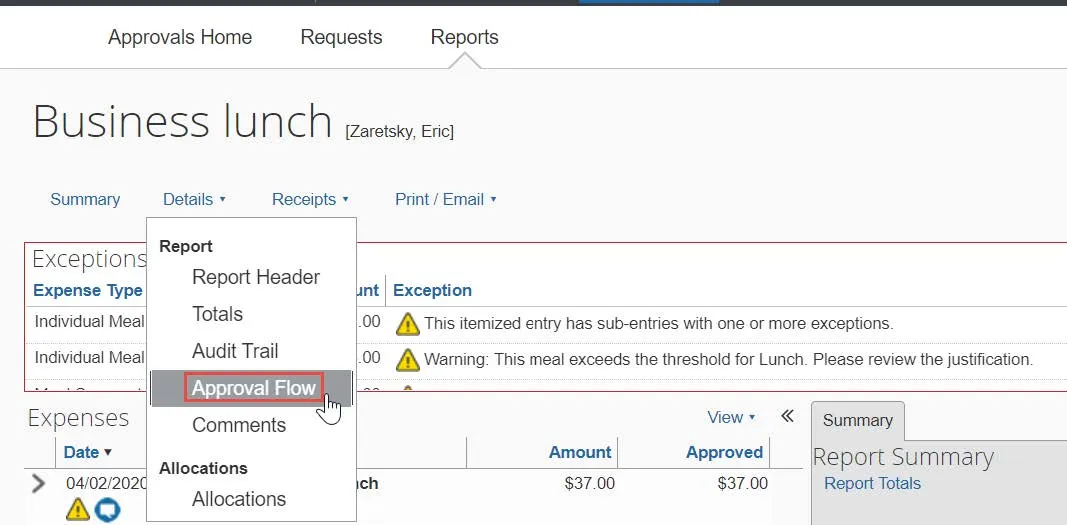
When reviewing an Expense Report, click the Details dropdown and select Approval Flow. The Approval Flow window appears.
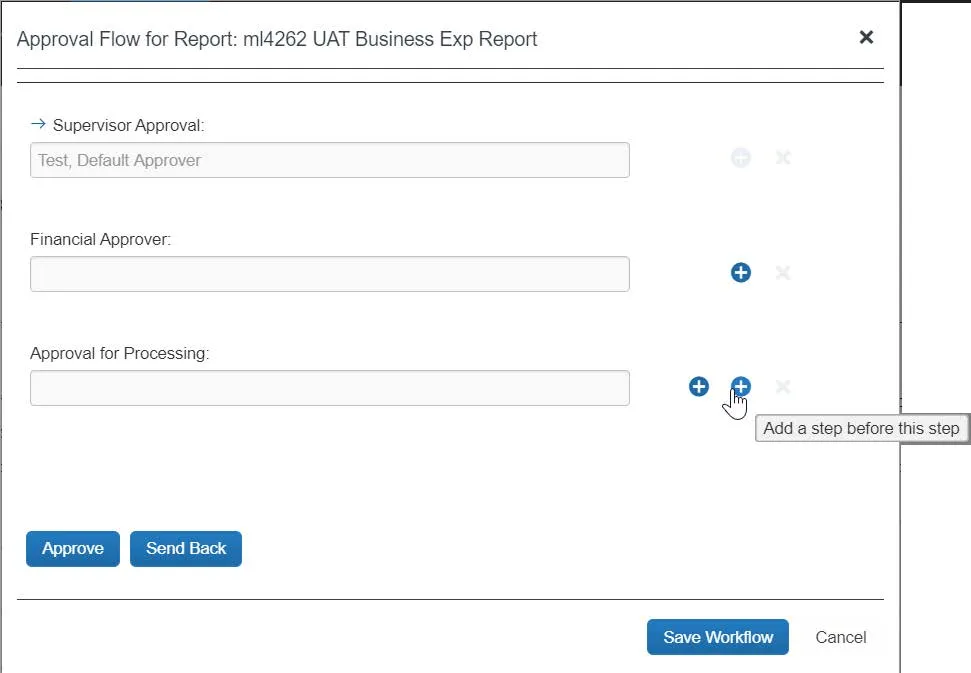
- Expand your Departmental approval level which displays your name. Click the desired blue Plus icon. The one on left is to insert the approver after the next step and the one on the right is to add before the next step. If you are a Financial Approver, you may want to add before the next step, otherwise you could be inserting after the Accounts Payable review.
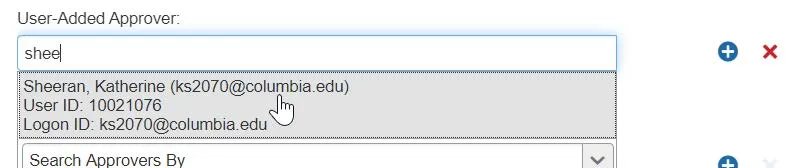
- Search and select the name of the ad-hoc approver you want to add in the User-Added Approver field. The name must already be setup in Concur with an Approval role in order for it to appear as the search result.
- Click Save Workflow.