Adding a Missing Receipt Declaration to a Concur Expense Item Job Aid
This job aid demonstrates how to add a Missing Receipt Declaration for those Expense Items missing required receipts along with any other supporting documentation that may be needed. Original receipts must be provided for all air, lodging, and rental car expenses.
For all other expense types, receipts must be provided if the expense is equal to or in excess of $50. Payee justification is required and a Missing Receipt Declaration must be added for Expense Items missing required receipts.
The Missing Receipt Declaration must be added by the payee and cannot be added by a preparer delegate or approver.
Last Revision: May 2026
Adding a Missing Receipt Declaration to a Concur Expense Item
- When viewing the Expense list in your Expense Report, where one or more Expense items are missing receipts, click the Manage Receipts drop down menu and select Missing Receipt Declaration.
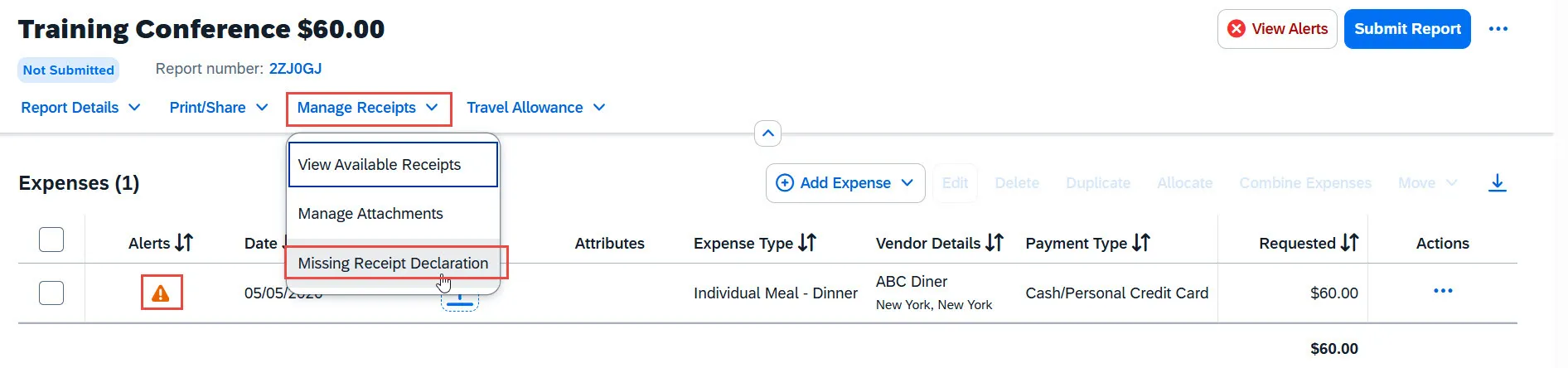
The Create Receipt Declaration appears.
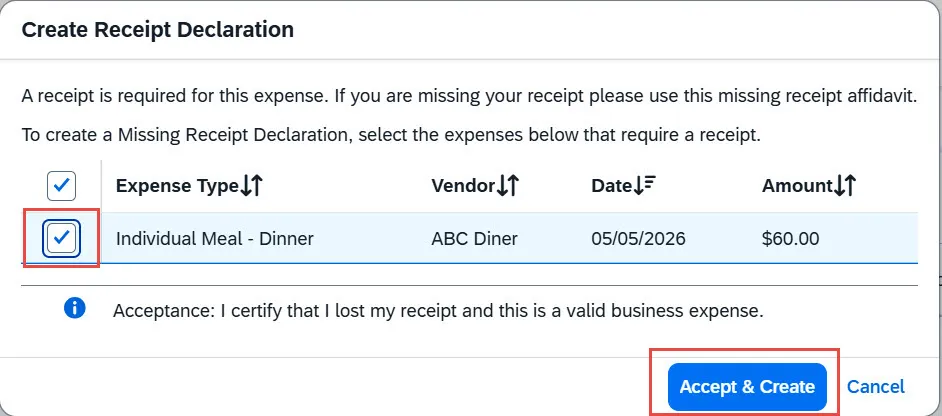
- Select the checkboxes for the Expense Items missing receipts and click Accept & Create. The Receipt column displays the Missing Receipt Declaration icon.
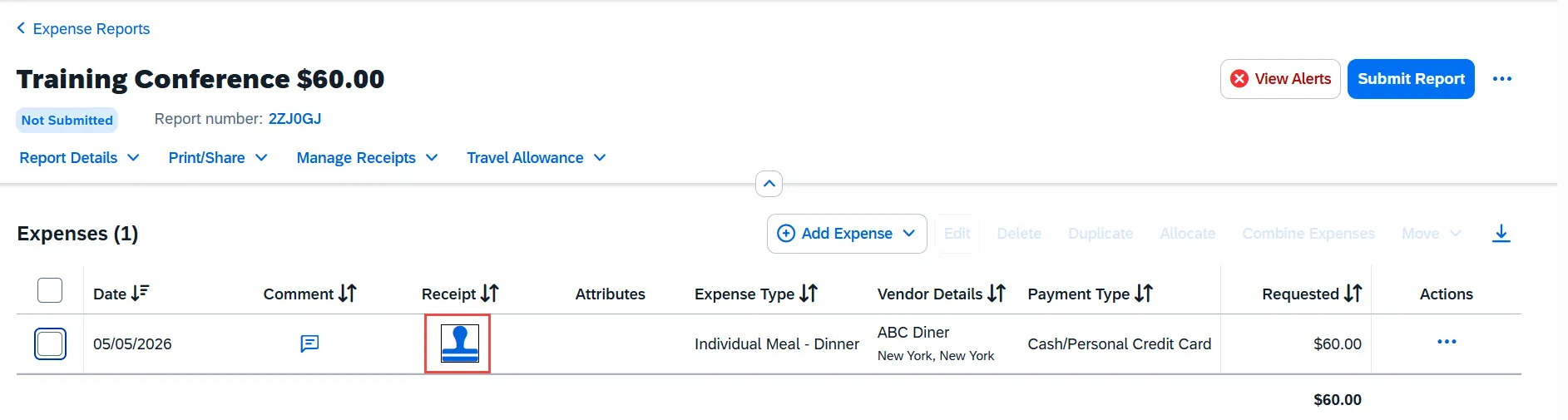
Adding Additional Documentation
If you added a Missing Receipt Declaration to an Expense Item, you cannot append any supporting or additional documentation that may be required or helpful (i.e., itineraries, conference programs, credit card receipts, etc.) to the Expense Item. Instead, you can add additional documentation at the Report level as follows:
- Click the Manage Receipts drop down menu and select Manage Attachments.
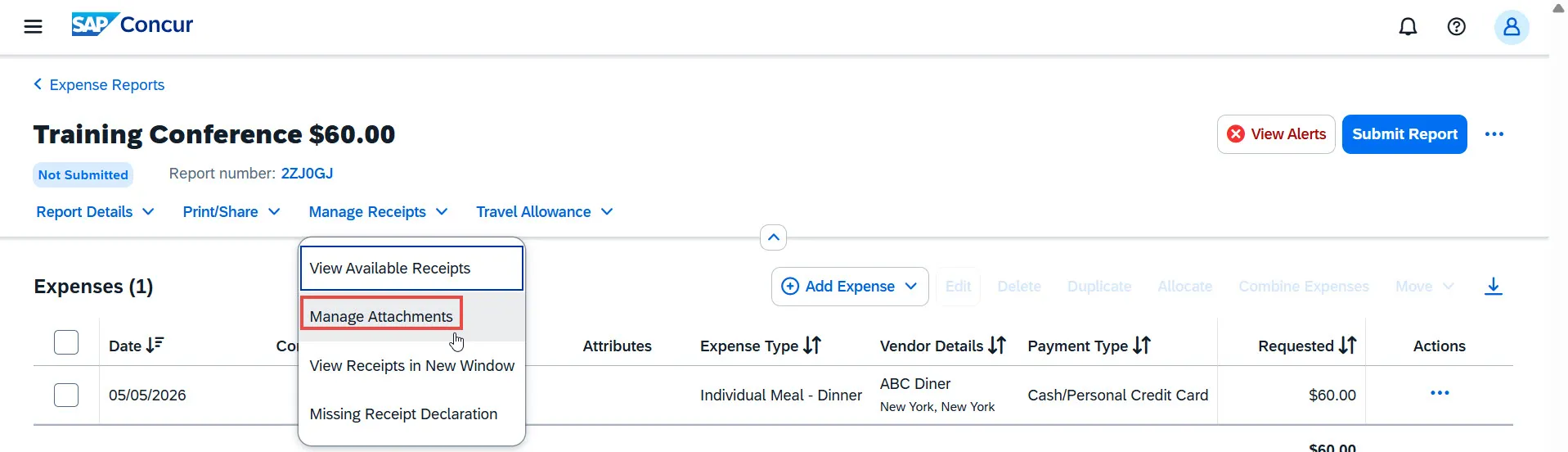
The Reports Attachment window appears displaying the Missing Receipt Declaration and any other receipts already attached to the Report.
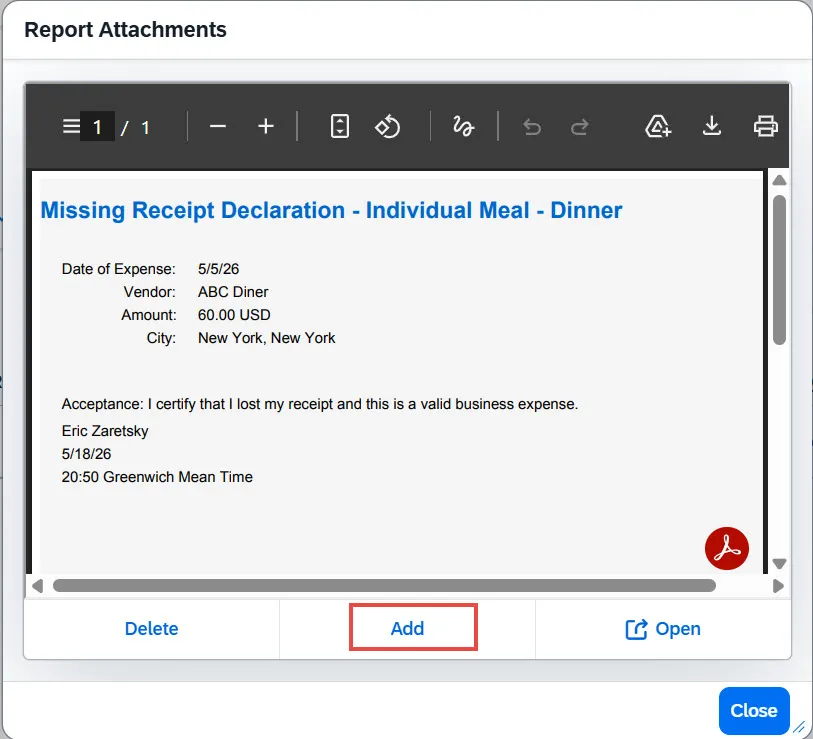
- Click Add. Your File Explorer window appears,
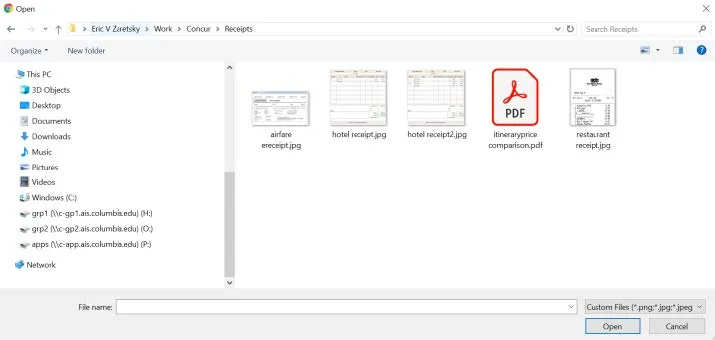
- Search and select the desired the document and the click Open. The document is added to the Receipt Viewer. You can click outside the Receipt Viewer to return to Expense Report Items.