APCAR Invoice Inquiry Reports
This job aid contains instructions on how to access and run reports for data from July 1999 through July 6, 2012 from the old APCAR system.
Last revision: January 2023
Prior to the implementation of ARC (Accounting and Report at Columbia), the University used a system called APCAR for accounts payable transactions. This job aid provides guidance on how to access and run reports for data from July 1999 through July 6, 2012 from the old APCAR system.
Topics
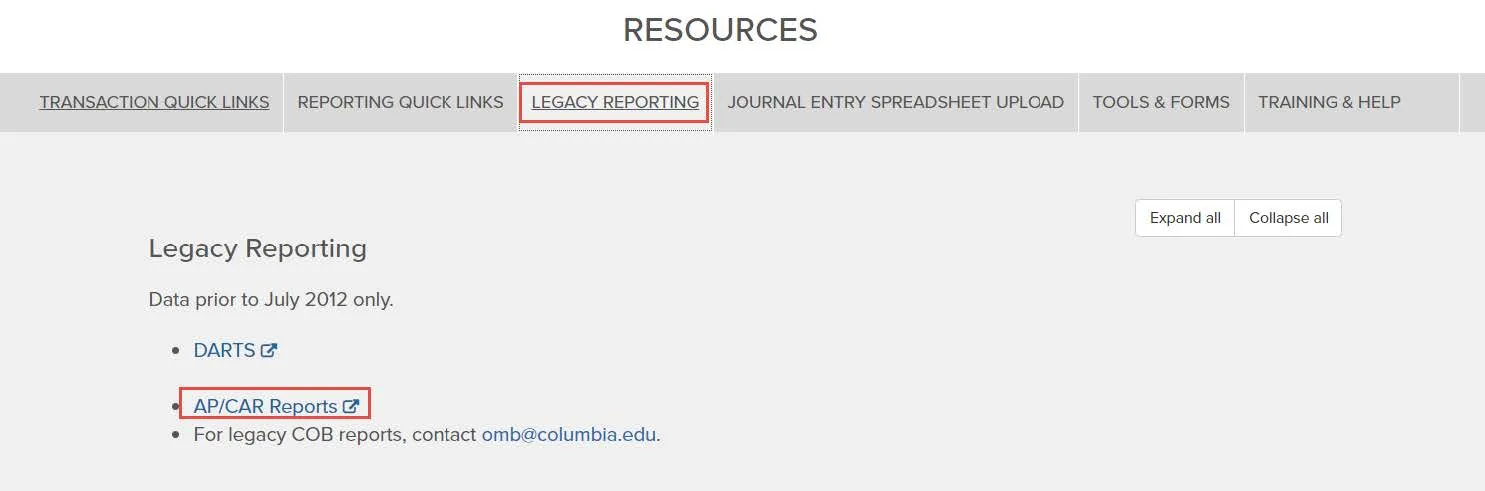
- Navigate to the ARC Portal on My.Columbia.edu.
- Scroll down to Resources and click the Legacy Reporting tab.
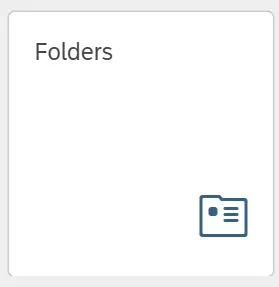
- Click the Folders tile. The Folder tree structure is displayed.
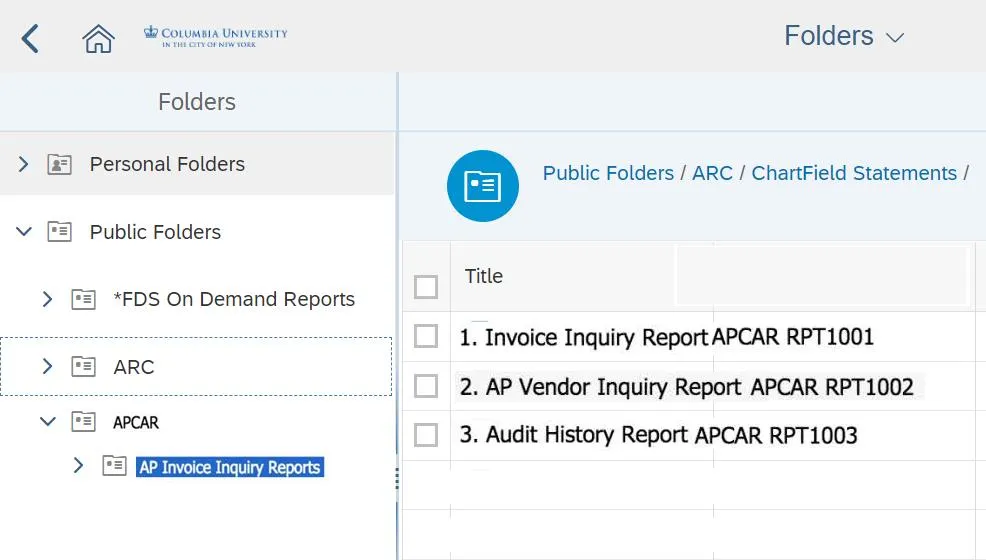
- Expand the APCAR folder and select the AP Invoice Inquiry Reports sub-folder. The Following Reports are available:
- Invoice Inquiry Report: use when you have a vendor number, or AVN number, or other such information.
- AP Vendor Inquiry Report: use when you only know the vendor name and have no other information.
- Audit History Report: use when you need to know historical information about the processing of a voucher, e.g., who processed the voucher and when.
- Click on any of the reports to run.
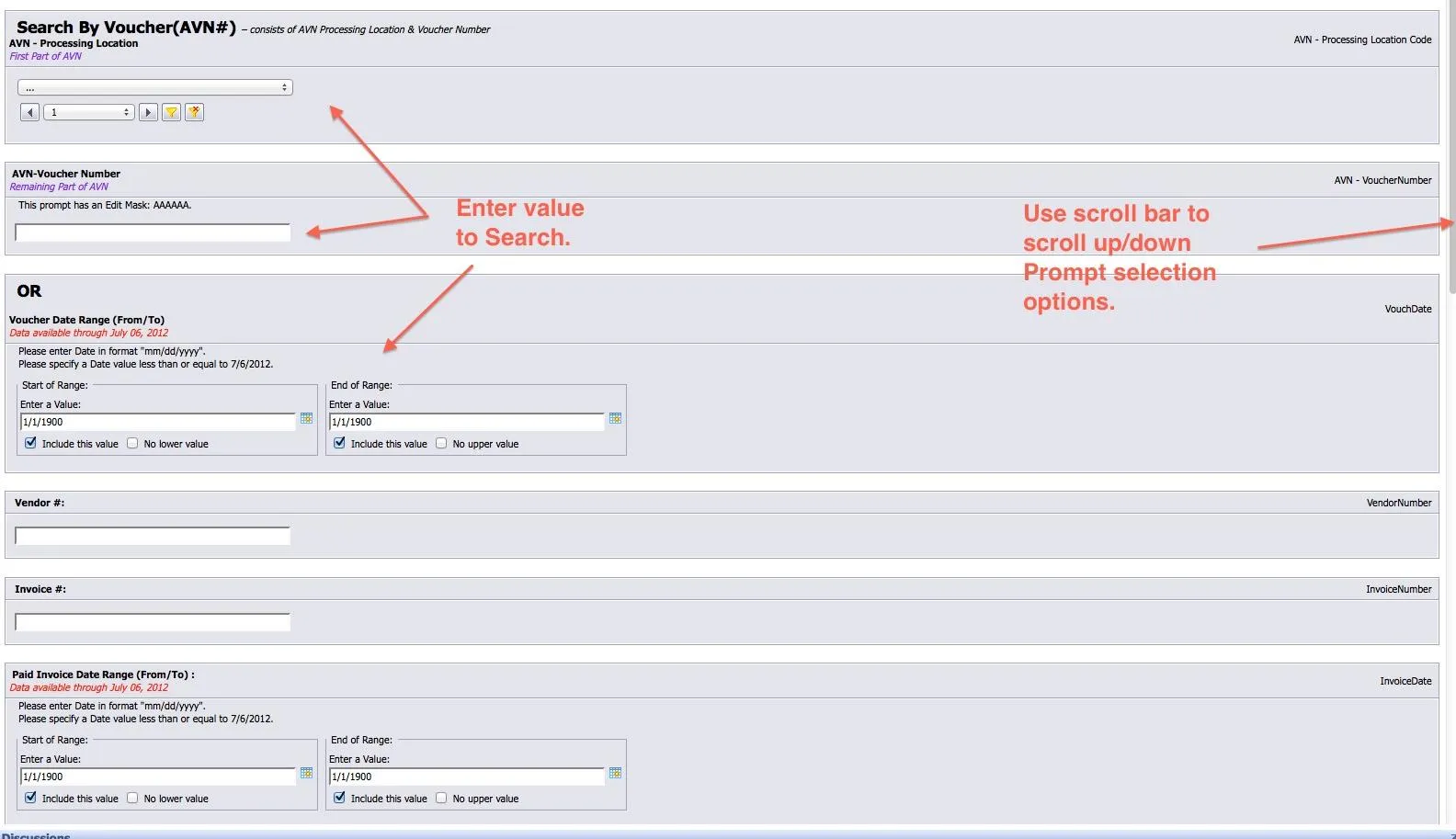
In the APCAR Invoice Inquiry parameter screen, you can search by Voucher (AVN#) or Voucher Date Range and any additional information you may have (vendor number, invoice number).
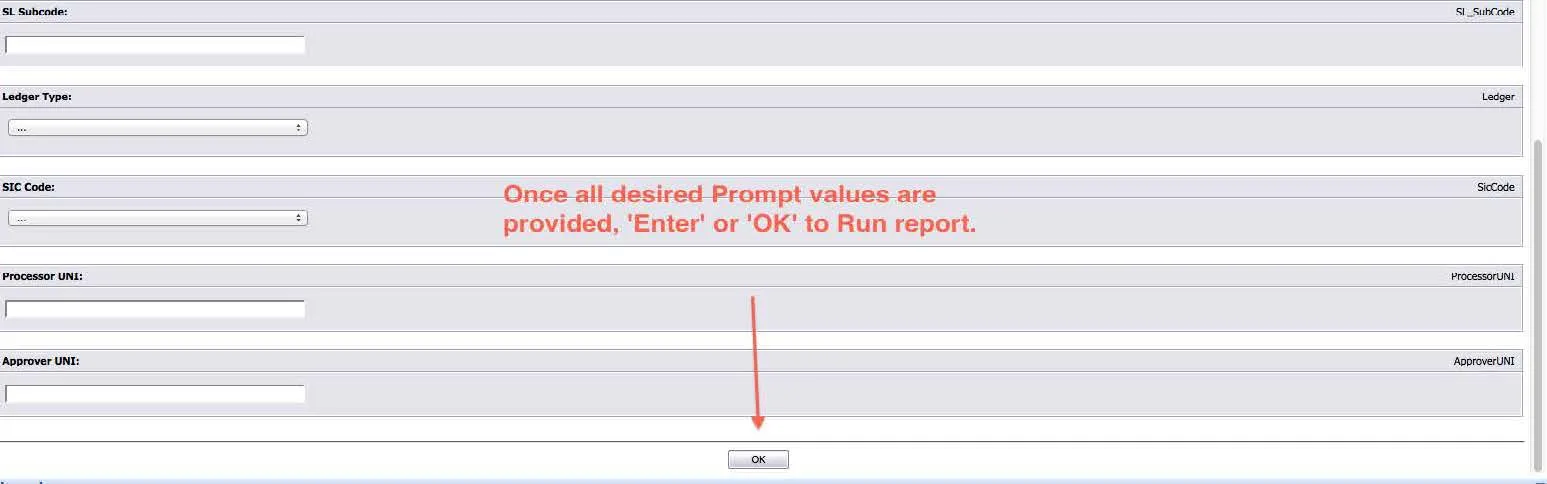
After entering all desired report parameters, click OK to run the report.
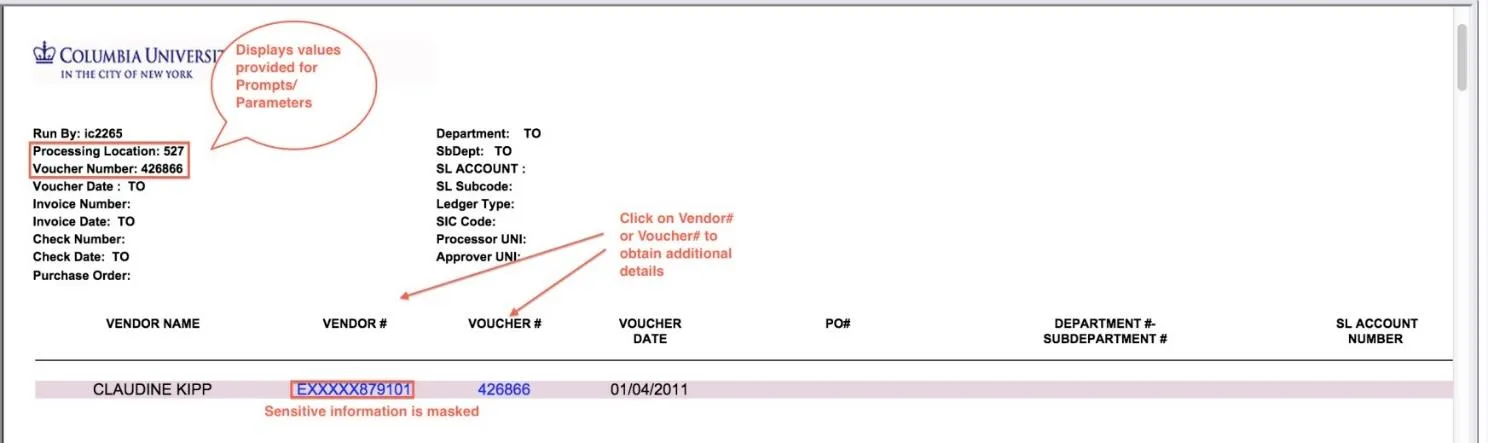
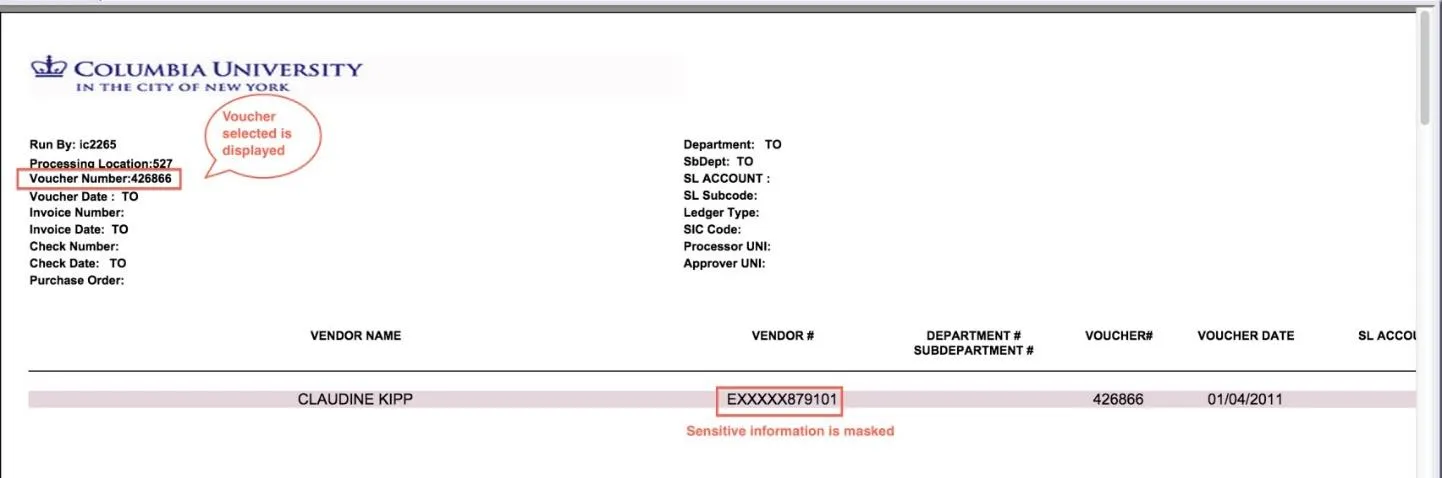
The the APCAR Invoice Inquiry Summary report appears. To obtain additional details you can click either the Vendor # or Voucher #.
For additional invoice details, click the Vendor #. Sensitive information is NOT displayed in the header section.
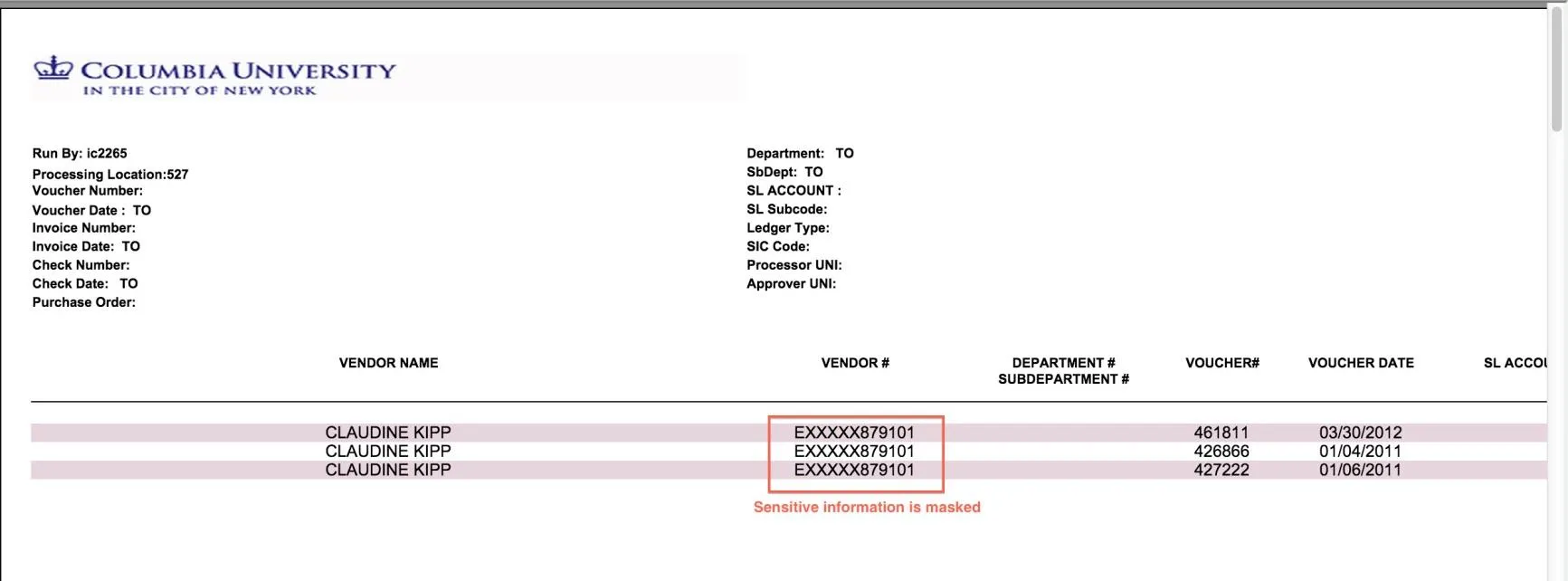
Click the Voucher Number for additional details.
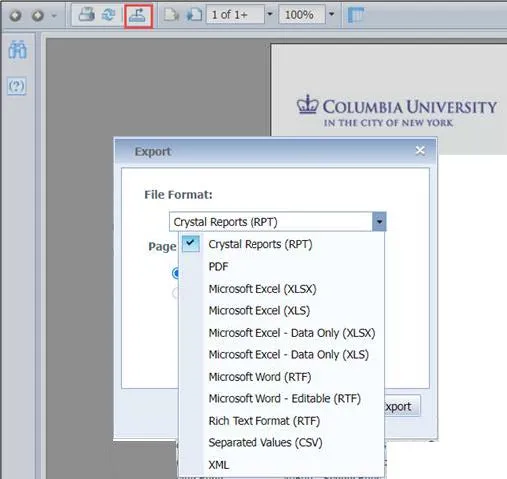
Click the Export icon to export the report to the desired format.