Applying for Temporary Concur Access as an Affiliate
This job aid details the steps on how Affiliates can apply for temporary Concur access. Affiliates can submit a Financial Systems Security Application (FSSA) to obtain Concur access for a maximum period of one year. Affiliates must submit a new FSSA to renew their Concur access after access period has expired.
Affiliates must already be setup with an outside party Vendor profile in order to obtain temporary access to Concur. Refer to the Vendor Management page on the Finance website.
Last Revision: October 2024
Submitting an FSSA for Temporary Concur Access
-
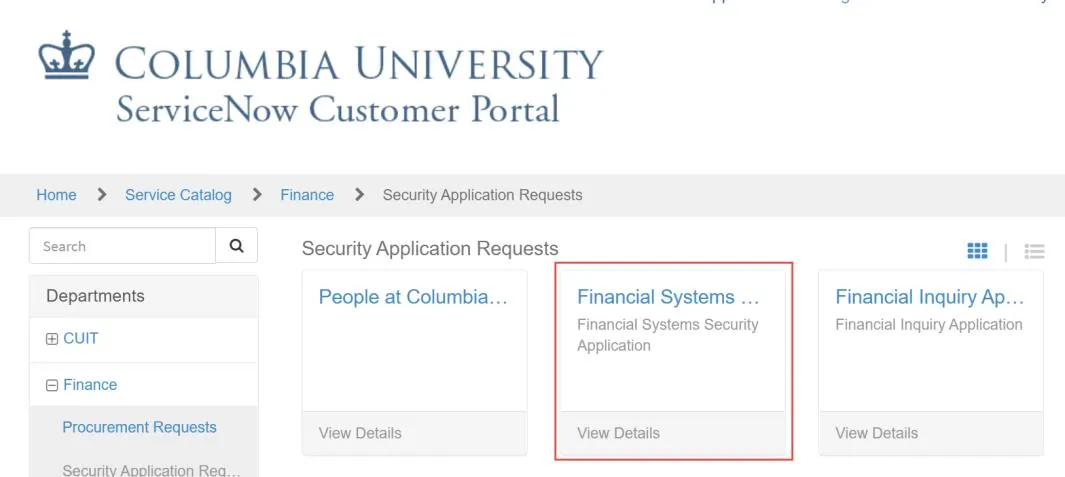
Navigate to https://columbia.service-now.com/ and select Financial Systems Security Application (FSSA).
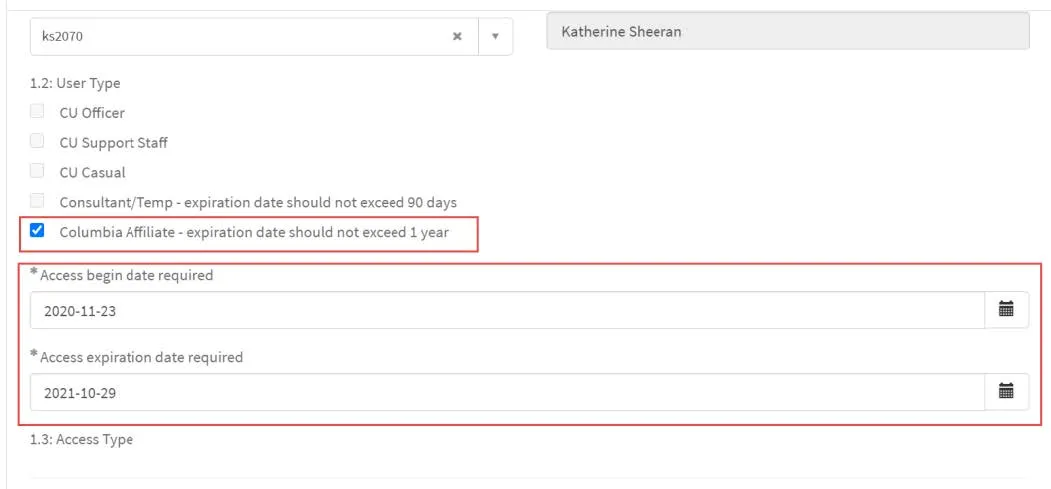
- Complete all the required fields designated with an * in the Section 1: User Information section.
- Select Columbia Affiliate for the User Type.
- Select the Access begin date required and Access expiration date required for a period no longer than one year.
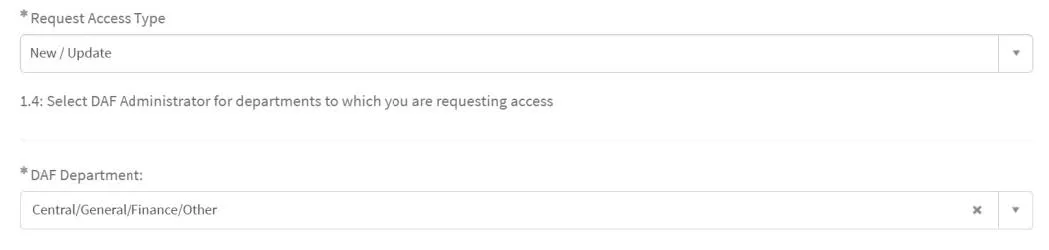
- Indicate the Access Type (New/Update or Replace) and the DAF Department.
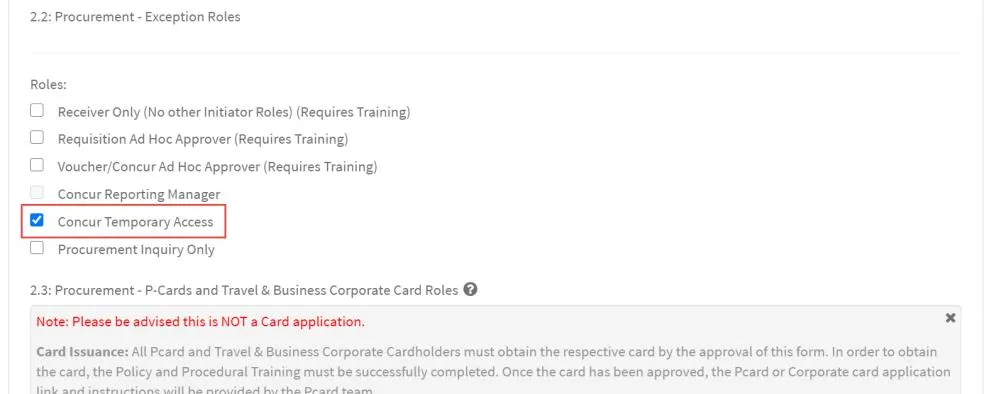
- Scroll to the 2.2 Procurement – Exception Roles section and select Concur Temporary Access.
Note: No other roles are required for Concur Temporary Access but you can apply for ARC or other procurement roles on the same application, if needed. The field for Admin Department appears above the Roles options and the Concur Role Type and Vendor ID fields appear below.
- Type to search and select the Admin Department from the dropdown.

- Select the desired Concur Role Type, Expense Only or Travel Expense from the dropdown.

If the Affiliate is a registered as a Vendor, enter the Vendor ID, otherwise leave this field blank. You can use the Vendor Lookup tool to find Vendors and their Vendor ID.

- Select the User Acceptance check box and click Order Now.