Budget Tool Enhancements for December 2018
This job aid describes enhancements to the Budget Tool effective December 2018.
Last Revision: December 2018
Direct Activity Layout Changes
The Direct Activity Report has been changed to provide a more modern look and feel. Notable changes include columns for different quarters and updated amounts highlighted in green.
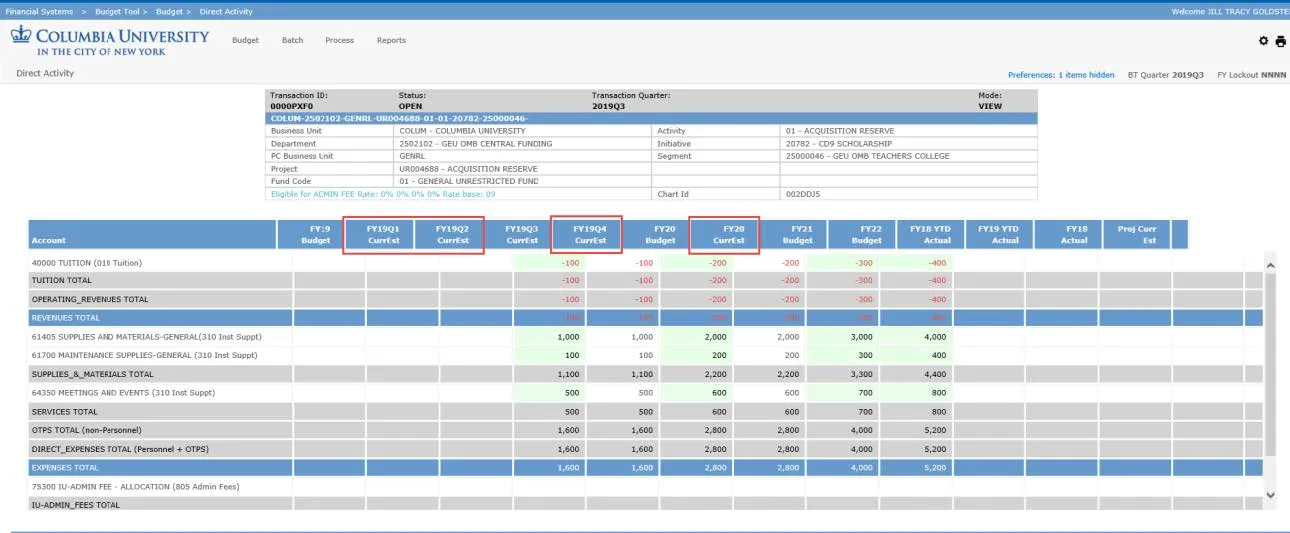
After you log into the Budget Tool the Current User Quarter displays the quarter you are assigned.
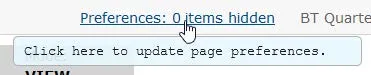
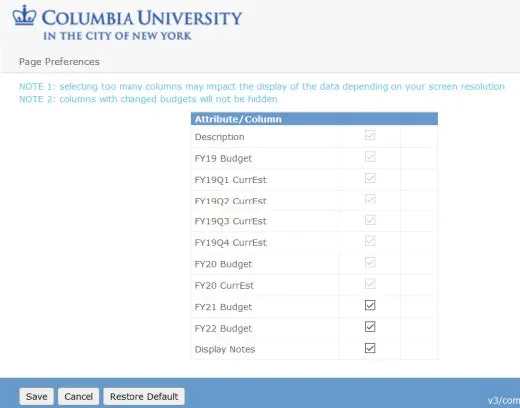
- On any budget screen, click the Preferences link from the top right to select to display or hide attributes or columns. The Page Preferences screen appears.
- Select or de-select Attribute/Columns to display or hide then click Save or click Restore Default.
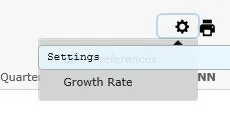
- Click on the Settings icon and Growth Rate from the top right of the screen to calculate growth rates to grow your budgets for future periods.
-
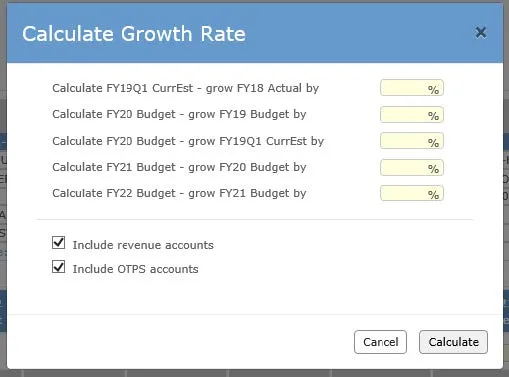
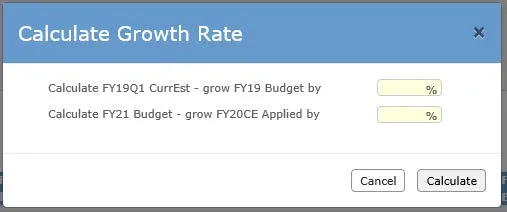
Enter the desired Percentages and click Calculate.
The Calculate Growth Rate screen appears.
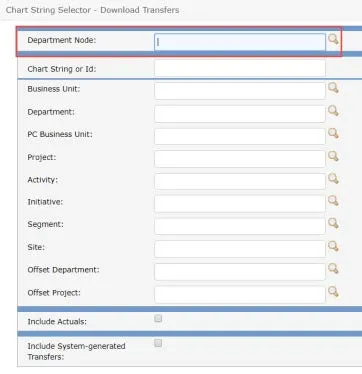
When downloading via Batch, the Chart String Selector screen displays the Department Node as query option for Direct Activity or Transfers.
Select Batch > Download Direct Activity or Download Transfers.
You have access to new buttons (highlighted above) with functionality described below.
Viewing Required Approvals and Approvers
1. Select the check box for the Worklist item
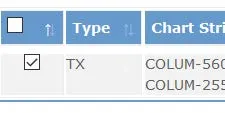
- Click the Approvers button from the bottom of the screen. The Required Approval screen appears
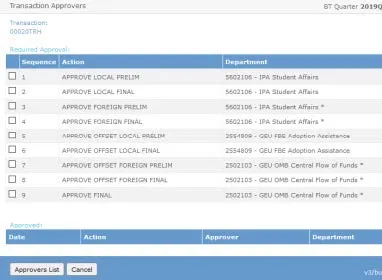
- Select the check box for the Required Approval item.
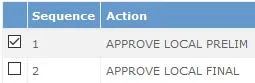
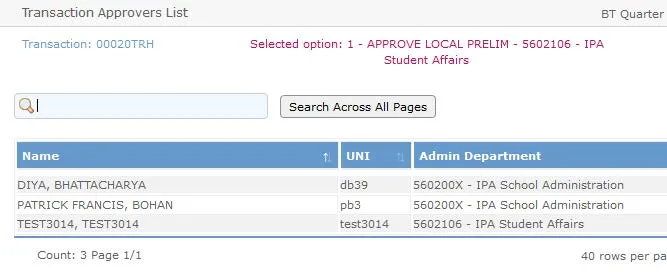
- Click the Approvers List button. The list of approvers for the required approval appears.
Adding Notes
- Select the check box for the Worklist item.
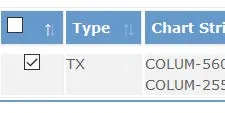
- Click the Notes button from the bottom of the screen.
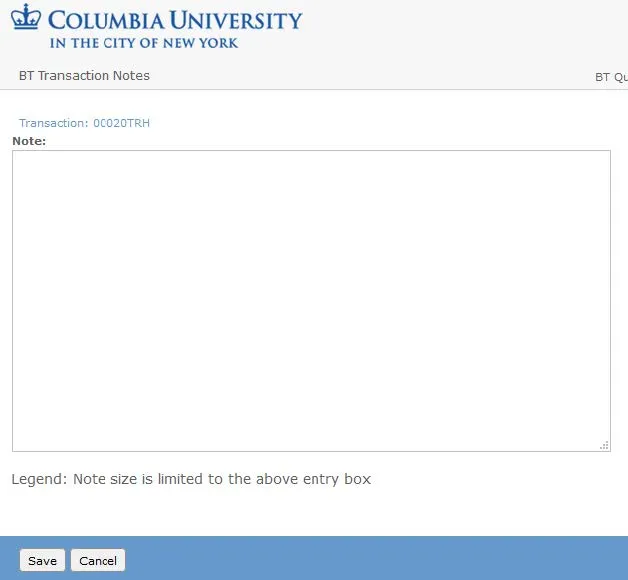
- Click the Add button from the bottom of the screen. The Note screen appears.
-
Type your notes and click the Save button. Once a note has been saved, the Notes column will display a “Y”.
Viewing Upcoming Budget Change Details
- Select the check box for the Worklist item.
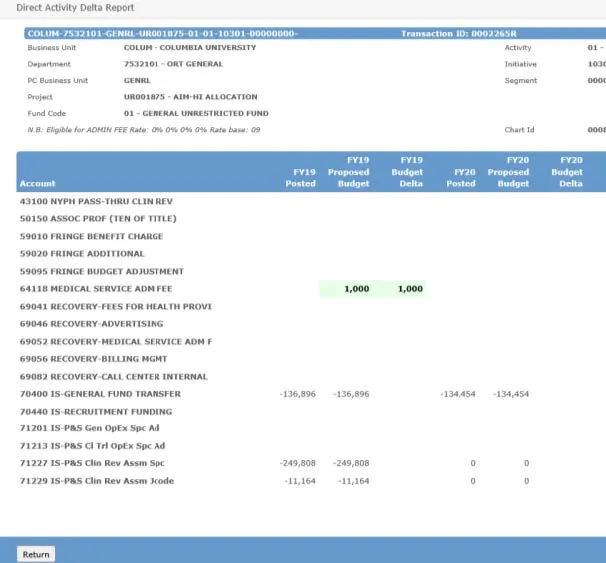
- Click the Delta Report button from the bottom of the screen. The Delta Report screen appears. Items highlighted in green are changes posted by fiscal year.
Viewing Historical Budget Change Details
- Select the check box for the Worklist item.
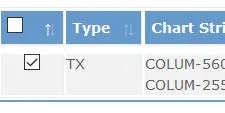
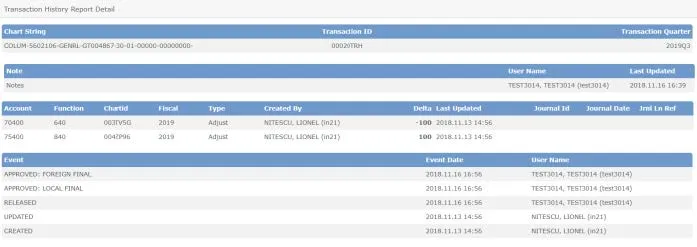
- Click the History Report button from the bottom of the screen. The Transaction History Report screen appears which displays a list of transactions.
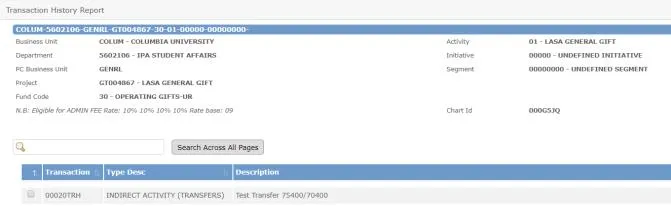
- Select the check box for the Transaction item.
- Click the Display Detail button at the bottom of the screen. The Transaction History Report Detail screen appears.