Concur Travel Arranger Quick Guide
This Quick Guide reviews the basics of booking travel for a guest in Concur. It covers creating a guest profile, booking travel items, and how to book for the same traveler again at a later date.
Details
- From the Travel & Expense website, Log into Concur.
- If this is the first time you are booking travel for an individual, navigate to Travel Home and click the Book for a guest link.
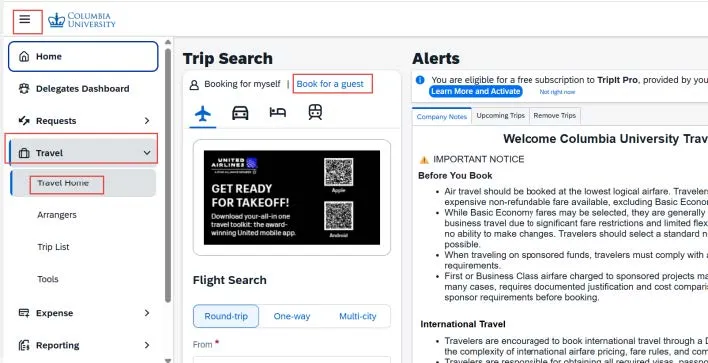
The Create Guest Profile window appears.
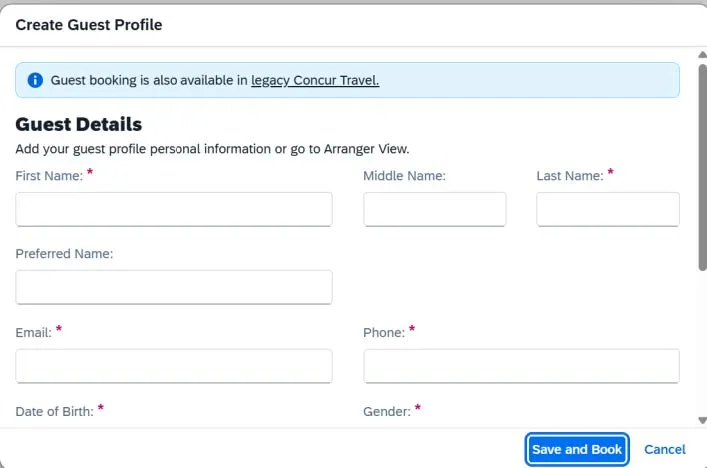
3. Complete the Guest Details required fields.
4. When you complete a guest profile, you can save the profile so you can book travel for the guest in the future. The Expiration Date for the profile defaults to six months. To set a different expiration, enter the date in the Expiration Date field.
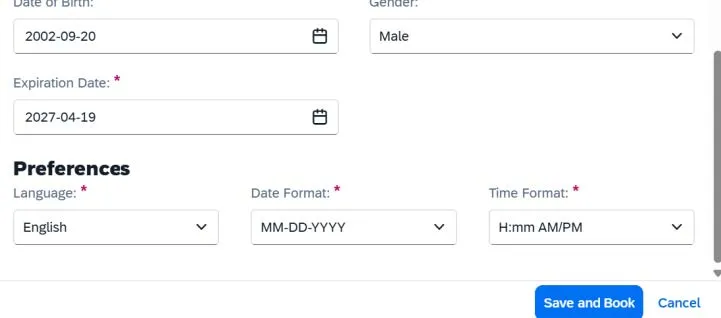
5. You can set the guest's Preferences for Language, Date Format, and Time Format.
6. Click Save and Book. The Plan a Trip window appears for you to select the travel types you are booking.
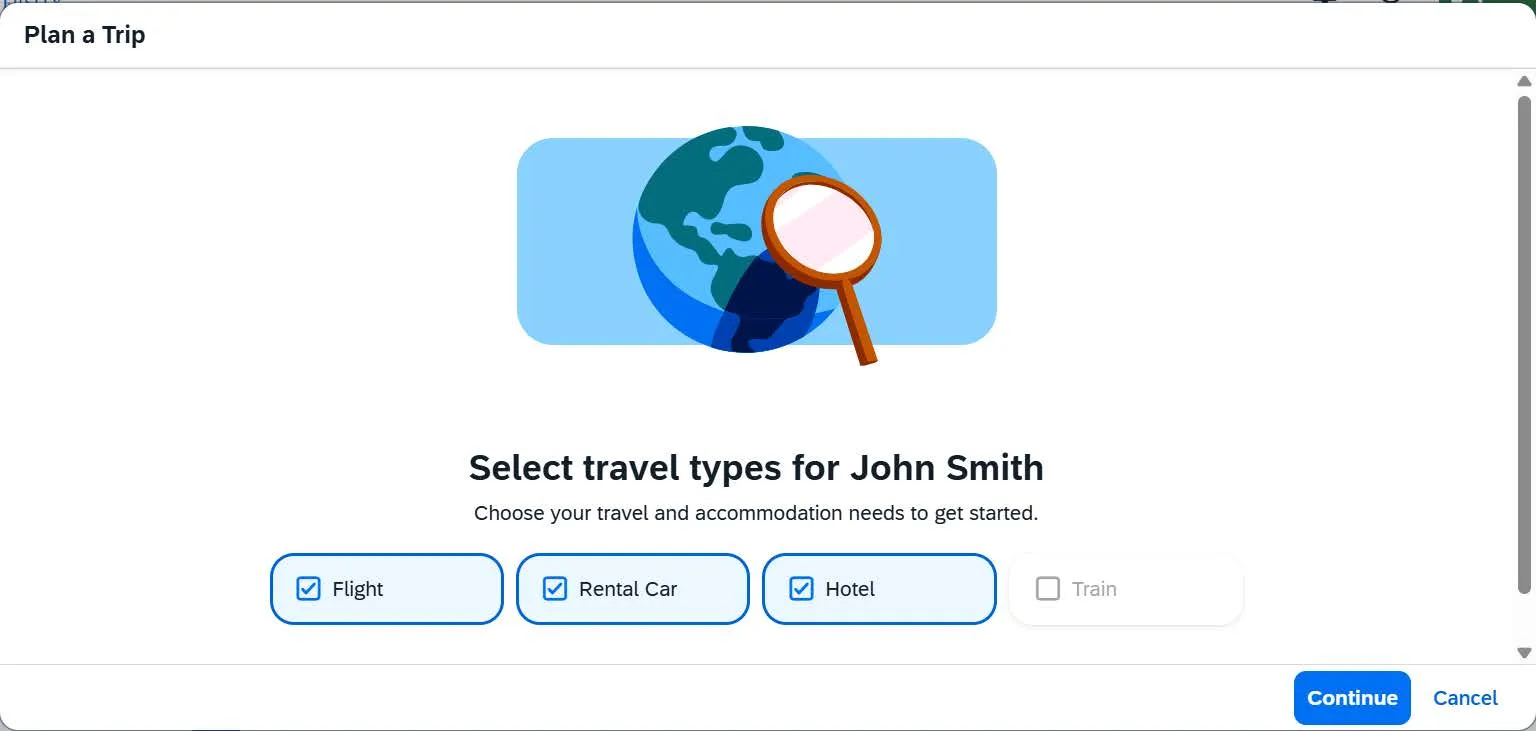
7. Select the Travel Types you are booking for your guest and click the Continue button. The Trip Planning screen appears. Notice that you are Acting as the Guest in the upper right corner.
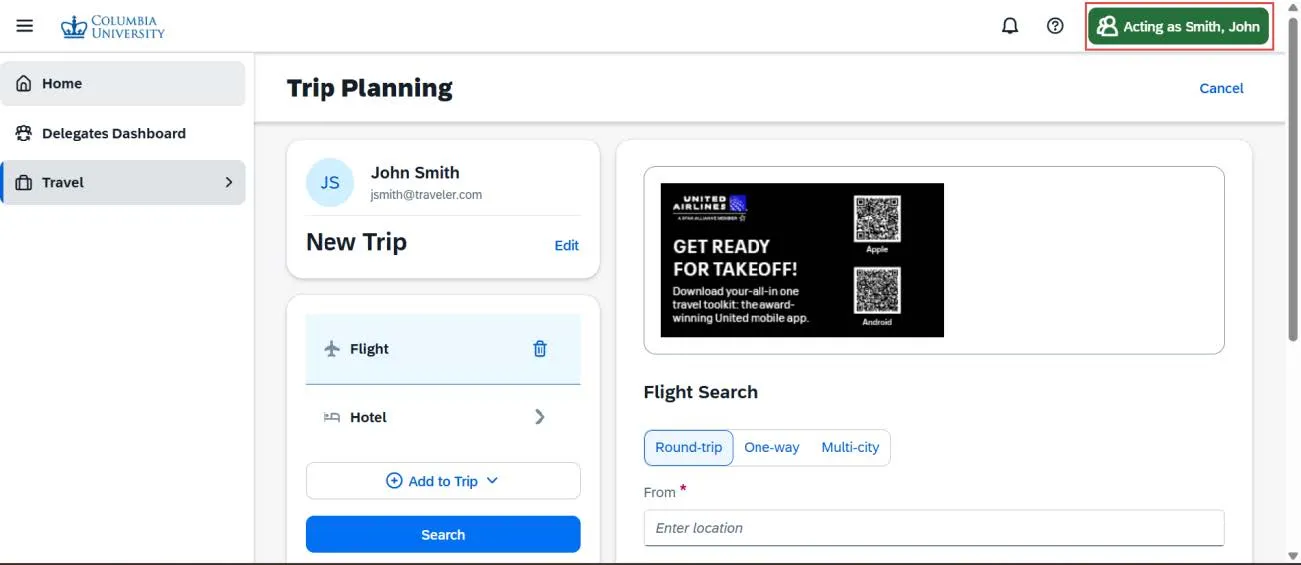
8. Search and book the travel items for the guest. After you select each travel type, the Review and Book screen appears.
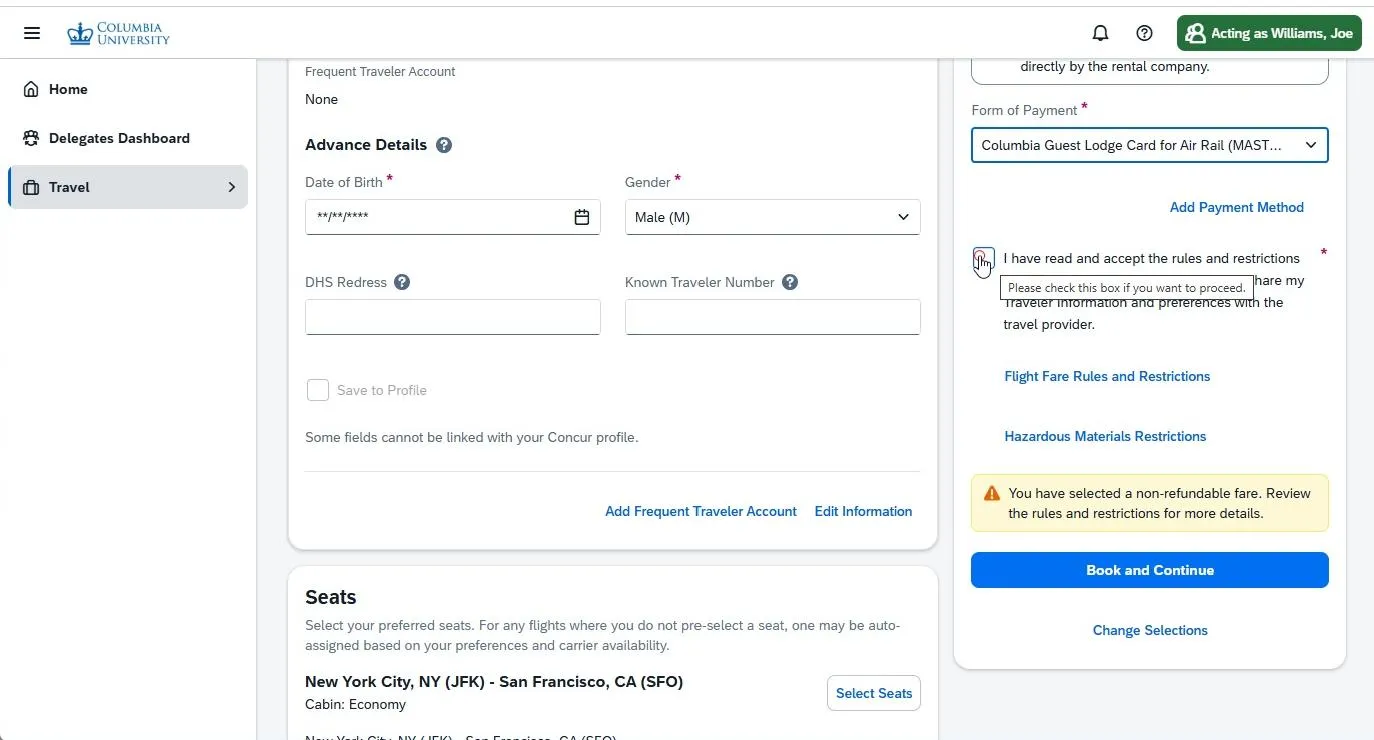
When booking a Flight, you can select the Air/Rail Central Pay mechanism to pay for the guest’s flight, or you can add the guest’s personal credit card as a payment option.
You can enter DHS Redress and TSA Known Traveler Numbers, and add Frequent Traveler Accounts for the Guest in their Profile.
When booking Hotels or Rental Cars, you can use your Travel and Expense Corporate Card, if you have one, or you can use the guest's personal card.
Note: The Travel and Expense Corporate Card is used to hold a reservation. The guest must present their personal card at check-in.
If you want to pay for a guest’s hotel room with your Corporate Card, contact the hotel to set up direct billing. The guest is required to pay for any incidental hotel expenses associated with their stay.
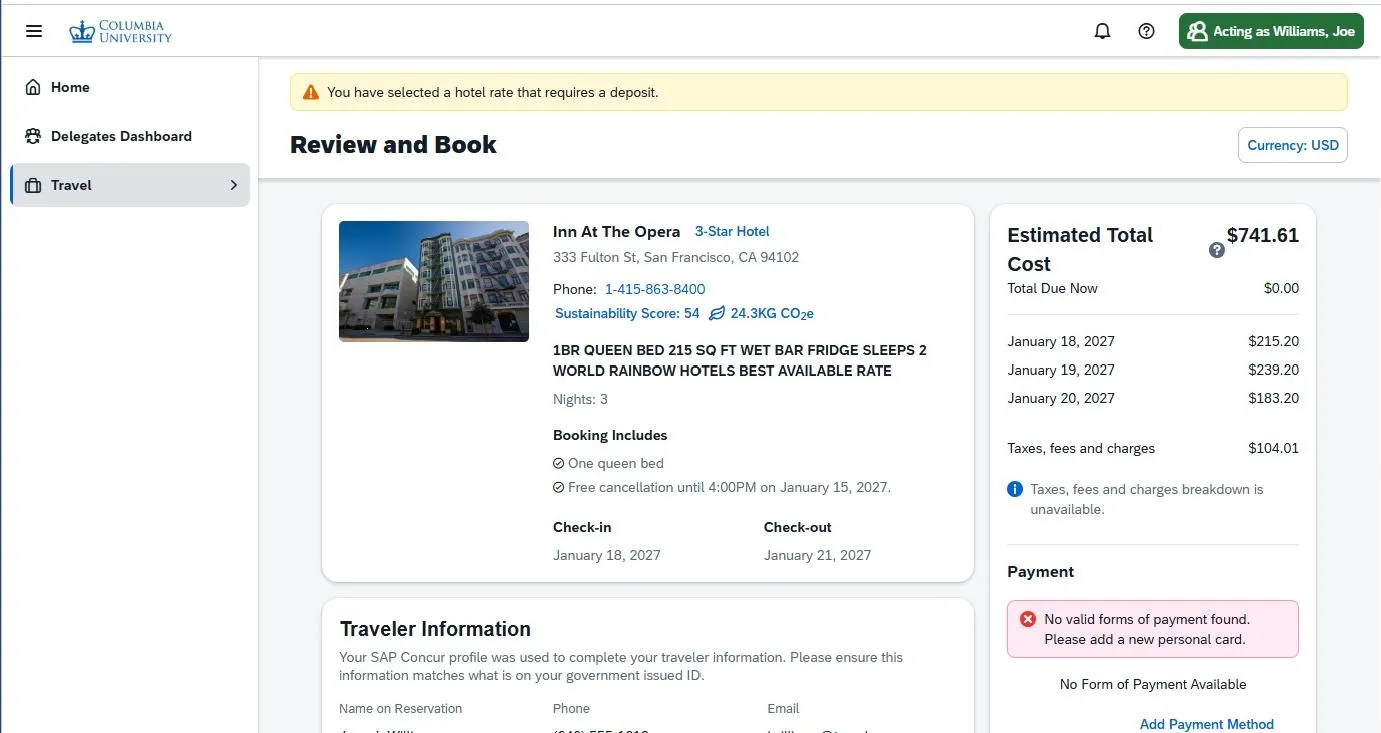
After completing any additional details and selecting a payment method for each travel type you are booking, click the Book and Continue button on each Review and Book screen.
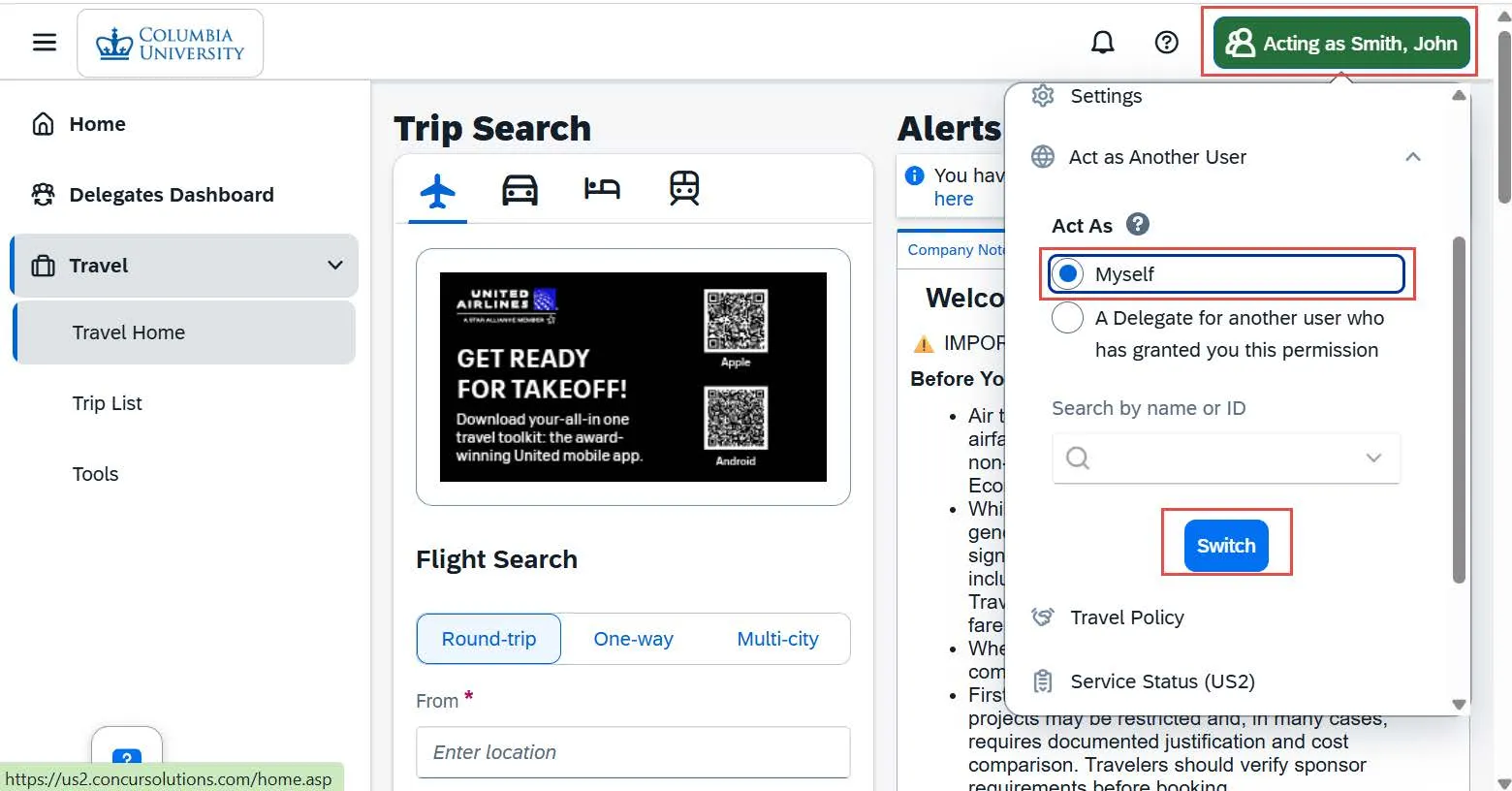
After booking travel for a guest for the first time, to resume working as yourself, click the Acting as button, select Myself, and click Switch.
If you need to book for the guest again in the future, they will be available in your delegate list for the period you initially indicated on their guest profile.
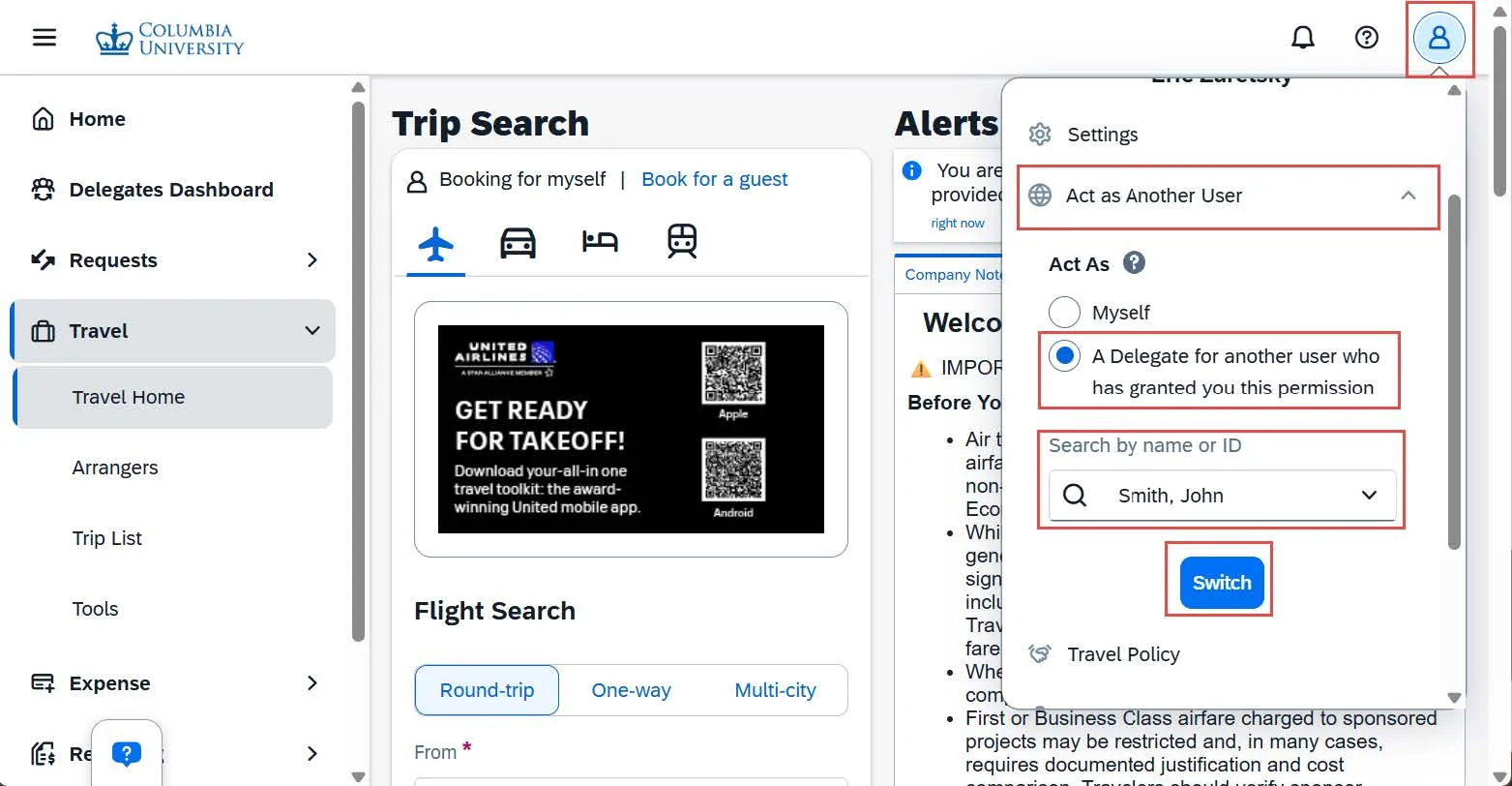
1. Click the Profile icon in the upper right corner.
2. Select Act as another user.
3. Select the Act as a delegate for another user option.
4. Click in the Search field to display your delegate list and select the name of the guest from the list.
5. Click the Switch button.
The green Acting as button indicates that you are booking for the guest.