Concur Travel Quick Guide
This Quick Guide details the payment methods you can use to book and purchase travel using Concur or Direct Travel (DT), how to use Concur to book and purchase travel, and how to create an Expense Report for reconciliation or reimbursement.
For more detailed instruction, please refer to the Concur Travel and Expense Training.
To learn how the Concur App and other mobile tools can assist with travel and expense management, visit the Mobile Tools section of the Travel and Expense Portal.
Last Revision: August 2026
Topics
When making business travel-related purchases through Concur Travel or over the phone via Direct Travel (DT) Travel Counselors, you can use different payment methods depending on the type of travel product you are booking and your role. In some cases, University policy will determine which payment method(s) can be used. The tables below will help you determine the best way to pay.
A Travel Arranger has the ability to book travel for guests of the University. Only identified Travel Arrangers may book and pay for Group Travel through Direct Travel. See Group Travel for more information. If you are purchasing travel in your role as a Travel Arranger, please reference the table below:
Note: Travel Arrangers can book travel on behalf of students. If needed, students can be opted-into Concur by DAF’s in order to book their own travel. Prior to booking, students that book their own travel must submit a Pre-Trip Request in Concur. Refer to the Submitting a Pre-Trip Request video.
Concur Travel utilizes a user friendly, familiar interface similar to other consumer online booking tools for purchasing airfare, reserving hotels, and booking rental cars. Purchases are fulfilled by Direct Travel (DT). When you use Concur or DT, your travel purchases are integrated with Concur Expense so you can easily create Expense Reports.
For complete instructions on how to book flights, hotels, and car rentals in Concur Travel, visit the videos for Using Concur Travel to Purchase Domestic Air or Hotel and Rental Car or Using Concur Travel to Purchase International Air, Hotel, and Rental Car. If you have access to the Concur Travel module, you can assign a Travel Delegate in your Profile Settings to book travel on your behalf. Please reference the Job Aid: Managing Delegates for more information.
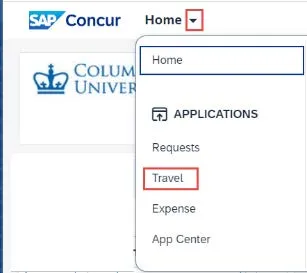
- Navigate to the Travel and Expense website to log into Concur. Click the Home dropdown and select Expense.
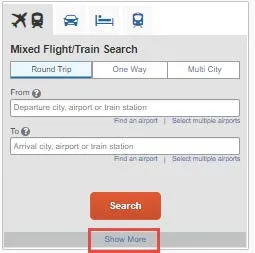
- Click Show More in the Search section. The Search panel expands to display additional fields for departure times and additional options for adding rental car, hotels and other details in the search.
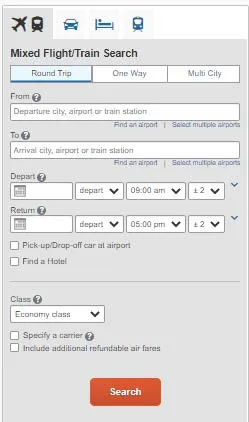
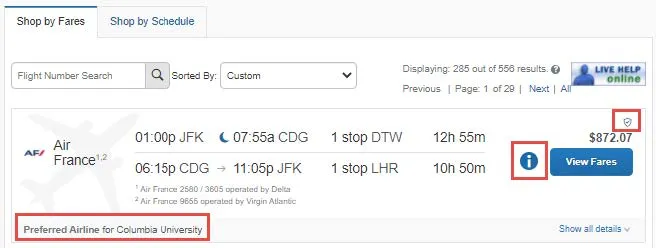
- Enter your travel preferences and click Search. Search results will display matching results, indicate preferred travel providers, and show alerts that indicate if items conform to University policies.
- After selecting the desired travel item, review the details and select How would you like to pay? before reserving.
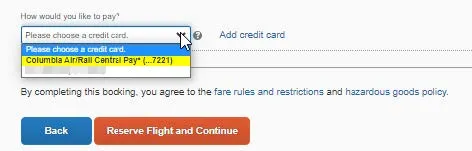
After returning from your trip, create and submit an Expense Report in Concur to reconcile any expenses made using the Columbia Air/Rail Central Pay or the Travel and Expense Corporate Card or to get reimbursed for expenses you incurred using your personal credit card or cash. For more detailed instruction, please refer to the Creating Expense Reports in Concur job aid. For Expense Type examples, please refer to the Concur Travel and Expense Training. For expensing and itemizing Hotel/Lodging expenses, refer to the Itemizing Hotel/Lodging in a Travel Expense Report in Concur job aid.
You can also assign a Delegate to prepare Expense Reports on your behalf. Please reference the Job Aid: Managing Delegates for more information.
Navigate to the Travel and Expense website to log into Concur. Click the Home dropdown and select Expense. The Manage Expenses screen displays Active Expense Reports and the Available Expenses list displays any transactions from the Columbia Air / Rail Central Pay and the Travel and Expense Corporate Card.
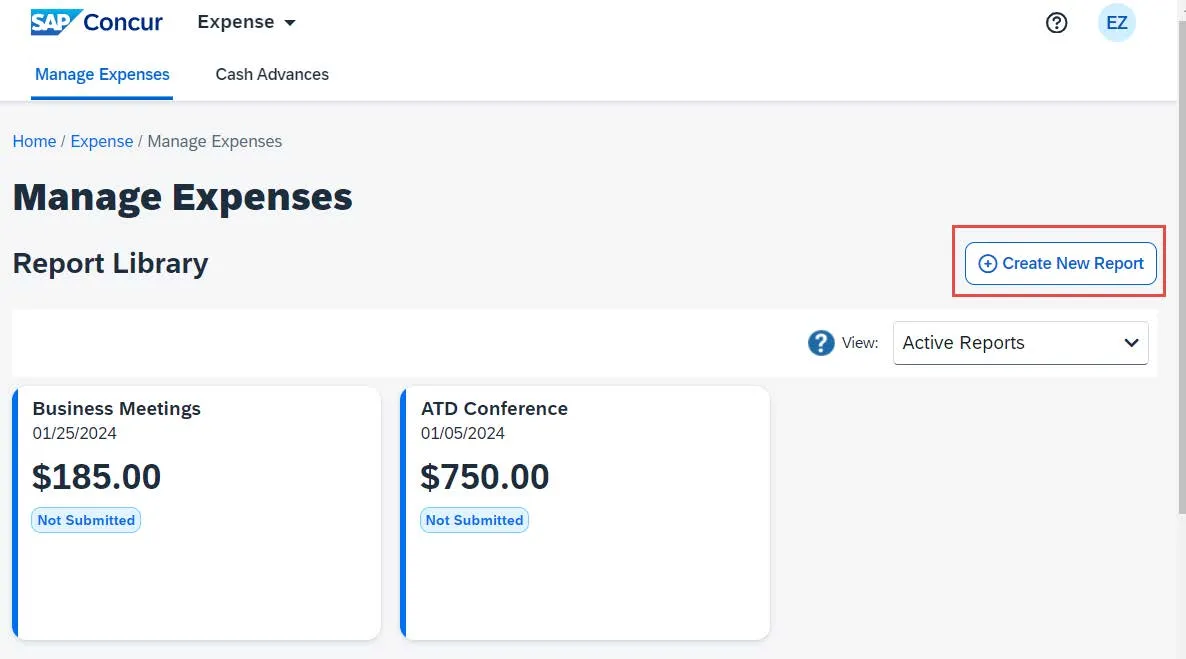
- Select the items from Available Expenses to move to a new or existing Expense Report.
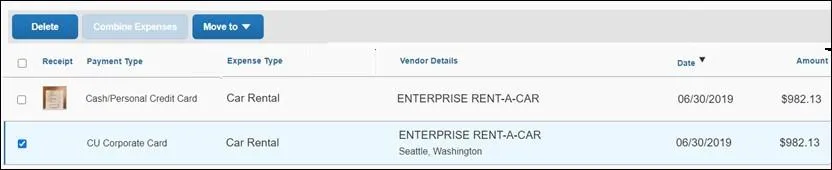
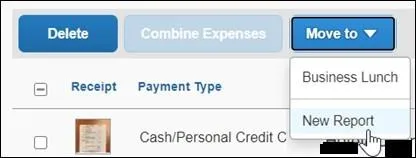
- Click the Move to dropdown and select to add the transaction to an unsubmitted Expense Report or to a New Report.
- Complete your Expense Report. Attach any required receipts, proof of payment, or supporting documentation.
- After you complete your Expense Report, click Submit Report and Accept & Continue.