Converting a Non-PO Voucher to a PO Voucher and Editing PO Lines
This job aid details the steps for submitting a Supplier invoice for processing by APIA and how Procurement Initiators access, review, and validate Invoice Vouchers.
Last Revision: November 2026
Details
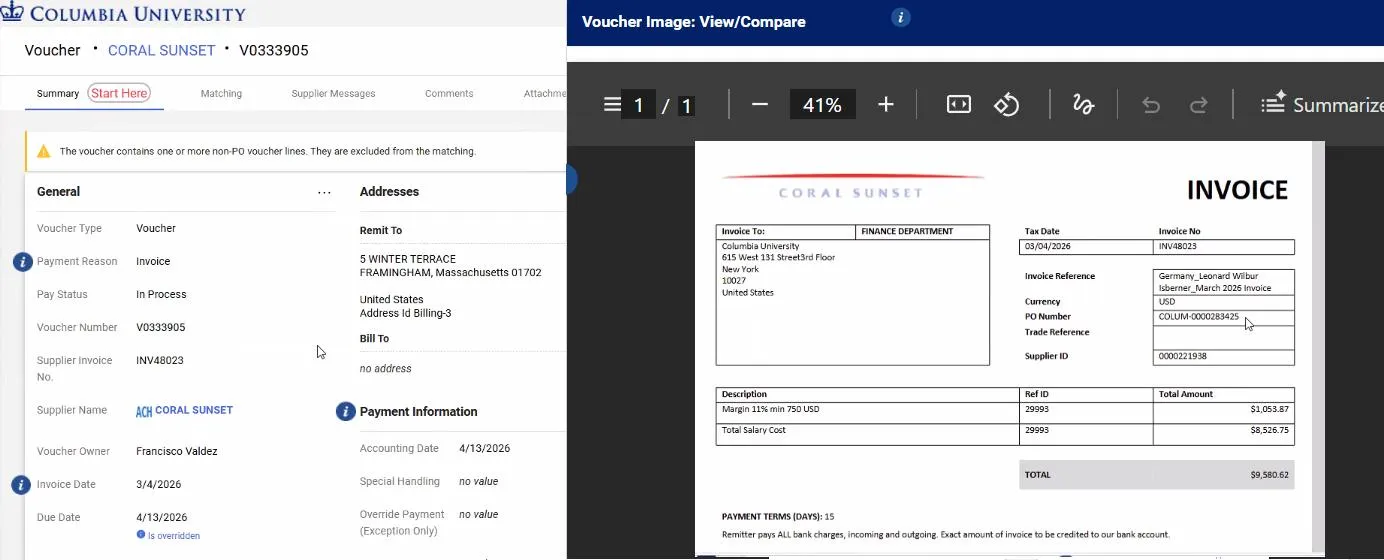
Assign the Voucher to yourself and view the invoice. If the invoice is associated with a Purchase Order, it should have the Purchase Order number indicated but it may not have been correctly entered on the invoice. If so, the Voucher may appear as a Non-PO Voucher. If you determine that you need to associate the Voucher with a Purchase Order, follow the steps below:
1. Click the Summary tab to view the Voucher without the invoice image and click the Assign & Further Actions button to process the Voucher.

2. Scroll down to view the ChartString (Codes) and Voucher Line Items. Non-PO Vouchers will not display a ChartString and the Line Items section will indicate “No PO Number”.
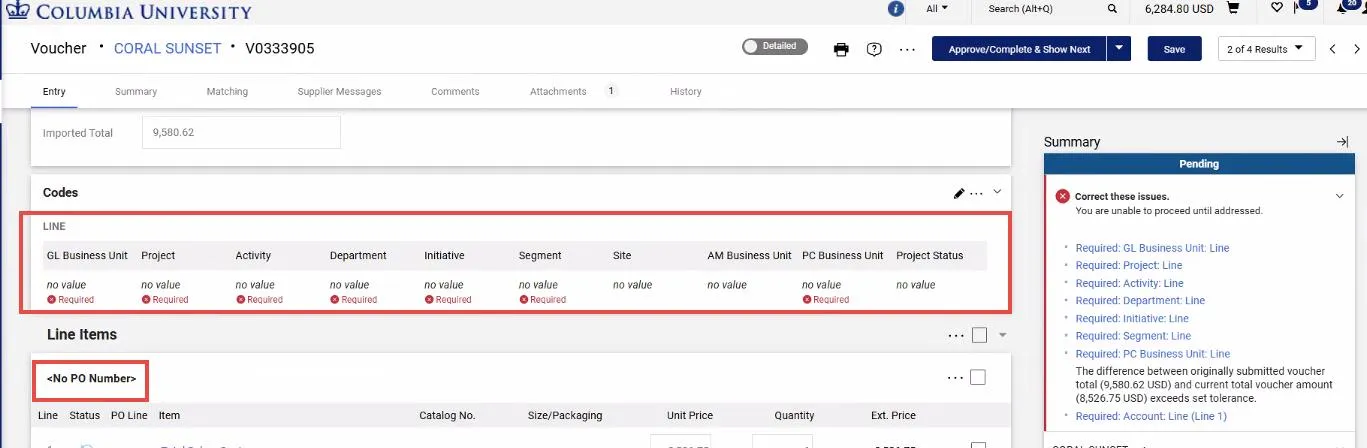
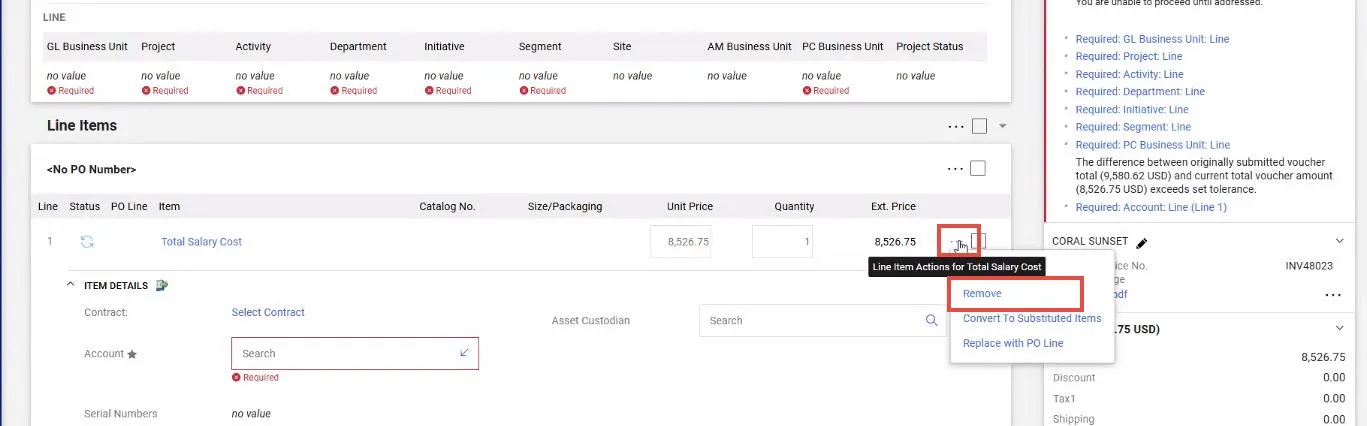
3. Remove all Line Items from the Voucher. For each Line Item, click the Line Items Action icon (three dots) and select Remove.
4. Click the Add new PO link in the Line Items section.
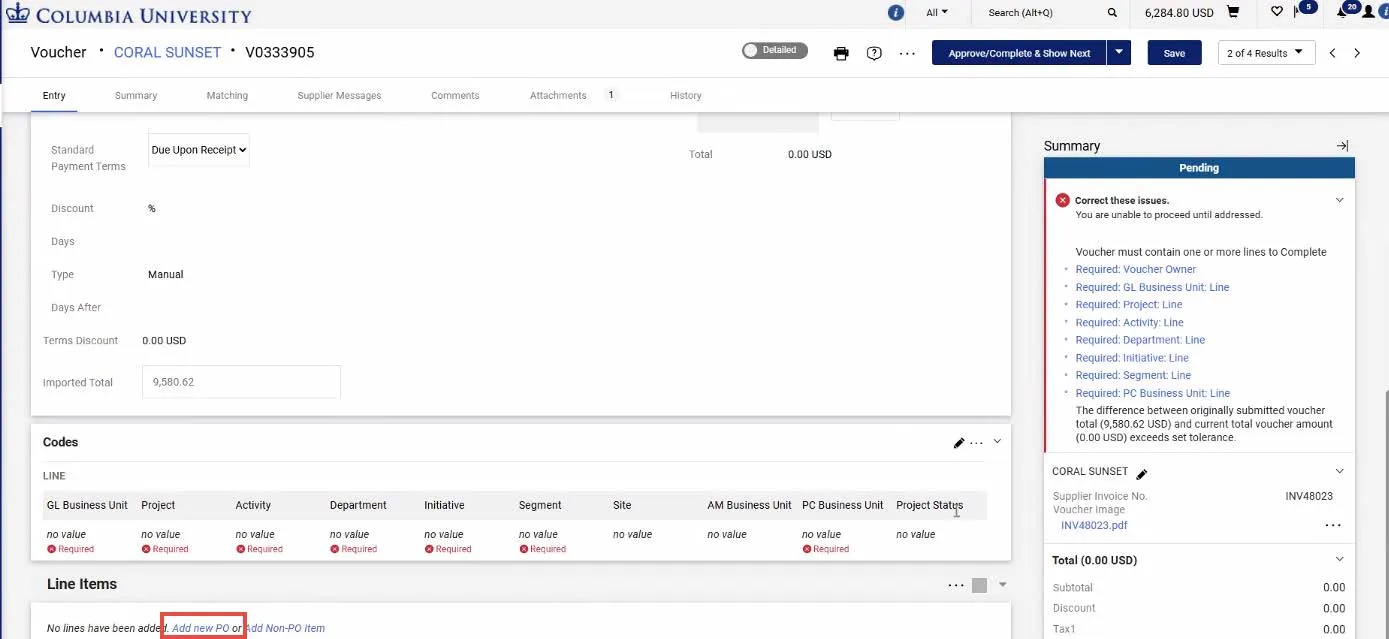
The Add New PO Search window appears and lists all active Purchase Orders associated with the Supplier.
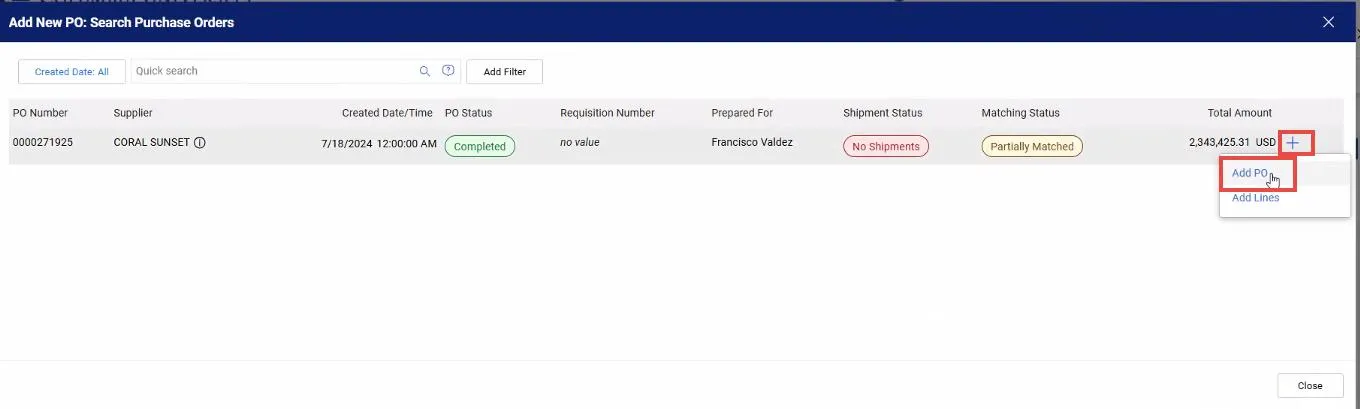
5. Click the Add icon for the matching Purchase Order and select Add PO. The Add PO Line To Voucher window appears.
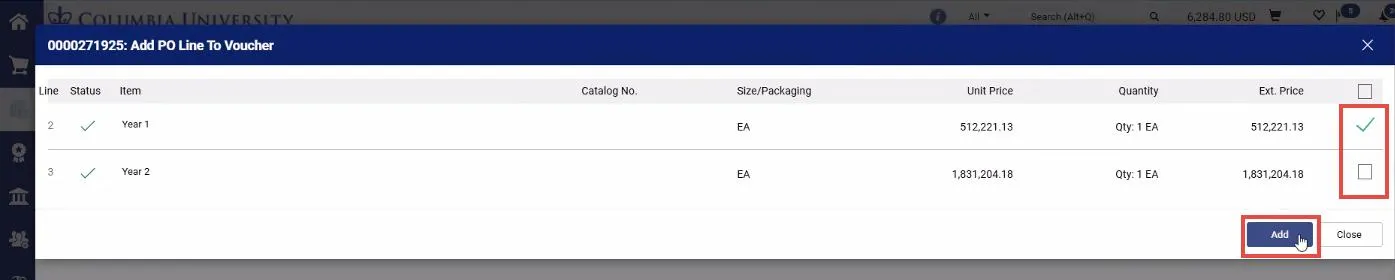
The selected Line(s) appear in the Voucher and the ChartString (Codes) are entered to match the Purchase Order.
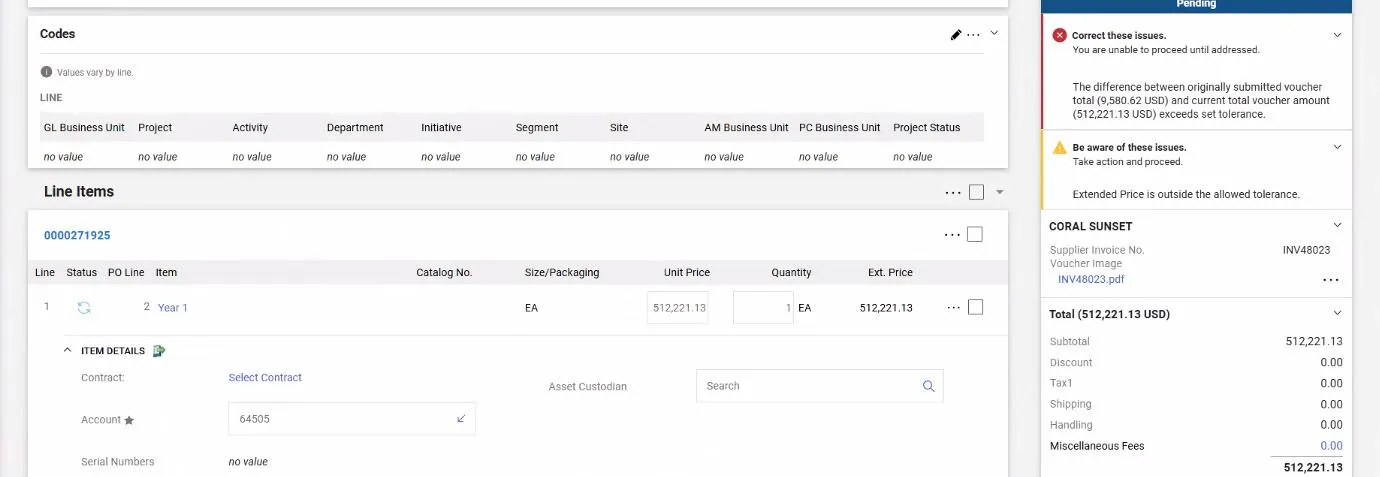
6. Ensure the Line Items Unit Price and Quantity match the invoice to be paid. Edit as necessary.
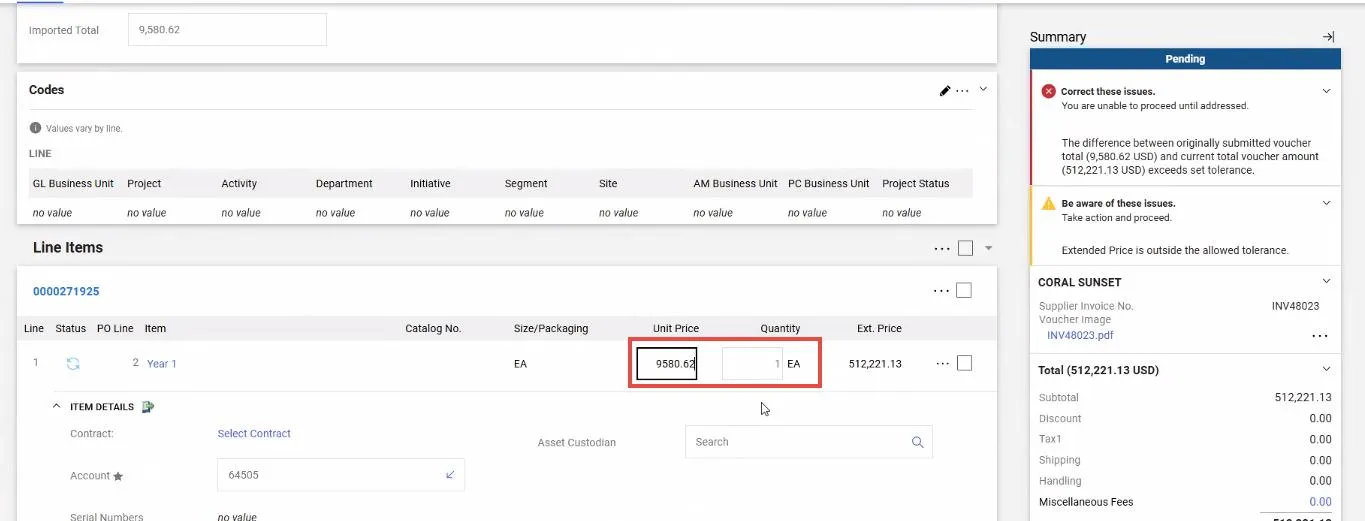
When the Voucher matches the invoice, you can click the Approve Complete button.
On PO Vouchers, you may need to edit the Line Items that initially appear on the Voucher to match the invoice you are paying. In some cases, you might only need to edit the Unit Price/Quantity. In other cases, you may need to Reject a Line that is not relevant to the invoice or add a PO Line that you are paying. Before taking action, Click the Summary tab to view the Voucher without the invoice image and click the Assign & Further Actions button to process the Voucher.
Editing Unit Price/Quantity
1. On the line that you need to edit, click the Edit Line icon.
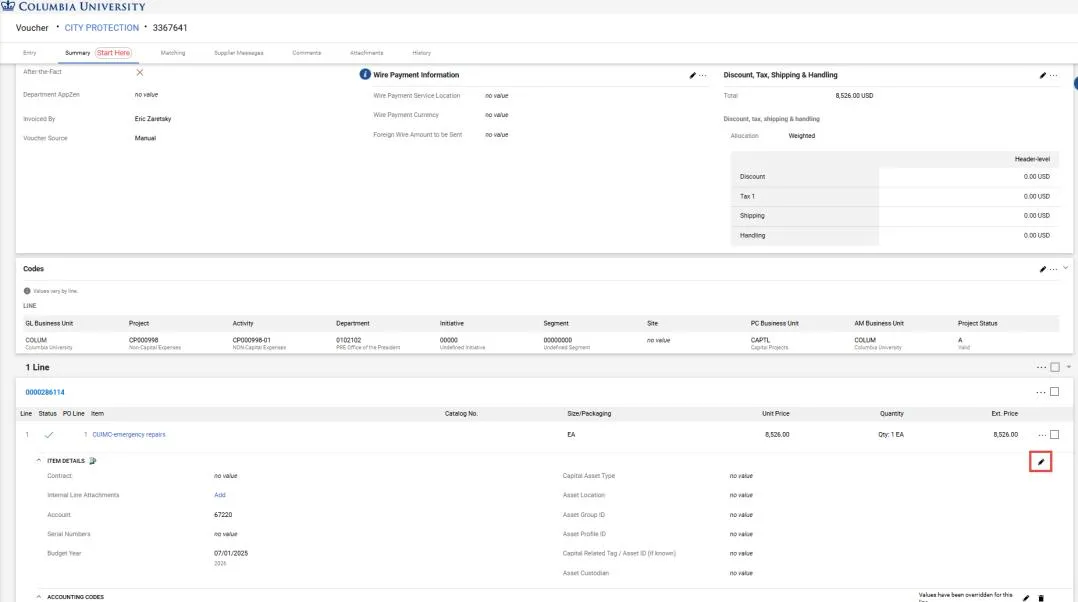
The Edit Line window appears.
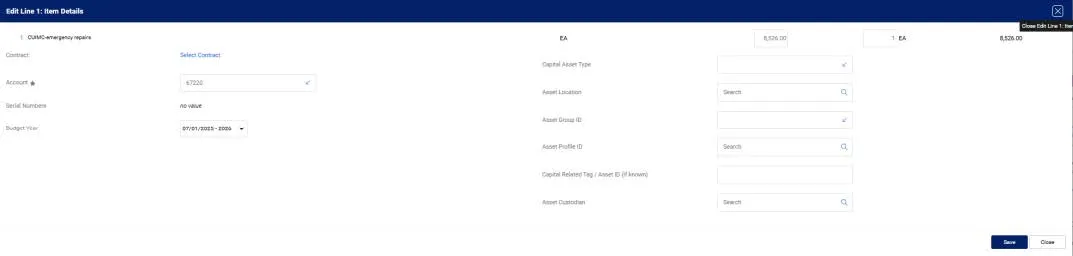
2. Edit the Price and Unit as needed. Other fields related to the PO Line can be also edited.
3. Click the Save button.
Removing a Line
If a Line is included on the Voucher which does not match the invoice, you can remove it. For the Line Item to be removed, click the Line Items Action icon (three dots) and select Reject.

Adding PO Lines
If the Lines have been removed, you can add the relevant PO Lines.
1. Click the Add new PO link in the Line Items section.

The Add New PO Search window appears and lists all active Purchase Orders associated with the Supplier.
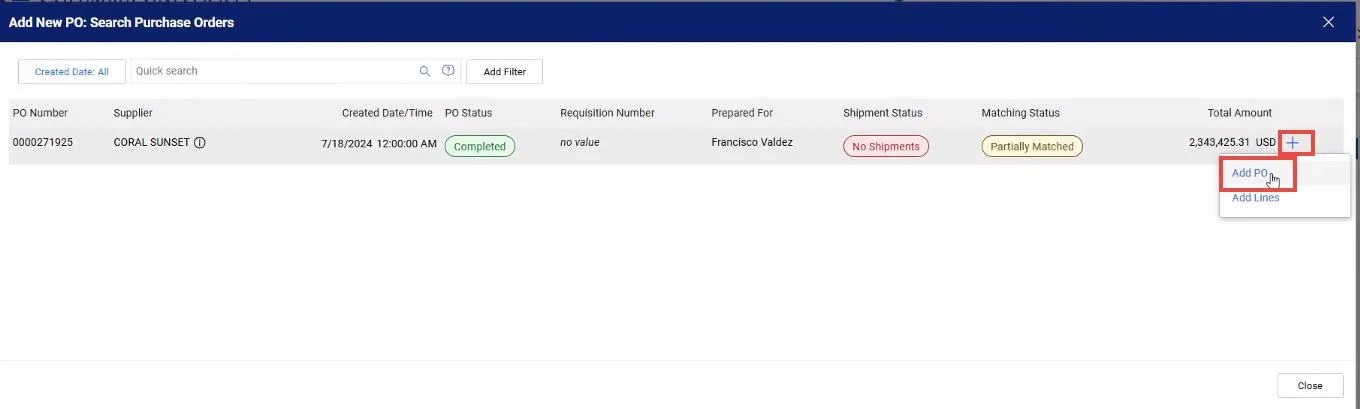
2. Click the Add icon for the matching Purchase Order and select Add PO. The Add PO Line To Voucher window appears.
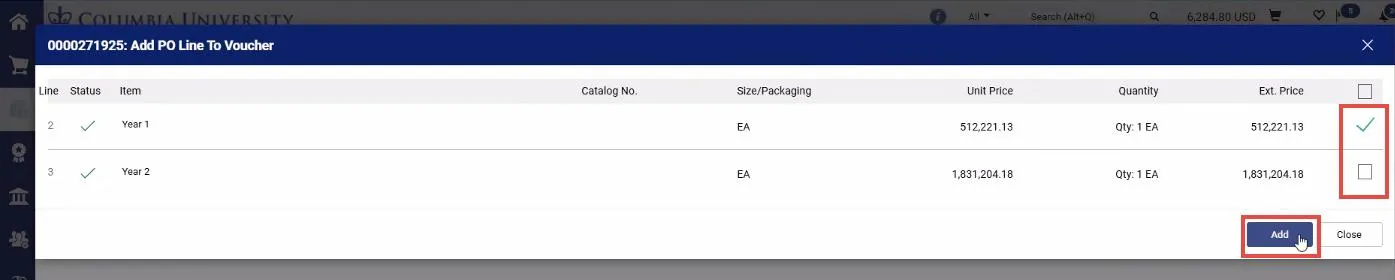
The selected Line(s) appear in the Voucher and the ChartString (Codes) are entered to match the Purchase Order.
Contact the Finance Service Center.
Log an incident or request a service via Service Now.