Creating and Editing Accordions on Columbia Finance Sites
This job aid details the process of editing, deleting, or creating an accordion content block. It is designed for users who make edits to the following websites: Finance; Travel & Expense; Student Financial Services; Registrar; Student Service Center; and University Policies.
Last Revision: July 2023
What is an accordion content block?
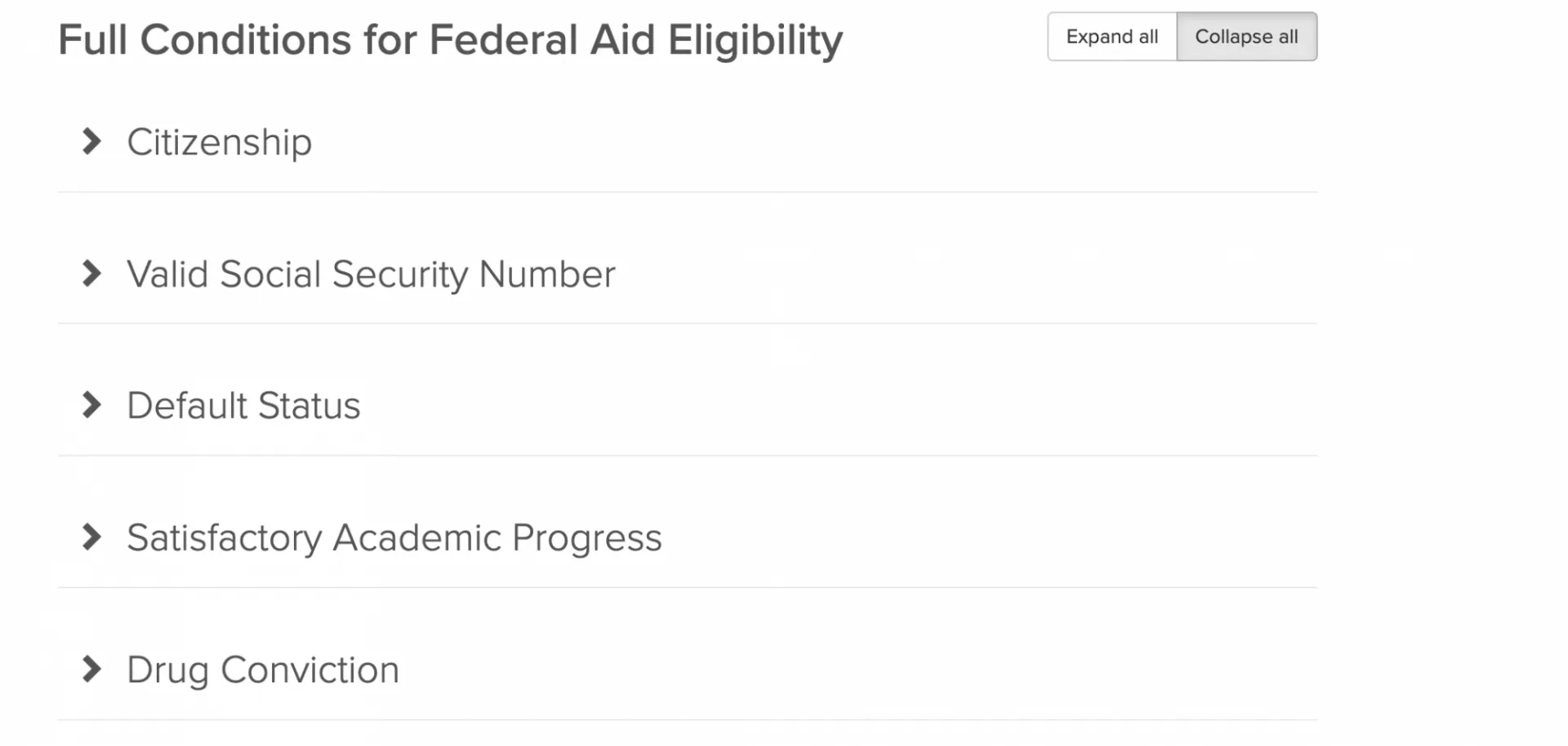
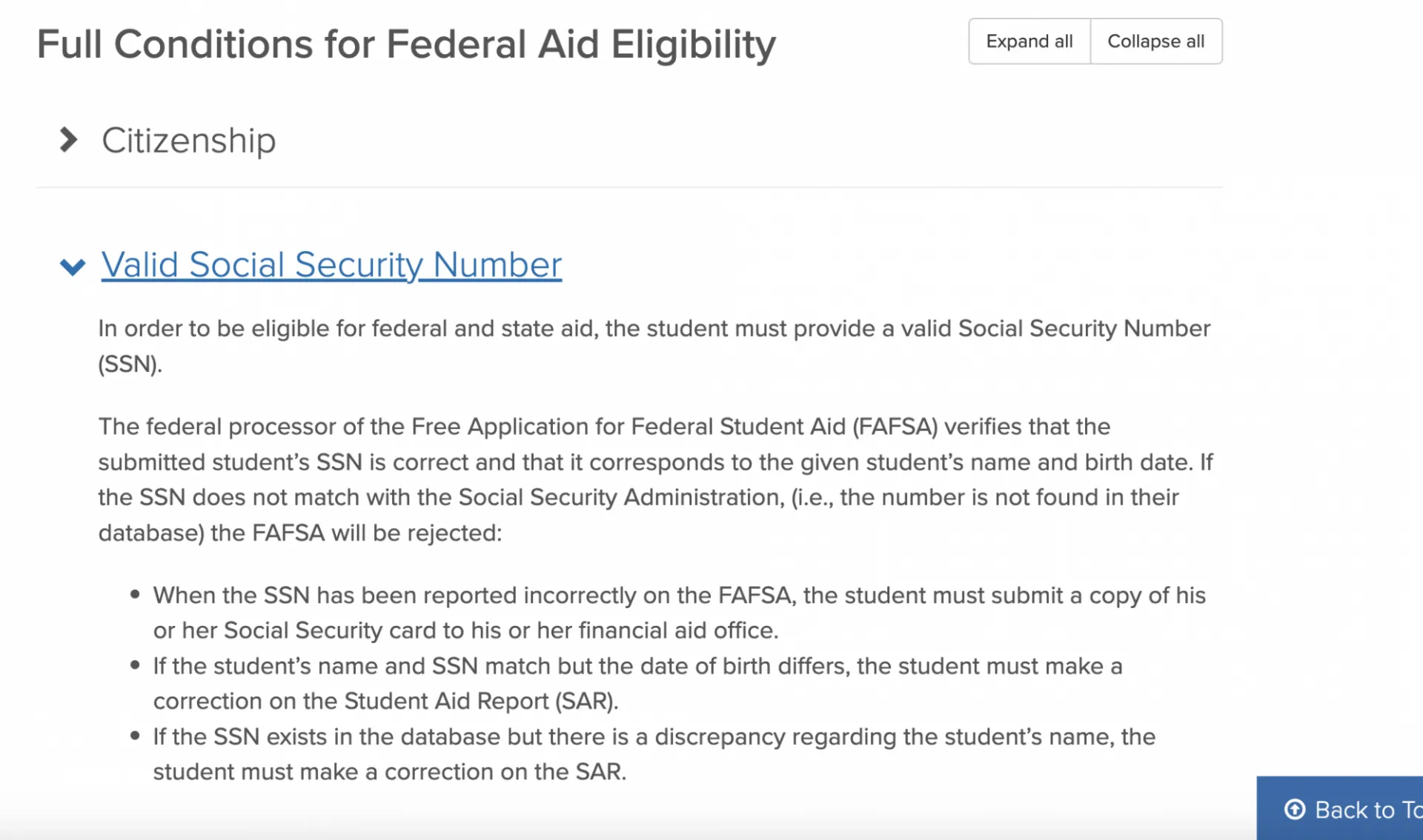
An accordion content block is a way content owners can condense information on a page. Users click on each topic item in the list, marked by an arrow icon, to expand the view and find more information about the topic. Each accordion topic item may contain a text box, an image, and/or a table. Accordions are used to minimize the amount of content—mainly text—that users see when they first encounter a page. Accordions also organize related information into groupings or procedures, so users find exactly what they are looking for in a logical manner. Accordion content blocks may only be used on basic pages and never landing pages.
- Log in to the site you’re trying to edit. To log in, go to the homepage URL and type “/user” at the end of the URL (do not include the quotation marks), then hit Return to navigate to that page. You will be asked to authenticate, which will log you into the site and return you to the homepage.
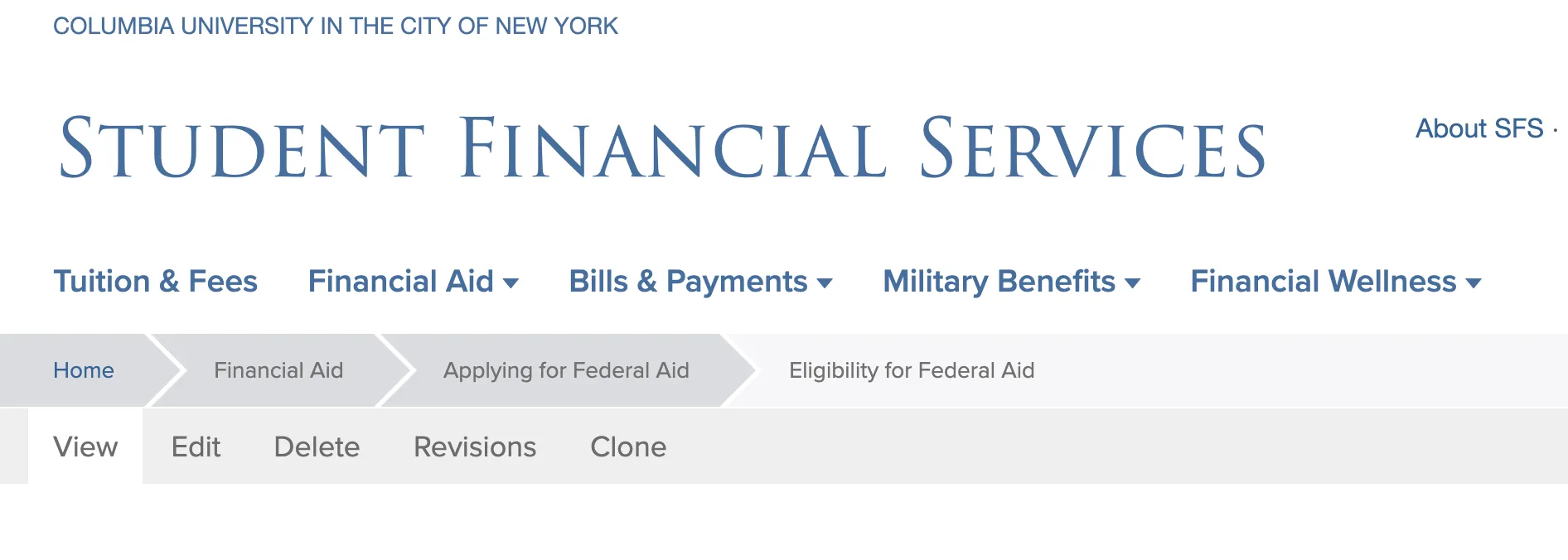
- Look for the editor ribbon on the page and select Edit. This ribbon is toward the top of the page underneath the main navigation menu. It will only appear if you are logged into the site. Once you click Edit, you will be taken to a backend editor’s view of the page.
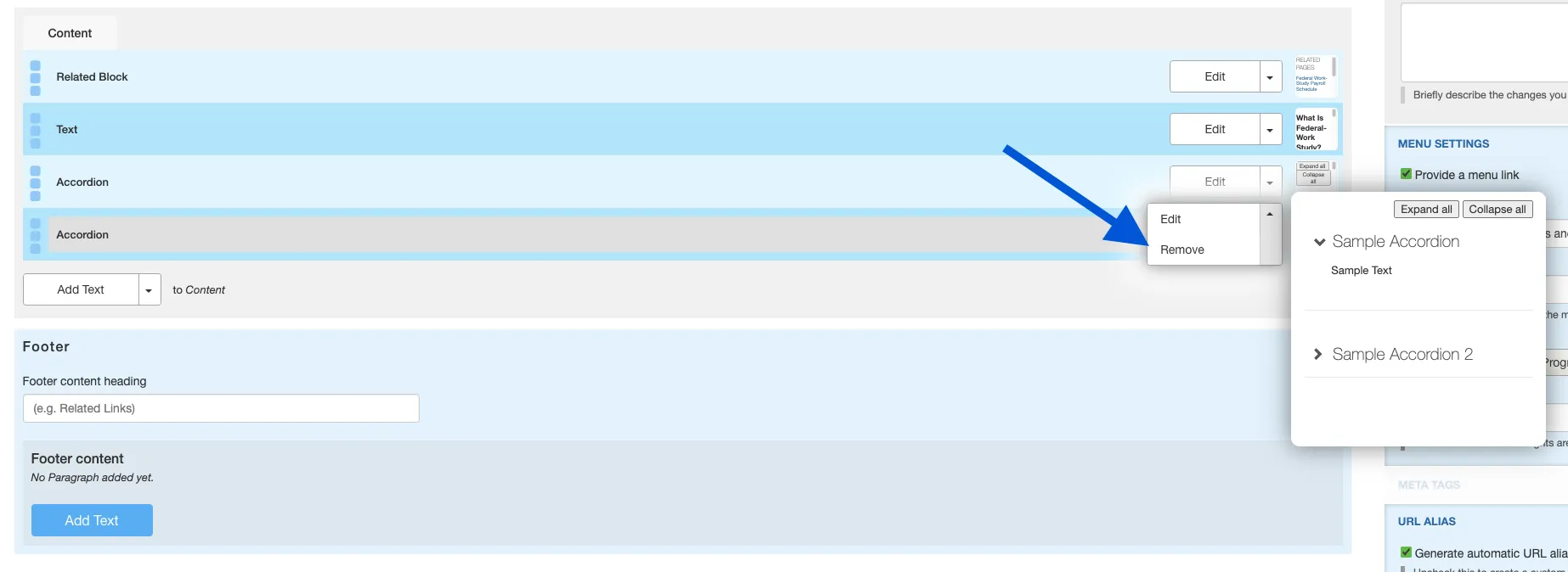
- On the backend of the basic page, you will find your editor options. Scroll down to the series of content blocks. Find the accordion you would like to change. If you wish to remove the entire accordion from the page, click the arrow pointing down to find more options, including the option to Delete.
- To Delete click on the arrow next to the edit button of the accordion you want to delete. A drop-down menu will appear prompting you to edit or remove the accordion. Click Remove.
- You will be prompted to confirm you would like to remove the accordion content block. Click Confirm.
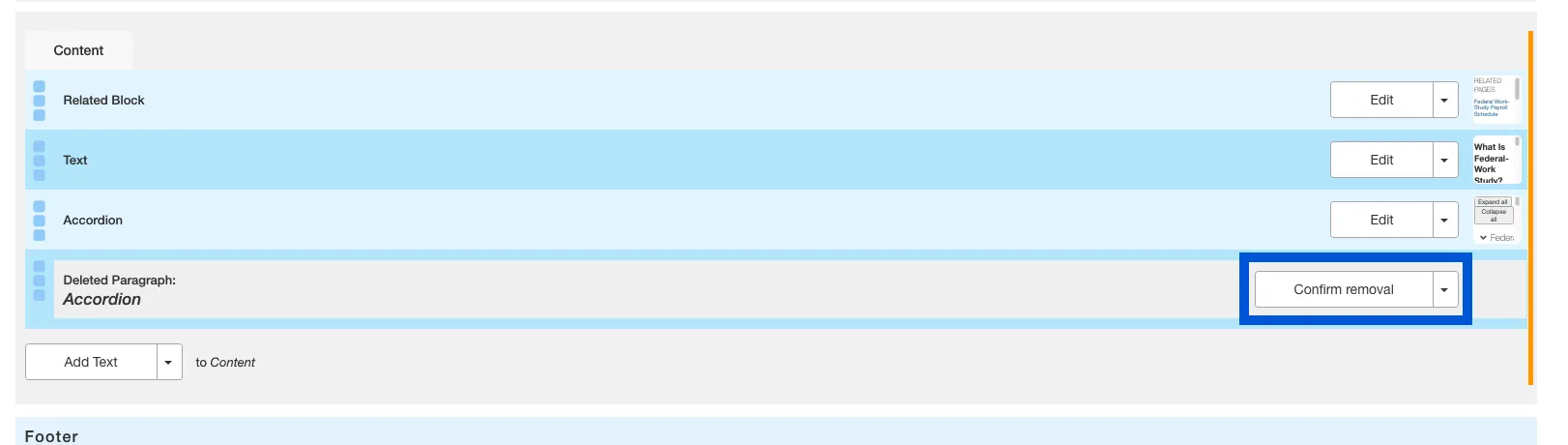
NOTE: IN THE ABOVE EXAMPLE, THERE ARE TWO DIFFERENT ACCORDION CONTENT BLOCKS NEXT TO EACH OTHER. TO DETERMINE WHICH ACCORDION HAS THE INFORMATION YOU WANT TO CHANGE, HOVER YOUR CURSOR OVER THE THUMBNAIL IMAGE NEXT TO THE EDIT BUTTON. THE THUMBNAIL WILL APPEAR LARGER AND SHOW YOU A PREVIEW OF THAT CONTENT BLOCK.
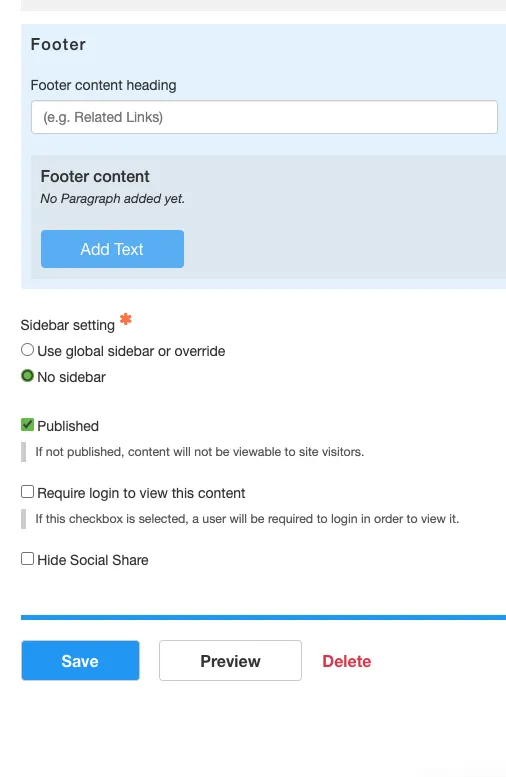
- Selecting Delete will not immediately remove the accordion. You must scroll to the bottom of the page and click Save, which will immediately record your changes and return you to the normal user’s view of the webpage, reflecting your new updates to the page.
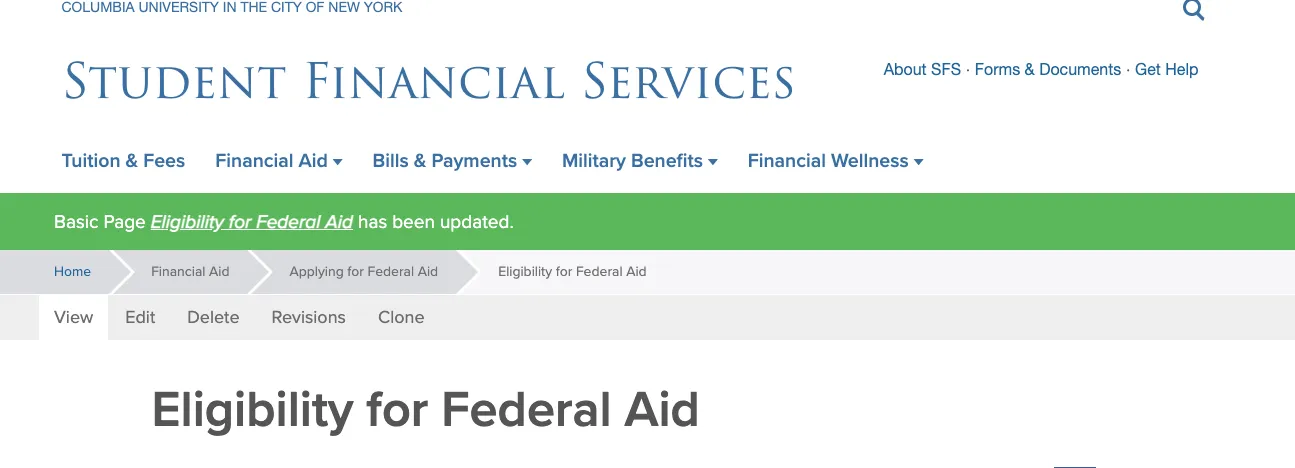
- After you select Save, you will be brought back to the user view of the page you edited. There will be a green bar near the top navigation to alert you the page has been updated. Your new changes will appear immediately on the page.
- If you need to change elements of an accordion instead of deleting the whole content block, click the accordion’s Edit button. This will open the accordion content block and all the individual accordion items will be displayed in addition to different display settings and the optional group title.
- Find the accordion item you would like to edit. Click Edit to change the title of the accordion item or to change content within the accordion item. A single accordion item may contain a text box, an image, and/or a table.
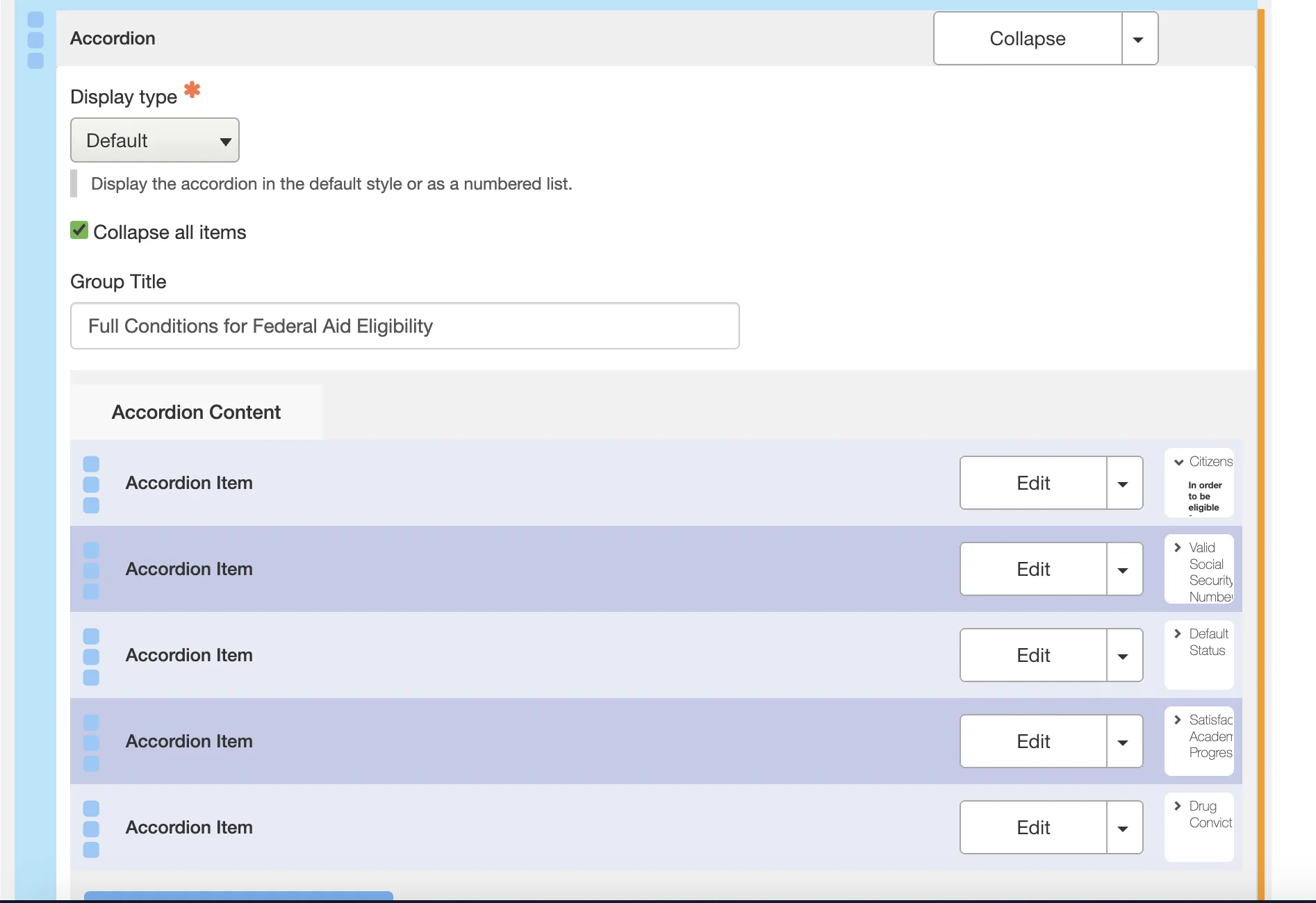
- To delete a single accordion item from the list, choose the option with the arrow pointing down and select Delete.
TO DETERMINE WHICH ACCORDION ITEM HAS THE INFORMATION YOU WANT TO EDIT, HOVER YOUR CURSOR OVER THE THUMBNAIL IMAGE NEXT TO THE EDIT BUTTON. THE THUMBNAIL WILL APPEAR LARGER AND SHOW YOU A PREVIEW OF THE CONTENT.
- To change a text box, image, or table within a single accordion item, click Edit within the appropriate content block.
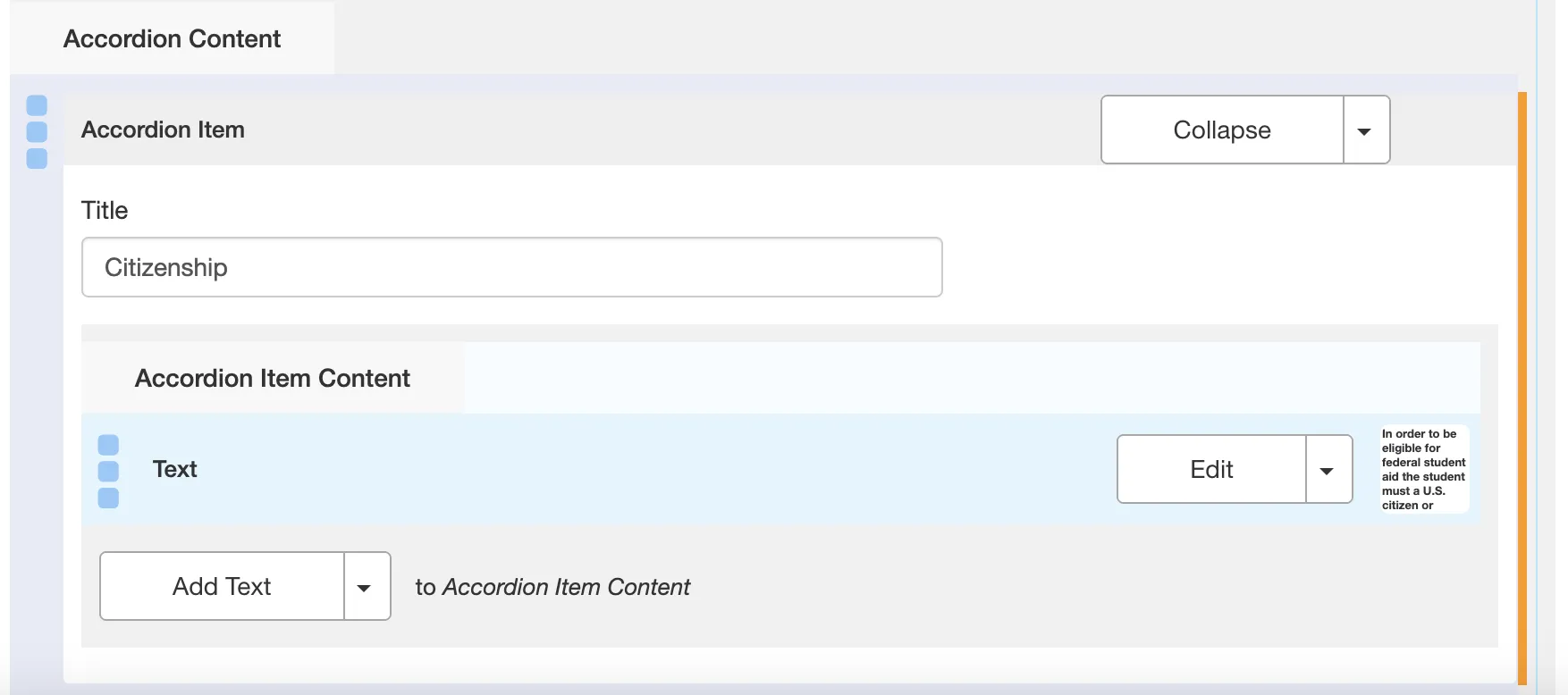
- An open text box ready to edit will appear as follows:
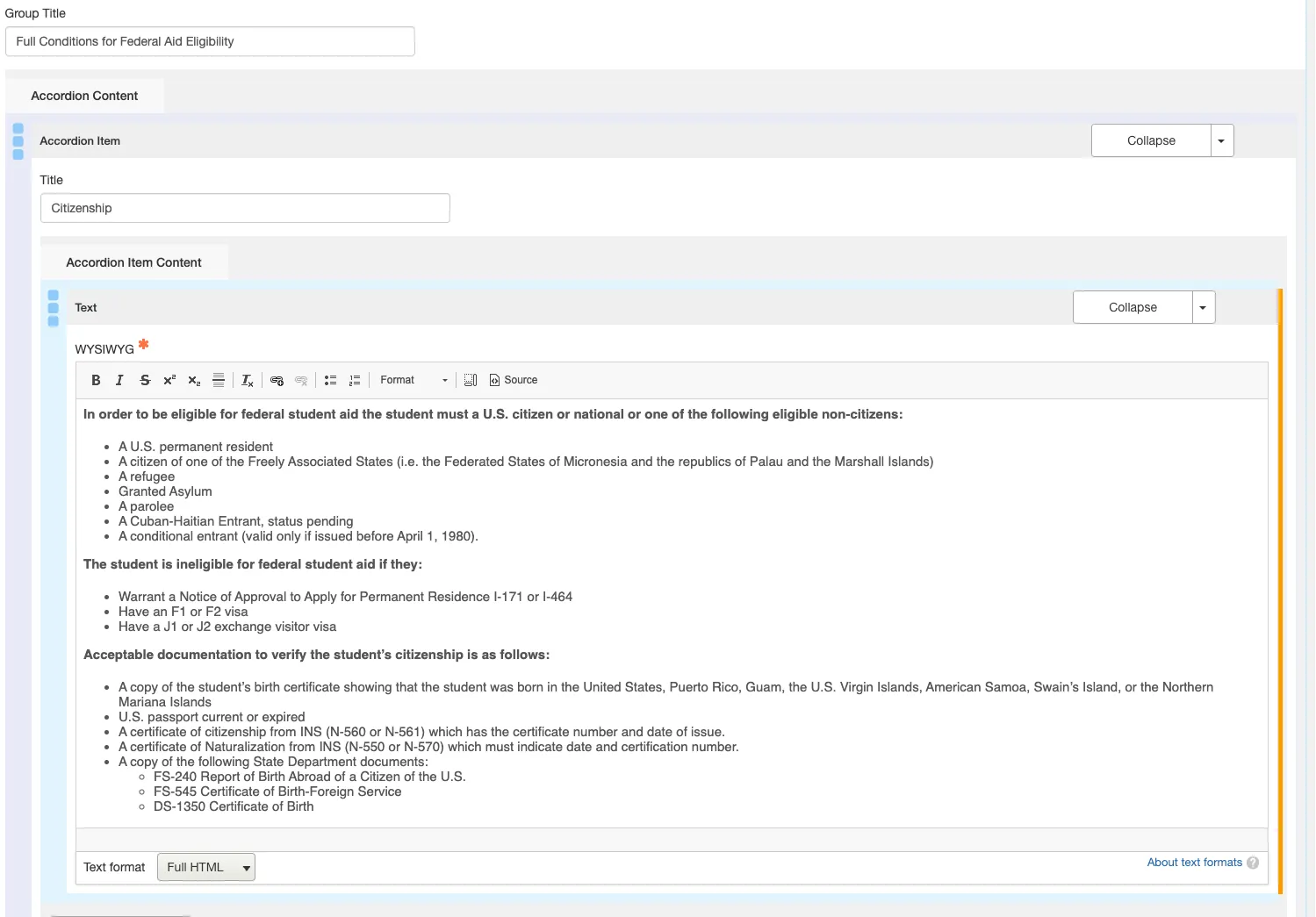
- Make your changes to the text while remembering to follow appropriate accessibility rules when it comes to header usage and hyperlinking. When you are done making changes, scroll to the bottom of the page and click Save.
WHILE EDITING AN ACCORDION, YOU MAY NEED TO MAKE MULTIPLE EDITS TO DIFFERENT CONTENT BLOCKS ON THE PAGE. YOU DO NOT NEED TO SELECT SAVE FOR EVERY CHANGE YOU MAKE.
YOU CAN MAKE MULTIPLE CHANGES ON THE PAGE BEFORE CLICKING SAVE AND ALL EDITS WILL BE RECORDED.
WAITING TO SAVE UNTIL ALL UPDATES TO THE PAGE ARE COMPLETE IS A WAY TO BE MORE EFFICIENT WITH YOUR TIME ON THE PAGE.
- Log in to the site you’re trying to edit. To log in, go to the homepage URL and type “/user” at the end of the URL (do not include the quotation marks), then hit Return to navigate to that page. You will be asked to authenticate, which will log you into the site and return you to the homepage.
- Look for the editor ribbon on the page and select Edit. This ribbon is toward the top of the page underneath the main navigation menu. It will only appear if you are logged into the site. Once you click Edit, you will be taken to a backend editor’s view of the page.
- On the backend of the basic page, you will find your editor options. Scroll down to find the Add Text button. Click the arrow on the right side of the text. A drop-down menu will appear.
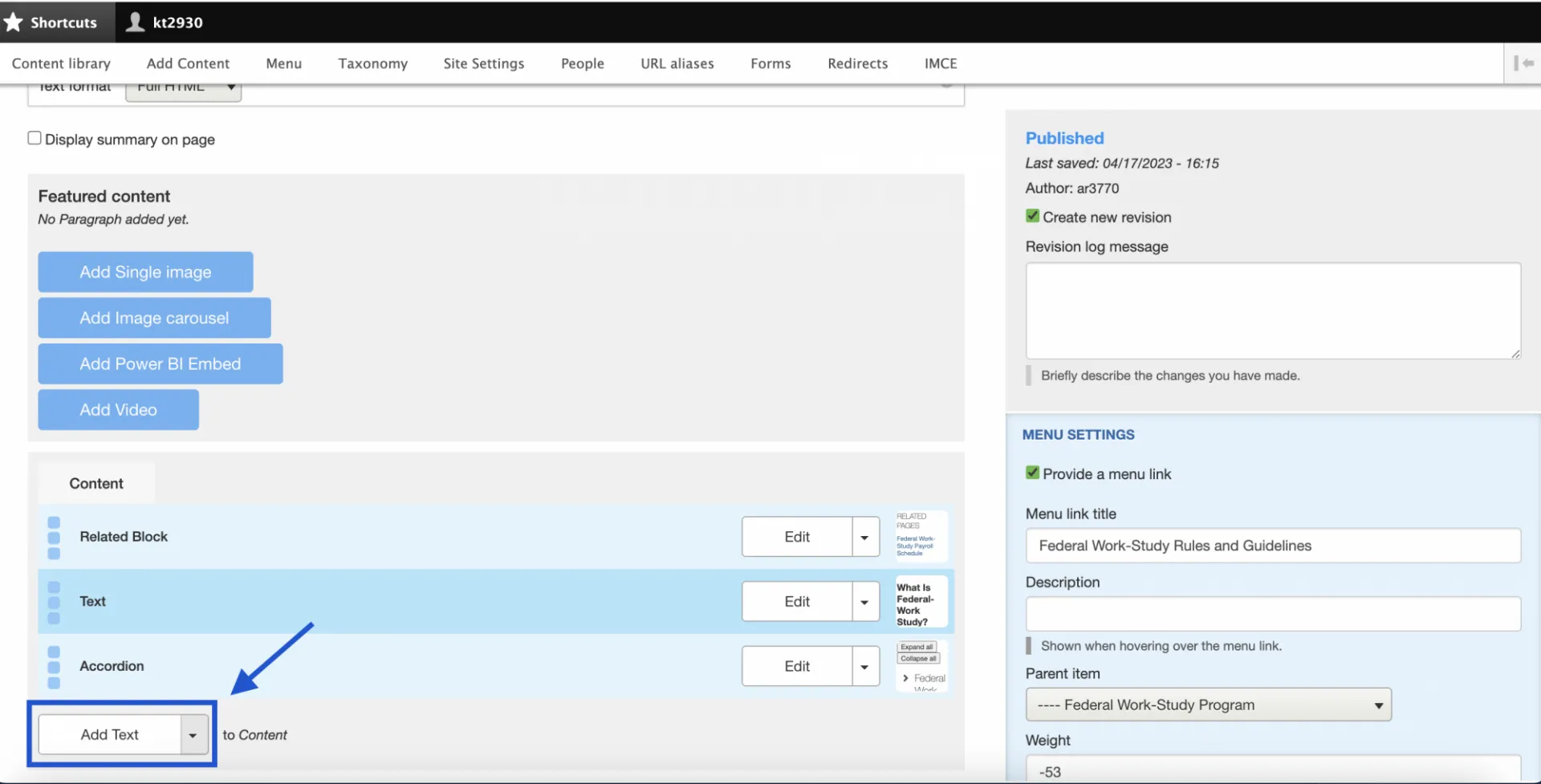
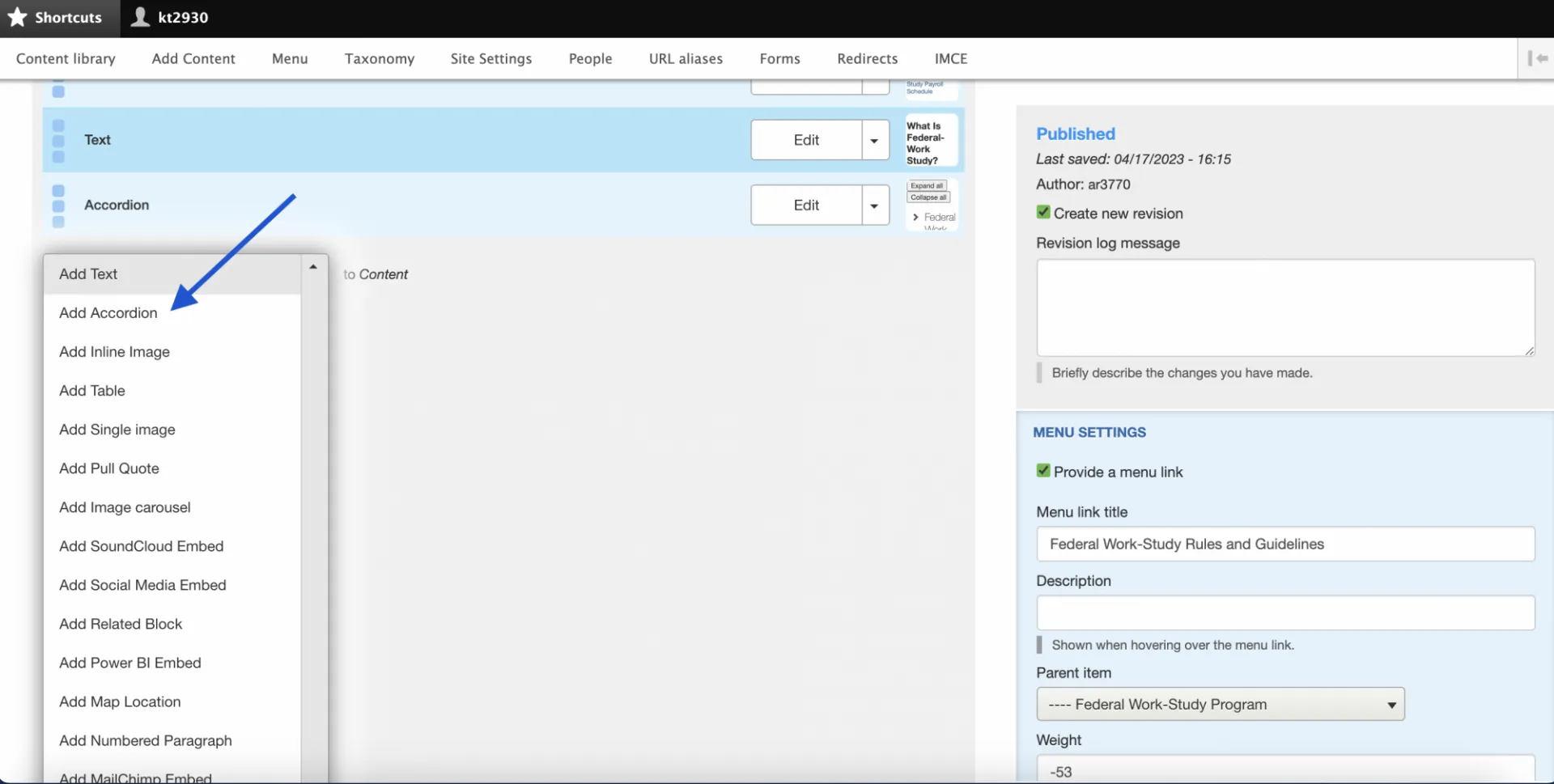
- Click Add Accordion The new accordion content block will appear. The accordion content block will be opened to the first content item within the accordion. Fill out the Title field to give your accordion a title. Click Add Text Box. Add the content to the text box within the accordion. The text box is a required field. This means you must add text to the text box in order to save the new accordion.
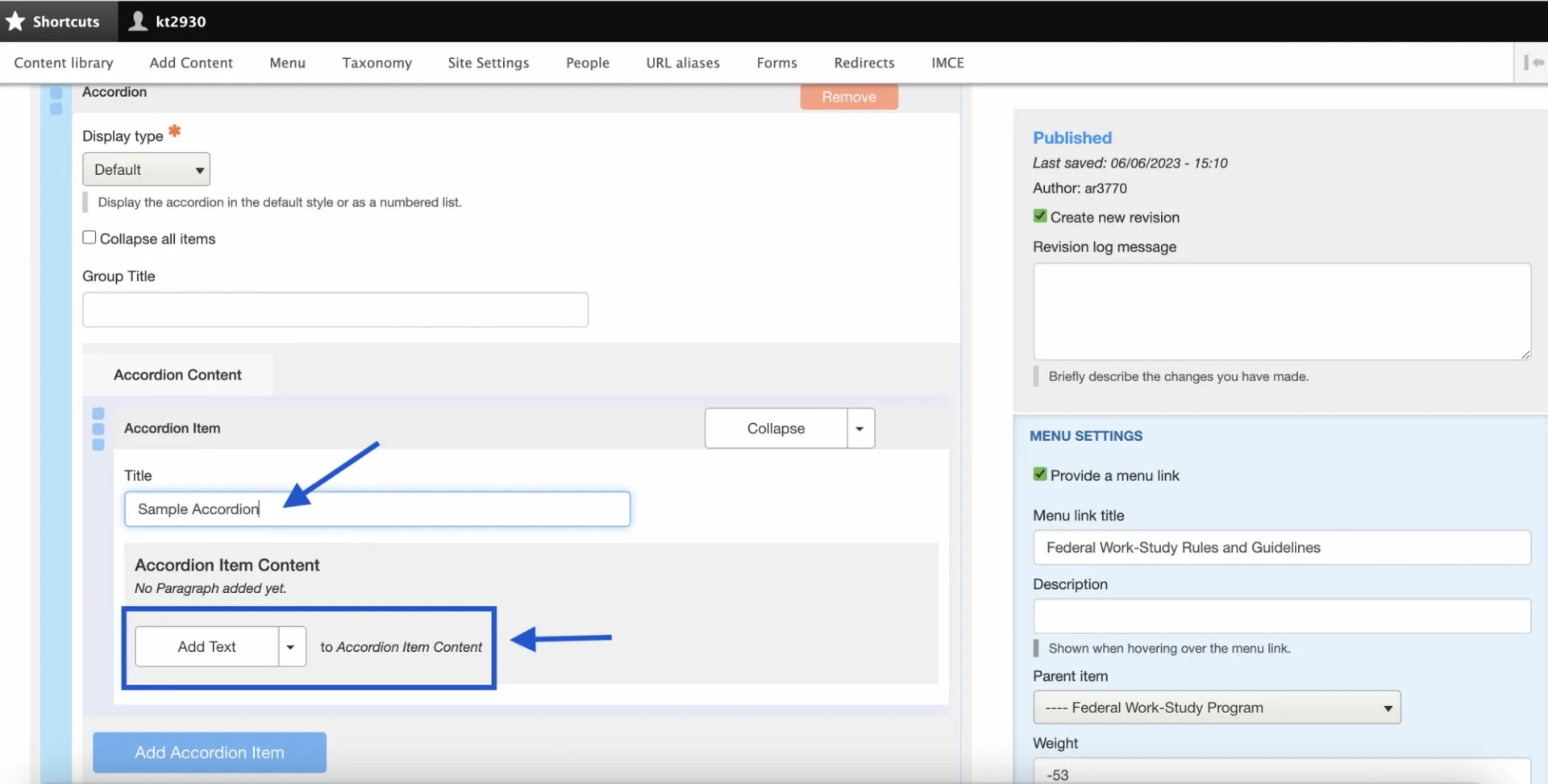
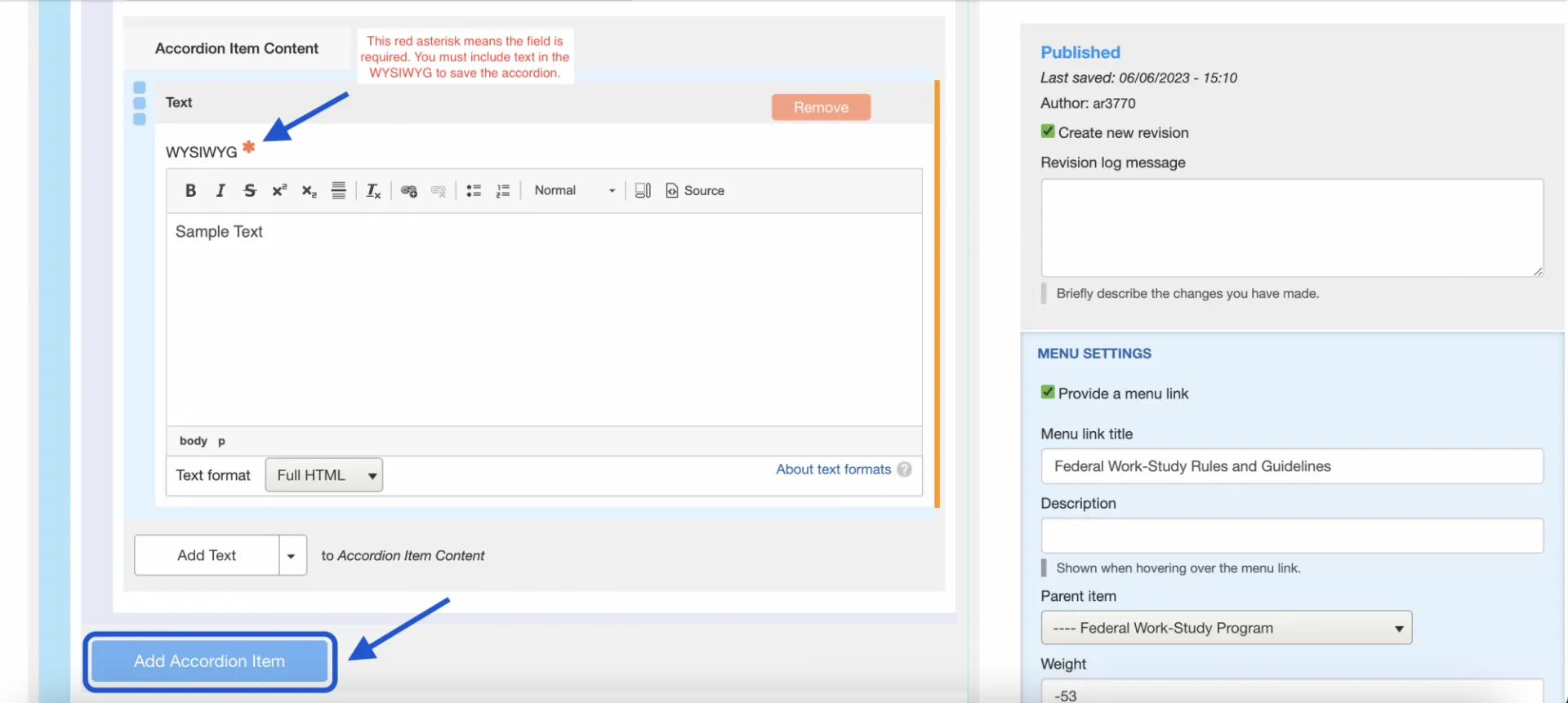
- To add another accordion item, click the Add Accordion Item and repeat the above steps. The finished accordion will look like this:
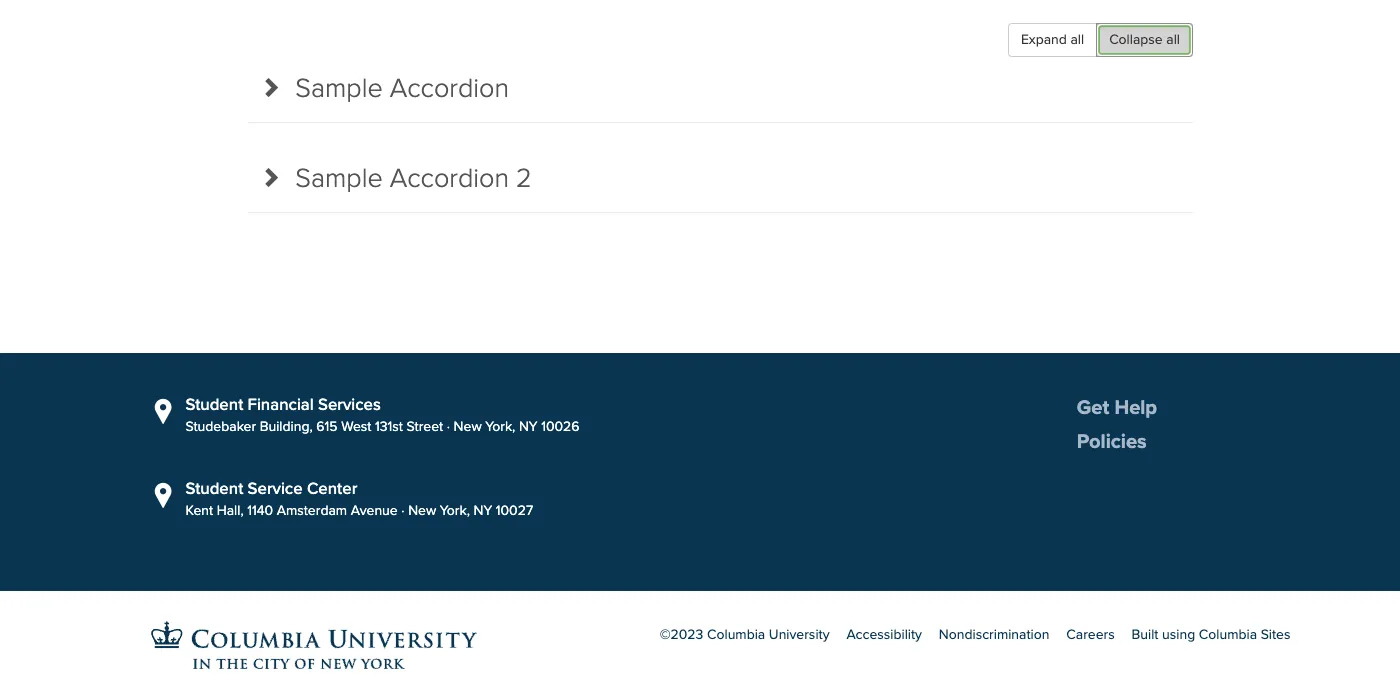
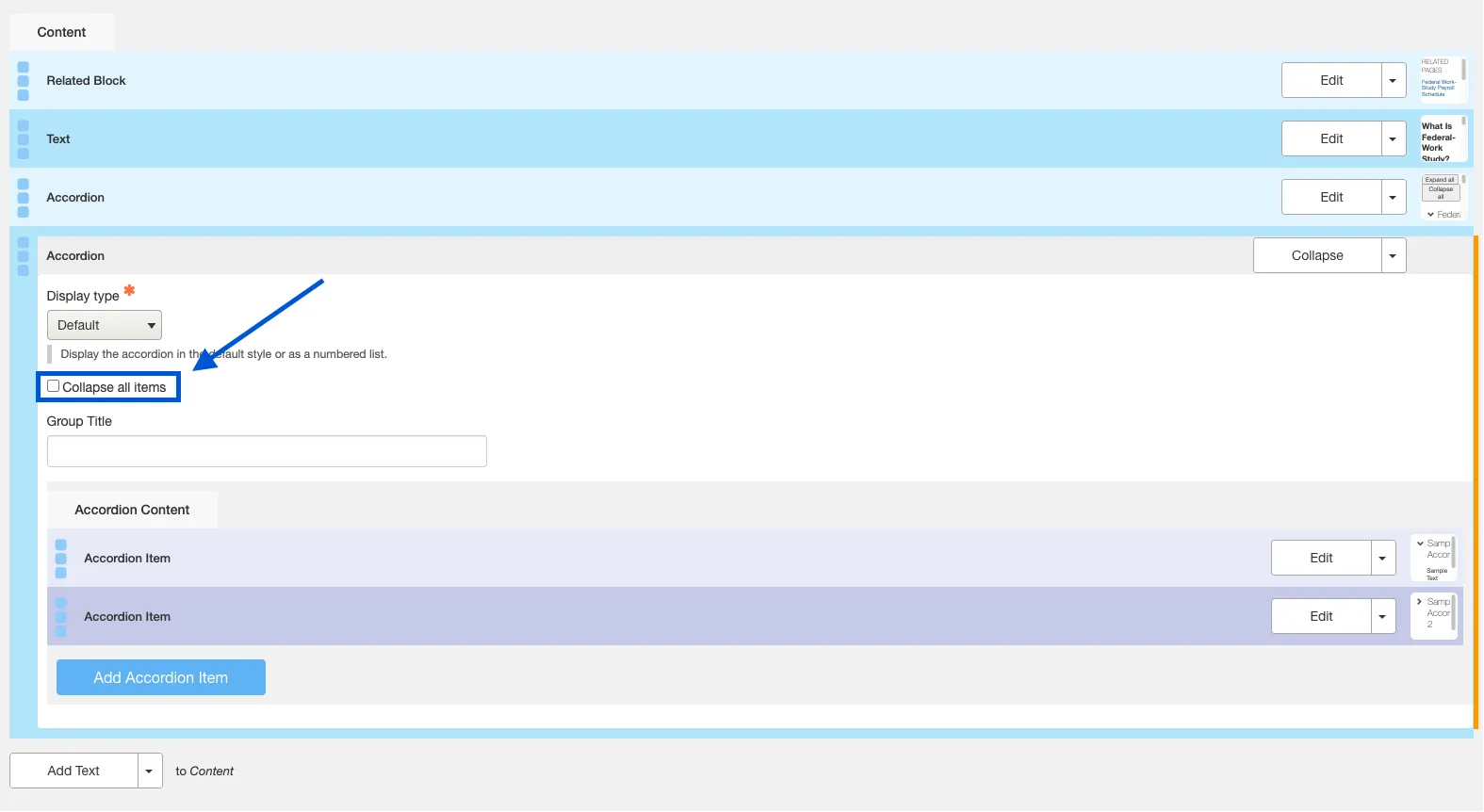
- New accordions default to have the first accordion item expanded. If you would like to make all accordion items collapsed, click the checkbox on the backend that says Collapse All Items.
WHILE CREATING A NEW ACCORDION, YOU MAY NEED TO MAKE MULTIPLE EDITS TO DIFFERENT CONTENT BLOCKS ON THE PAGE. YOU DO NOT NEED TO SELECT SAVE FOR EVERY CHANGE YOU MAKE.
YOU CAN MAKE MULTIPLE CHANGES ON THE PAGE BEFORE CLICKING SAVE AND ALL EDITS WILL BE RECORDED.
WAITING TO SAVE UNTIL ALL UPDATES TO THE PAGE ARE COMPLETE IS A WAY TO BE MORE EFFICIENT WITH YOUR TIME ON THE PAGE.
While editing a page, if you accidentally delete the wrong content and need to start over, simply click the back arrow in the top left of your browser or close out of the browser tab or window completely.
As long as you do not save any mistakes you will not publish any mistakes.
If you need assistance creating, editing, removing, or recovering an accordion on your website, please contact the FinanceWeb Team at [email protected] with a summary of your needs.