Creating and Editing Basic Pages on Columbia Finance Sites
This training guide contains instructions for creating or editing a basic page on Columbia Finance sites.
Last Revision: July 2023
What is a basic page?
A basic page is typically used for content that is static, or rarely changes. These types of pages are commonly linked to the top navigation menu bars within your website. Common content block types that will be used on basic pages you will edit are:
- Related content block
- Text
- Accordion
- Table
- Images/Inline images
- Map location
- Icon/Image cards
If you have questions on how to edit any of these specific content block types within a basic page, please refer to our other job aids or reach out to the Finance Web Team at [email protected] with a summary of your needs.
How do I edit a basic page?
- Log in to the site you’re trying to edit. To log in, go to the homepage URL and type “/user” at the end of the URL (do not include the quotation marks), then hit Return to navigate to that page. You will be asked to authenticate, which will log you into the site and return you to the homepage.
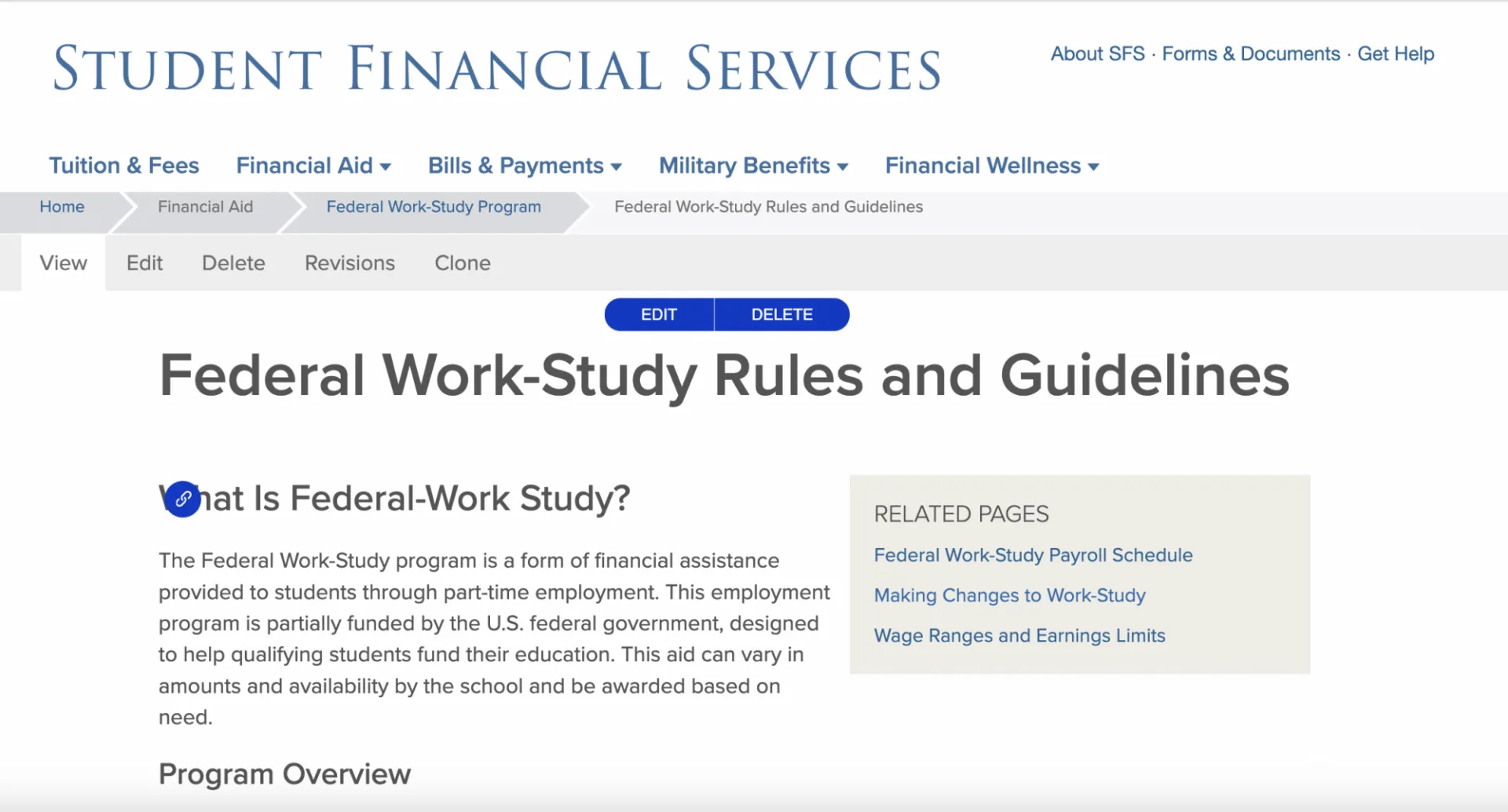
- Look for the editor ribbon on the page and select Edit. This ribbon is toward the top of the page underneath the main navigation menu. It will only appear if you are logged into the site. Once you click Edit, you will be taken to a backend editor’s view of the page.
- Scroll down to the section of the back end labeled Content. Below this tab, you will see a list of the different content blocks on the basic page.
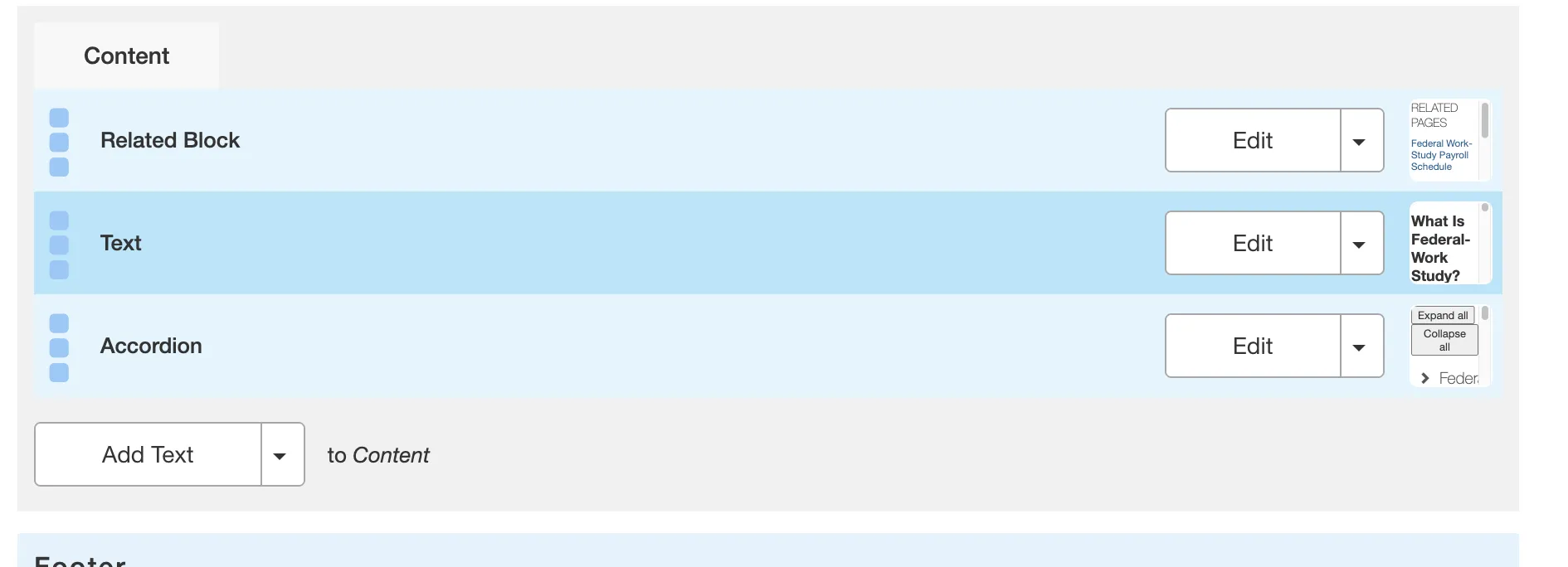
- Ask yourself: What part of the page are you looking to edit? To find which content block has the content you are looking for hover your cursor over the thumbnail image next to the Edit button. The thumbnail will appear larger and show you a preview of that content block.
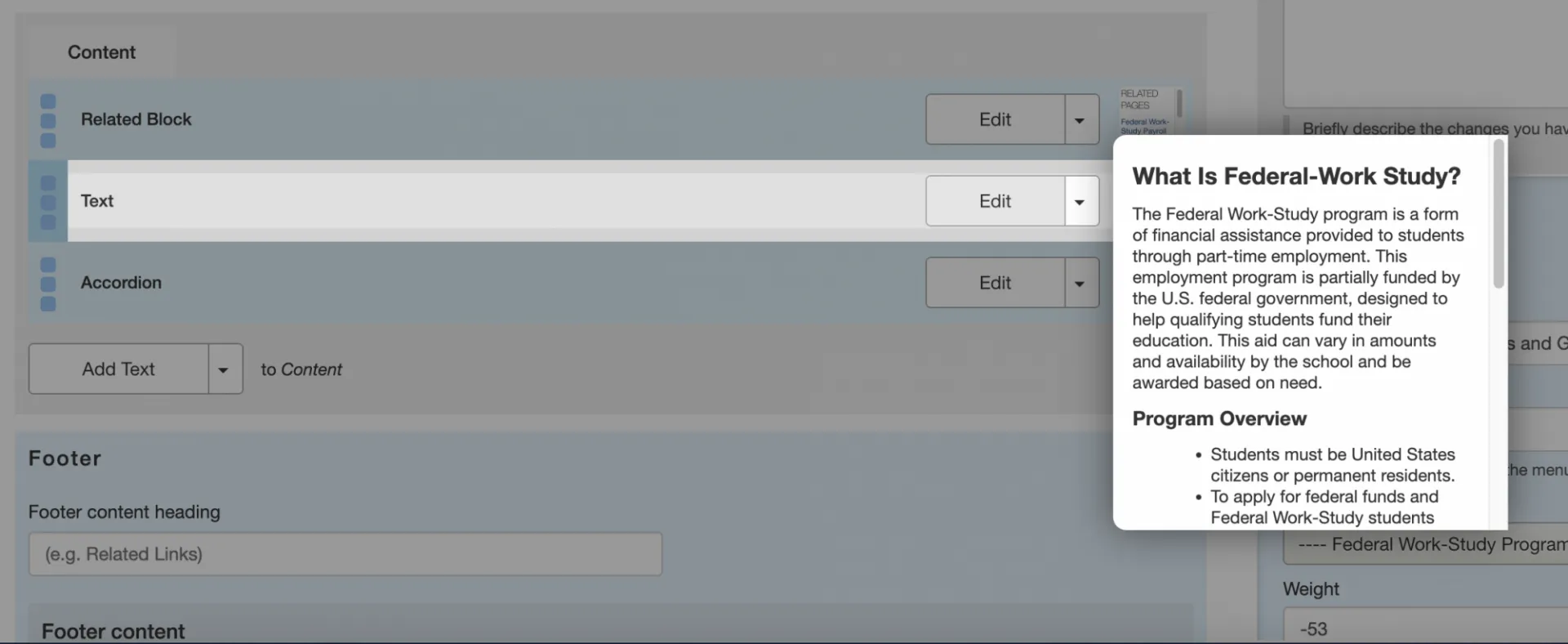
- Once you have decided which content block you would like to update, click the Edit button.
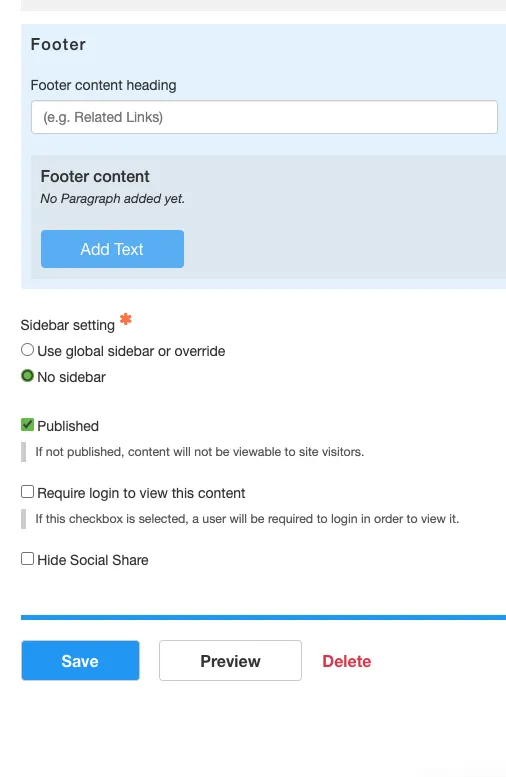
- After making your changes, scroll to the bottom of the page and click Save, which will immediately record your changes and return you to the normal user’s view of the webpage, reflecting your new updates to the page.
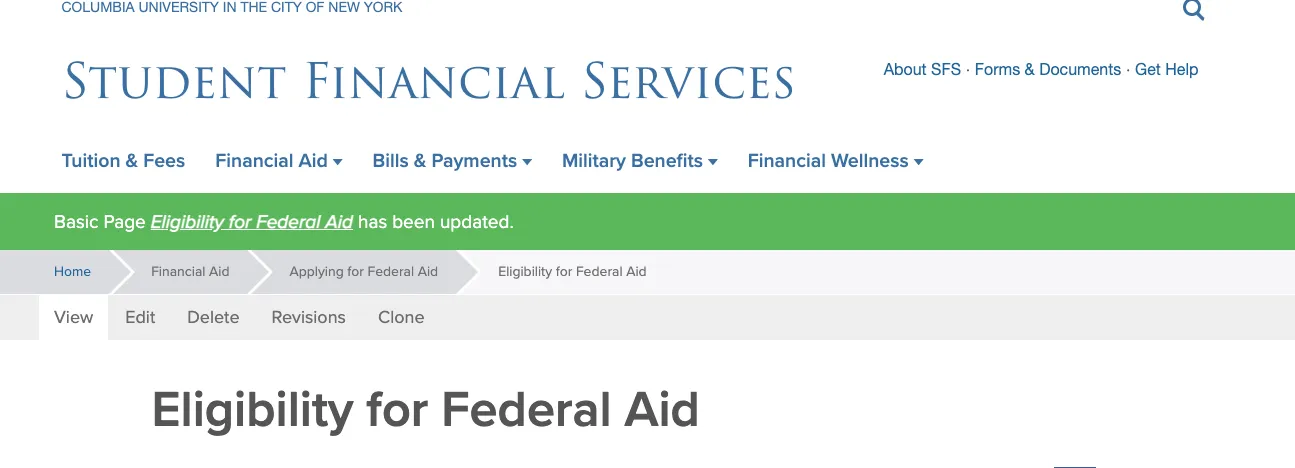
- After you select Save, you will be brought back to the user view of the page you edited. There will be a green bar near the top navigation to alert you the page has been updated. Your new changes will appear immediately on the page.
WHILE EDITING A BASIC PAGE, YOU MAY NEED TO MAKE MULTIPLE EDITS TO DIFFERENT CONTENT BLOCKS ON THE PAGE. YOU DO NOT NEED TO SELECT SAVE FOR EVERY CHANGE YOU MAKE. YOU CAN MAKE MULTIPLE CHANGES ON THE PAGE BEFORE CLICKING SAVE AND ALL EDITS WILL BE RECORDED.
WAITING TO SAVE UNTIL ALL UPDATES TO THE PAGE ARE COMPLETE IS A WAY TO BE MORE EFFICIENT WITH YOUR TIME ON THE PAGE.
Getting Help
This job aid covers the basics of editing a basic page. If you would like to learn about how to make updates to specific content blocks, please refer to our job aides on the different content blocks you will encounter on basic pages.
While editing a page, if you accidentally delete the wrong content and need to start over, simply click the back arrow in the top left of your browser or close out of the browser tab or window completely.
As long as you do not save any mistakes you will not publish any mistakes. If you need assistance creating, editing, removing, or recovering a basic page on your website, please contact the FinanceWeb Team at [email protected] with a summary of your needs.