Creating and Editing Related Content Blocks on Columbia Sites
This job aid details the process of editing, deleting, or creating a related content block. It is designed for users who make edits to the following websites: Finance; Travel & Expense; Student Financial Services; Registrar; Student Service Center; and University Policies.
Last Revision: July 2023
What is a Related Content Block?
A related content block is a way content owners can recommend other pages with similar information to users. It hosts links to these other pages in a clear and straightforward way.
Related content blocks may only be used on basic pages and never landing pages.
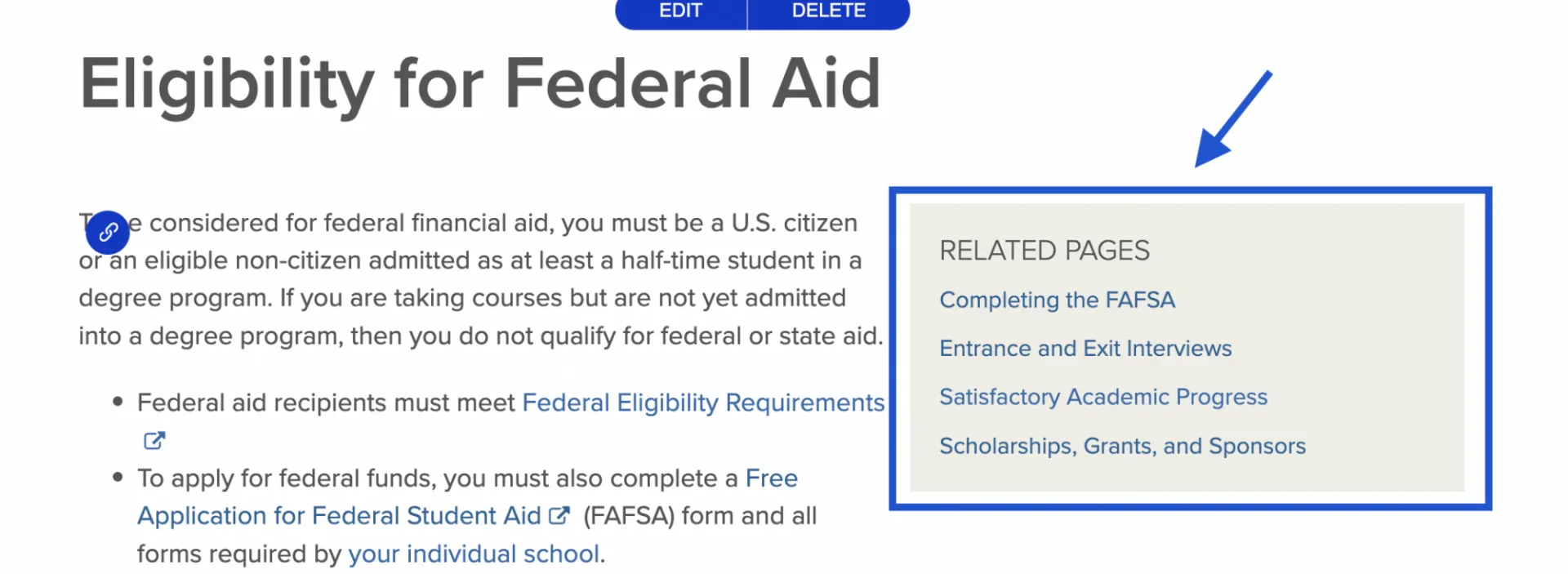
Example of a Related Content Block:
- If you need to change one of the links presented in the related content block instead of deleting the whole content block, click the related content block’s Edit button. This will open the related content block and all the individuallinks will be displayed.
- To Remove a related content block link, erase the URL and Link Text you’d like to remove.
- To Add a related content block link, scroll to the end of the related content block, there will be two blank fields labeled URL and Link Text.
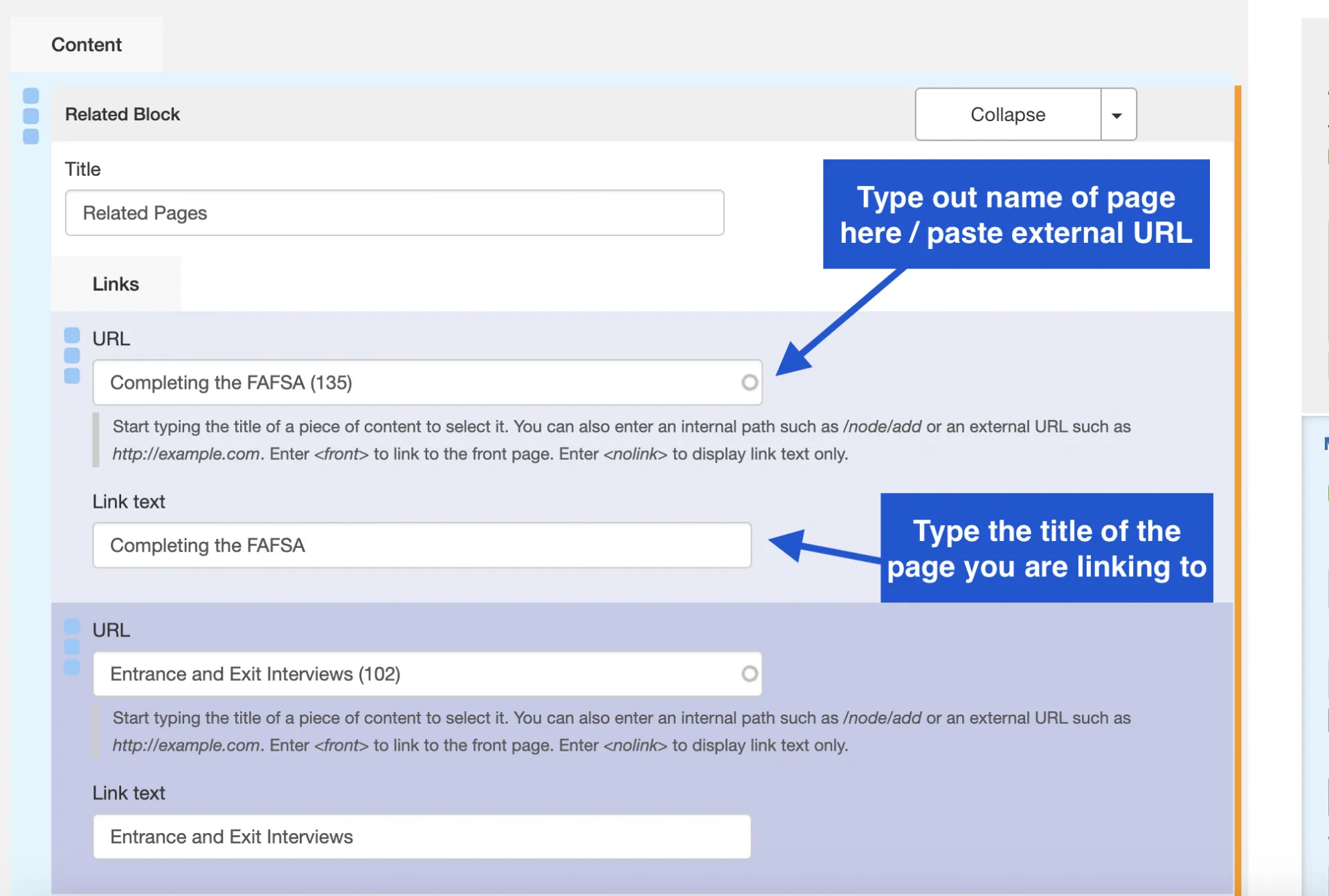
- URL: if the link is an Internal Link – this mean the link is from the same site you’re editing – type the title of the page you’d like to add, and sites will autofill the link for you. Ex. If you want to add a link to the page “Completing the FAFSA” begin typing the word “Completing” or “FAFSA” and a drop-down menu will appear with pages who have those words in their title. Select the page you’d like to add.
- URL: if the link is an External Link – this mean the link is from a different site than the one you’re editing – Paste the URL you would like to add.
- Link Text: Fill in this field with the title of the page it is linking to. Ex. “Completing the FAFSA”
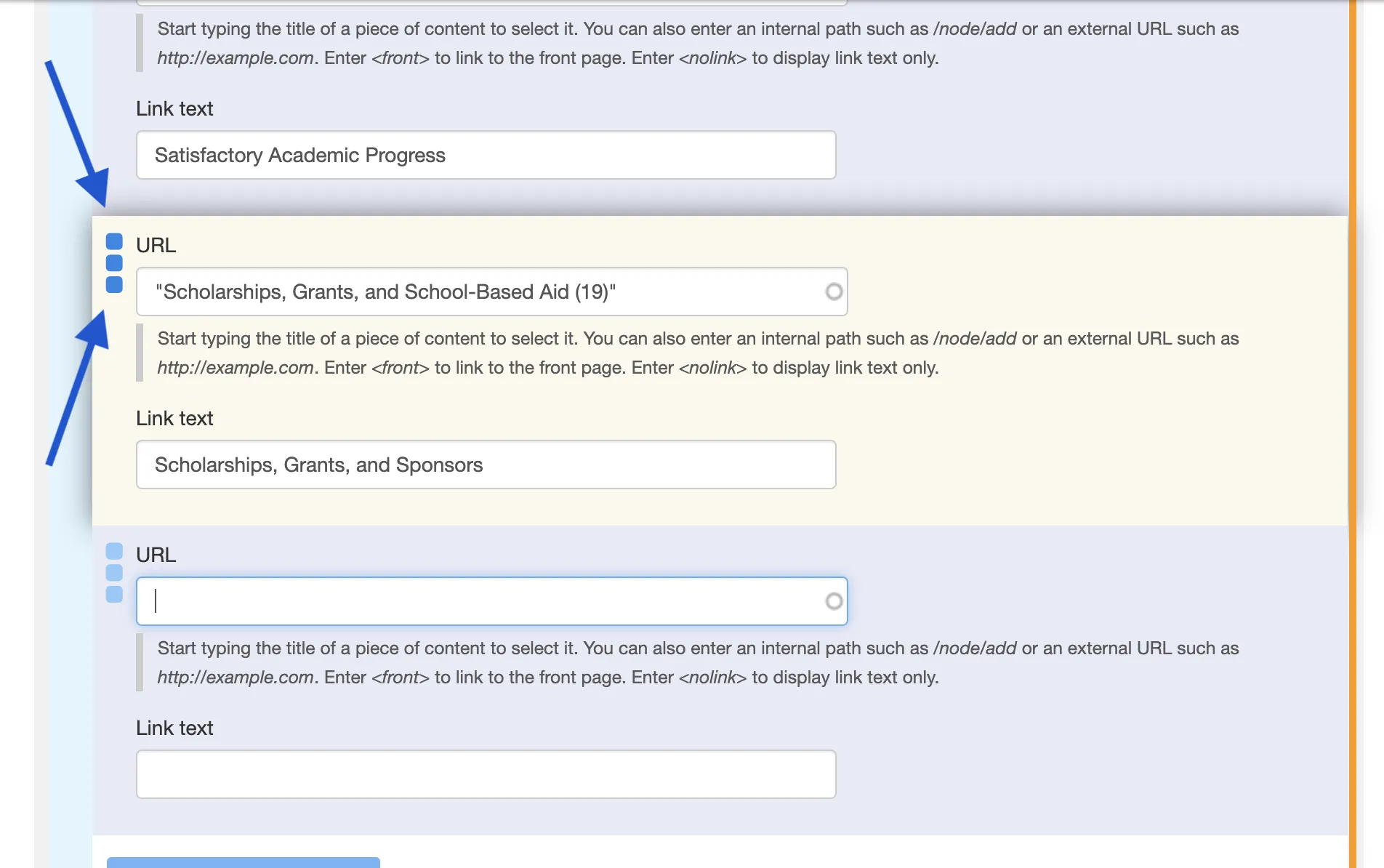
- To Change the order of links, click on the three blue squares on the left side of the screen near the URL field. The related link you are going to move will be highlighted yellow. Drag the field to your desired order.
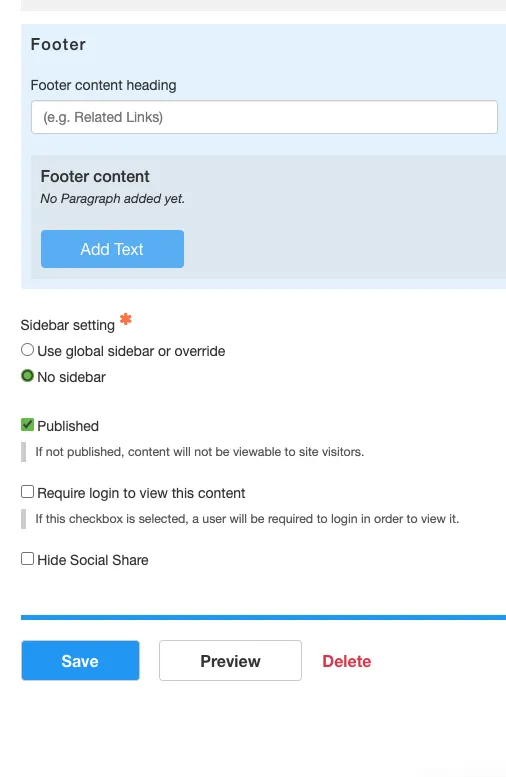
- You must scroll to the bottom of the page and click Save, which will immediately record your changes and return you to the normal user’s view of the webpage, reflecting your new updates to the page.
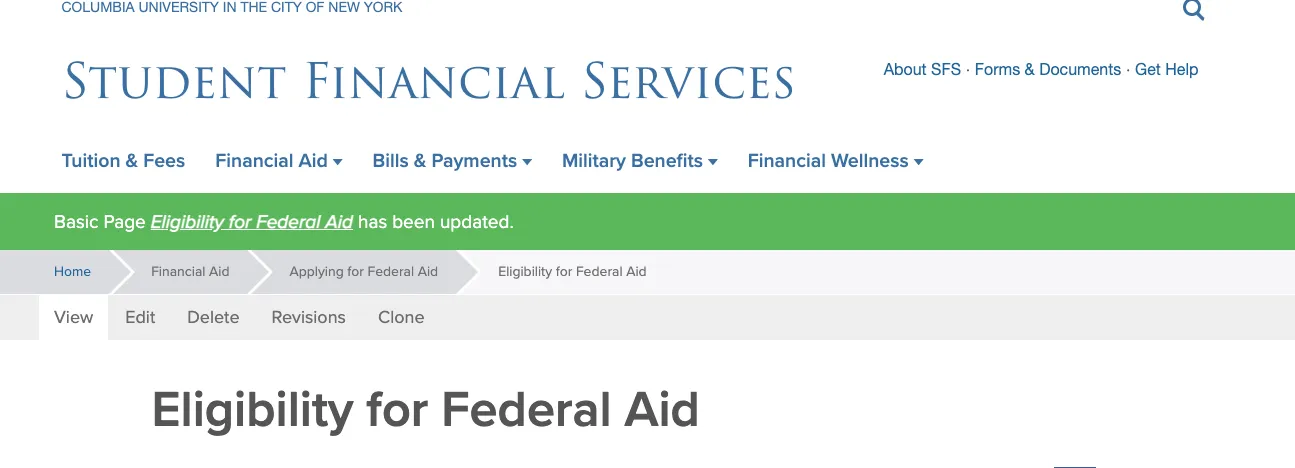
WHILE EDITING A RELATED CONTENT BLOCK, YOU MAY NEED TO MAKE MULTIPLE EDITS TO DIFFERENT CONTENT BLOCKS ON THE PAGE. YOU DO NOT NEED TO SELECT SAVE FOR EVERY CHANGE YOU MAKE.
YOU CAN MAKE MULTIPLE CHANGES ON THE PAGE BEFORE CLICKING SAVE AND ALL EDITS WILL BE RECORDED.
WAITING TO SAVE UNTIL ALL UPDATES TO THE PAGE ARE COMPLETE IS A WAY TO BE MORE EFFICIENT WITH YOUR TIME ON THE PAGE.
- Log in to the site you’re trying to edit. To log in, go to the homepage URL and type “/user” at the end of the URL (do not include the quotation marks), then hit Return to navigate to that page. You will be asked to authenticate, which will log you into the site and return you to the homepage.
- Look for the editor ribbon on the page and select Edit. This ribbon is toward the top of the page underneath the main navigation menu. It will only appear if you are logged into the site. Once you click Edit, you will be taken to a backend editor’s view of the page.
- On the backend of the basic page, you will find your editor options. Scroll down to find the Add Text button. Click the arrow on the right side of the text. A drop-down menu will appear.
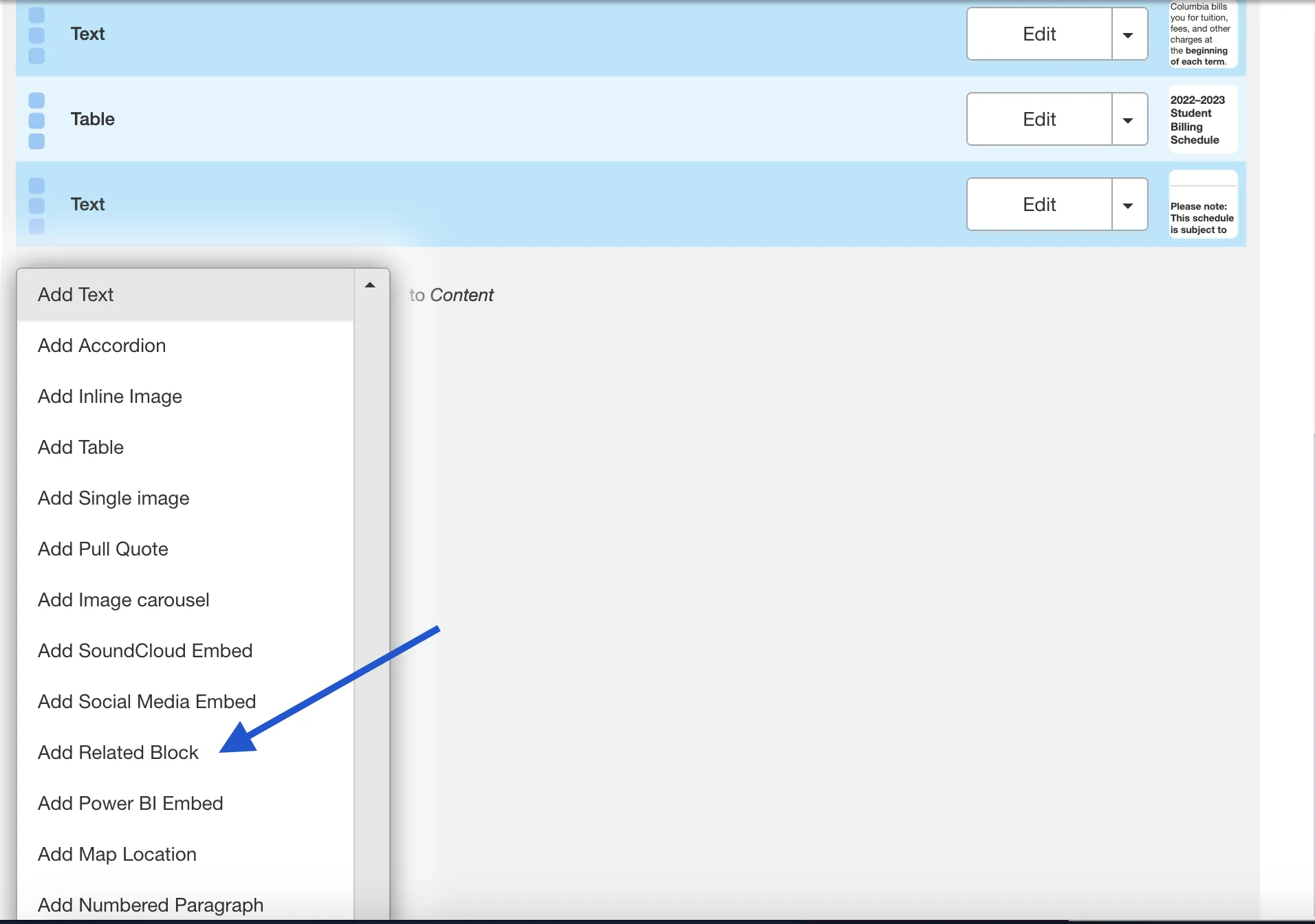
- Click Add Related Block The new related content block will appear. The related content block will be opened to blanks field to input a link/title as well as a title for the related content block. The title for the related content block is always Related Pages.
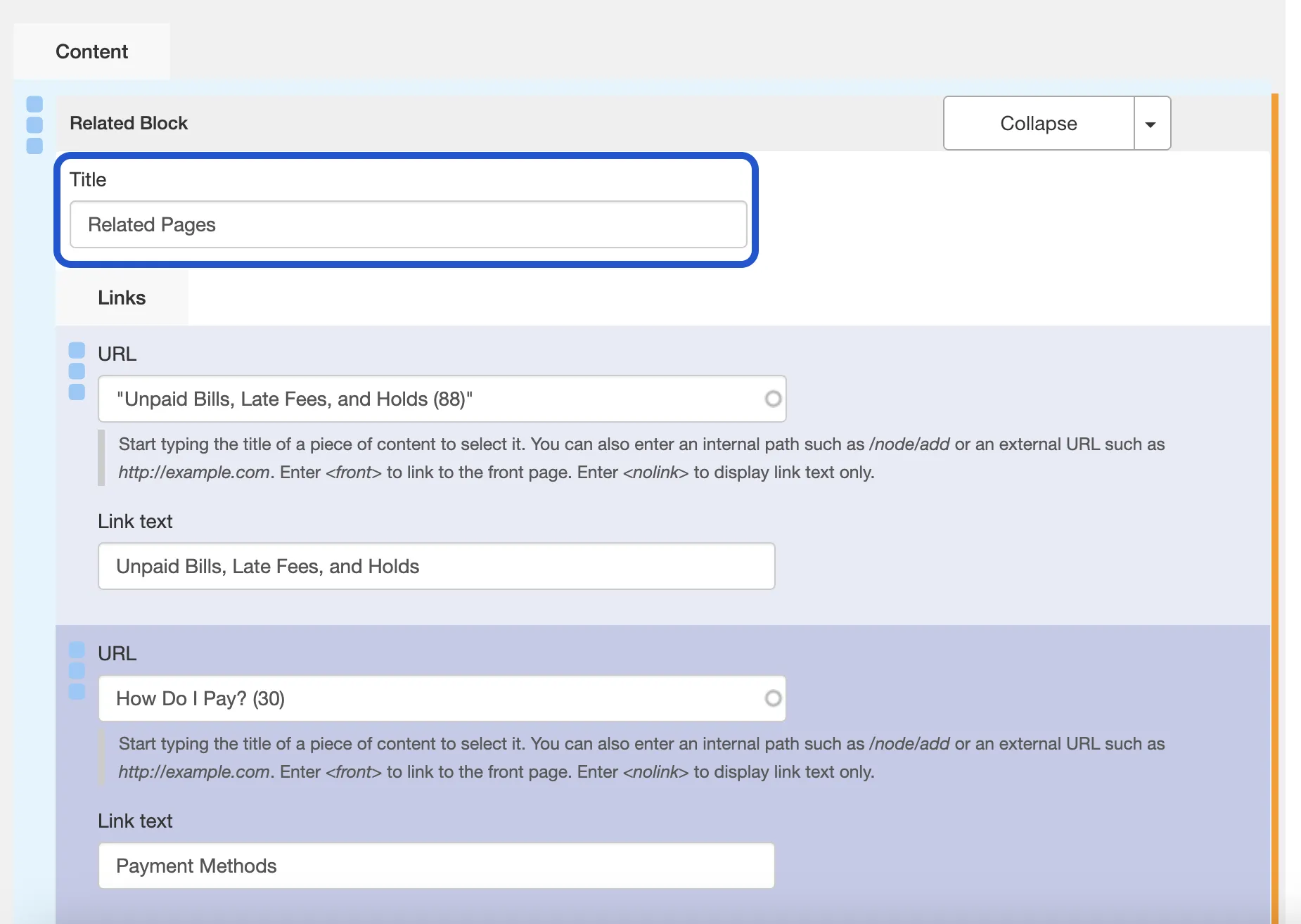
- Add links and title to the fields found under links.
- If you would like to add another link, Click Add Another Item.
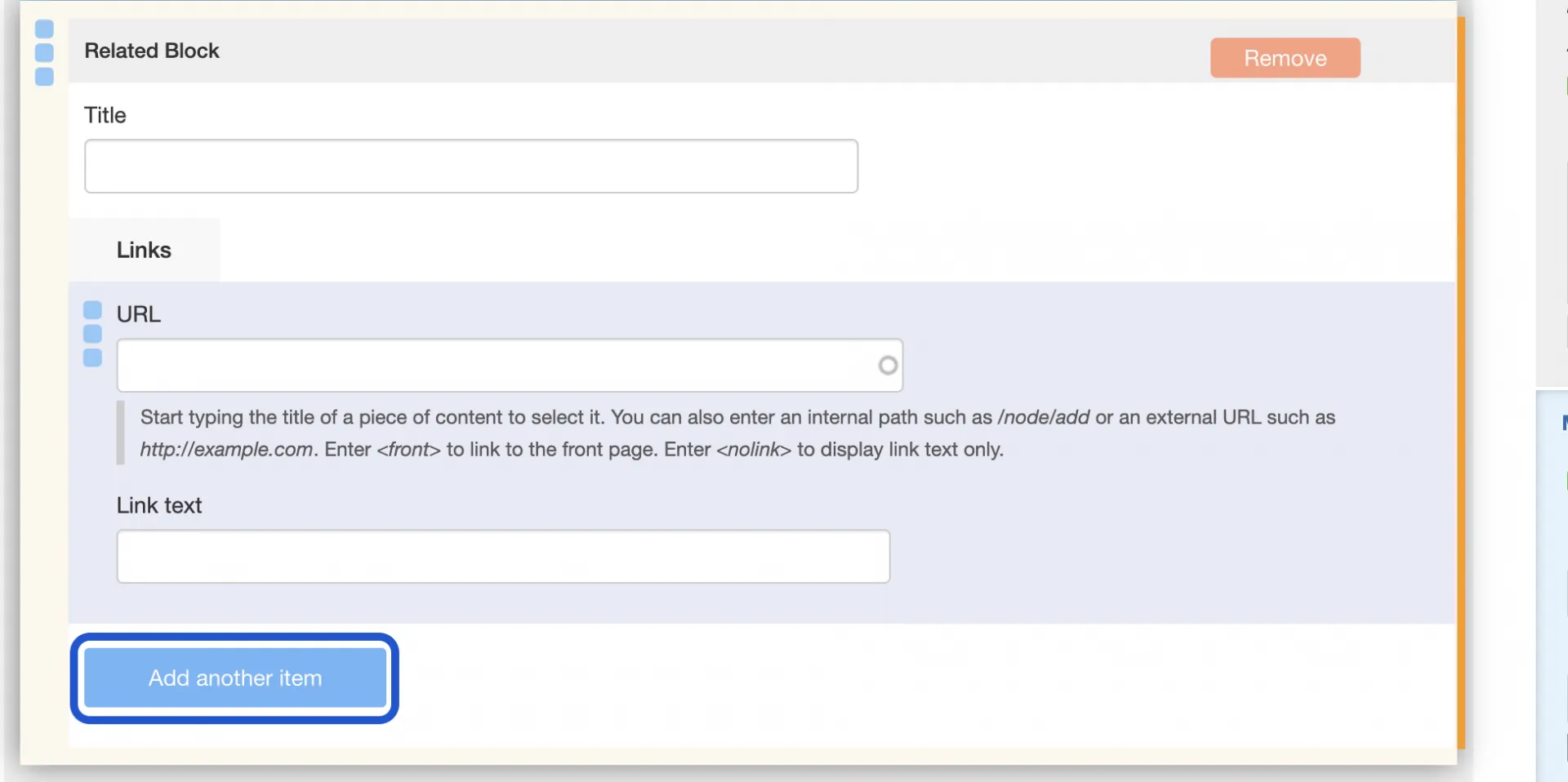
- You must scroll to the bottom of the page and click Save, which will immediately record your changes and return you to the normal user’s view of the webpage, reflecting your new updates to the page.
WHILE CREATING A NEW RELATED CONTENT BLOCK, YOU MAY NEED TO MAKE MULTIPLE EDITS TO DIFFERENT CONTENT BLOCKS ON THE PAGE. YOU DO NOT NEED TO SELECT SAVE FOR EVERY CHANGE YOU MAKE.
YOU CAN MAKE MULTIPLE CHANGES ON THE PAGE BEFORE CLICKING SAVE AND ALL EDITS WILL BE RECORDED.
WAITING TO SAVE UNTIL ALL UPDATES TO THE PAGE ARE COMPLETE IS A WAY TO BE MORE EFFICIENT WITH YOUR TIME ON THE PAGE.
While editing a page, if you accidentally delete the wrong content and need to start over, simply click the back arrow in the top left of your browser or close out of the browser tab or window completely.
As long as you do not save any mistakes you will not publish any mistakes.
If you need assistance creating, editing, removing, or recovering a related content block on your website, please contact the Finance Web Team at [email protected] with a summary of your needs.