Creating a Journal Voucher
Covers the steps involved in creating a Journal Voucher in ARC.
Last Revision: December 2021
Journal vouchers are used to adjust accounting entries for vouchers that have been posted. Journal vouchers will not un-post the voucher, but simply reallocate the ChartField's as appropriate. Journal vouchers are $0 vouchers that must have balancing debit and credit lines defined on the distribution. The credit lines should reference the exact ChartField values from the original voucher. The debit line will reference the corrected ChartField string. The distribution allocation can be re-allocated to multiple distribution lines, but the debit and credit lines must balance.
Details
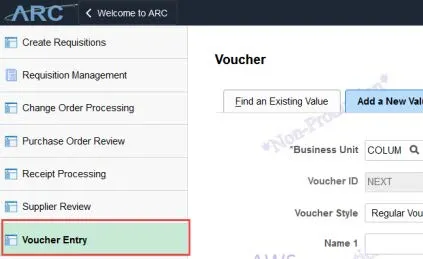
- Click the Buying and Paying tile and then click the Voucher Entry tab.

Or, click the NavBar > Main Menu >Accounts Payable > Vouchers > Add/Update > Regular Entry.
- Click the Voucher Style dropdown and select Journal Voucher.
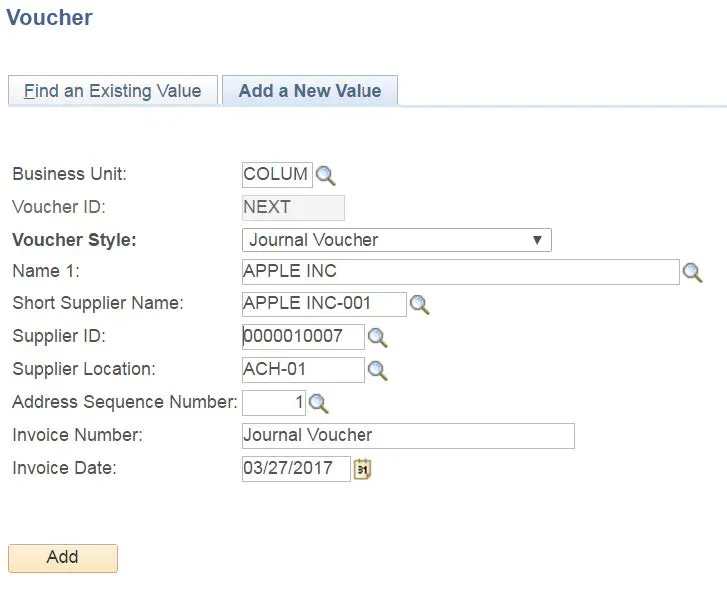
- In the Supplier ID field, enter or search for the desired Suppler ID.
- Type the original invoice number from the original voucher into the Invoice Number field.
- Enter the Invoice Date.
- Click the Add button. The Voucher form appears.
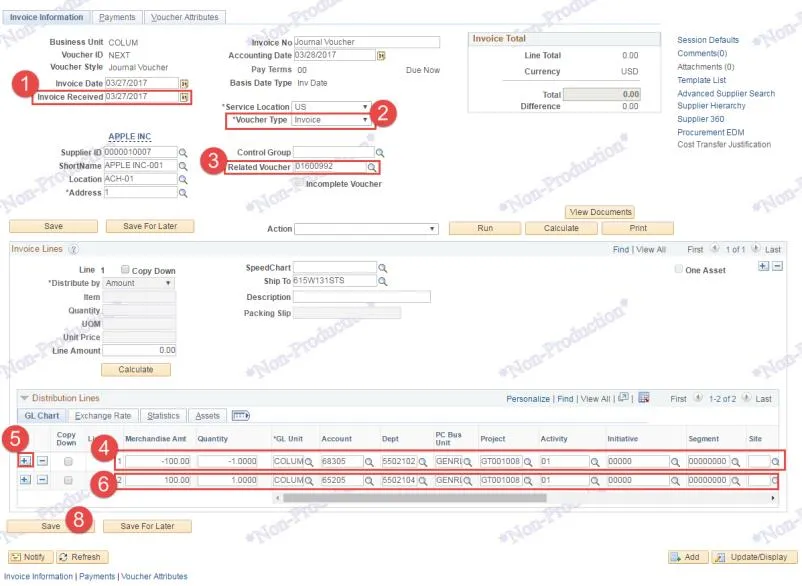
- In the Header section, enter the Invoice Received date.
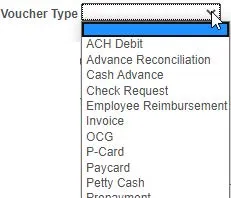
- Click the Voucher Type dropdown and select the Voucher Type of the original voucher for which you are changing with the Journal Entry.
- You will need to identify the voucher for which you are changing with the Journal Entry. Click in the Related Voucher field and click the Look up button. The Look Up Related Voucher window appears.
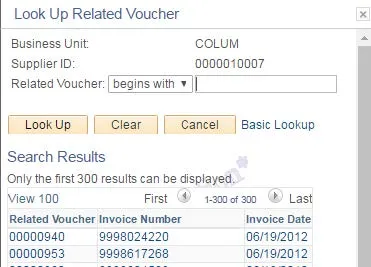
Enter the desired lookup information into the Related Voucher field, click the Look Up button, and select the matching Related Voucher.
- In the Distribution Lines section, enter the ChartField information for the correct Journal distribution. Enter Merchandise Amt and Quantity as a positive amount.
- Click the + button to insert a new distribution line(s).
- Enter the ChartField values from the original voucher (Related Voucher ID) for the distribution line(s) that is being reversed with the Merchandise Amt and Quantity defined as a negative number. The two distribution lines must balance.
- Click the Save button.
- Click the Preview & Submit for Approval button.
- Click the Submit for Approval button and click OK.
Changes to a P-Card transaction distribution require a journal voucher.
Locate the P-Card Voucher and Distribution Line
Identify the original P-Card voucher number in order to process the journal voucher. In FDS, you can use either the Trial Balance by Account Detail or the P-Card Drillback Query.
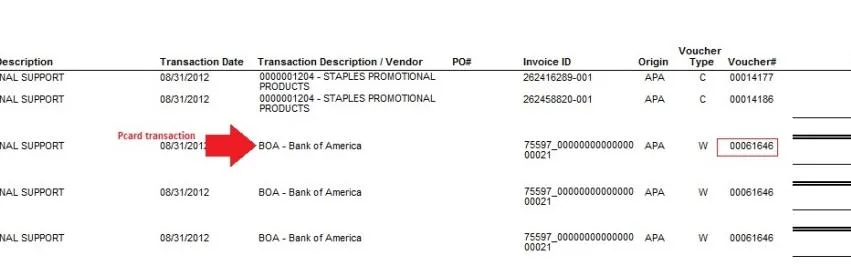
In ARC, look up the voucher number to view the distribution line(s) you need to reference in the journal voucher you are creating.
- Click Main Menu >Accounts Payable > Vouchers > Add/Update > Regular Entry.
- Click the Find an Existing Value tab.
- Enter the Voucher ID.
- Click Search. The Voucher screen appears.
- Click the Invoice Information tab. Reference the correct distribution from the Distribution Lines section to complete your Journal Voucher.
Create the Journal Voucher
- Click Main Menu >Accounts Payable > Vouchers > Add/Update > Regular Entry.
- Click the Voucher Style dropdown and select Journal Voucher.
- Type “BOA” in the Supplier ID field.
- Type the original invoice number from the original voucher into the Invoice Number field.
- Enter the current date for the Invoice Date.
- Click the Add button. The Voucher form appears.
Completing the Voucher Form
- In the Header section, enter the current date for Invoice Received.
- Click the Voucher Type dropdown and select Invoice.
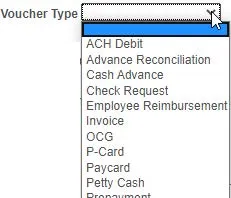
- Click in the Related Voucher field and click the Look up button to search and select the P-Card Voucher you previously located. The Look Up Related Voucher window appears.
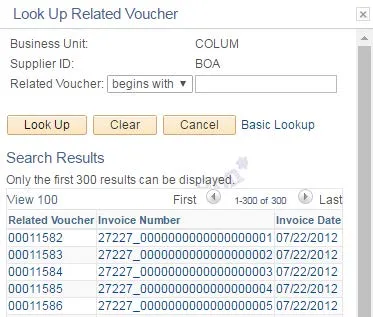
Enter the related voucher number in the Related Voucher field, click the Look Up button, and select the matching Related Voucher.
- In the Distribution Lines section, enter the ChartField information for the correct Journal distribution. Enter Merchandise Amt and Quantity as a positive amount.
- Click the + button to insert a new distribution line(s).
- Enter the ChartField values from the original voucher (Related Voucher ID) for the distribution line(s) that is being reversed with the Merchandise Amt and Quantity defined as a negative number.
- Click the Save button.
- Click the Preview & Submit for Approval button.
- Click the Submit for Approval button and click OK.