Creating a Non-PO Voucher in the CU Marketplace
This job aid covers how to create Vouchers for invoices or other payments not associated with a Purchase Order (NonPO Vouchers) and other payment types in the CU Marketplace.
Those with the Procurement Initiator role can create and submit Vouchers into approval workflow.
Last Revision: September 2026
Need help submitting Non-PO Vouchers or any other CU Marketplace transaction, click the JAI chat icon in the lower right corner of the CU Marketplace window.

Details
- Navigate to the Finance Buying and Paying website, click the CU Marketplace logo, and log in using your Single Sign On.

The JAGGAER application launches.
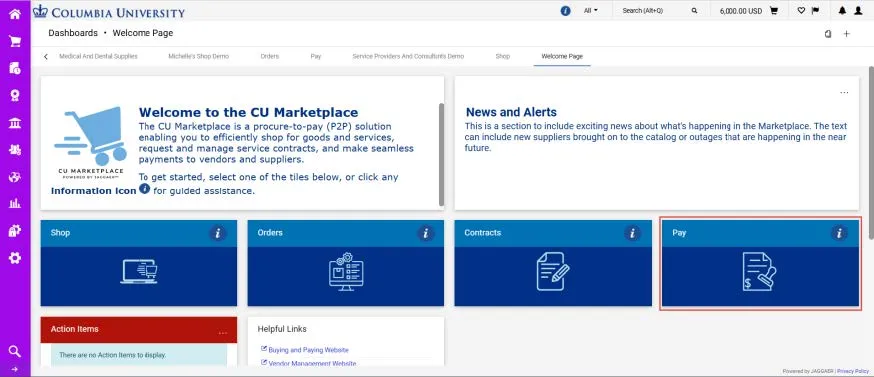
Note: The CU Marketplace will automatically time out after thirty minutes of inactivity, consistent with other University Enterprise Systems.
- Select the Pay tile. The Pay dashboard appears.
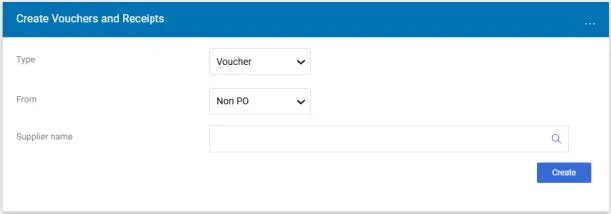
- In the Create Vouchers and Receipts section, select Voucher from the Type dropdown and Non-PO from the From dropdown.
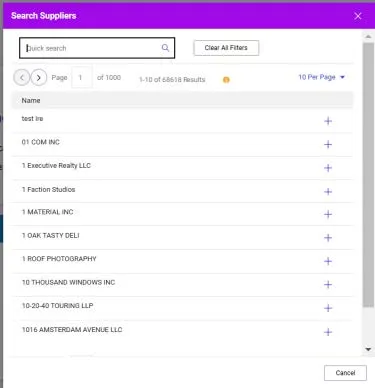
- Enter the Supplier you are paying. Click the Search icon to find and select the Supplier. Type your criteria in the Quick Search field, press Enter, and click the Add icon for the matching Supplier.
- Click the Create button. The Voucher form appears.
The Voucher Entry screen appears with the Summary pane indicating the required fields. If you setup a Default Accounting Code (ChartString) in your Profile (refer to the Modifying Profile Settings in the CU Marketplace job aid), that ChartString information will be automatically populated and won’t appear as missing information in the Summary section.
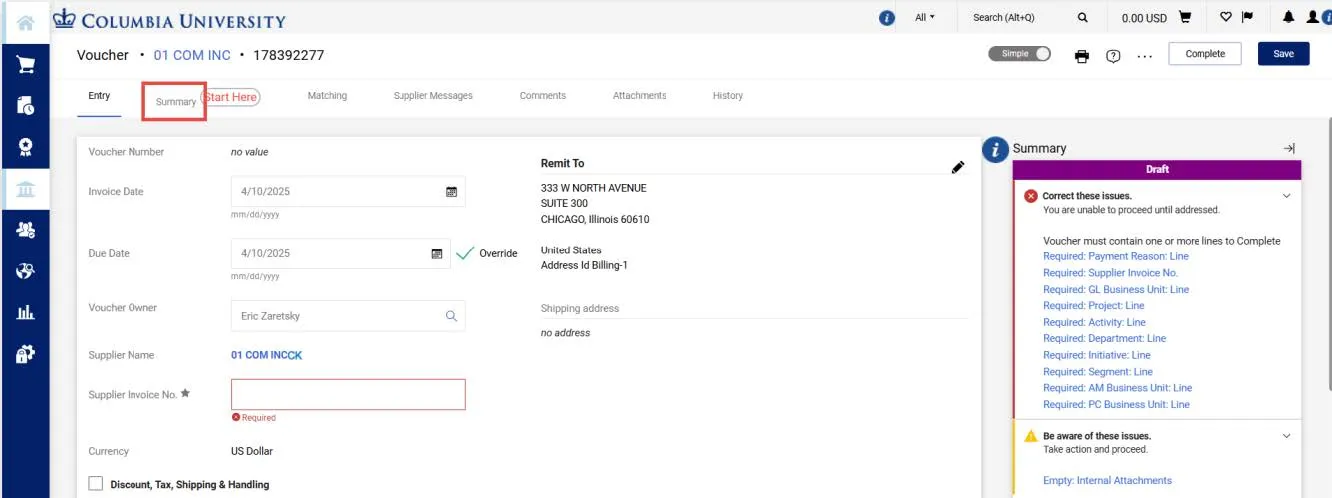
- Navigate to the Summary tab to begin completing the required information.
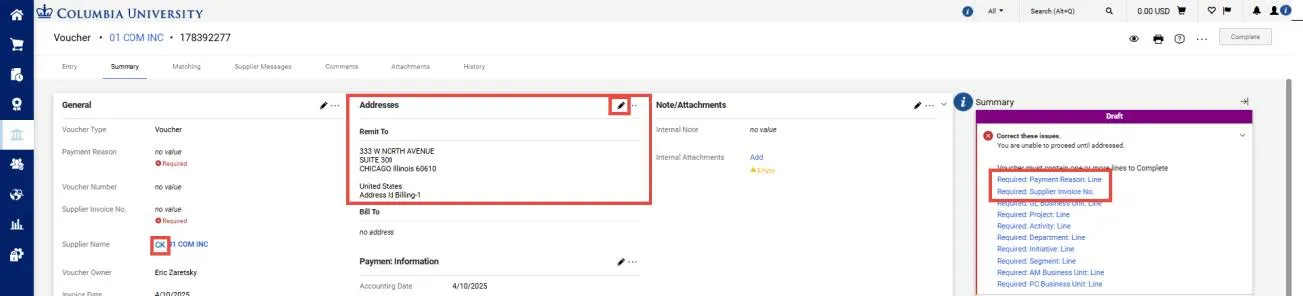
- An icon next to the Supplier Name indicates the default payment method for the Supplier. If the Supplier must be paid using a different method, the Supplier should update the default payment method in their PaymentWorks account.
- The Remit To Address indicates the primary address for the Supplier. If you need to remit to a another address, click the Edit icon to select a different address. If an address for the Supplier is not listed, the Supplier should update their PaymentWorks account.
- Click the link for the Required Payment Type Line. The Edit General window appears where you can enter the required Payment Type and the Supplier Invoice No.
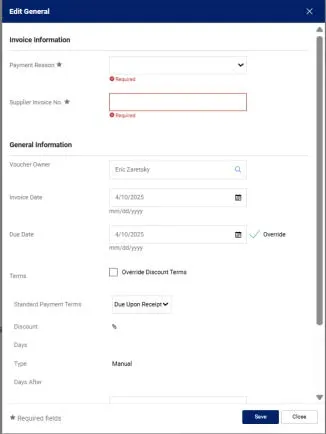
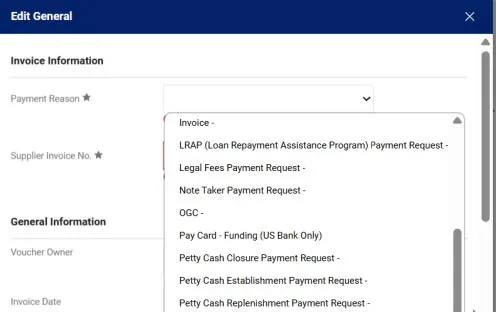
- The Payment Reason will default as Invoice. Select the correct Payment Reason for your Voucher.
Refer to the CU Marketplace Non-PO Voucher Payment Reasons and Invoice Number Format Quick Guide for a list and definitions of all the Payment Reasons and Invoice Number Formats available when you create a Non-Purchase Order (PO) Voucher in the CU Marketplace and provides details about each one.
4. Type the Supplier Invoice No. indicated on the invoice if you received one from the Supplier.
- If an invoice number is not provided, enter the document date (or today’s date) + Total Gross Amount, including cents (MMDDYYAMOUNT) – do not include $ sign. For example, if the date is July 1, 2025 and the total gross amount is $800.00, enter the invoice number as 07012580000.
- For Utility Bills, Pitney Bowes. and Unitex where invoices are submitted without an invoice number, use the format MMYY plus the account number indicated on the invoice. For example, the January 2025 utility bill for account 123456 would have an invoice number 0125123456
- Vouchers for some Payment Reasons require specific invoice number formats. Refer to the CU Marketplace Non-PO Voucher Payment Reasons Quick Guide for guidance on the Supplier Invoice Number format where it deviates from the default.
5. If there is an invoice, encure that the Invoice Date is entered as the date indicated on the invoice. If there is a Payment Reason where there is no invoice, enter today’s date.
6. Click the Save button.
Overriding the Payment Method
The default payment method is indicated by the icon next to the Supplier Name. The Supplier must be set up for the payment method for the method you are selecting in their Supplier profile.
1. Click the Edit Payment Information Section icon.
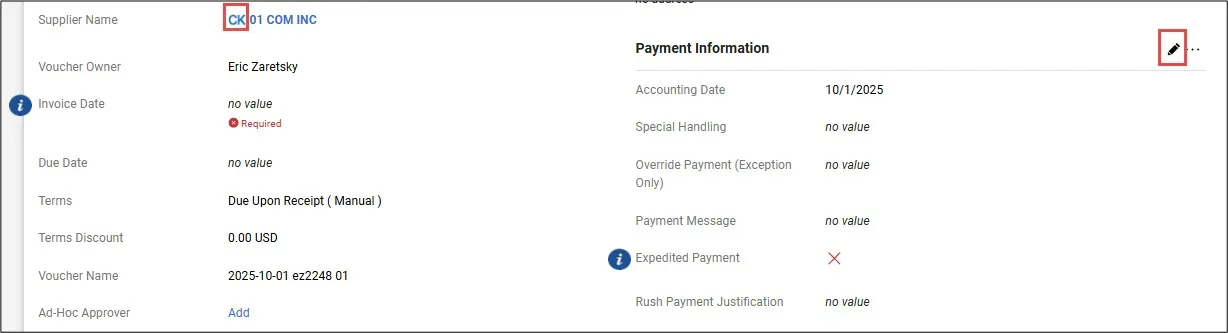
The Edit Payment Information window appears.
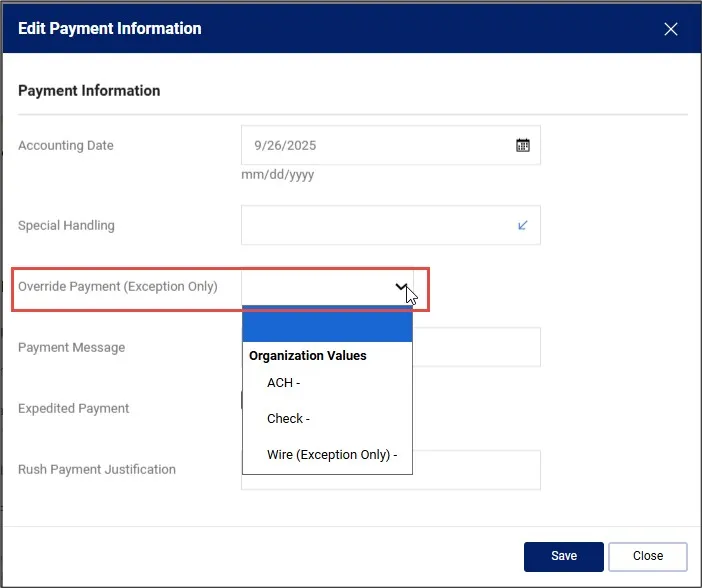
2. Click the Override Payment (Exception Only) dropdown and select the desire alternate payment method.
3. Click the Save button.
Updating Check Payment Information
If a Supplier is to be paid by check, you can provide handling instructions and/or enter a 70 character message that will appear on the check.
1. Click the Edit Payment Information Section icon.
The Edit Payment Information window appears.
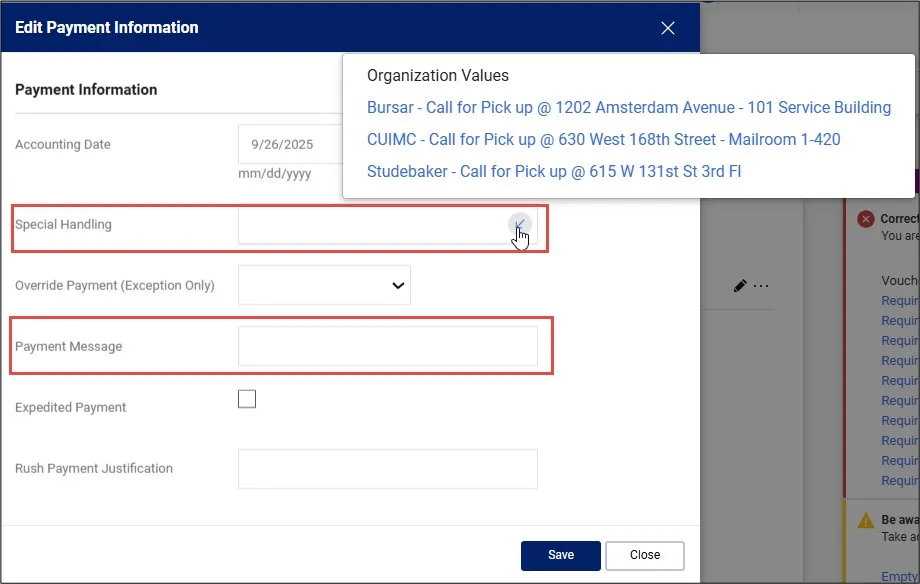
2. If the check is going to be picked up rather than mailed to the supplier, click the Special Handling dropdown menu and select the desired option.
If you would like to have a message printed on the check, type up to 70 characters in the Payment Message field.
Completing Wire Payment Information
If the Supplier is to be paid by Wire, either as their default payment or when selected to override their default payment method, you must complete the Wire Payment Information fields. Please note that the Supplier’s profile must be setup to receive Wire payments.
1. Click the Edit Wire Payment Information Section icon.
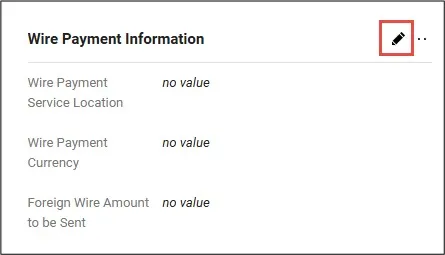
The Edit Wire Information window appears.
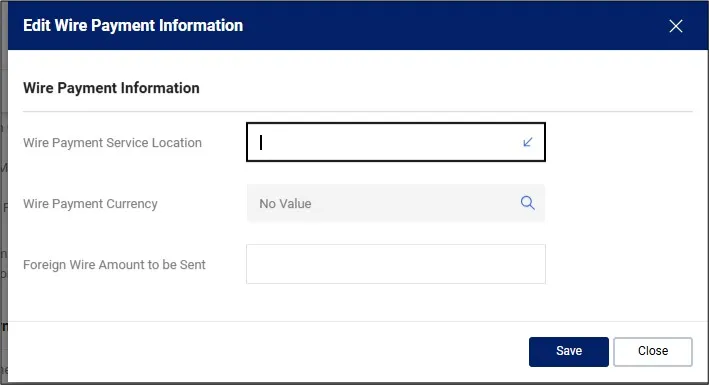
2. Click the Wire Payment Service Location dropdown and select the appropriate location of where the Service was provided. If it the purchase is for a good or the payment is a reimbursement, select Not Applicable.
3. Click the Wire Payment Currency dropdown to select the currency that the Supplier will be paid in.
4. Enter the Foreign Wire Amount to be Sent for the amount in the currency you selected. You must print and attach the Oanda currency conversion to the Voucher as proof of the amount you are paying. If you selected USD as the Currency, leave this field blank.
Ensure that you have the correct ChartString information populated in the Accounting Codes section. If you set up a Default Accounting Code (ChartString) in your Profile (refer to the Modifying Profile Settings in the CU Marketplace job aid), that ChartString information will be automatically populated. You can edit the Accounting Codes for the voucher as a whole, as needed. In addition, you have the option to edit Accounting Codes for each Line of your Voucher.

- In the Codes section, click the Edit Codes Section icon. The Edit Codes window appears.
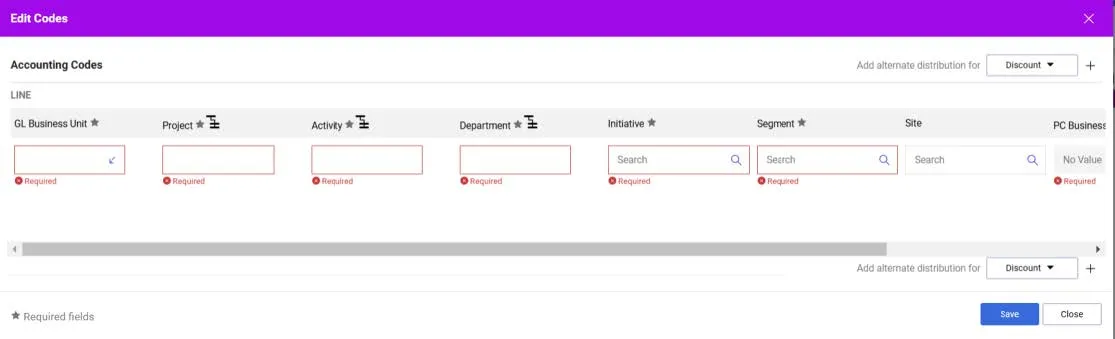
- Update the ChartFields as needed. ChartFields must be entered in order left to right as the available values are dependent on the value in the previous field. You can click the Dropdown arrow in the field you are populating to view the available values.
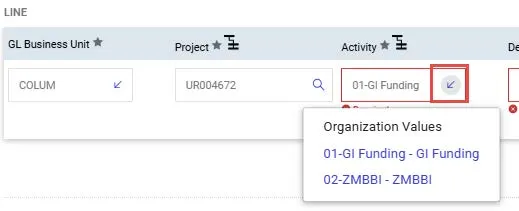
- Click the Validate icon to ensure your ChartFields were entered correctly. If you corrected a ChartField and it still appears as Required , click the Validate icon again.
You can click the Add Split icon to add an additional ChartString line and indicate a percent distribution.
You can click the Code Favorites icon to select a favorite ChartString you created in your Profile.
- Click the Save button.
You must enter a Line to describe the payment, the price, and the quantity. You must indicate the Account for the category.
- In the Lines section, click the Add Non-PO Item link. The Add Non-PO Item window appears.

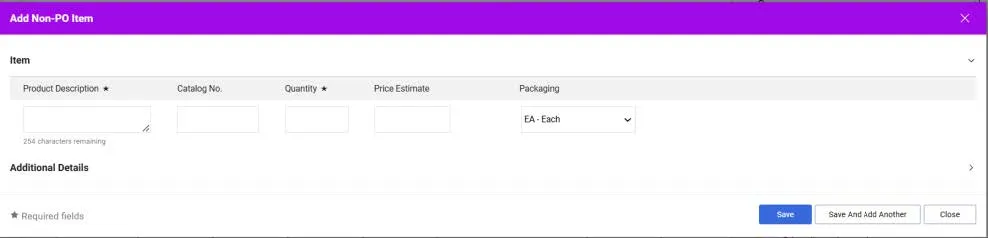
- Enter the Product Description, Quantity, and Price Estimate (the amount of the payment). If applicable, you can enter a Catalog No. and a Packaging unit of measure.
- Click the Save button to add the Line. The Item Details appear and the Account field appears as required.
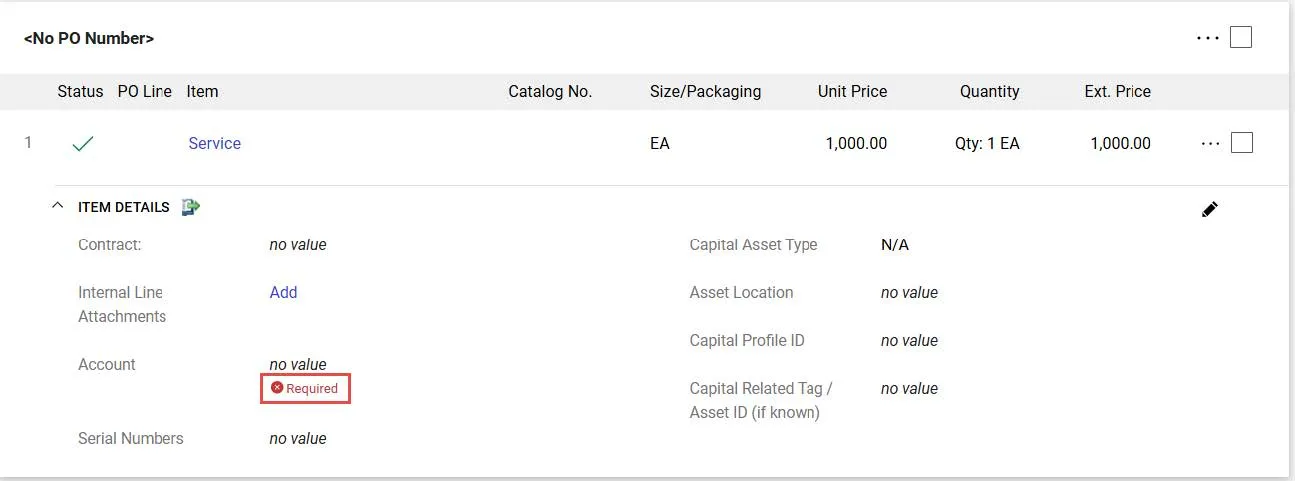
- Click the Required link for the Account value. The Item Details screen appears.
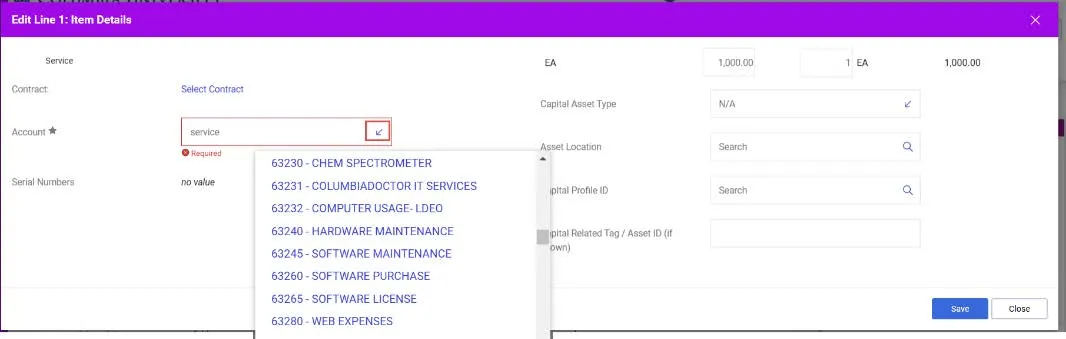
- In the Account field, you can type a descriptive keyword to find a matching Account code or select the dropdown arrow to scroll throught the available values.
- Click the Save button.
Adding an Additional Line
Click the Actions link at the top right of the Line section and select Add Non-PO Item.

Editing Line Accounting Codes (ChartString)
The Accounting Codes that you entered in the main Accounting Codes section automatically copies to your Voucher Lines. If you have multiple Lines, you can edit Accounting Codes for each Line as needed.
- Click the Actions button to the right of the Line detail and select Accounting Codes.
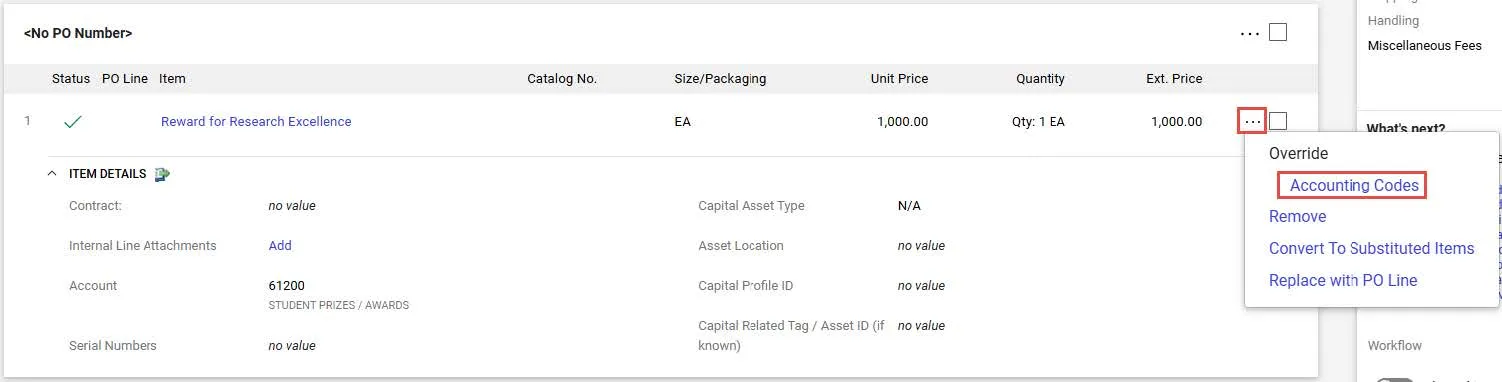
- The Override Line Accounting Codes window appears.

- Click the Plus icon to Add alternate distribution for Line. The fields appear ready to populate.
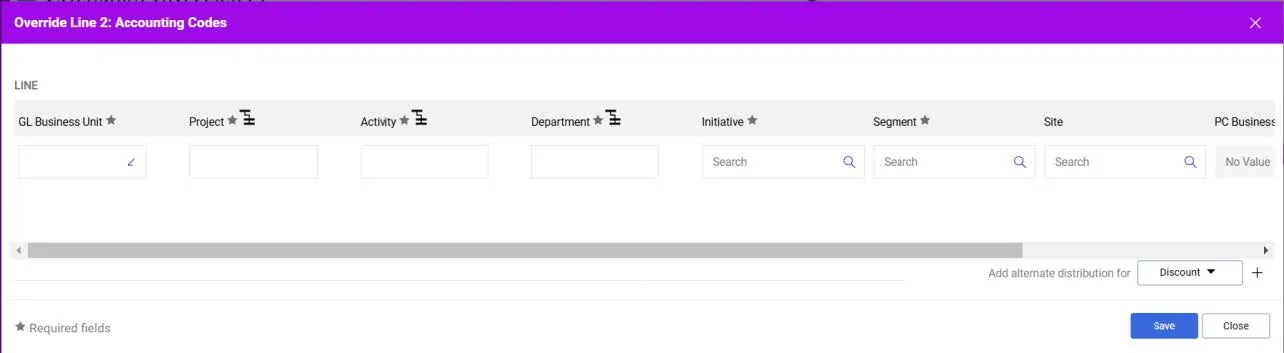
- Update the ChartFields as needed. They must be entered in order left to right as the available values are dependent on the value in the previous field. You can click the Dropdown arrow in the field you are populating to view the available values.
- Click the Validate icon to ensure your ChartFields were entered correctly. If you corrected a ChartField and it still appears as Required , click the Validate icon again. You can click the Add Split icon to add an additional ChartString line and indicate a percent distribution. You can click the Code Favorites icon to select a favorite ChartString you created in your Profile.
- Click the Save button.
Attach an invoice, if applicable, and/or supporting documentation that provides the business reason for your payment.
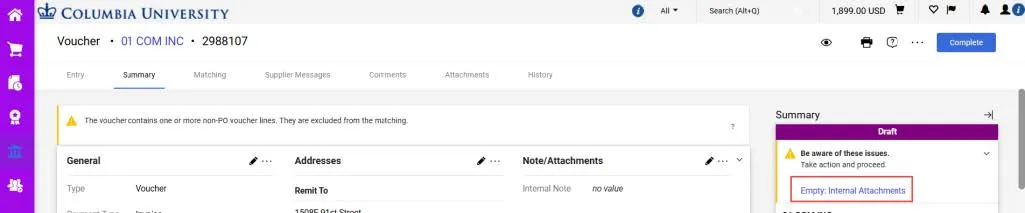
- In the Summary pane, click the Empty Internal Attachments link. The Add Attachments window appears.
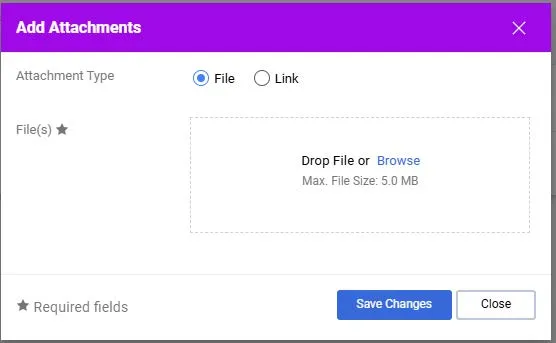
- Drag and drop your file to the Drop File section or click the Browse link to search and select your file. You can add additional documentation to this window, if needed.
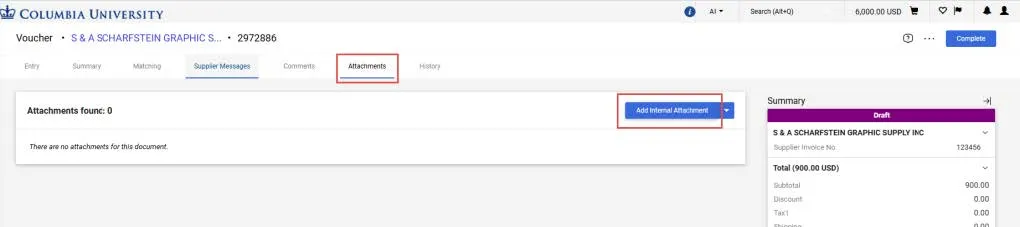
- Click the Save Changes button. You can view and attach additional documents via the Attachments tab.
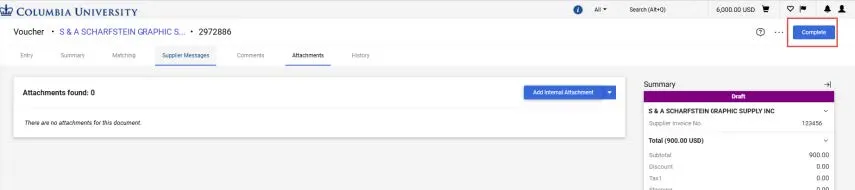
Click the Complete button to submit your Voucher.
The Voucher Submitted confirmation screen appears.
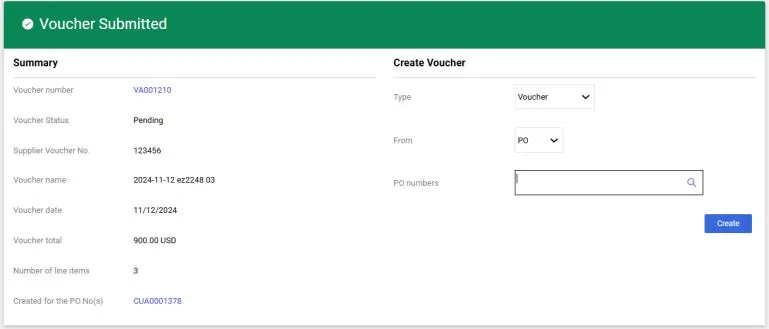
You can click the Voucher number to view the Voucher details.
Additionally, you can create a new voucher from the right side of this screen under the Create Voucher heading.
In order to edit Vouchers after they have been submitted into workflow for approval, you must first request that the Voucher be returned to you by the Approver.
Viewing Your Vouchers
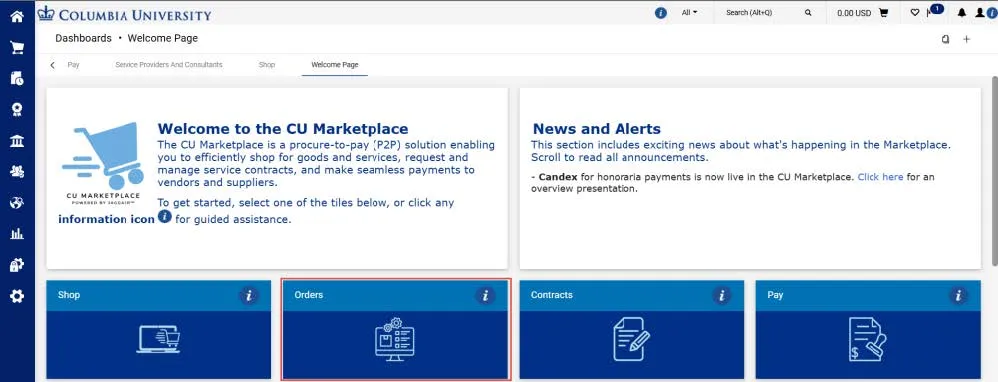
Click the Orders tile to navigate to the Orders dashboard.
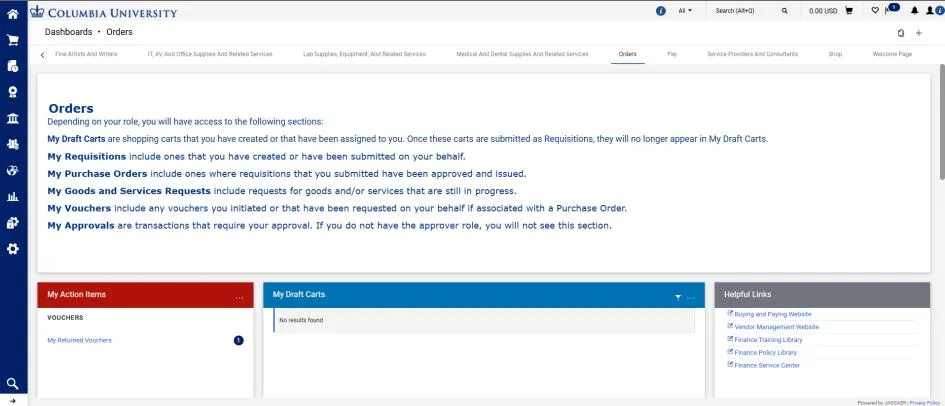
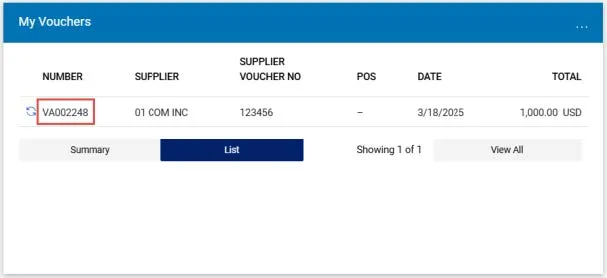
To access your Vouchers, scroll to the My Vouchers section and click the Number of the Voucher you want to view.
Adding Comments and Notifying Approvers
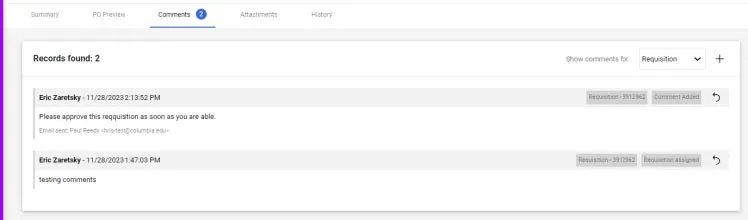
After you submit a Voucher into workflow for approval, you can add a Comment that can be emailed to selected Approvers in order to request the document be returned to you for editing. You can also use Comments to remind Approvers that your Voucher is awaiting review and approval.
From within the Voucher document:
- Click the Comments tab.

- Click the New Comments icon. The Add Comment screen appears.
- Type your Comment. Optionally, you can attach a file or add a link/URL.
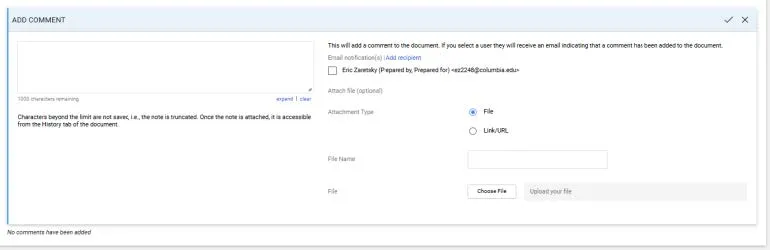
You can select the individuals listed who have worked with your document to receive your Comment as an Email Notification, or, click Add recipients to search for Approvers or other individuals you wish to send your Comment to.
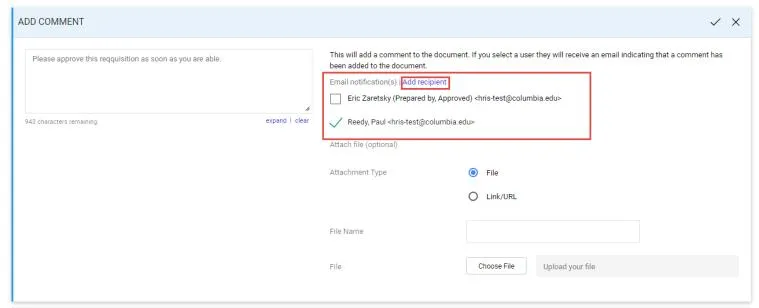
- Click the Complete icon. Comments are indicated on the Comments tab and listed on the Comments screen.