Creating Uni Protected Pages on Columbia Sites
This job aid details the process of adding uni protection to a basic page. It is designed for users who make edits to the following websites: Finance; Travel & Expense; Student Financial Services; Registrar; Student Service Center; and University Policies.
Last Revision: July 2023
What is uni protection?
Uni protection is a way to ensure viewers to your page are authenticated by Columbia University.
How do I delete a hyperlink to a content block?
- Log in to the site you’re trying to edit. To log in, go to the homepage URL and type “/user” at the end of the URL (do not include the quotation marks), then hit Return to navigate to that page. You will be asked to authenticate, which will log you into the site and return you to the homepage.
- Look for the editor ribbon on the page and select Edit. This ribbon is toward the top of the page underneath the main navigation menu. It will only appear if you are logged into the site. Once you click Edit, you will be taken to a backend editor’s view of the page.
- Scroll down to the bottom of the back end of the page. Directly above the save button, there will be a checkbox with text beside it that reads: Require login to view this content. Click the checkmark to password require uni authentication to view this page.
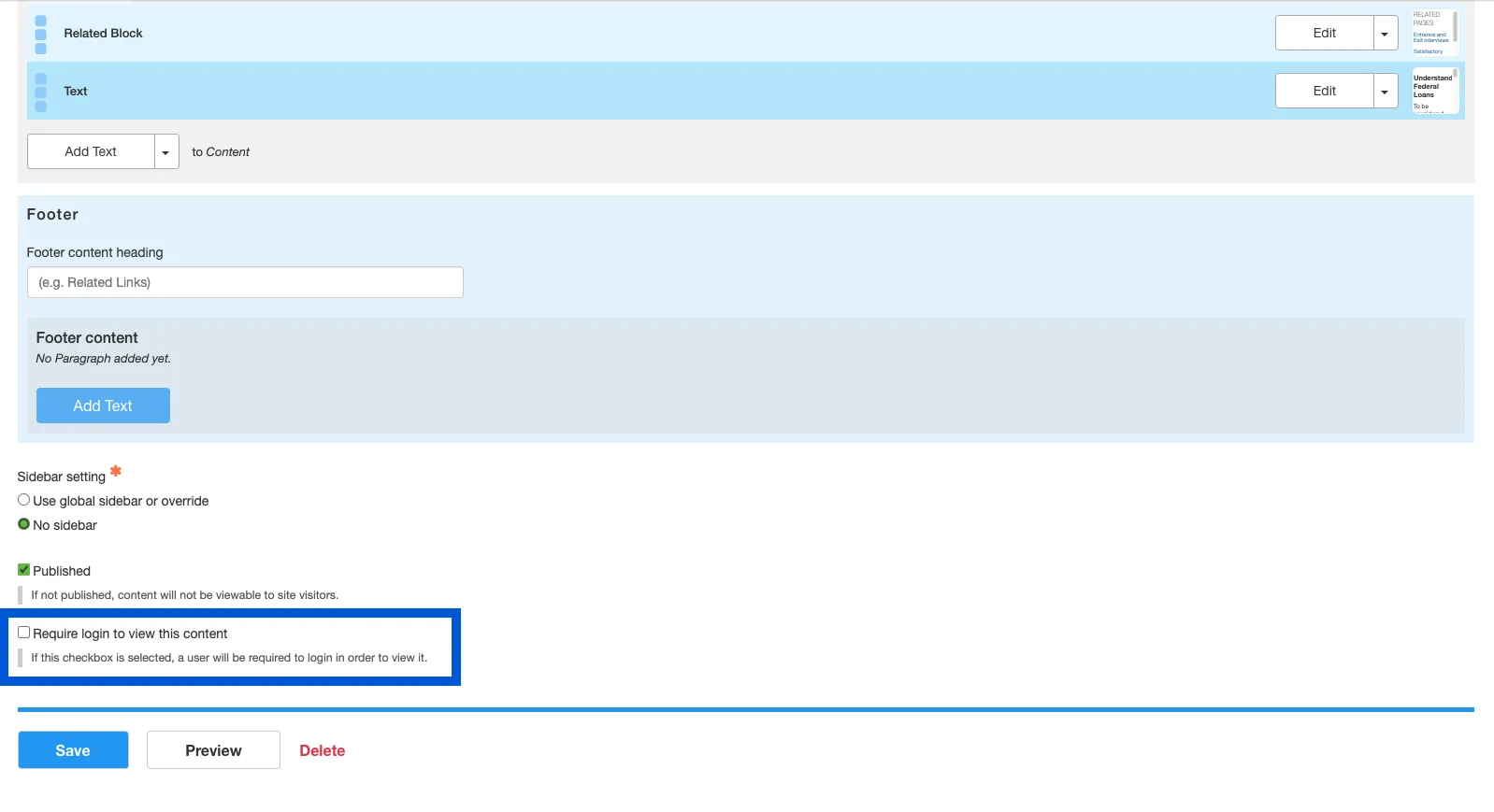
- Select Save. You will be brought back to the user view of the page you edited. There will be a green bar near the top navigation to alert you the page has been updated. Your new changes will appear immediately on the page.
TO TEST WHETHER THE UNI PROTECTION IS FUNCTIONING ON YOUR PAGE, OPEN AN INCOGNITO WINDOW AND PASTE THE LINK INTO THE BROWSER. IF THE UNI PROTECTION IS SUCCESSFUL, YOU WILL BE PROMPTED TO AUTHENTICATE TO VIEW THE PAGE.
Getting Help
While editing a page, if you accidentally delete the wrong content and need to start over, simply click the back arrow in the top left of your browser or close out of the browser tab or window completely.
As long as you do not save any mistakes you will not publish any mistakes.
If you need assistance creating, editing, removing, or recovering an accordion on your website, please contact the Finance Web Team at [email protected] with a summary of your needs.