CU Marketplace Document Search Quick Guide

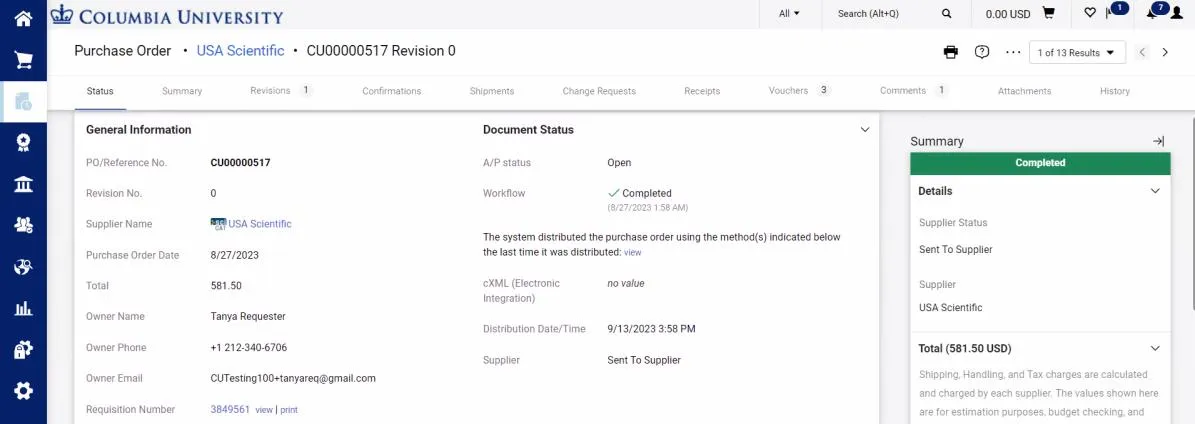
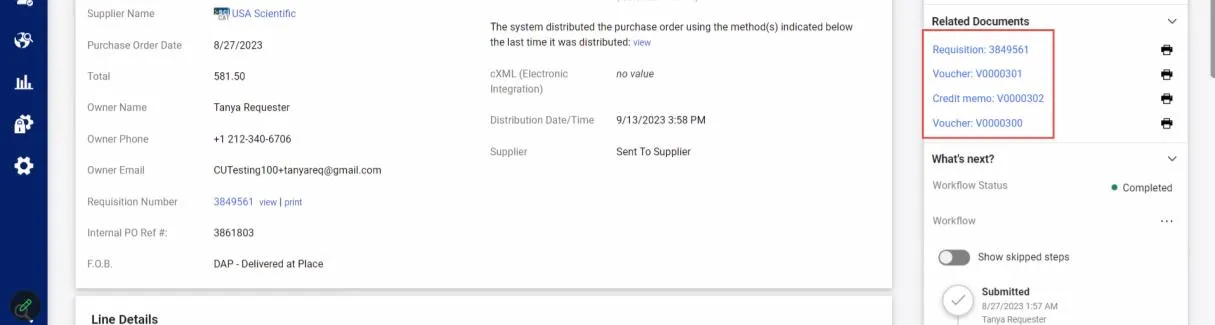
You can use the Quick Search to find documents related to your CU Marketplace transactions. The Quick Search can be set to find all related documents or you can choose to search among specific types of documents. Once you find a specific document, the Summary panel contains links to other documents related to the transaction.
Last Revision: 2025
The CU Marketplace powered by JAGGAER provides powerful search functionality with results that can be filtered and refined. You can save and organize Searches so that you can easily run again in the future to get the most up to date information regarding transactions and document status. In addition, Search results can be exported to Excel for further analysis.
For detailed instruction on using the CU Marketplace search functionality, refer to the Searching for Documents and Running Reports in the CU Marketplace Training Guide.
Using Quick Search to Find Documents
You can use the Quick Search to find documents related to your CU Marketplace transactions. The Quick Search can be set to find all related documents or you can choose to search among specific types of documents. Once you find a specific document, the Summary panel contains links to other documents related to the transaction.
- Navigate to the Finance Buying and Paying website, click the CU Marketplace logo, and login using your Single Sign On. The JAGGAER application launches.
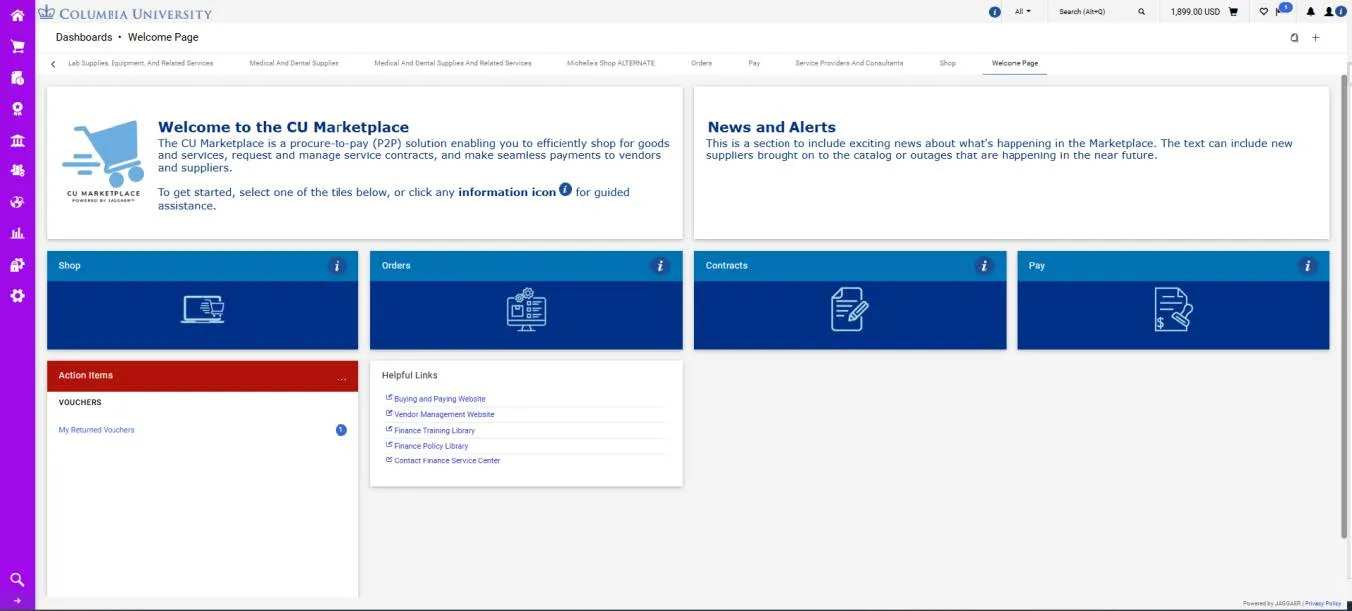
- Click in the Quick Search field on the top right of the CU Marketplace window.

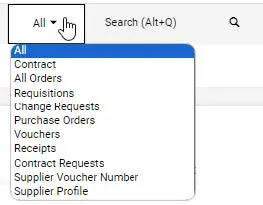
Optionally, you can click the dropdown next to the Quick Search field to narrow your search to a specific document type.
- Type your search criteria.
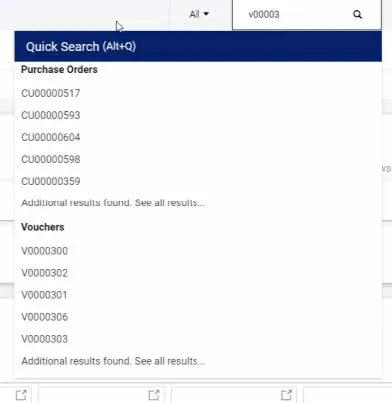
- You can click the matching document number that appears as you type or press Enter to view a list of matches. If you select an exact match, the document screen will automatically appear.
The Summary Panel of the document contains links to Related Documents so that you can easily navigate to related Requisition, Purchase Order, Voucher, or Receipt documents.