CU Marketplace Managing Carts Quick Guide
This Quick Guide details how manage your Carts that are created when you shop from Catalog Suppliers or complete a Non-Catalog Goods and Services Request prior to checking out and submitting them as Requisition .
Last Revised: April 2025
When you select items when shopping from Catalog Suppliers or add Line Items to a Non-Catalog Goods and Services Request, you are adding items to your Active Shopping Cart. If you should end your CU Marketplace session and resume shopping at a later time, you will resume adding items to the same Active cart. If needed, you can create a new cart and begin adding new items. You can also switch between different Carts.
Details
If you have an Active Cart, the total amount for all items in that Cart is displayed next to the Shopping Cart icon in the top right of the CU Marketplace window.
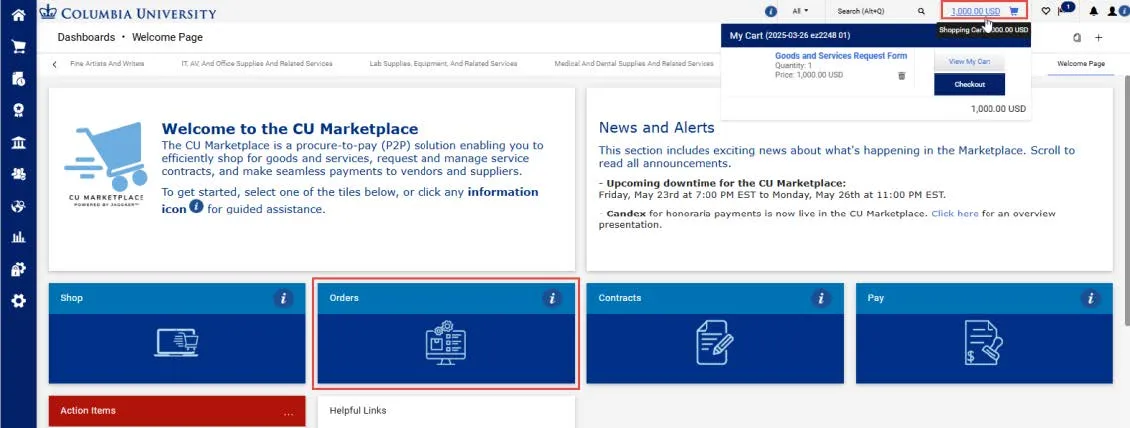
Click the Amount link next to the Shopping Cart icon to View My Cart or proceed to Checkout.
To view all Draft Carts, click the Orders tile from the Welcome Page. The Orders dashboard appears.
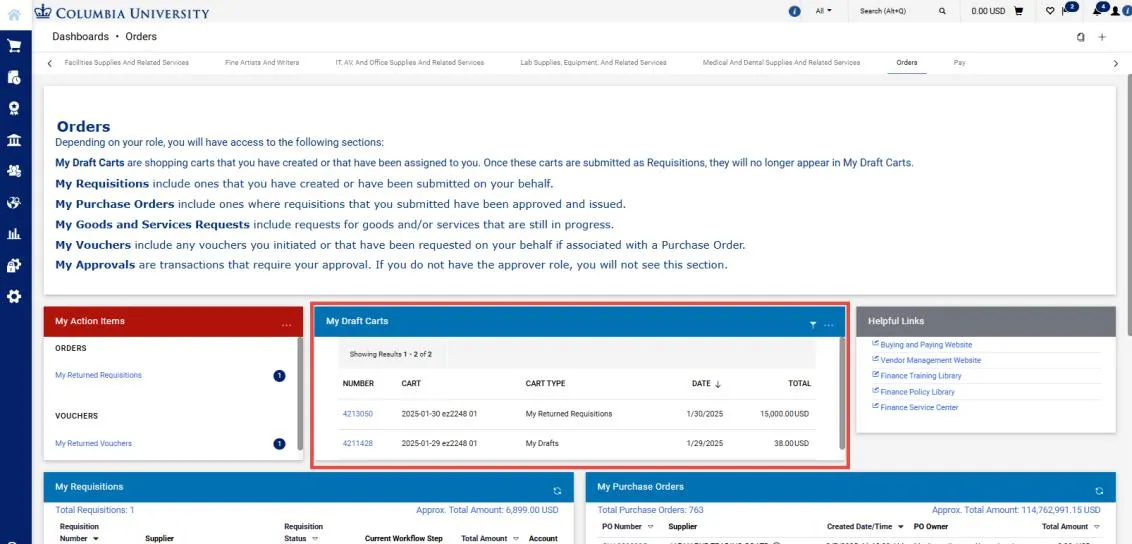
The My Draft Carts section displays your Carts. The Active icon indicates the Cart that is currently active.
Click a Cart Number to view a Cart. That Cart will become your Active Cart. If you shop for Catalog Items, those items will be added to the Active Cart.
If you will be creating a Non-Catalog Requisition. process your current Active Cart (assign it or submit it into workflow), delete it, or create a new Cart.
- Use the Navigation Menu on the left to navigate to the Shop icon > My Carts and Orders > View Cart.
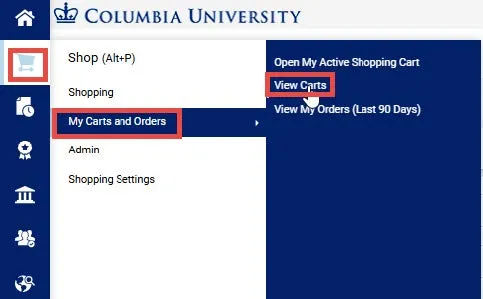
The Cart Management screen appears.

- Click Create Cart. The Shopping Cart page appears for the new cart.
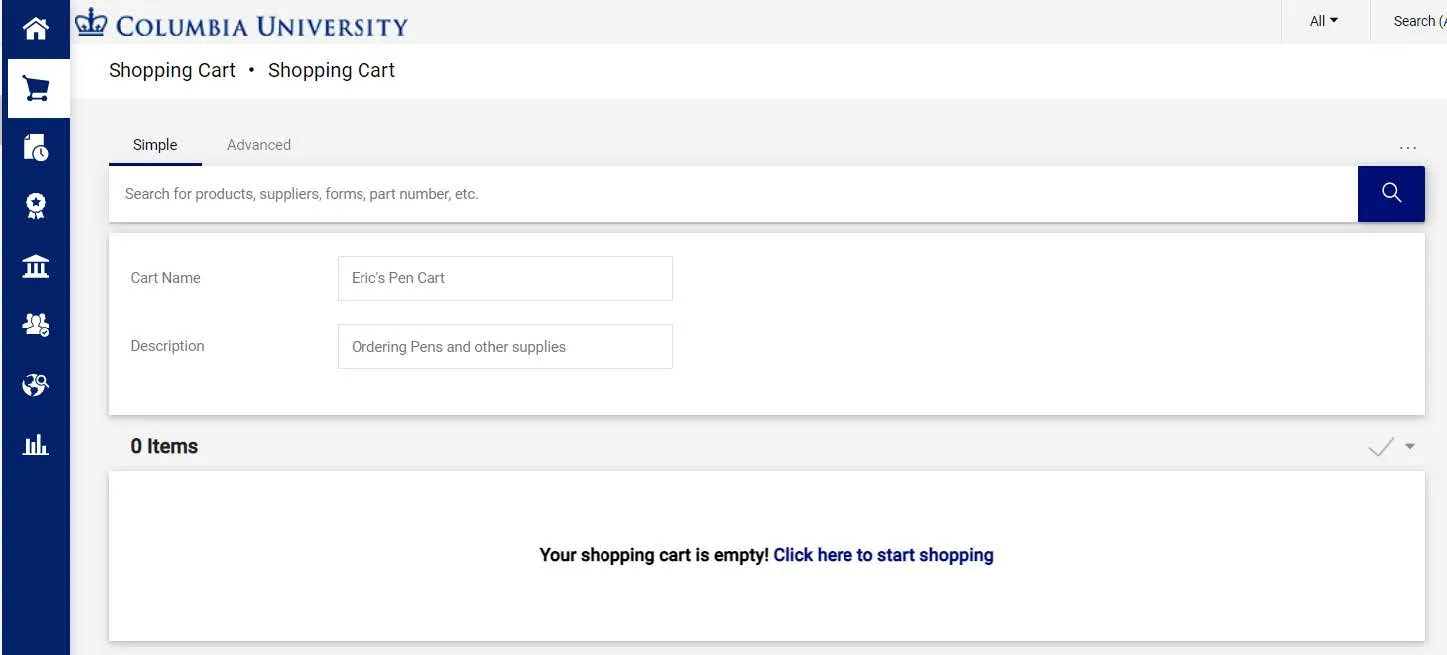
- Enter a Cart Name and Description. You can begin shopping or create a Non-Catalog Requisition to add items to the new Cart.
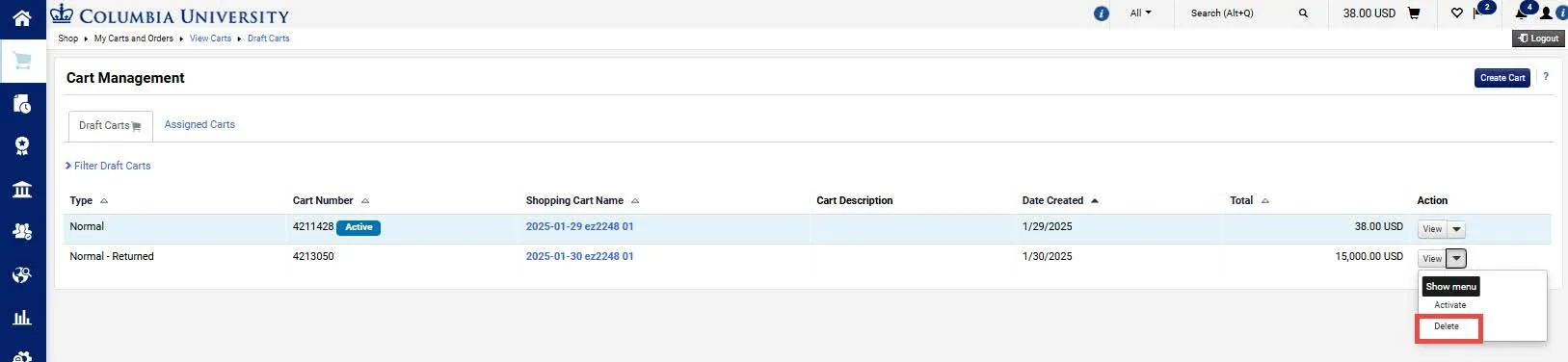
- Use the Navigation Menu on the left to navigate to the Shop icon > My Carts and Orders > View Cart. The Cart Management screen appears.
- Click the Action dropdown and select Delete.
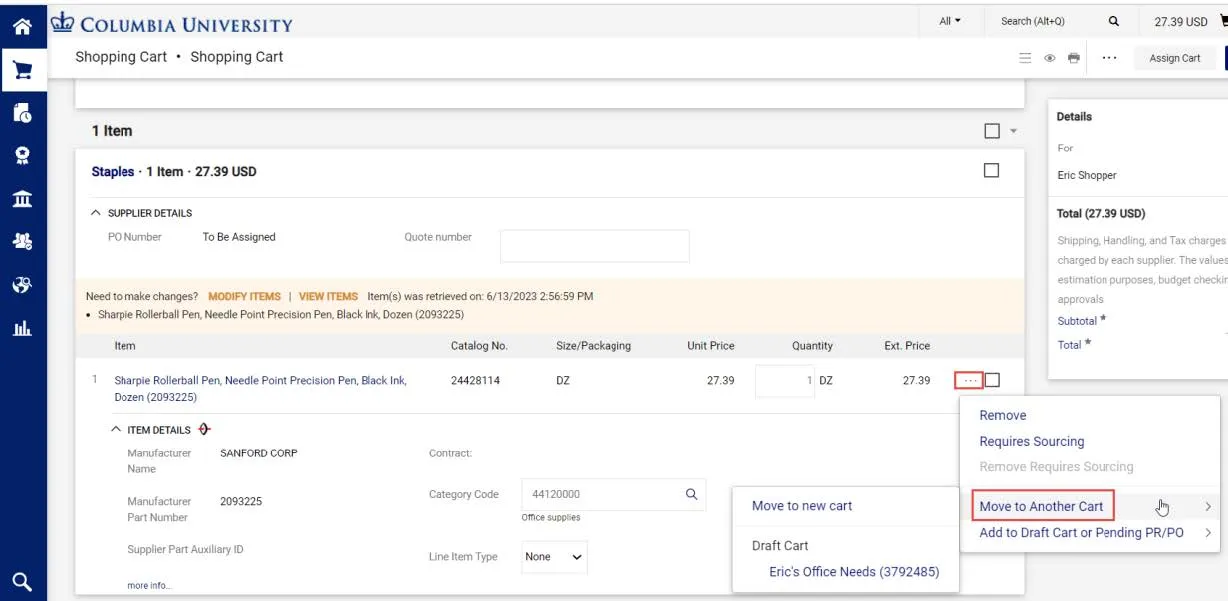
- View the Shopping Cart page that has the item you want to move to another cart.
- Click the Line Item Actions icon for the item you want to move and select Move to Another Cart.
- Select Move to a new cart to create a new cart with that item or select one of the Draft Carts listed to move the item to that cart.
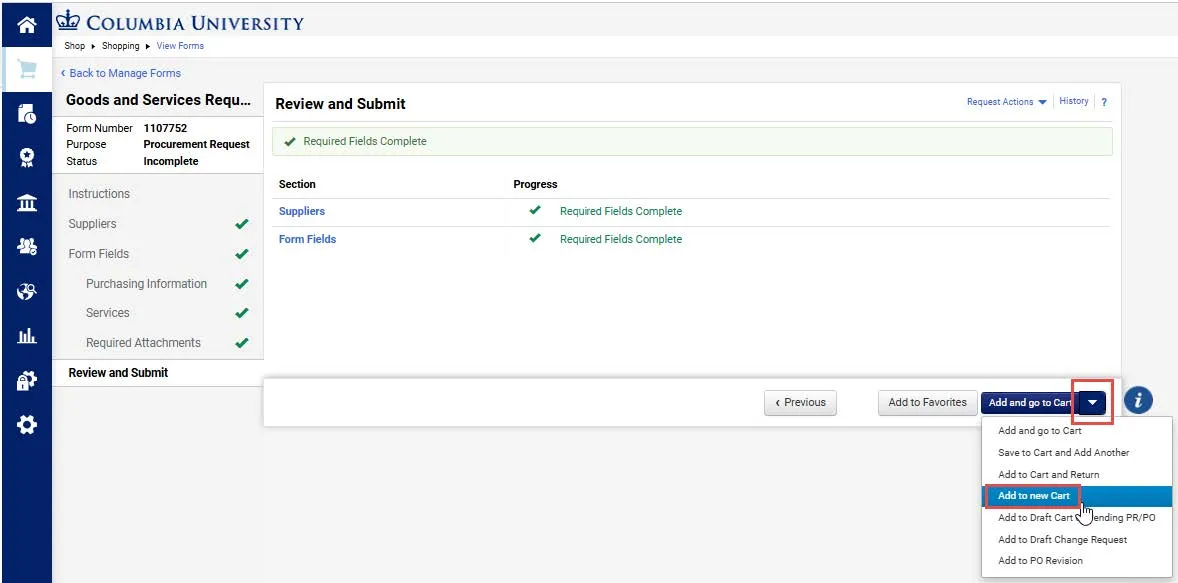
After completing a Goods and Services Request Form, you can select the option to Add to new Cart so your items are not added to the Active Cart.
On the Review and Submit page of your Goods and Services Request Form, click the dropdown menu next to Add and go to Cart and select Add to new Cart.