CU Marketplace Viewing Supplier Information Quick Guide
This Quick Guide covers how to search for Suppliers in the CU Marketplace and view Supplier information within Vouchers and Requisitions.
Last Revision: August 2025
Details
1. Type the Supplier name in the Quick Search field at the top of the CU Marketplace screen and press Enter. Matching Supplier(s) results are listed.
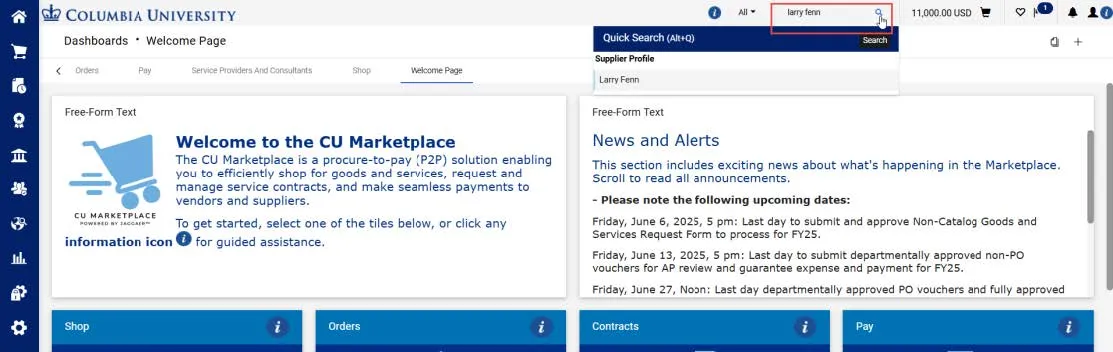
2. Click the matching Supplier name. The Supplier Summary page appears.
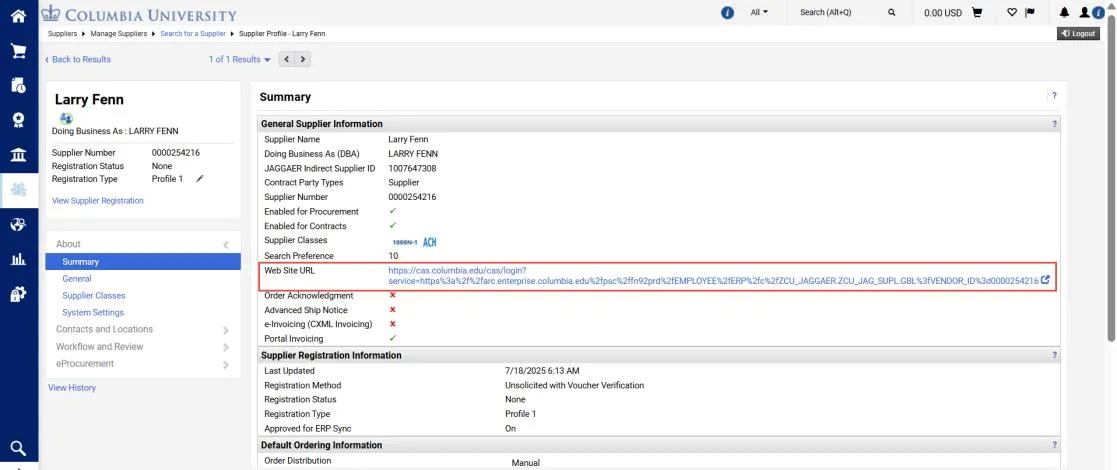
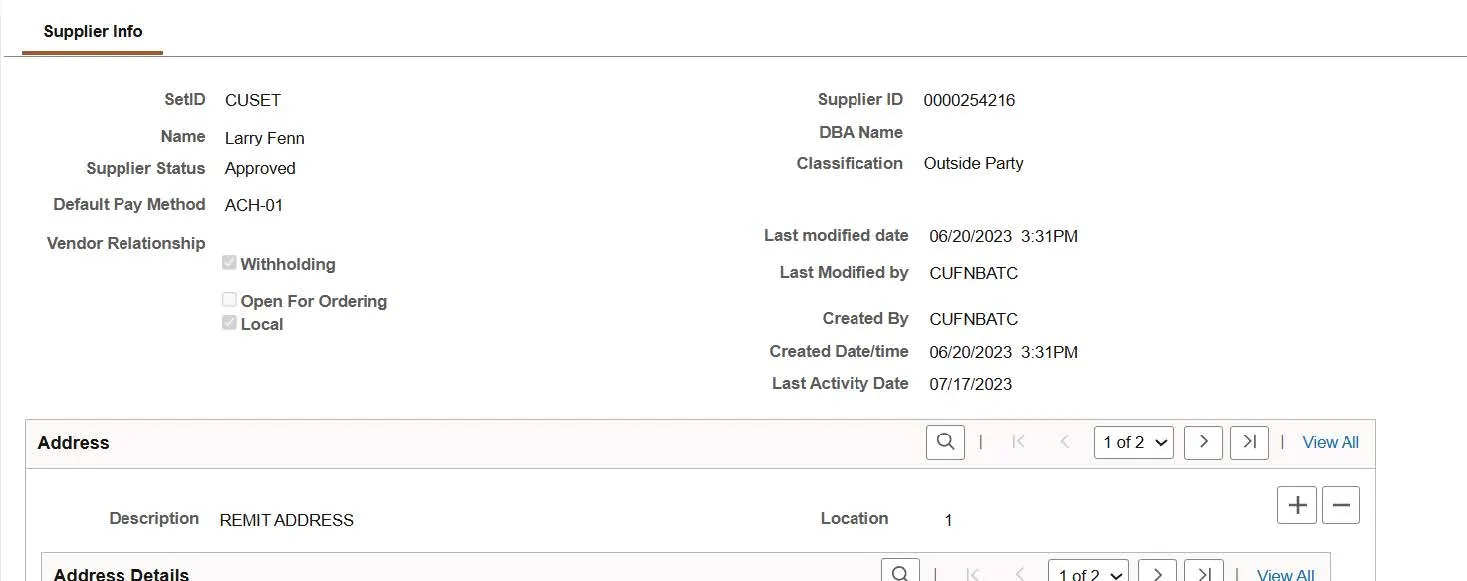
3. Click the Web Site URL to view the ARC Supplier Info page.
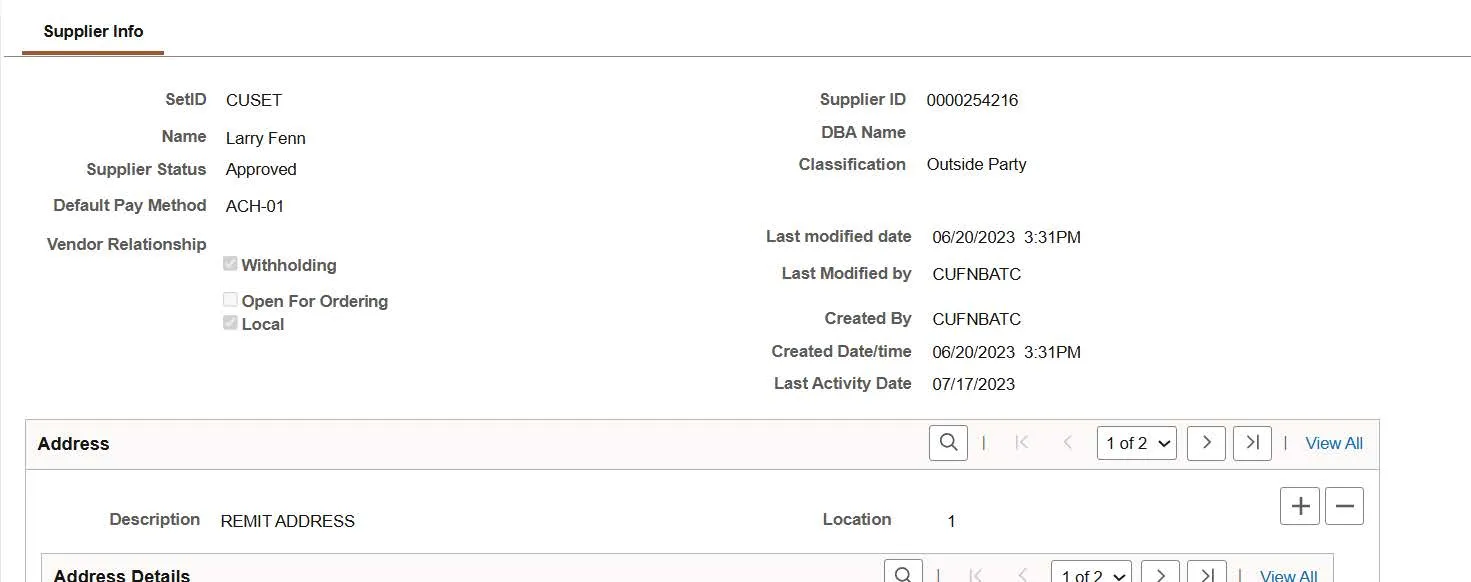
If a Supplier is set up to receive Purchase Orders (POs), the Open for Ordering field will contain a check mark. Be aware that if you add a Supplier to a Goods and Services Request Form where the Open for Ordering field does not contain a check mark, a PO cannot be issued. If a Supplier needs to have a PO issued to them and is not Open for Ordering, you must have the Supplier edit their existing PaymentWorks profile or invite the Supplier to onboard in PaymentWorks.
1. From the Voucher Summary tab, click the Supplier Name. Note the Payment Method icon next to the SupplierName.
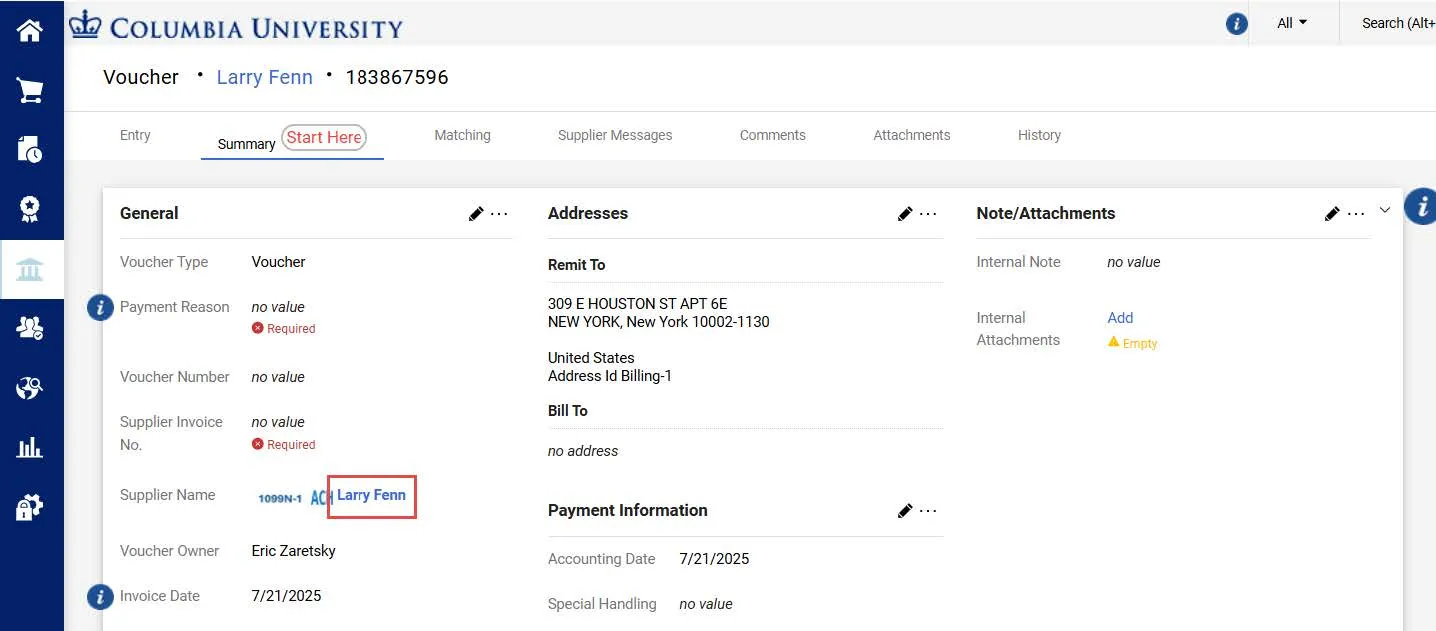
The Supplier information window appears.
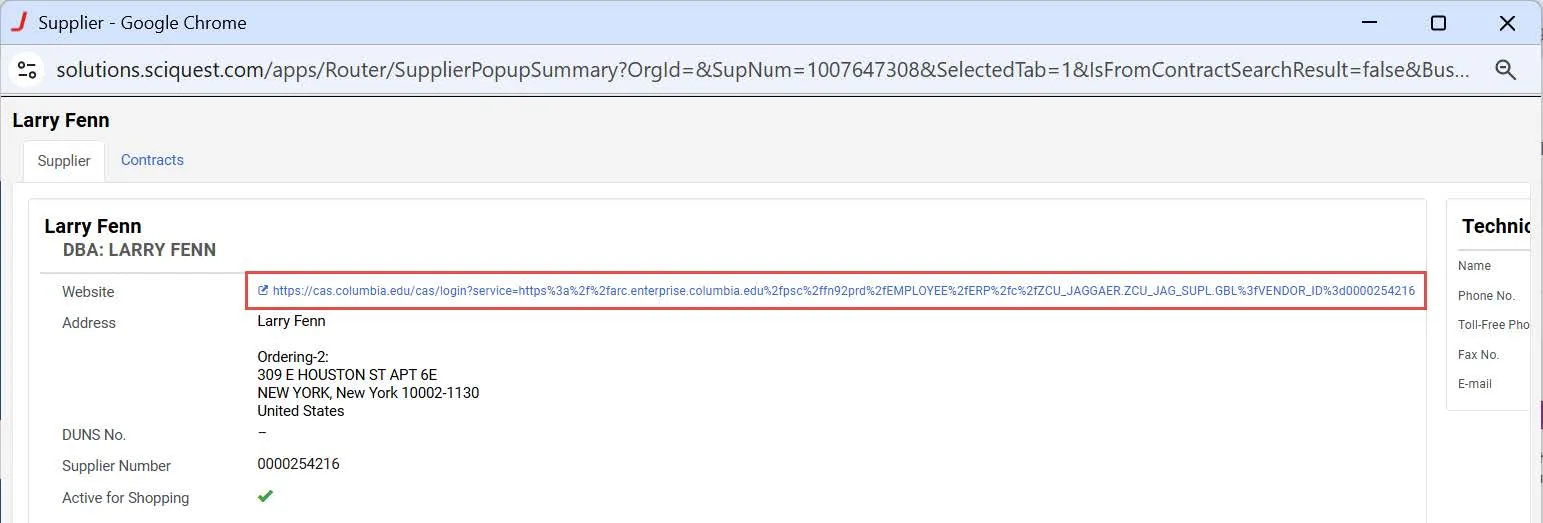
2. Click the Website link to view the ARC Supplier Info page.
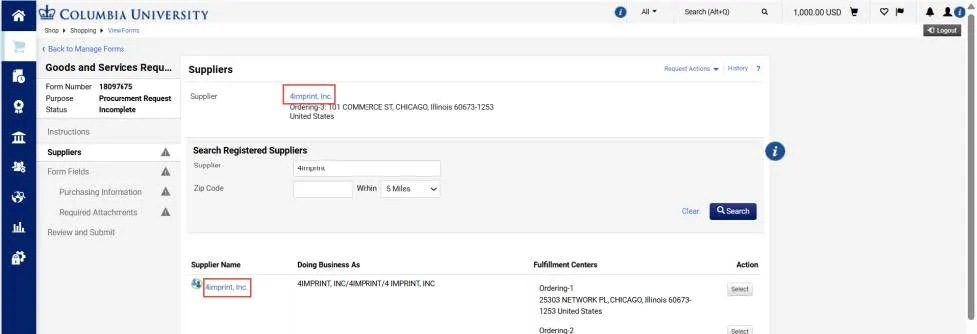
1. From the Suppliers page of the Goods and Services Request Form, click the Supplier Name either from the search results or from the Supplier that you selected for the request.
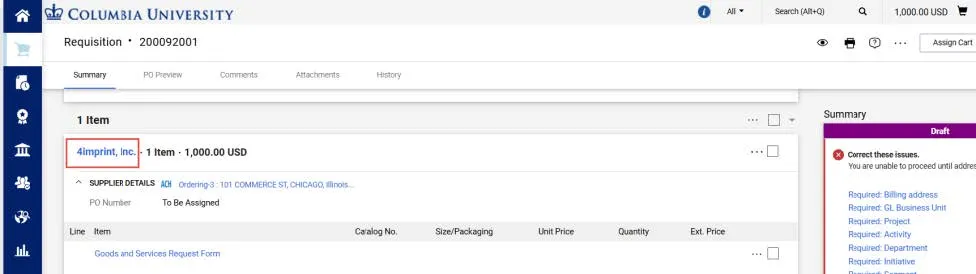
Or, from the Requisition screen, click the Supplier Name from the Items section.
The Supplier information window appears.
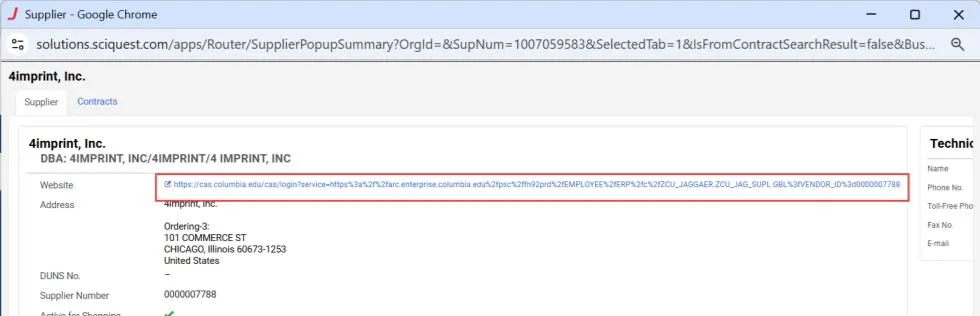
2. Click the Website link to view the ARC Supplier Info page.
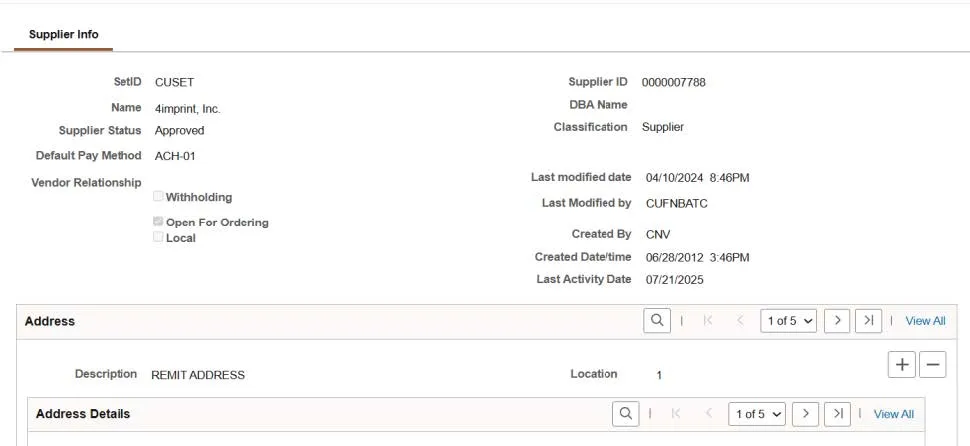
If a Supplier is set up to receive Purchase Orders (POs), the Open for Ordering field will contain a check mark. Be aware that if you add a Supplier to a Goods and Services Request Form where the Open for Ordering field does not contain a check mark, a PO cannot be issued. If a Supplier needs to have a PO issued to them and is not Open for Ordering, you must have the Supplier edit their existing PaymentWorks profile or invite the Supplier to onboard in PaymentWorks.