FDS On Demand Reporting
This training guide contains instructions on how to how to access the Financial Data Store (FDS) on-demand reports interface, Columbia’s custom interface for running FDS reports.
The following topics are covered in this job aid:
- How do I access FDS?
- The Business Objects LaunchPad
- How do I run a report on demand?
- Visual feedback on required fields
- Retained parameter values
- How do I export a report (Excel, PDF, etc.)?
Advanced topics:
- Searching for values within a report
- Re-running a report with different parameters
- How do I set up a report to run on a schedule?
Last Revision: August 2026
Accessing FDS
The FDS (Financial Data Store) On Demand Reports interface is Columbia’s custom interface for running FDS reports. The interface provides a number of features such as retained parameter values, visual feedback on required fields and the ability to launch multiple reports in parallel which enhance reporting productivity and usability.
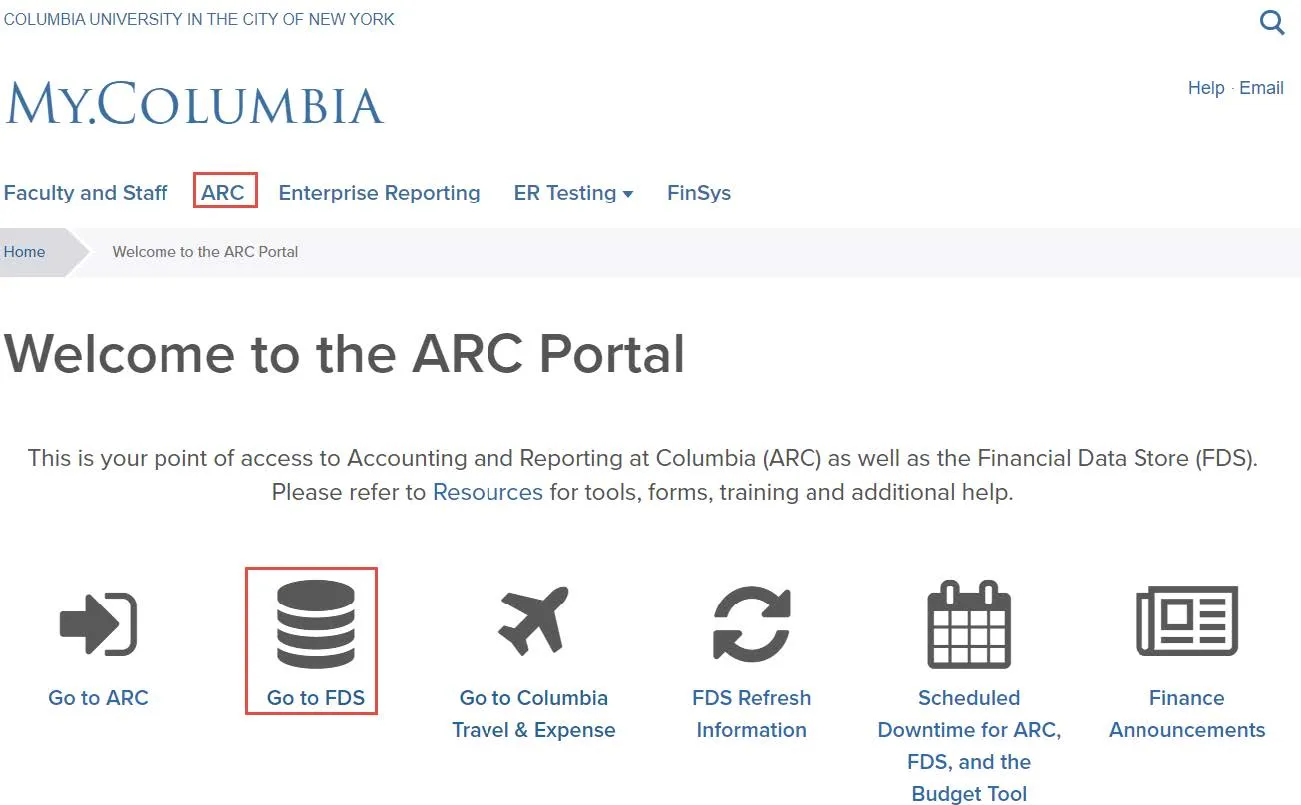
From the My Columbia page, click on the ARC link, then click on the Go to FDS icon. Business Intelligence LaunchPad appears.
The Business Intelligence (BI) LaunchPad
Details
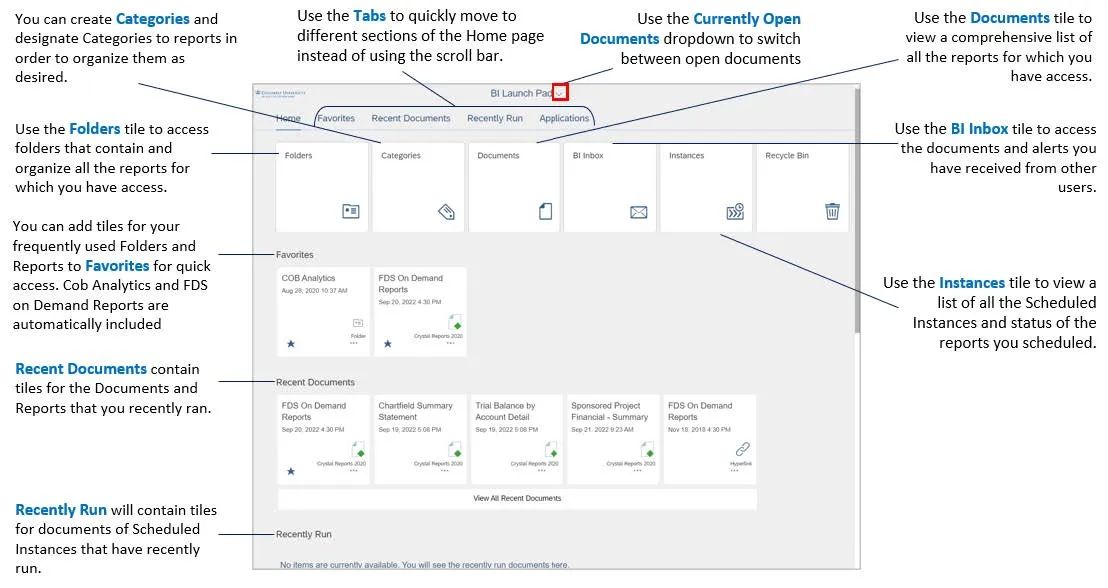
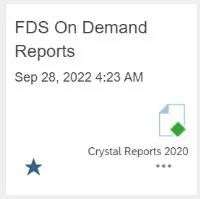
- Click the FDS On Demand Reports tile. (You can also navigate to the Folders tile > Public Folders > FDS On Demand Reports folder > FDS On Demand Reports.) The FDS On Demand Reports page appears.
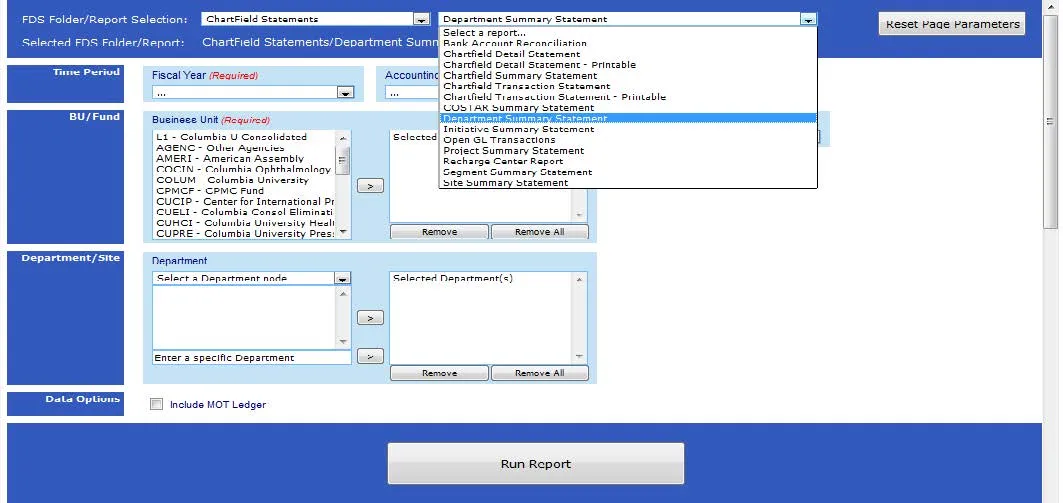
- Select a Folder/Report from the respective dropdowns for the report you want to run. The Parameters Page appear.
- Enter the Required parameters, indicated with red labels, and any optional parameters you desire.
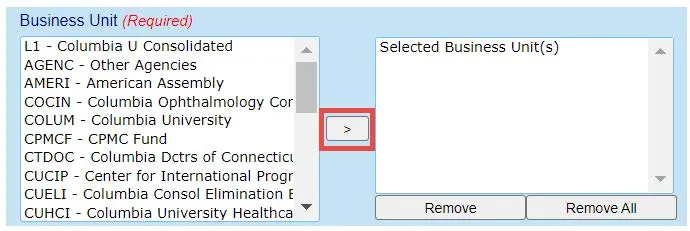
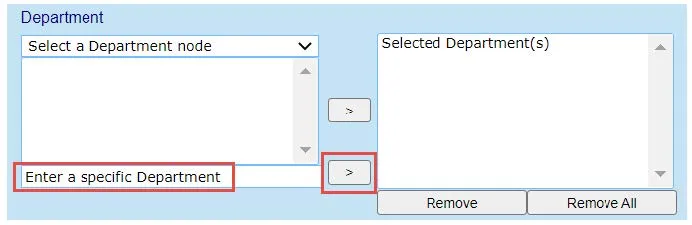
- To a select a Business Unit or Fund, select a value from the right-side list and click the arrow to move the value to the left-side Select list. To enter a specific Department, Site, Segment or Initiative, etc., enter the value in the bottom of right-side list and click the lower arrow button to move the value to the left-side Selected list.
- Scroll to the bottom of the Page Parameters and click the Run Report button.
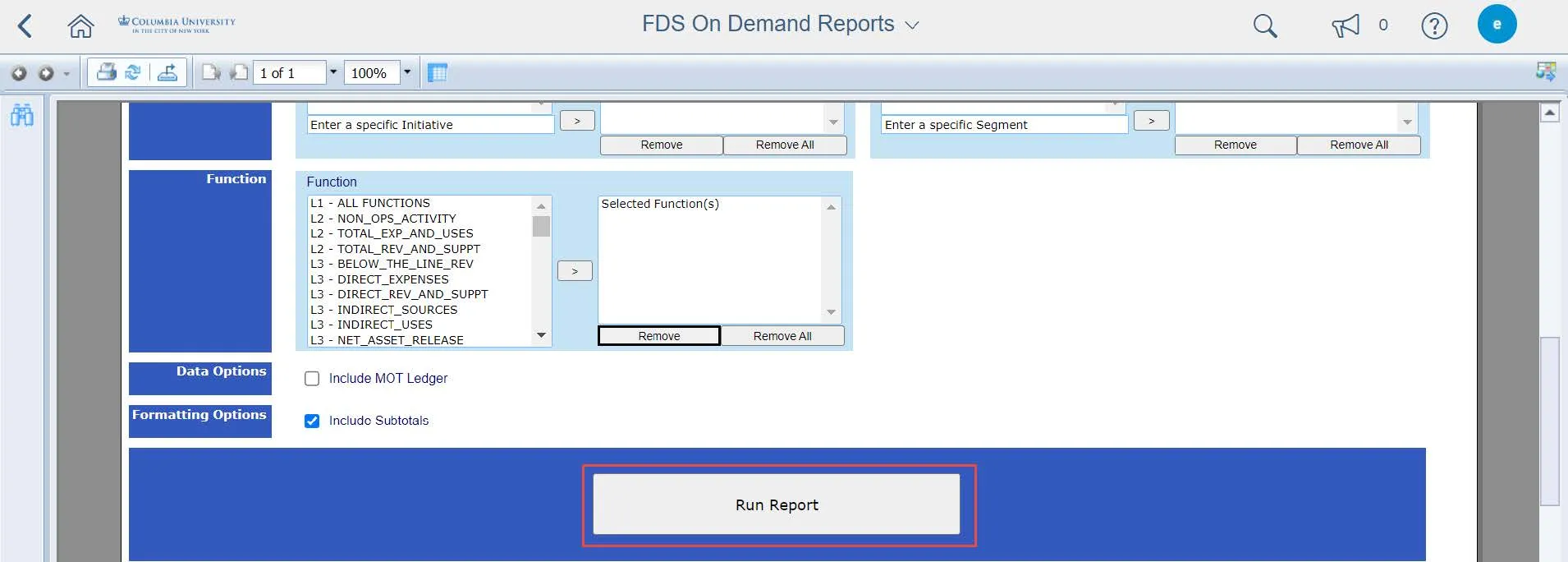
Once a report has been initiated, you can navigate back to the Home page and run additional reports without waiting for the first report to return.
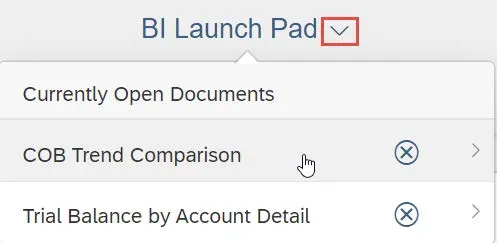
To switch between multiple report documents that you have previously run or currently running, click the Currently Open Documents dropdown at the top of the screen.
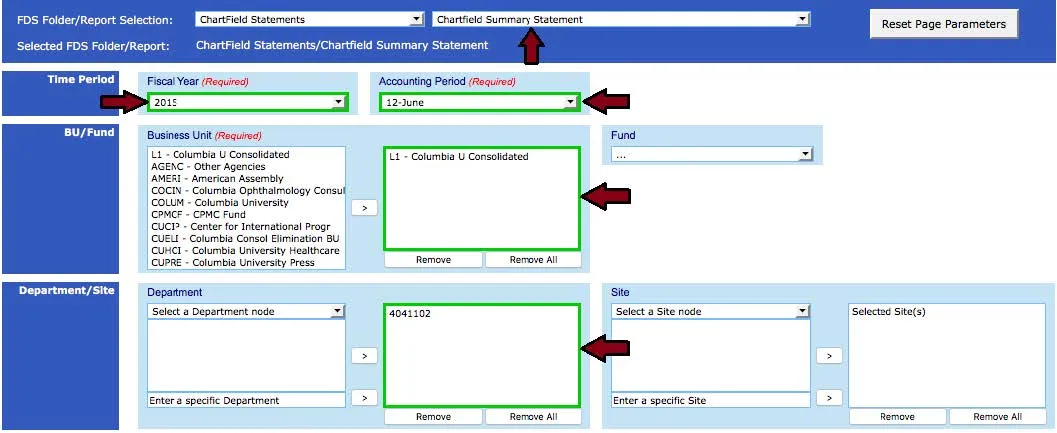
Once a report has been run, the parameters used on that report will be retained for subsequent report runs, both when switching between reports, as well as between log-in sessions. *
The retained values will be highlighted in green when another report is selected.
Note: Due to variations in report parameter requirements, some parameters are not able to be retained. This functionality is achieved through the use of browser cookies. If you clear your cookies between browser sessions, the parameters will be reset.
To reset all retained values on the current page, click the Reset Page Parameters button.
Once a report has run successfully, it can be exported to a number of file formats. The most commonly used formats are PDF and Microsoft Excel.
To export the report
- Click the Export icon in the toolbar in the report viewing window.
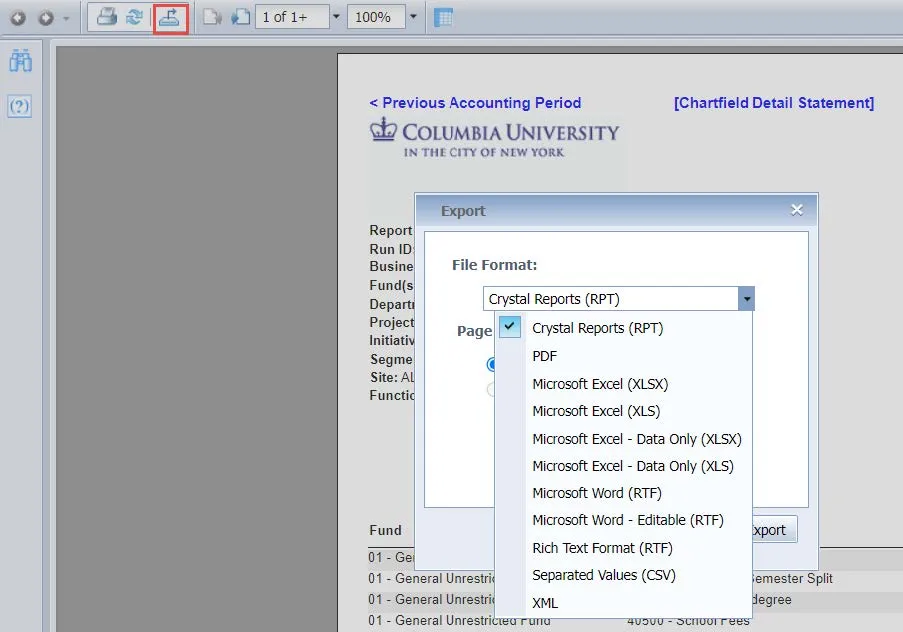
- Select the desired File Format in the dialog box that pops up
- Click the Export button.
Note: The Microsoft Excel (XLSX) is the preferred format for exporting to Excel. The Microsoft Excel (XLS) format supports a maximum of 65,536 rows on a single worksheet.
Exporting to Excel Corruption Issue Workaround
You may encounter an issue when exporting to Excel where you receive a corruption message and cannot open your downloaded Excel file.
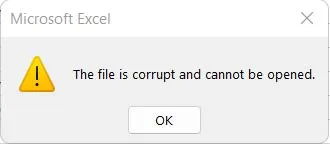
When you click a link within the report to view a related detail report and then navigate back to the original report, a bread crumb of open reports appears in the upper left corner of the FDS window. If you attempt to export the original report to Excel without taking the action below, the corruption will occur.

In order to export the original report to Excel without the corruption issue, click the breadcrumb link to the original report from the upper left corner of the FDS window. The report will now export to Excel normally.
Searching for values within a report
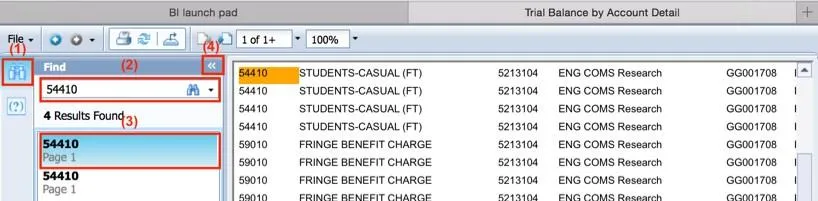
- Click on the Find icon on the left side of the report. The Find panel appears.
- Enter the specific value you are searching for and press Enter or click the Find icon in the Find panel.
- Click on any of the returned results to navigate to the corresponding page in the report.
Re-running a report with different parameters
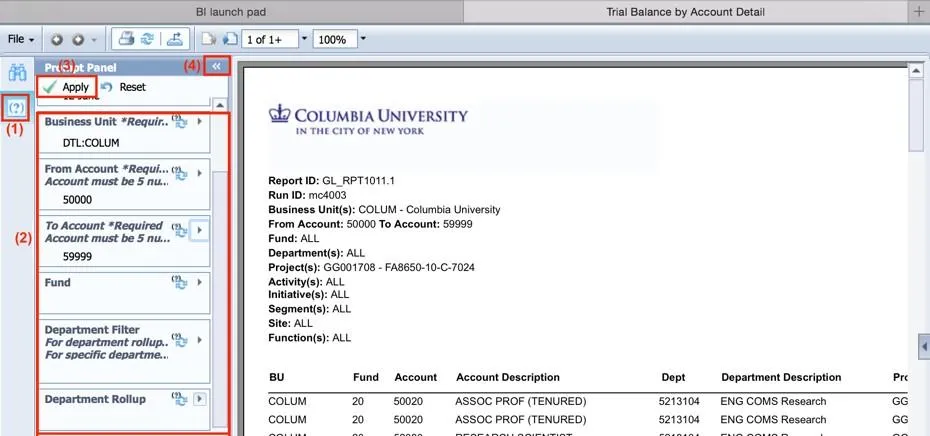
You can re-run a report with different parameters by returning to the FDS On Demand Reports interface, update the parameters, and re-run the report. Or, within the report you have run, you can use the Prompt Panel to update the parameters.
- Click on the Prompt icon on the left side of the report. The Prompt Panel appears.
- Change the parameters as needed *
- Click on the Apply button at the top of the Prompt Panel.