FDS Preference Settings
This job aid contains instructions on how to access, reset or change your FDS preference settings.
Last Revision: August 2026
Use Settings to customize the look and feel of the BI Launch Pad, including designating a specific login landing page, settings for specific pages, or rearranging tiles on the Home page.
Details
From the My Columbia page, click on the ARC link, then click on the Go to FDS icon:

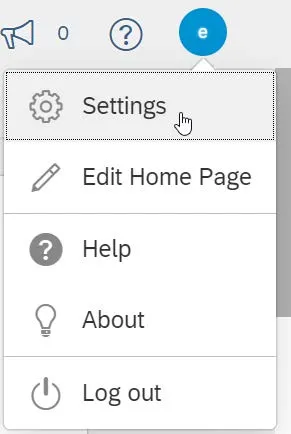
Click the Profile icon in the upper right corner of the LaunchPad page.
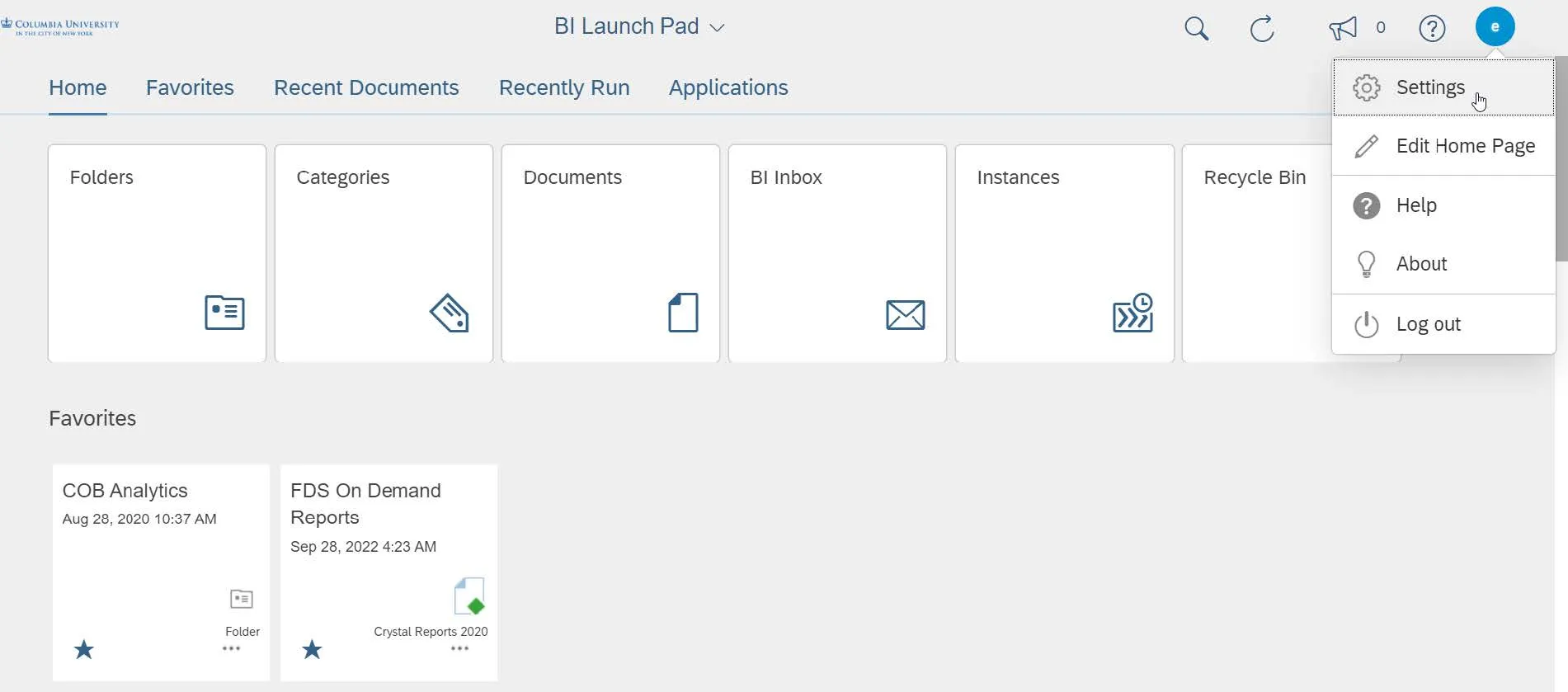
Click Settings. The Settings window appears.
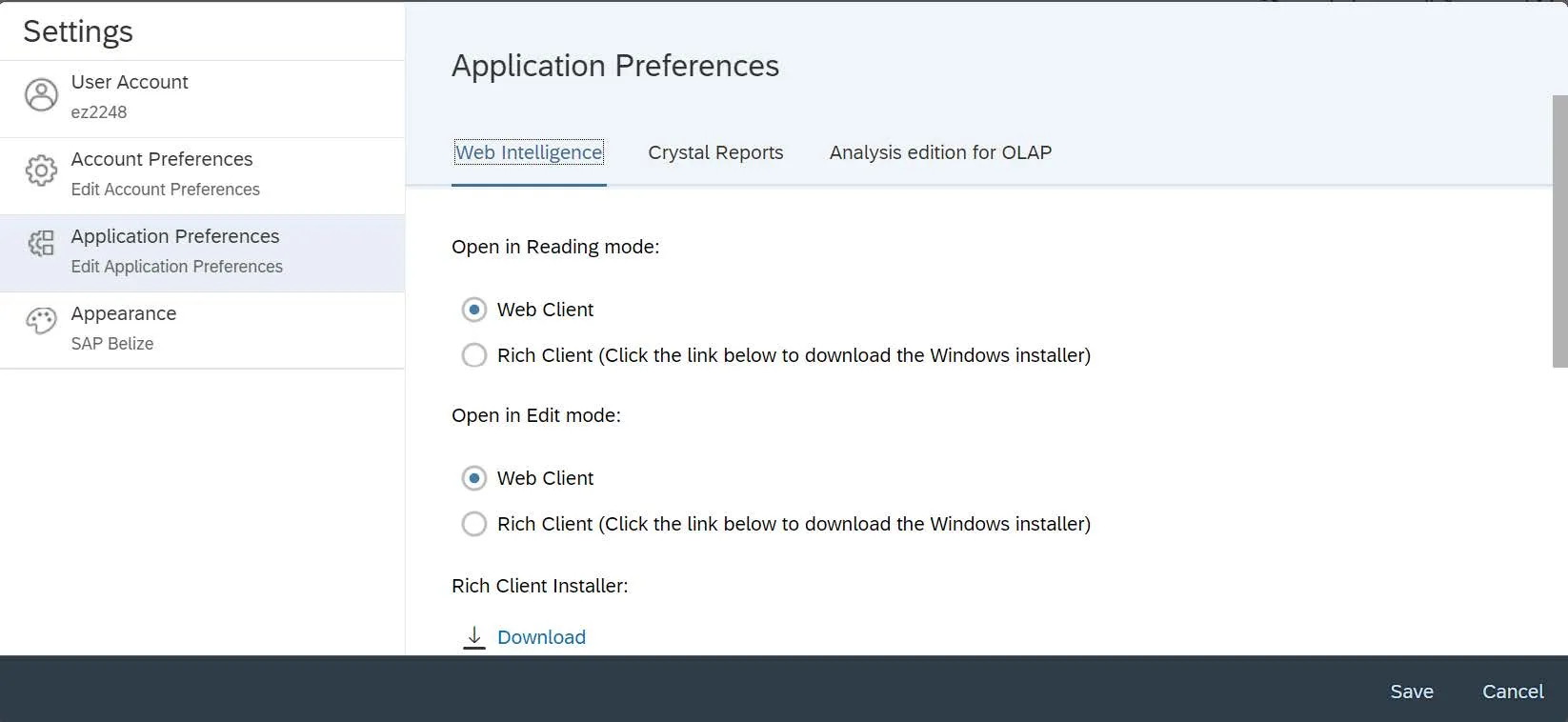
Click the Account Preferences tab to select a default Home page and how to view documents or click the Application Preferences tab to change settings for Web Intelligence and Crystal Reports.
If you are an active FDS report user, it is recommended that you use the Use Administrator Provided Settings option. However, you can select an alternate landing and Page settings, if desired, for pages you frequently visit.
- In the Settings window, navigate to the Account Preferences tab.
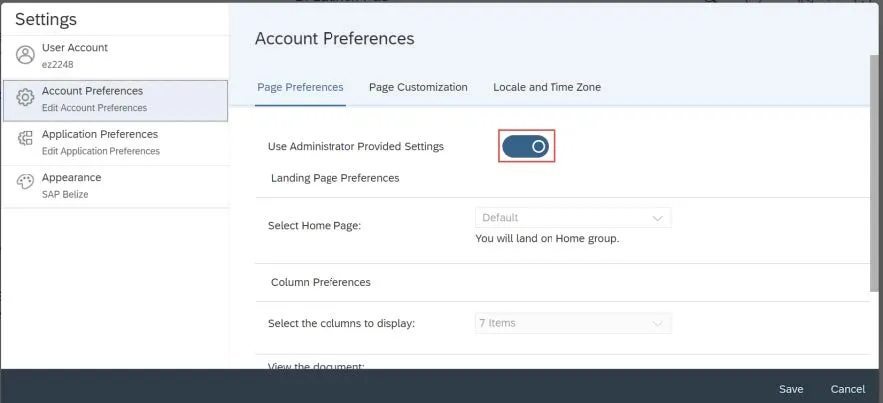
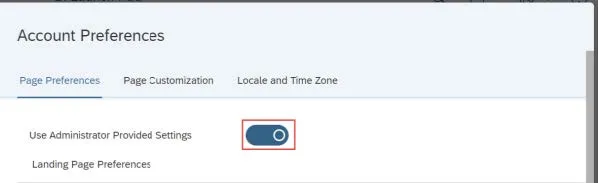
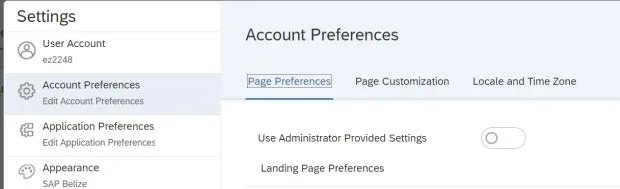
- In order to make any Account Preferences or Page Customization changes, click to turn off the Use Administrator Provided Settings option.
Changing Page Preferences
The Page Preferences allow you to change the initial Home/Landing page and how you view Folders and Documents
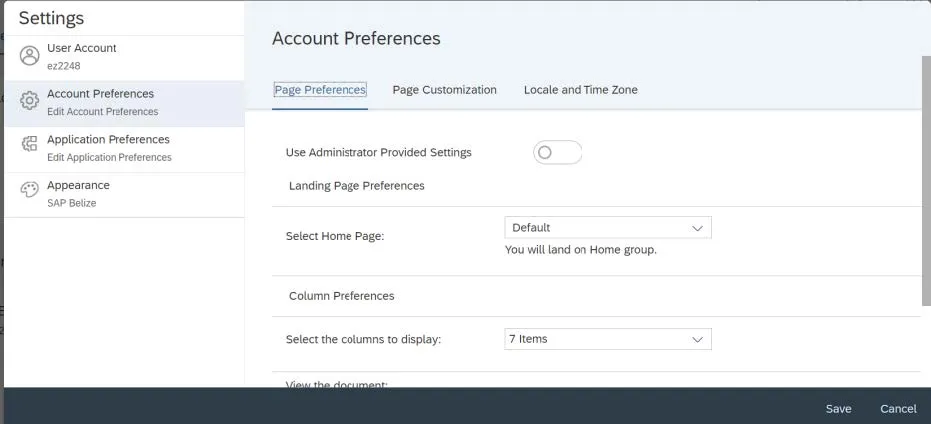
- To select a Home page, click the Select Home Page dropdown and click the desired option. Each option will require parameters for you to select for how the new Home page will appear.
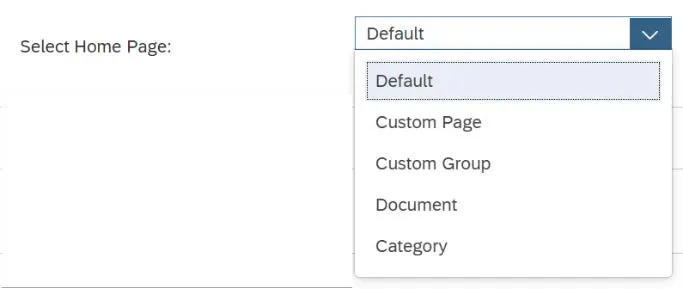
Custom Page – Allows you to select any of the Tiles from the Home Group section (Folders, Categories, Documents, BI Inbox, Folders) or a specific Folder as your landing page. In addition, you can use the Edit Home Page feature to rearrange your tiles.
Custom Group – Allows to select one of the Groups (Favorites, Recent Documents, Recently Run, Applications) on the Home page to appear at the top of the Home page. If you select a Group from the bottom of the Home page, you can scroll up to access other groups above.
Document – You can select a specific Document as your landing page.
Category – If you create Categories within the Category tile, you can select one as your landing page.
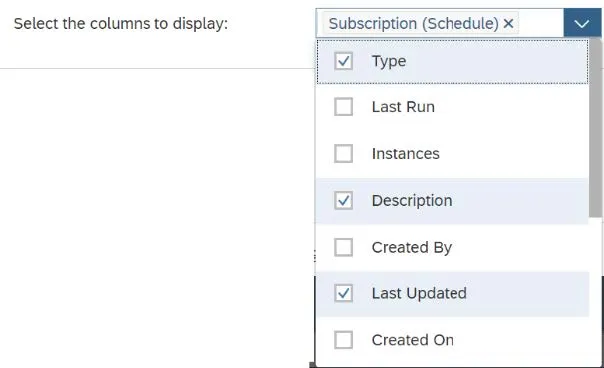
- You can Select the columns to display when viewing the contents of Folders. Click the dropdown and select the desired column titles.
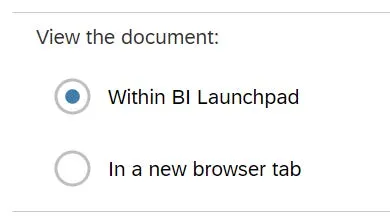
- Select how to View the Document, either Within the BI Launchpad browser window or In a new browser tab.
Setting Page Customization
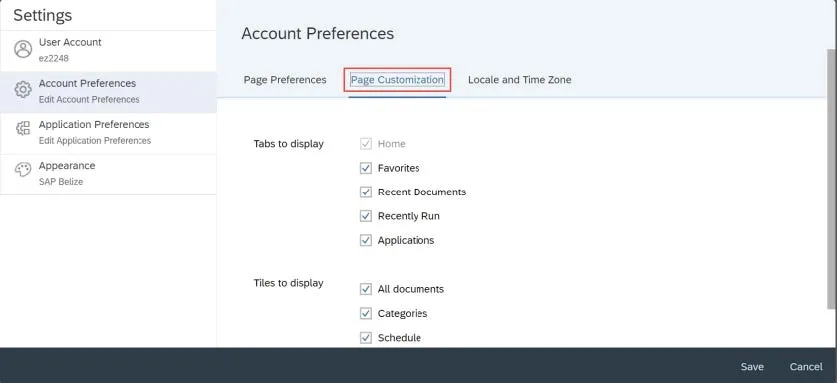
Go to Page Customizations to change the Tabs and Tiles that display on the default Home page. Make sure to turn off the Use Administrator Provided Settings option from the Page Preferences page in order to make Page Customization changes.
- Click the Page Customization tab from the top of the Account Preferences page.
- Select the Tabs to Display on the default Home page.
- Select the Tiles to Display on the default Home page.
Resetting to Default
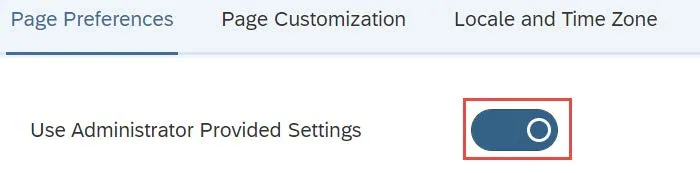
To reset your Account Preferences back to the recommended default, click to turn on the Use Administrator Provided Settings option from the Page Preferences tab.
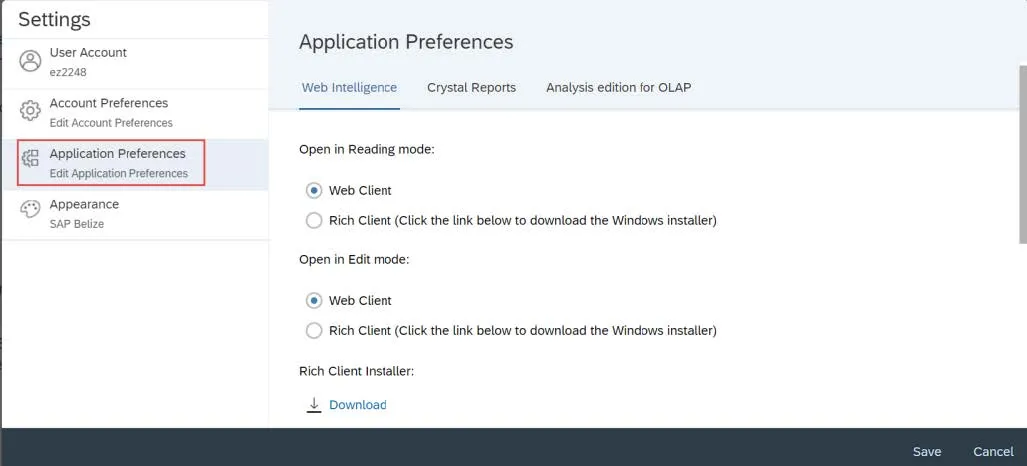
The Application Preferences let you determine how you view Web Intelligence (Webi) and Crystal Reports.
Click the Application Preferences tab in the Settings window.
Setting Web Intelligence Features
- Select the Web Intelligence tab from the top of the Settings window.
- You can select to use the Web Intelligence Rich Client to Open in Reading mode and/or Open in Edit Mode. The Web Intelligence Rich Client is an ad-hoc analysis and reporting tool for business users with or without access to the BI platform. If you select to use the Rich Client select to Download the Rich Client Installer.
- You can make selections for the Preferred viewing locale, which effects how the document is formatted, whether the Measurement unit is Centimeters or Inches, Drill options, priority for saving to MS Excel, or to select your preferred document orientation.
Setting Crystal Reports Features
- Select the Crystal Reports tab from the top of the Settings window.
- You can Select s rendering resolution for the Web at a specific DPI or Auto Detect or whether the Measuring unit is Inches or Millimeters.
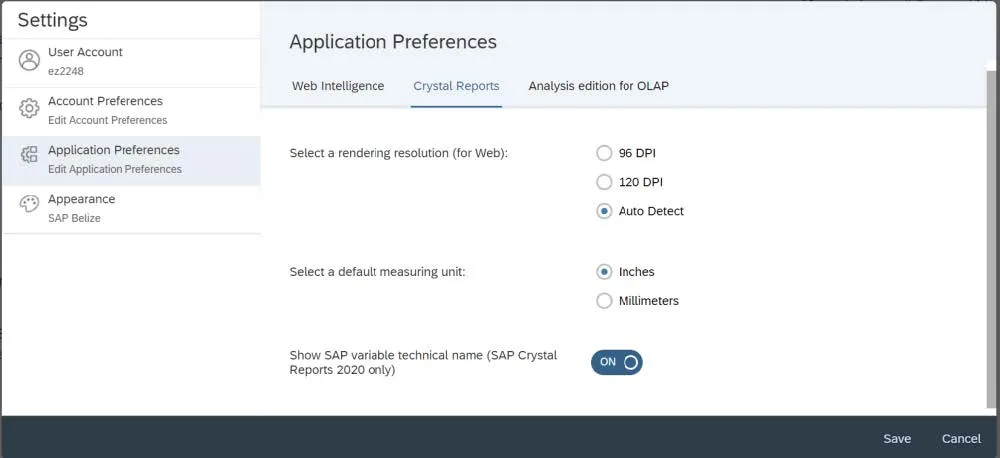
Click the Save button at the bottom of the Settings window. You may need to Refresh your browser to view your changes.

You can rearrange the way your tiles appear on the Home page. You must make sure that you to turn off the Use Administrator Provided Settings option within Account Preferences under the Settings menu.
- Click the Profile icon in the upper right corner of the LaunchPad page and click Settings.
- Navigate to the Account Preferences tab and click to turn off the Use Administrator Provided Settings option.
- Click the Save button at the bottom of the Settings window and Refresh your browser.
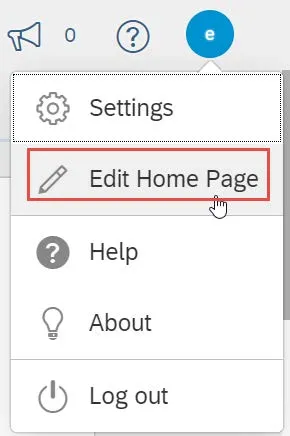
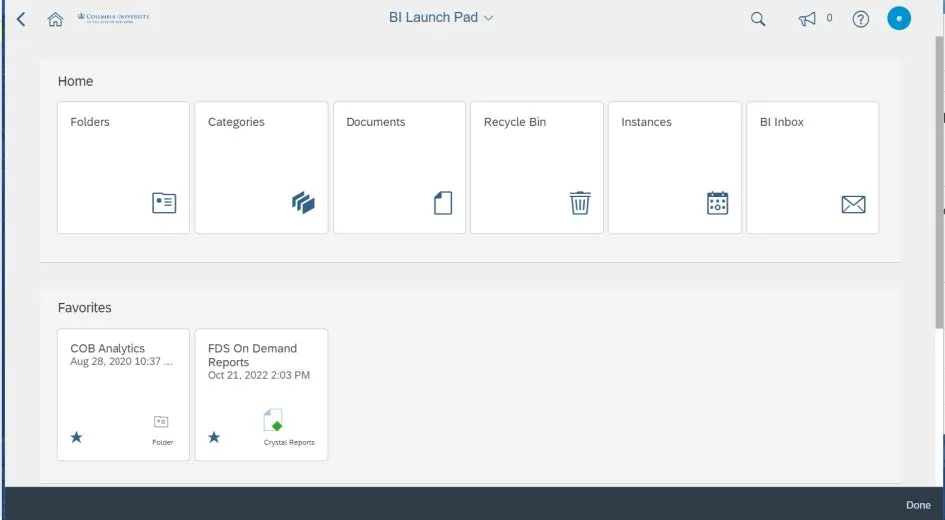
- Click the Profile icon in the upper right corner of the LaunchPad page and click Edit Home Page. The Home page appears so that you can drag the tiles within their respective groups.
-
Rearrange Tiles as desired and click Done.