How to Certify Your Effort and the Effort of Your Researchers in ECRT
This job aid gives a brief overview of how to certify your effort and the effort of your researchers in ECRT.
Last Revision: October 2020
How to Certify Your Effort and the Effort of Your Researchers in ECRT
- Using your internet browser, access ECRT at https:\\ecrt.columbia.edu.
- Log in using your UNI and UNI password.
- You will be taken to the ECRT Welcome Page which provides basic information on the ECRT system, including any important announcements.
- At the bottom of the welcome page, select ‘Continue’ to take you to the Effort Reporting home page.
- You will see one tab listed on your homepage, “Statements Awaiting Certification.” This will serve as your task list and only list open items that require your action. If applicable, your effort certification will appear at the top of the list, for both the open certification period and the current fiscal year available for review.
- When you select “Links” on the top of the blue navigation bar, you will see a list of helpful links for assistance.
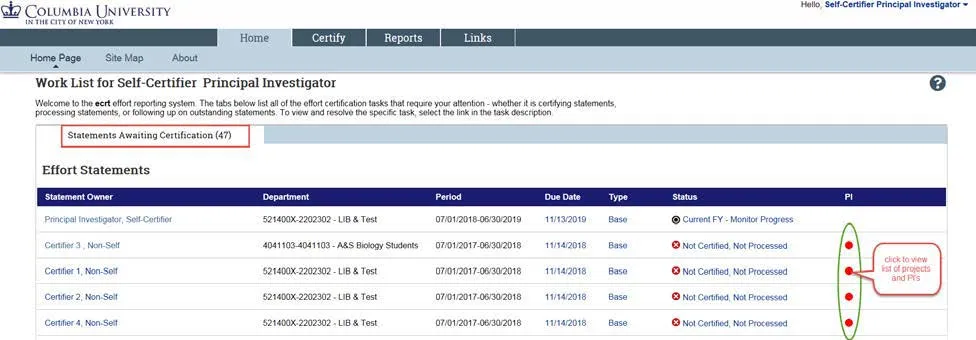
- By selecting the red button under PI, you can view a list of projects and PIs for the selected researcher.
- By clicking on any “Statement Owner”, “Due Date”, “Type” or “Status”, you will be taken to the certification screen for that individual.
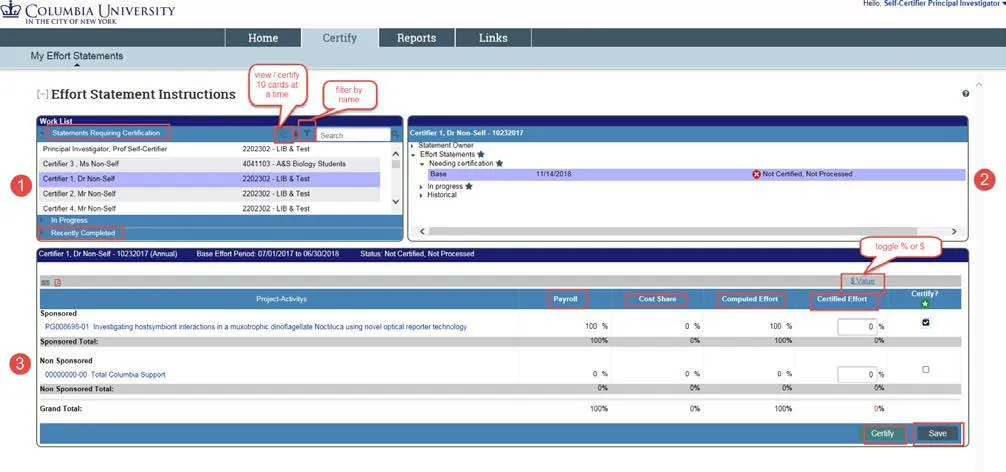
- The certification screen is broken up into three sections:
- Work List: This section shows a list of individuals whose cards you must certify. It is divided between “Statements Requiring Certification”, “In Progress” and “Recently Completed.” Statements Requiring Certification” will show “Not Certified” effort cards that require your action. “In Progress” those are not certified, not processed, that is because they are still awaiting one or more lines to be certified by another PI, but not owned by this PI. “
- Recently Completed” lists individuals whose effort cards have been certified but are awaiting processing by the primary effort coordinator. Your name will always be listed at the top of this section.
- Demographics and Effort Cards: This section displays the demographic information (department, effort coordinator and email) for the employee selected on the left as well as Statements needing certification (current open certification period and current fiscal year for review).
- In progress (current fiscal year), and Historical effort cards.
- Effort Card: This section is the individual’s effort card that requires certification.
- Note: The “Certify” button will not appear until the checkbox under “Certify?” is checked.
- Review ‘Payroll’, ‘Cost Share’, and ‘Computed Effort’ columns. • ‘Payroll’ is the salary that was charged directly to this project-activity as payroll charges.
- ‘Cost Sharing’ is defined as the portion of activity that is supported by another funding source.
- ‘Computed Effort’ is the sum of Payroll and Cost Sharing.
- Select $ Value or %Value to toggle between payroll dollar totals and payroll % charged to each project-activity.
- In ‘Certified’ column, enter whole numbers of actual effort performed.
- Mark the checkbox for each project-activity you are certifying. For your own certification, ensure your certified effort totals 100% and that all checkboxes are marked. • Note: As a PI, you have access to certify project-activities on which you are listed as the PI as well as the non-sponsored line item. If a researcher works for more than one PI, one PI must certify the non-sponsored effort. You will continue to receive reminder emails until the non-sponsored line has been certified.
- If you are not ready to complete the certification, select ‘Save.’
- If you are ready to complete the certification, select ‘Certify.’
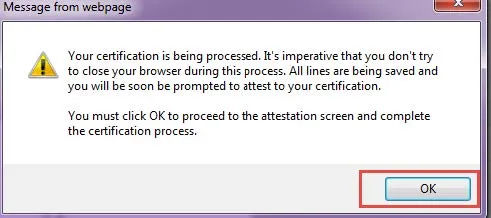
- Review confirmation message that pops up and select ‘OK.’
- Once you click ‘Certify’, the certification statement will appear. To certify the effort, select ‘I Agree.’
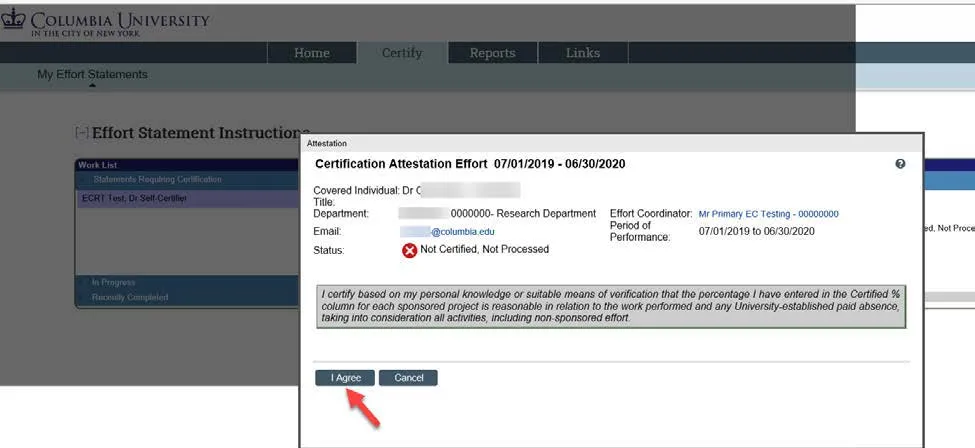
- Once you complete each statement, it will return to your next open certification.
- Click on the next name of the researcher for whom you would like to certify and follow the process above.
View/Certify Multiple Cards
- If you would like to review and certify more than one effort card at a time, you can click the icon which will select the first ten names on your “statements awaiting certification” list. Alternatively, you can hold down the shift key and select the cards you would like to review (up to ten at a time).
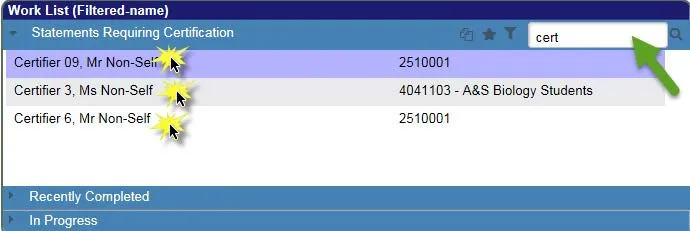
- In your Work List, you have the option to search by name if you would like to limit your certifications by this criteria.
- When certifying for more than one card at a time, you should select “Certify Checked” rather than the “Certify” button under each individual certification.