How to Run a PIN Report
This job aid contains instructions on how to run a Project Information Notification (PIN) Report in ARC.
Last Revision: December 2021
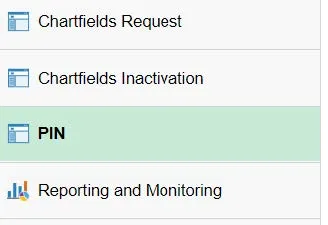
- Click the ChartFields tile and click the PIN menu.
- Create a Run Control ID or reuse an existing one. A Run Control ID is a key for a set of parameters that can be reused in future report runs.
To create a new Run Control, select the “Add a New Value” tab, provide a new Run Control ID, then click “Add”. In this example, you will see the name “MY_PIN_RPT_PARAMS”
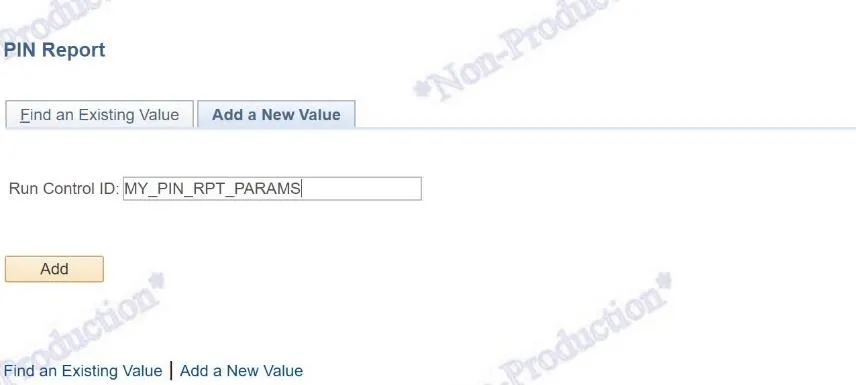
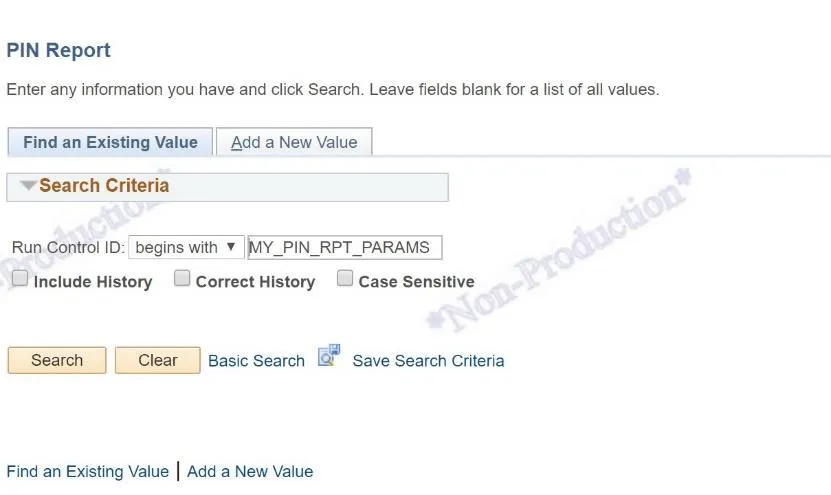
To reuse an existing Run Control, search for the existing Run Control using the “Find and Existing Value” tab and the click “Search”. In this example, the Run Control ID is “MY_PIN_RPT_PARAMS”
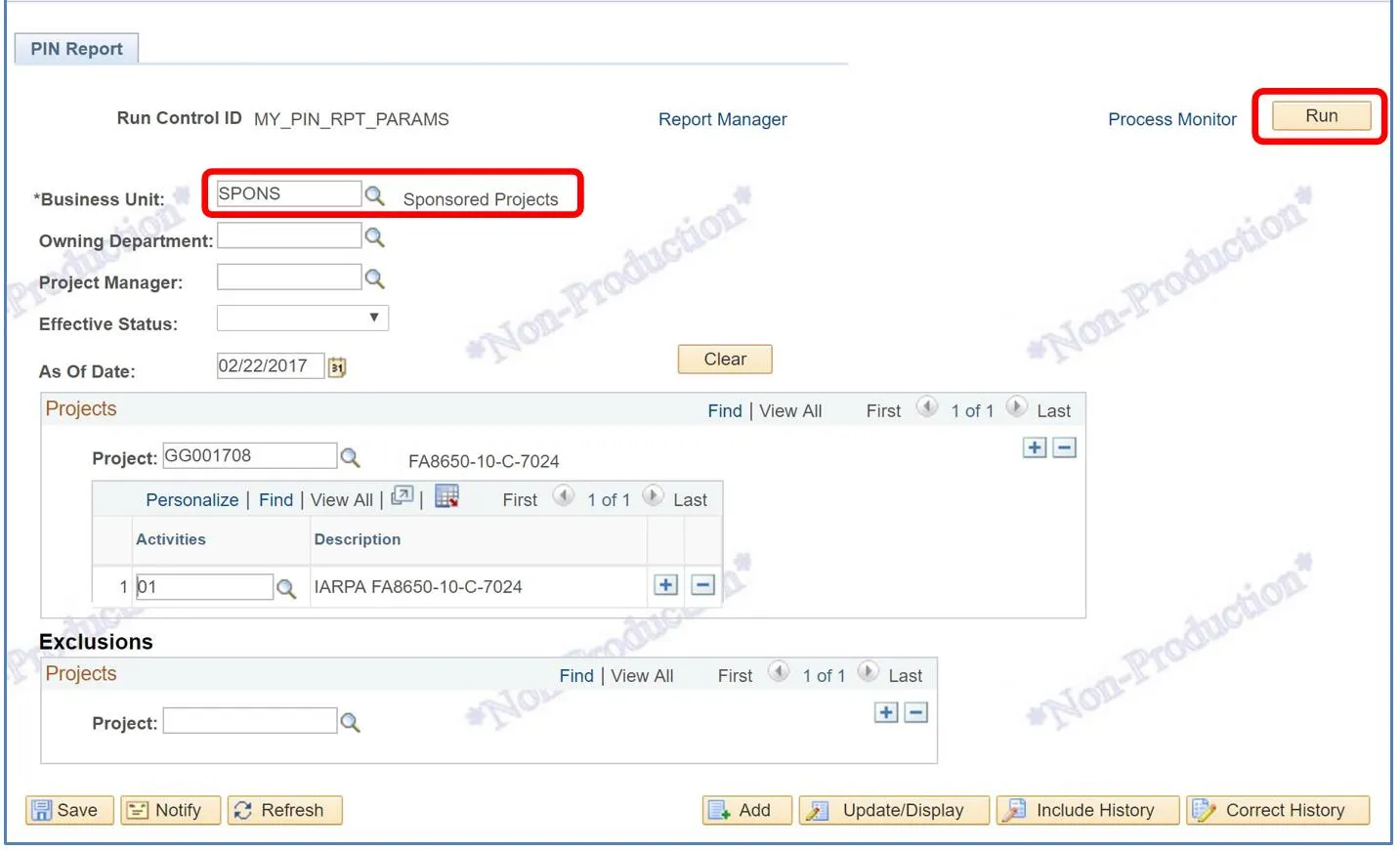
- Enter or adjust the parameters per your requirements and run the report. A Run Control ID is a key for a set of parameters that can be reused in future report runs.
The Business Unit parameter is required and it is recommended that the report not be run for more than a few projects at a time for performance reasons.
In this example, the SPONS Business Unit and Project GG001708 Activity 01 is specified. Once the parameters have been entered, click the “Run” button to continue.
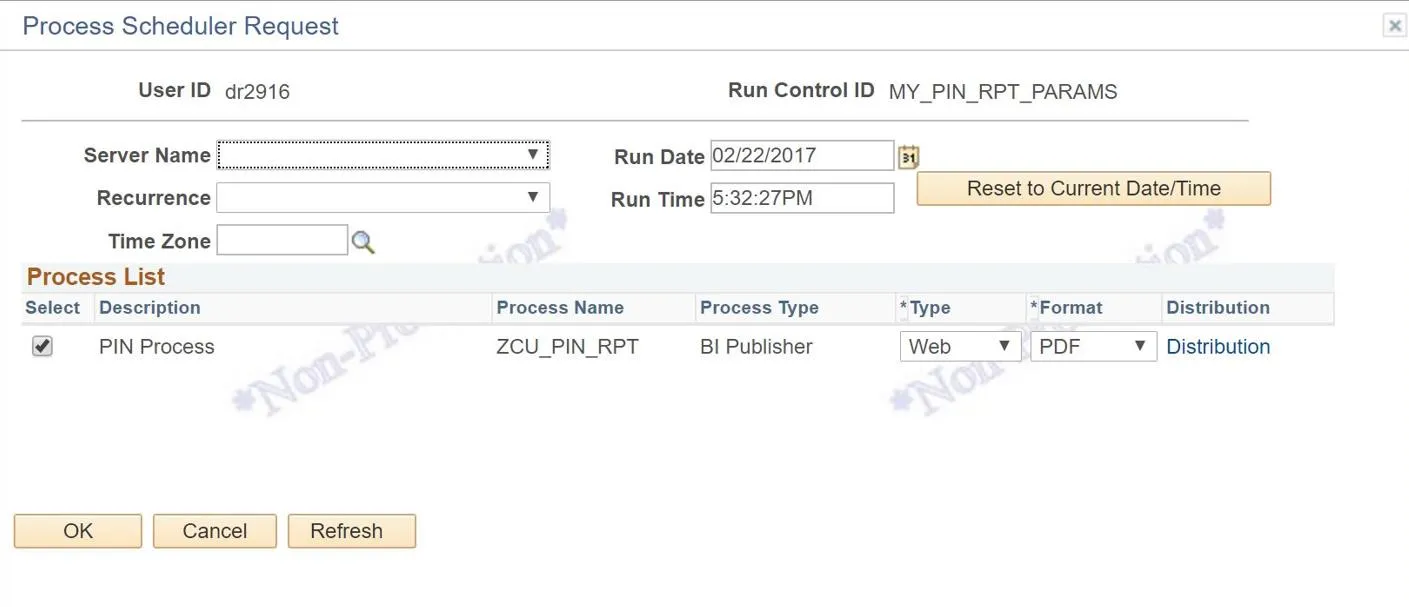
On the next screen, click the “OK” button to submit the report request.
- View the report from the Process Monitor
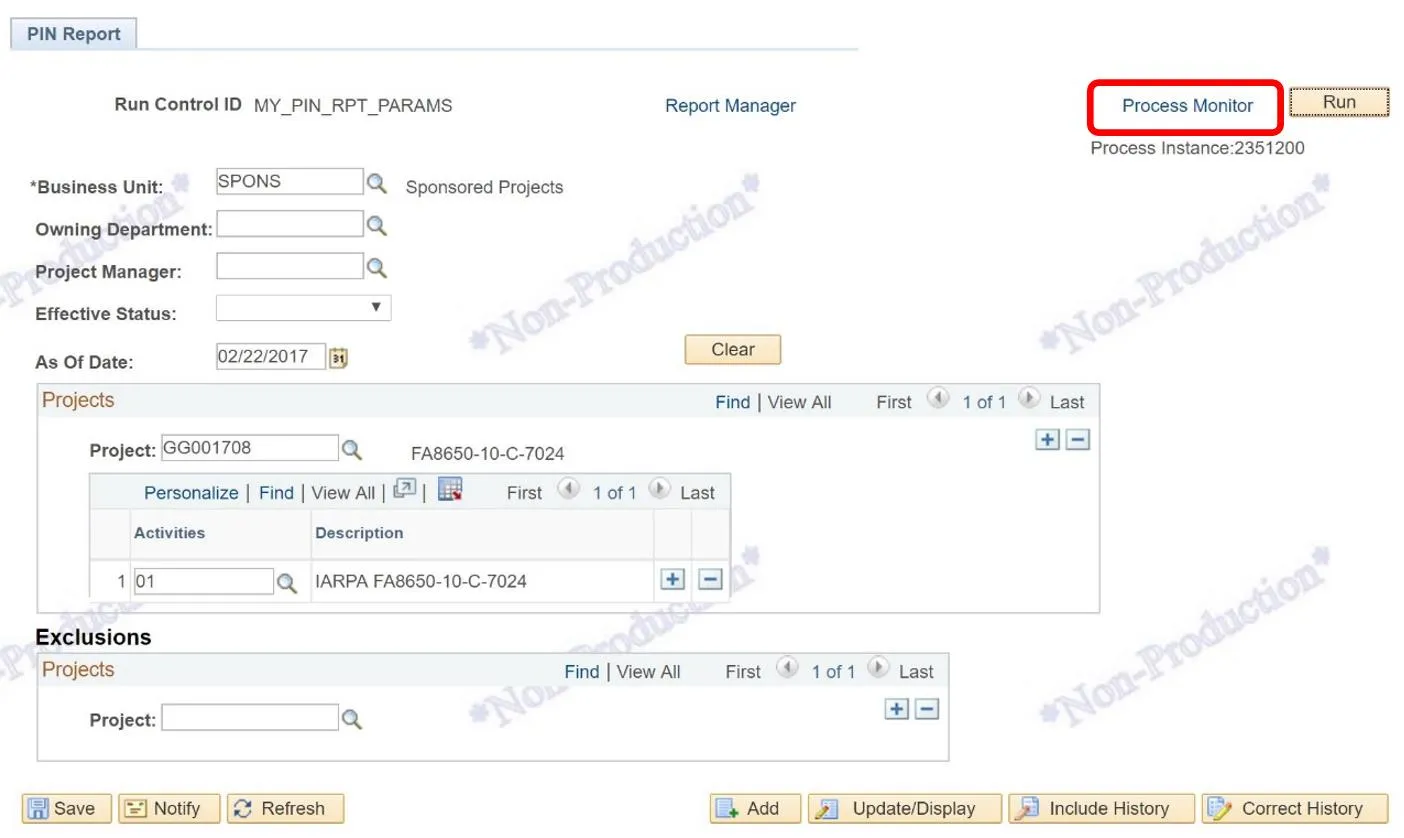
Once the “OK” button is clicked, you will be returned to the Run Control page for the PIN report. From this page, click on the “Process Monitor” link next to the Run button in the upper right.
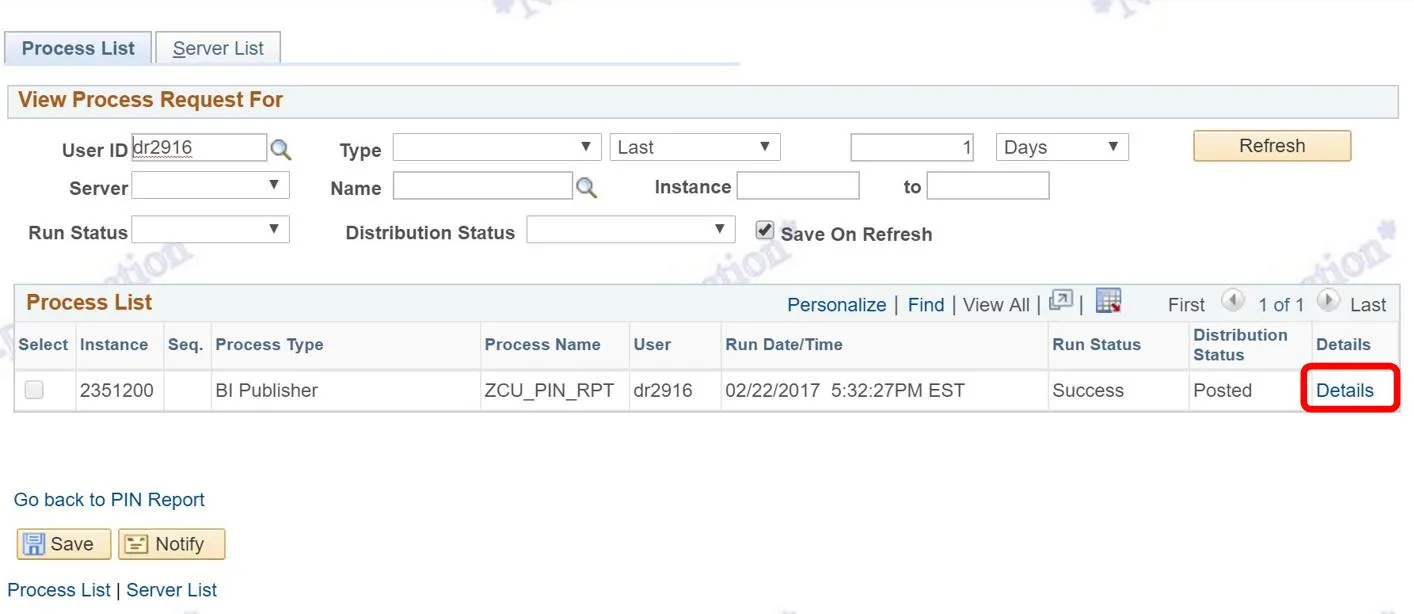
You will now be viewing the “Process List” page. When the report is ready for viewing, you will see Success in the Run Status column and Posted in the Distribution Status column. Once the Distribution Status is Posted, click on the Details link. Please note that if you have run multiple reports, you may see more than one row in the Process List. The one you ran most recently should be at the top of the list.
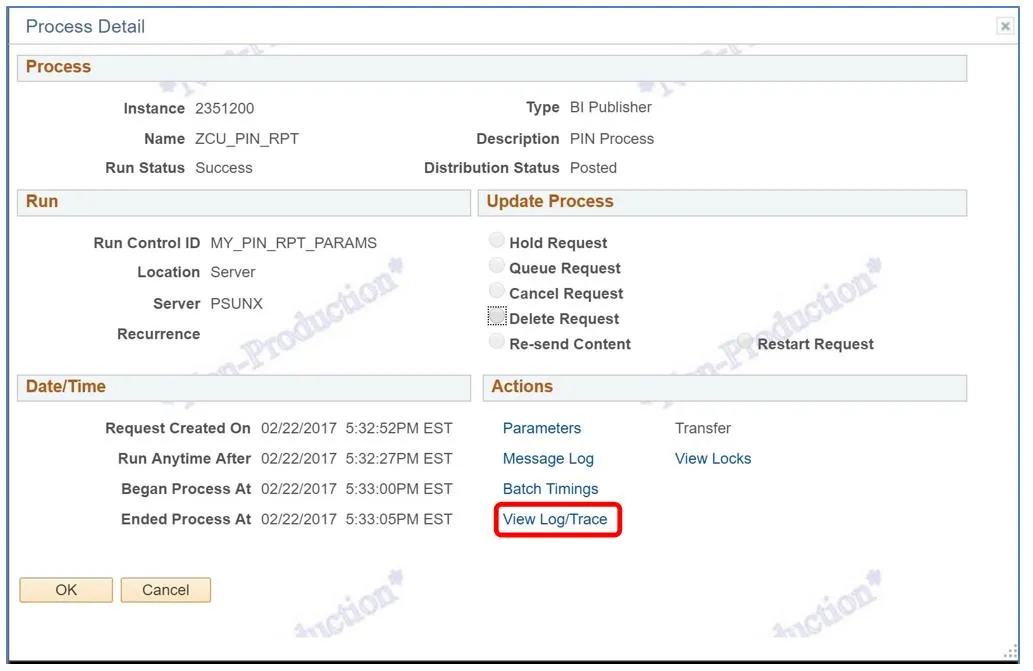
You will now be viewing the “Process Detail” page. Click the “View Log/Trace” link.
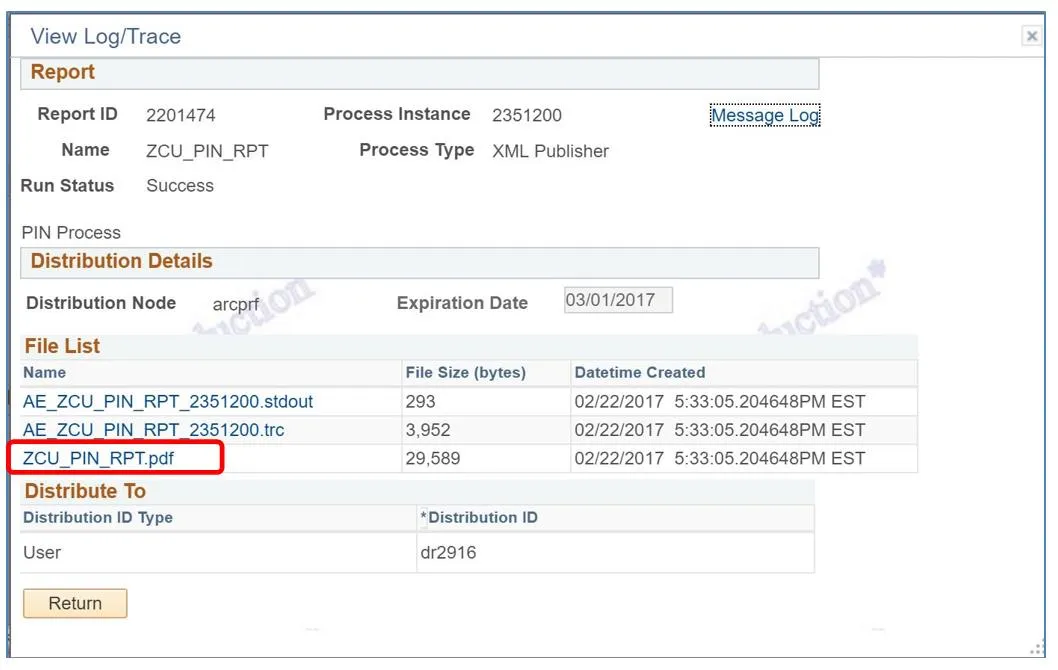
You will now be viewing the “View Log/Trace” page. Click on the ZCU_PIN_RPT.PDF link to download the report.