Installing the Concur Mobile App
This job aid covers the steps for installing the Concur mobile app on your phone.
Last Revision: January 2021
Installing the Concur Mobile App
You must have the Duo Mobile app installed. Refer to the CUIT Multi-Factor Authentication – Duo web page. Install the SAP Concur app on your phone via the App Store or Google Play. If you previously installed the SAP Concur app, ensure that you have downloaded the most recent version.
Note: The Concur mobile App is intended for the end user only and does not support Delegation. Delegates must use the Concur Desktop application. Approval of Pre-Trips Requests with an Advance is not currently supported on the Concur mobile app.
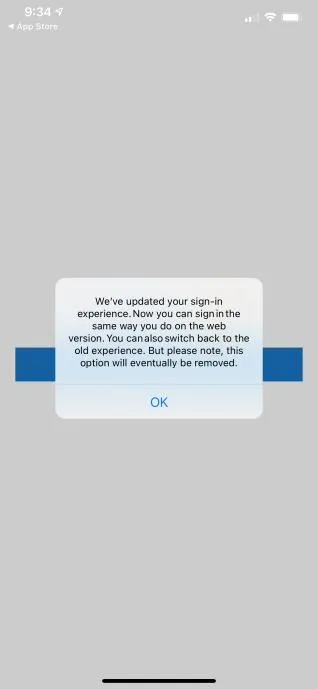
- Open the SAP Concur app on your phone. Select OK to the message, if it appears.
- Select Sign In.

- For Username, email address, or SSO code, enter your [email protected], (w/o cumc, ldeo, etc.) and select Next.

- Select Sign in with Shibboleth Login.
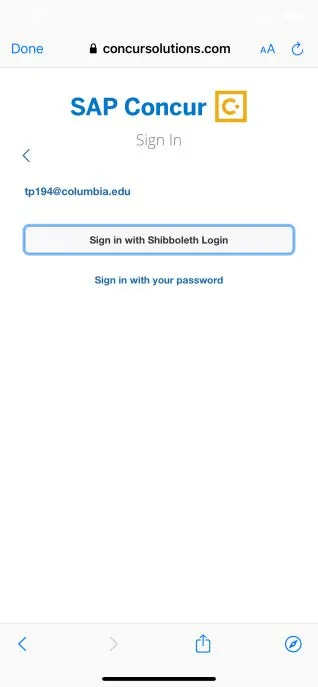
- Enter your UNI and Password and select LOGIN.
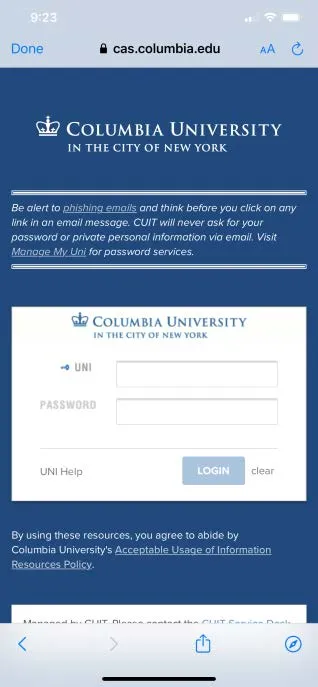
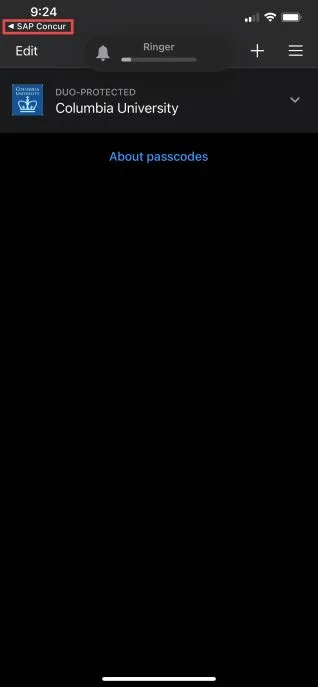
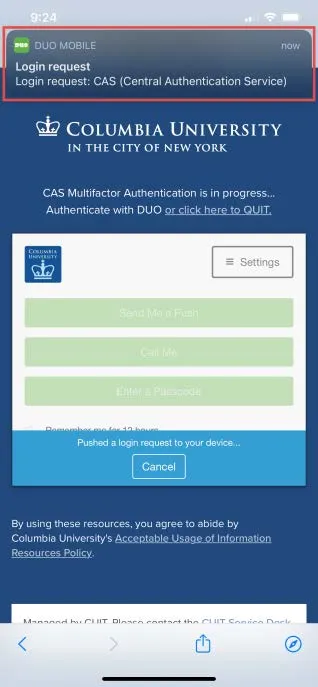
- Select the Duo Mobile Login request alert.
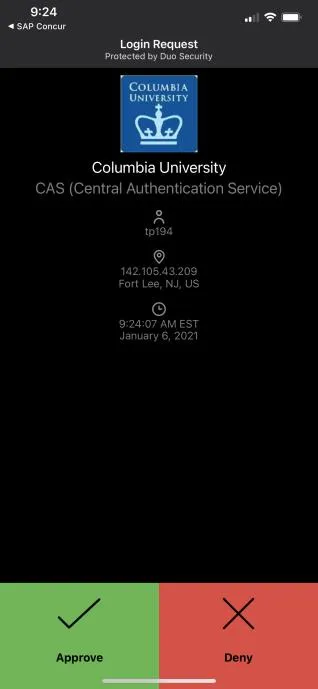
- Select Approve.
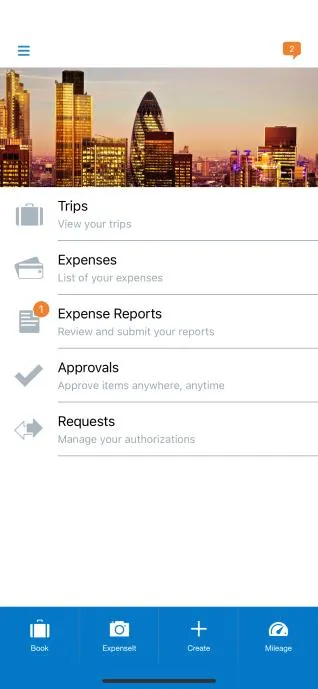
- Select to go back to SAP Concur. You can begin to use the Concur mobile app.