Itemizing Gifts in an Expense Report in Concur
This job aid covers how to itemize gift expenses to exclude tax / shipping / delivery and enter a justification when exceeding the policy thresholds.
Last Revision: July 2021
Gift Thresholds
Gift purchases should not exceed the following thresholds, excluding tax / shipping / delivery:
- $100 for Business Performance or De minimis gifts to employees
- $400 for Years of Service or Retirement gifts to Employee
- $600 for gifts to Non-Employees
Senior Business Officer (SBO) approval is required when Gift expenses exceed the established thresholds.
Non-Profile Payee Expense Reports are subject to Gift Thresholds, however due to system limitations the calculation includes tax / shipping / delivery.
Details
After initially creating your Expense Report, you will be on the Manage Expenses screen of your Report.
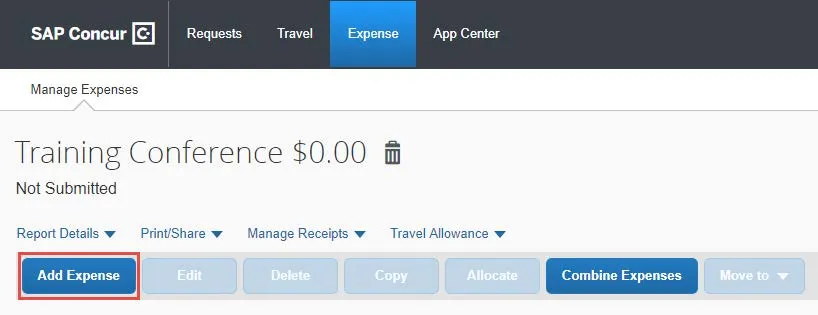
- Click Add Expense. The Add Expense screen appears. If you used a Corporate Card to purchase the gift(s), the Expense would be listed in Available Expenses.
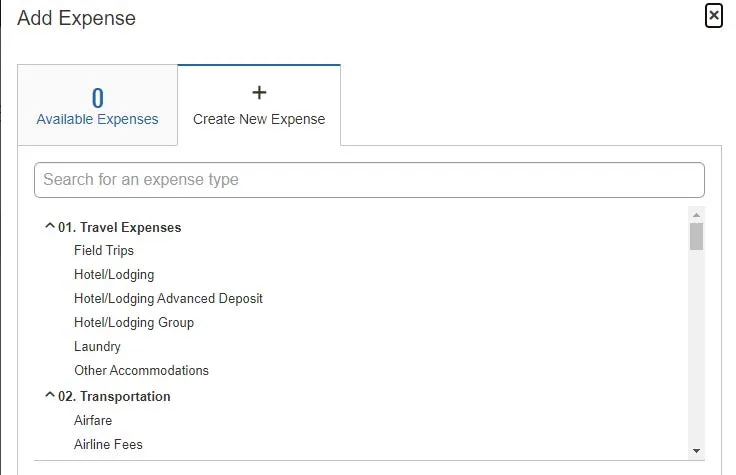
- Click Create New Expense for this example.
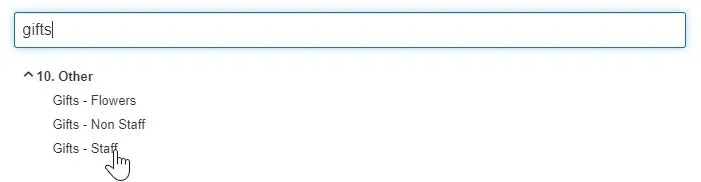
- You can type the Expense Type to find it from the list.
- Select the appropriate Gifts Expense Type.
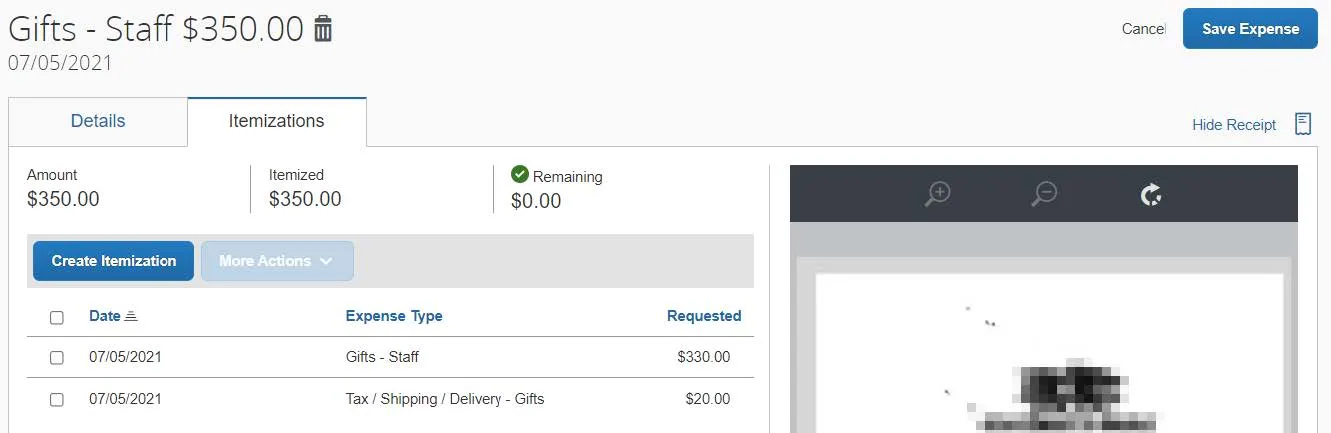
In the example below, the gifts were for three Columbia employees for Business Performance. The total cost of the three gifts was $350, including tax. Sales tax was $20 and each gift cost $110 before tax. The policy threshold in the example is $100 person. The amount above the policy threshold requires justification.
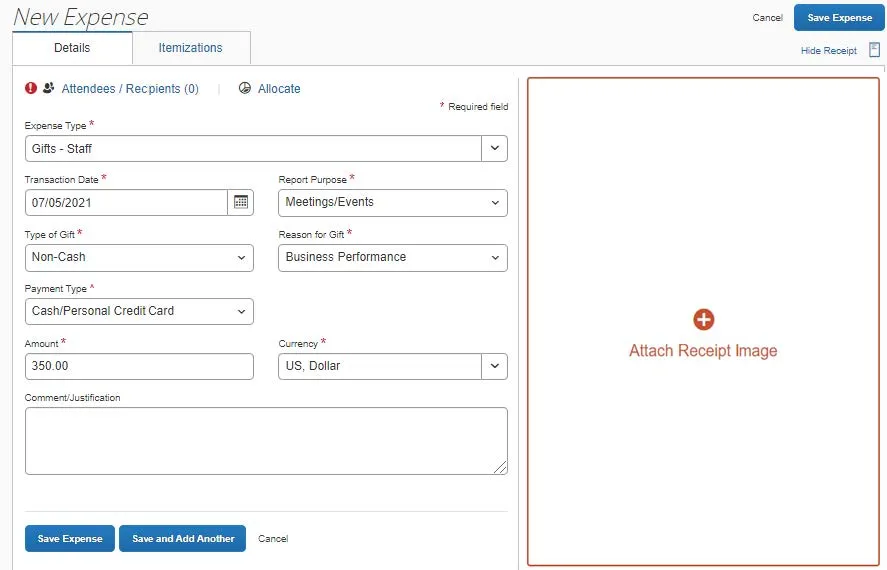
- Enter or select the Transaction Date.
- Select the Type of Gift.
- Select the Reason for Gift.
- Enter the total Amount of the gifts.
- Click Attach Receipt Image.
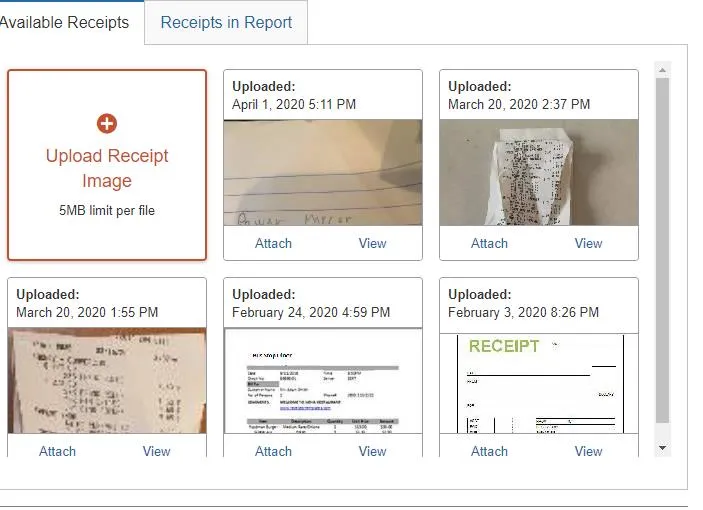
- If you have Available Receipts, such as those you photographed using the Concur Mobile app or emailed to Concur, you can select them from here. If you saved your Receipt Image to your files, you can click to Upload Receipt Image.
Adding Recipients
You must enter the names for all the gift recipients, no matter the number. The number of recipients is used to calculate whether the average cost per recipient exceeds gift thresholds. However, due to system limitations, when there are multiple recipients, the calculation includes tax / shipping /delivery.
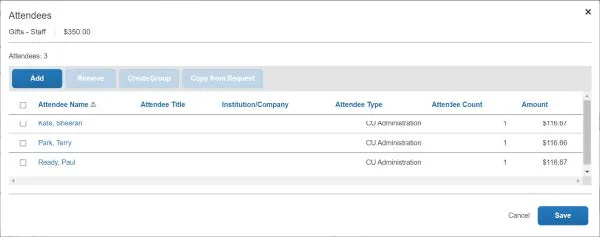
- Click the Attendees / Recipients link. The Attendees window appears.
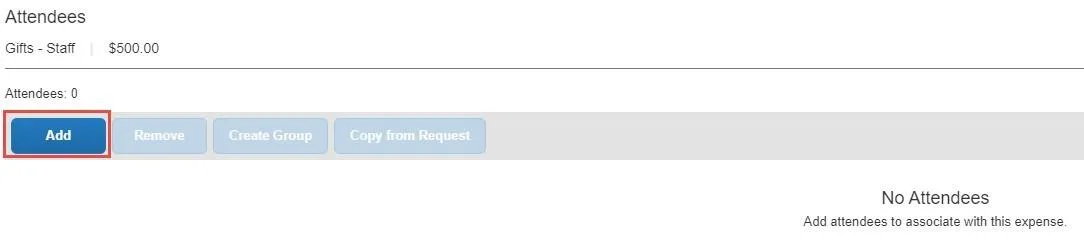
- Click the Add button. The Add Attendees screen appears. If you added attendees to previous Expense Items, they are displayed so that you can add them again, if needed.
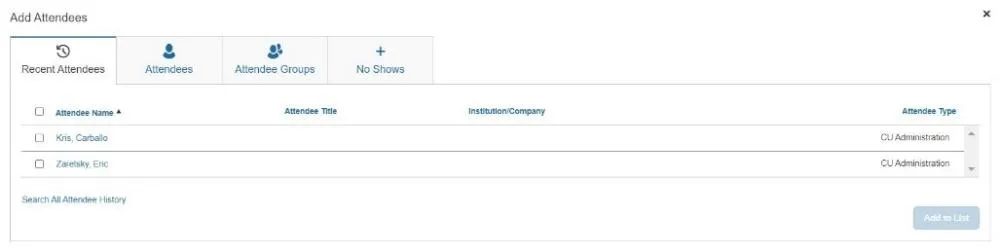
- Click the Attendees tab.
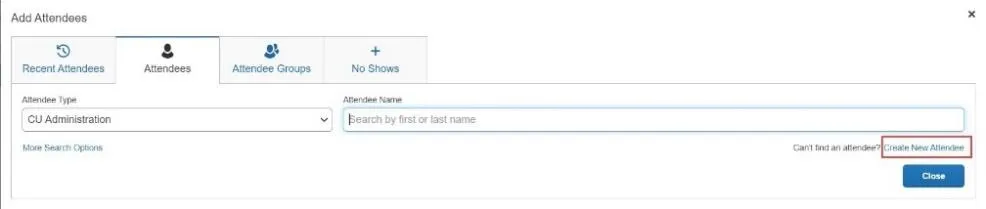
- Click Create New Attendee. The Create New Attendee window appears.
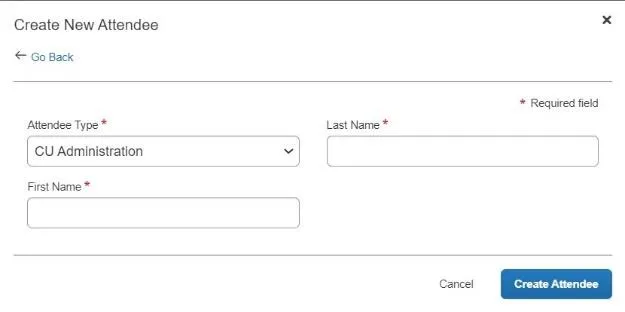
- Select the Attendee Type (i.e., CU Administration, CU Faculty, Outside Party, etc.) and then populate the Last Name and First Name fields for the attendee.
- Click Create Attendee. The Create New Attendee window remains open for you to add additional attendees.
- Click Cancel after adding the last New Attendee. The names you created appear in the Attendees screen along with the amount per person.
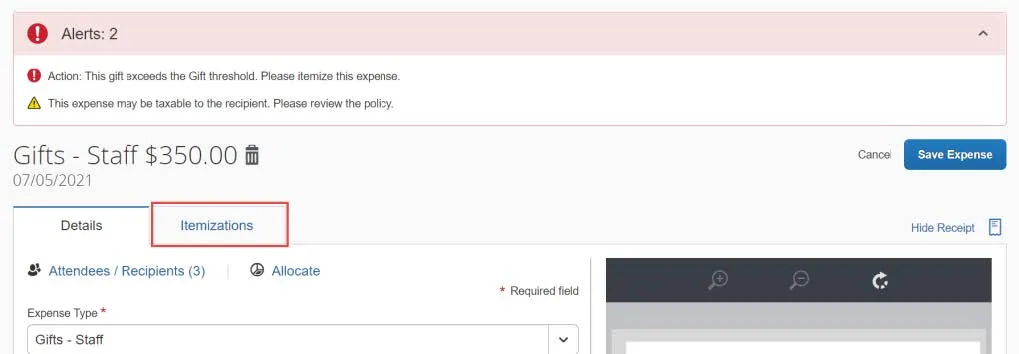
- Click Save. If the cost per person exceeds the policy threshold, an alert will appear.
Itemizing the Expense
- Click the Itemizations tab. The Itemization fields appear.
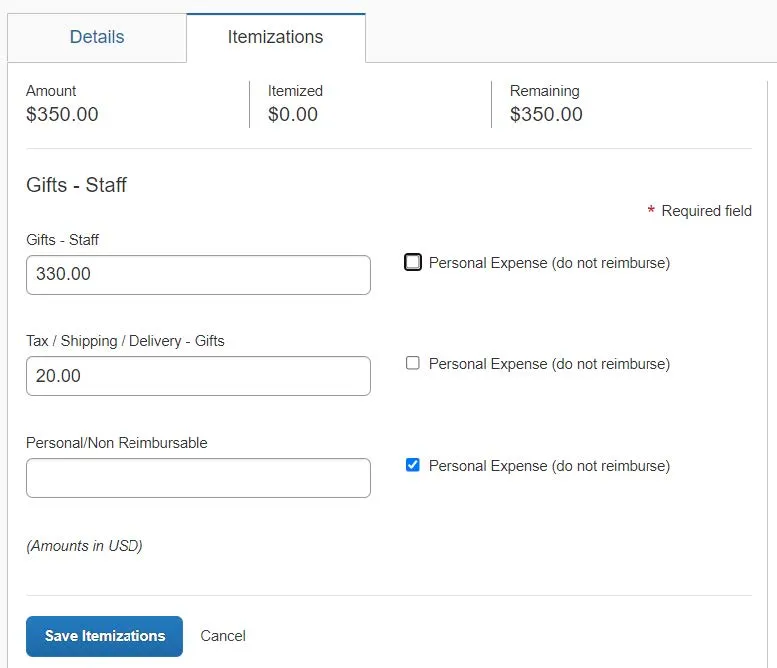
- Enter the amount for Tax / Shipping / Delivery – Gifts, in this example, $20.
- Enter the amount for Gifts without tax, in this example, $330.
- Click Save Itemizations. Notice the alert associated with the Gift itemization.
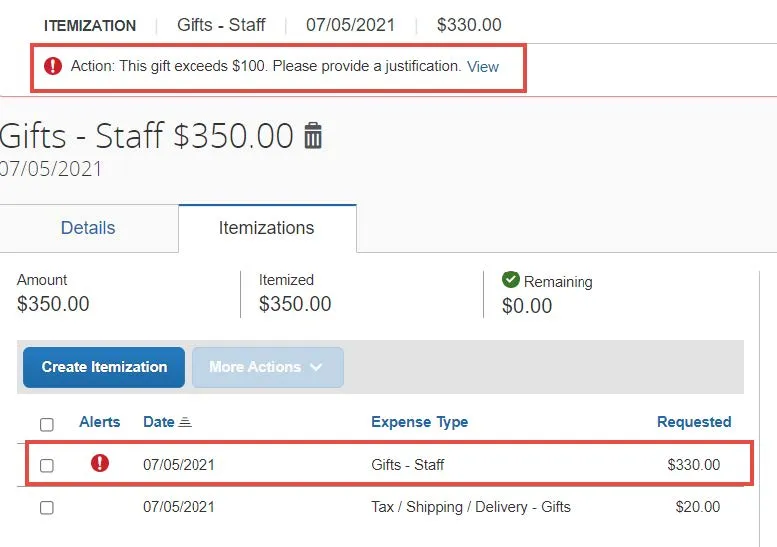
- Click the row for the Gift itemization.
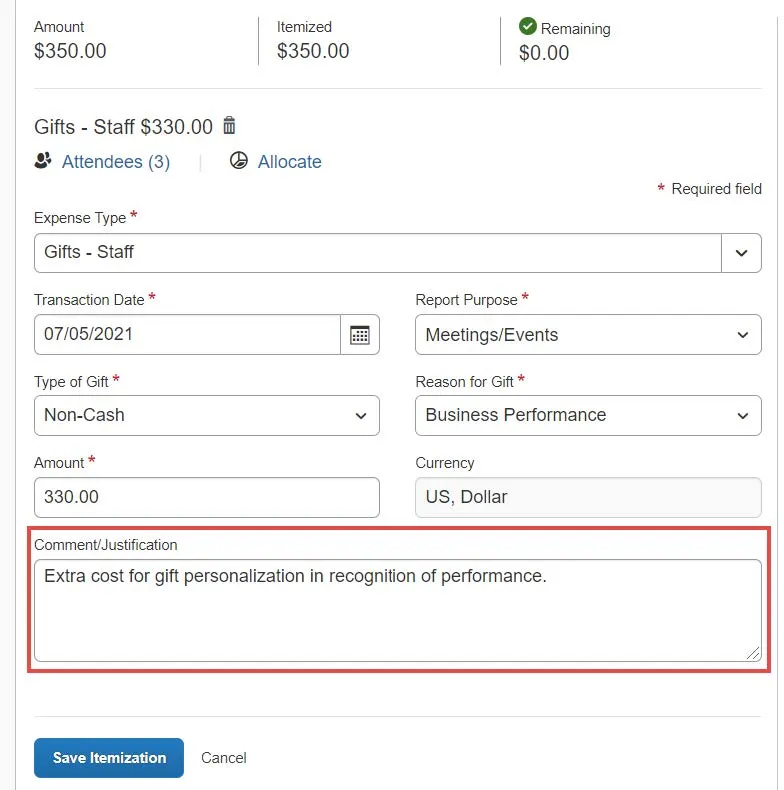
- Enter the Comment/Justification for incurring the amount above policy.
- Click Save Itemization. The Expense is now fully itemized with no alerts.
- Click Save Expense. Continue to Add Expenses to your Report, or after adding all your Expenses to the Report, click Submit Report.