Looking up Concur Transactions in ARC and FDS
This job aid reviews how to search for Concur transactions in ARC, how to run the Trial Balance by Account Detail report in FDS, and provides the ARC Voucher to Concur field mapping. The Concur Report Key maps to the ARC Invoice ID and can be used in ARC to search for the Voucher associated with the Concur transaction. The Trial Balance by Account Detail report is available in the Financial Data Store (FDS) and includes a column that provides visibility to voucher comments from the voucher Invoice Information tab within ARC.
Last Revision: January 2023
View and download the Looking up Concur Transactions in ARC and FDS job aid.
Details
In order to look up the ARC Voucher associated with a fully approved Concur transaction, you must find the Concur Report Key for the Expense Report, which is mapped to the Invoice ID in ARC. You can look up an Expense Report in Concur to find the Report Key.
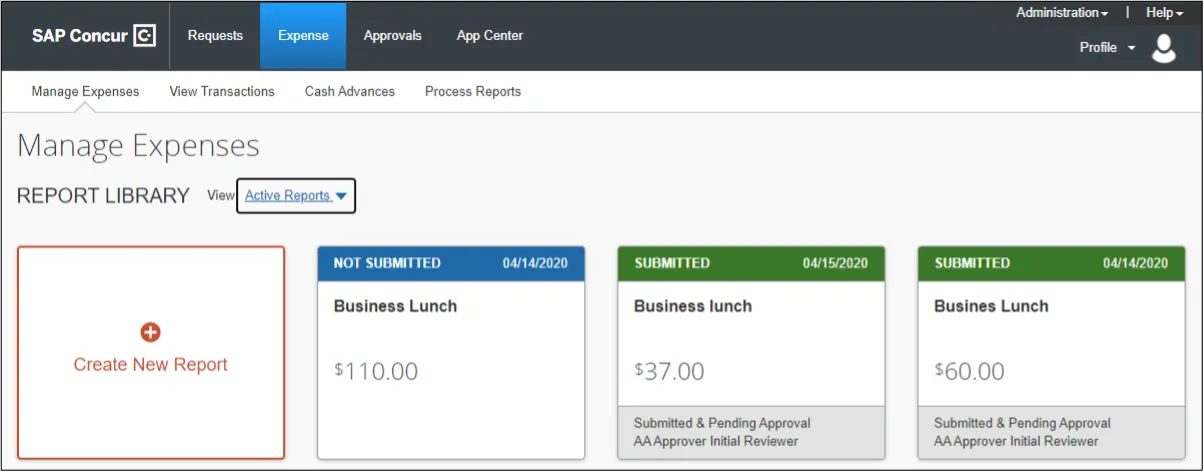
- In Concur, click the Expense tab. The Report Library View displays Active Expense Reports.
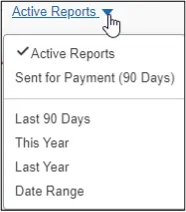
- Click the View dropdown and select the desired view. The search results appear.
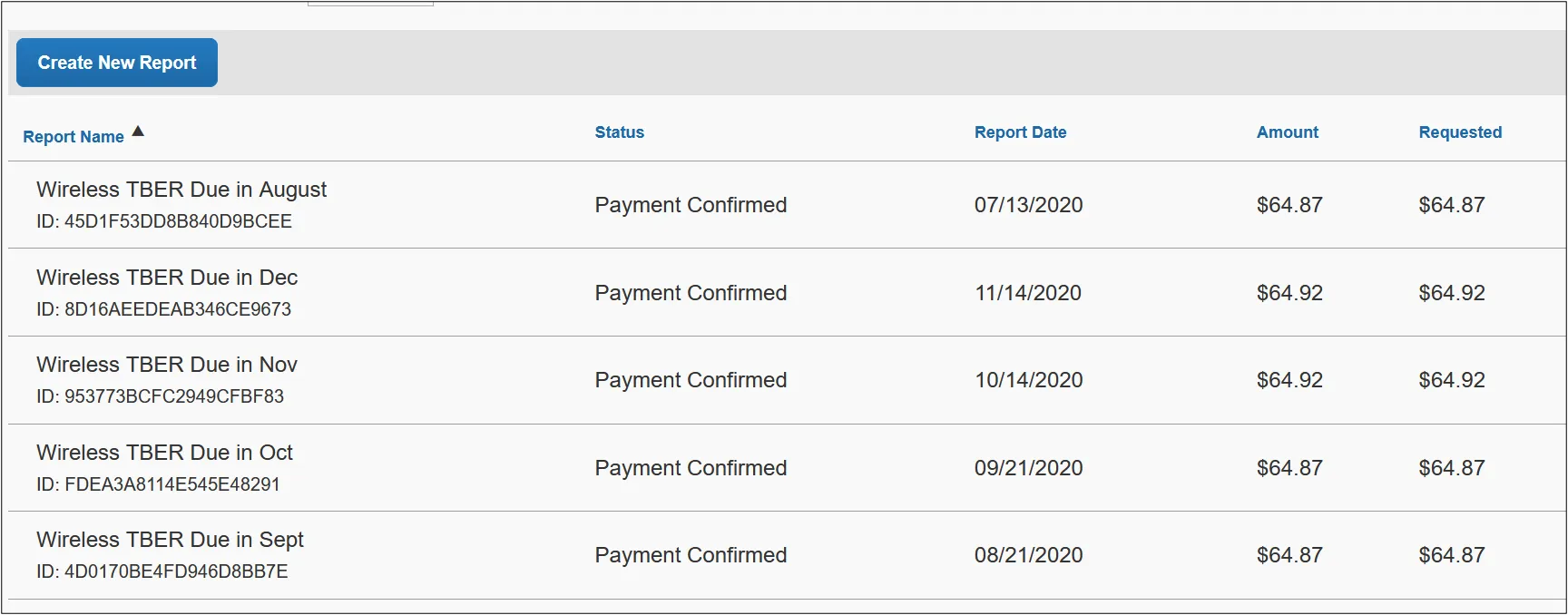
- Click the row of the desired Expense Report to view.
- Click the Print/Share dropdown and select CU Detailed Report w/ Summary. The CU Detailed Report w/ Summary window displays the Report Key.
Note: Approvers that are viewing a Payee’s Expense Report can find the Report Key by clicking the Print/Email dropdown and selecting CU Detailed Report w/ Summary. Approvers can also view the Report Key on the Report Header page.
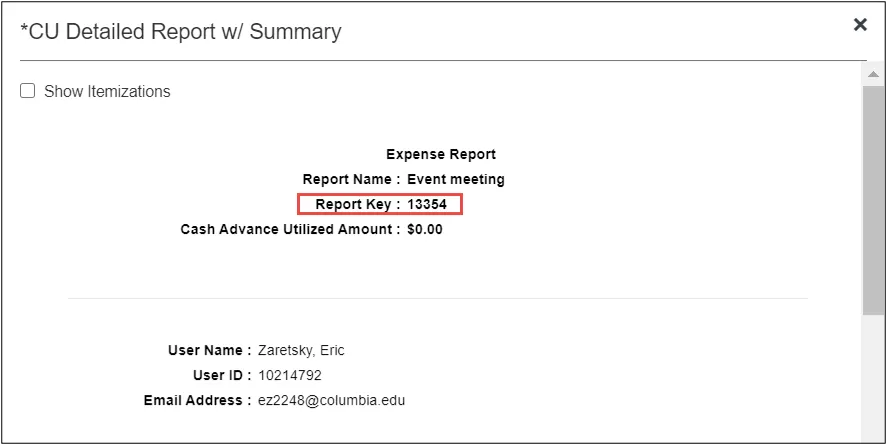
Once you know the Report Key, you can use it to find the Voucher in ARC.
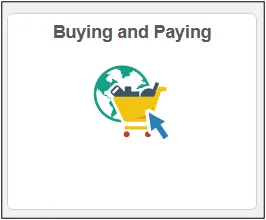
- Click the Buying and Paying tile and then click the Voucher Entry tab.
Or, click the NavBar > Main Menu >Accounts Payable > Vouchers > Add/Update > Regular Entry.
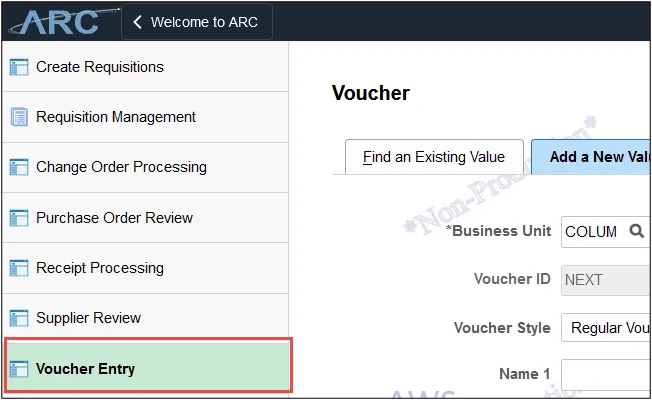
- Click the Find an Existing Value tab.
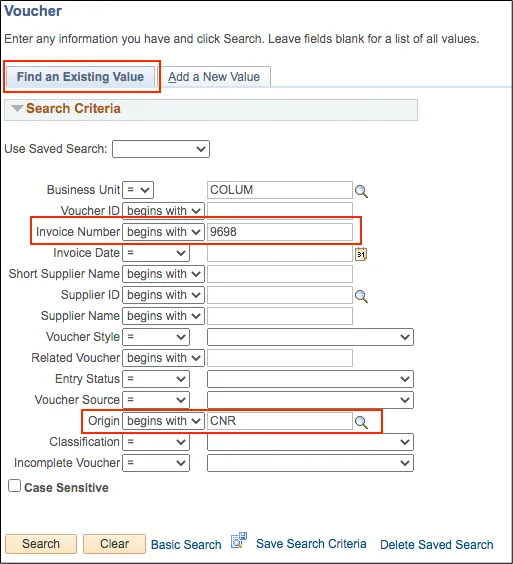
- Enter the Report Key from the Expense Report into the Invoice Number field.
- In the Origin field, enter CNR.
- Click Search. Vouchers that begin with the same invoice numbers appear in the search results.
Depending on the Concur transaction type, the Invoice Number will display the Concur Report Key appended with an R, A, or C. Refer to the ARC Voucher to Concur Field Mapping section of this Job Aid for details.

The Trial Balance by Account Detail report is accessed from FDS, a link to which can be found on the ARC portal. For guidance on how to launch and use the FDS On Demand Report interface, click the FDS On Demand Reporting Training Guide.
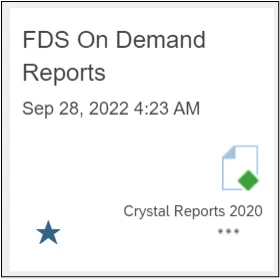
- Click the FDS On Demand Reports tile.

- From the FDS Folder/Report Selection dropdown, select Trial Balance Reports and then select Trial Balance by Account Detail from second dropdown that appears. The Enter Values form appears.
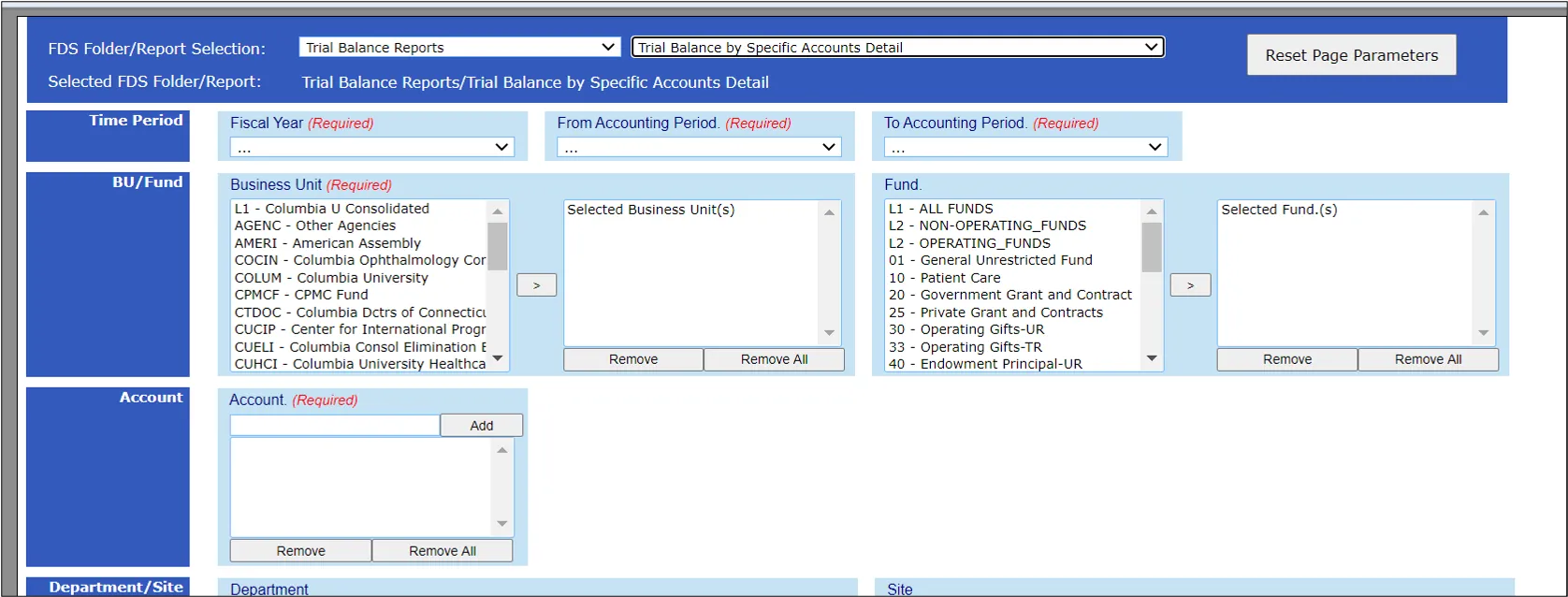
- Enter all required and desired optional Values.
- Click Run Report at the bottom of the form.
Exporting the Report to Excel
Voucher comments on the Trial Balance by Account Detail report are best viewed when exported to Excel because some comments, depending on character length, may overlap with other columns. However, once exported to Excel, you can easily expand columns, as needed, to clearly see the content.
- Click the Export icon on the toolbar at the top of the report viewer. The Export window appears.
- Select Microsoft Excel (XLSX) from the File Format dropdown.
- Click the Export button.
ARC Invoice ID maps to Concur Report Key, appended by the values below (e.g. 1408-R):
- R = Reimbursement
- A = Cash Advance
- C = Credit Card (Air / Rail Central Pay or Corporate Card)
ARC Voucher Type maps to Concur transactions as follows:
- E = Employee Reimbursement
- X = Corporate Card Transaction
- Y = Columbia Air / Rail Central Pay Transaction
ARC Voucher Comments for Expenses is populated with Concur Report Name and Concur Trip or Report Purpose
ARC Voucher Comments for Requests is populated with Concur Request Name and Request Purpose
ARC Voucher Line Description for Expenses is populated with the Concur Expense Type
ARC Voucher Line Description for Requests is populated with Cash Advance