Making Cash and Check Deposits on the Morningside Campus
This job aid details the process of making cash and check deposits on the Morningside Campus, which includes entering the deposit information in FFE and making the deposit at a Chase Bank branch.
Last Revision: May 2024
This job aid details the process of making cash and check deposits on the Morningside Campus, which includes entering the deposit information in FFE and making the deposit at a Chase Bank branch. If you have an RDC scanner you can use it to deposit checks, refer to the Making a Deposit Using Your RDC Scanner job aid. When making deposits, Initiators will enter the deposit details in the FinSys/FFE Cash Module and Release the batch. Approvers will approve the deposit and can print the details.
Details
Departments should enter cash receipt in the FinSys Cash Module (FFE) on the same day of the deposit before depositing at a Chase Bank branch. If you do not have FFE access, you can request access by submitting an Financial System Security Application (FSSA) via Service Now. Please contact [email protected] to activate your department’s FFE profile before making the cash deposit.
Initiating a Deposit in FFE
-
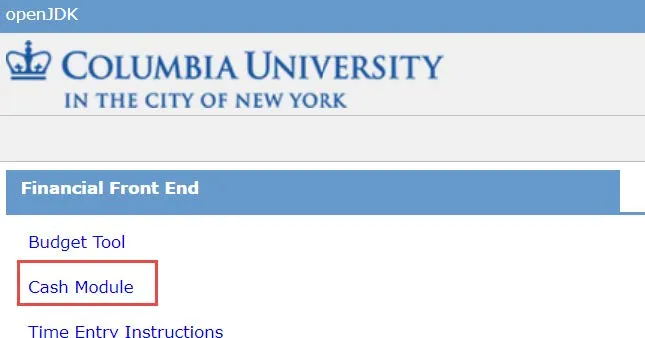
Login to the FinSys/FFE Cash Module.
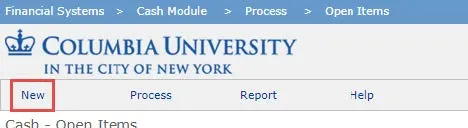
- Select New. The Cash – Bash Deposit Location screen deposit
- Select Morning Bank – Bank (cash/checks).
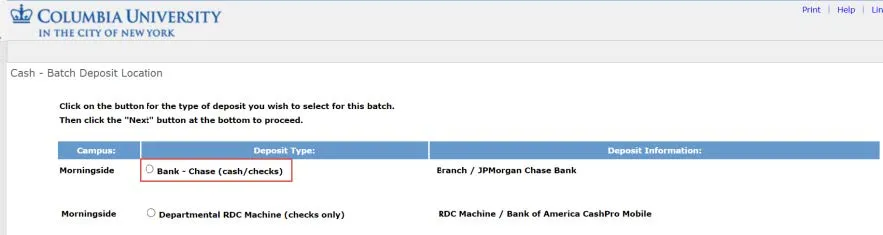
- Click Next. The Cash Batch form appears.
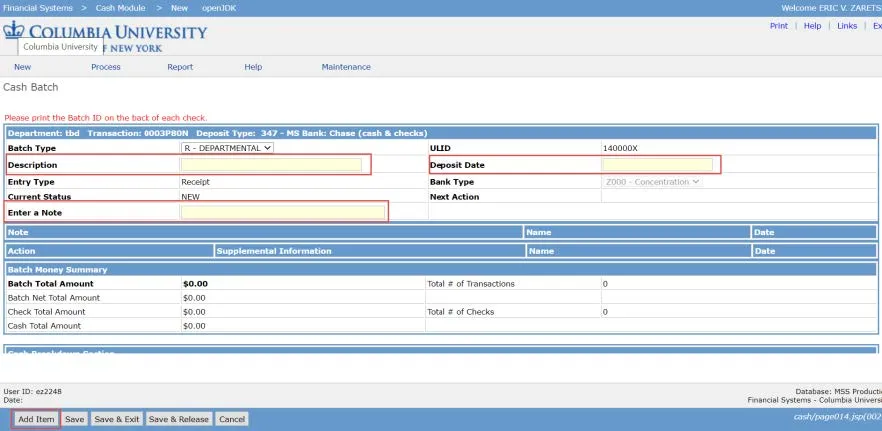
- Enter the Description, today’s date for the Deposit Date, and Enter a Note.
- Click Add Item at the bottom of the screen.

The ChartString Selector screen appears.
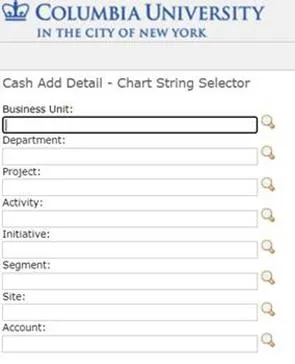
- Enter each ChartField for the ChartString to be credited and click Next. The Cash Batch screen appears with the ChartString in the Deposit Details.
- For cash, select CASH for the Type, then enter the Deposit Details by entering the Cash Breakdown by denomination and entering the Amount (which should equal the Cash Total).

For checks, select CHECKS for the Type, enter the total Amount of all checks, and the number of No. of Checks.

If you are depositing both Cash and Checks (click Add Item, and repeat steps 7 and 8 to add a line for the additional type of deposit.
- Click Save & Release at the bottom of the screen.

Note: Morningside departments that cannot record their cash deposits in FFE can email [email protected] with the following information to get temporary assistance with processing journals on the department’s behalf.
- Request to record departmental cash deposit in ARC
- A copy of the deposit receipt
- Full ARC ChartString to be credited
Approving a Cash Deposit
Approvers need to approve the deposit.
- Click the Process menu and select Items Awaiting Approval.

The Cash - Items Awaiting Approval page appears.

- Click the check box for the deposit you want to approve.
- Click the Approve button from the bottom of the screen.
The Cash – Department Approval View appears.
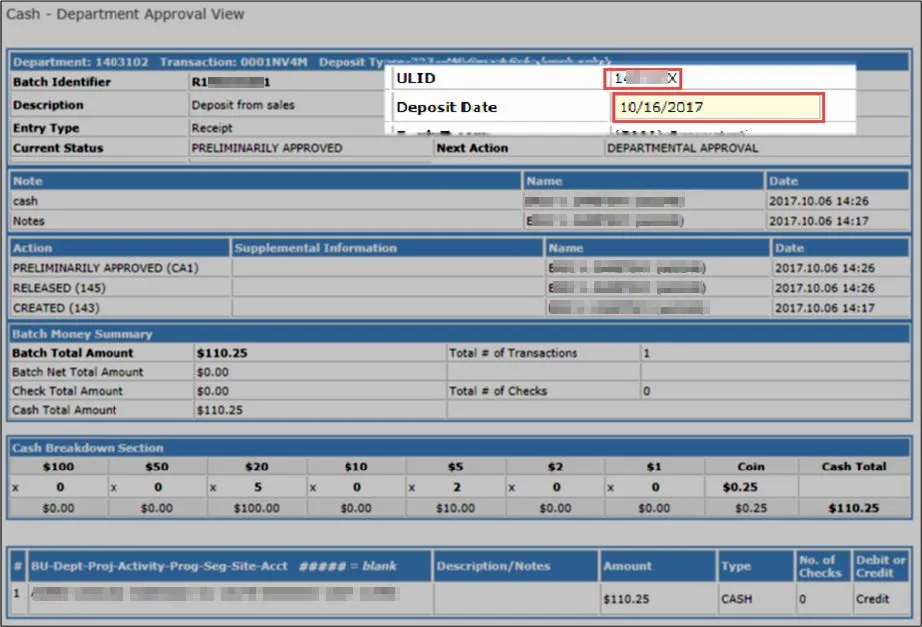
The ULID is based on the department (ARC node level 6) of the Approver.
- Enter a Deposit Date.
- Click the Save & Continue button from the bottom of the screen.
Printing the Deposit Information
Approvers can print the deposit details if needed.
- Click the Process menu and select Released Items.

The Cash - Released Items page appears.
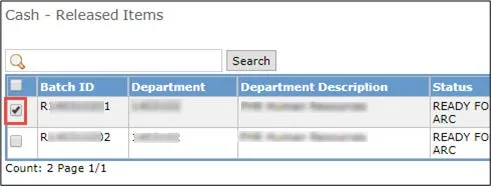
- Click the check box for the deposit you want to view.
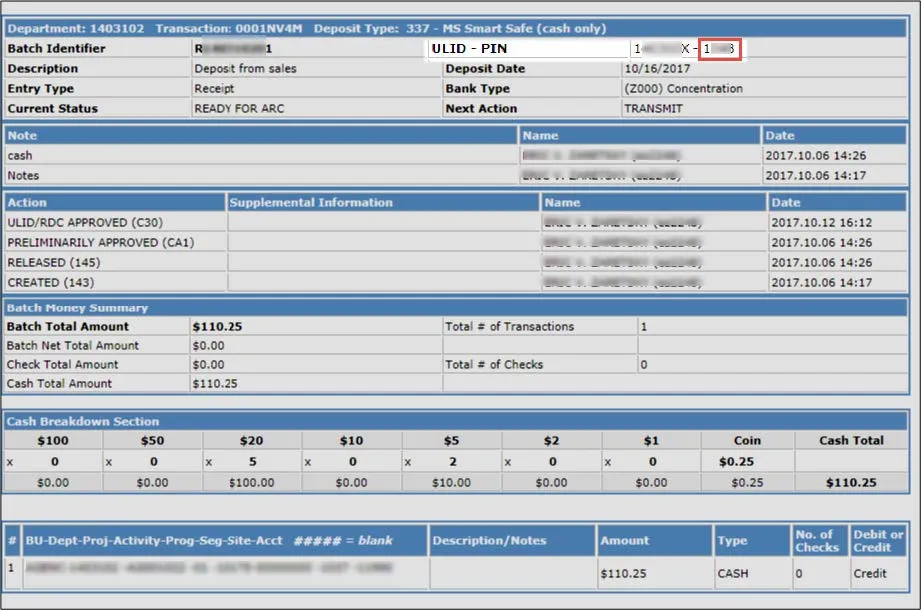
- Click the View button from the bottom of the screen. The Cash Deposit Report Detail View appears.
-
Click Print from the upper right corner of the FinSys/FFE screen to print the deposit details.
Completing the Deposit Slip and Making the Deposit
- Write your UNI on each deposit slip.
- Enter the Account Name: The Trustees of Columbia University in the City of New York.
- Enter the Account Number: (If needed, email SFS for account number information. Do Not share the Columbia Bank account number unless necessary).
Depositing cash and checks at a Chase branch
- The deposit should be taken by the department to a Chase branch on the same day
- For checks, write the total of each batch of checks in the CHECKS box (no more than 100 checks per batch). Write out the amount of each check next to CHECKS when you have 6 or fewer checks. Write the total of your sums in the Total Deposit box.