Managing Concur Notifications and Reminders
This training guide summarizes the Travel and Expense related notification and reminder emails you may receive from Concur and World Travel Inc. (WTI) and provides details regarding those that you have the ability to enable/disable.
Last revision: July 2020
Details
Concur Expense and Request Notifications
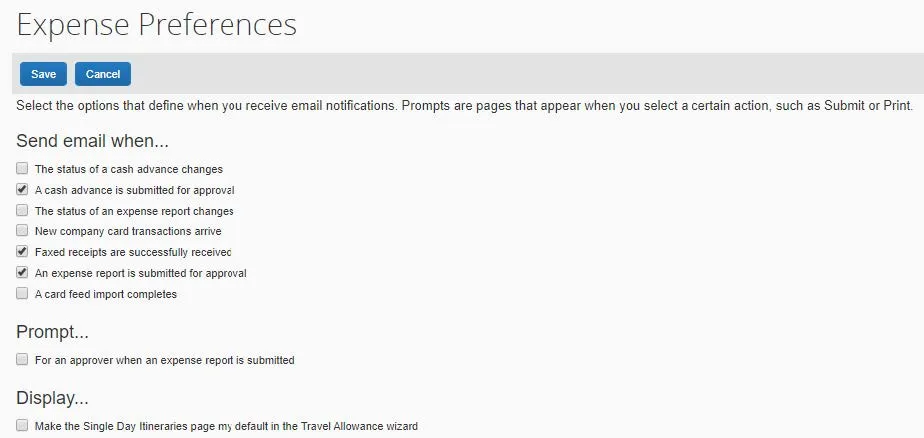
You can enable or disable Notifications by updating you Profile Settings. You will receive notifications via email from Concur ([email protected]). Please note that Columbia is not able to configure the conditions, frequency or content of these notifications. The table below summarize these notifications and when you will receive them:
- Automated Notification Name
- Report Status Change
- Received By
- Payee
- Condition and Frequency
- Approvals (All), Returns and Payment
- Automated Notification Name
- Report Awaiting Approval
- Received By
- Approver
- Condition and Frequency
- Upon submission for Approval (one-time)
- Automated Notification Name
- Travel Request Status Change
- Received By
- Payee
- Condition and Frequency
- Approvals and Returns
- Automated Notification Name
- Travel Request Awaiting Approval
- Received By
- Approver
- Condition and Frequency
- Upon submission for Approval (one-time)
- Automated Notification Name
- Add BTA / Corporate Card Transactions to Report
- Received By
- Cardholder / Profiled Traveler (BTA)
- Condition and Frequency
- Nightly receipt of daily activity
Setting Automated Notification Preferences for Requests and Expenses
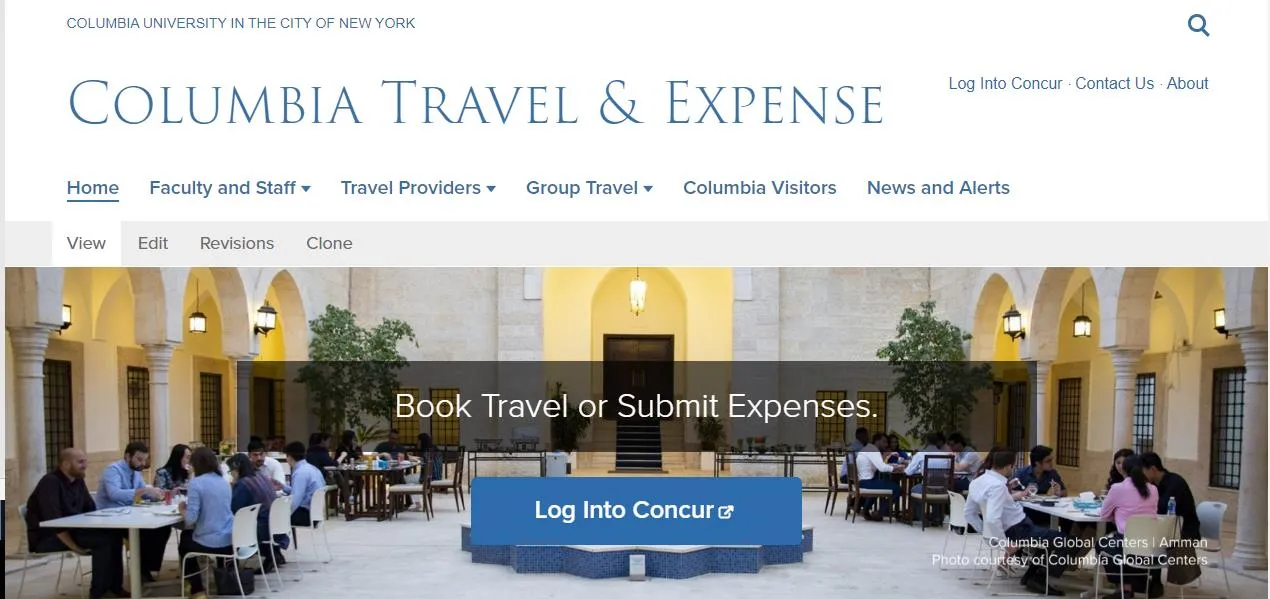
- Log into Concur from the Travel and Expense Portal.
- Enter your UNI and Password and click Login. Your Concur dashboard appears.
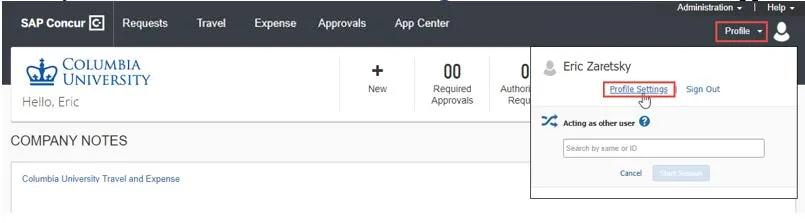
- Click Profile on the top right of your screen and click Profile Settings. The Profile page appears with links to navigate to Profile Settings.
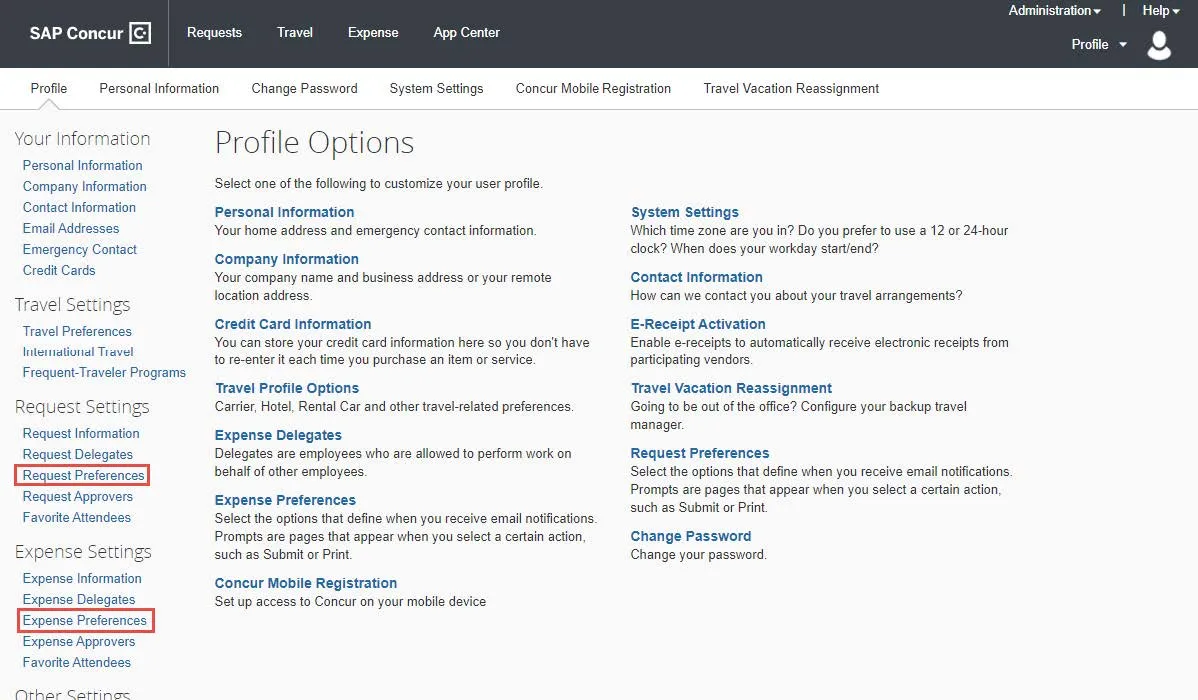
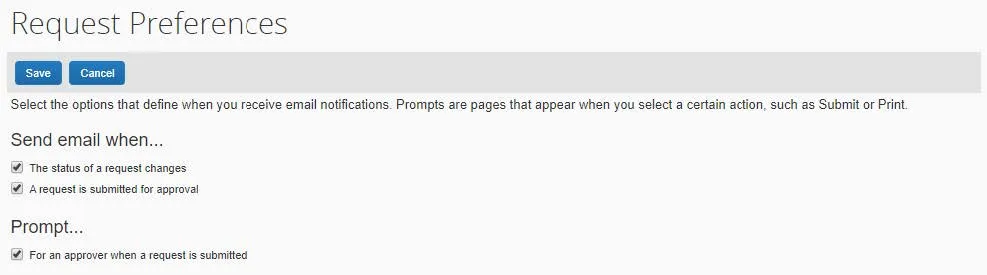
- Click Request Preferences. You can adjust your preferences for Send email when.
- Click Expense Preferences. You can adjust your preferences for Send email when.
Expense and Request Reminders
You will receive Reminders from Procurement Services [email protected], which cannot be disabled. The tables below summarize these reminders and when you will receive them:
Request Reminders
- Reminder
- Request is Ready for Review and Submission
- Action
- You will receive a reminder if a Request prepared by your Delegate is ready for your review and submission.
- Initial Timing
- When your Delegate clicks Ready for Review or Submit Request
- Frequency
- Once when condition is met
- Reminder
- Unused Travel / Cash Advance Balance
- Action
- You will receive a reminder if you have an unused cash advance issued greater than 90 days ago.
- Initial Timing
- 90 days from cash advance issuance
- Frequency
- 1st of each month
- Reminder
- Outstanding Non-Travel / Cash Advance
- Action
- You will receive a reminder if you have an unreconciled cash advance issued greater than 60 days from end date of expense.
- Initial Timing
- 60 days after end date of expense
- Frequency
- Once when condition is met
- Reminder
- Outstanding Travel / Cash Advance
- Action
- You will receive a reminder if you have an unreconciled cash advance issued greater than 60 days from trip end date.
- Initial Timing
- 60 days after trip end date
- Frequency
- Once when condition is met
- Reminder
- Approved Non-Travel Request without Expense Report
- Action
- You will receive a reminder to create your expense report if the report hasn't been started within 10 days from end date of the expense.
- Initial Timing
- 10 days after end date of expense
- Frequency
- Once when condition is met
- Reminder
- Approved Travel Request without Expense Report
- Action
- You will receive a reminder to create your expense report if the report hasn't been started within 10 days of the trip end date.
- Initial Timing
- 10 days after trip end date
- Frequency
- Once when condition is met
- Reminder
- Pending Request Approvals (without Cash Advance)
- Action
- The Approver will receive a reminder if the request remains unapproved for 7 days.
- Initial Timing
- 7 days from Request entry Date into approval queue
- Frequency
- Weekly 7 day rolling period
- Reminder
- Pending Request Approvals (with Cash Advance)
- Action
- The Approver will receive a reminder if the cash advance request remains unapproved for 3 days.
- Initial Timing
- 3 days from Request entry Date into approval queue
- Frequency
- Daily (weekdays only)
Expense Reminders
- Reminder
- Expense Report is Ready for Review and Submission
- Action
- You will receive a reminder if an Expense Report prepared by your Delegate is ready for your review and submission.
- Initial
- When your Delegate clicks Ready for Review or Submit Report
- Frequency
- Once when condition is met
- Reminder
- Unsubmitted Expense Reports
- Action
- You will receive a reminder for any unsubmitted expense reports greater than 30 days.
- Initial
- 30 days from report creation date
- Frequency
- At 30 days and 60 days
- Reminder
- Unsubmitted Expense Reports
- Action
- You will receive a reminder for any unsubmitted expense reports greater than 90 days. The Email will include imputed income and 365-day limit advisement. Your Supervisor will be copied on the email.
- Initial
- 90 days from report creation date
- Frequency
- Every 30 days up to 365 days
- Reminder
- Unreconciled Corporate Card or Columbia Air/Rail Central Pay Transactions
- Action
- You will receive a reminder for unassigned or unsubmitted Corporate Card or Columbia Air/Rail Central Pay transactions that are less than 60 days old.
- Initial
- 24th of the month
- Frequency
- 24th of each month
- Reminder
- Outstanding Corporate Card or Columbia Air/Rail Central Pay Transactions
- Action
- You will receive a reminder of unassigned or unsubmitted Corporate Card or Columbia Air/Rail Central Pay transactions that are over 60 days old. Your Supervisor will be copied on the email
- Initial
- 60 days from card transaction posted date
- Frequency
- Every 7 days
- Reminder
- Pending Expense Report Approvals
- Action
- The Approver receives a reminder if the report remains unapproved for 7 days.
- Initial
- 7 days from report entry date into approval queue
- Frequency
- Specific days of month: 7th, 14th, 21st, and 28th of the month
When you book and purchase travel through Concur Travel or World Travel, Inc. (WTI), you will receive alerts, either by email or text message, regarding your trip status, such as flight changes. You will also receive reminders on the expiration date of your credit cards and passport indicated in your Concur Profile. Some types of alerts require you to opt in or provide you the opportunity to opt out, while you will receive other types of alerts that offer no option to opt out. The below summarizes the different alert messages you will receive along with their opt-out availability.
For issues with opt-in, opt-out, changing preferences, or not receiving email notifications, contact the WTI Online Helpdesk Monday – Friday 8AM – 8PM at 800-221-4730 or via email at [email protected].
Travel Alerts that Allow You to Opt-Out
- Alert
- Flight Alerts
- Alert Content
- FlightAlerts contain information about flight reservation(s). Notifications include: gate assignments, departure and arrival delays, connection problems, diversions, cancellations, and baggage claim information.
- Opt-In
- If you booked a reservation with WTI, you will be sent a notification from [email protected] asking if you want to opt-in. You must click the Register Here link within the email to register in order to enroll. To enroll, you will need to use your email address and create a password.
- Opt-Out
- Login to https://www.flightstats.com/ta/Login/login.do using the email address you used to register. Uncheck the box next to send alerts then click update profile.
- Setting Preferences
- Login to https://www.flightstats.com/ta/Login/login.do using the email address and password you used to register. You can change how FlightAlerts are delivered.
- Alert
- Trip Alerts
- Alert Content
- TripAlerts contain information about events that affect travel in a destination city specific to your trip. Notifications include: planned strikes, weather events, health and environmental outbreaks, and civil unrest.
- Opt-In
- You are automatically enrolled in TripAlerts when you book a reservation through WTI.
- Opt-Out
- Click the link at the bottom of a TripAlert email. Click Unsubscribe for the email status setting.
- Setting Preferences
- You can change the type of alerts you receive for a trip by clicking on the link at the bottom of a TripAlert email. Locate the appropriate trip criteria using your confirmation number and click the pencil icon associated with the trip criteria.
- Alert
- Text to Travel
- Alert Content
- Text to Travel allows you to connect with a travel consultant via text when you are on the go, have an immediate need during your travel, or need to make a change to an upcoming reservation, and are unable to make a phone call.
- Opt-In
- If you booked a reservation with WTI, you will be sent an Email asking if you want to Enroll to Text to Travel. Click the Enroll link in the email to enroll. You will continue to receive this email each time you book a reservation until you either Enroll or opt-out.
- Opt-Out
- In the notification asking if you want to opt-out to Text to Travel, click the Enroll link for the option to opt-out. You will continue to receive this email each time you book a reservation until you either Enroll or opt-out.
- Setting Preferences
- For question on Text to Travel, please email: [email protected].
Travel Alerts that Do Not Allow You to Opt-Out
- Alert
- WaiverAlerts
- Alert Content
- WaiverAlerts notify you when an airline waiver has been issued that impacts your reservations.
- Getting Help
- For assistance with a Waiver Alert follow the instructions provided within the body of the email to contact a Columbia University designated Travel Counselor
- Alert
- Schedule Changes - Major
- Alert Content
- You will receive notifications when there is a major change to your schedule, which includes:
- Missed Connections
- Departure City or Arrival City Change
- Departure or Arrival Time Change more than 25 minutes
- Change to the Operating Carrier
- The number of old and new segments do not match
- Getting Help
- For assistance with a Schedule Change follow the instructions provided within the body of the email to contact a Columbia University designated Travel Counselor
- Alert
- Schedule Changes - Minor
- Alert Content
- You will receive notifications when there is a minor change to your schedule, which includes:
- Flight Number Change
- Class of Service Change
- Departure or Arrival Time Change less than 25 minutes
- Getting Help
- For assistance with a Schedule Change follow the instructions provided within the body of the email to contact a Columbia University designated Travel Counselor
- Alert
- Credit Card Expiration
- Alert Content
- You will receive a notification 14 days prior to the expiration of the credit card listed in your Profile reminding you to update this information.
- Getting Help
- Contact the Online Helpdesk Monday – Friday 8AM – 8PM at 800-221-4730 or [email protected] for assistance updating your credit card number
- Alert
- Passport Expiration
- Alert Content
- You will receive notifications 9 months, 6 months, 3 months, and 1 month prior to the expiration of the passport listed in your Profile reminding you to update this information.
- Getting Help
- Contact the Online Helpdesk Monday – Friday 8AM – 8PM at 800-221-4730 or [email protected] for assistance updating your credit card number