Managing Delegates
This job aid will help you name colleagues to act on your behalf in Concur.
Last Revision: March 2026
You can name colleagues to act on your behalf in Concur for the following purposes:
- Prepare Requests or Expense Reports – You can specify Delegates that can prepare Requests and Reports on your behalf. You will be required to submit the Requests or Reports for approval.
- Approve Requests or Expense Reports - If you are an Approver, you can name colleagues to approve Requests or Reports on your behalf for a specified period of time. Your colleague must also be setup as an Approver in order for you to add them as an Approver Delegate.
- Preview Requests and Expense Reports – If you are an Approver, you can specify colleagues to view Reports or Requests submitted for your approval but who cannot approve on your behalf.
- Arrange Travel – If you have access to Concur Travel, you can specify a colleague that can arrange and book travel on your behalf.
Details
- Access Concur from the Columbia Travel and Expense Website.
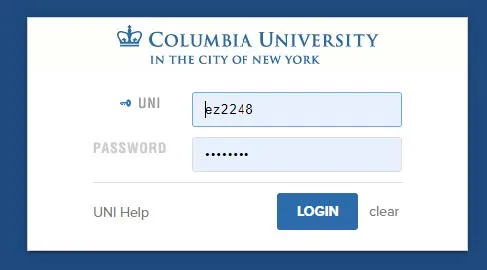
- Enter your UNI and Password and click Login. Your Concur dashboard appears.
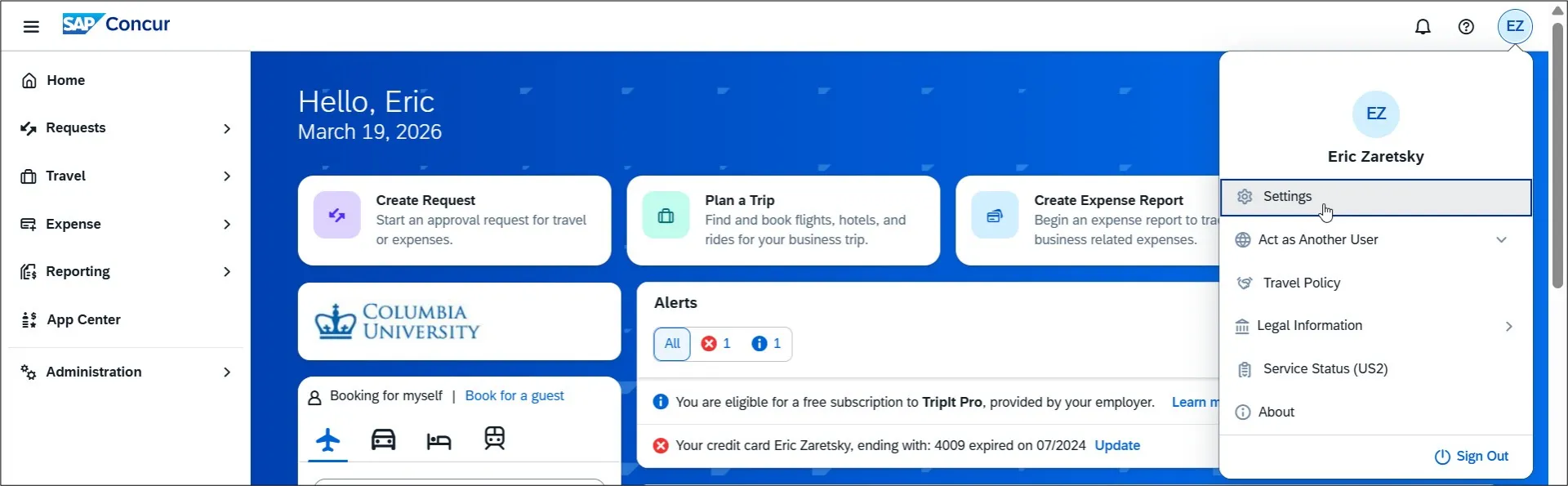
- Click your Profile icon on the top right of your screen.
- Click Profile Settings.
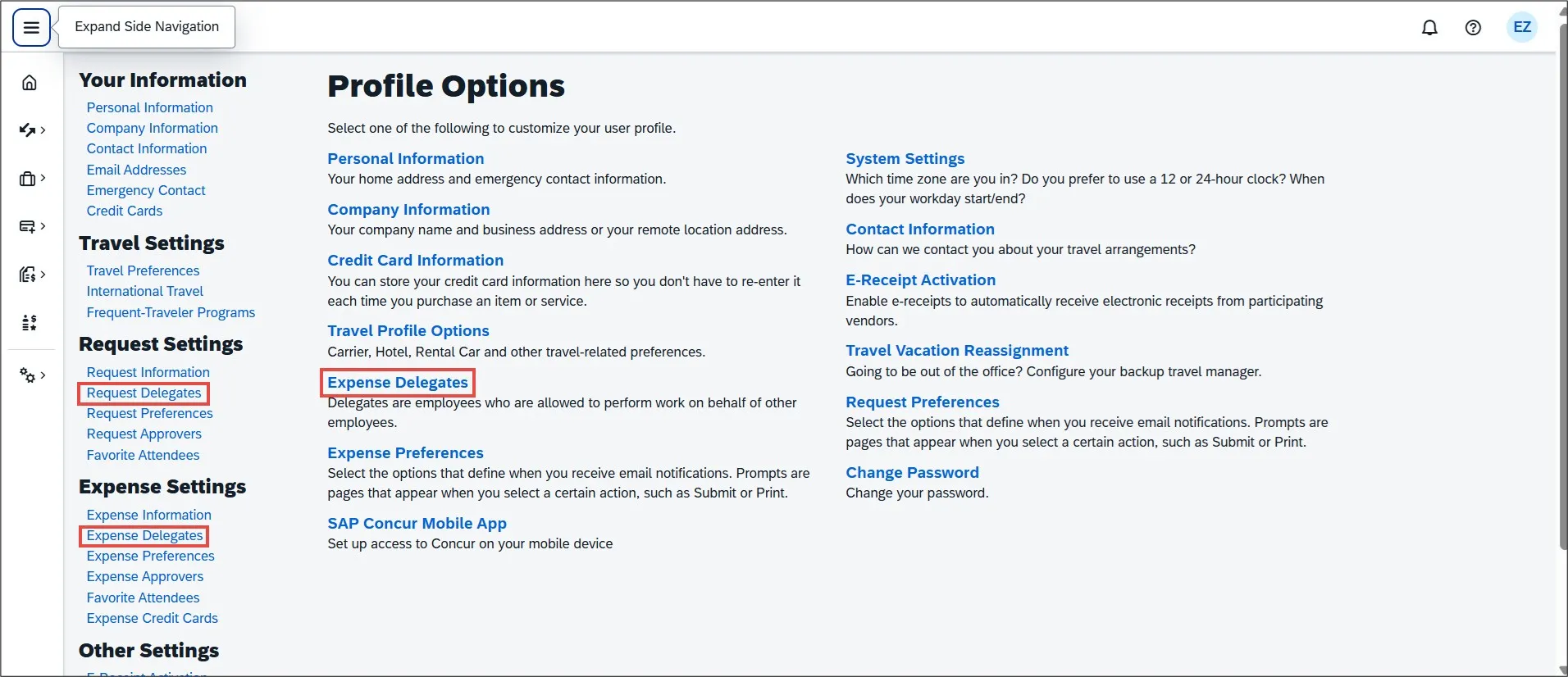
- Can click Expense Delegates (from Profile Options or Expense Settings) or Request Delegates. Delegates functionality and lists are the same in all places.

- Click Add.
- Type your Search using last name, UNI, email, etc. A list of matches appears.
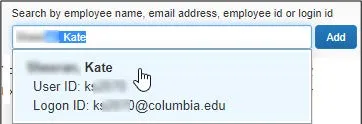
- Select the desired match or click the Add button next to the search field if your selection is not added.
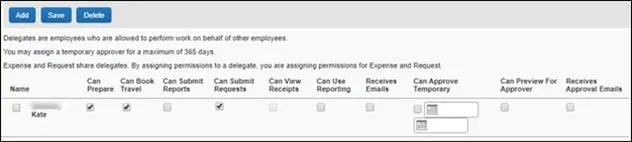
- Select the appropriate checkboxes to assign the permissions you wish to give the delegate. See the sections below for more details.
- Click Save.
Preparer Delegates
You can assign Delegates to prepare Requests and Reports on your behalf. You can select Can Click Submit so that your Delegate can check for accuracy and completeness, but the Delegate cannot actually submit Requests and Reports for approval. You will receive notification when the Request or Report is ready to review and submit.
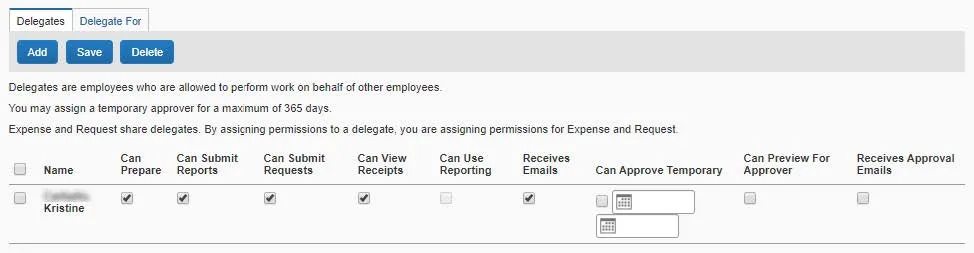
- Can Prepare -The Delegate may prepare Expense Reports and Requests on your behalf. You will still be required to submit the Report for approval.
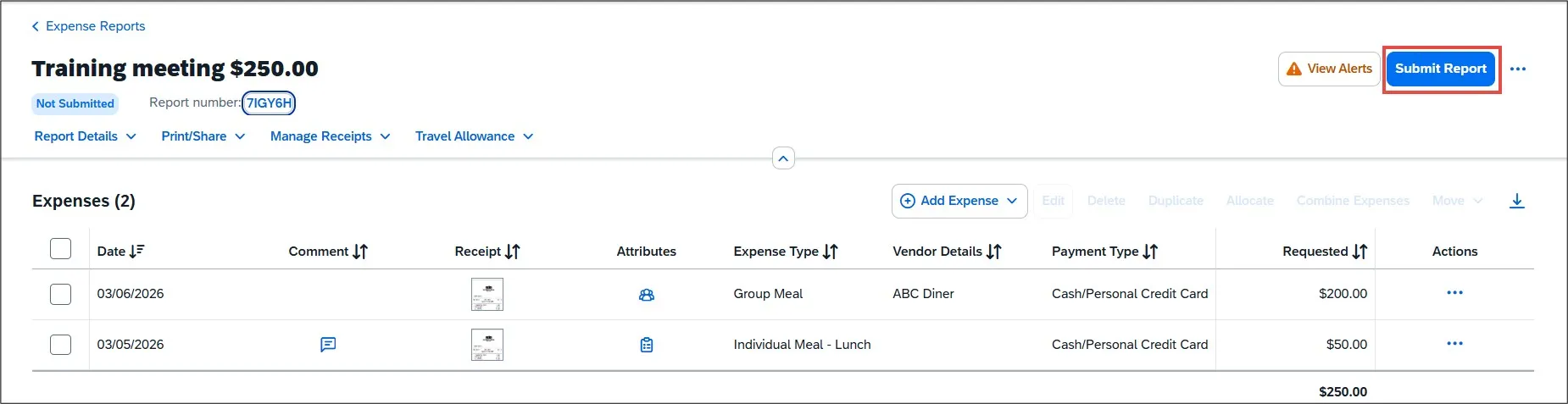
- Can Submit Reports – The Preparer Delegate is able to click Submit Report once they have finished preparing your Expense Report. However, a Preparer Delegate cannot submit the Expense Report into workflow for approval. Two things will happen: 1) your Delegate will see any audit alerts that may prompt them to check for accuracy and completeness; 2) you will receive an email notification that your Delegate has created an Expense Report which should be ready for review and submission. You will need to open the Report created on your behalf and click Submit Report to enter it into workflow for approval. If you do not authorize your Delegate to Submit Reports, they will not see the Submit Report button. Instead, the Delegate will see the Ready For Review button once they have finished preparing your Expense Report. When clicked, an email will be sent alerting you that your Expense Report is ready for review and the report status will change to Ready for Review. You must review the Report for accuracy and completeness prior to submitting it into workflow for approval.
- Can Submit Requests – The Preparer Delegate is able to click Submit Request once they have finished preparing your Request. This works the same as Can Submit Reports. See details above.
- Can View Receipts - Defaulted when selecting Can Prepare. This allows the Delegate to view your receipt store, receipts images, etc.
- Receives Emails - The Delegate will be copied on all emails generated by Concur addressed to you
Approver Delegates
If you are an Approver, you can name a colleague to approve Requests or Reports on your behalf. Your colleague must also be setup as an Approver in order for you to add them as an Approver Delegate.
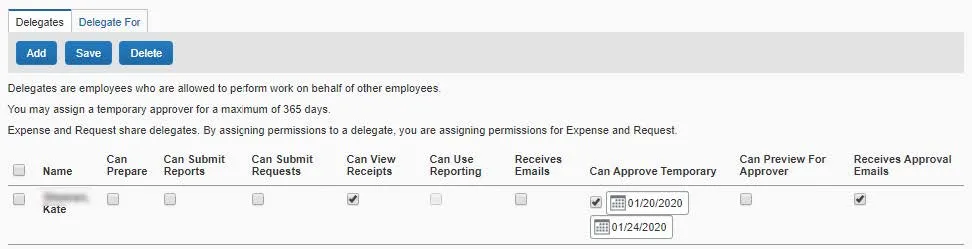
- Can Approve Temporary – If you are an Approver, the Delegate may approve Reports and Requests on your behalf. Indicate the date range you are giving this Delegate to approve reports and requests on your behalf. The Delegate must also be setup in Concur as an Approver
- Can Preview for Approver – If selected on its own, the Delegate can view Reports and Requests submitted to you for approval but cannot Approve on your behalf
- Receives Approval Emails – The Delegate will be copied on all emails generated by Concur notifying you of requests and reports pending your approval
Preview Delegates
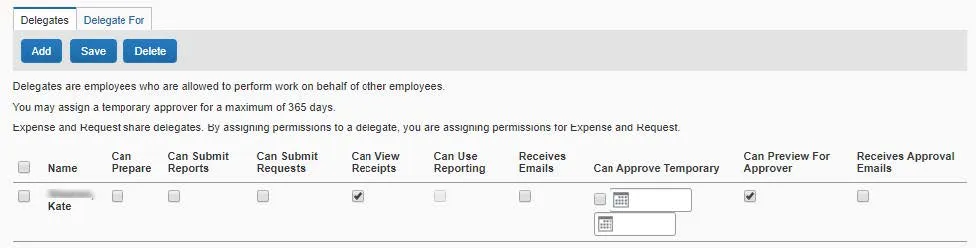
If you are an Approver, you can specify colleagues to view Reports or Requests submitted for your approval but who cannot approve on your behalf.
- Can Preview for Approver – If selected on its own, the Delegate can view Reports or Requests submitted to you for approval but cannot Approve on your behalf
If you have Concur Travel you can designate Travel Delegates who are allowed to book travel on behalf of other employees by selecting the option to select Can Book Travel. If you select Can Book Travel, Can Prepare and Can View Receipts will be automatically selected. As a result, a Travel Delegate is also assigned as an Expense Preparer Delegate.
You can be designated by your colleagues as a Delegate that can act on their behalf to prepare Requests, Expense Reports or act as a Travel Assistant. If you have a role as an Approver, you can be designated as an Approver Delegate by a colleague with an Approver role. Please note that you cannot use the Concur Mobile App when acting as Delegate and must use the Concur Desktop Application.
Viewing Colleagues for Whom You Are a Delegate and Permissions
To view who has designated you as their Delegate and your permissions:
Click the Delegate For tab:
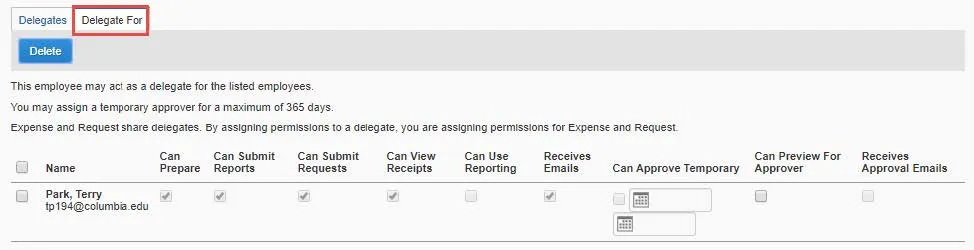
If you want to remove yourself as a Delegate:
Click the checkbox next the colleague’s name and click the Delete button.
Acting on Behalf of a Colleague
If you are designated as a Delegate, you can select to act on behalf of that colleague for the tasks which you have been permissioned.
- Click your Profile icon on the top right of your screen.
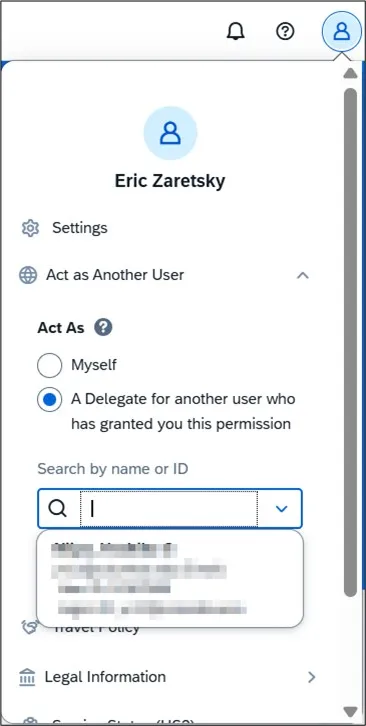
- Click Act as and select A Delegate for another user who has granted you this permission.
- Search by name of ID. Only those names that have given you Delegate access will appear.
- Select the matching name.
- Click Switch.
Ending Your Delegate Session
After completing your work as your colleague, end the session to return your own Concur session.
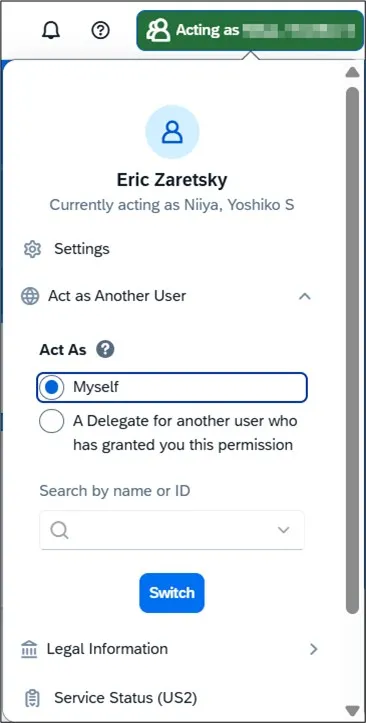
- Click Acting as on the top right of your screen.
- Click Act As and select Myself.
- Click Switch.
Your Delegate can prepare, but cannot submit, Requests or Expense Reports on your behalf. When the Delegate finishes preparing your Request or Report, you will receive an Email notifying you that your Request or Report is ready for you to review and submit. You must open the Request or Expense Report to review the details. Clicking Submit for the Request or Expense Report is equivalent to your signature approving the contents prepared by the Delegate.
- Log into Concur.
- Navigate to the Requests or Expense modules to access the relevant Request or Expense Report.
- Open the Request or Expense Report prepared by your Delegate and review the details that were entered.
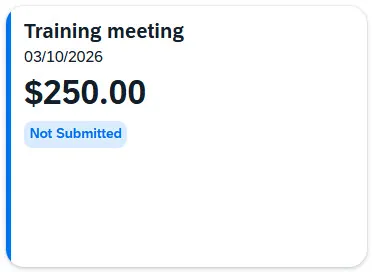
- Click Submit. This equivalent to your signature approving the details.