Manually Recording Payments in ARC
This job aid contains instructions on how to manually record a payment in ARC for handwritten checks and/or when a payment has been voided by mistake.
Last Revision: December 2021
There are certain scenarios in which you will need to manually record a payment. These situations include:
- If a manual check is written for a payment, this will need be recorded as a manual payment in ARC
- If a payment was mistakenly voided or stopped in ARC, you must manually record the payment and reconcile the transactions in ARC.
Please follow these steps to manually record and reconcile payments:
-
Identify the voucher associated with the hand-written check or incorrectly voided transaction. Access the Payment Inquiry Page with the following navigation
NavBar > Main Menu > Accounts Payable > Payments > Payment -
Search for the Payment reference for which you need to locate the associated voucher.
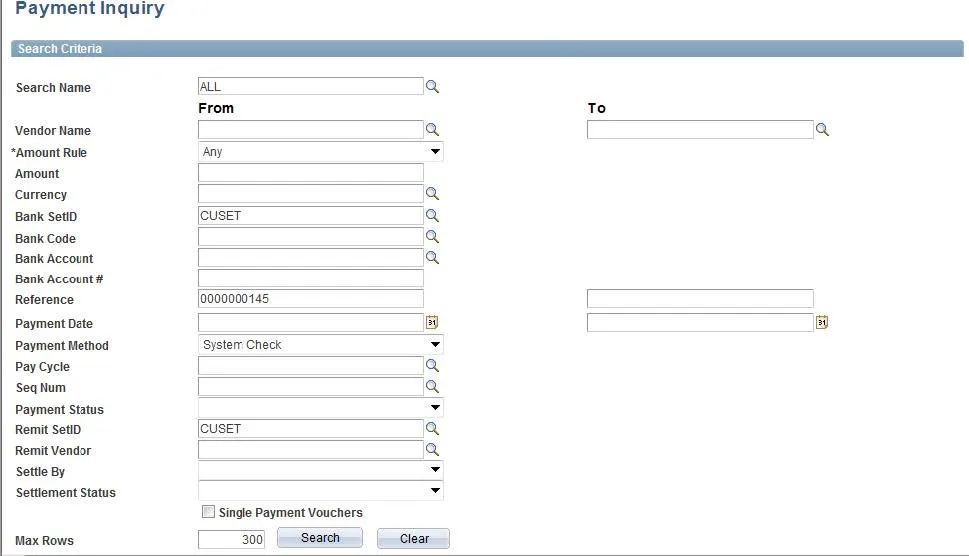
- Click on the Payment Reference ID link to see the associate voucher.
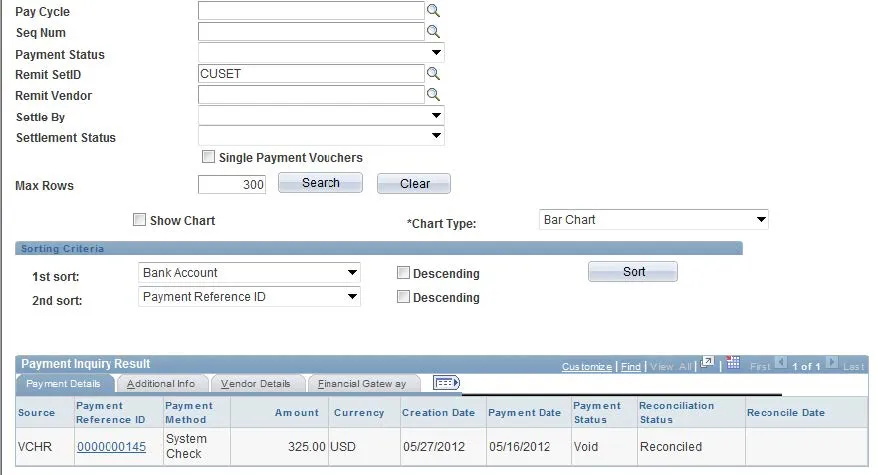
- See the associated voucher ID for which you need to manually record the payment. Note: An icon will appear next to the Supplier name if placed on a Payment Hold.
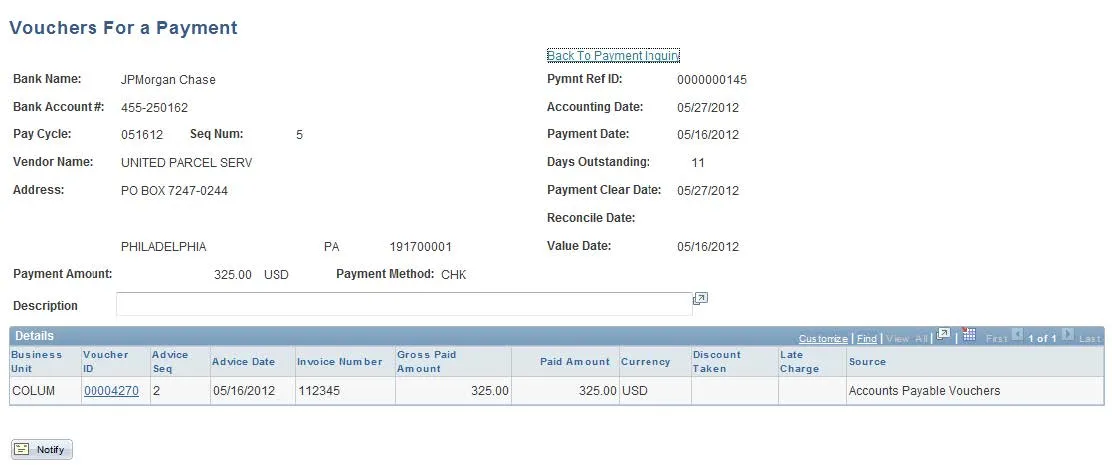
- Once the voucher associated with the payment has been identified, you will locate the voucher in ARC by following this navigation: NavBar > Main Menu > Vouchers > Add/Update > Regular Entry
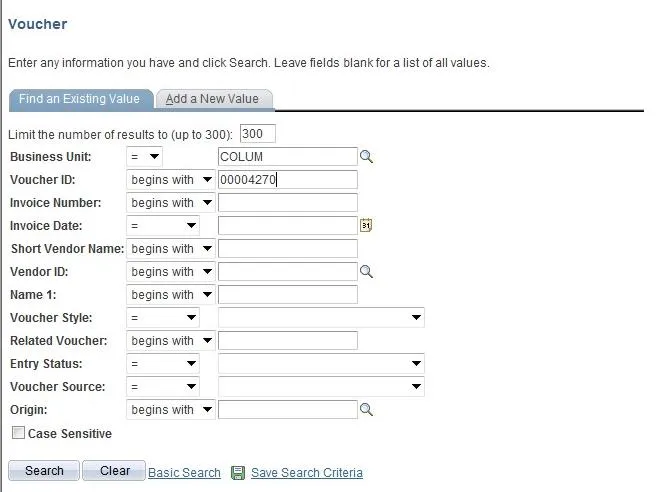
- Search for the voucher using the Voucher ID
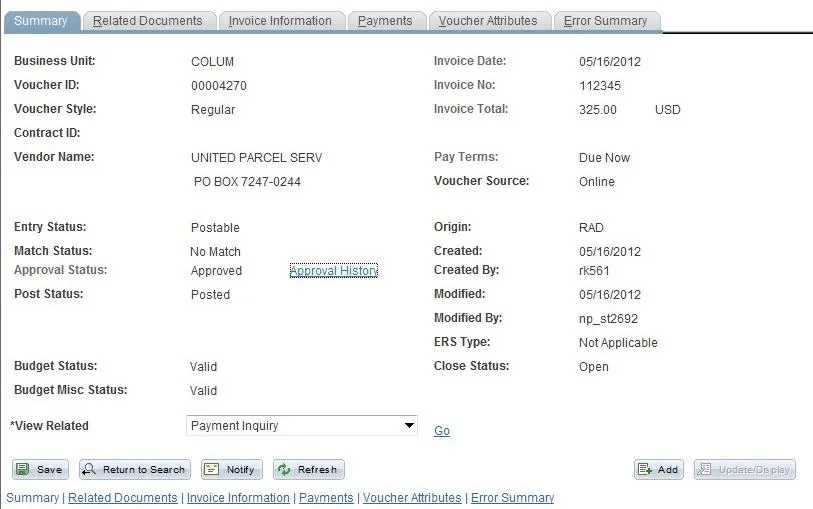
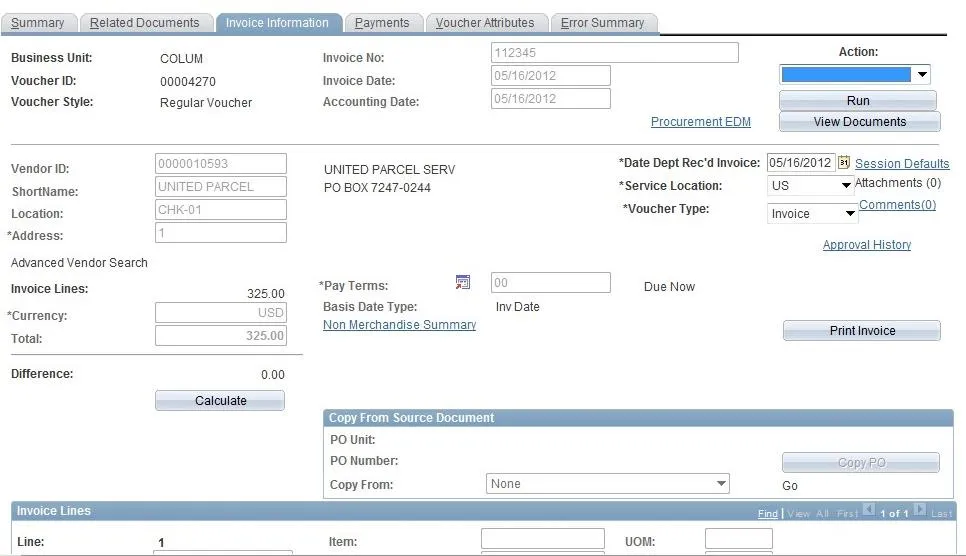
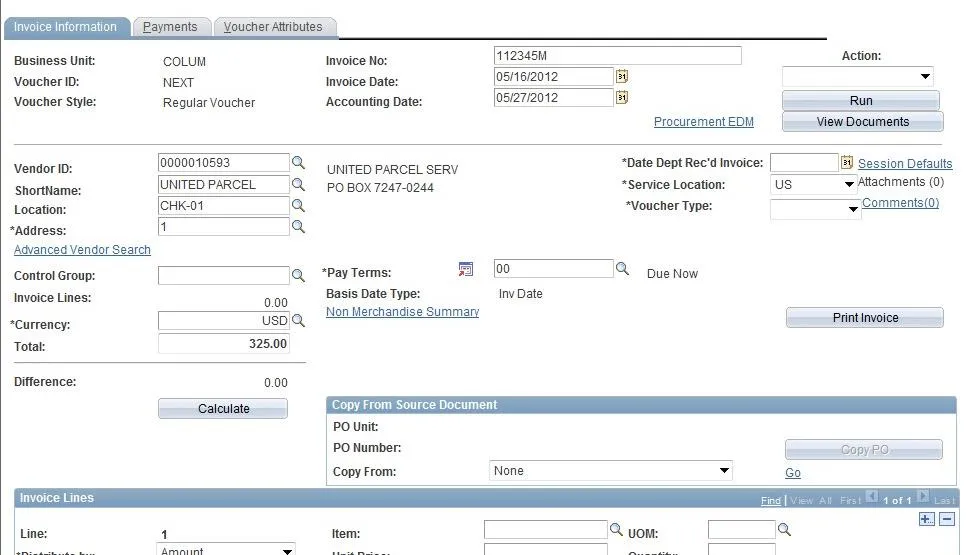
- Click on the Invoice Information Tab to gather information about the voucher.
- Notice the Invoice Number and Vendor Information for the Voucher because you will need to enter all of this information on a new voucher.
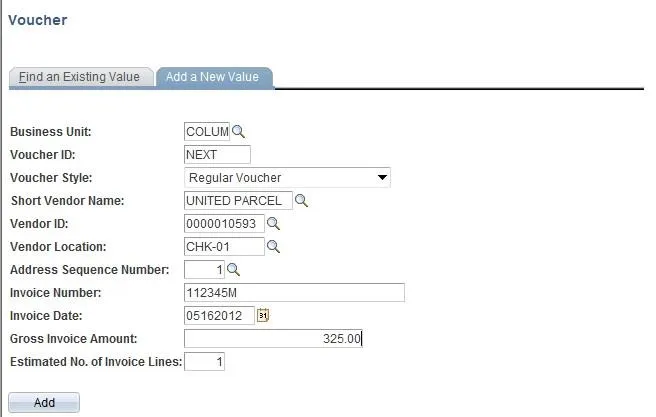
- Enter a new voucher with all the same information, but add an “M” at the end of the invoice number to indicate a manual payment voucher.
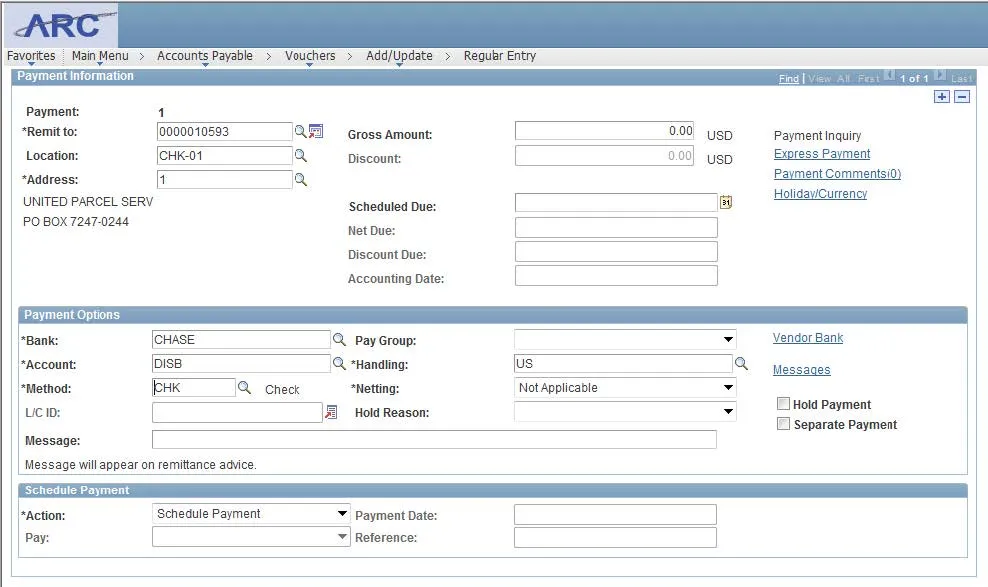
- Click on the “Payments” tab.
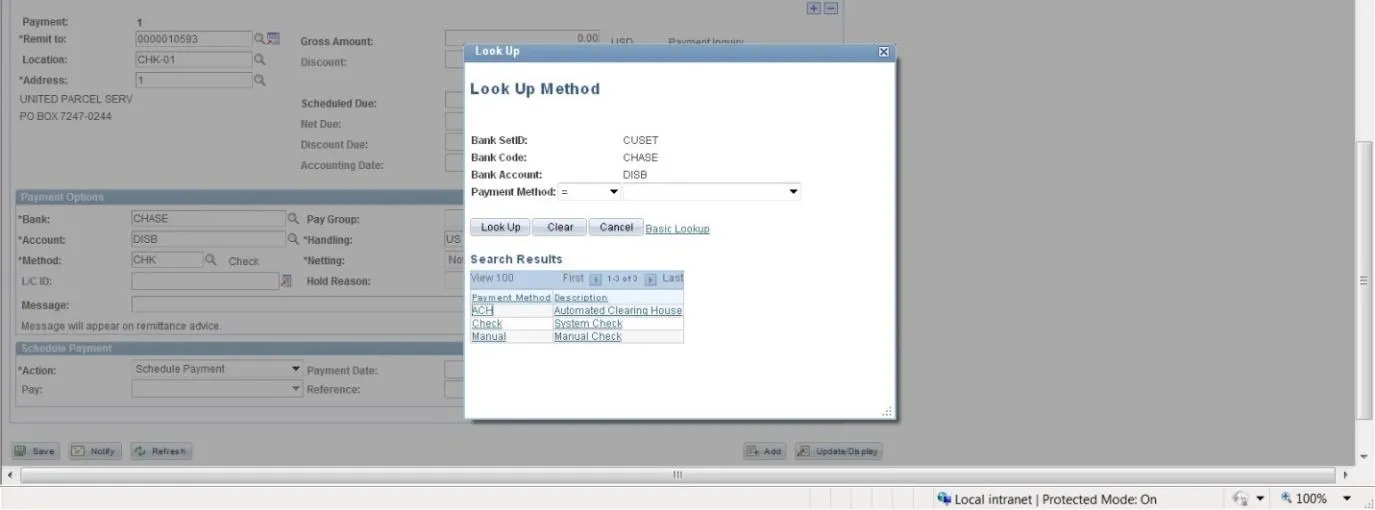
- Click the “Look Up” button (magnifying glass) next to the “Method” field.
- Select Manual Check as the method.
- Click the “Action” drop down menu and select “Record a Payment”
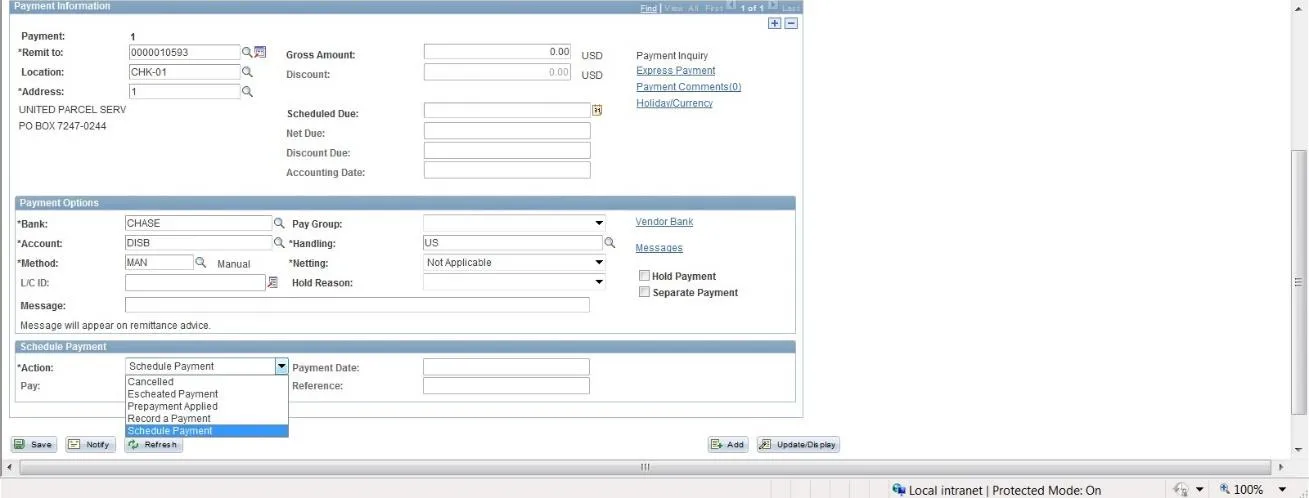
- You will add a Payment Reference that references the same Payment as the original Voucher. This will be the Payment Reference you searched for at the beginning of this job aid.
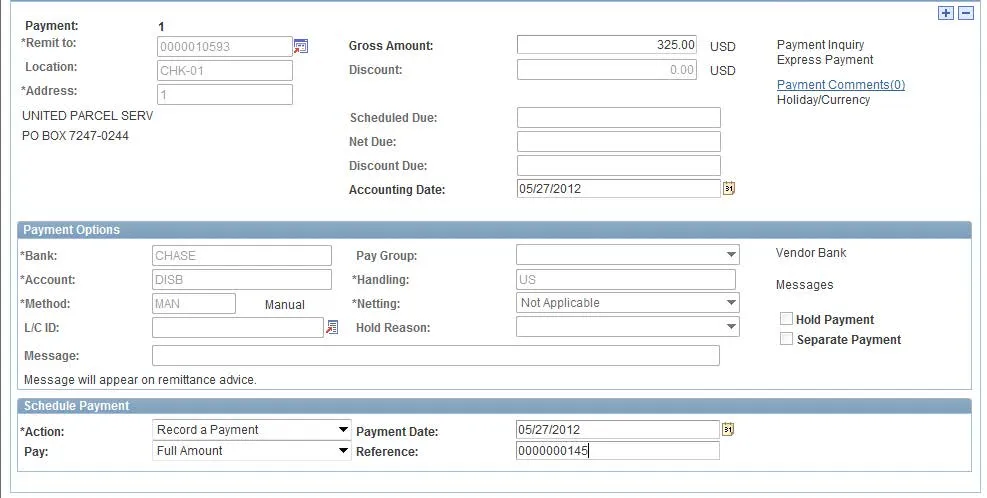
- Click Save.
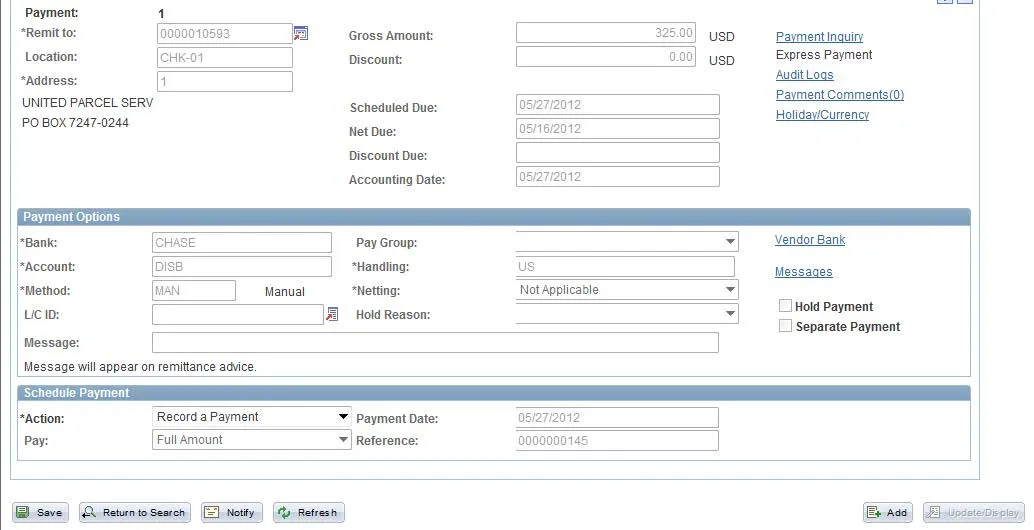
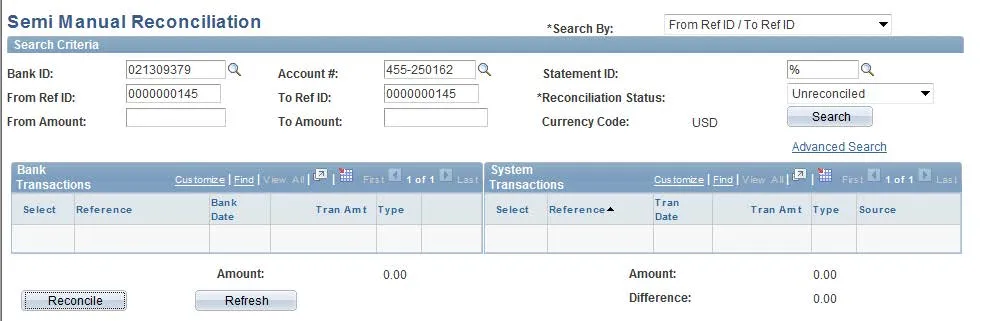
- You will now need to use Semi-Manual reconciliation to reconcile the payment you manually recorded. Use the following navigation to access the Semi-Manual Reconciliation page:
NavBar > Main Menu > Banking > Reconcile Statements > Semi-Manual Reconciliation
- Enter the Payment Reference ID you created for your manual payment.
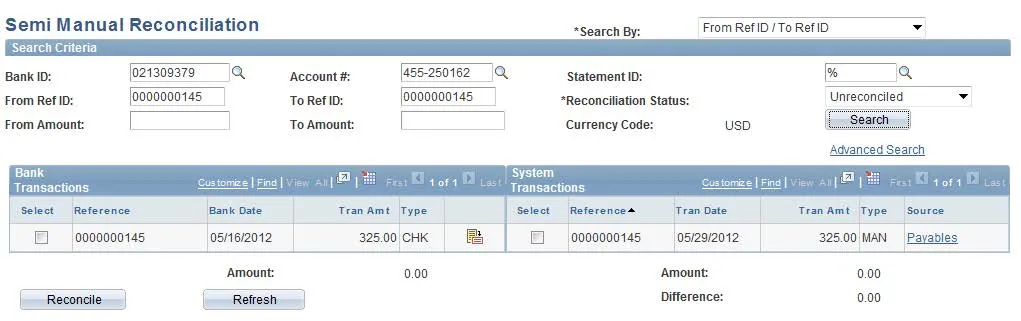
- Check the boxes associated with the Bank Transaction and the System Transaction that have the same Payment Reference and click “Reconcile”.
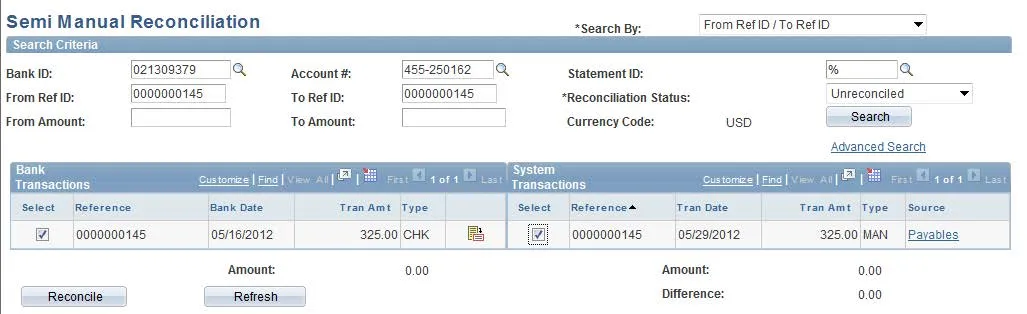
- Click “Ok” to accept the warning that the payment methods do not match (as one is a manual payment).
- Click “Ok” to accept the message that the transactions have been reconciled.
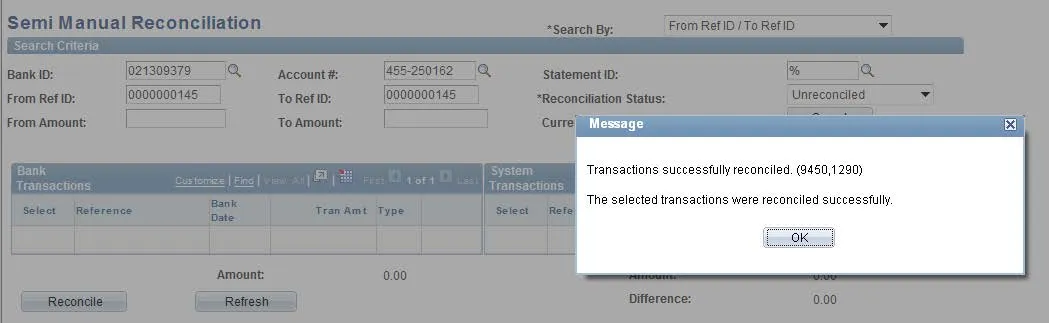
- See that no transactions currently appear in the transaction list, as you have reconciled transactions associated with that Payment Reference.