Modifying CU Marketplace Profile Settings Job Aid
This job aid covers how to modifying your Profile settings in the CU Marketplace. You are not required to enter Profile settings in order to begin using the CU Marketplace. However, you have the option to set Favorites and Defaults for ChartStrings, Ship To and Bill To Addresses, and Assignees (Requestors) in order to accelerate your purchases. In order for Requesters to submit Requisitions, ensure that your Admin Department is indicated in the ARC Requester Defaults screen.
In most cases, this information is automatically imported from PAC. If so, no action is required. Refer to the Entering Your Admin Department in ARC Requester Defaults job aid for details and instructions. In addition, your email address is fed from PAC, while your phone number is fed from the ARC Requester Defaults screen.
Last Revision: September 2026
Need help setting up your CU Marketplace Profile, click the JAI chat icon in the lower right corner of the CU Marketplace window.

Details
Navigate to the Procurement Buying website, click the CU Marketplace logo, and login using your Single Sign On. The CU Marketplace launches.
Note: The CU Marketplace will automatically timeout after thirty minutes of inactivity, consistent with other University Enterprise Systems.

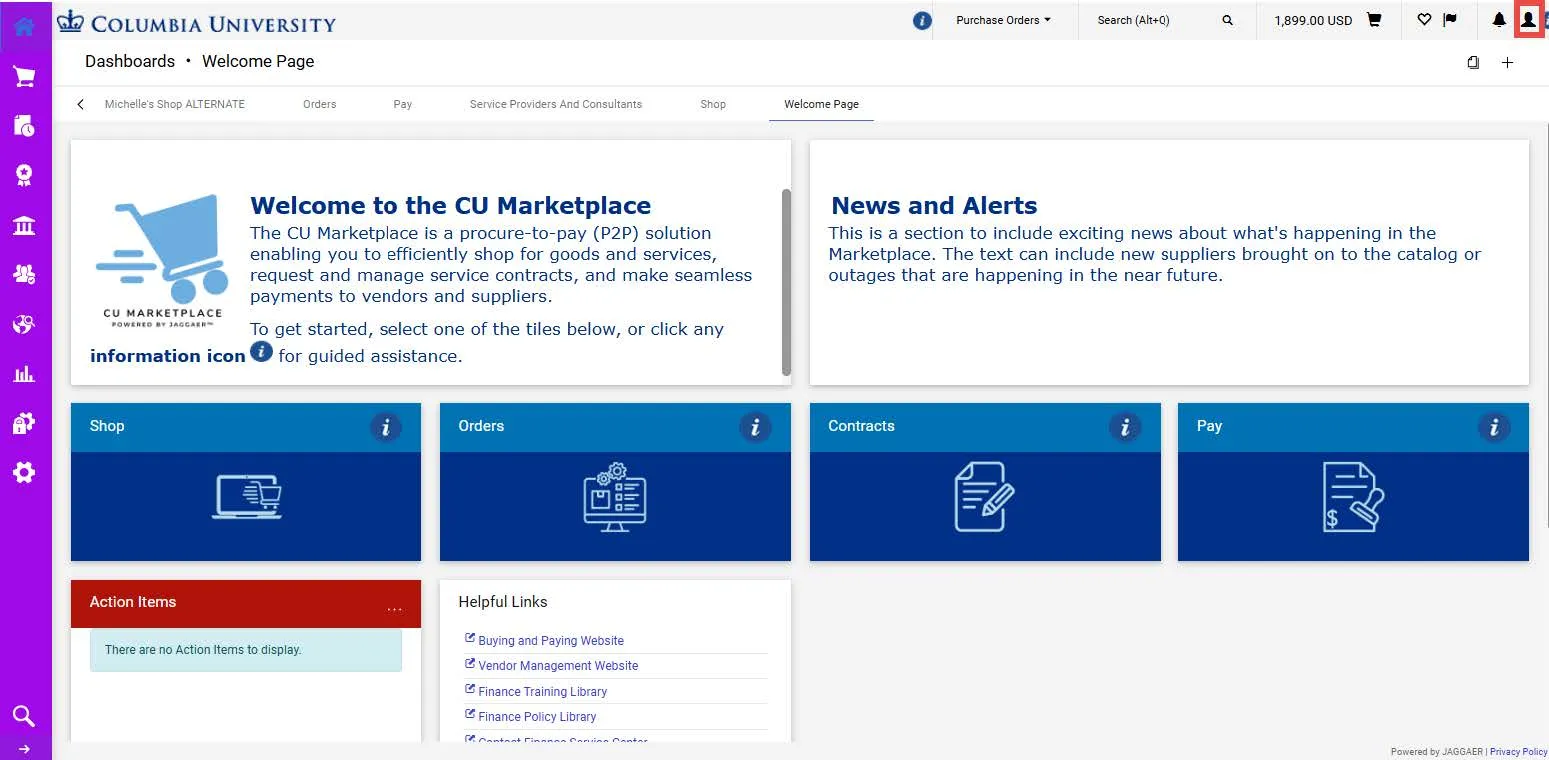
1. Click the Profile icon in the upper right corner of the CU Marketplace screen.
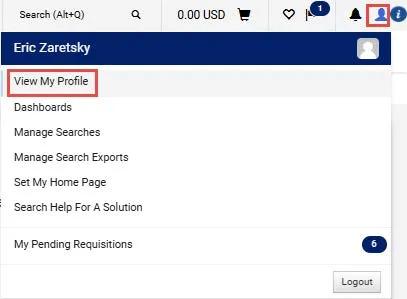
2. Click View My Profile.
3. Click Default User Settings.
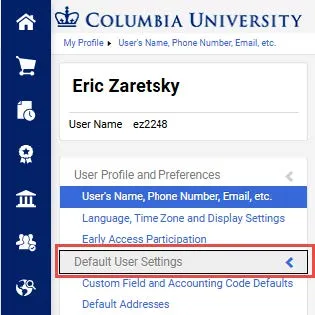
Setting ChartString Favorites and Default
1. Under Default User Settings, click Custom Field and Code Defaults. There are two sections for adding favorites. The top section will be available for Requestions only. The second section will be available for Vouchers only.
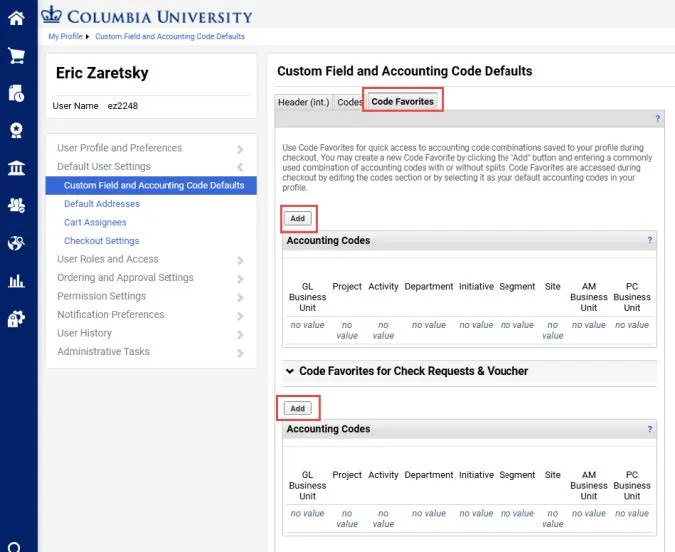
2. Click the Code Favorites tab,
3. Click the Add button. The Accounting Codes window appears.

4. Enter a Nickname for the ChartString so that you can easily access it. Click the Default checkbox to indicate that this will be your default ChartString.
5. Enter the ChartField values. They must be entered in order left to right as the available values are dependent on the value in the previous field. You can leave fields blank. You can click the Select from all values link to use the Custom Field Search for field you are populating.
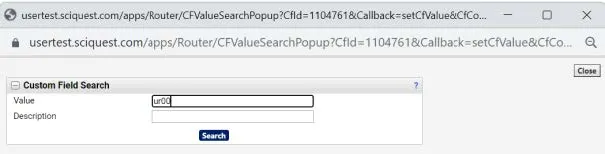
6. Click the Save button. You can click Add again for additional ChartString favorites.
Setting Default Ship To and Bill To Addresses
1. Under Default User Settings, click Default Addresses.
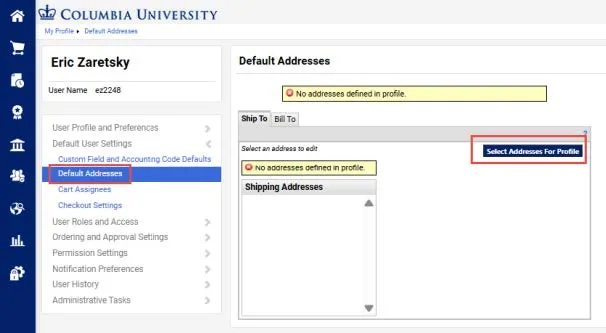
2. Select either the Ship To or Bill To tab to set the default for the desired address type.
3. Click the Select Addresses for Profile button. The Select Address Template dropdown appears.
4. Enter an address Nickname / Address to search for a matching address and click Search. A list of matches appears.
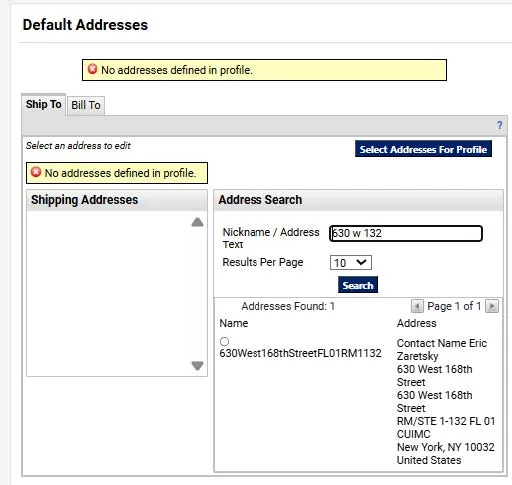
5. Select the desired matching address.
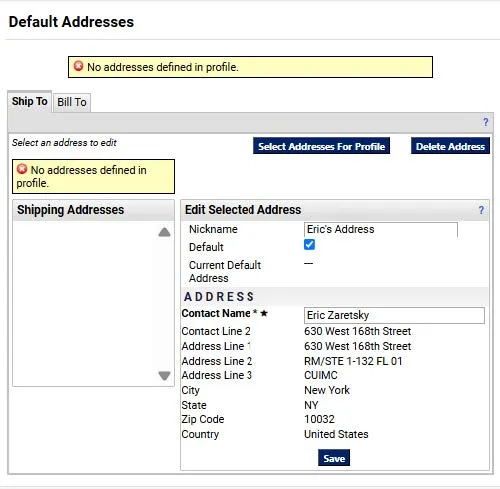
You can enter a Nickname, select if this address will be your Default, or change the Contact Name.
6. Click Save. The Address you saved will appear in the Addresses list.
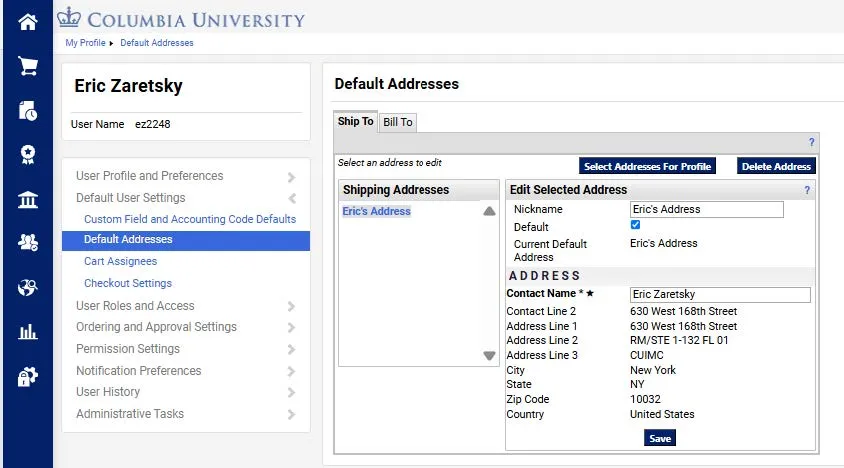
You can click the Select Addresses for Profile button again within the Ship To or Bill To tabs to add additional addresses. You can click an address from the Addresses list to edit the settings or delete it.
Creating Requester Favorites (Adding Assignees)
As Shopper, you must assign a Requester who has been approved to submit your Cart into approval workflow in order to create a requisition. You can create favorite Requesters that are available when you assign your Cart.
1. Under Default User Settings, click Cart Assignees.
2. Click the Add Assignee button. The User Search window appears.
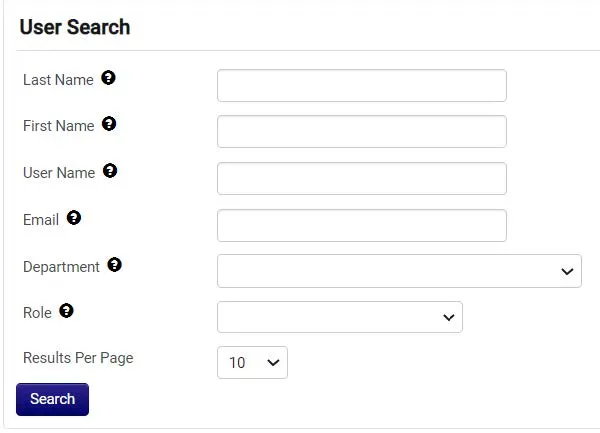
3. Use any of the available fields to search for a colleague and click the Search button. Your colleague must have the Requester role for you to add them as an assignee. The search results appear.

4. Click the Select link in the Action column to select the colleague. You can click Add Assignee again for additional Requesters.
The Notifications defaults are set so that you receive system notifications, email alerts, or both when key events occur or milestones are reached. You have the ability to edit these settings to remove notifications, change the notification type for some triggers, or add notifications settings for additional trigger events.
1. Click the Profile icon in the upper right corner of the CU Marketplace screen.
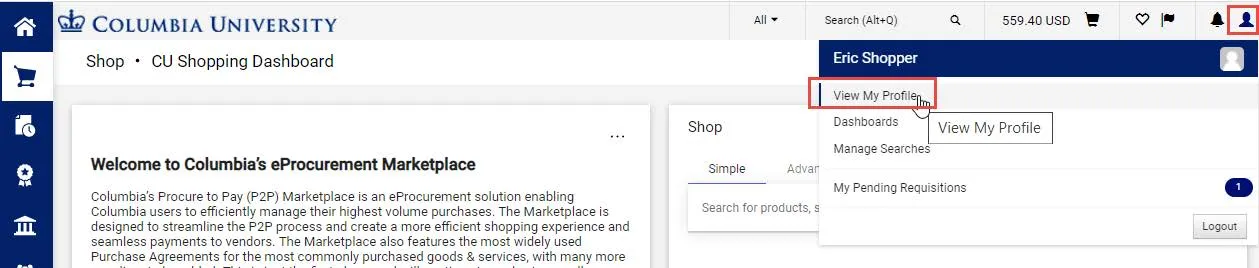
2. Click View My Profile.
3. Click Notification Preferences and select the menu item for the category of notifications you want to edit. The page for the selected notification category appears.
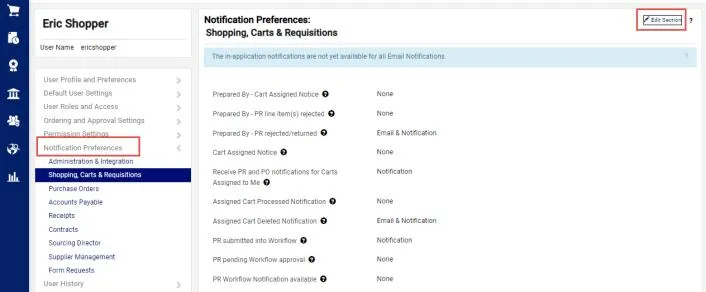
4. Click the Edit Section link. The Notification Preferences appear ready to be edited.
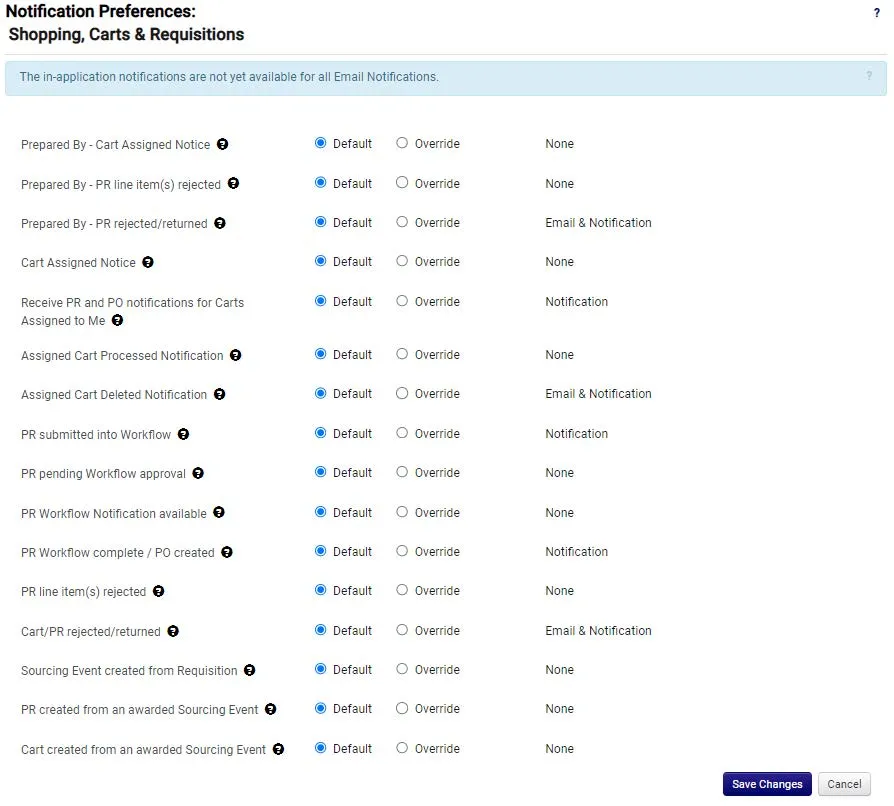
5. To change a Notification Preference, select the Override option for the desired setting, and select the desired choice from the setting dropdown.

6. Click the Save Changes button after you have made all the desired changes within the section.
Please contact the Finance Service Center.
You can log an incident or request a service via Service Now.