Print Journals in ARC
This job aid contains instructions on how to print journals in ARC.
Last Revision: December 2021
- In ARC, navigate to the ITF or to the General Journal pages via the Journals Tile.
NavBar > Main Menu > Columbia Specific > General Ledger > Internal Transfer Journal Entry > Find An Existing Value
Or NavBar > Main Menu > General Ledger > Journals > Journal Entry > Create/Update Journal Entries > Find An Existing Value
- Search for the journal you want to print.
- Open the journal.
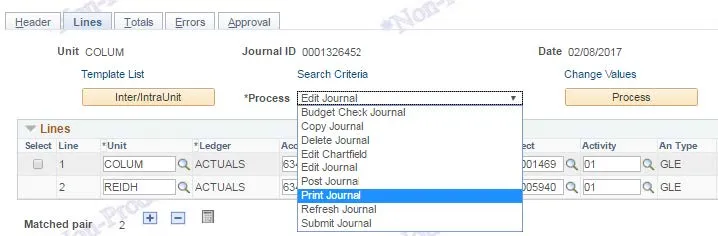
- Click on Journal Lines tab. Select PRINT JOURNAL from the pull down process menu and click the PROCESS button.
When the process completes a hyperlink for Report Manager will appear on the page.
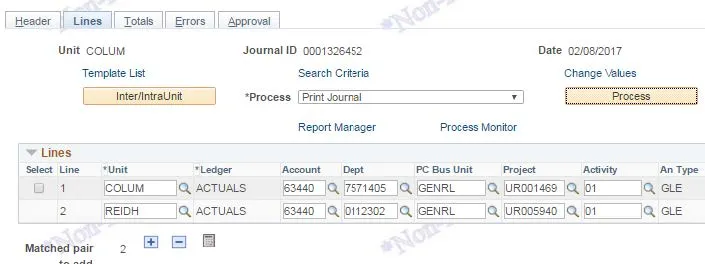
Note: You can no longer get the HTML Crystal report from the Process Monitor View Log/Trace link in the process details. You must use the Report Manager to get a PDF version of the report in 9.2.
- Click on Report Manager
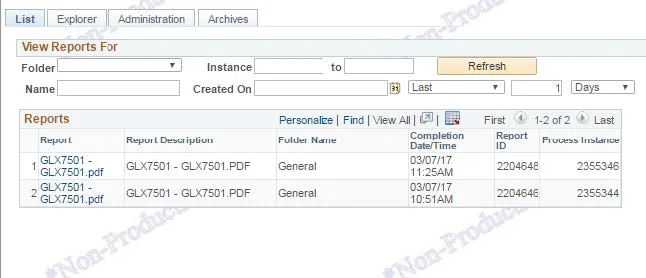
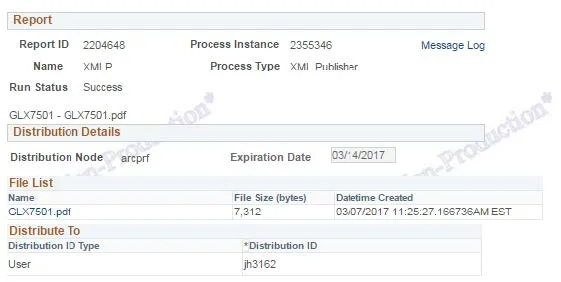
- The links to the PDF are listed along the left of the grid that appears. Click on the report name to go to the next page where you can download the actual reports:
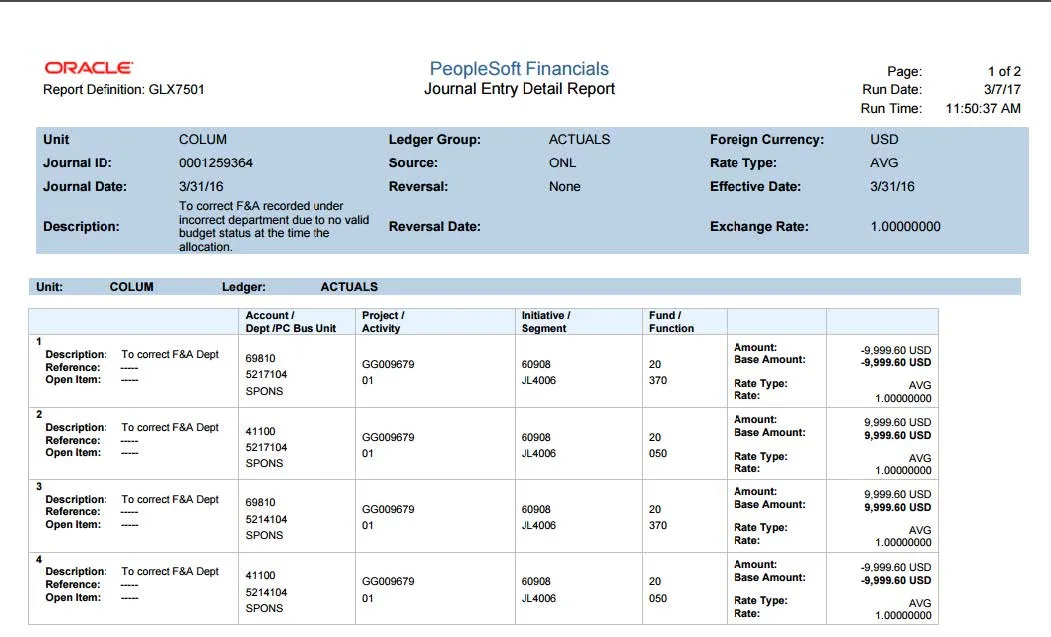
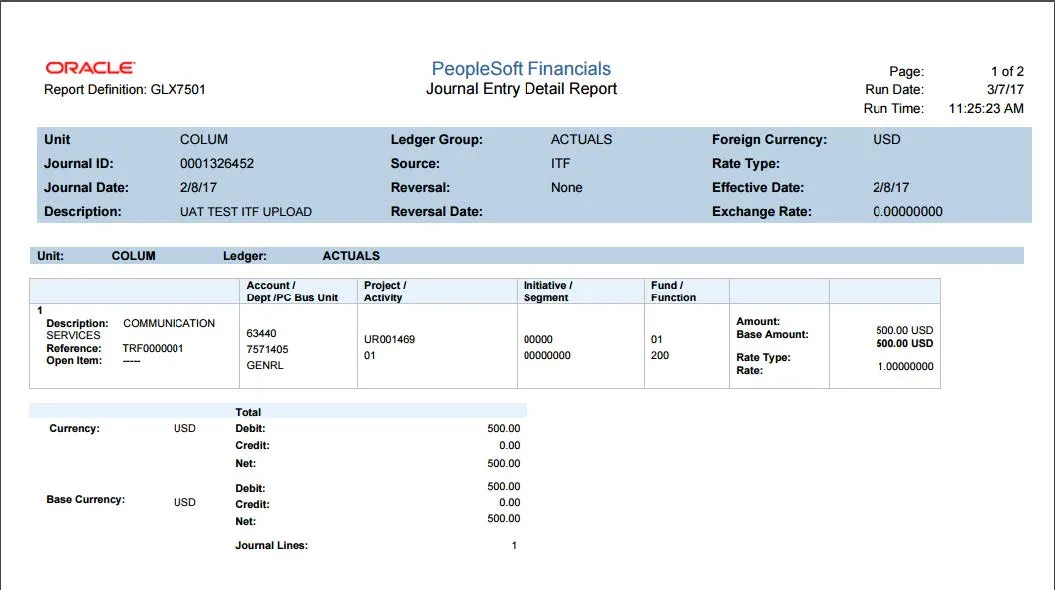
The reports are formatted as such:
ITF
General