Project Status in the CU Marketplace Quick Guide
This Quick Guide reviews Project Statuses associated with Requisition and Vouchers and how to submit Vouchers for Projects with a status of Budget Date Out of Bounds (ended 90 days or longer).
Last Revision: August 2025
Viewing Project Status
When you enter ChartString information into a Requisition or Voucher in the CU Marketplace, the Project Status field (on the far right of the Accounting Code window) automatically displays the status of the Project. This status indicates what actions you can take on the Requisition or Voucher.

Project Status Values and Descriptions
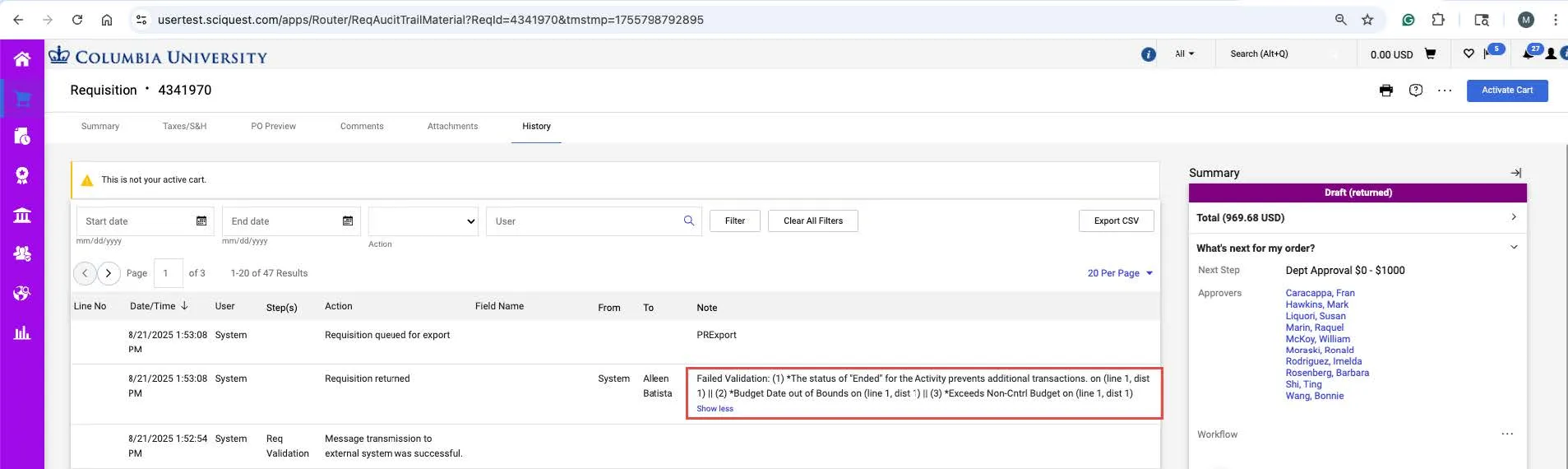
If any Line in your Requisition has a Project Status of V or E (as described above), you will receive an error message when you try to submit the document for approval. You will not be able to submit the Requisition into workflow with the Project indicated in the ChartString.
Error Message for Budget Date Out of Bounds Example:
Failed Validation: (1) *The status of "Ended" for the Activity prevents additional transactions. on (line 1, dist 1) || (2) *Budget Date out of Bounds on (line 1, dist 1) || (3) *Exceeds Non-Cntrl Budget on (line 1, dist 1)
Submitting Vouchers for Budget Out of Bound Projects
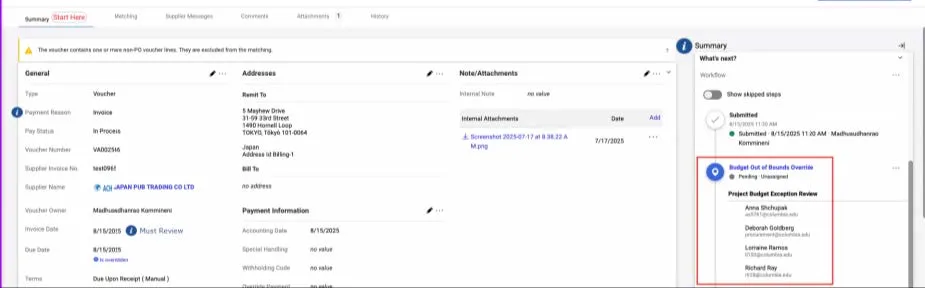
If you are submitting a Voucher where the Project Status indicated in the ChartString for any Line is E, the Summary pane will show Budget Out of Bounds Override as the first Workflow step. You must add a Comment to the Voucher addressed to one of SPF Reviewers to alert them about your Voucher.
Click Budget Out of Bounds Override to view the names of the Reviewers.
To enter a Comment:
1. Click the Comments tab.

2. Click the New Comments icon. The Add Comment screen appears.
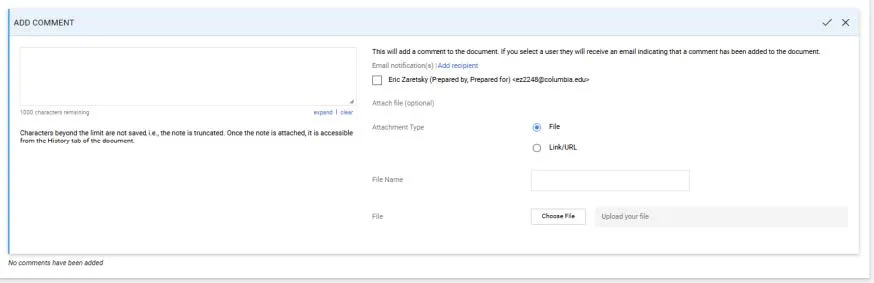
3. Type your Comment to alert the Reviewer about your Budget Out of Bounds Exception with details about the Project and the Lines affected.
4. Click the Add recipient link to search and select one of the SPF Reviewers. Your Comment will be sent as an Email notification to the Reviewer with a link to your Voucher.
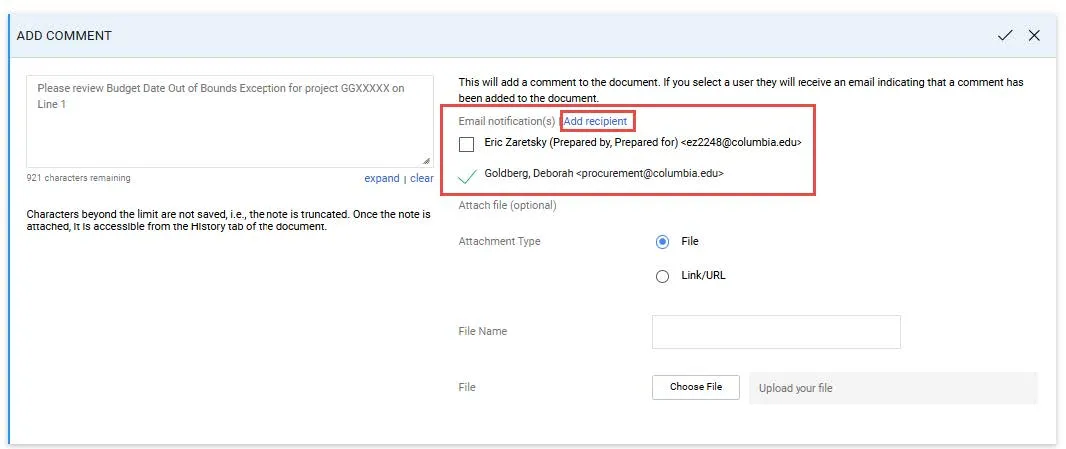
5. Click the Complete icon.
6. Click the Complete button in the top right of the Voucher screen to submit your Voucher into workflow.