Receiving a Columbia University Payment via Candex
If you are receiving a monetary prize or award, honorarium or a related expense reimbursement from Columbia University, you will be invited by a Columbia University employee to register with Candex and enter your payment details. Candex provides expedited payments through a simplified, secure, and transparent process. If you are to receive an expense reimbursement as part of your payment, please provide receipts to your Columbia University contact for the expenses you incurred.
Last revision: December 2025
View and download the Receiving a Columbia University Payment via Candex guide.
Details
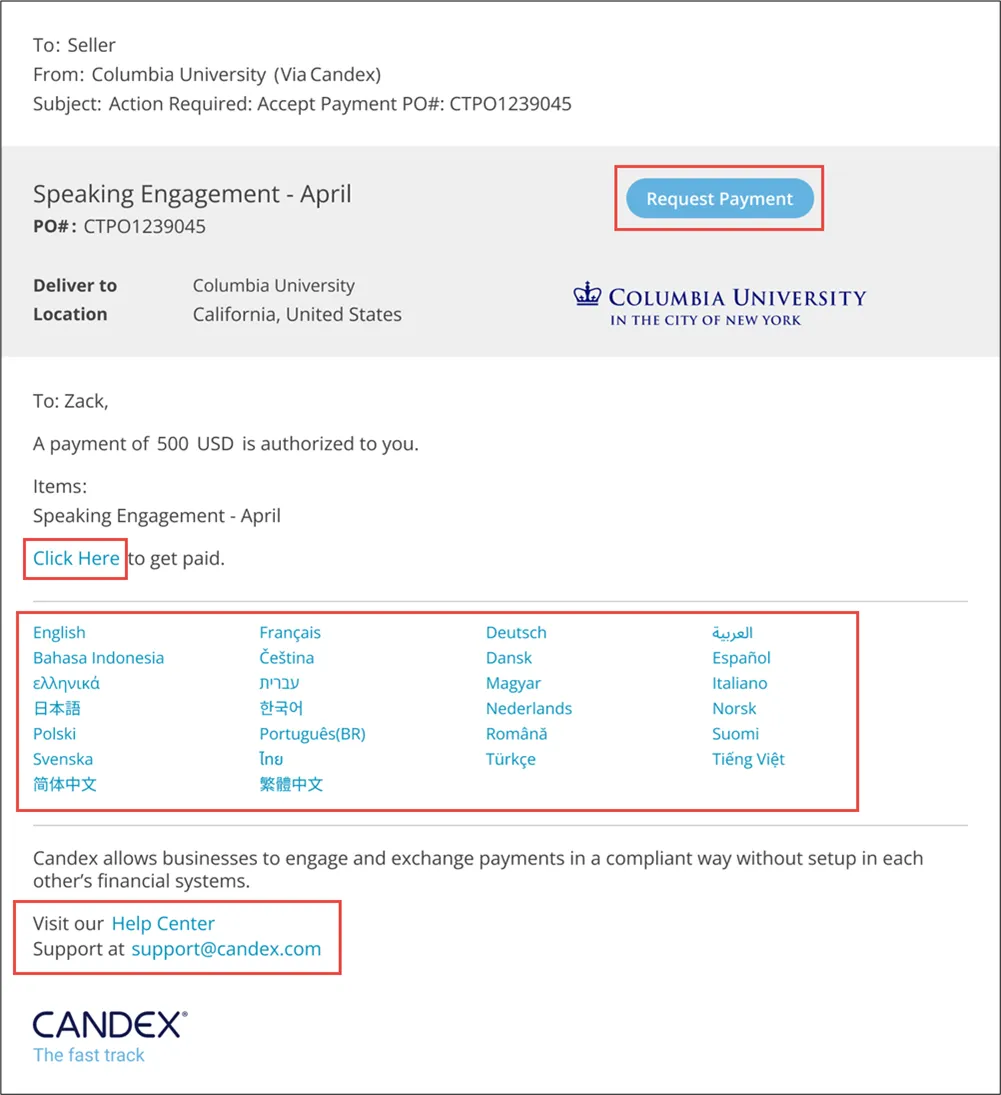
You will receive an email invitation from Columbia University (via Candex) asking you to create a Candex account and complete your payment information.
1. To start the process, click the Request Payment button or the Click here link in the email to begin. Or, if necessary, you can select from a choice of languages. In addition, you can visit the Candex Help Center or email Candex Support for help.
The Candex Registration Web-page appears.
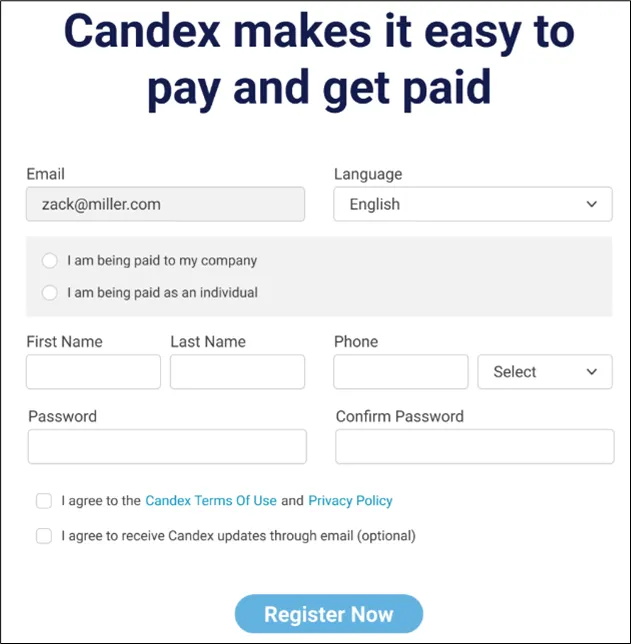
You can select a Language from the dropdown.
2. Select whether This payment is to my company or This payment is to me personally.

The form will change depending on the selection.
3. Complete the required fields for the payment you selected.
Personal payment:
Company payment:
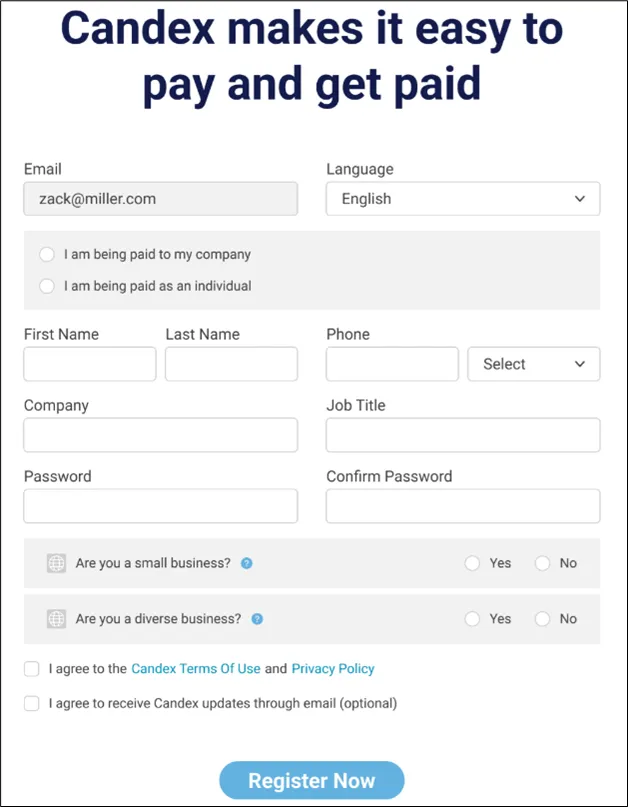
4. Select to agree to the Candex Terms of Use and to get emails & notifications and click the Register Now button.
You will receive a verification email.
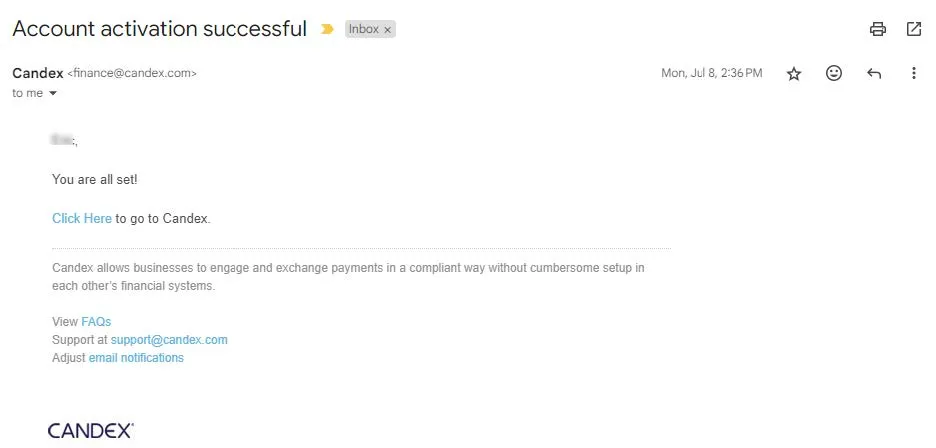
After registering, the Candex Request Payment screen appears.
1. Click the Add button.
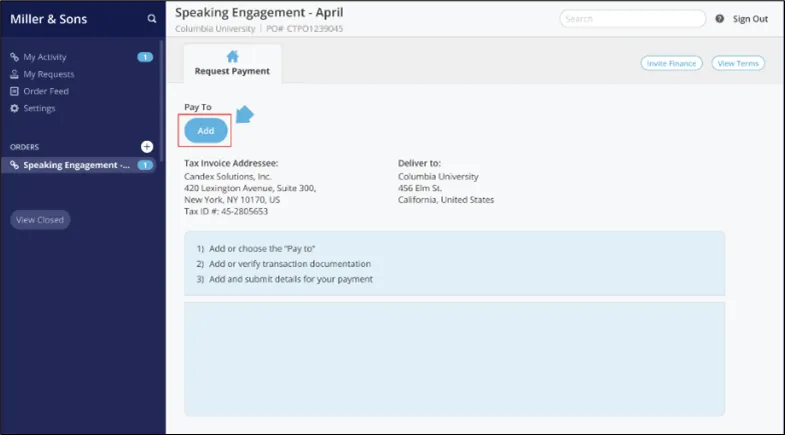
The Who is Being Paid? window appears,
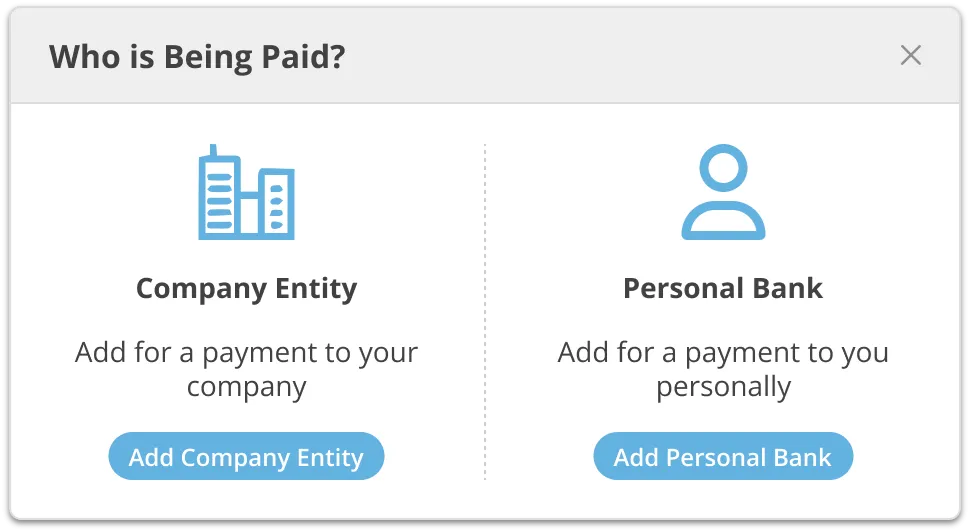
2. Select the Add Company Entity (if payment is going to your company) or Personal Bank (if payment is going to you). The Pay To tab appears for you to add payment details.
Note: If you work for a Company Entity that has a finance professional, team, or department, you can click the Invite Finance button from the upper right corner to invite a finance colleague to assist you with the Payment Request.
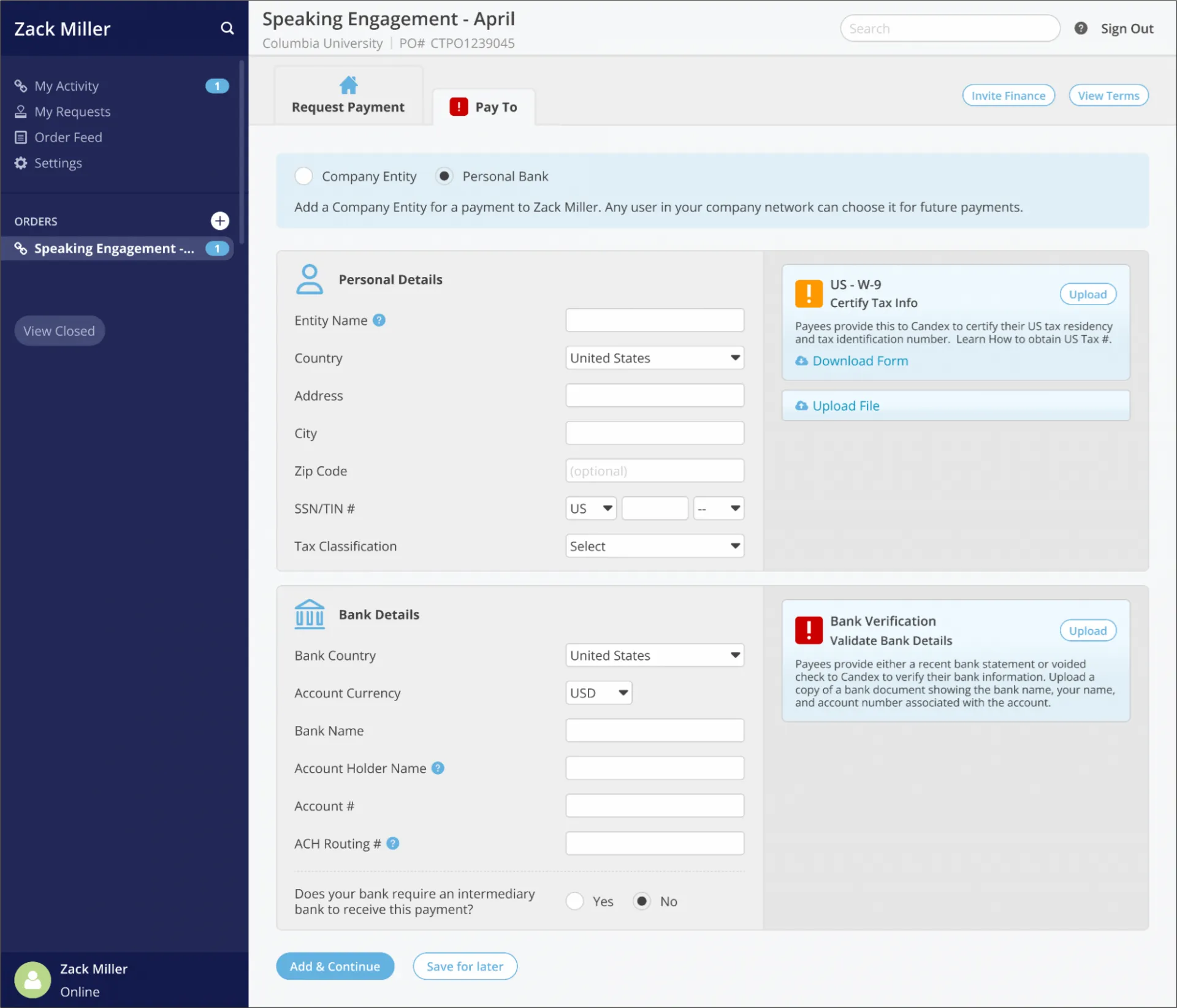
- For US citizens and legal residents, you must upload a completed W9 form.
- If you are a foreign resident, you must upload a completed W8 form.
Blank forms are available from Download Form link. if needed. Click the Upload File link to upload the appropriate completed form.
2. Complete the fields for Personal Details and Bank Details.
3. Click the Add & Continue button.
If you are a non-US person or work for a non-US entity, the Withholdings tab appears. If you are a US person or entity, the Request Payment screen appears.
When a non-U.S. person or entity performs services physically in the U.S., withholding applies. If you are a non-US entity the Withholdings automatically tab appears after completing your payment details and clicking the Add & Continue button.
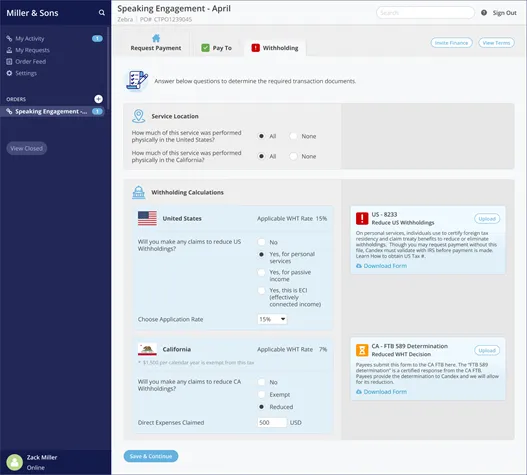
1. Select the answers to the questions regarding Service Location and Withholding Calculations.
2. Required documents are available in the relevant right-hand sections for download. You must complete and upload the applicable forms.
3. Click the Save & Continue button. The Request Payment screen appears.
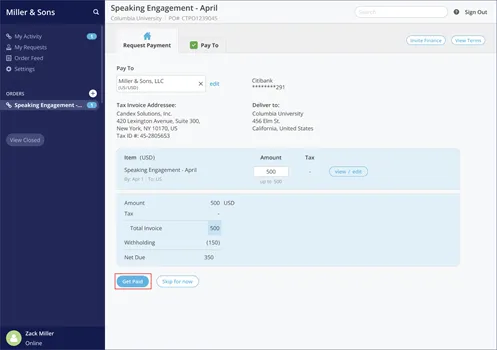
Click the Get Paid button on the Request Payment screen.
After you submit your request, you can use Candex to view the status of your payment.
1. Log on to Candex.
2. Click your request from the Orders list in the Navigation pane on the left side of the screen to display your request.
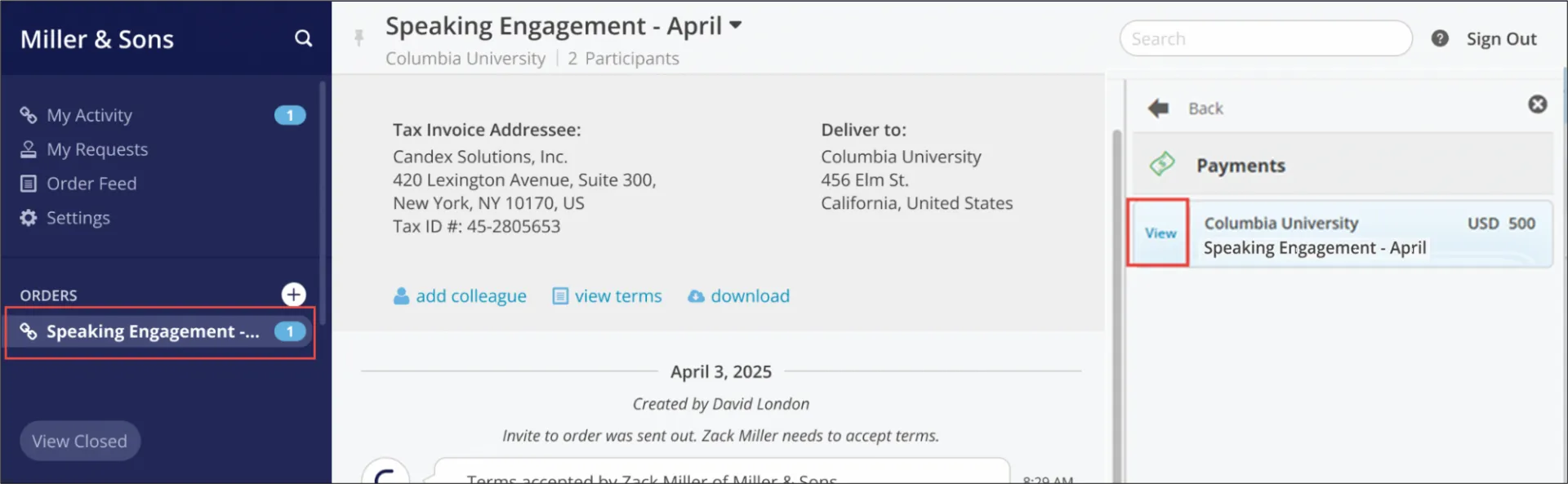
3. Click the View button from the Payments panel on the right side of the screen. The Payment Details panel displays a timeline of the current payment status and other information about your payment.
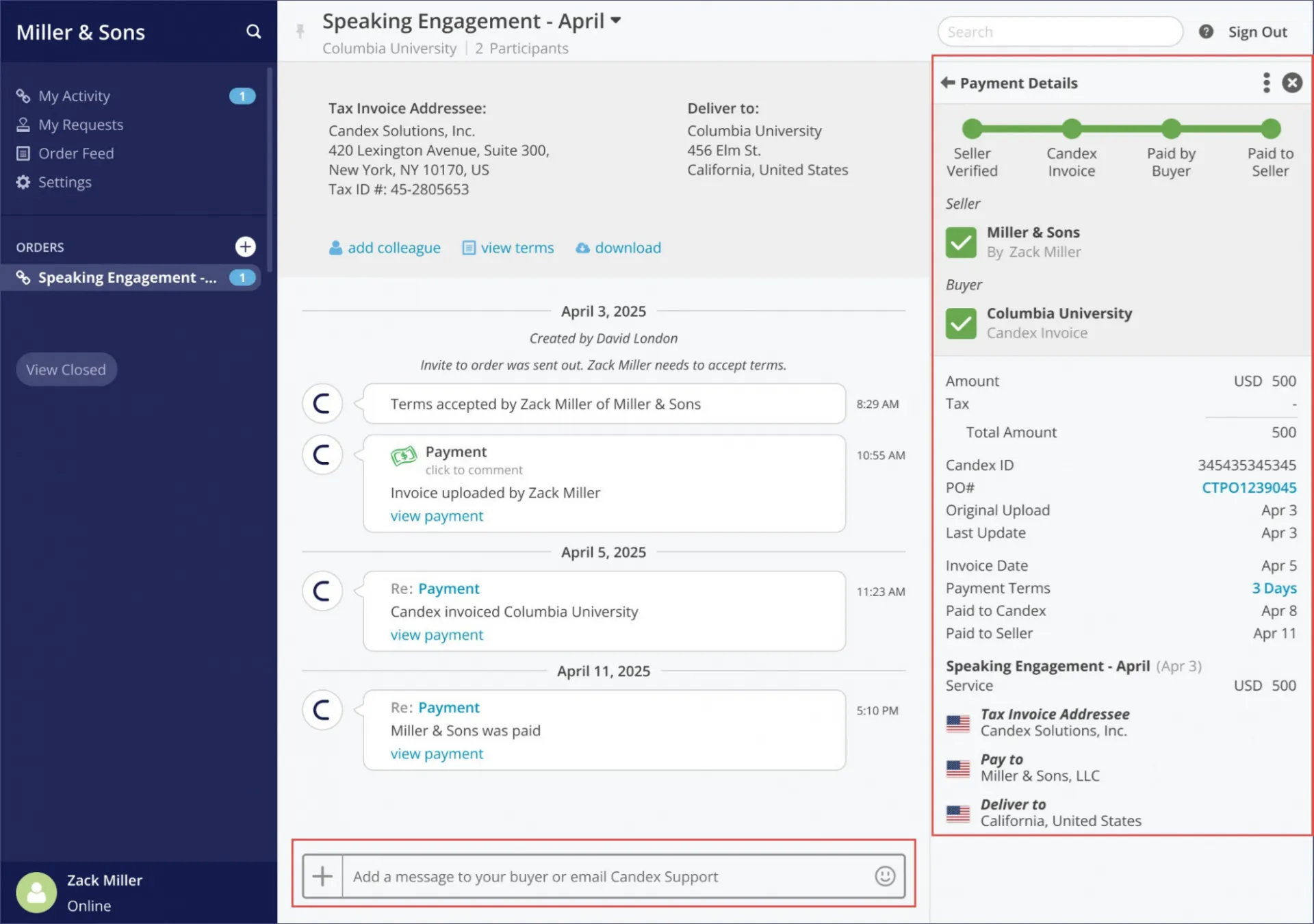
If you have any questions or need help regarding your payment, you can message Columbia in the Add a message to your buyer or email Candex Support.
You can update Personal or Company Entity Details, such address and banking details.
1. Log on to Candex.
2. Click the Settings menu from the left navigation panel.
3. Click Personal Bank to edit your personal payment details or click Entities to update your Company Entity your company payment details.
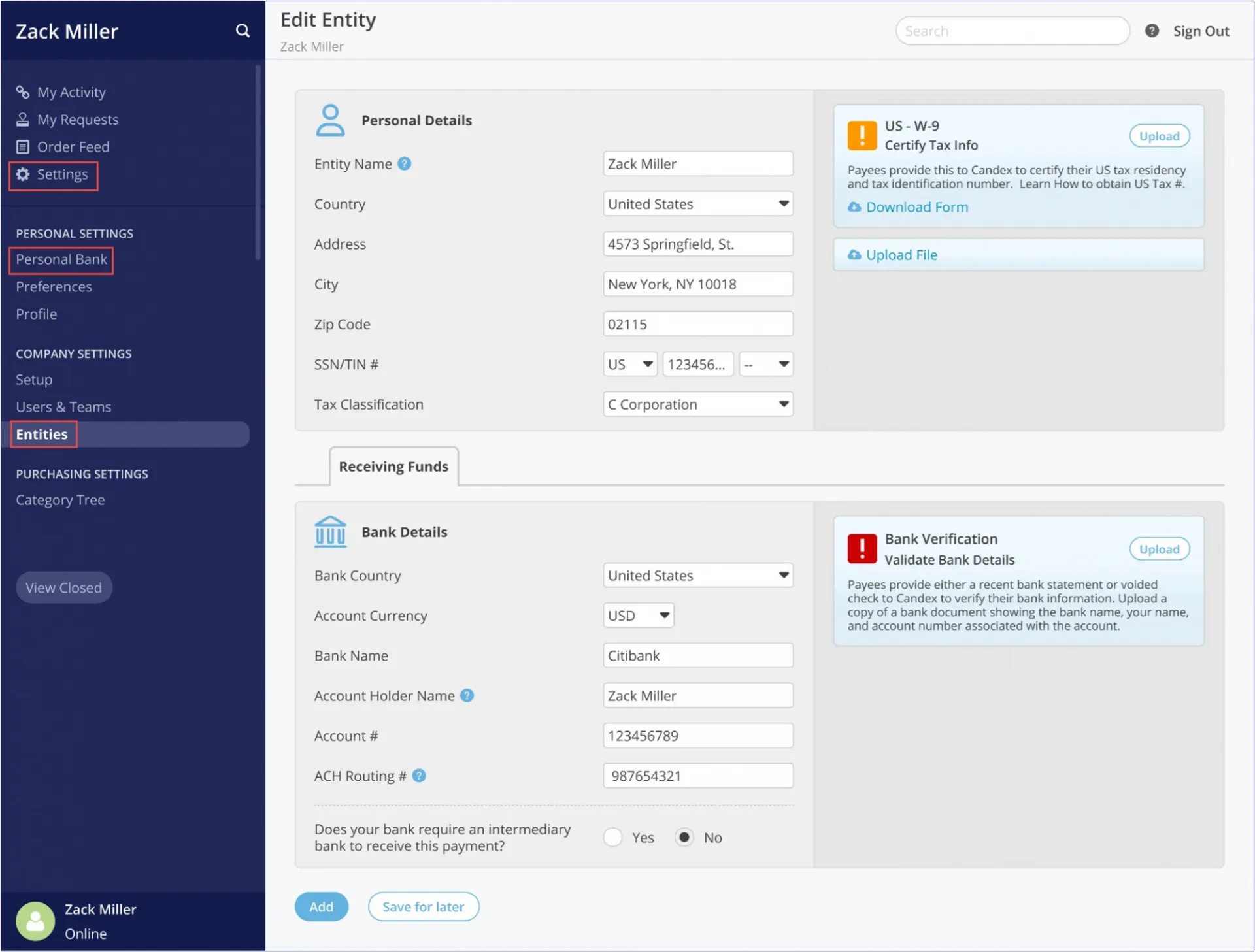
4. Click Save for later.