Receiving in the CU Marketplace
Receiving for CU Marketplace for Catalog orders is required when a line amount is equal to or greater than $5000. It is recommended that you place line items of $5000 or more in their own Cart/Requisition/Purchase Order, although this is not required.
Receiving for Line Items over $5000
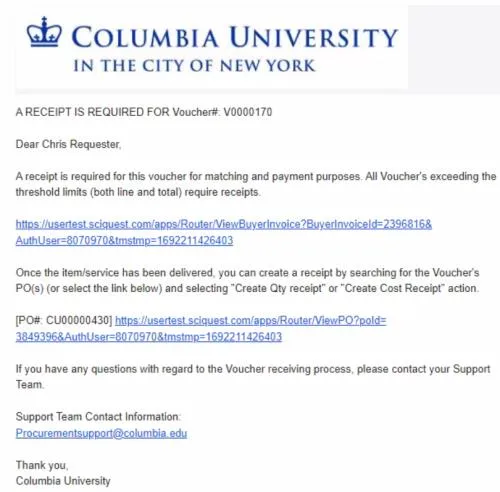
Once your Purchase Order has been electronically invoiced, you will receive an e-mail to alert you when a Catalog item you ordered requires a receipt.
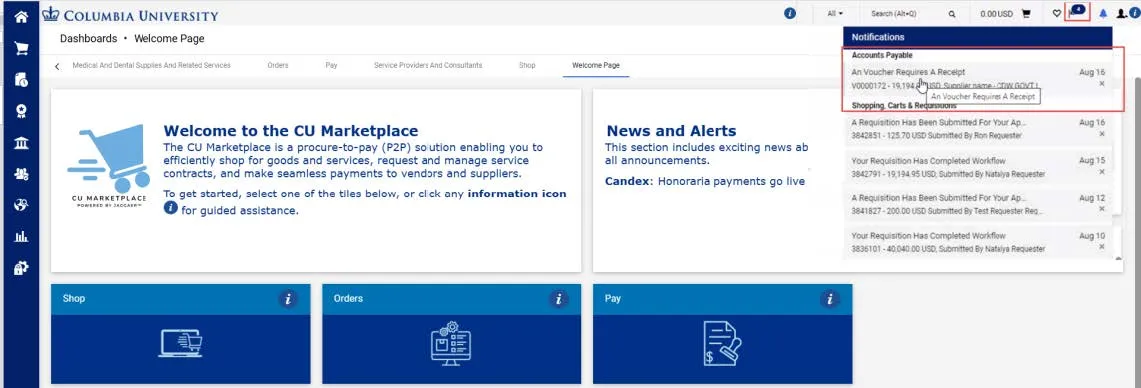
You will also receive a notification within the CU Marketplace to alert you when a receipt is required.
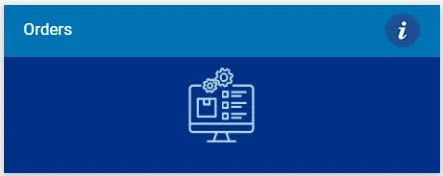
1. Open the Purchase Order that requires receiving: You can click the Purchase Order from the email alert or from the notification in the CU Marketplace. Or, You can select the Purchase Order by navigating to Orders tab.
The Purchase Order Summary screen appears.
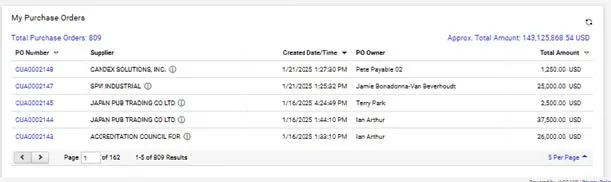
Click the Purchase Order that requires Receiving.
In the example below, a Catalog line item requires receiving because the total amount has a quantity of 8 items that totals over $5000. There are other line items on this Purchase Order that do not require receiving.
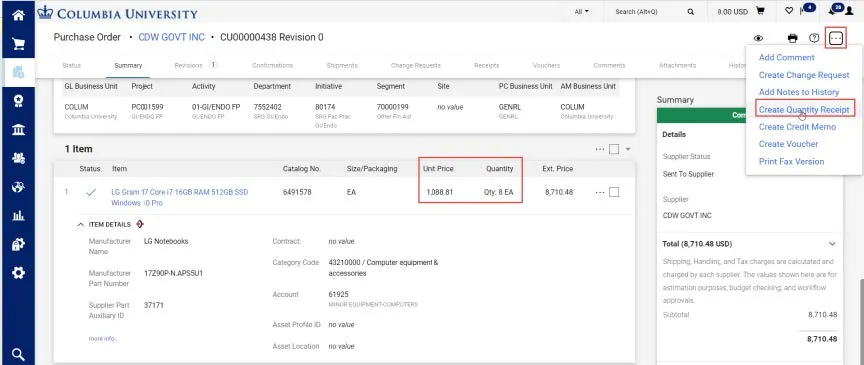
2. Click the Actions icon and click Create Quantity Receipt. The Quantity Receipt screen appears. The Quantity field is automatically populated with total quantity ordered.
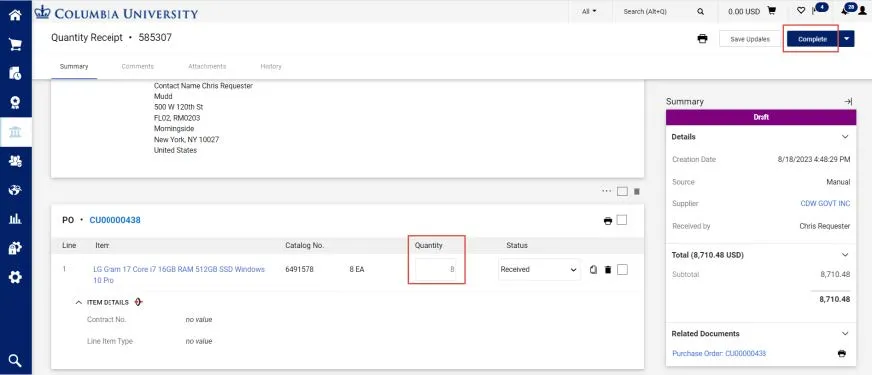
Note: If your Purchase Order and Receipt contains line items that do not require receiving, you can either fully receive those line items or click the Trash icon to remove those items from the Receipt.
3. If you fully received the total quantity of your line item, you can just click the Complete button. Or, If you partially received the total quantity, enter the number in the Quantity field for what you actually received and click the Complete button.
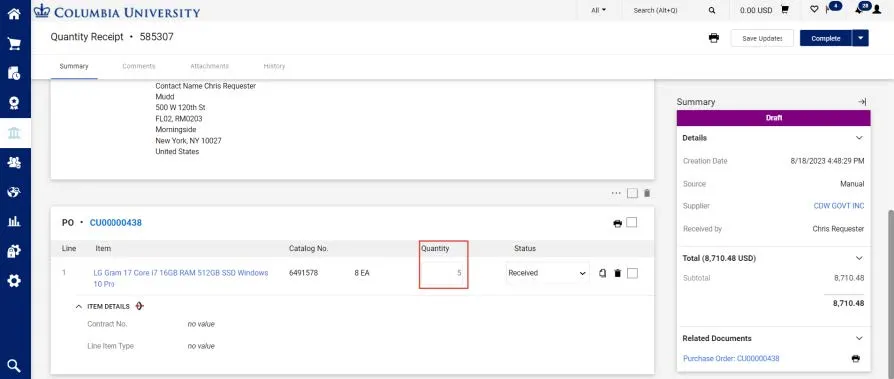
A confirmation screen appears for the Receipt you created.

The quantity indicated on the receipt(s) must match the quantity indicated on the electronic invoice in order for the invoice to be paid.
If you created a partial receipt, you will need to create a new receipt for the additional quantity when you receive it.