Resolving Your PaymentWorks SSO Authentication Error
This job aid details how to unlock your Columbia Payer / Employee PaymentWorks account if you should encounter the Single Sign-On (SSO) error. The steps include establishing an alias Columbia email address, updating your Payee / Vendor PaymentWorks account, and unlocking your Payer / Employee PaymentWorks Account.
Last revision: February 2023
PaymentWorks does not allow multiple accounts to share the same email address. As a result, if you have already been invited to join PaymentWorks by another institution and established a Payee / Vendor account using your [email protected] email address, you will receive a Single Sign-On Authentication Failure message when you try to log into you Columbia Payer / Employee account.
This job aid details how to unlock your Columbia Payer / Employee PaymentWorks account if you should encounter the Single Sign-On (SSO) error. The steps include establishing an alias Columbia email address, updating your Payee / Vendor PaymentWorks account, and unlocking your Payer / Employee PaymentWorks Account.
Details
You will need to establish an alternative email address for your Payee / Vendor account. We recommend that you establish a personalized email alias for your Columbia email address ([email protected]) if you do not already have one. A Columbia email alias is a “virtual” email address that points to your destination UNI email address mailbox where your email actually resides.
Follow the CUIT Instructions on how to create a personalized email alias.
Update your Payee / Vendor PaymentWorks account using the Columbia Email Address Alias that you created.
Updating Your Personal Information
- Log into your Payee / Vendor PaymentWorks account.
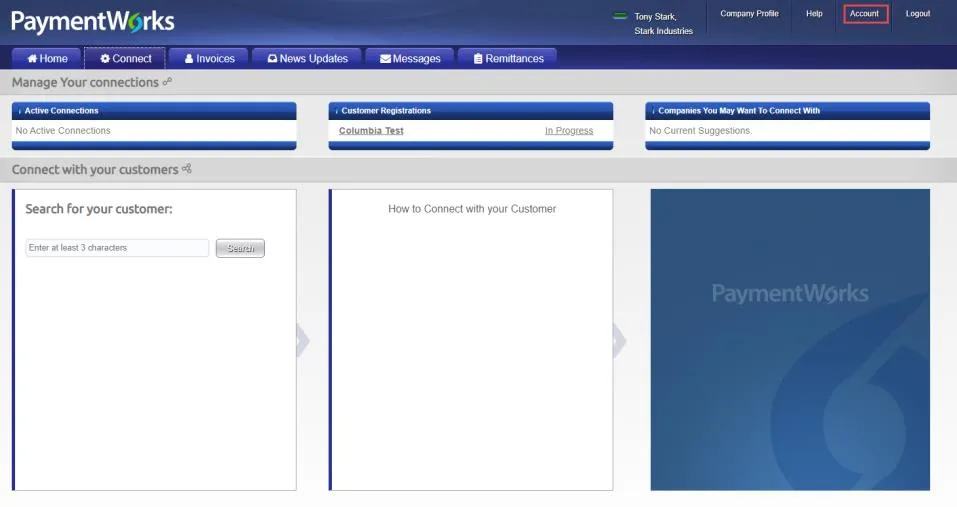
- Click Account from the top right.
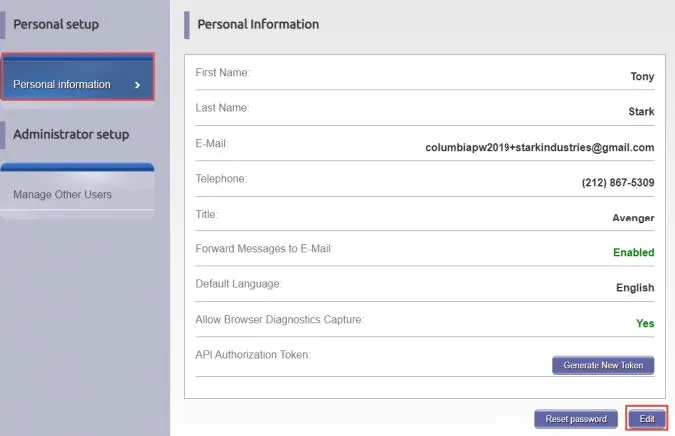
- Click Personal Information in the left menu bar.
- Click Edit.
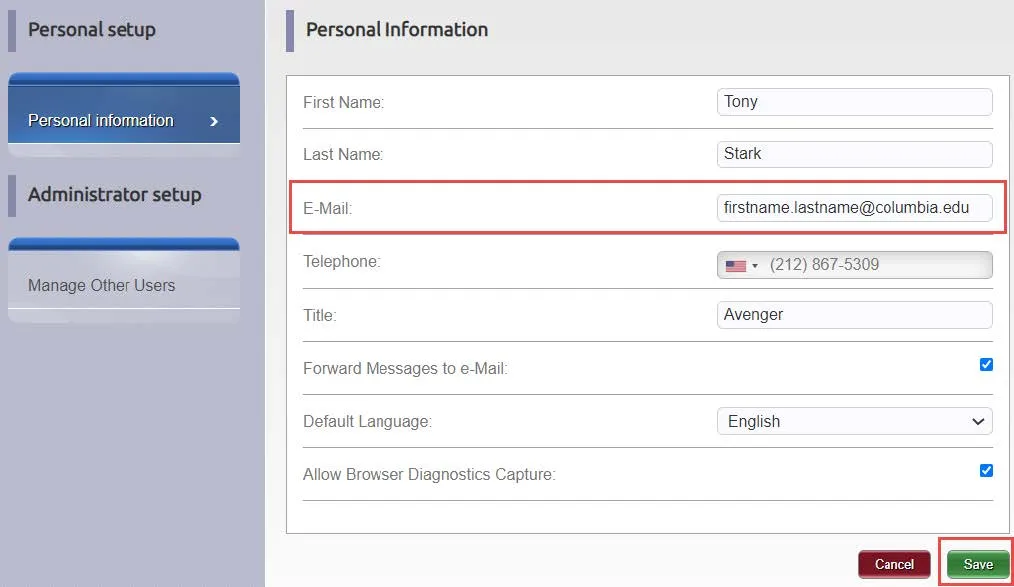
- Update the Email field with your Columbia Email Address Alias.
- Click Save.
Updating Company Profile (Optional Step)
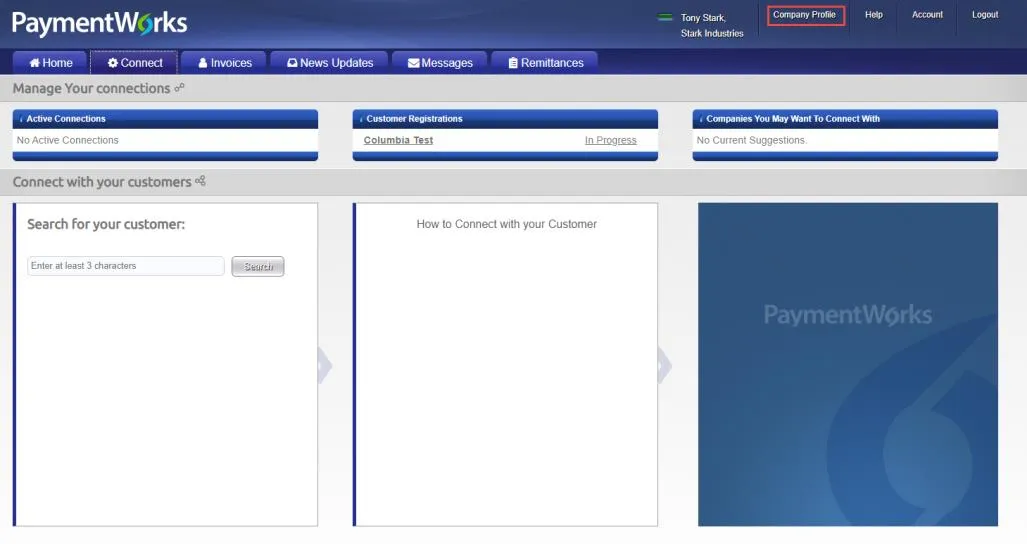
- Click Company Profile from the top right
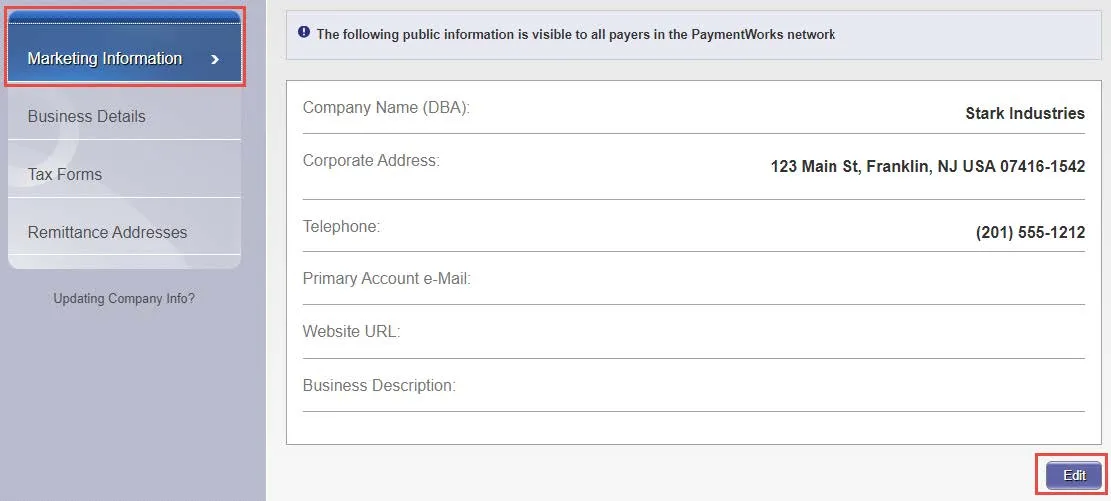
- Click Marketing Information in the left menu bar
- Click Edit.
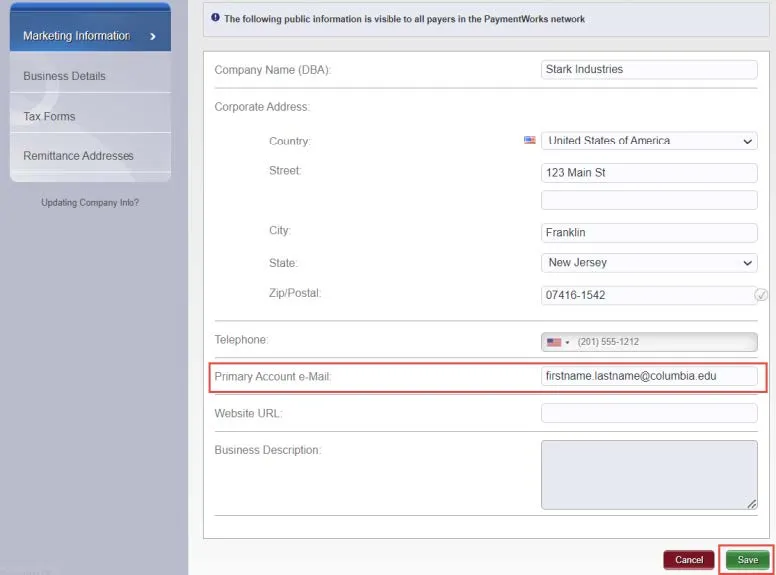
- Update the Primary Account Email field.
- Click Save.
If you have not attempted to login to your Payer / Employee account with Columbia University, you should be able to login via SSO on PaymentWorks.
If you have already tried to login and received the Single Sign-On Authentication Failure message, PaymentWorks has locked your account for security reasons and you will need to contact PaymentWorks Support to have your Payer / Employee account ([email protected]) unlocked.
- Log into your Payee / Vendor PaymentWorks account at PaymentWorks.

- Click Help and select Support from the top right. The PaymentWorks help center website appears.
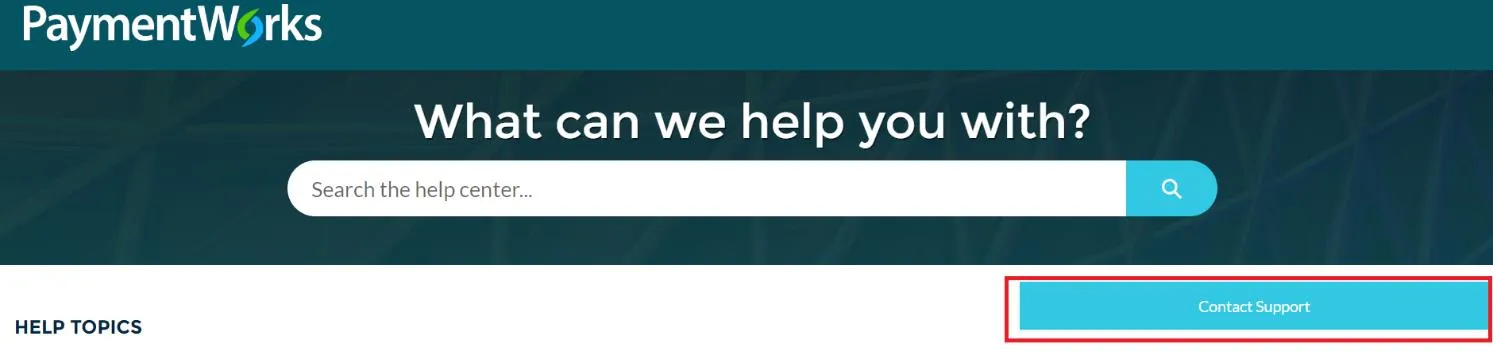
- Click Contact Support. The PaymentWorks Support Center form appears.
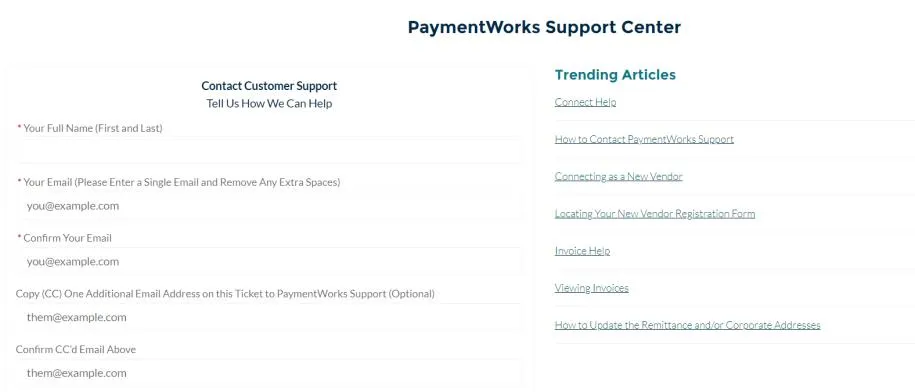
- Complete the required fields in the Contact Customer Support section including Your Full Name (First and Last), Your Email ([email protected]) and Confirm Your Email. Optionally, you can enter an additional email address to Copy (CC), if desired.
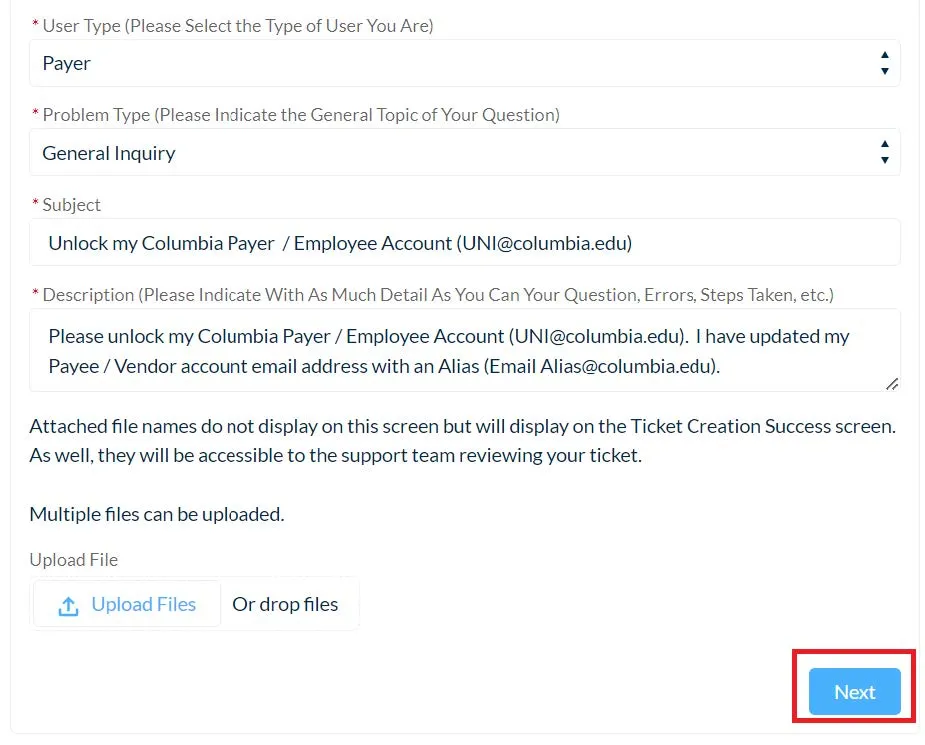
- Select Payer from the User Type dropdown and General Inquiry form the Problem Type dropdown.
- Populate the Subject field with “Unlock my Columbia Payer / Employee Account ([email protected])”. Replace [email protected] with your information.
- Populate the Description field with “Please unlock my Columbia Payer / Employee Account ([email protected]). I have updated my Payee / Vendor account email address with an Alias Email, ([email protected]). Replace [email protected] and [email protected] with your information.
- Click Next.
Once PaymentWorks support has unlocked your Payer / Employee Account, you will be able to login via SSO at PaymentWorks.
If you have questions regarding the PaymentWorks platform please contact PaymentWorks Support.
For questions regarding Columbia’s specific vendor management process, please visit our Vendor Management homepage. If you still have questions, you can contact the Columbia University Finance Service Center.