Running Concur Reports for Reporting Managers
The Concur Reporting module allows you to run Columbia specific and Concur standard reports containing University-wide travel and expense data. All reports can be found in the Team content folder.
Last Revision: February 2024
Details
- Log into Concur.
- Click the Home dropdown and select Reporting and Intelligence. The Report Module appears in a new tab in your browser. The reports that you have recently run would appear in Recent, which you toggle between Tile or List view. The first time you run the Reporting module, this will be blank.
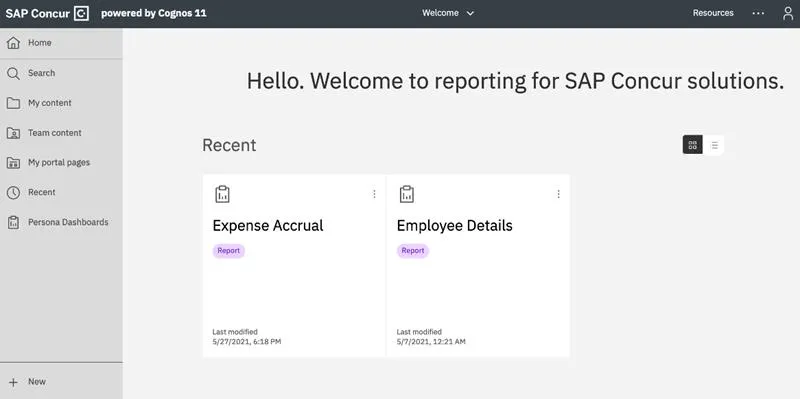
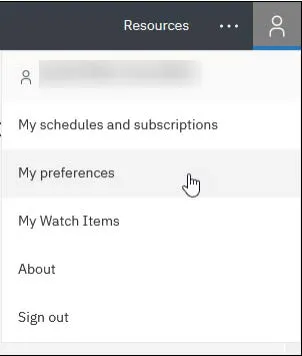
- From the upper right corner of the Reporting Module screen, click the Personal icon and My Preferences. The General tab on the My Preferences pane appears.
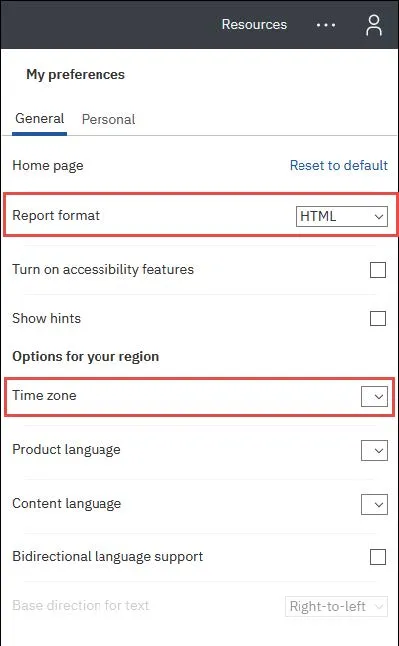
- Select the default Report format. When you click a Report to run, this will be the default report format. You can use the Run As feature to select a different format for individual reports.
- Set your preferred Time zone from the dropdown and select your preferred time zone.
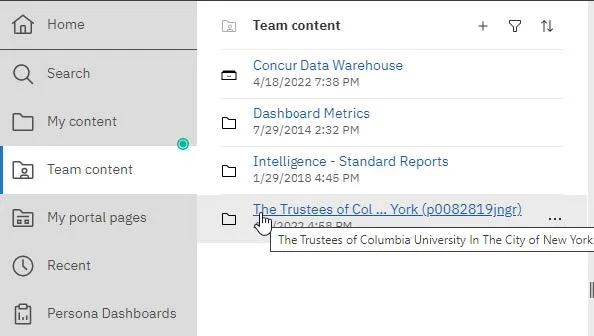
- Click the Team content folder from the Navigation pane.
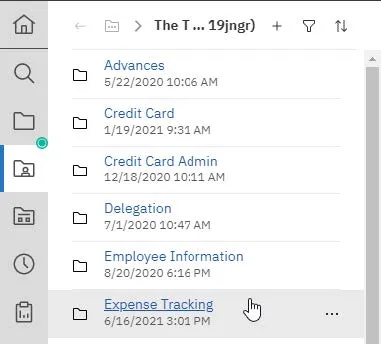
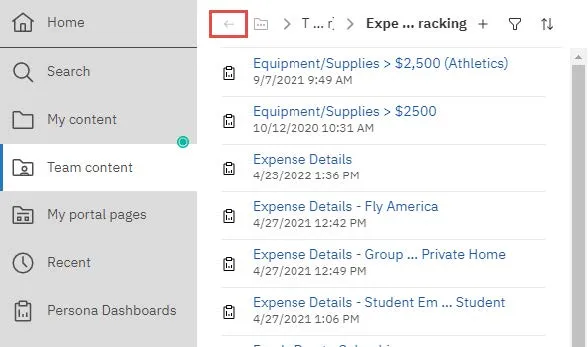
- Click through sub-folders until you locate the report you want to run. Columbia specific folders and reports can be found within the Trustees of Columbia University in the City of New York folder. You can use the back arrow icon at the top of the Navigation pane to go back to the previous folder level.
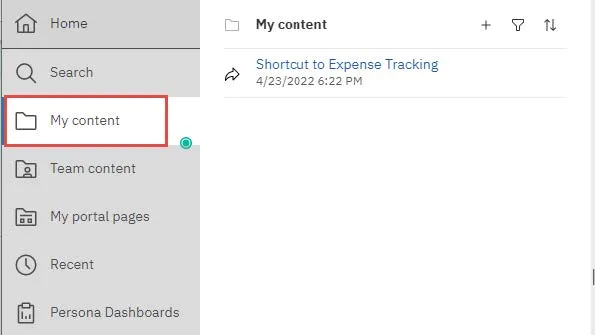
You can select to create a shortcut to a folder or report so that you have quick access to it in your My content folder.
- Navigate to the folder or report.
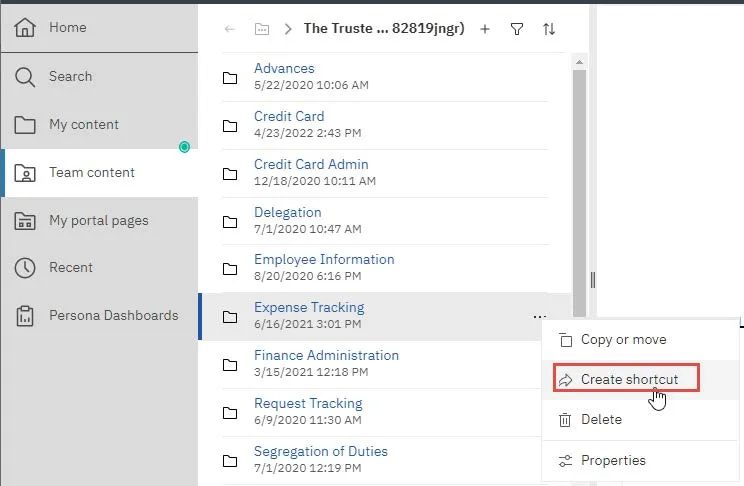
- In the More icon for the folder or report you want to make a shortcut, click Create Shortcut. The Create shortcut window appears.
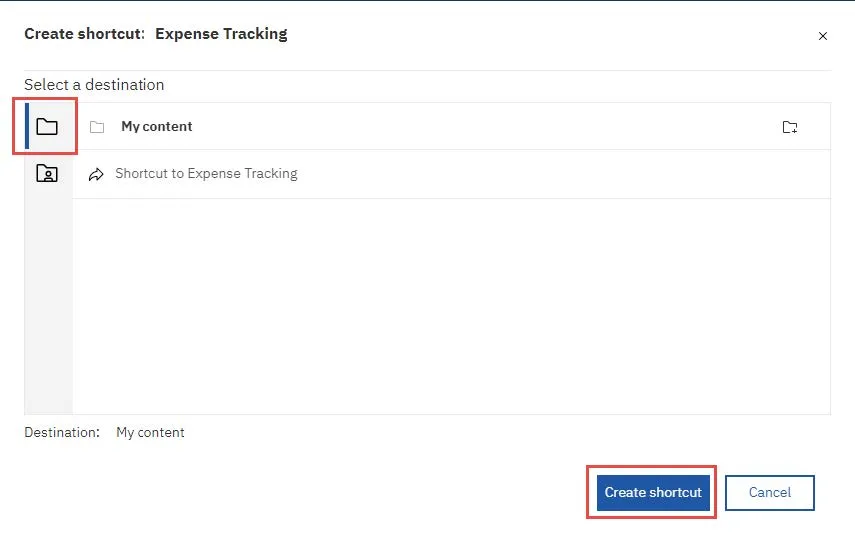
- Select the My content folder as the destination and click Create shortcut. The shortcut to the folder or report can be found in the My content folder.
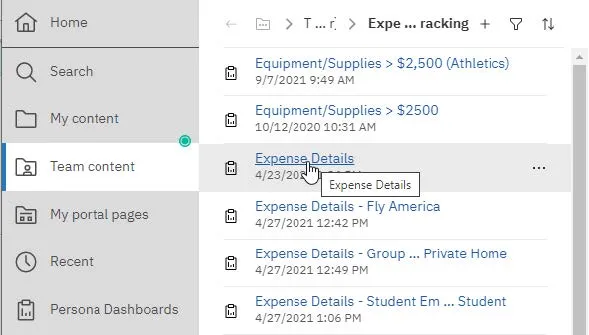
- Navigate to the report you want to run and click the report name. The report will run in the default format indicated in My Preferences. The Prompts screen appears.
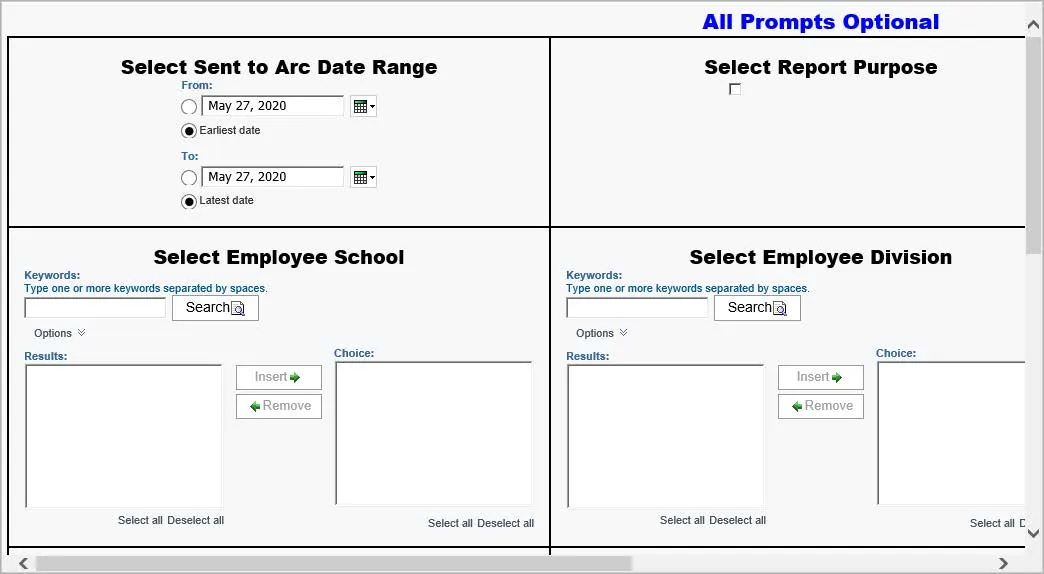
- Enter the required or desired optional Prompts.
- Click Finish at the bottom of the screen. The report may take some time to render depending on the amount of data.
Running Reports using Run as
- Navigate to the report you want to run.
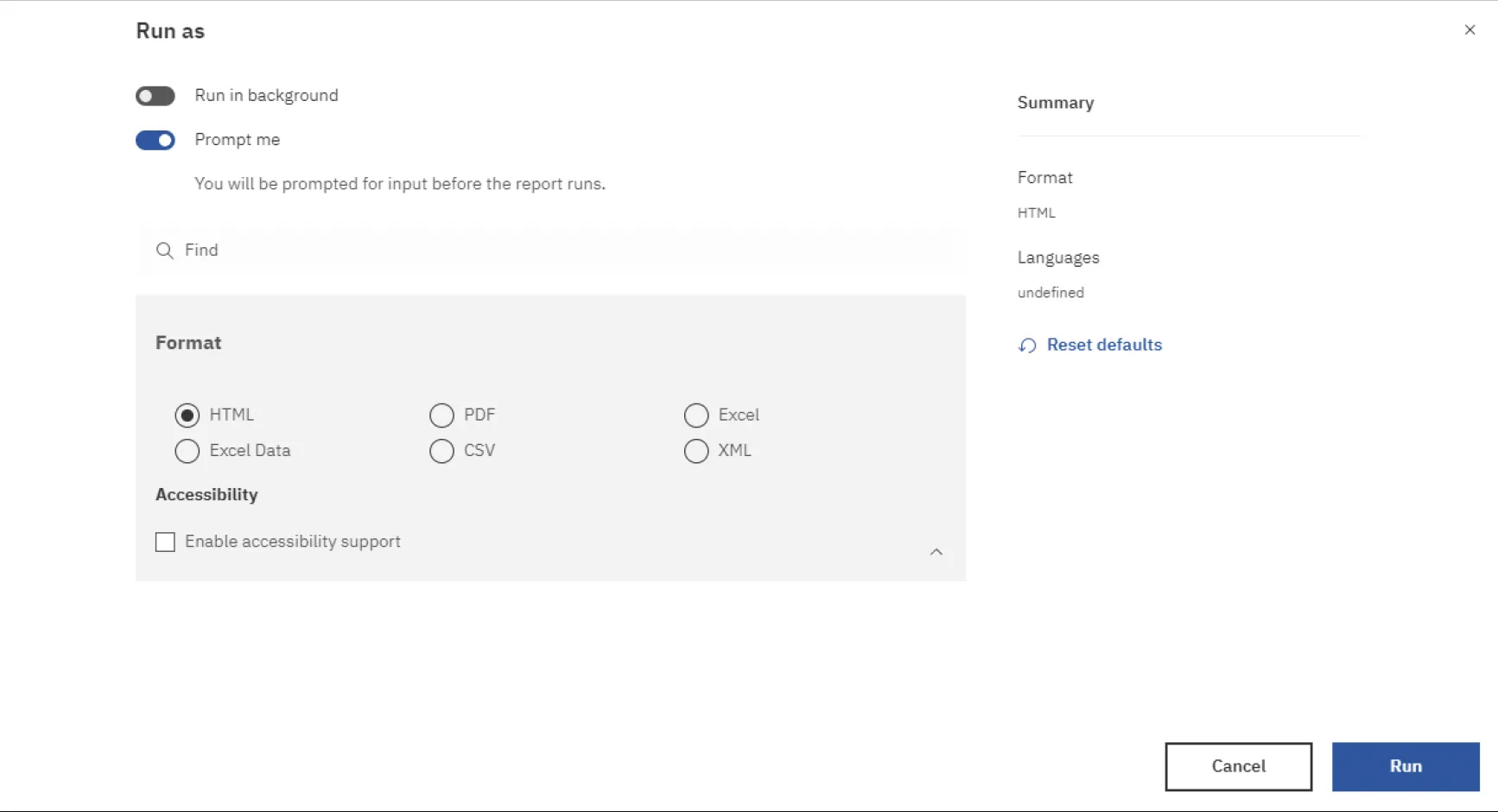
- Click the More icon for the report you want to run and click Run as. The Run as screen appears.
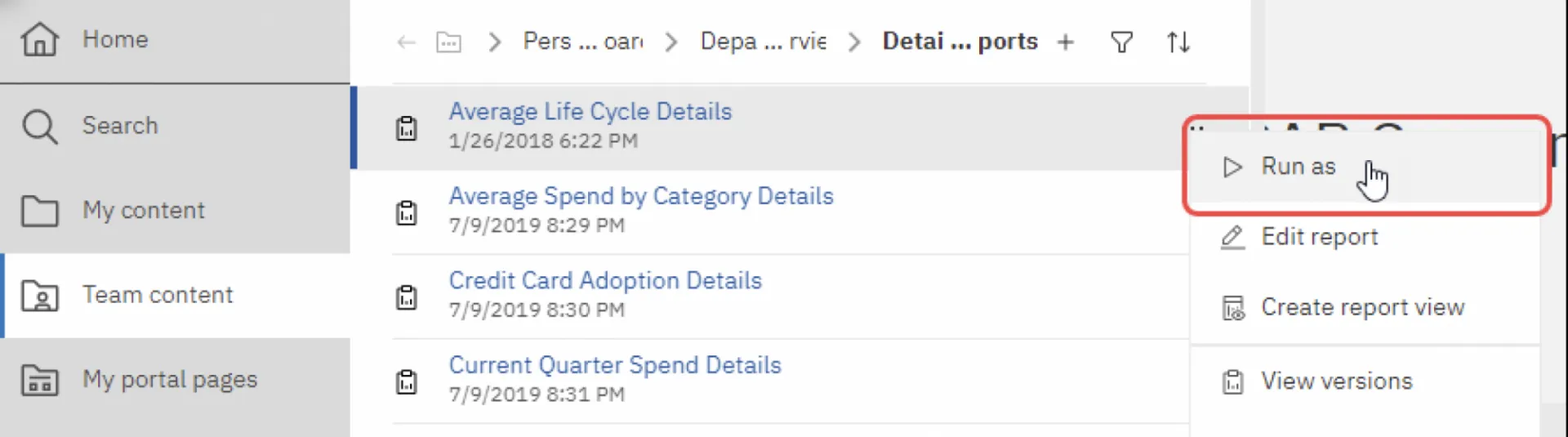
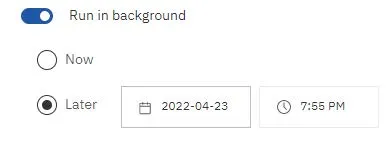
- Optionally, You can select the Run as background option to run your report in the background, Now or Later for a set time, so you can proceed with other tasks if a larger report requires time to run.
- Select the report Format. Select only HTML, Excel 2007, or Excel 2002.
- Click Run. The Prompts screen appears.
- Enter the required or desired optional Prompts.
- Click Finish at the bottom of the screen. The report may take some time to render depending on the amount of data.
Scheduling a Report
You can specify the run time and delivery options for your report, including emailing it to yourself or colleagues.
- Navigate to the report you want to run.
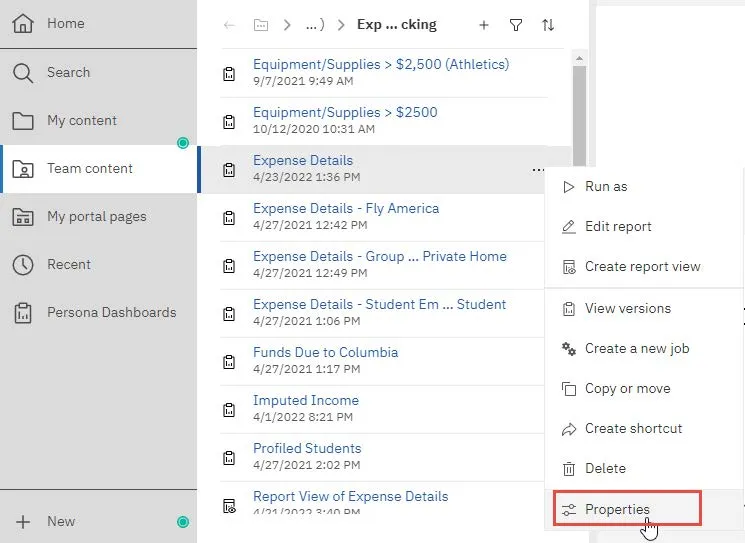
- In the More icon the report you want to run, click the Properties.
- Click the Schedule tab and click the Edit link. The Schedule page appears.
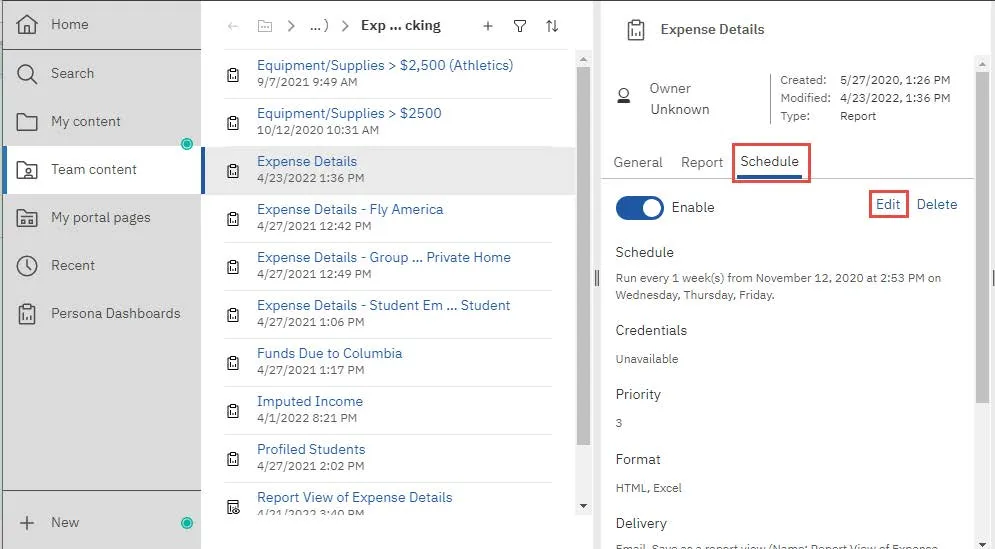
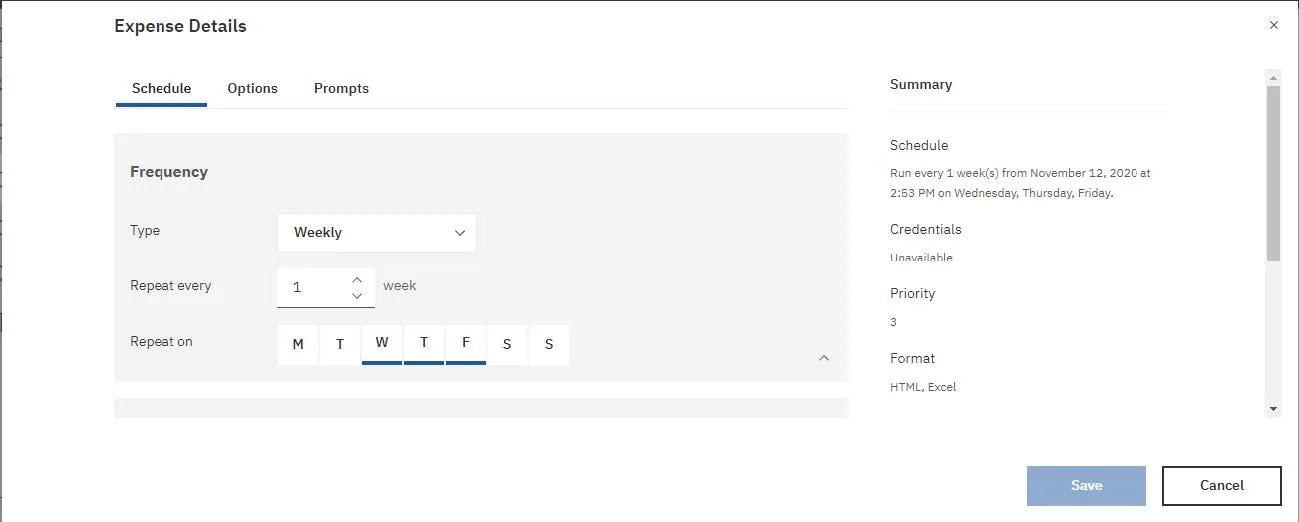
- Define the schedule for the report.
- Click the Options tab.
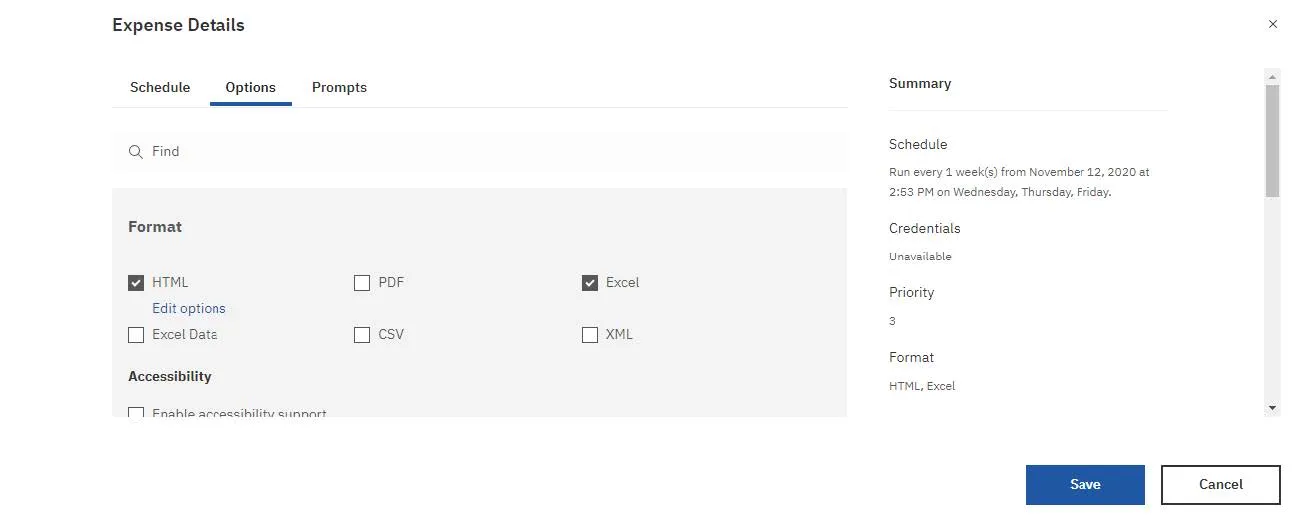
- Select the desired Format.
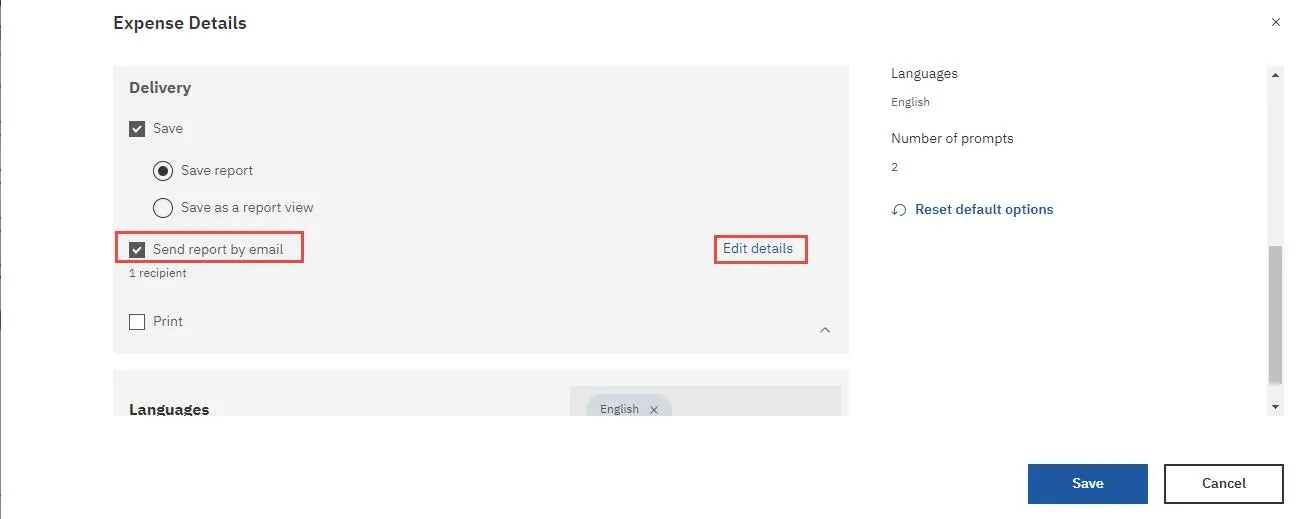
- Scroll down to the Delivery section, click the Send report by email option and click the Edit details link. The email options screen appears.
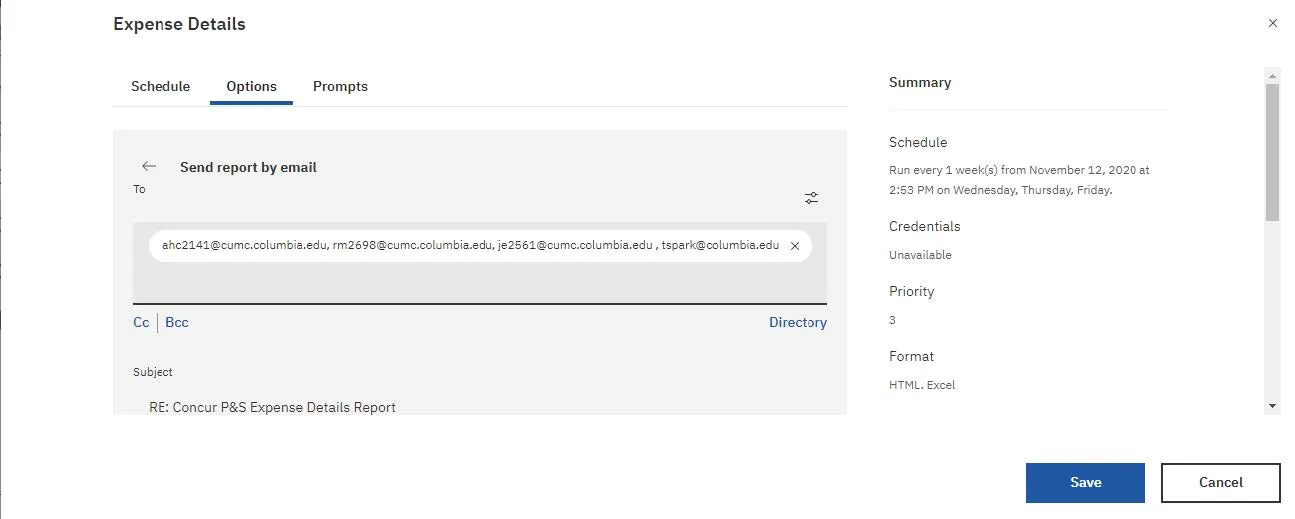
- Enter email addresses in the To, CC, or BCC sections separated with semi-colons and compose the email Subject and Message.
- Click Save.