Running an Inquiry
This job aid contains information on how to run an inquiry in ARC.
Last Revision: December 2021
ARC delivers a variety of inquiry pages for users to track transactions throughout the system.
Inquiry pages are found throughout ARC (e.g. voucher inquiries are found within the Accounts Payable module in ARC and purchase order inquiries are found within the Purchasing module in ARC).
Refer to the Inquiry Inventory job aid for a list of the most frequently used inquiries in ARC along with their purpose and navigations.
Please note that depending on your security access you may or may not have access to certain inquiry pages in ARC. In the example below, the inquiry is run from the General Ledger page.
- Navigate to the desired inquiry page in ARC.
- Navigate to NavBar > General Ledger > Review Financial Information > Ledger
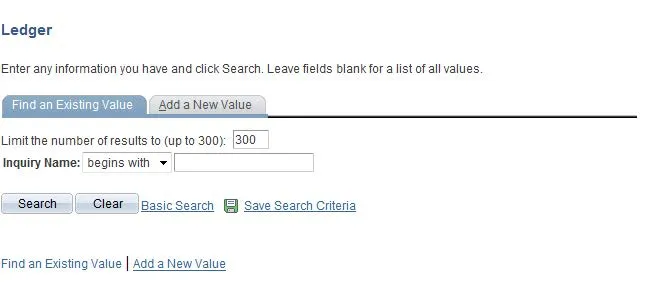
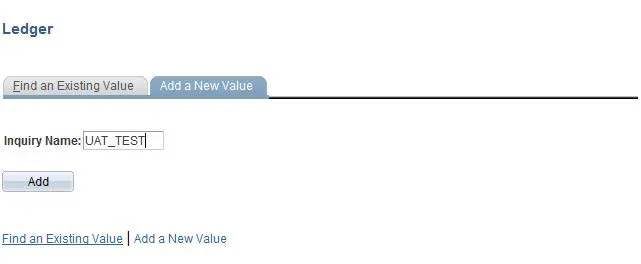
- Click on the ‘Add a New Value’ tab and enter an inquiry name. Click “Add.”
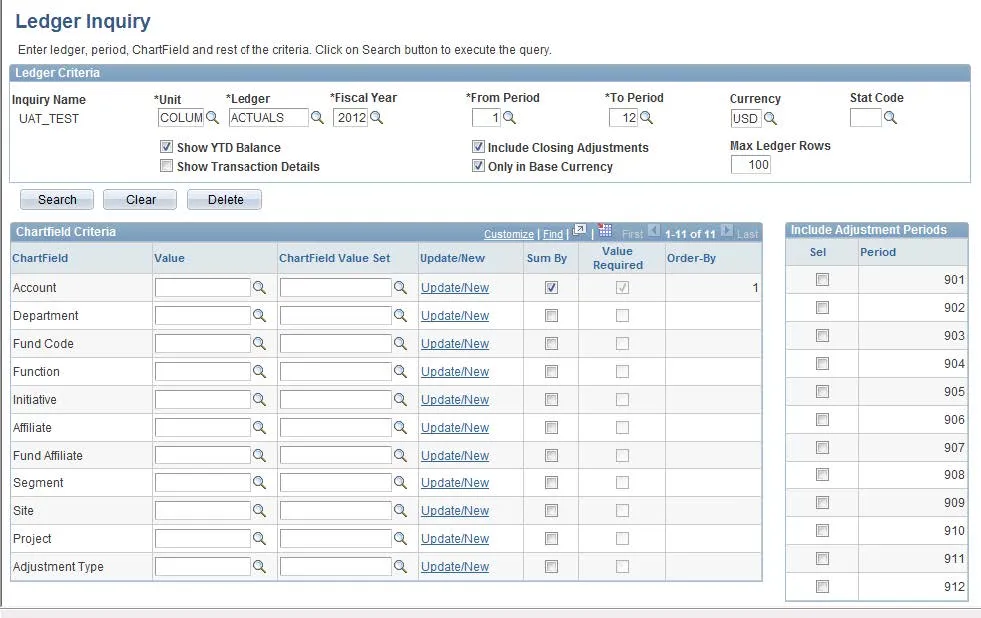
Enter the desired information for the Ledger Criteria (fields with an asterisk ‘*’ are required).
Unit: COLUM
Ledger: ACTUALS
Fiscal Year: 2012
From Period: 1
To Period: 12
Currency: USD
Check the following boxes:
Show YTD Balance
Include Closing Adjustments
Only in Base Currency
- Enter the desired information under ChartField Criteria and click “Search”.