Running a Scheduled Query
Overview
ARC Reporting is separate copy of ARC that contains data one day older than production and it is reserved for high load reporting (i.e. reports that have large amounts of data). A query is a request for data presented simply, without much formatting. A query is different from FDS reports in that it is run in ARC and pulls from ARC data.
Access
If you access the query scheduler from ARC (by navigating to the ARC Portal then click on Go to ARC button), the data received will be live (up to date).
If you access the query scheduler from the ARC Portal (click on Advanced ARC Reporting), the data is from the previous day.
Running a query means that you submit a query to PS Query from Query Viewer and it presents data immediately.
This is useful for smaller results sets. However, larger sets may cause time out or truncated data. Most ARC users have access to run a query. You just need to know the name (or partial name) of the pre-defined query. See the Running a Query and Query Inventory job aids for more info. Scheduling a query from Query Scheduler means you are submitting a query to PS Query, an engine that runs queries and sends data back to the user.
This is a good option for queries that have extremely large results sets. Since it runs in “background”, will not time out or truncate results. This job aid focuses on scheduling queries in ARC Reporting (i.e. data from the previous day).
Output Formats
When running this report, output options include 1) html (on screen); 2) excel download; 3) xml (for file transfer to other applications); 4) or a Crystal reporting file (you will need the Crystal software on your machine to view).
Steps
Within the ARC environment, navigate to: NavBar > Reporting Tools > Query > Schedule Query
Note: You will need to have the proper access to see Schedule Query on the Query list.
To schedule a Query, you first need to create a Run Control. (Run Control is a file that consists of query with parameters) The Schedule Query screen allows you to reuse an existing Run Control or create a new one.
You can search for an existing Run Control by Run Control ID, Description or Query Name.
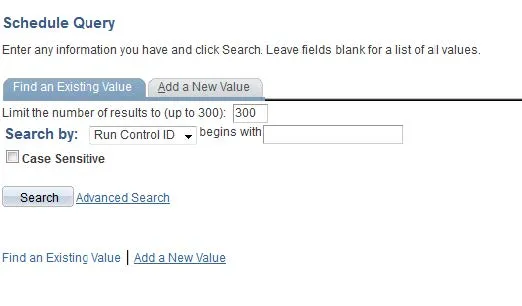
In Schedule Query screen, click Add a New Value tab to create a new Run Control.
In Run Control ID: field, enter a Run Control name that is easy to remember. In this example, we will name the Run Control to remind us of the type of report.
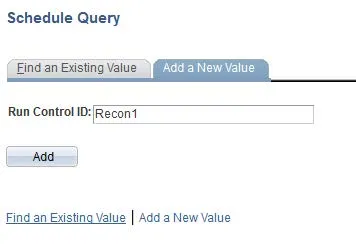
We enter “Recon1” for a bank reconciliation, which will include the parameters of the report. Click the Add button.
In the screen enter Query Name (or search with a partial name) the query you wish to run.
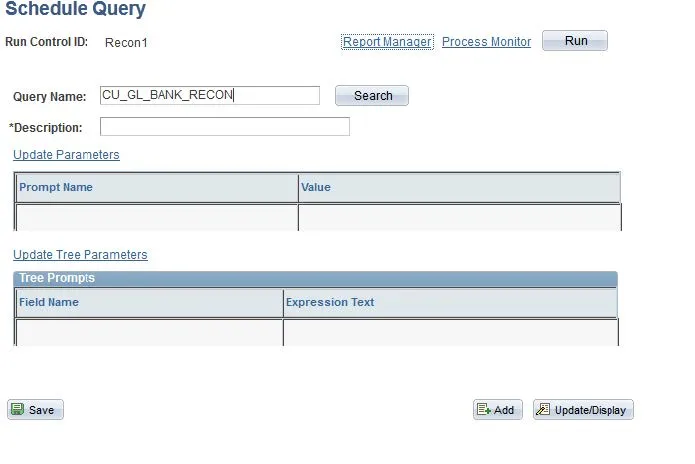
You will then see the parameter screen for the particular Query you searched for.
Fill in fields as required.
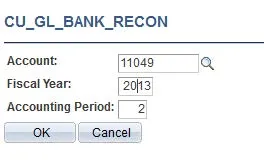
Click OK.
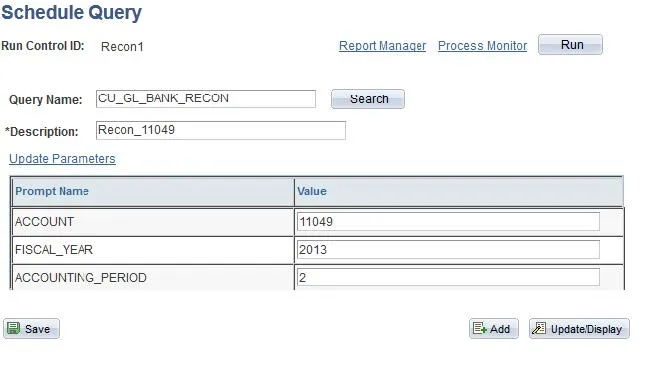
You will see query information and prompt.
In Description field, add a searchable term (i.e. Recon_11049) and Save.
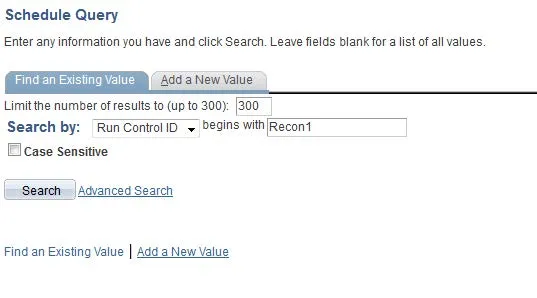
If you’ve already recreated a Run Control and want to use it, choose Find an Existing Value.
The information for this Run Control will come up in the Schedule Query screen.
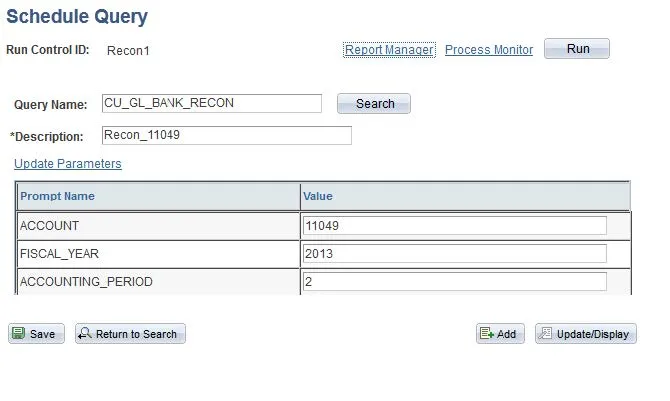
In the Schedule Query screen, choose the Run button.
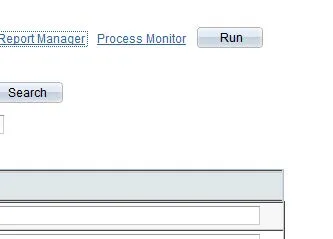
This screen allows you to schedule a Query.
You can run the query immediately or set a future date or time for the run.
You can also schedule the query to run on a reoccurring basis (see Recurrence drop down).
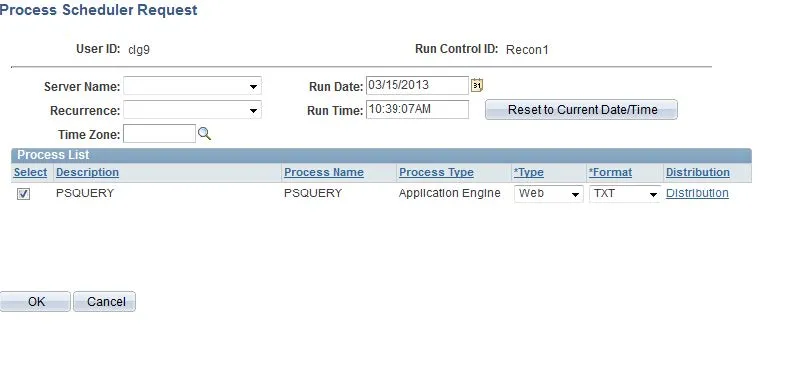
Tip: Click on Reset to Current Date/Time button before choosing OK.
Set the terms of the query by using the various pull down choices.
Fields show
Server Name (defaulted)
Recurrent (to set to run automatically)
Time Zone
Run Date (you can run later if desired)
Run Time
Process List shows the query to be run and allows options for output with Type and Format pull downs.
When done, click OK to request the Query to run.
You will be returned to the Schedule Query screen while query is running
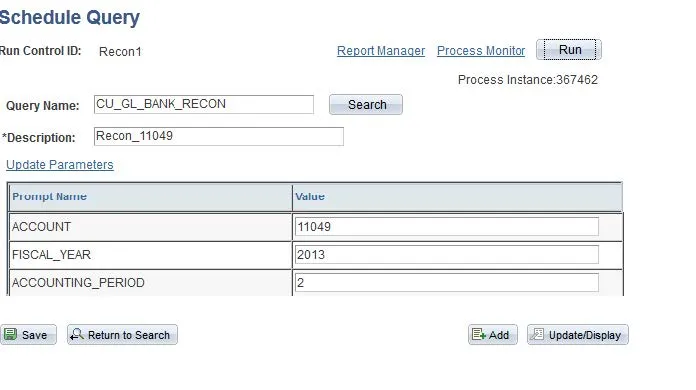
In the upper right corner you’ll find the Process Instance # (i.e. 363462), which is the identifier of this particular report.
Choose Process Monitor (upper right) to view Run Status. Click Refresh to update stats. When the action is complete, distribution status will post. Click on Details for a log with details of the report.
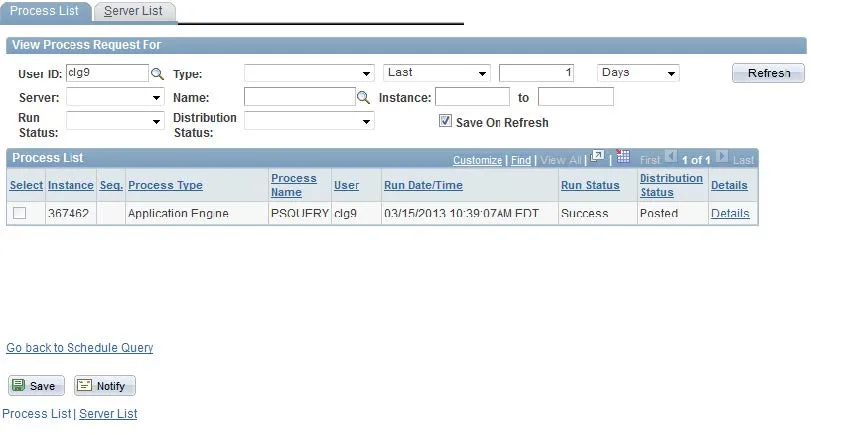
Click on Details hyperlink to view a report on what happened with the Query was run.
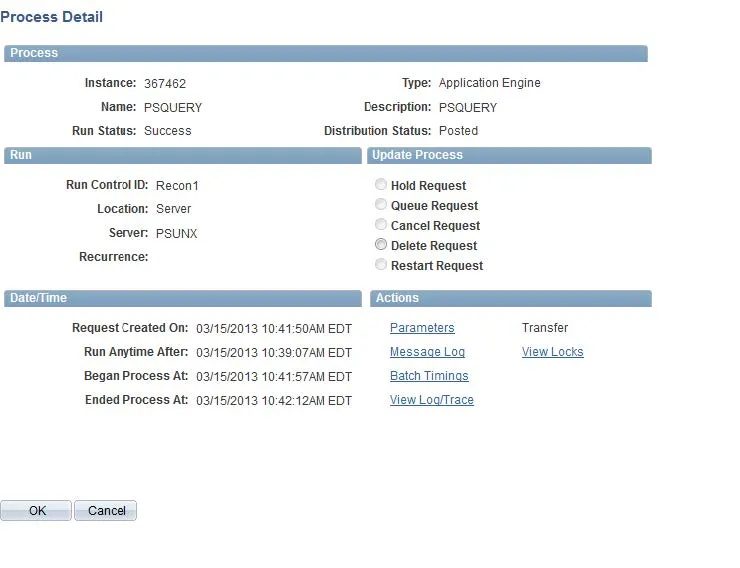
Choose View Log/Trace to view report files.
View Log/Trace screen
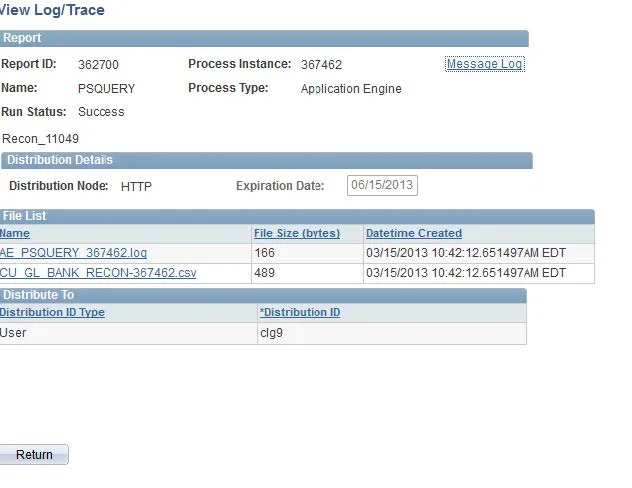
A list of two items show. A log (useful to view error) and the report that is named by query and instance number.
Click on Query name to view report in Excel (see downloads).
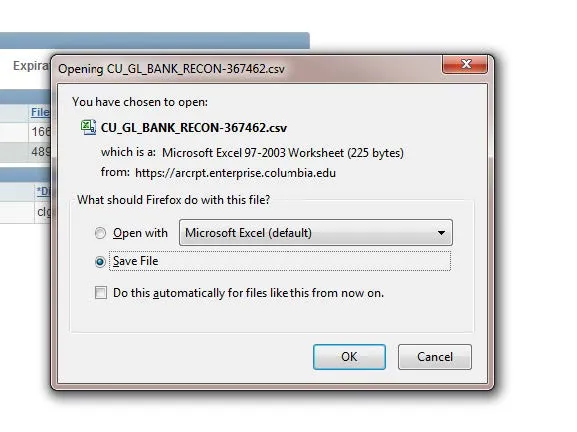
You can Save File or Open with Excel.
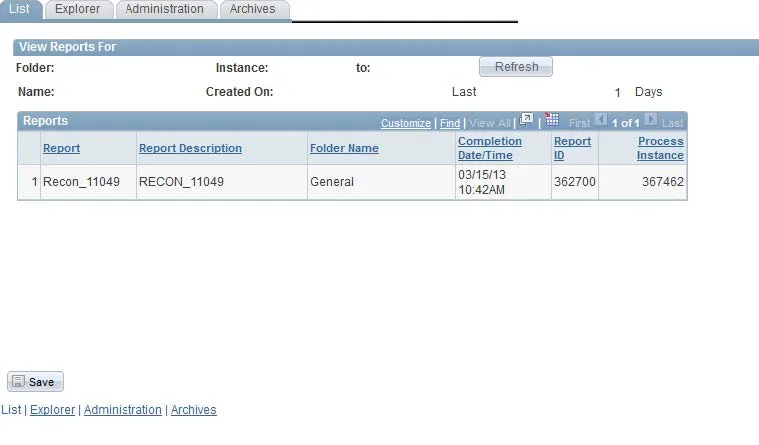
You can also view evidence of the report you created from the Report Manager feature in Reporting Tools.