Submitting a Petty Cash Replenishment Voucher in the CU Marketplace
This Job Aid details how Petty Cash Replenishment Vouchers are created and submitted in the CU Marketplace.
Last Revision: April 2025
Submitting a Petty Cash Replenishment Voucher
Creating a Non-PO Voucher
1. Navigate to the Procurement website, click the CU Marketplace logo, and log in using your Single Sign On. The JAGGAER application launches.

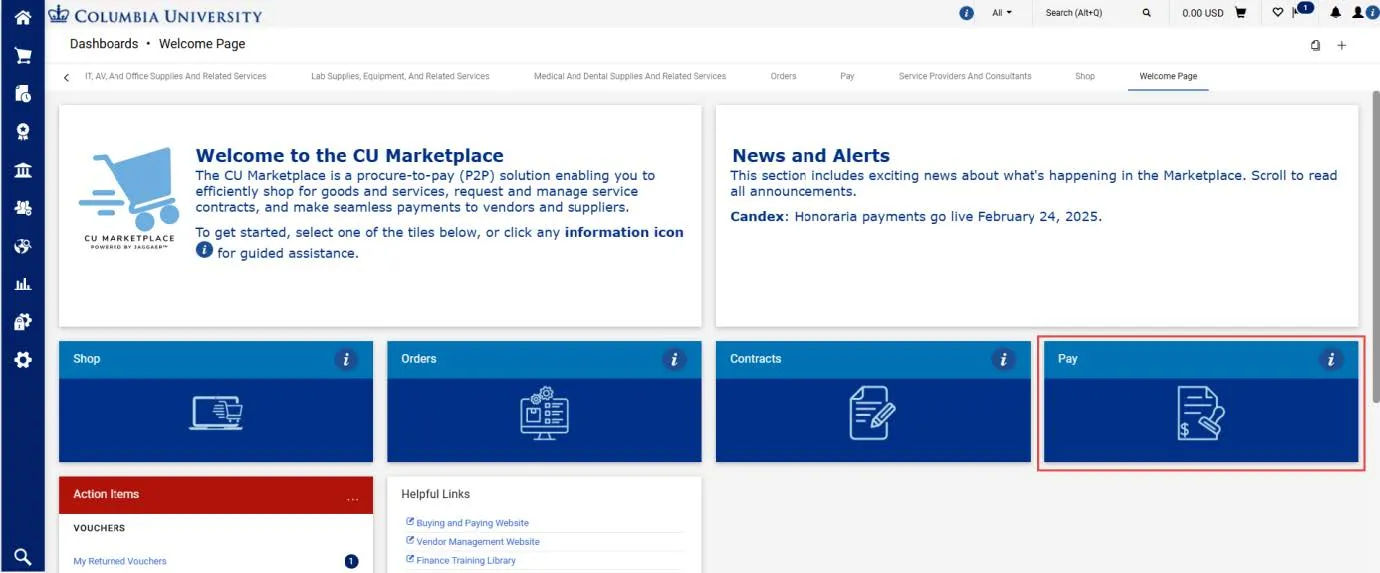
Note: The CU Marketplace will automatically time out after thirty minutes of inactivity, consistent with other University Enterprise Systems.
2. Select the Pay tile. The Pay dashboard appears.
3. In the Create Vouchers and Receipts section, select Voucher from the Type dropdown and Non-PO from the From dropdown.
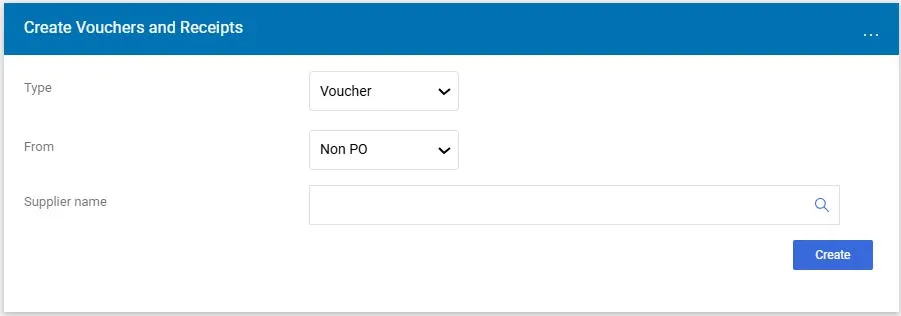
4. Enter the Supplier who is the Petty Cash Custodian. Click the Search icon to find and select the Supplier. The Supplier must have a Petty Cash Custodian classification.
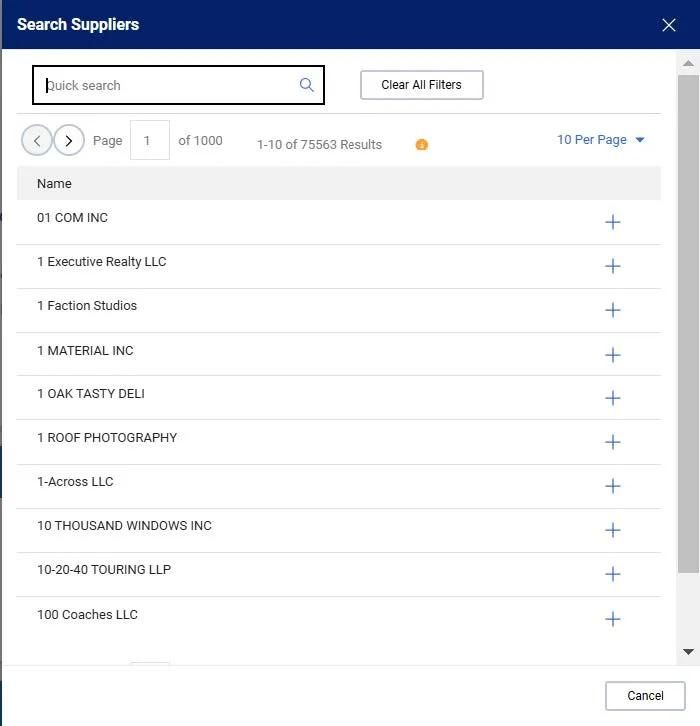
Type your criteria in the Quick Search field, press Enter, and click the Add icon for the matching Supplier.
5. Click the Create button. The Voucher form appears.
Details
The Voucher Entry screen appears with the Summary pane indicating the required fields.
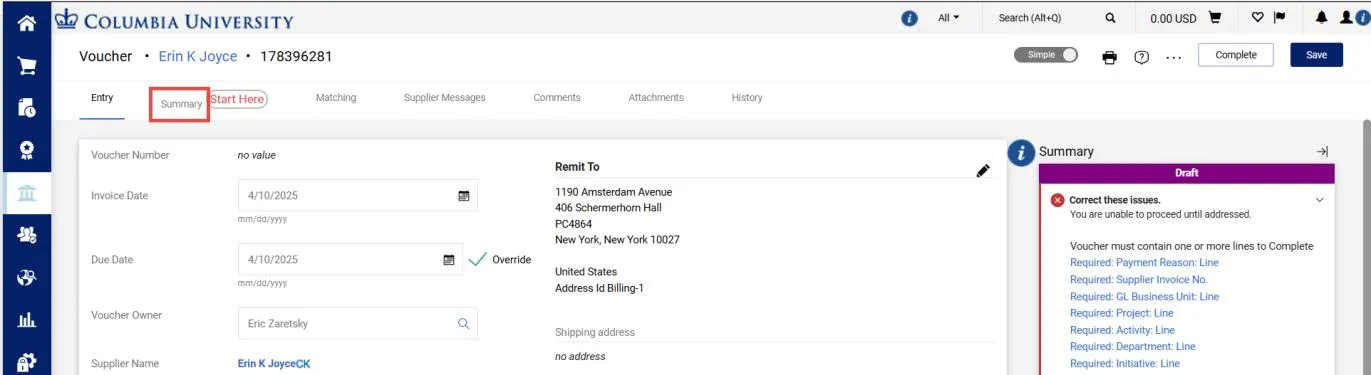
1. Navigate to the Summary tab to begin completing the required information. All required information must be completed for the voucher to be validated and approved.
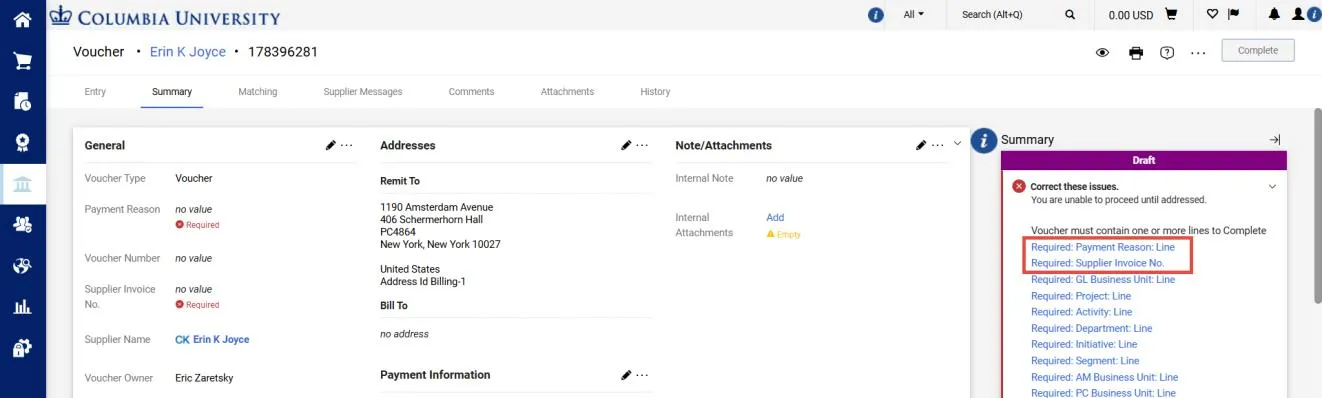
Note: If you previously created a default ChartString in your Profile, the links for Accounting Codes will not appear as required information. You must ensure that you use the correct ChartString information. See the Adding or Editing Accounting Codes (ChartStrings) section of this job aid.
2. Click the link for the Required Payment Reason Line. The Edit General window appears where you can enter the required Payment Type and the Supplier Invoice No.
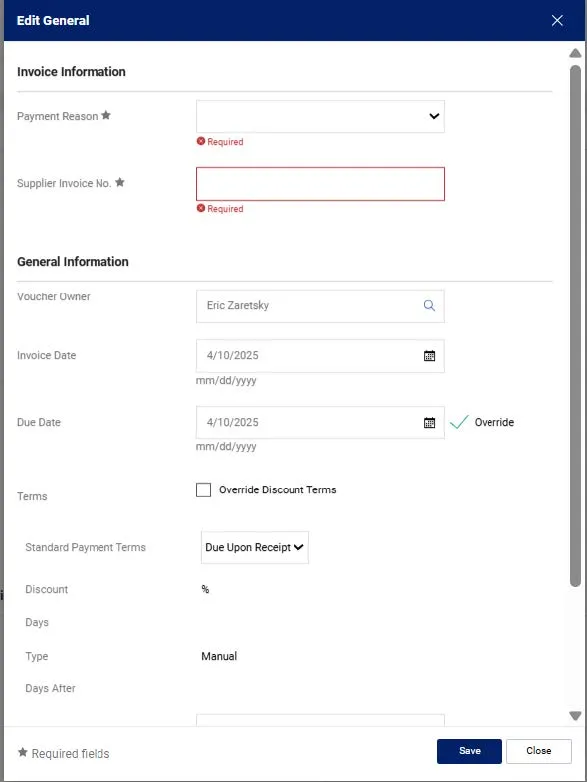
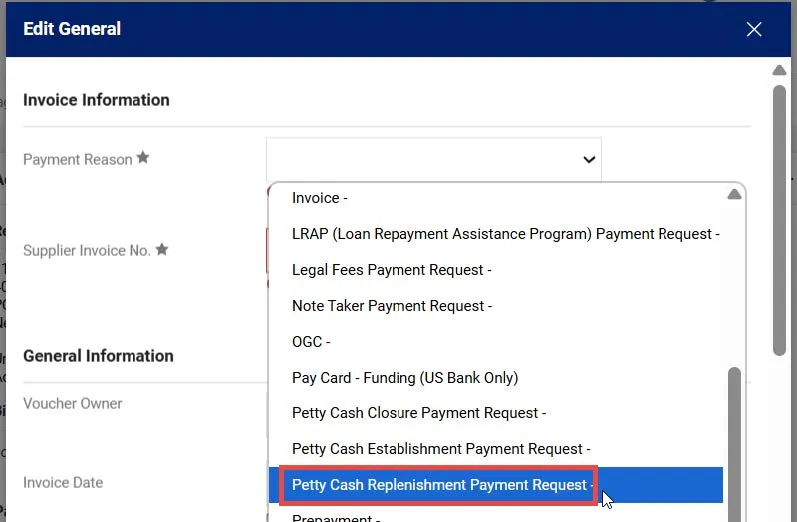
3. Select Petty Cash Replenishment Payment Request from the Payment Reason from the dropdown.
4 For the Supplier Invoice No, enter the current day’s date and the actual amount, included cents, indicated in the Voucher (MMDDYYAMOUNT). For example, if today is 07/01/2025 and the Voucher amount is $350, the Invoice No. should be entered as “07012535000”.
5. Click the Save button.
Enter the ChartString information in the Accounting Codes section to explain how you spent the funds. If you previously set up a Default Accounting Code (ChartString) in your Profile, that ChartString information will be populated here. If so, edit the ChartString as necessary. You must use the same Project and Department approved by the Office of the Controllers.

1. In the Codes section, click the Edit Codes Section icon. The Edit Codes window appears.
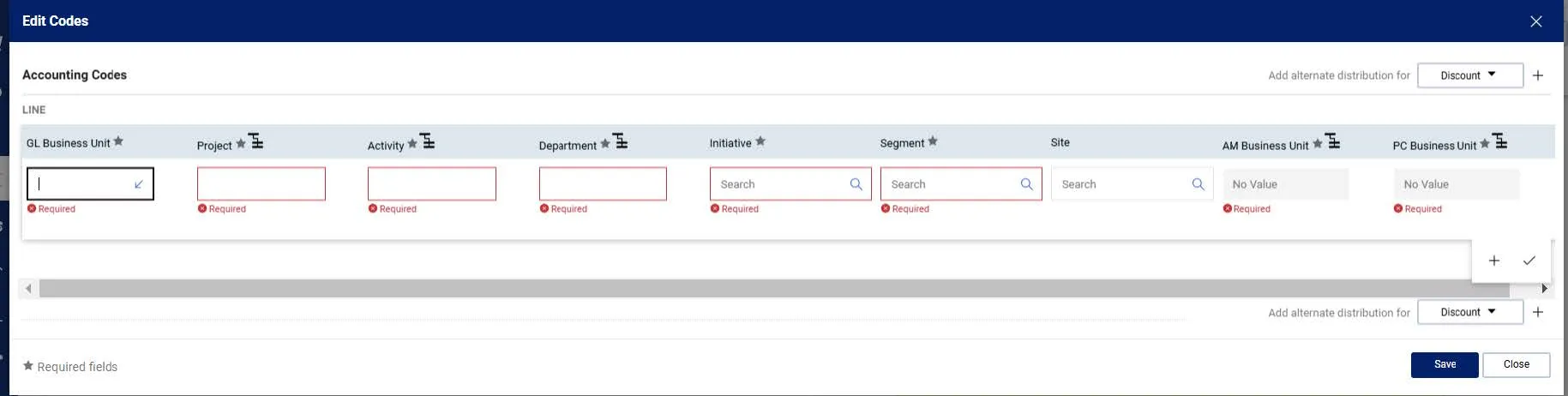
2. Update the ChartFields as needed. ChartFields must be entered in order left to right as the available values are dependent on the value in the previous field. You can click the Dropdown arrow in the field you are populating to view the available values.
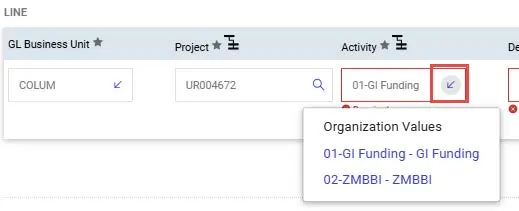
3. Click the Validate icon to ensure your ChartFields were entered correctly. If you corrected a ChartField and it still appears as Required , click the Validate icon again.
You can click the Code Favorites icon to select a favorite ChartString you created in your Profile.
4. Click the Save button.
You must enter a Line to describe the expense payment, the price, and the quantity.
1. In the Lines section, click the Add Non-PO Item link.

The Add Non-PO Item window appears.
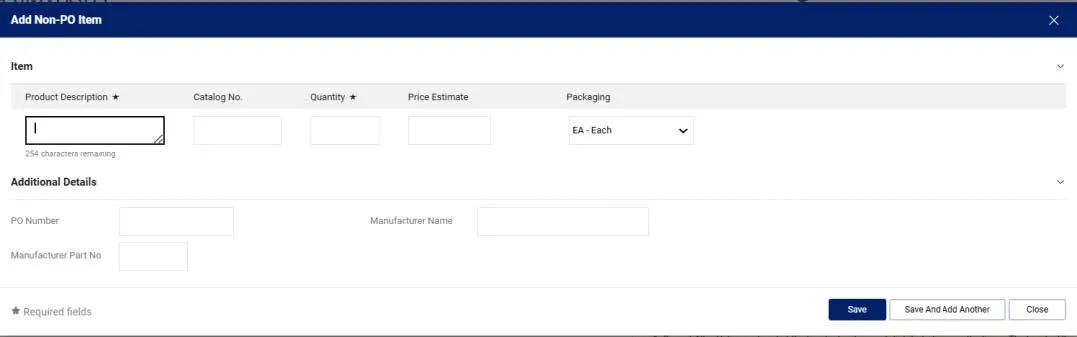
2. In the Product Description field, type “Petty Cash Replenishment”.
3. In the Quantity field, enter “1” and enter the amount in the Unit Price field.
4. Click the Save button to add the Line. The Item Details appear and the Account field appears as required.
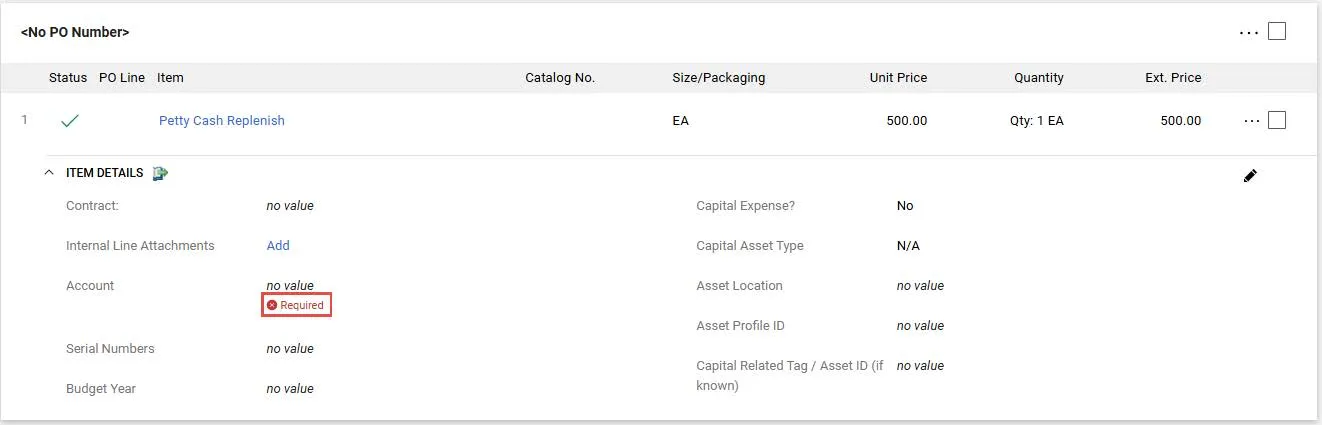
5. Click the Required link for the Account value. The Item Details screen appears.
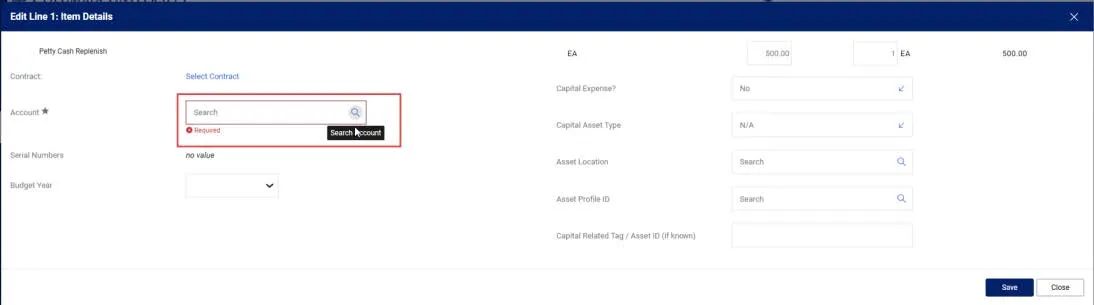
6. In the Account field, enter the Natural Account that reflects the expense for which the funds were used.
7. Click the Save button.
Attach receipts, and/or supporting documentation that provides the business reason for the expense.
1. In the Summary pane, click the Empty Internal Attachments link.

The Add Attachments window appears.
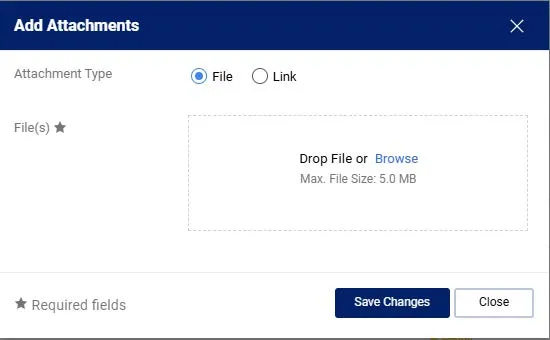
2. Drag and drop your file to the Drop File section or click the Browse link to search and select your file. You can add additional documentation to this window, if needed.
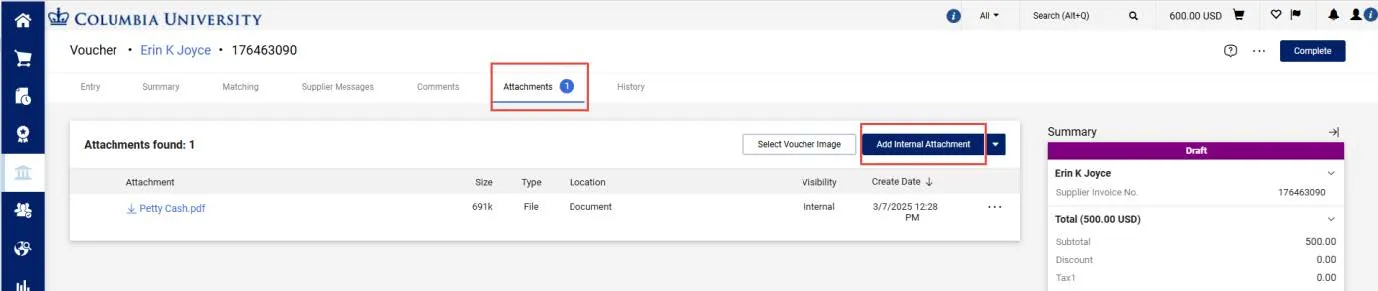
3. Click the Save Changes button. You can view and attach additional documents via the Attachments tab.
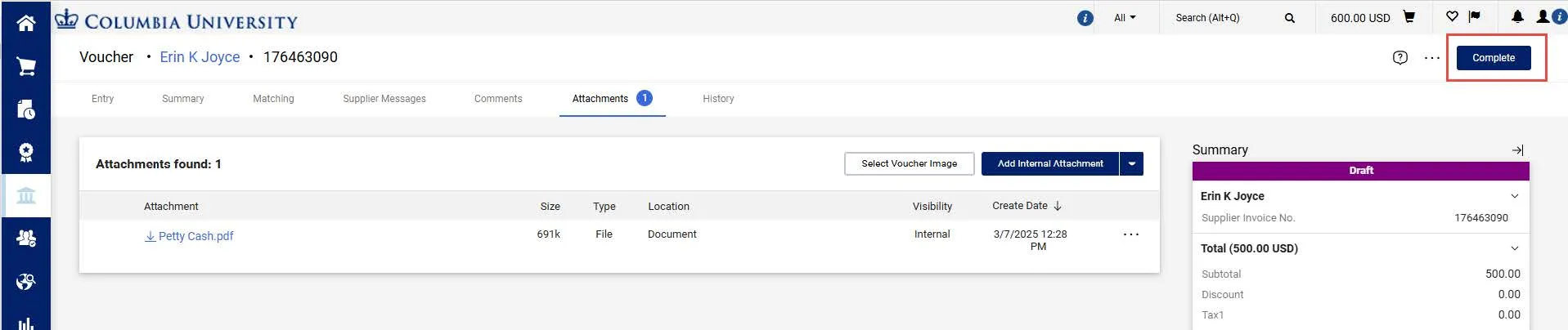
Click the Complete button to submit your Voucher.
The Voucher Submitted confirmation screen appears.
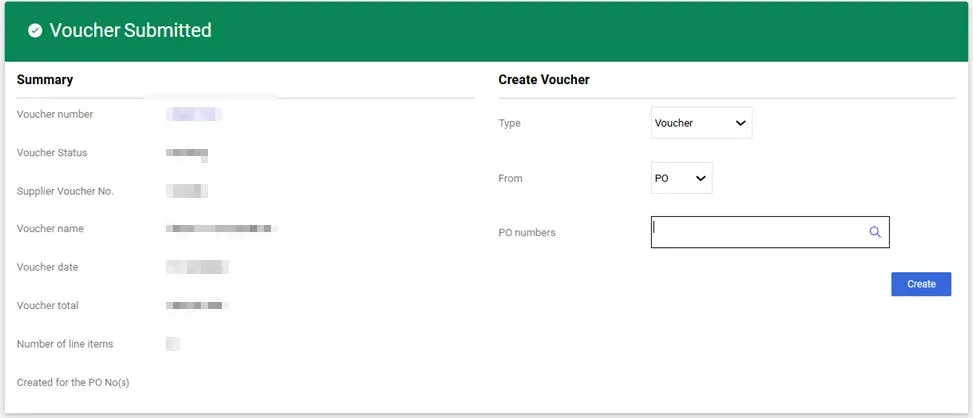
You can click the Voucher number to view the Voucher details.
Additionally, you can create a new voucher from the right side of this screen under the Create Voucher heading.