Travel Arrangers - Submitting Expense Reports
This job aid is for Travel Arrangers who need to create a Travel Expense Report in Concur and add Corporate Card or Columbia Air/Rail Central Pay transactions to the Report in order to reconcile travel expenses incurred on behalf of guests.
In addition, this job aid includes details on creating CU Non-Profiled Payee Expense Reports in order to reimburse a guest for expenses the guest has incurred personally.
You should not include expenses you incurred using your Corporate Card or Columbia Air/Rail Central Pay and expenses incurred by a guest on the same Expense Report.
Last Updated: August 2026
To view a video version of this job aid, refer to the Travel Arrangers Video: Booking Travel for a Guest.
Details
If you used a Corporate Card or Columbia Air/Rail Central Pay to pay for travel on behalf of a guest, you should create and submit a Travel Expense Report under your own profile in order to reconcile the transactions.
Note: If the guest incurred any expenses on their trip that require reimbursement, you should create a separate Non-Profiled Payee Expense Report in order to reimburse the guest.
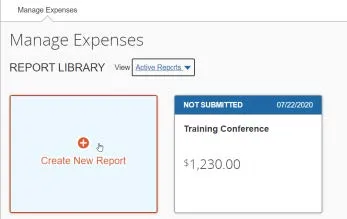
- Log in to Concur and Navigate to Manage Expenses. The Manage Expense screen appears.
- Click Create New Report. The Create New Report screen appears.

Completing the CU Travel Expense Report Details
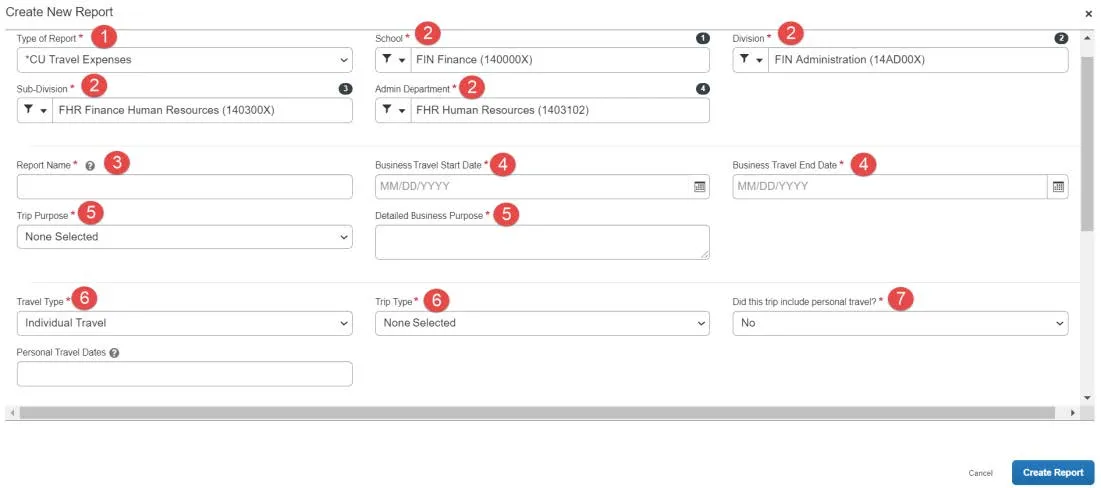
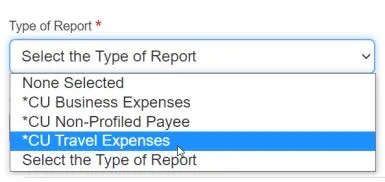
- Click the Type of Report dropdown and select CU Travel Expenses.
- The School, Division, Sub-Division and Admin Department default from your Concur Profile. You can edit, if necessary, Note: The completed fields displayed in the graphic above are for example purposes only.
- Enter a Report Name.
- Enter the Business Travel Start Date and the Business Travel End Date.
- Select the Trip Purpose from the dropdown menu and type a Detailed Business Purpose.
- Select the Travel Type (Individual, Group, or Team) and Trip Type (Domestic or International).
- Select to answer Did this trip include personal travel? If Yes, enter the Personal Travel Dates.
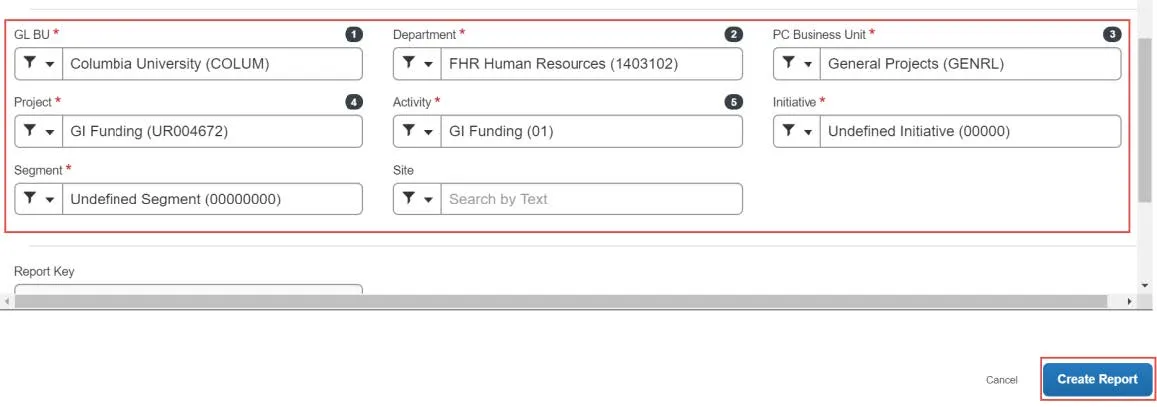
- The ChartFields default from your Concur Profile. You can edit them for this Report, if necessary. Note: The ChartFields displayed below are for example purposes only. Please ensure that your ChartFields are relevant and correct for your Expense Report.
- Click Create Report. You can then add Expense Items to the Travel Expense Report.
Adding Corporate Card or Columbia Air/Rail Central Pay Transactions
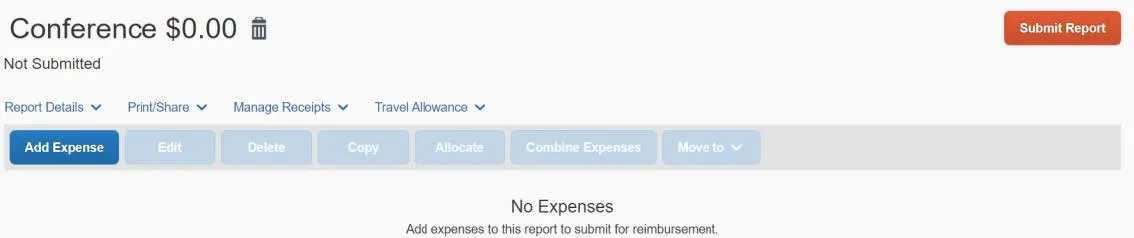
- Click Add Expense to add a new Expense to your Report. The Add Expense window appears with your Corporate Card or Columbia Air/Rail Central Pay transactions under Available Expenses.
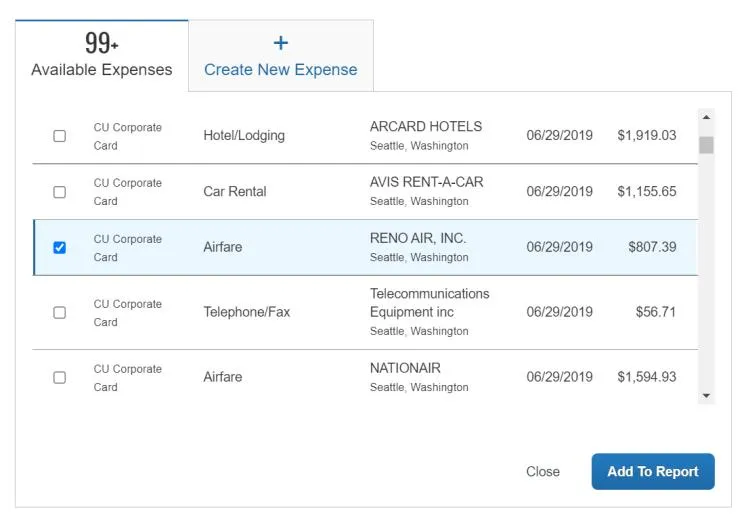
- Select the checkbox for the transaction you are adding and click Add to Report. The Expense Item is then listed on the Expense Report.
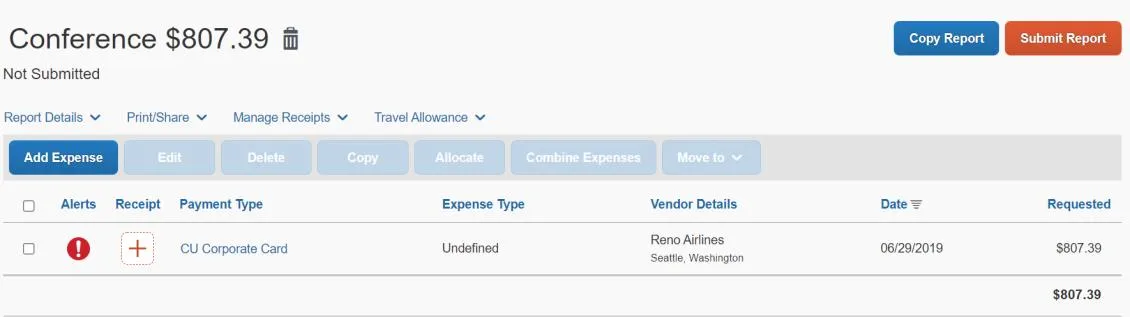
- Click the Expense Item row to edit and complete the transaction details. The Expense Item screen appears.
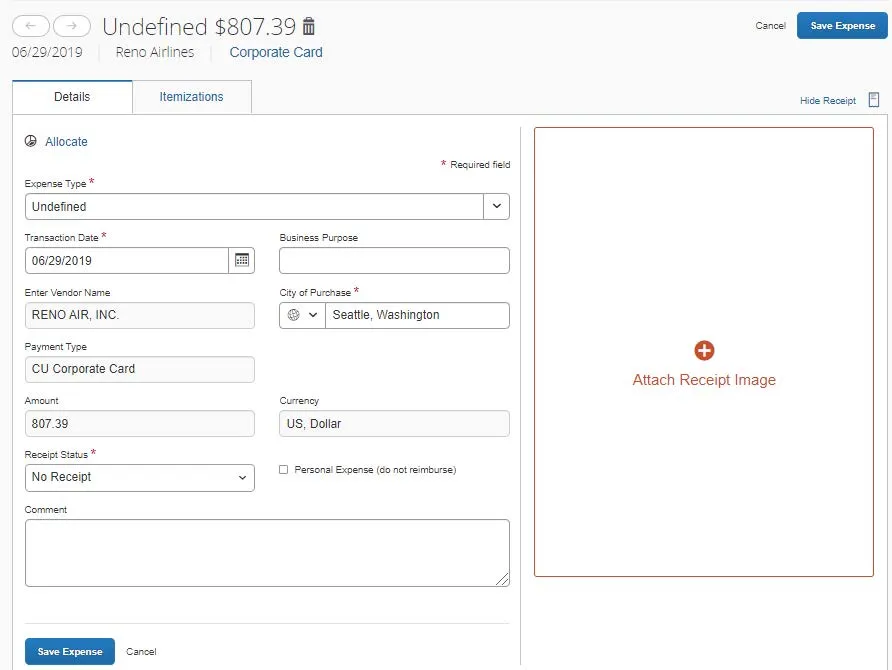
- Complete all the required fields and, if necessary, attach any required receipts or documentation.
- Click Save and Add Another to save and add another Expense Item to your Expense Report or Save Expense to save and return to your Expenses Report list.
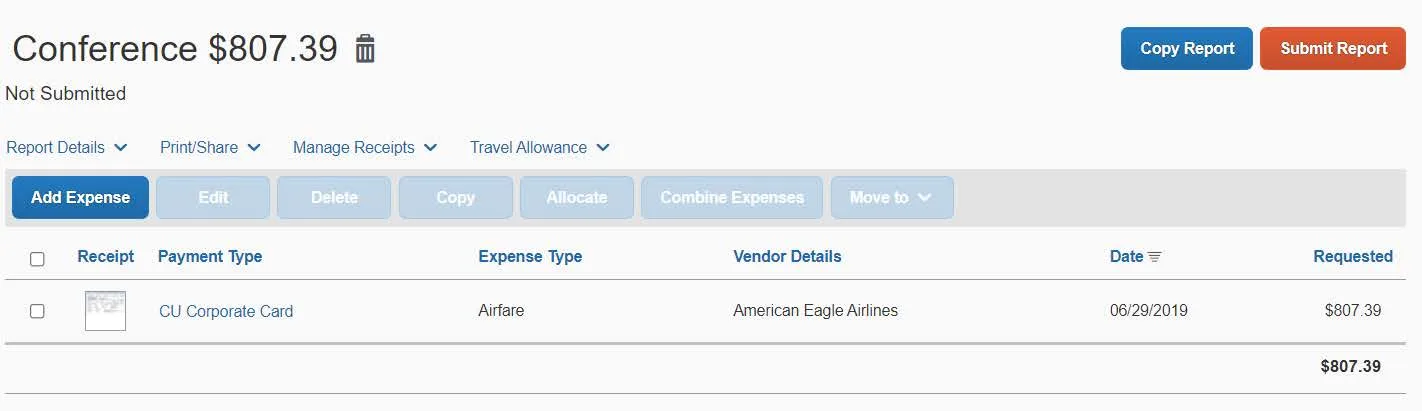
- After adding all the Expense Items to your Expense Report, click Submit Report. The User Electronic Agreement appears.
- Click Accept & Continue on the User Electronic Agreement and then Submit.
Note: Depending on your browser view (zoom), after clicking Submit, you may need to scroll down to the User Electronic Agreement text to activate the Accept & Continue button.
If desired, you can zoom out on most browsers by pressing Ctrl – (Control key and the minus sign) on your keyboard in order to read the User Electronic Agreement text without scrolling and keep the Accept & Continue button active.
If the guest incurred expenses on their trip that require reimbursement, you should create a CU Non-Profiled Payee Expense Report on their behalf. This Expense Report should only be for expense items where the guest is to be reimbursed. Any expenses that you paid on behalf of the guest using a Corporate Card or Columbia Air/Rail Central Pay should be submitted on a separate Travel Expense Report under your profile.
You should check ARC to validate that the guest has an active vendor profile and take note of the vendor ID and vendor classification (Employee, Outside Party or Student). You will not be able to reimburse non-profiled payees without an active ARC vendor profile. Employees and Students are set up automatically with vendor IDs with the prefix ‘CNR’. You must use the ARC vendor maintenance process to setup an ARC vendor profile for Outside Party vendors.
- Fill out or ask the non-profiled payee to fill out the Non-Profiled Payee Travel and Business Expense Worksheet. The worksheet can be sent electronically as an attachment or can be provided as a printed PDF to you for processing along with supporting documentation, including receipts.
- After creating a new Expense Report in Concur, click the Type of Report dropdown and select CU Non-Profiled Payee.
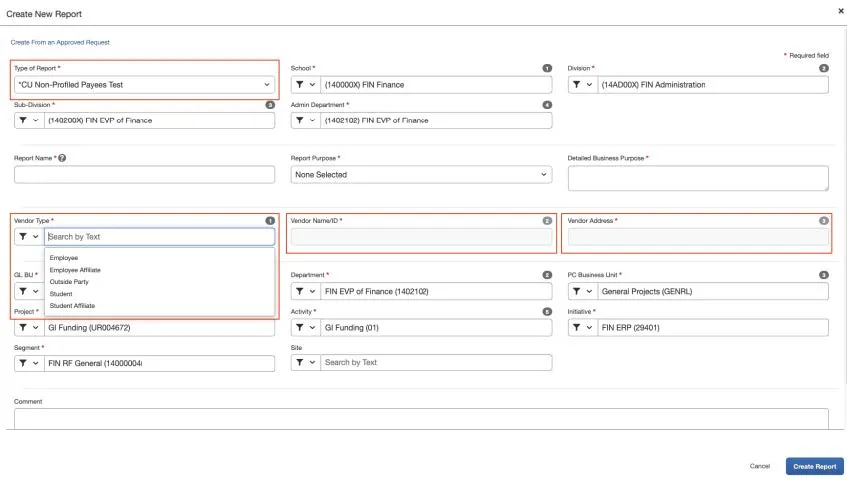
- Select the Vendor Type (Employee, Employee Affiliate, Outside Party, Student, or Student Affiliate).
- Search and select the matching Vendor Name / ID.
- Click in the Vendor Address field to display the Vendor’s Address(es) (if paid by check) and/or ACH option (if paid by direct deposit) and select the desired match.
- Complete the remaining required fields. If necessary, edit the ChartFields.
- Click Create Report. Add the Expense Items submitted by the payee from the Non-Profiled Payee Travel and Business Expense Worksheet and Submit the Report.
Note: Individual meal thresholds apply to Non-Profiled Payee Expense Reports. However, due to system limitations the calculation includes tip and tax. The amount over threshold must be segregated. SBO approval is required when meal expenses exceed individual meal thresholds.
Note: Non-Profiled Payee Expense Reports are subject to per night hotel thresholds. However, Concur combines totals for the same night across multiple Non-Profiled Payee expenses processed by the same Travel Arranger.
For example, a Travel Arranger submits a Non-Profiled Payee Expense Report for four different individuals, each with a hotel stay on the same night at a rate of $225:
- First report will not require Payee Justification because the combined nightly cost ($225) is less than the established threshold
- Second report will require Payee Justification because the combined nightly cost ($450) exceeds the first established threshold ($350 US / $400 Intl)
- Third and Fourth report will require Payee Justification and SBO approval because the combined nightly cost exceeds the maximum threshold ($525 US / $600 Intl)