Viewing Past Expense Reports in Concur
Details
When you navigate to the Expense module in Concur, the default View is for Active Reports, Expense Reports that are not yet submitted or those you submitted but are awaiting approval. However, if you need to access older reports, you can select Views for various date periods, including a date range that you can specify.
- Log into Concur.
- Navigate to Manage Expenses. The initial Manage Expenses page displays Active Reports.
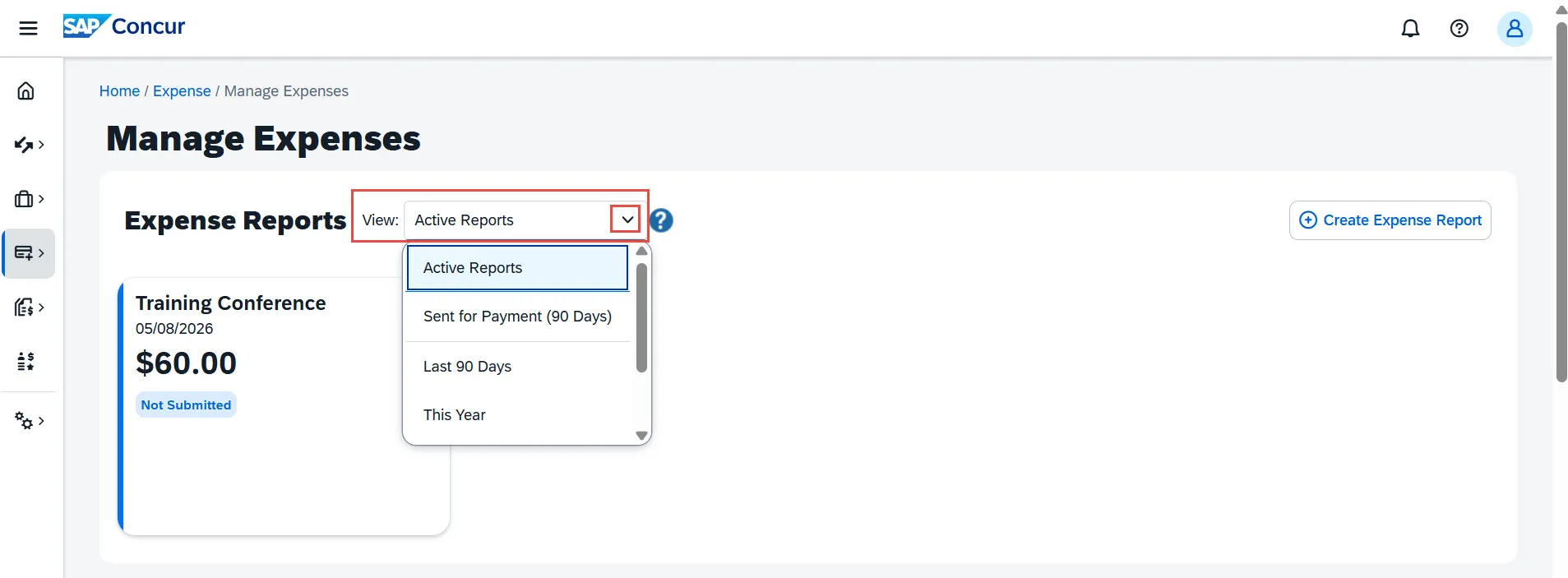
- Click the View dropdown and select the desired view. You can toggle between Sent for Payment (90 Days), those reports which have been fully approved and on its way to being paid, or one of the listed date periods.
Viewing All Reports within a Date Range
- Click the View dropdown and select Date Range.

- Enter your desired From and To dates.
Viewing Search Results
You can click a column heading to sort the list in order of that column. Click a Report row to view that specific Expense Report.

As a Concur Approver, the default view shows the Expense Reports pending your approval. To view the Expense Reports that you have approved in the past:
- Log into Concur.
- Navigate to Approvals and Reports. Your Approvals queue appears.
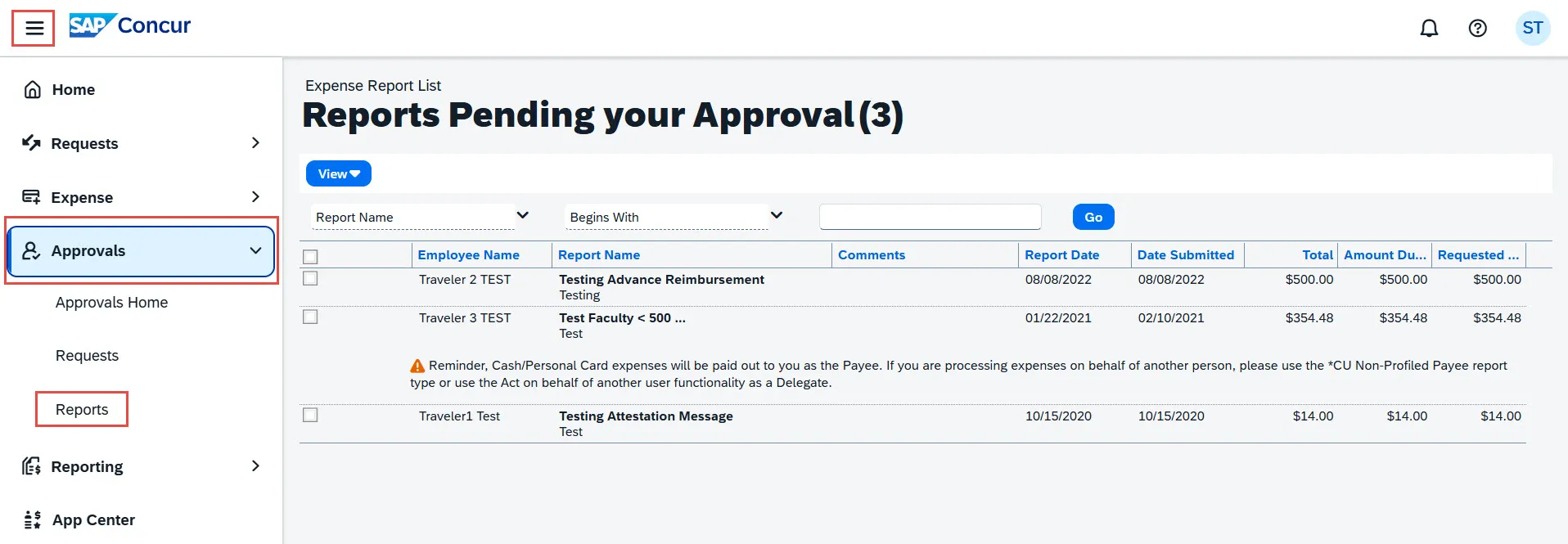
- Click the Reports link. The initial view of Reports Awaiting Your Approval appears in the Expense Report List.
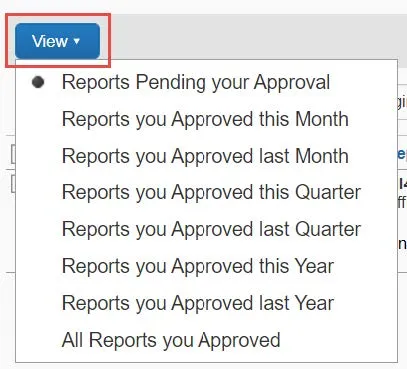
- Click the View dropdown and select the desired view.
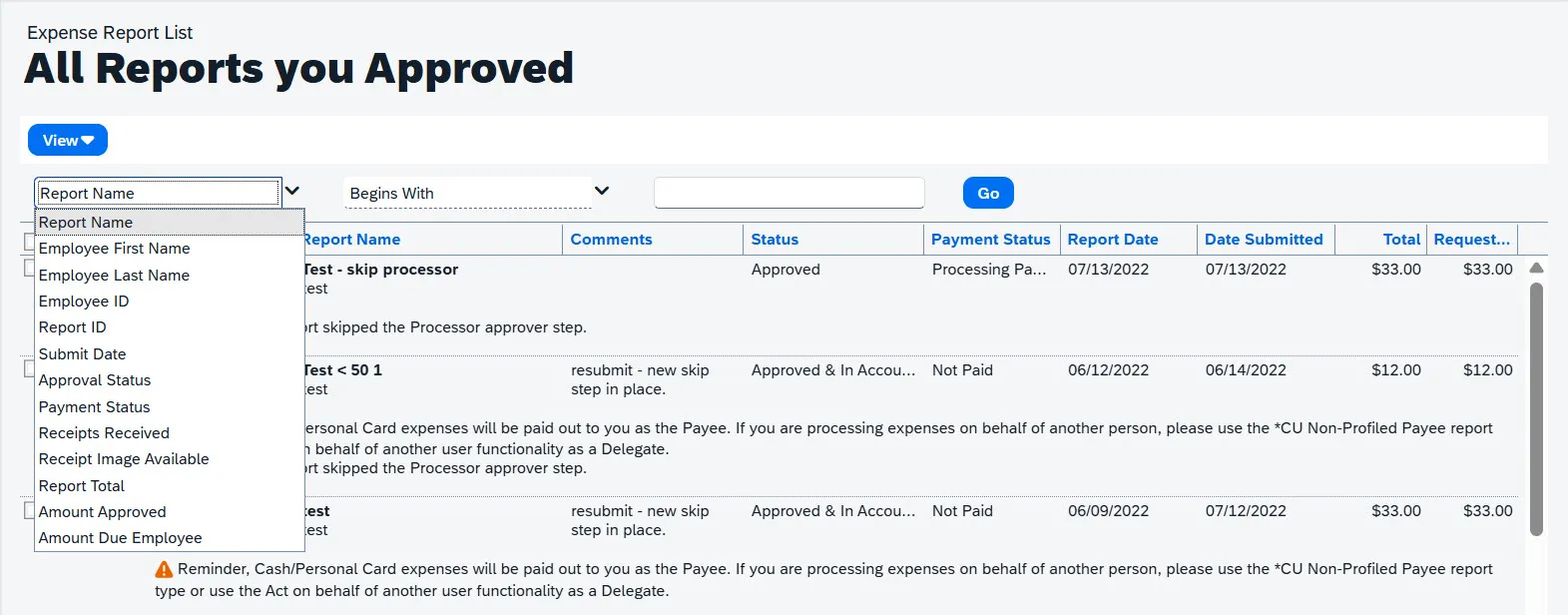
The results for the selected View appear. You can filter the list by various Report attributes.