Viewing Your Security Access in ARC
This job aid contains instructions on how to run the appropriate query to view your security access in ARC.
Last revision: December 2021
Once you have been mapped to an ARC security role(s) and completed the corresponding required training, you will be able to view your security access in ARC. This job aid will teach you how to run the appropriate query to view your security access in ARC.
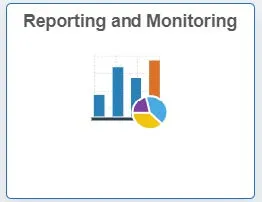
- After logging into ARC, click the Reporting and Monitoring tile.
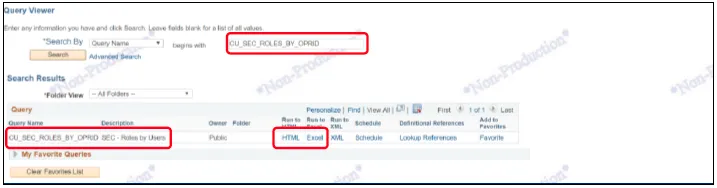
- In the search box, enter the query name “CU_SEC_ROLES_BY_OPRID” and click “Search”. Once the query appears, click either “HTML” to view on the screen or “Excel” to export directly to excel.
Note: Pop-up blocker needs to be turned-off.
- Enter your UNI in the “User” search box.

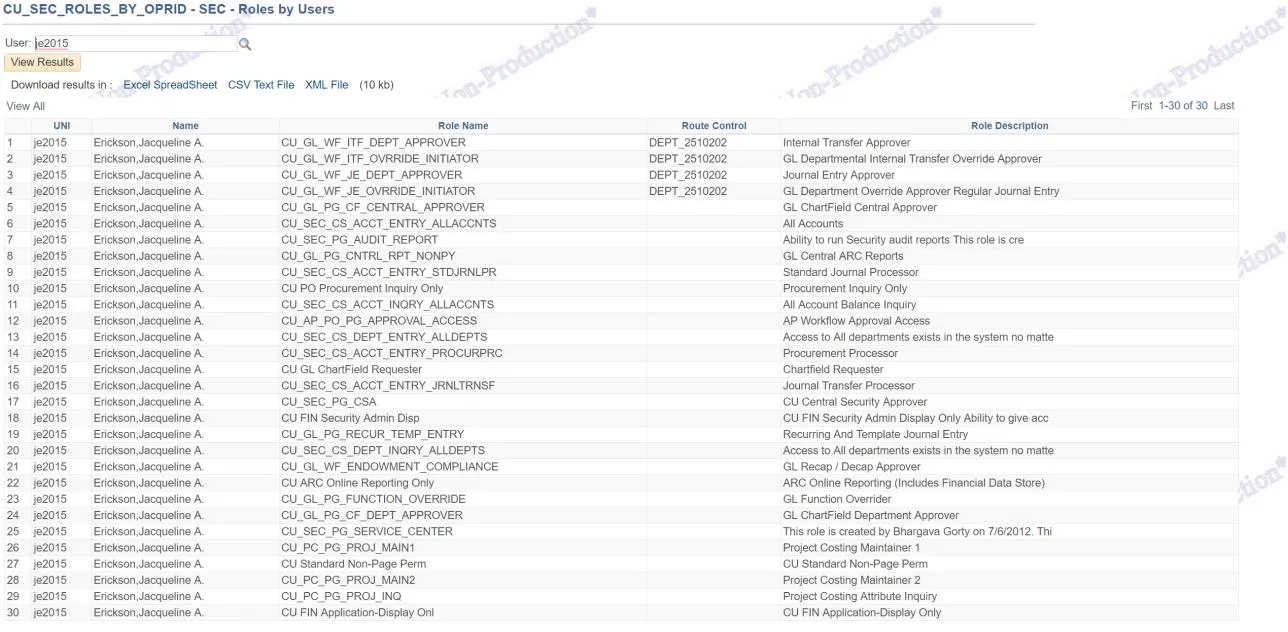
- The query will return all roles the user has been granted in ARC and, where applicable, the departments (route controls) for approval. For further information about security and security roles, please review the Finance Security Handbook.