Completing Capital Asset Requisition Requirements
This Job Guide Aid how to complete fields required for Capital Asset Items when checking out a Requisition.
Last Revision: April 2026
Capital Asset Item Category Codes and Account Numbers
When adding the items that are equal or greater than $5,000 with the following Category Codes, you must edit the Item Details on your Requisition with the appropriate Account, as listed in the table below, and update other Line.
Entering the Goods and Services Request Form Item Description
If you are purchasing a Capital Asset on a Non-Catalog Requisition utilizing the Goods and Services Request Form, you must enter the Item Description using the general description of the item in under 30 characters.
If you are purchasing from a Catalog Supplier, you do not need to edit the Item Description provided by the Supplier.
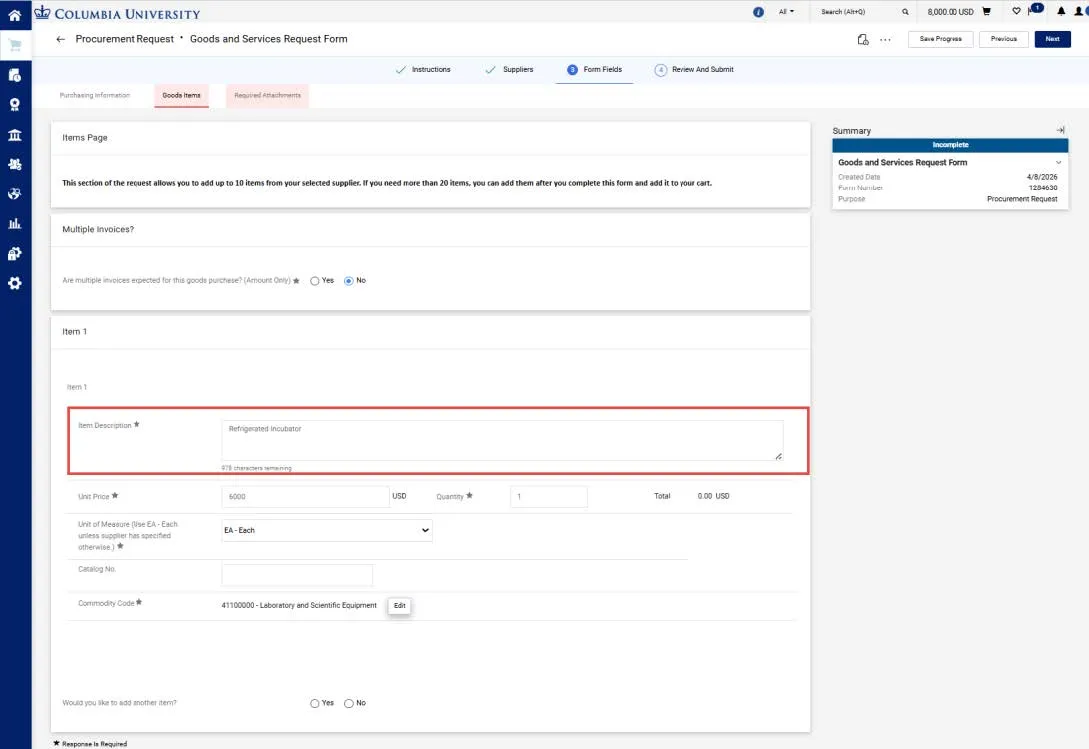
In the example above, the actual item being purchased is “Isotemp 180 Refrigerated Incubator, 178 L, Stainless Steel”. The Item Description was correctly entered as “Refrigerated Incubator”.
Editing the Non-Catalog Requisition Item Description
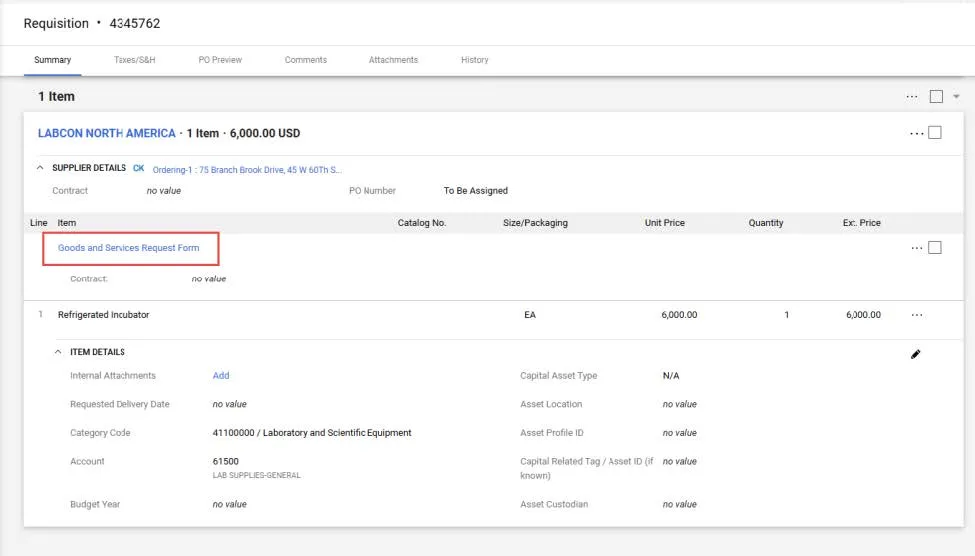
If a Requisition has been returned to you by an Approver because the Item Description was entered incorrectly, you open the returned Requisition and then return to the Goods and Services Request Form to edit the Item Description field.
1. On the Requisition page, click the Goods and Services Request Form link. The Goods and Services Request Form appears.
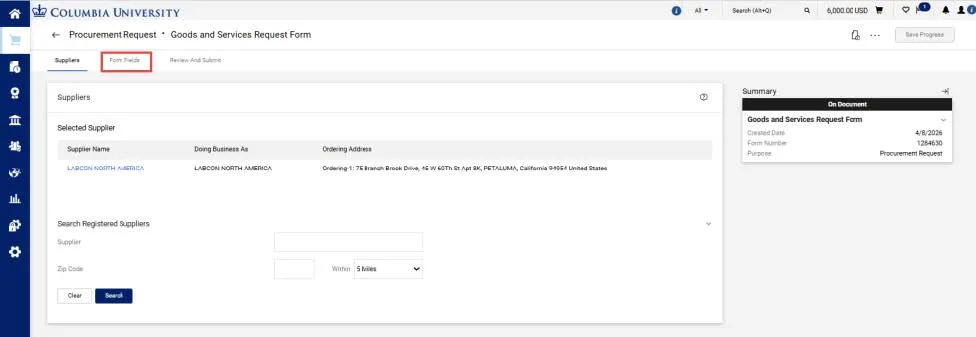
2. From the Navigation tabs, click the Form Fields tab and the select Goods Item (or Service Item) link.
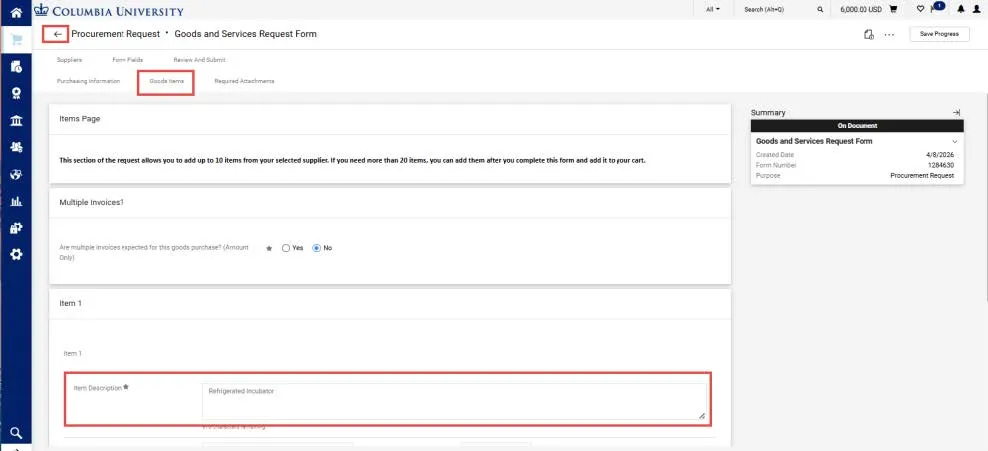
3. Make your edit in the Item Description field and click the Save Progress button to save your edit.
4. Click the Back to Requisition arrow in the upper left to return to your Requisition. DO NOT click the Add and go to Cart button on the Review and Submit page or else the items in the form will be duplicated in your requisition.
5. Resubmit your Requisition for approval.
Completing Requisition Capital Asset Line-Item Details
1. When checking out your Requisition, navigate to the Line Item Details for the Capital Asset Item.
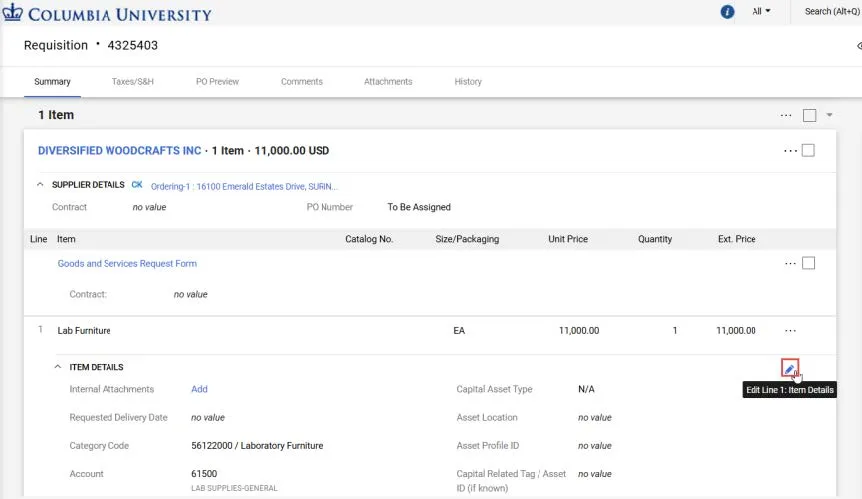
2. Click the Edit Line-Item Details icon. The Edit Line Item Details window appears.
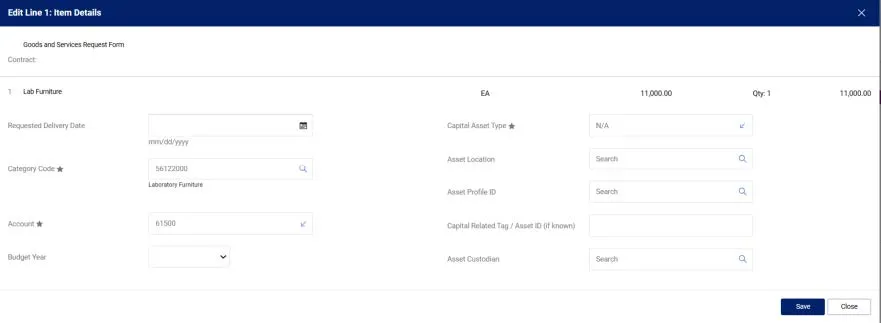
3. Enter the correct Account based on the Asset you are procuring.
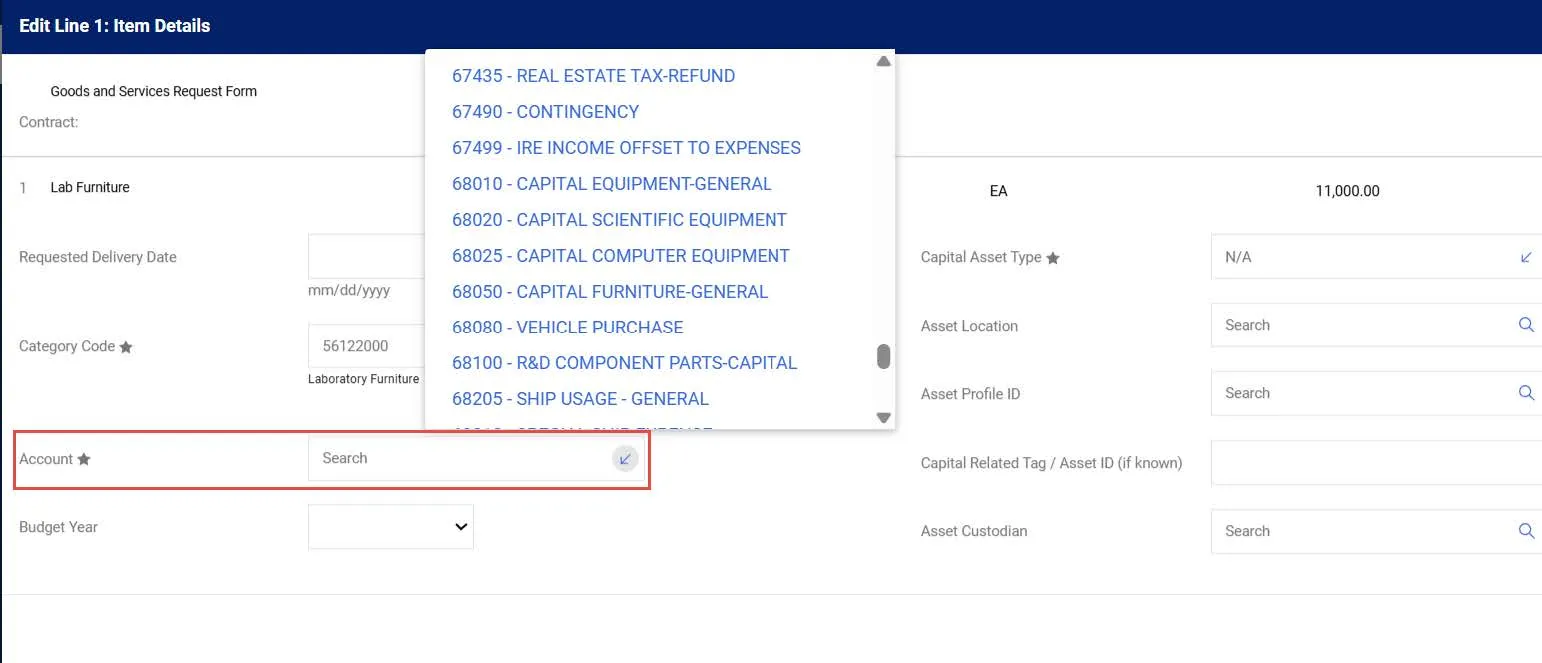
4. Select the Capital Asset Type from the dropdown.
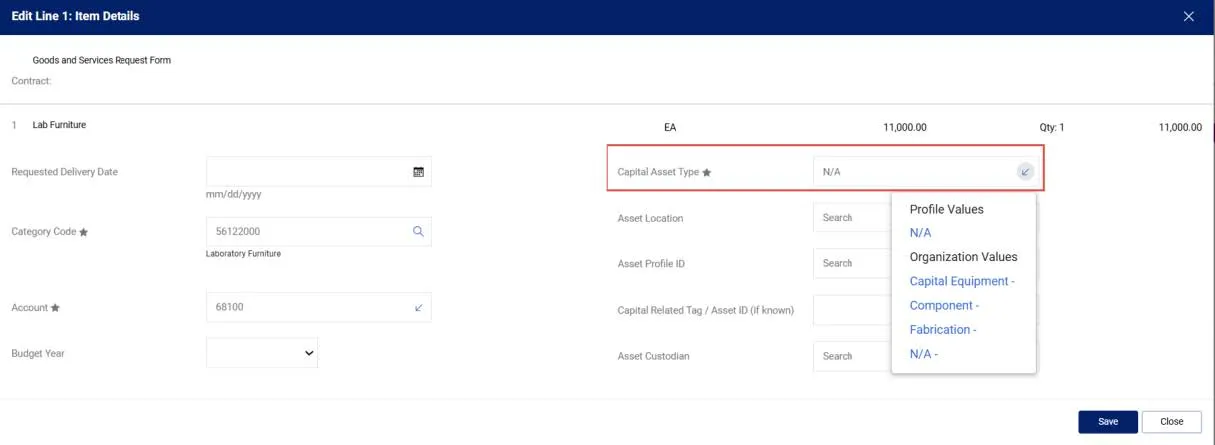
Note: If the Account is 68100, you must select Fabrication.
5. Enter the Asset Location value based on the campus address the asset will be located.
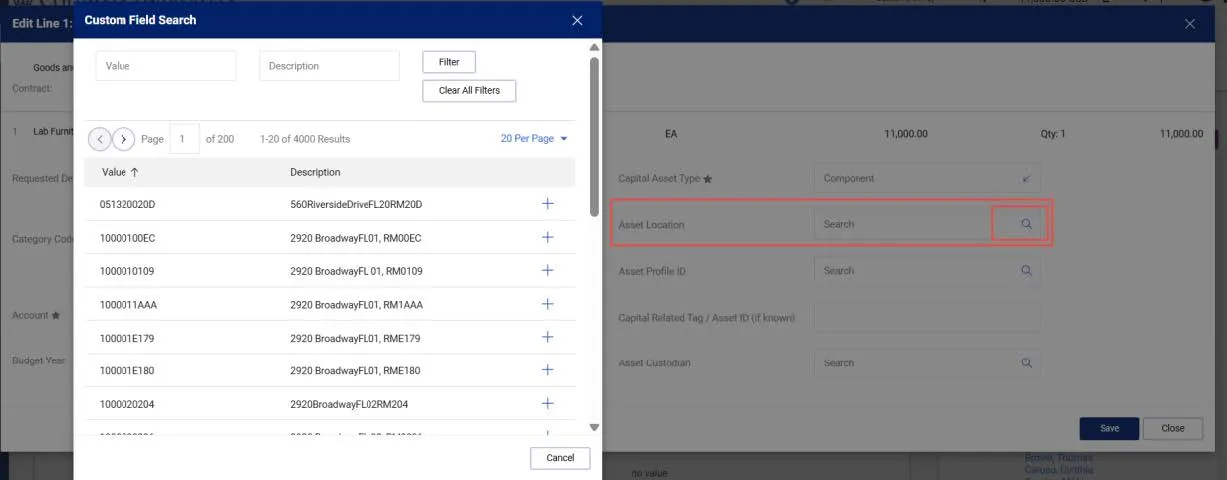
Click the Search icon to search and select available addresses.
6. Enter the Asset Profile ID that best matches the asset you are procuring. If you selected Fabrication as the Capital Asset Type, you must select an Asset Profile ID that begins with “FAB”.
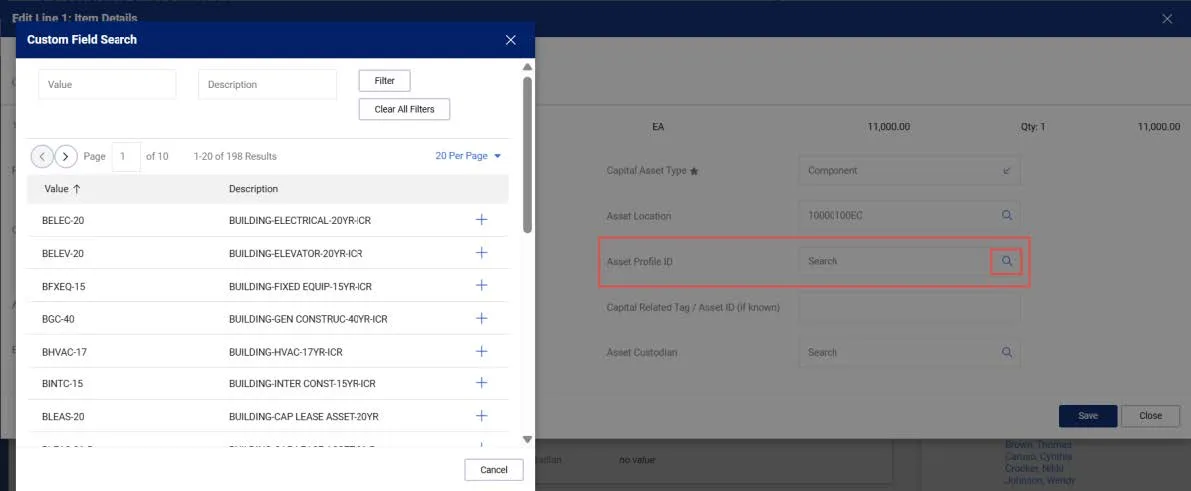
Click Search icon to search and select available Profile ID’s.
7. Enter the Capital Related Tag / Asset ID (if known).
8. If you selected Capital Equipment as the Capital Asset Type, you must enter the UNI of the of the Asset Custodian. The Asset Custodian is who will be responsible for the disposition of the equipment, usually a Principal Investigator. but could also be a lab/IT/office/practice/facilities/business manager.
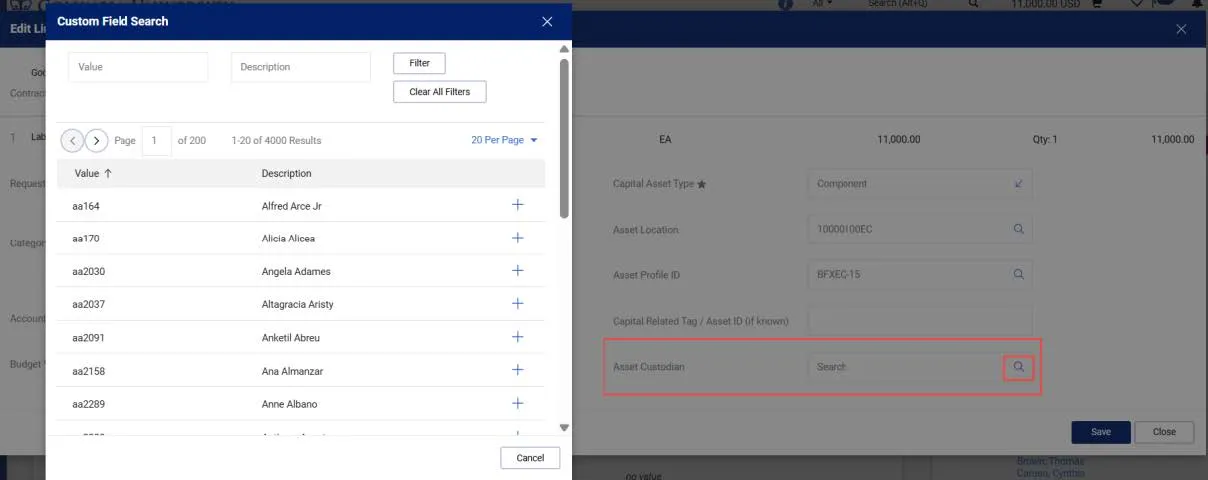
Click the Searchicon to search and select available names and UNI’s.
9. Click the Save button. Complete any outstanding required Requisition fields and place your order.