Concur Approval Workflow
This Job Aid illustrates the Concur Approval Workflow for Expense Reports, Travel/Cash Advance Requests, and PreTrip Requests.
Last Revision: March 2022
Details

- Expense Reports for profiled Payees (employees and students who have a Concur profile) will route to a Supervisor (if available) or Initial Reviewer, regardless of the Expense Report dollar amount, the Payee (faculty, staff, student), or where expenses are being charged, followed by the Financial Approver.
- Expense Reports for non-profiled payees (employees, students or guests who do not have a Concur profile) will route to an Initial Reviewer (not Supervisor) if the expenses are being charged to a Sponsored Project (when PC Business Unit is SPONS). If expenses are not being charged to a Sponsored Project, workflow will skip the Initial Reviewer and route directly to the Financial Approver.
- Senior Business Officer and Special Audit routing steps will only be inserted by the system for specific policy exceptions. Special Audit represents approval from central offices. Refer to the Concur Expense Policy Exception Approval Workflow Requirements job aid for additional detail.
- Accounts Payable represents the Audit & Review staff which is the final approval stage.
> Ad Hoc Approvers - Inserted manually into workflow by Approvers where additional review is necessary. Refer to the Adding an Ad-Hoc Approver into the Concur Approval Workflow job aid.
*Approvers have the ability to assign Approver Delegates in their Concur profile who can approve on their behalf (only individuals who already have an Approval role in Concur can be assigned as Approver Delegates). Preview Delegates can be assigned by approvers with the ability to review / validate (with no approval authority). Refer to the Managing Delegates job aid.
Note: Expense Reports for Senior Leaders (e.g. Senior Business Officers and select Executives) route to specific Executive Expense Approvers for final approval. A workflow step will be inserted after the SBO / Special Audit approver step. Executive Expense Approvers are assigned to individuals; routing is not based on dollar amount and ChartField distribution.
How Departmental and ChartField Values Drive Workflow
- The School, Division, Sub-Division and Admin Department at the top of the Expense Report Header default from the Payee’s Profile, which in most cases, is pre-populated from PAC. These values represent organizational alignment but can be edited in the Expense Report, if needed. The Admin Department can be updated and will drive approval workflow routing to the Initial Reviewer for profiled payees, but only if there is no supervisor assigned. The Division will drive workflow routing to Senior Business Officers, when applicable. Please reference to the Concur Tip: How do I update my Admin Department in my Profile or Expense Report?
- The GL BU (1), Department (2), PC Business Unit (3), Project (4), and Activity (5) ChartFields on the Expense Report Header are also defaulted from the Payee’s Profile but can be edited in the Expense Report, if needed. The Department drives workflow routing to the Financial Approver. These values are a connected list and need to be entered in sequential order. In order to select a Chartstring, it must be budget valid. The ChartFields in Expense Reports can be modified by the Financial Approver, if needed.

- Travel / Cash Advances start in Concur Request using the same functionality as pre-trip request
- Workflow for Travel / Cash Advance Requests will mirror the Expense Report workflow as illustrated above
- Expense Reports with approved Requests, including those with Travel /Cash Advances, will allow the report to skip the Supervisor / Initial Reviewer approval step and route to the Financial Approver.
> Ad Hoc Approvers - Inserted manually into workflow by Approvers where additional review is necessary. Refer to the Adding an Ad-Hoc Approver into the Concur Approval Workflow job aid.
*Approvers have the ability to assign Approver Delegates in their Concur profile who can approve on their behalf (only individuals who already have an Approval role in Concur can be assigned as Approver Delegates). Preview Delegates can be assigned by approvers with the ability to review / validate (with no approval authority). Refer to the Managing Delegates job aid.
Note: Expense Reports for Senior Leaders (e.g. Senior Business Officers and select Executives) route to specific Executive Expense Approvers for final approval. A workflow step will be inserted after the SBO / Special Audit approver step. Executive Expense Approvers are assigned to individuals; routing is not based on dollar amount and ChartField distribution.
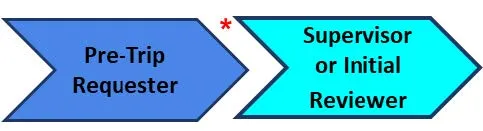
- Anyone that is required to obtain pre-trip approval (Request within Concur) will not be able to submit an Expense Report without pre-trip approval attached
- The Pre-Trip Requester completes a Request in Concur with an estimated travel budget by Air / Rail, Hotel, Car, Meals, etc.
- If the Requester does not have a Supervisor within Concur, the Requester must select an Initial Reviewer assigned to the administrative department
- The Supervisor / Initial Reviewer will be responsible for validating the purpose and budget of the trip request
- The Initial Reviewer may need to contact Faculty or other Administrators for additional information about the trip
- Expense Reports with pre-trip approval will skip the Supervisor / Initial Reviewer approval step and route directly to the Financial Approver
*Approvers have the ability to assign Approver Delegates in their Concur profile who can approve on their behalf. Preview Delegates can be assigned by approvers with the ability to review / validate (with no approval authority).
If you do not have a Supervisor in Concur, you may need to select an Initial Reviewer from your Department for initial approval routing.
- After you complete your Expense Report, click the Submit button, then click Accept & Continue and Submit Report on the proceeding windows. If you requires an Initial Reviewer, the Edit Approval Flow window appears.
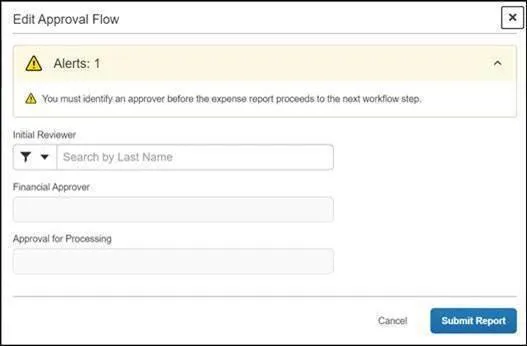
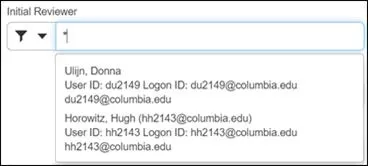
- Enter an asterisk “*” in the Initial Reviewer field. The names of all the available Initial Reviewers for your Department appear.
- Select an Initial Reviewer from the list.
- Click Submit Report.
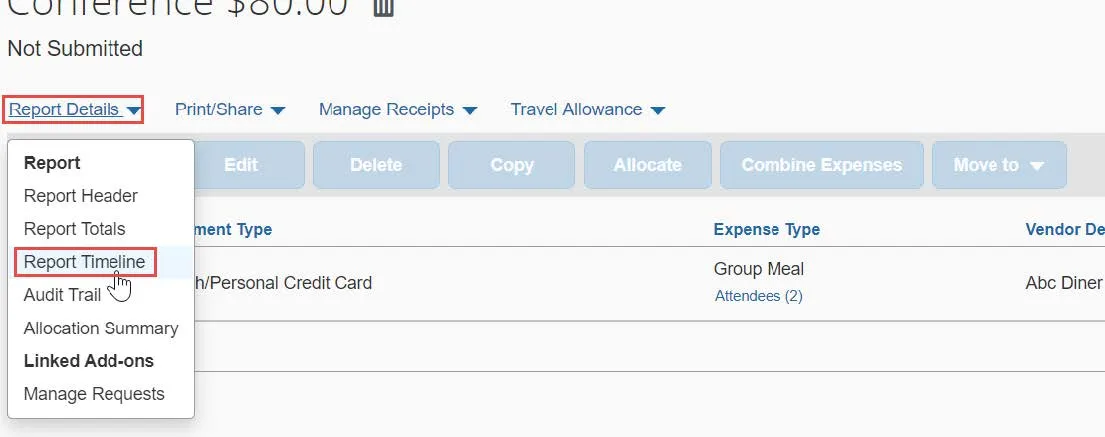
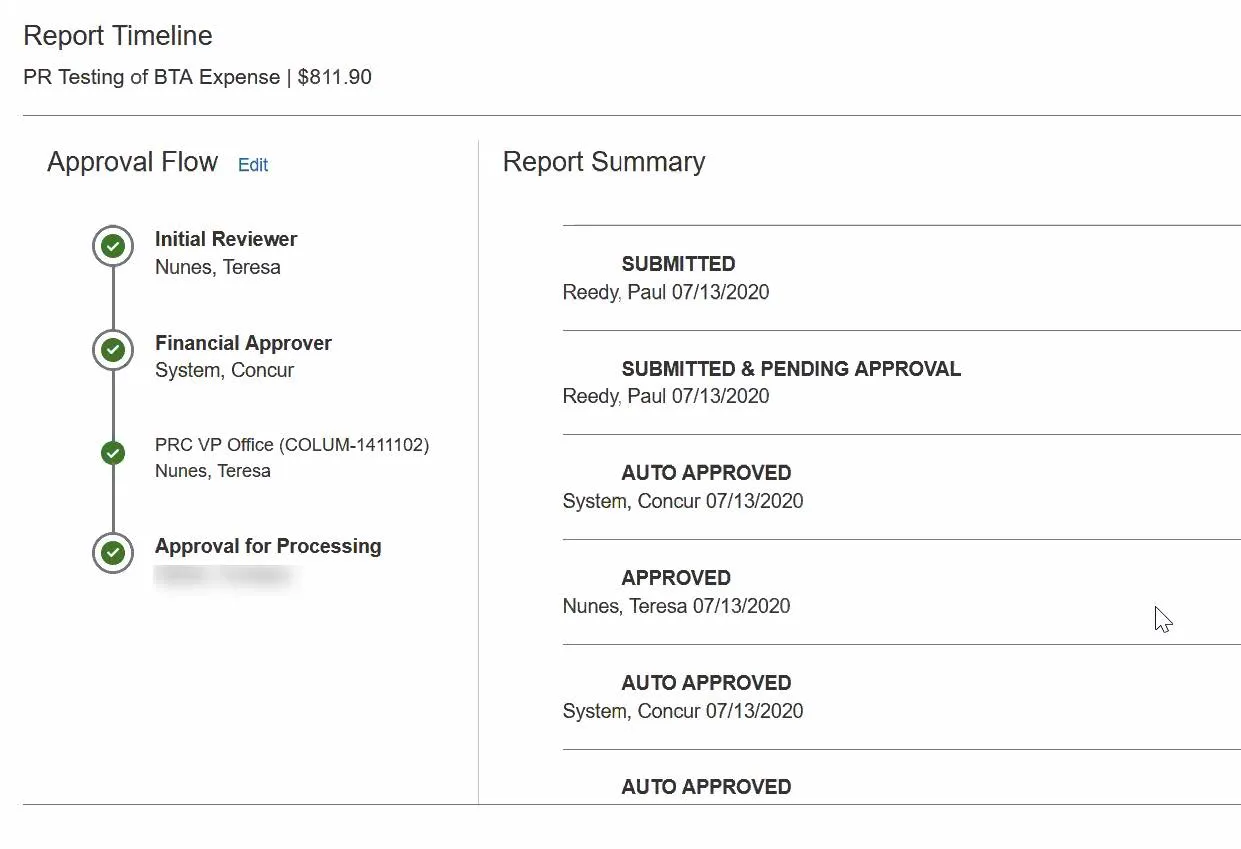
After you create and save your Expense Report, you are able to view the Report Timeline to see the name of your Supervisor/Initial Reviewer. After you submit your Expense Report, you can also view the Report Timeline to check the approval status of the report.
- Open the Expense Report in Concur.
- Click the Report Details dropdown and select Report Timeline. The Report Timeline window displays the Approval Flow with status, including names and the Report Summary displaying workflow activities.
ARC users can run a CU_SEC_CNR_RTE_CNTRL_BY_DEPT query to determine which individuals have the Reporting Manager, Initial Reviewer, Financial Approver or SBO role in ARC. The query results display the following:
- Anyone at the University who has been assigned an approver role and what their training status is. The Training Status column reflects either a “C” for Complete, or an “R” for Required (meaning the individual has not yet completed their Concur Approver Training). Note: No training is required for the Reporting Manager role, so the Training Status field does not apply to this role.
- A separate line for each role that an individual has been assigned and for which Department Tree level: Level 5 Division node (SBO), Level 6 Sub-Division (Reporting Manager) or Level 8 Department node (Initial Reviewer and Financial Approver). One individual may have multiple lines with a separate line for each role.
Note: Supervisors are not included because Supervisors are associated with an individual, not a specific department.
- In ARC, navigate to Main > Reporting Tools >Query > Query Viewer.
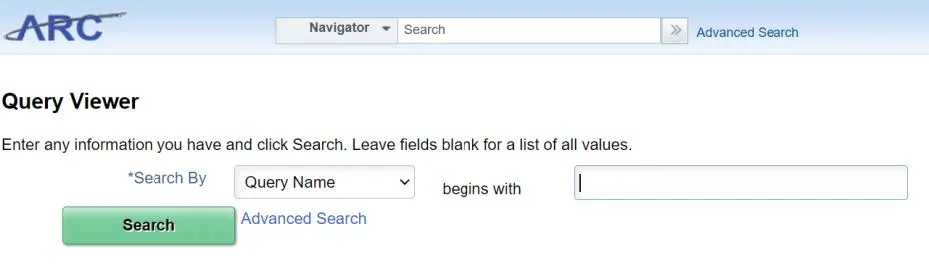
- Enter CU_SEC_CNR_RTE_CNTRL_BY_DEPT in the begins with field and click Search. The Query search result appears.

- Select the link for the desired Run to method (HTML, Excel, or XML). The Enter Values screen appear.
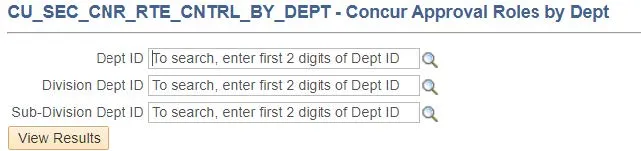
- Enter Dept ID, Division Dept ID, and Sub-Division Dept ID.You can search using the first two digits of the Dept ID to narrow by Department.
Note: There is no validation between the Dept, Division and Sub-Division search fields. If you enter a Dept ID for a different Department then the query results for that level will display on the report.
- Click View Results.