Concur Approvers Quick Guide
This Quick Guide details how Concur Approvers review and approve Expense Reports in Concur. For details on the Concur approval workflow, refer to the Concur Approval Workflow job aid. For a summary of the Concur expense policy exception approval requirements, refer to the Concur Expense Policy Exception Approval Workflow Requirements job aid.
Last Revision: August 2022
Approving Expense Reports in Concur
Navigate to the Travel and Expense website, Log into Concur. Click the Home dropdown and select Approvals. The Approvals screen appears.
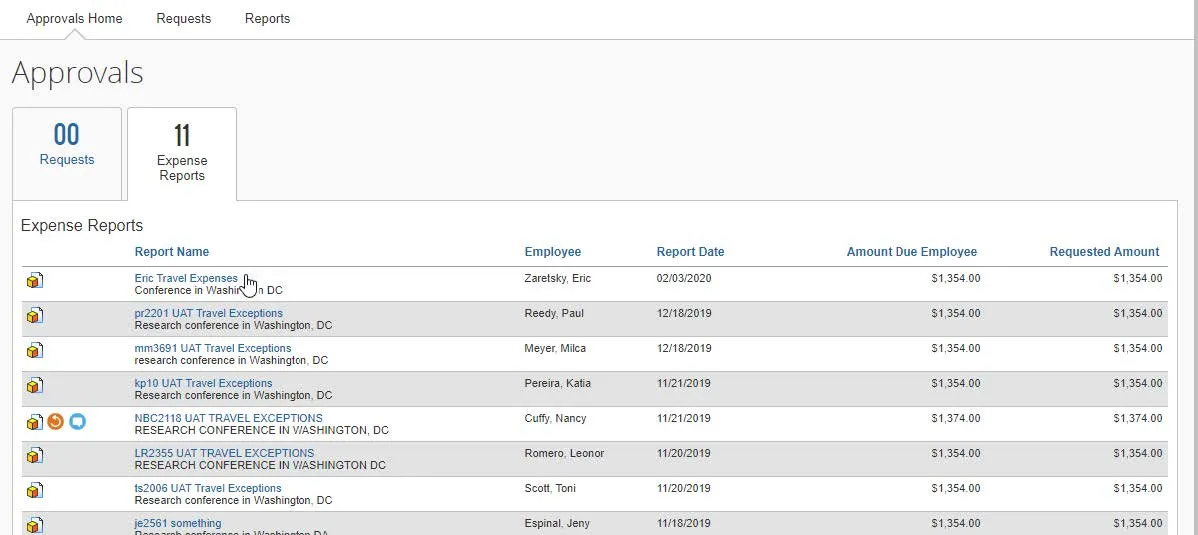
Select the link for the Report you want to review. The Report screen appears.
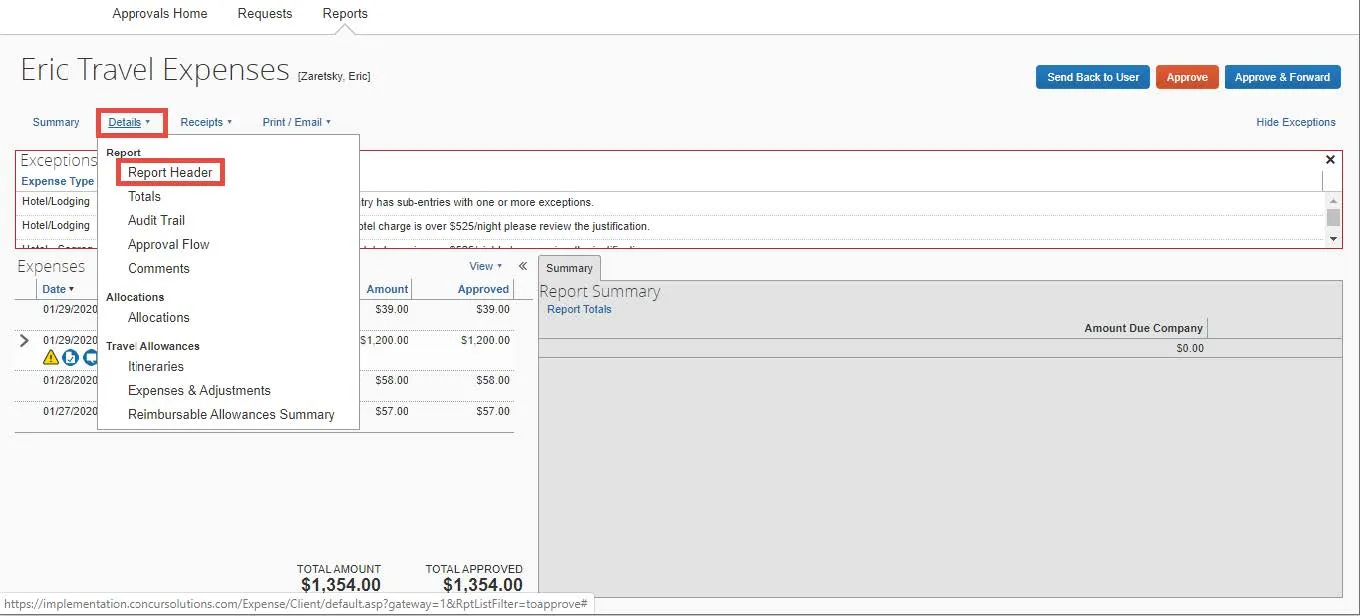
Click the Details dropdown and select Report Header. The Report Header window appears.
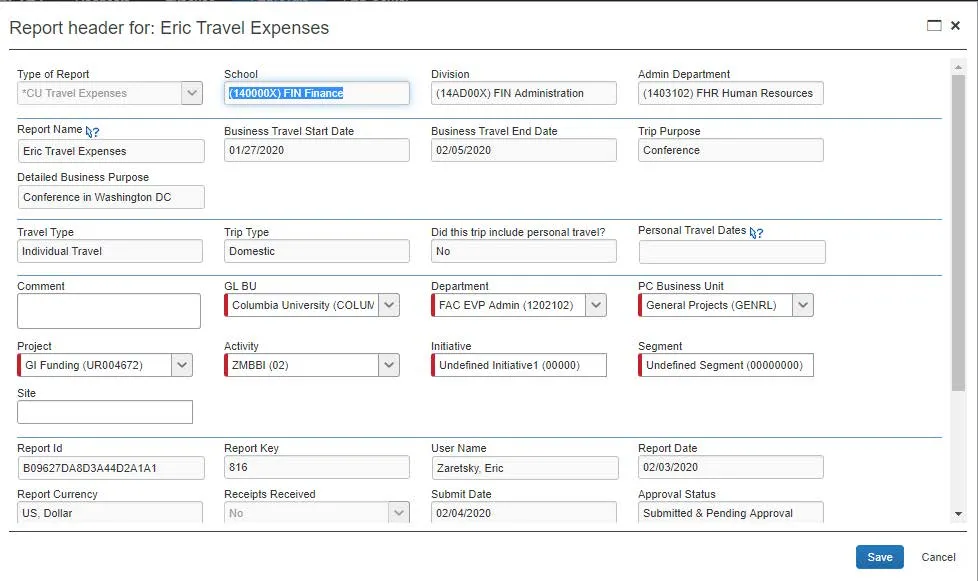
The Header contains basic Report information. It displays School/Department information and the default ChartString, which you can edit, if necessary. You can update the ChartStrings for individual expense lines by clicking the Details dropdown and selecting Allocations. If the Report is for travel, the header displays the travel type, the purpose, and dates.
Click Cancel or, if you made changes, click Save to continue reviewing Expense Items.
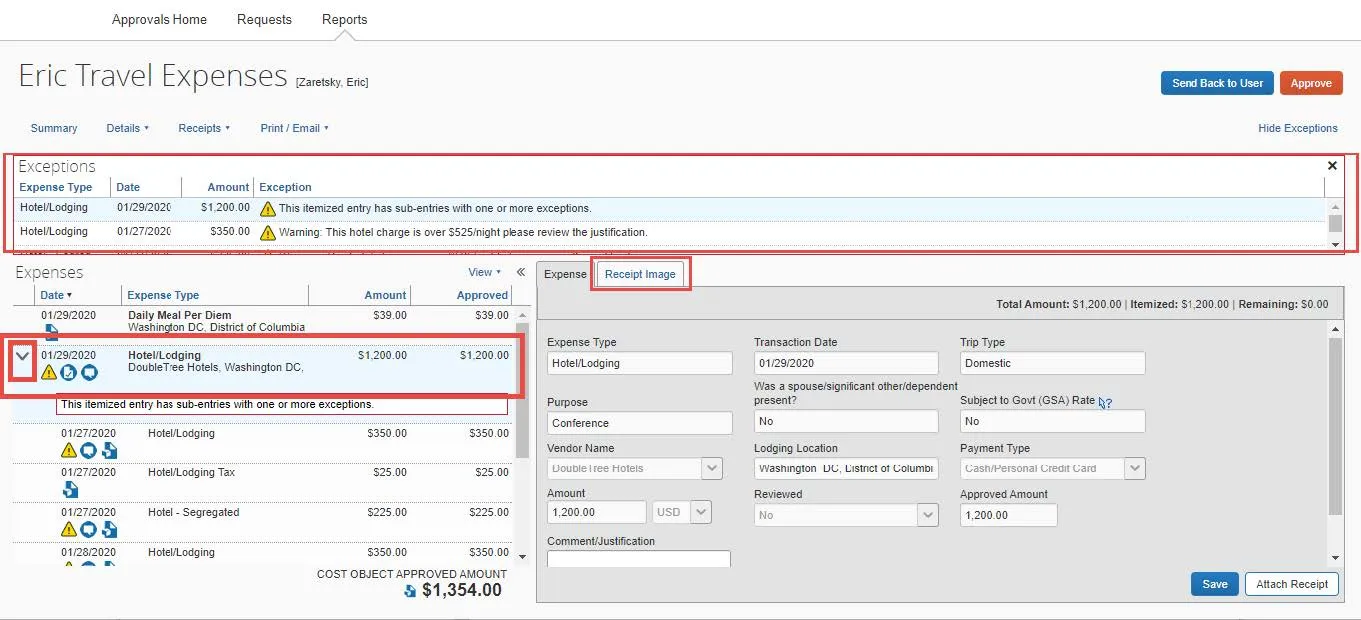
Review all Expense Item lines to ensure compliance with University and School/Department policies. If the Expense Item contains itemizations, click the Expand icon to expand and view. Click the Expense Item or Expense Itemization to view the Expense Details. For Expense Items requiring Receipts or other documentation, click the Receipt Image tab to view.
Notice the list of Exception Warnings at the top of the report. You can click an Exception Warning to view the Expense Item with the exception. Or, you can view the Expense Items list to see if they contain any exceptions. In the Expense Details, ensure that the Payee has provided the proper Comment/Justification and/or documentation to satisfy the approval requirements for the exception. Refer to this Concur Tip on how Approvers can view comments in Expense Reports. Refer to the Concur Expense Policy Exception Approval Workflow Requirements job aid for more information regarding policy exception approval requirements and workflow. Note: If you have the role of Financial Approver or Senior Business Officer, you may add a Comment/Justification to acknowledge the exception. For itemized expenses, enter the comment at the parent level.
Click Approve if you find no issues or problems with the Report. If you find any issues the Payee must address, click Send Back to User and enter a required Comment to explain why you are returning the Report.
- For more information on how to view the approval status of an Expense Report that you approved, refer to this Concur Tip.
- To learn how to view previous Expense Reports that you approved, refer to the Viewing Past Concur Expense Reports job aid.