Creating an Expense Report Using the Concur Mobile App
This job aid covers the steps for capturing a receipt, creating an Expense Item from the receipt, and adding the Expense to an Expense Report using the Concur mobile app. To install the Concur mobile app, refer to the Setting Up and Installing Concur Mobile, TripIt, and ISOS Apps job aid.
Note: The Concur mobile App is intended for the Payee only and does not support Delegation. Delegates must use the Concur desktop application.
Last Revision: November 2022
Details
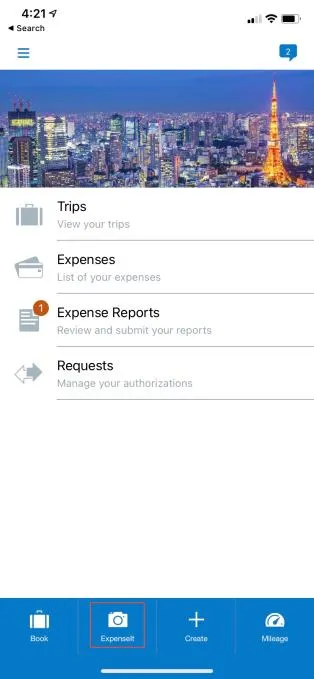
Open the SAP Concur app on your phone. Tap ExpenseIt at the bottom of the screen.
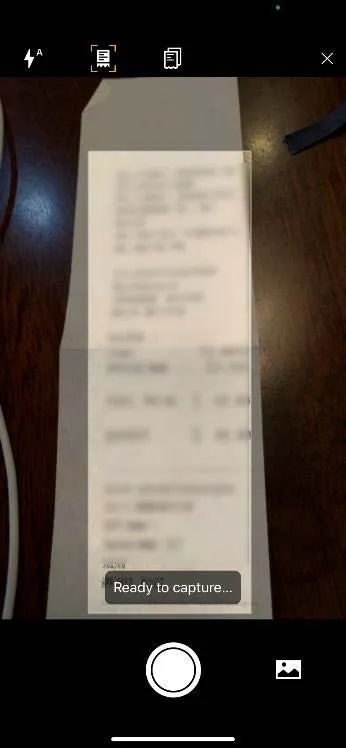
Frame your receipt on the screen and tap the Capture button. Concur scans the receipt and amount.
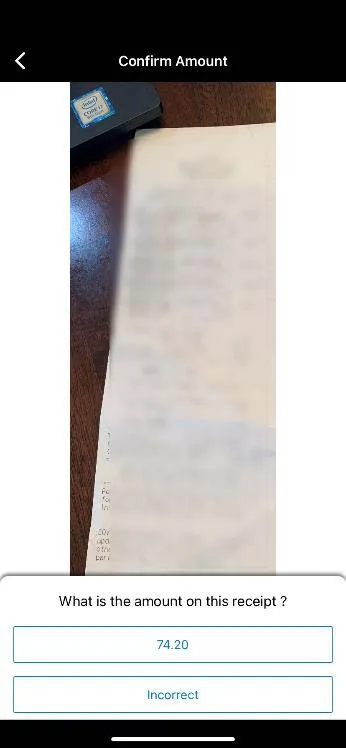
Tap the amount indicated if correct or tap Incorrect to manually enter the correct amount.
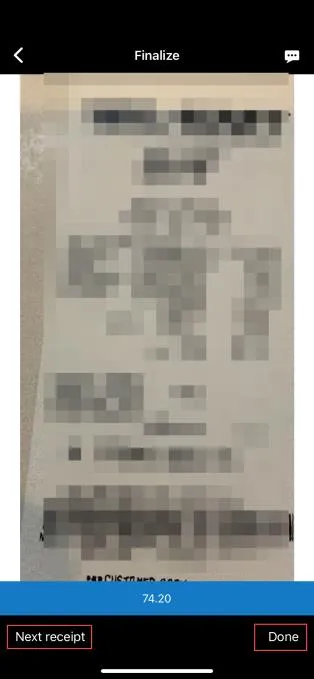
Tap Next Receipt if you have more receipts to capture, or Done.
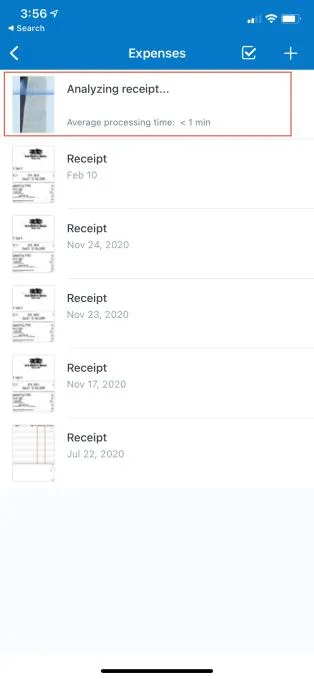
Concur will analyze the receipt for relevant expense information. This may take a few minutes.
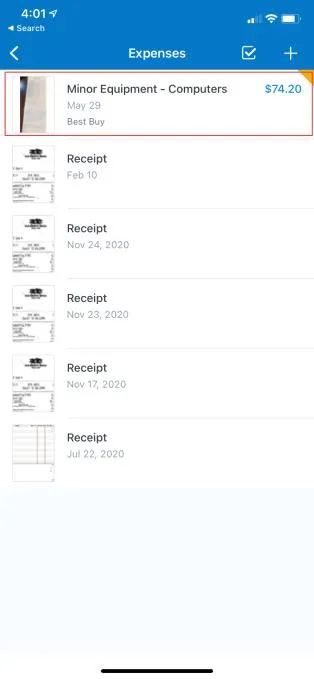
The receipt is now available as an Expense item. Tap it to open and correct or update. You can also open it in the Concur desktop application.
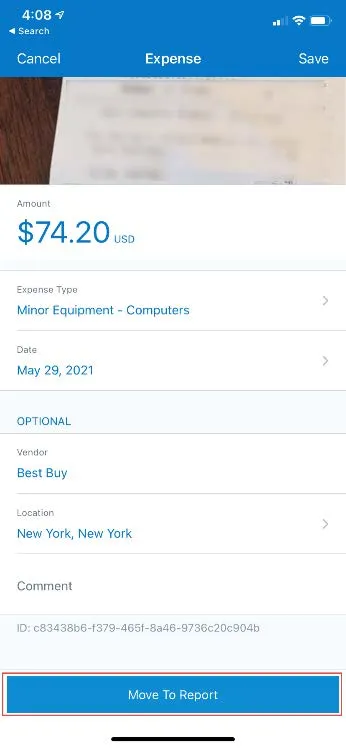
Check to see if the Amount and Location fields have been correctly populated. Make any corrections, if needed, and enter any other required information. Tap Cancel, Save or Move To Report.
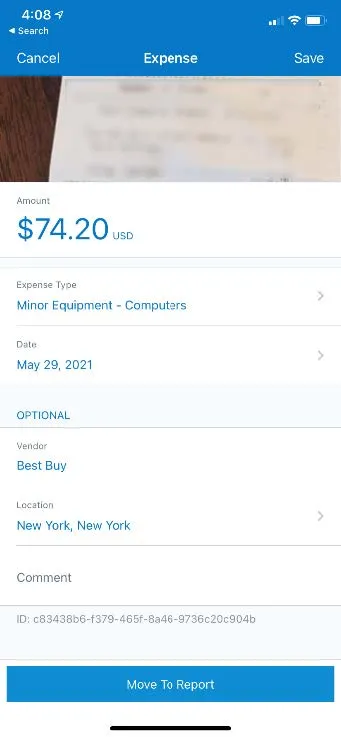
Open the Expense and tap Move to Report.
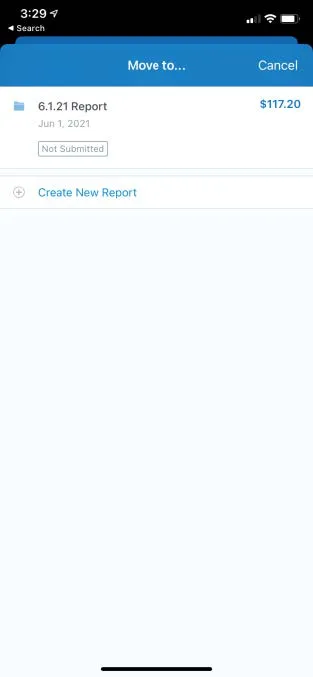
You can either Move to an existing Not Submitted Report or Create New Report.
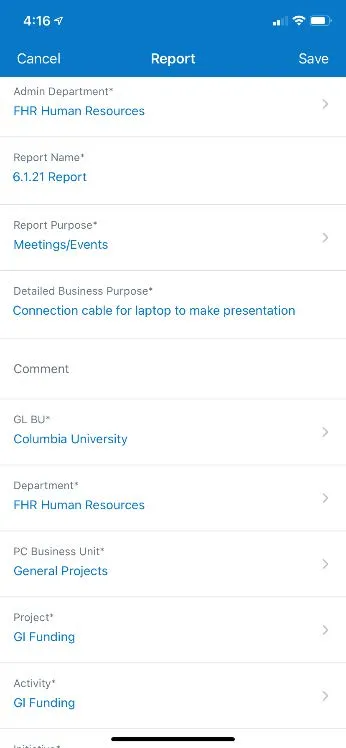
If you selected to add the Expense to a New Report, complete the required Report Details and Save.
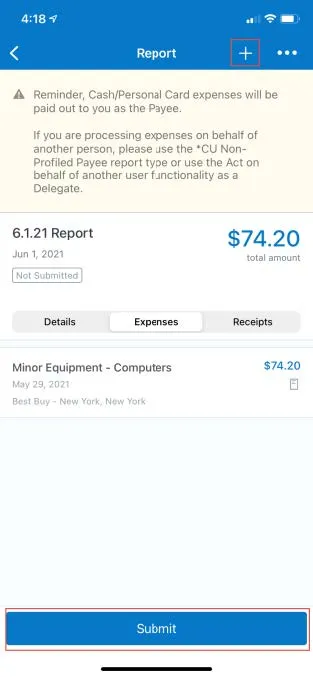
You can tap the plus + to add a New Expense to the Report or tap Submit to submit the Report for approval.