Setting Up and Installing Concur Mobile, TripIt, and ISOS Apps
This job aid covers the steps for setting up and installing the Concur mobile app, TripIt Pro app, and the International SOS (ISOS) app on your phone.
Last Revision: January 2021
Details
You must have the Duo Mobile app installed. Refer to the CUIT Multi-Factor Authentication – Duo web page. Install the SAP Concur app on your phone via the App Store or Google Play. If you previously installed the SAP Concur app, ensure that you have downloaded the most recent version.
Note: The Concur mobile App is intended for the end user only and does not support Delegation. Delegates must use the Concur Desktop application. Approval of Pre-Trips Requests with an Advance is not currently supported on the Concur mobile app.
Please refer to the Installing the Concur Mobile App job aid to learn more.
By registering TripIt through your Concur account, you automatically receive all the features of TripIt Pro at no cost. If you have previously installed TripIt, you can link it to your Concur account to receive the TripIt Pro features. Do not purchase and install the TripIt Pro app. Ignore any upgrade messages.
- Login into the Concur desktop application and click the App Center tab.
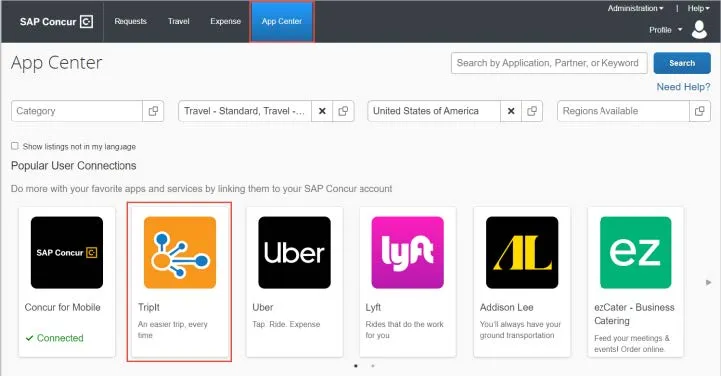
- Click the TripIt tile. The TripIt informational page appears.
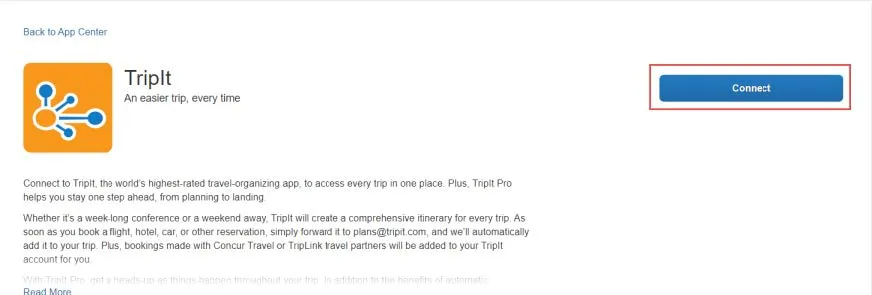
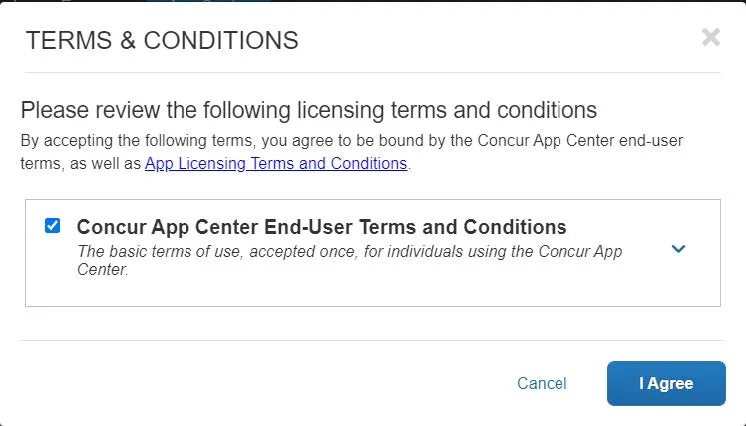
- Click the Connect button. The Term & Conditions window appears. Select to agree to the Concur App Center End-User Terms and Conditions and click I Agree. The Activation screen appears.
Note: If you already have a TripIt account, click Sign in and link my accounts.
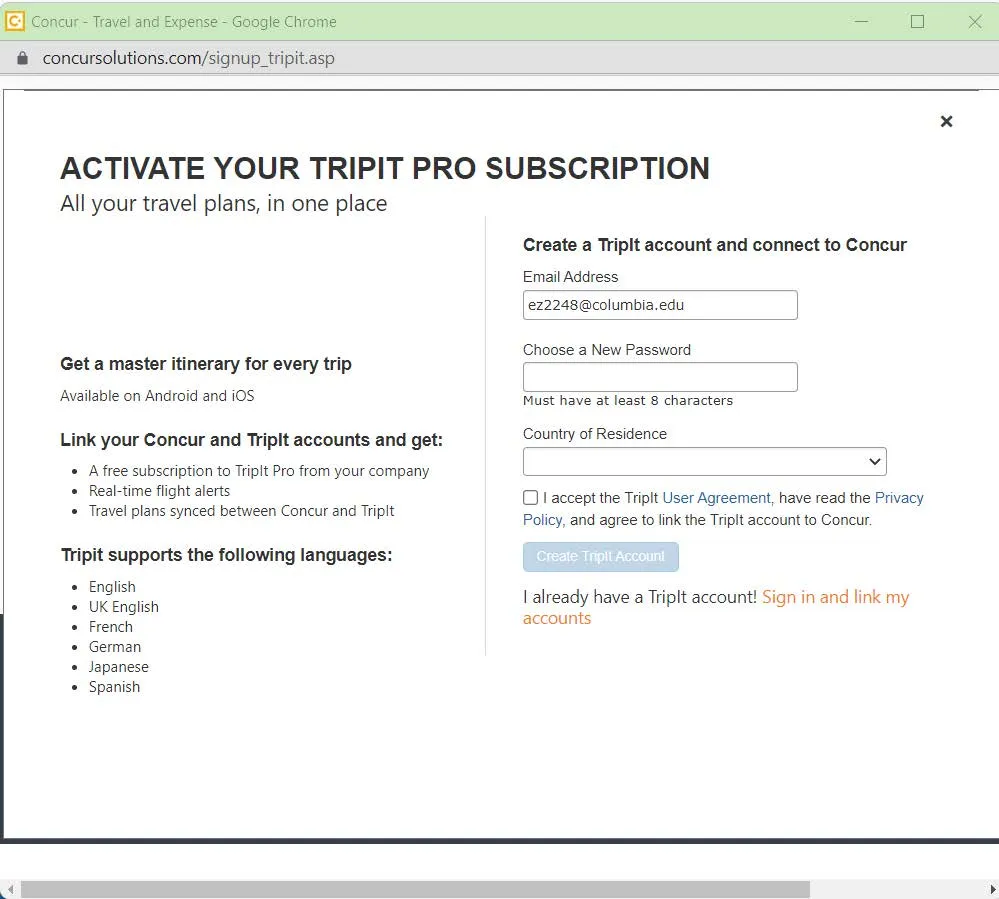
- Create a Password with at least 8 characters, select your Country of Residence, and accept the User Agreement.
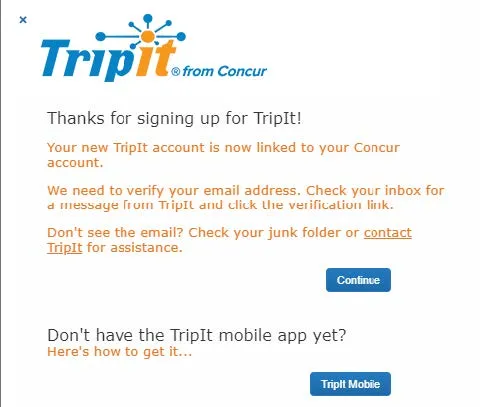
- Click Create TripIt Account. A message appears for you to verify your email address.
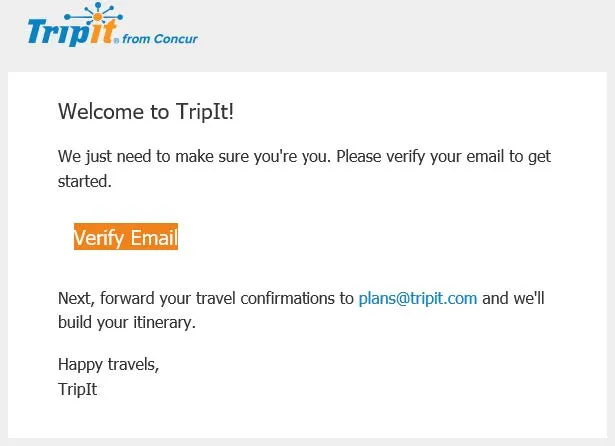
- Go to your email inbox, view the email from [email protected] and click Verify Email. The TripIt webpage appears. Do not select the TripIt Pro free trial option.
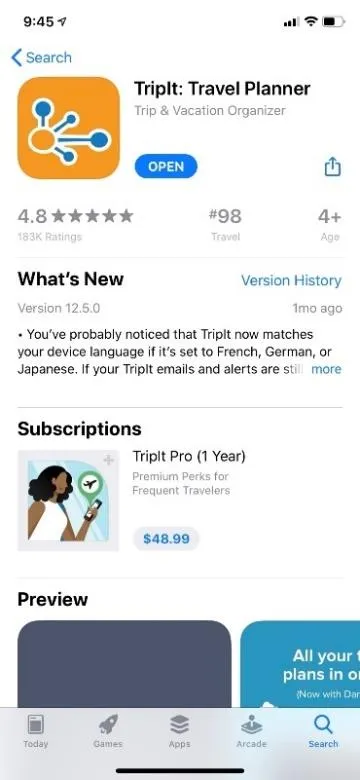
- Install the TripIt app on your phone via the App Store or Google Play. Do not purchase and install the TripIt Pro app as the account you just created in Concur gives you free access to TripIt Pro features.
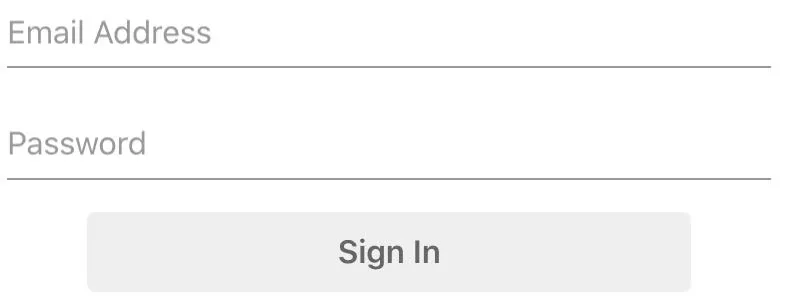
- Open the TripIt app on your phone and select Sign In.

- Enter your Email Address and Password then select Sign In.
To learn more about using TripIt, please refer to the Setting Up TripIt Pro to Share Trips with Concur job aid.
The International SOS Assistance App is a stand-alone app to assist with international travel. It is not linked with your Concur account, just install it and register on your phone.
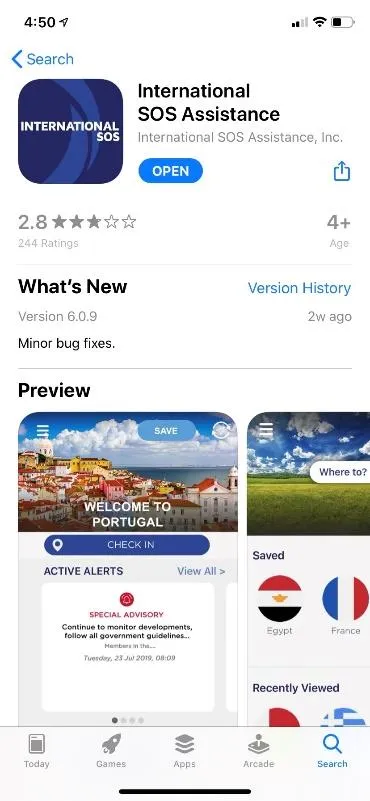
- Install the ISOS app on your phone via the App Store or Google Play.
- Open the app and allow it to use your location and send notifications when prompted.
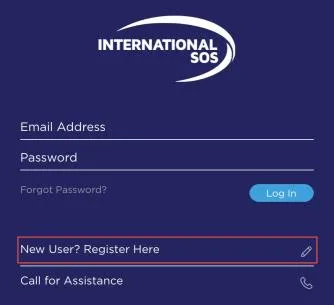
- Select New User? Register Here.
- Enter your First Name and Last name/Surname as it appears on your passport, your Phone number, and your Email address.
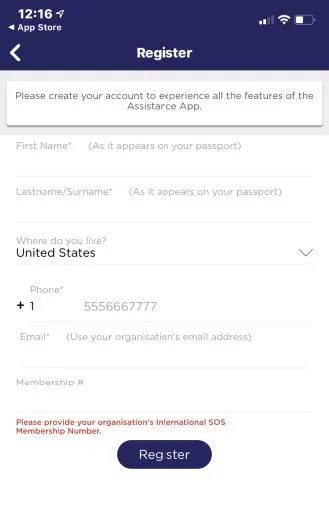
- In the Membership # field enter Columbia’s membership number 11BSGC000064.
- Select Register. An email will be sent to the email address you provided.
- Go to your email inbox, view the email from [email protected], and click the link provided to set your password. The webpage to update your password appears.
- Type a New password, Re-type your new password, and select Update Password. The password must be at least six characters, one upper case letter, one special character (@#$^%&+=_).