Creating a Non-Catalog Requisition in the CU Marketplace
This job aid covers how to create a Requisition for Non-Catalog goods or services not available from one of our Catalog Vendors by utilizing the Goods and Services Request Form.
Those with the Procurement Initiator role can create and submit Requisitions into approval workflow for goods or services (or both) not available from one of our Catalog Vendors.
Last Revision: September 2026
Need help submitting Non-Catalog Requisitions or any other CU Marketplace transaction, click the JAI chat icon in the lower right corner of the CU Marketplace window.

Details
Before creating a Requisition, be sure that you do not have any Active Draft Carts. Process, submit, or delete any Draft Carts so that your new Requisition lines do not get added to the Active Draft Cart. Refer to the Shopping from Catalog Suppliers in the CU Marketplace for details on how to manage Carts.

- Navigate to the Finance Buying and Paying website, click the CU Marketplace logo, and log in using your Single Sign On. The JAGGAER application launches.
Note: The CU Marketplace will automatically time out after thirty minutes of inactivity, consistent with other University Enterprise Systems.
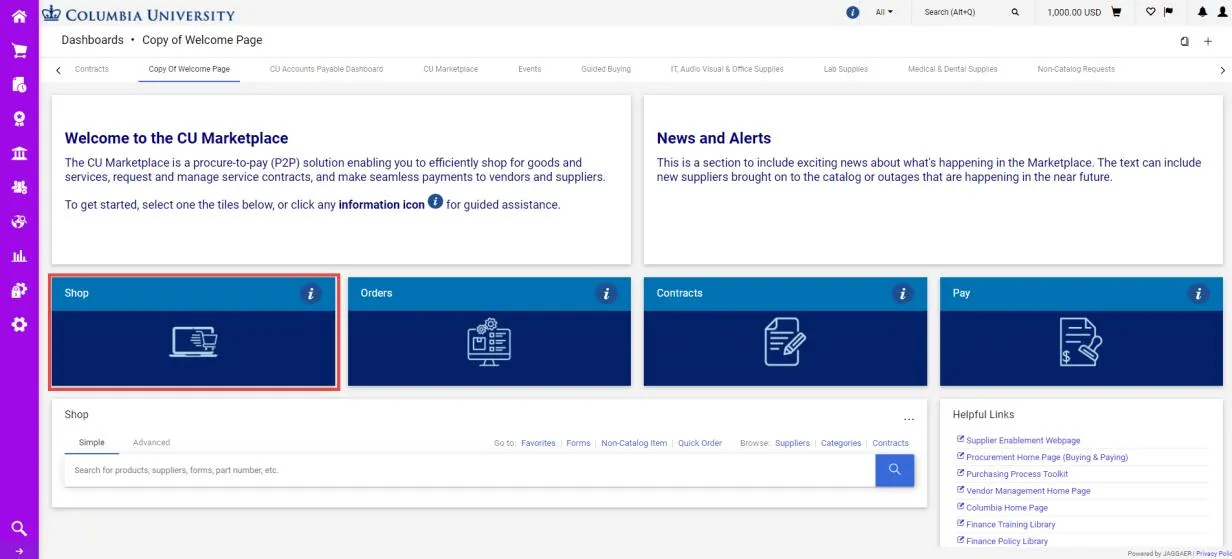
- Select the Shop tile. The Shop dashboard appears.

- Select any of the product category tiles.
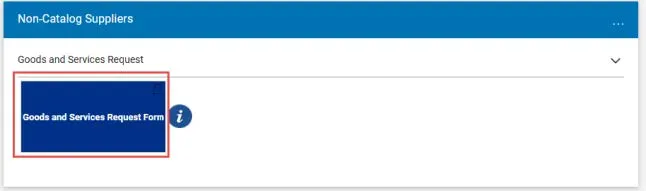
- Select the Goods and Services Request Form tile.
The Goods and Services Request Instructions page appears.
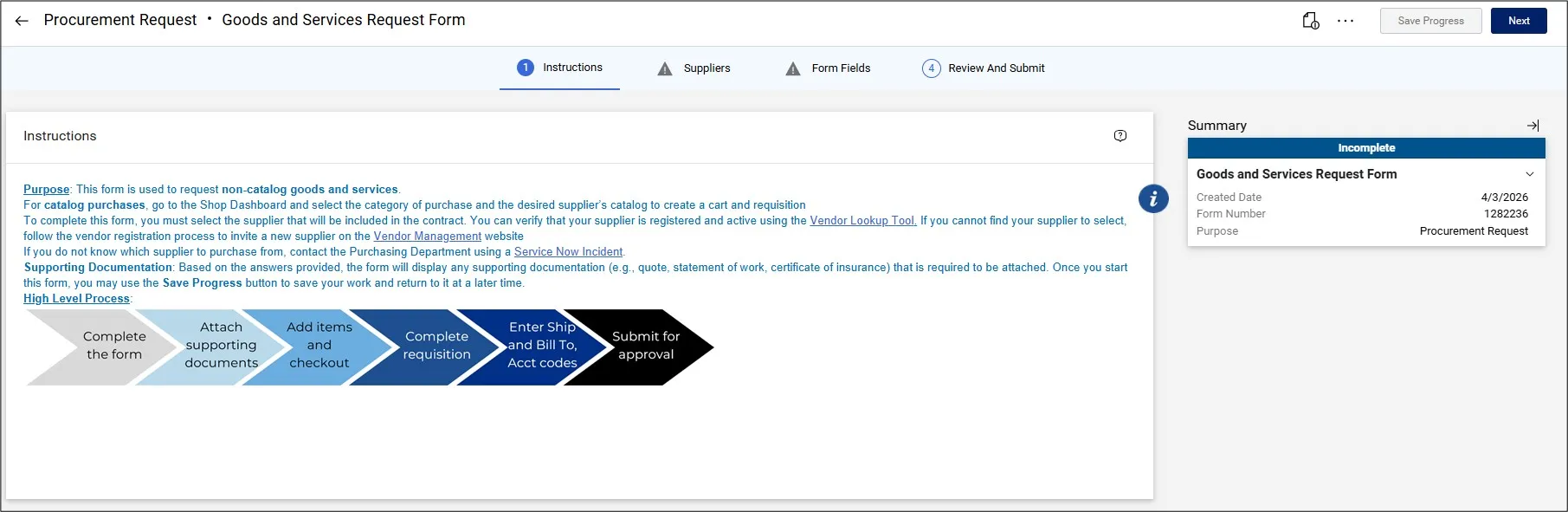
The tabs at the top of the panel indicates the stages of the form with status indications as you complete the form. While completing the form, some fields have a Question Mark icon that you can click to get more information about that field.
- After reading the Instructions, click the Next button at the top right of the screen. The Supplier Search screen appears.
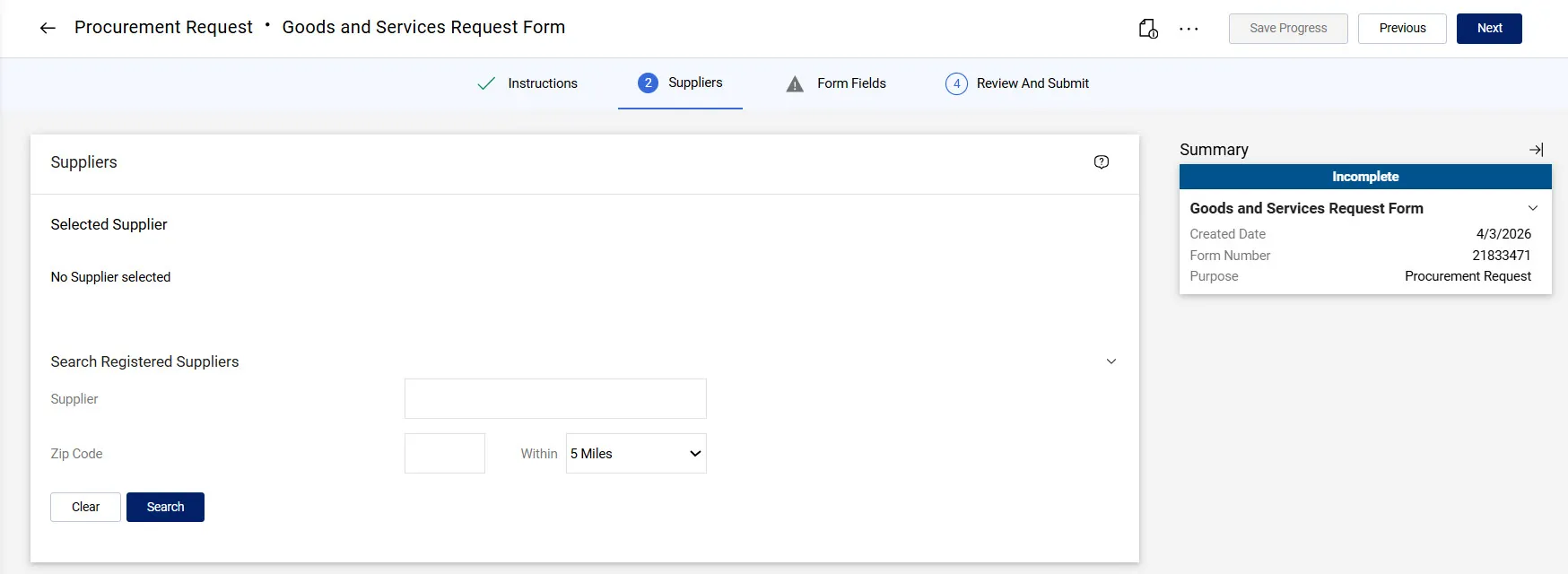
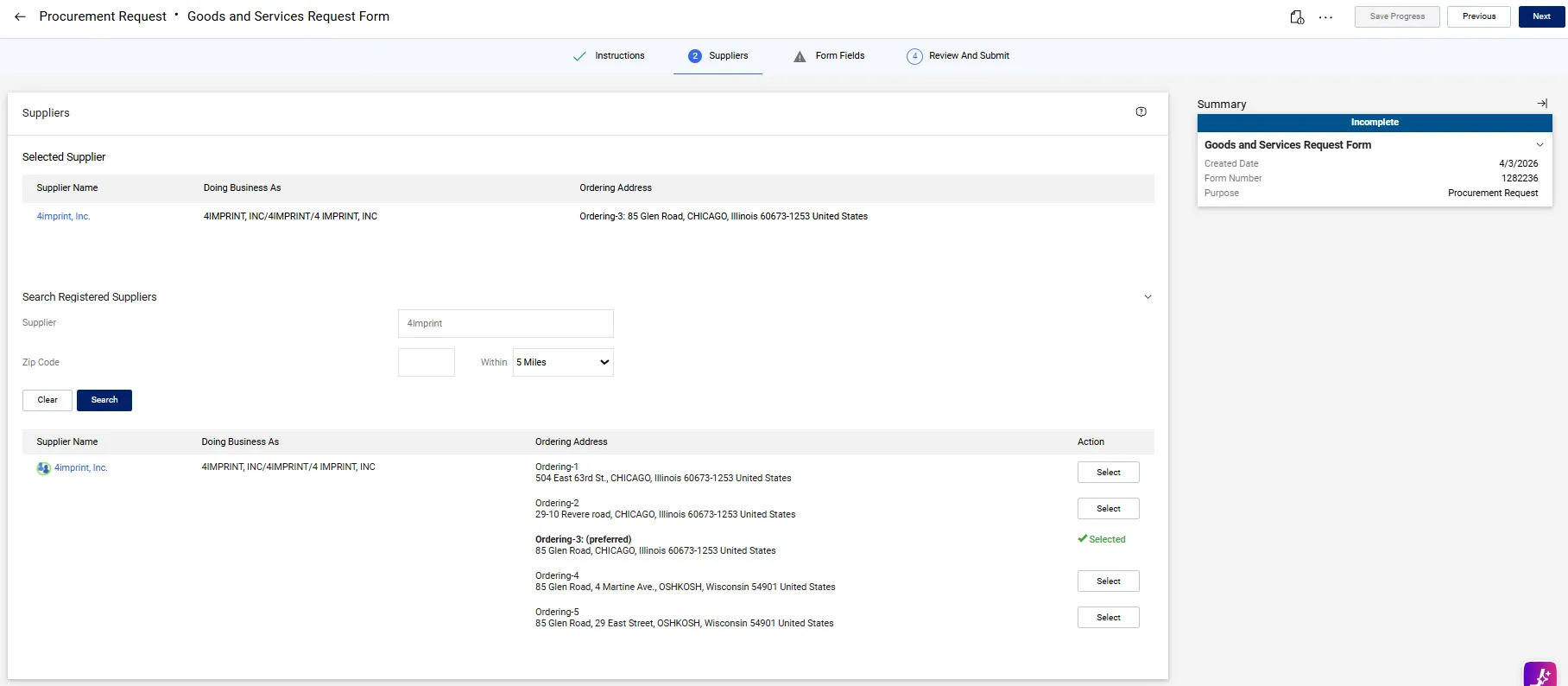
- Enter your Supplier, click the Search button and select the desired Supplier match from the results.
- Click the Next button.
- Select Goods. Services, or Goods & Services.
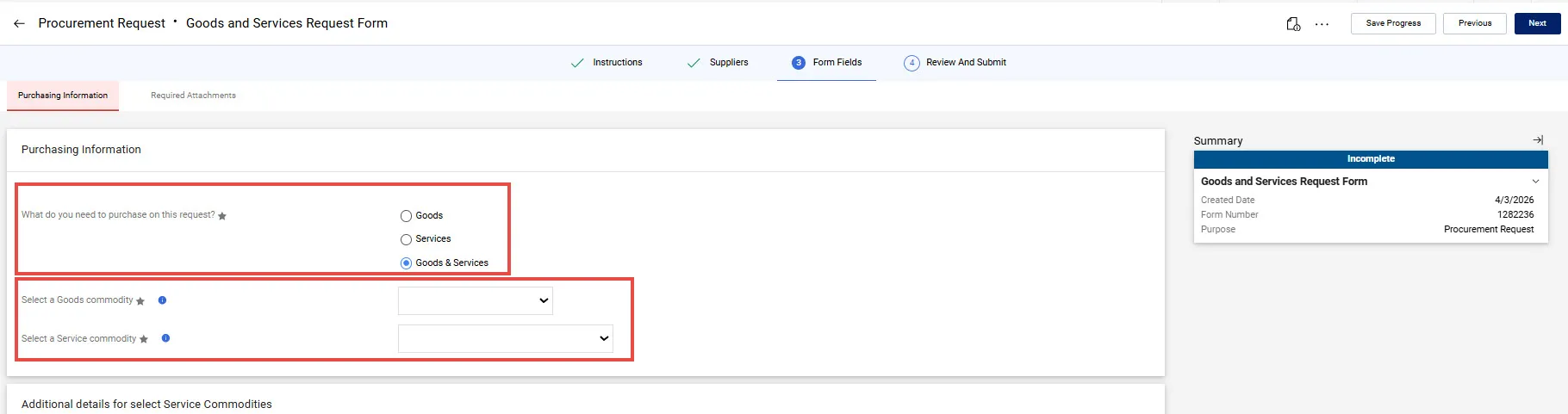
- Select a (Good or Service) Commodity from the dropdown. The selection of commodities depends on whether you selected Goods or Services above. If you selected the Goods & Services option, two Commodity dropdown menus appear, one for Goods and the other for Service.
Additional questions may appear based on the specific commodity you selected.
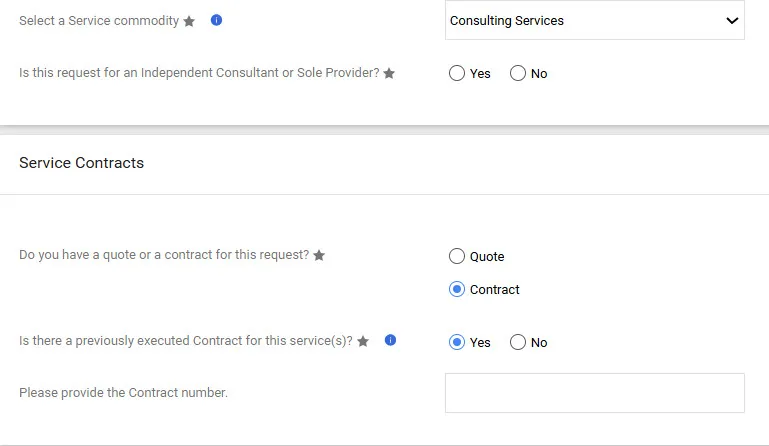
If your purchase includes a Service, an additional question: Is this request for an Independent Consultant or Sole Provider appears and the Service Contracts section appears.
Service Contracts
In the Service Contracts section, you are asked if have a Quote or Contract:
- If you selected Contract, you are asked if there is a previously executed Contract. This contract must be the current contract associated with this request (not a contract associated with a previous Purchase Order).
- If you indicate Yes, you can enter the Contract ID.
- If indicate No, you must submit a Contract Request. If you already submitted the Contract Request, you can enter the Contract Request Number. If have not yet submitted a Contract Request, you will be required to enter Contract Request Number information on the Attachments page.
Select Yes or No for Is the supplier you selected a UwPA supplier? Your selection determines additional questions that appear on the form. To learn more about UwPAs or to lookup your supplier is a UwPA supplier, click the Question Mark icon.
- If you select Yes: The following questions appear: Is this UwPA purchase over $250,000? and Is this UwPA purchase funded with Sponsored Funds?
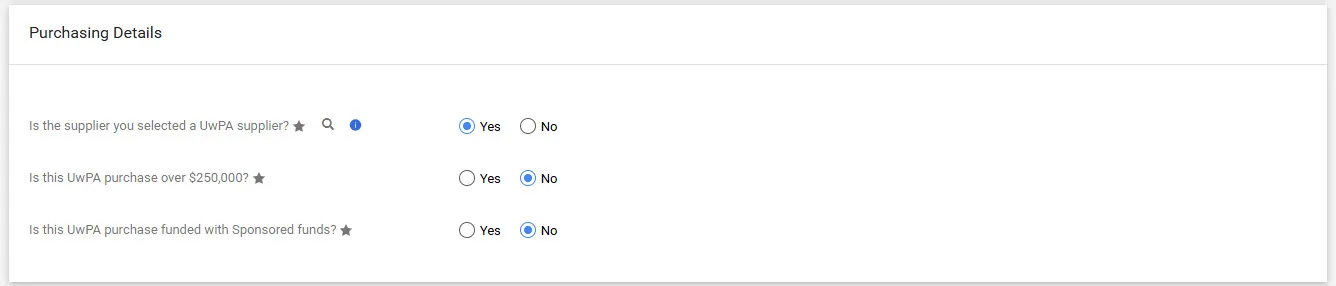
Select the appropriate answers and click the Next button.
- If you select No: Questions regarding using sponsored funds, if this is a sole source request, and, if it’s not a sole source request, a dropdown to select a range for the amount of the purchase appear.
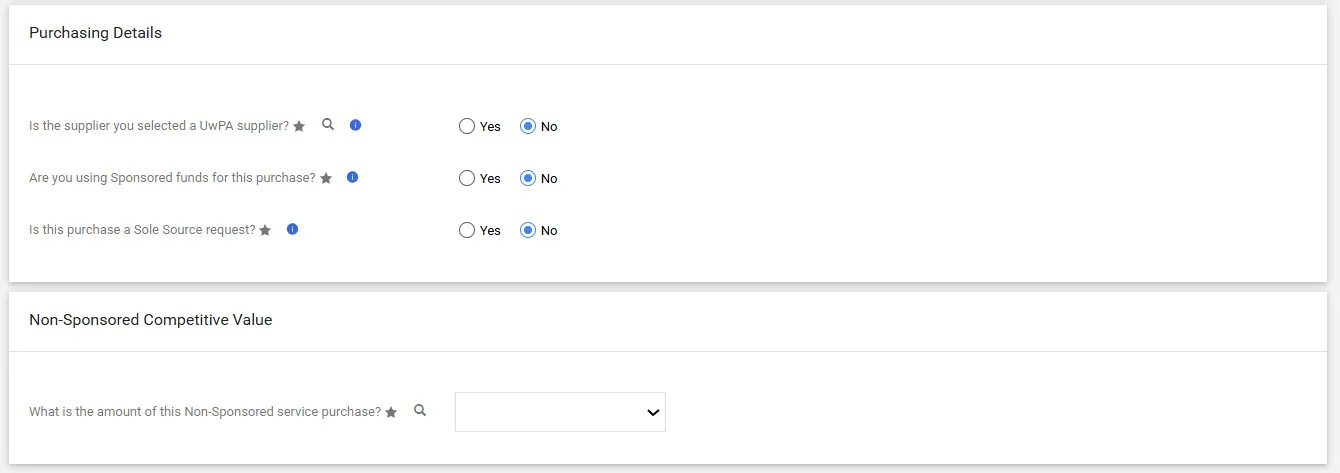
Answer the relevent questions related to the non-UwPA request.
You can select the Save Progress button and return to the form later or can can progress by clicking Next.
The page and fields that appear are based on whether you initially selected a Goods, Services, or Goods and Services request. If you selected a Goods and Services request, the Goods page appears for adding your Goods items. The Services page will appear next for adding your Services.
You can add up to 20 lines. If you need more than 20 items, you can add them after you complete this form and add it to your cart.
Adding a Goods Line
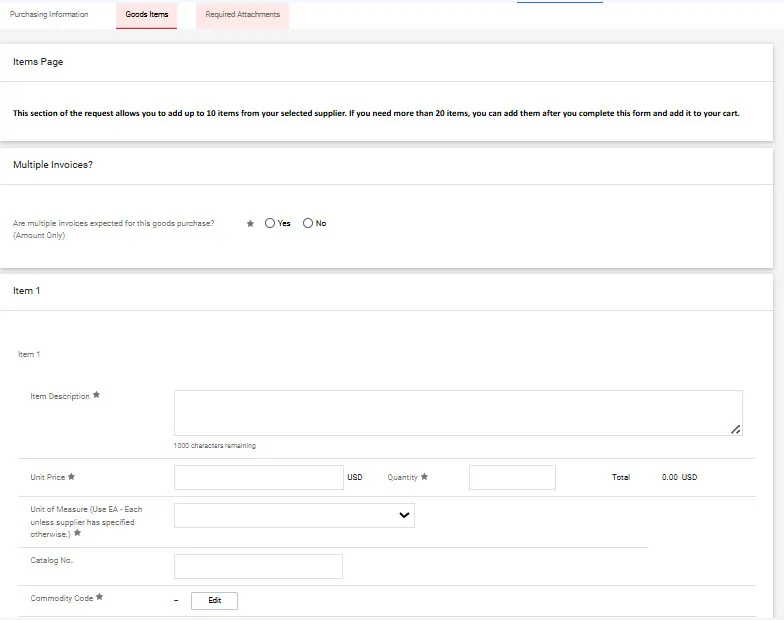
- Indicate Yes or No for Are multiple invoices expected for this goods purchase? (Amount Only).
- Type the Item Description, the Unit Price, Quantity, and select the Unit of Measure. If you know the Catalog No. of the item you are purchasing, you can enter it.
- To find the Commodity Code for your item, click the Edit button. The Commodity Codes search window appears.
- Type your Search criteria, press Enter and click the Select button for the matching Commodity Code. The Commodity window will suggest Commodity Codes based on what you typed in the Item Description Box.
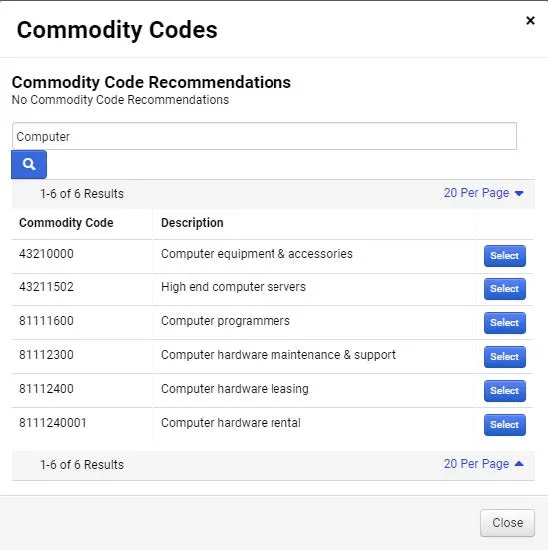
If you want to add another line for an additional item, select Yes for Would you like to add another item? or select No and click the Next button to continue.
Adding a Services Line
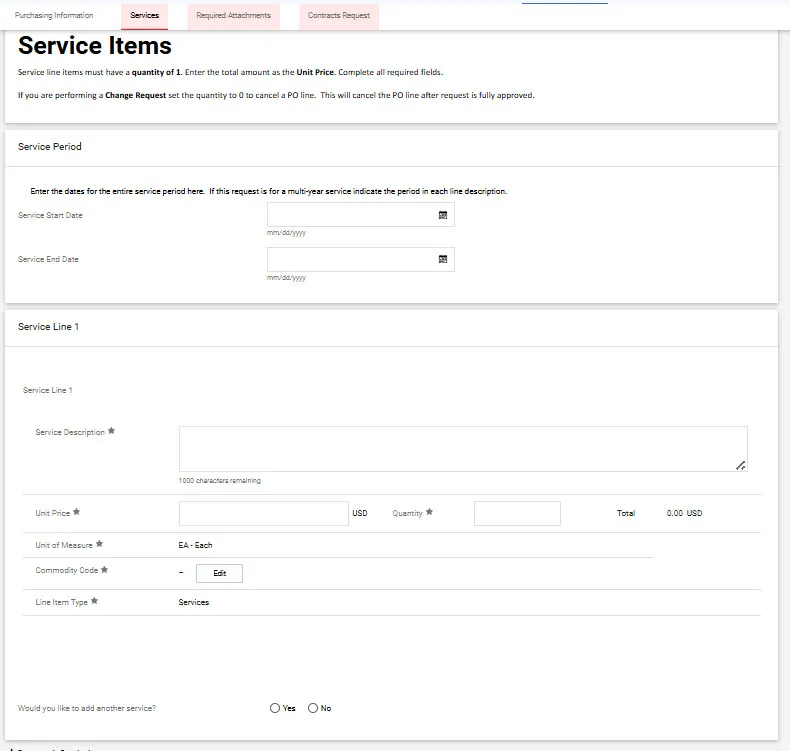
- Enter a Service Description, Unit Price, and Quantity (usually 1). All Service items are automatically designated as “Amount Only.” The Service Start Date and Service End Date fields are optional.
- To find the Commodity Code for your service, click the Edit button. The Commodity Codes search window appears.
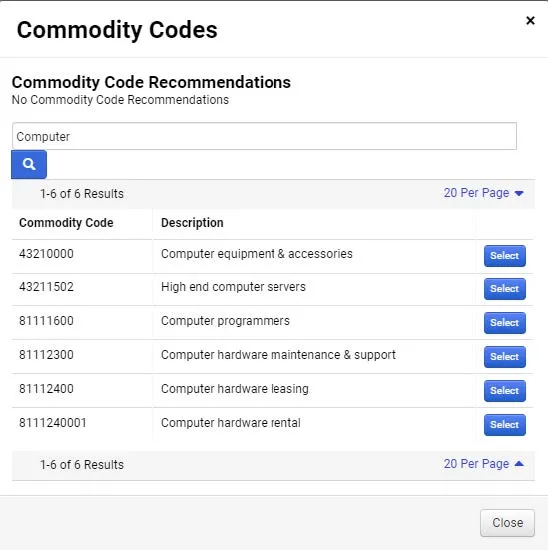
- Type your Search criteria, press Enter and click the Select button for the matching Commodity Code. The Commodity window will suggest Commodity Codes based on what you typed in the Item Description Box.
If you want to add another line for an additional service, select Yes for Would you like to add another service? including if you are adding multiple fiscal years for the same service. Or, click the Next button to continue.
Based on your Purchasing Information details and the Goods and or Services lines that you added, the Required Attachments page will display the required attachments (indicated with an asterisk *) that you must upload for your purchase. You should only upload documents specifically listed on this page. Do not upload additional documents.
If necessary, you can click the Save Progress button in order to acquire any documentation you still need to acquire and return to the form later.
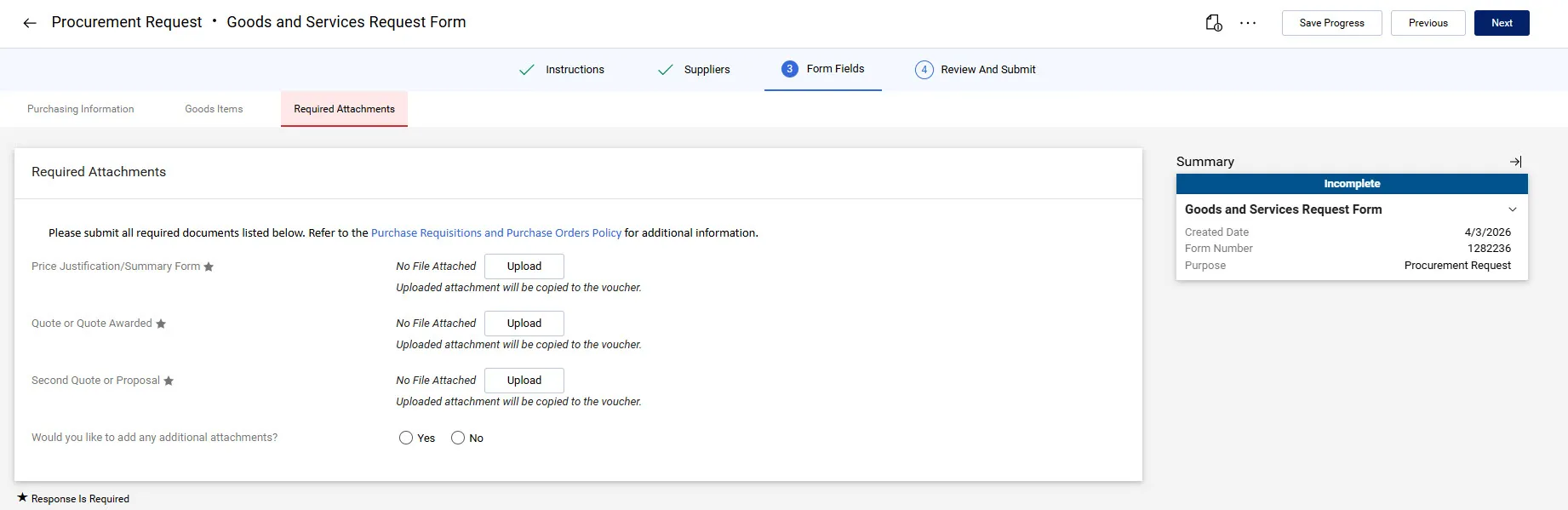
- Click the Upload button for each required document indicated to upload the file that satisfies the requirement. The Upload window appears.
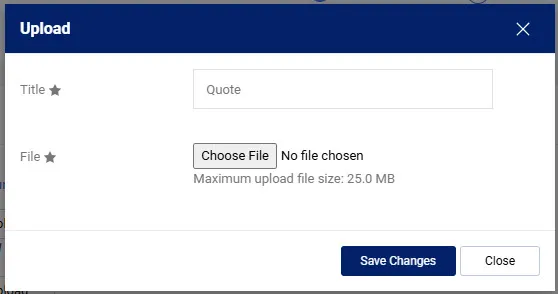
- In the Title field, enter the type of the document you are uploading (i.e., SOW, COI, Quote), click the Choose File button to search and select your document file, and click the Save Changes button. Optionally, you can upload Additional Documentation that may be needed to explain the transaction.
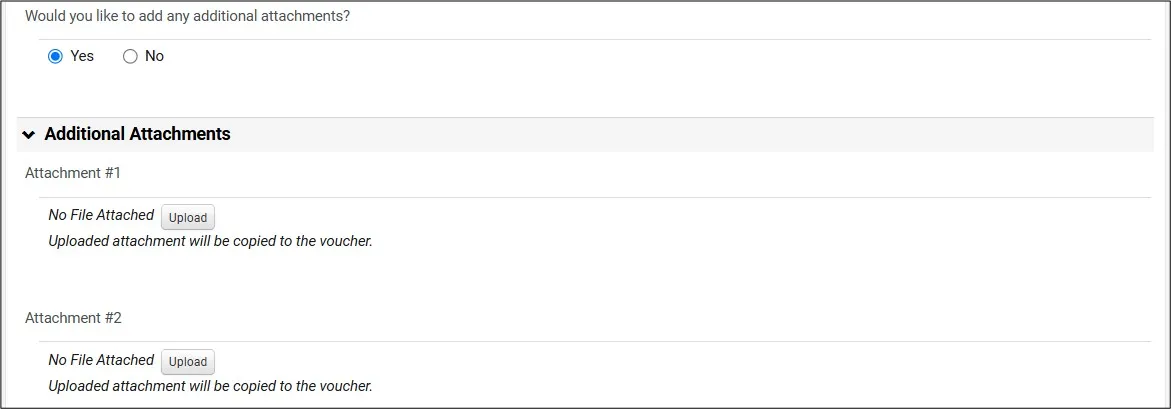
Additional Attachments
Only upload additional documentation if you have been instructed by the Purchasing team to do so.
Select Yes for Would you like to add any additional attachments. Additional Attachment fields for you to upload up to five documents.
Completing Contract Request Information
If you selected a Service that requires a Contract and indicated in the Purchasing Information page that you did not have a Contract, the Contract Request Information page appears. You must submit a Contract Request and copy/paste the Contract Request Number.
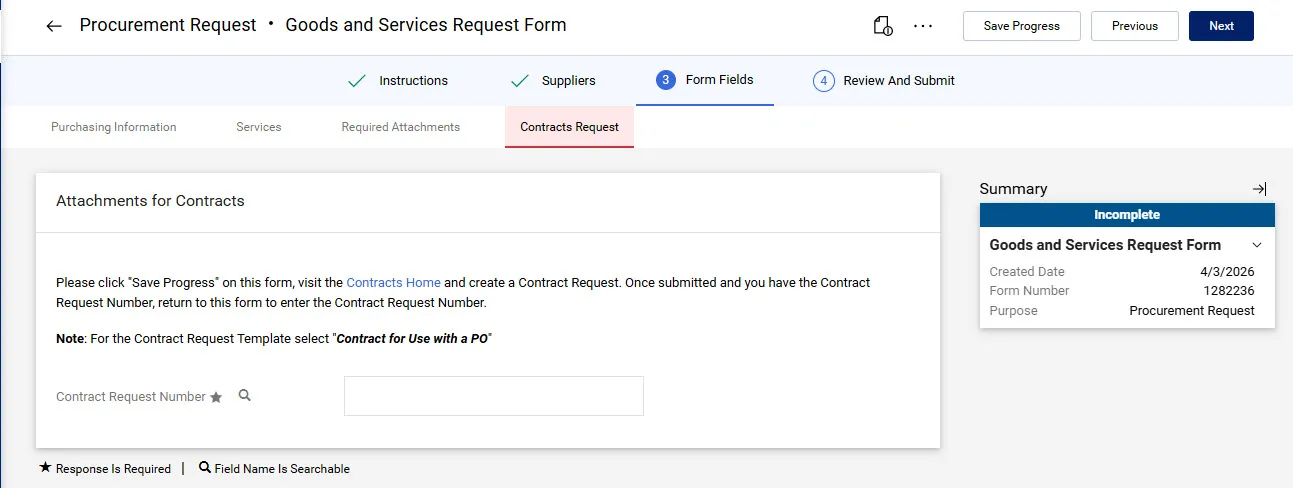
- Click the Contracts Home link to initiate a Contract Request. A new tab in your browser will open to Contracts dashboard.
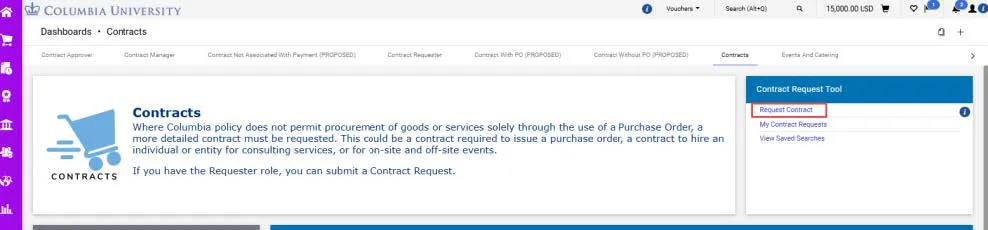
- Click the Request Contract link to initiate a Contract Request. Click through to launch the appropriate Contract Request page.
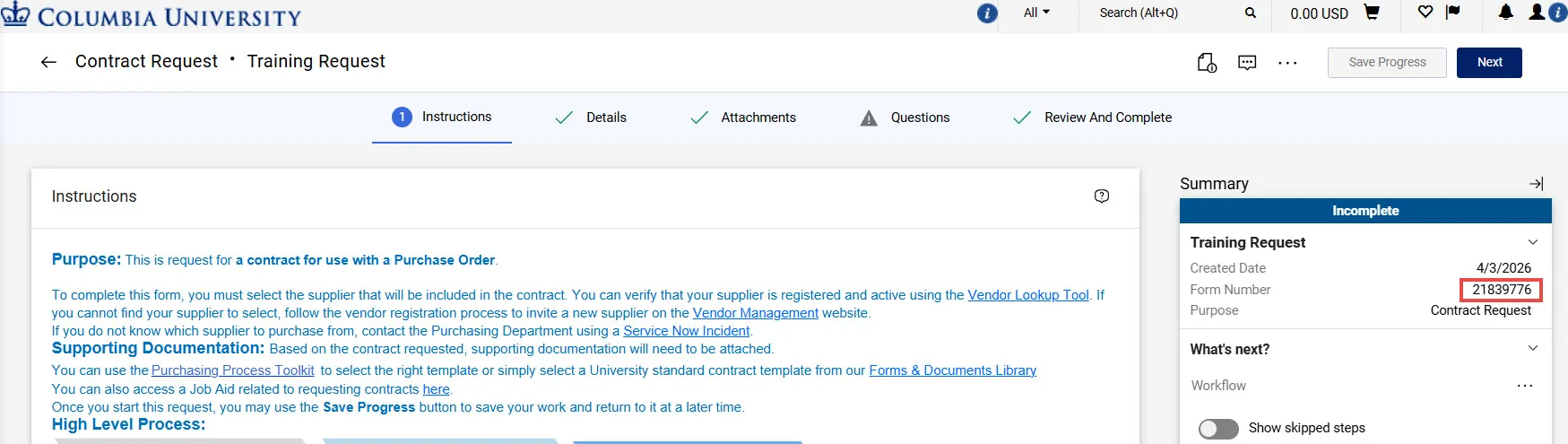
- Copy the Form Number from you Contract Request.
- Return to the tab with your Goods and Services Request to paste your Contract Request Number in the field.
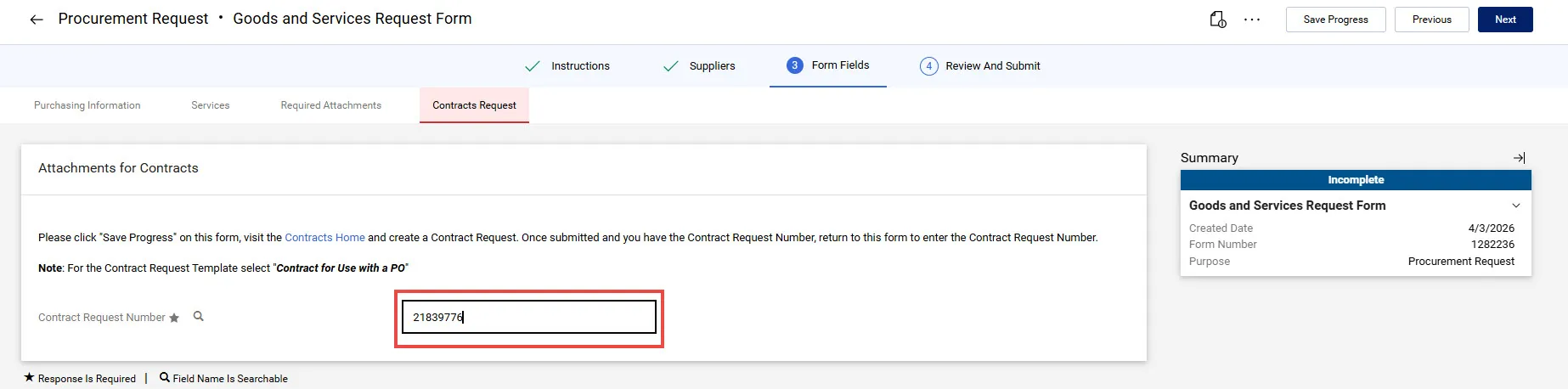
- From the Attachments page, click the Next button. The Review and Submit page appears.
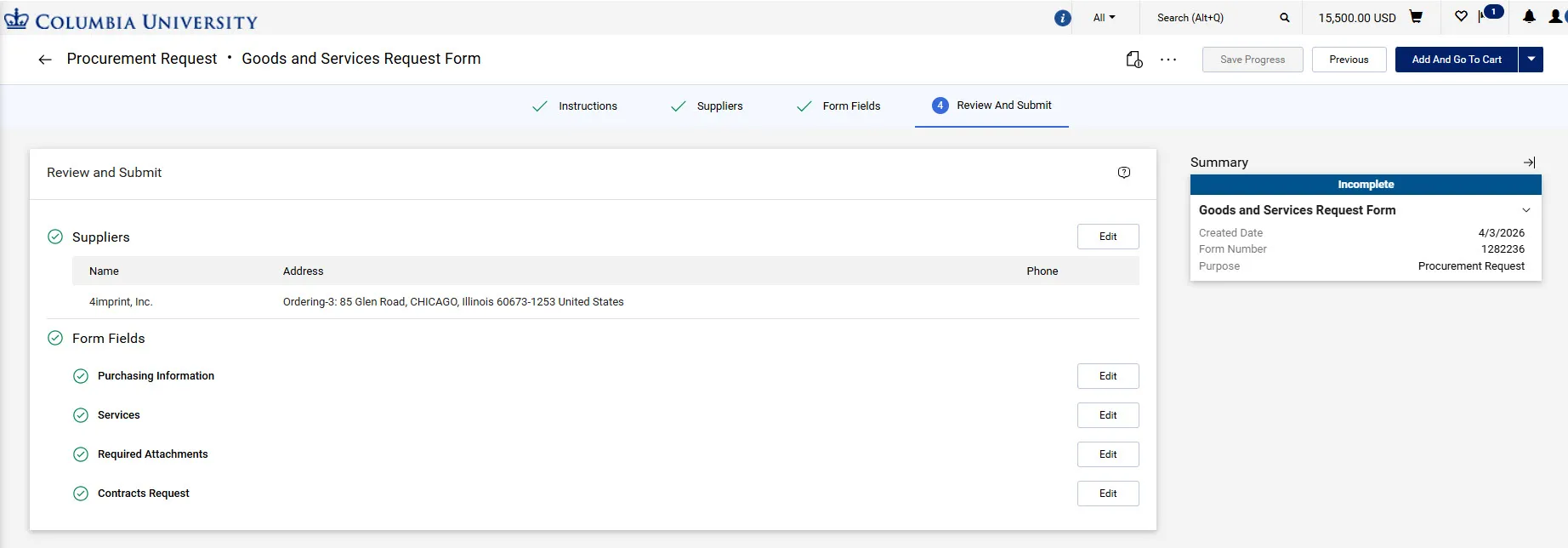
Green checks appear to indicate that all required fields are complete.
- Click the Add and go to Cart button. The Shopping Cart screen appears.
You can select the option to Add to new Cart so your items in this Requisition are not added to an Active Cart.
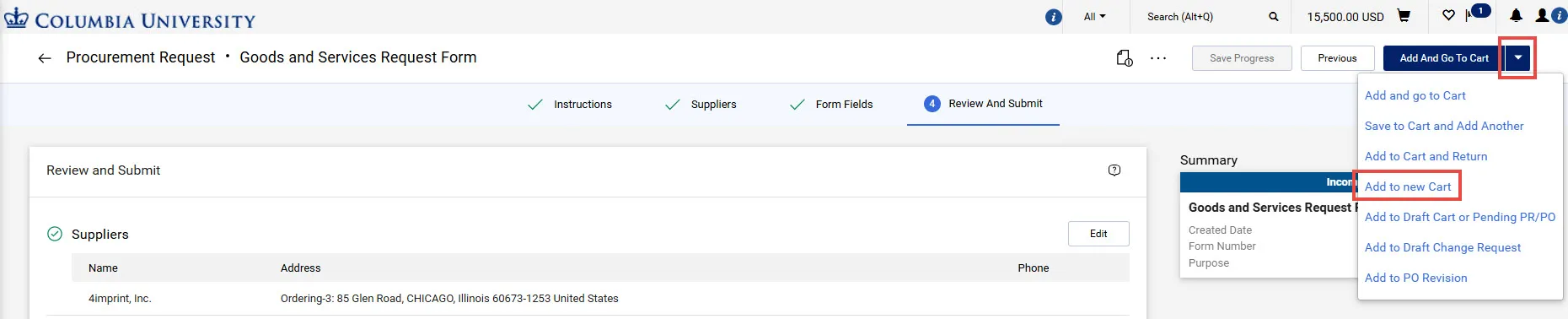
You can now Proceed to Checkout to submit your Request as a Requisition for approval. For details refer to the CU Marketplace Requisition Checkout Quick Guide.
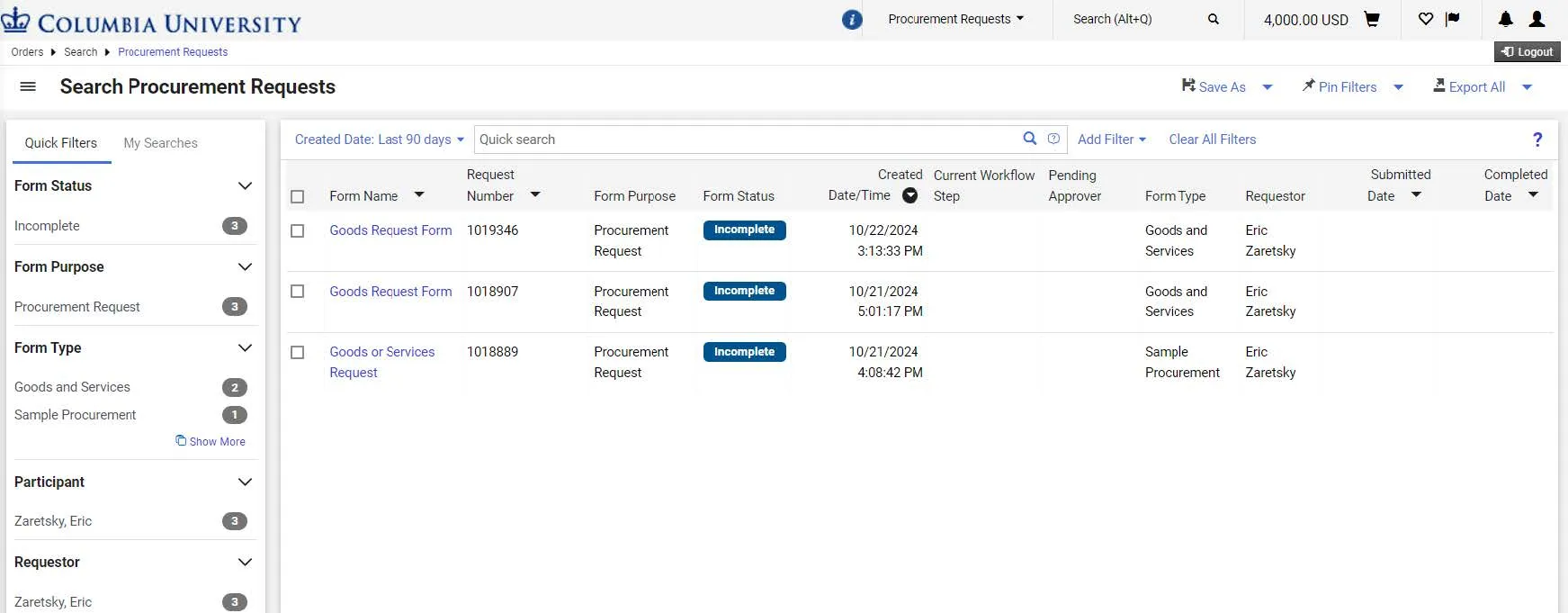
If you clicked Save Progress while working on a Request and left the form, you can resume your in-progress Request to complete it.
From the Navigation Menu, select Orders > My Orders > My Procurement Requests.
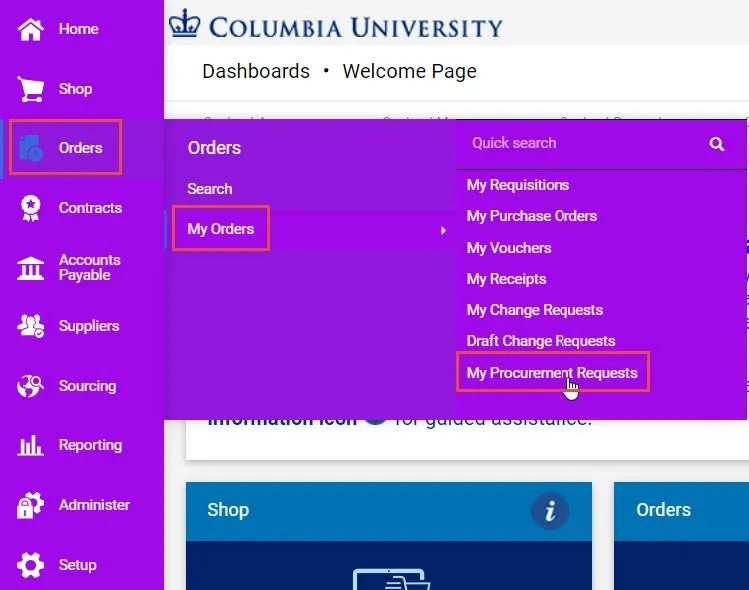
The My Requests screen appears. Click the link for the Form Name for the Request you wish to resume working on.
For more information on managing and editing Non-Catalog Requisitions submitted for approval, refer to the Editing Non-Catalog Carts and Requisitions in the CU Marketplace job aid.