CU Marketplace Shopping for Initiators Quick Guide
This Quick Guide covers how to open a Shopping Cart assigned to you by a Shopper (or another Intiator) and to submit the Cart as a Requisition in approval.
For detailed instruction on using the CU Marketplace, including how to shop and create your own Carts, refer to the Shopping from Catalog Suppliers in the CU Marketplace Training Guide.
Last Revision: September 2026
Need help with Shopping, Requistions, other transactions in the CU Marketplace, click the JAI chat icon in the lower right corner of the CU Marketplace window.

Details
Shoppers who do not have a Procurement Inititator role cannot submit the Cart as a requisition into the approval workflow but they can assign their Cart to a Procurement Initiator. In addition, Procurement Initiators can assign Carts to other Initators. As the assigned Initiator, you can submit the Cart as a Requisition into workflow. Before doing so, you must ensure that all required details are entered. If necessary, you can send it back to the Shopper (or originating Initiator) to modify items in the Cart or do so yourself.
1. Navigate to the Finance Buying and Paying website, click the CU Marketplace logo, and login using your Single Sign On. The JAGGAER application launches.

Note: The CU Marketplace will automatically timeout after thirty minutes of inactivity, consistent with other University Enterprise Systems.
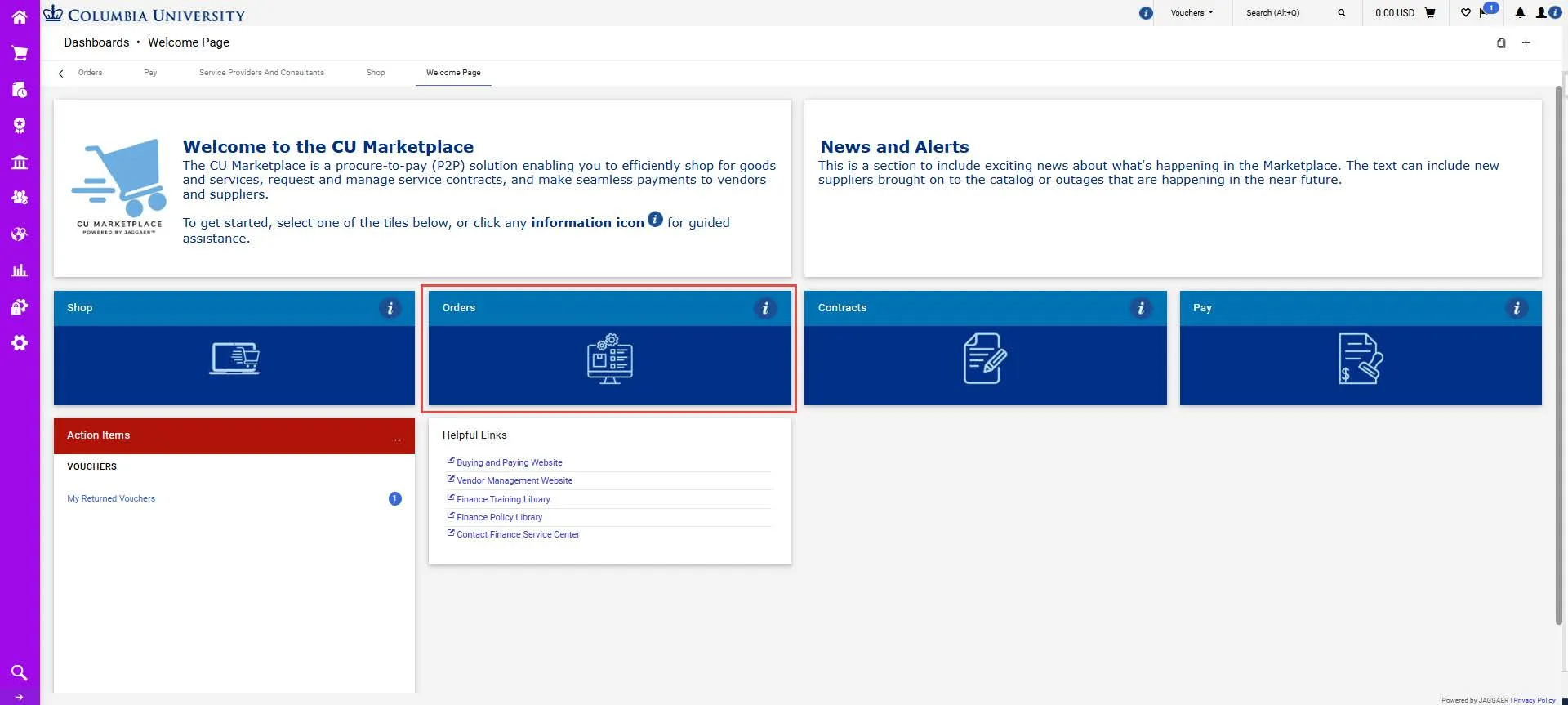
2. Click the Orders tile.
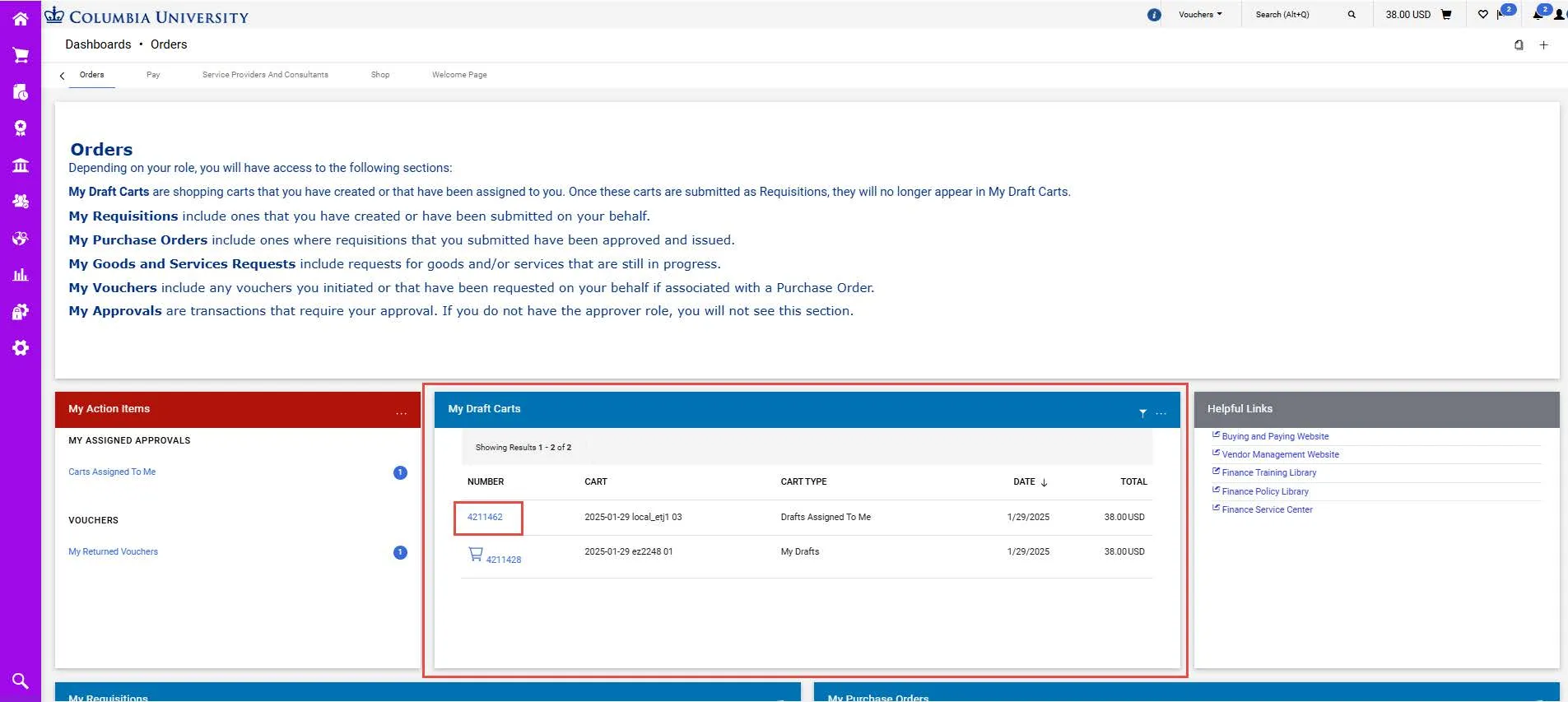
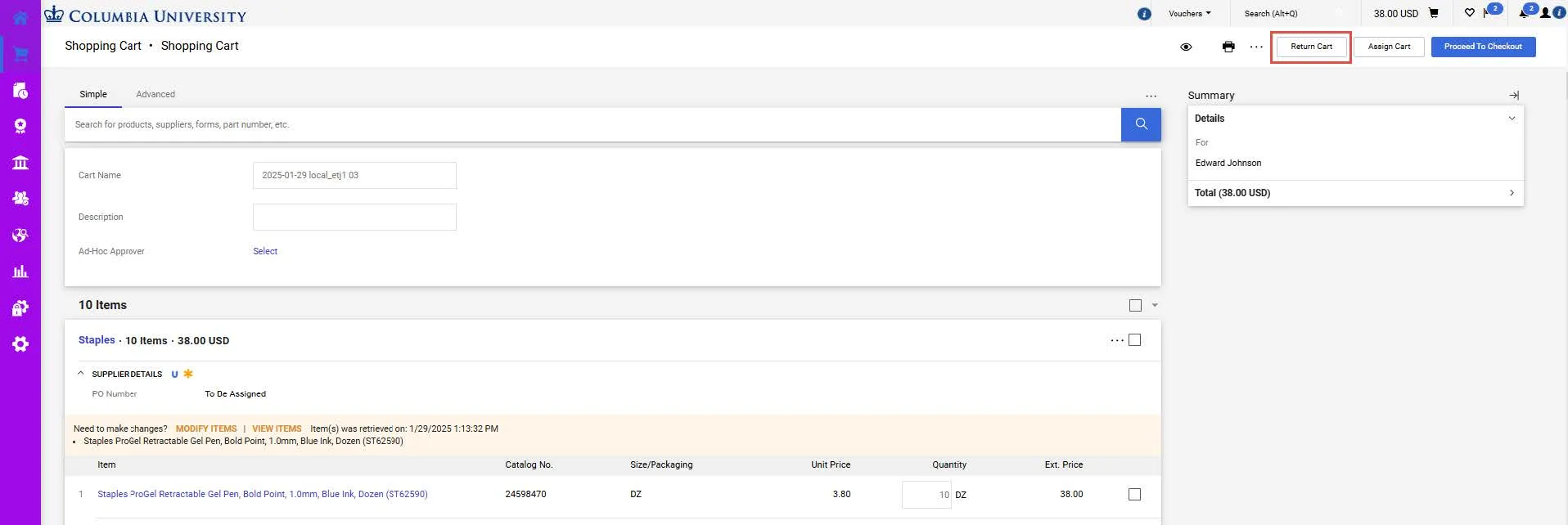
3. In the My Draft Carts section, click the Number for the Shopping Cart you want to view. Carts assigned to you will be indicated by the Cart Type. The Shopping Cart screen appears. If necessary, you can click the Return Cart button to return the cart back to the person who assigned it to you.
At checkout you must ensure that the Ship To/Bill To Addresses and the ChartString information is complete and correct. Shoppers have the option to enter this information but are not required to do so. You can update the information entered by the Shopper, if necessary.
If this information is not complete, you must enter it before checking out. If you created default values in your Profile (refer to the Modifying Profile Settings in the CU Marketplace job aid), those values will be populated.
On the Shopping Cart page, click the Proceed to Checkout button.
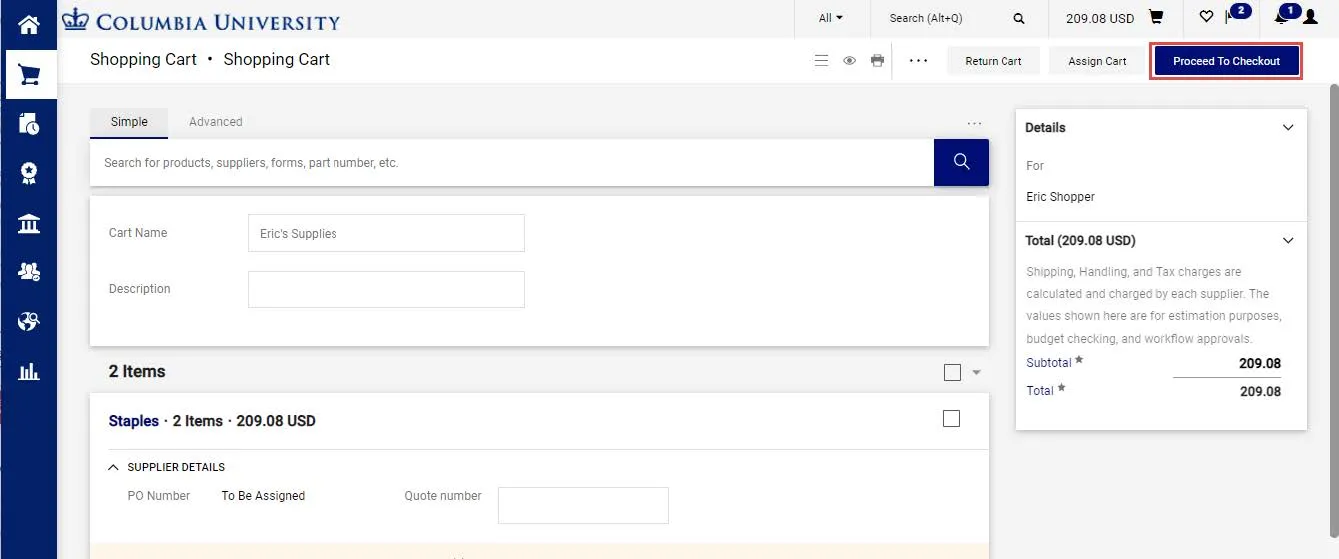
The Checkout screen appears.
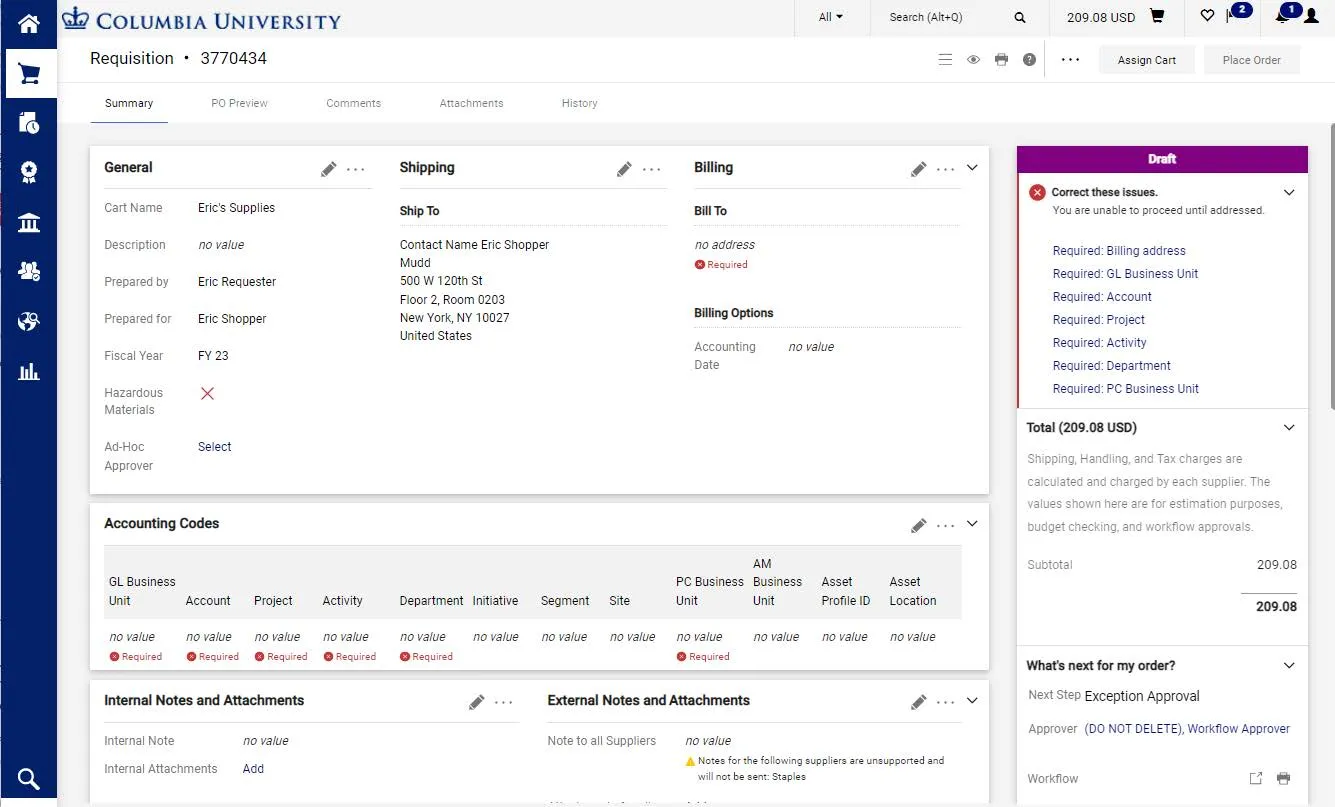
The Status panel on the right indicates all the required information that you must complete. You can click the link to access the field to update it. Fields within the form that require completion will be labeled Required.
Updating Shipping and Billing
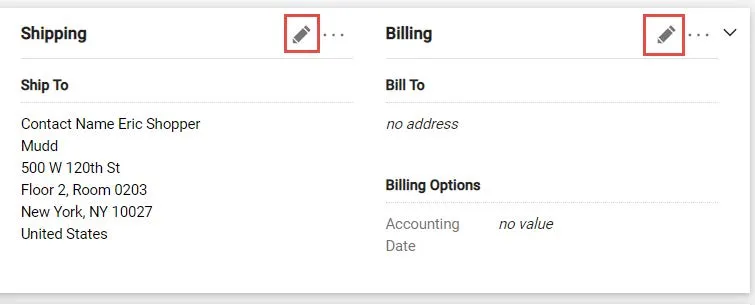
1. On the Checkout screen, click the Edit icon for Shipping or Billing.
The Edit window will appear for the respective item you selected. It will display the Current Address populated, if any, and a selection of Favorites you created in you profile, if any.
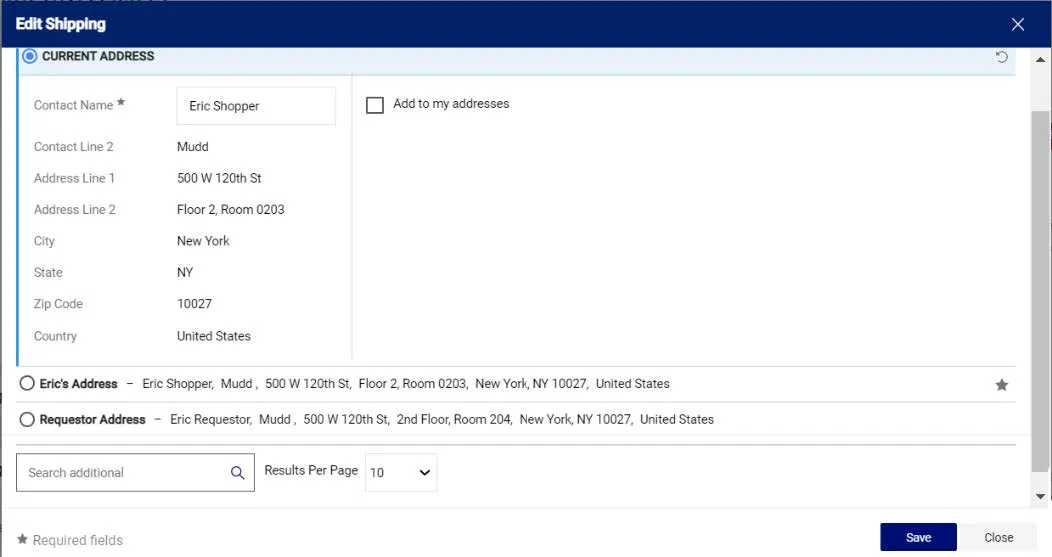
2. Select one of your Profile favorites or type in Search additional to find and select an address.
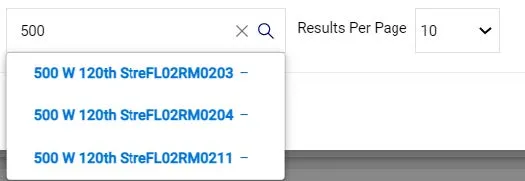
3. Click the Save button.
Updating the ChartString (Accounting Codes)
1. On the Checkout screen, click the Edit icon for Accounting Codes.

The Edit window will appear. It will display the default or populated ChartFields.
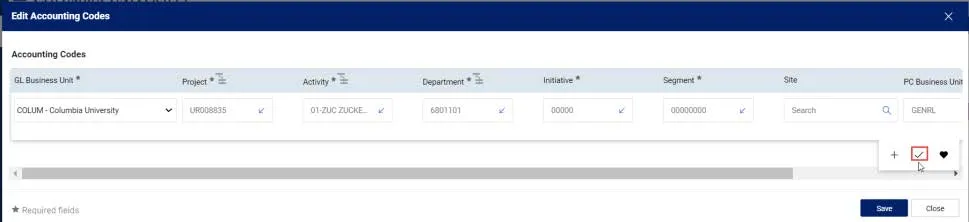
2. Update the ChartFields as needed. They must be entered in order left to right as the available values are dependent on the value in the previous field. You can click the Dropdown arrow in the field you are populating to view the available values.
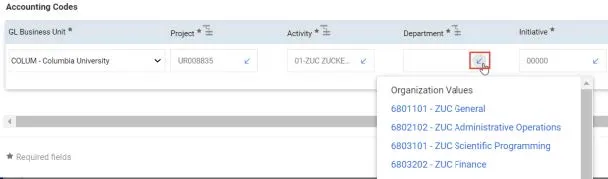
3. Click the Validate icon to ensure your ChartFields were entered correctly. If you corrected a ChartField and it still appears as Required , click the Validate icon again. You can click the Add Split icon to add an additional ChartString line and indicate a percent distribution. You can click the Code Favorites icon to select a favorite ChartString you created in your Profile.
4. Click the Save button.
Note: Each Line Item in your Requisition can also be updated with different ChartStrings. Click the Line Item Actions icon for the Line to Override Accounting Codes. Some product Categories map to multiple Accounts. If that is the case, you will be required to select the appropriate Account number from a dropdown in the Account field.
Placing Your Order
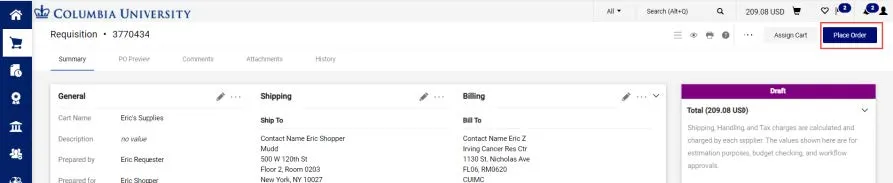
After ensuring that all required fields are populated, the Status pane will not list any further requirements. Click the Place Order button.
The Cart is now entered as a Requisition into approval workflow