Expensing Group Meals in Concur
This training guide covers how to add a group meal to an Expense Report in Concur, exclude tax / tip, and itemize when the meal expense includes alcohol and/or exceeds the policy thresholds. Refer to the Creating Expense Reports in Concur job aid for details on creating an Expense Report.
Last Revision: March 2026
Meal Thresholds
Per person meal costs (including alcohol, but excluding tax and tip) should not exceed the following thresholds:
- $25 for breakfast
- $35 for lunch
- $75 for dinner
When meal expenses exceed the established thresholds, you must segregate the amount above the threshold. The Expense Report will systematically route to your Senior Business Officer (SBO) for approval.
Details
After initially creating your Expense Report, you will be on the Manage Expenses screen of your Report.
- Click the Add Expense dropdown.
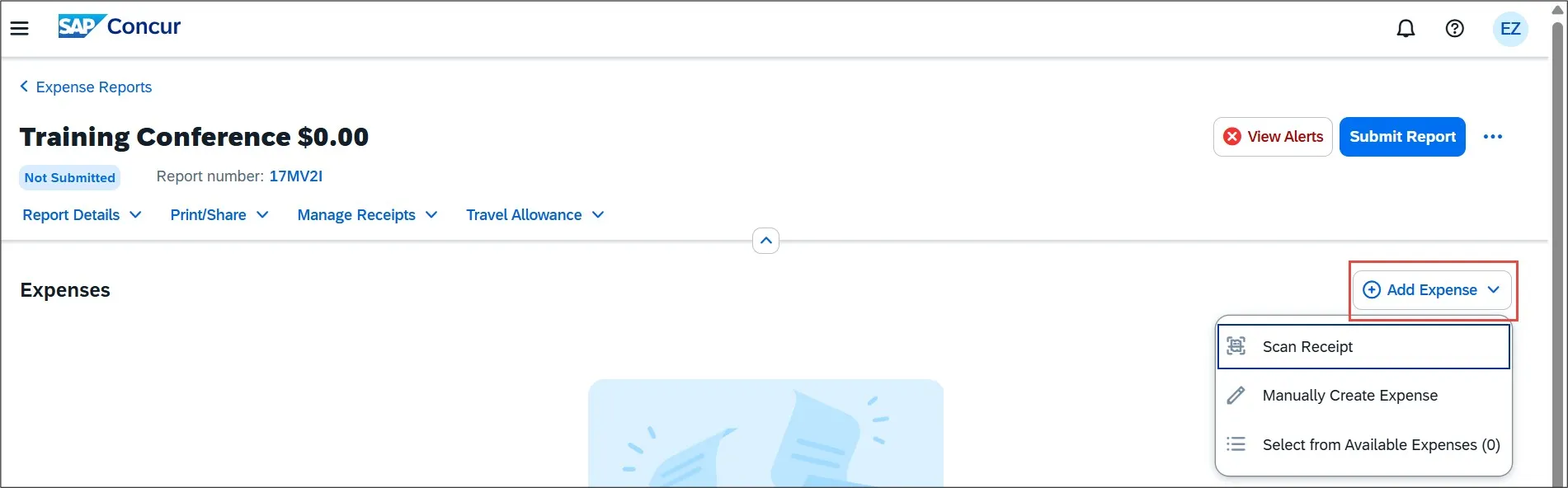
- Select from Available Expenses to add a Corporate Card or Concur Travel transaction to your Expense Report (refer to the Concur Tip on reconciling Corporate Card and Air/Rail Central Pay transactions) or Manually Create Expense to manually enter the Expense details.
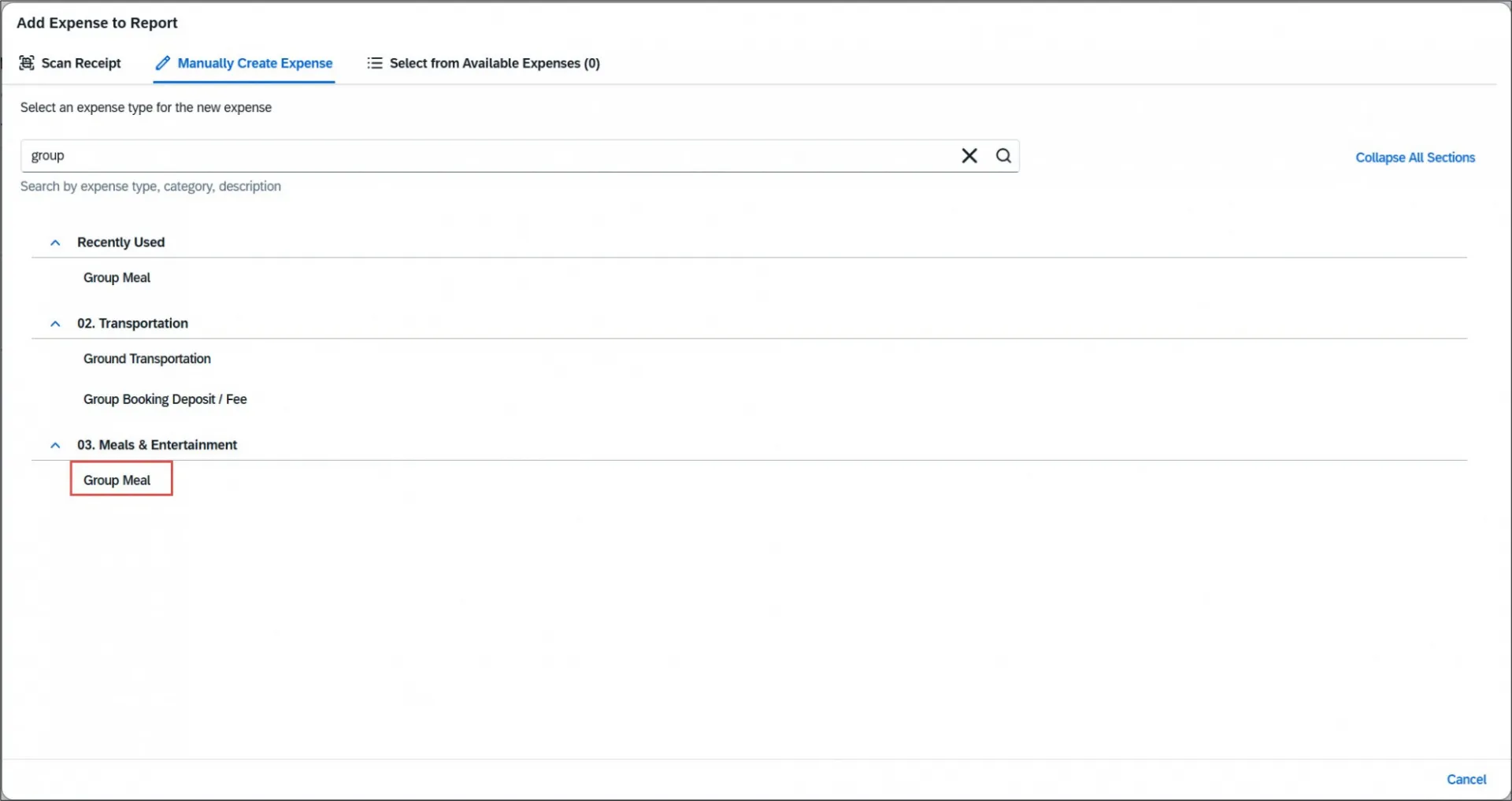
- If you are manually creating a new expense, search and select the Expense Type for Group Meal. You can type the Expense Type to find it from the list.
In the example below, the group meal was a breakfast for three Columbia employees. The total cost of the group meal was $90, including tax and tip. The amount for tax and tip was $25. This group meal expense does not exceed the policy threshold for breakfast, which is $25 per person before tax and tip.
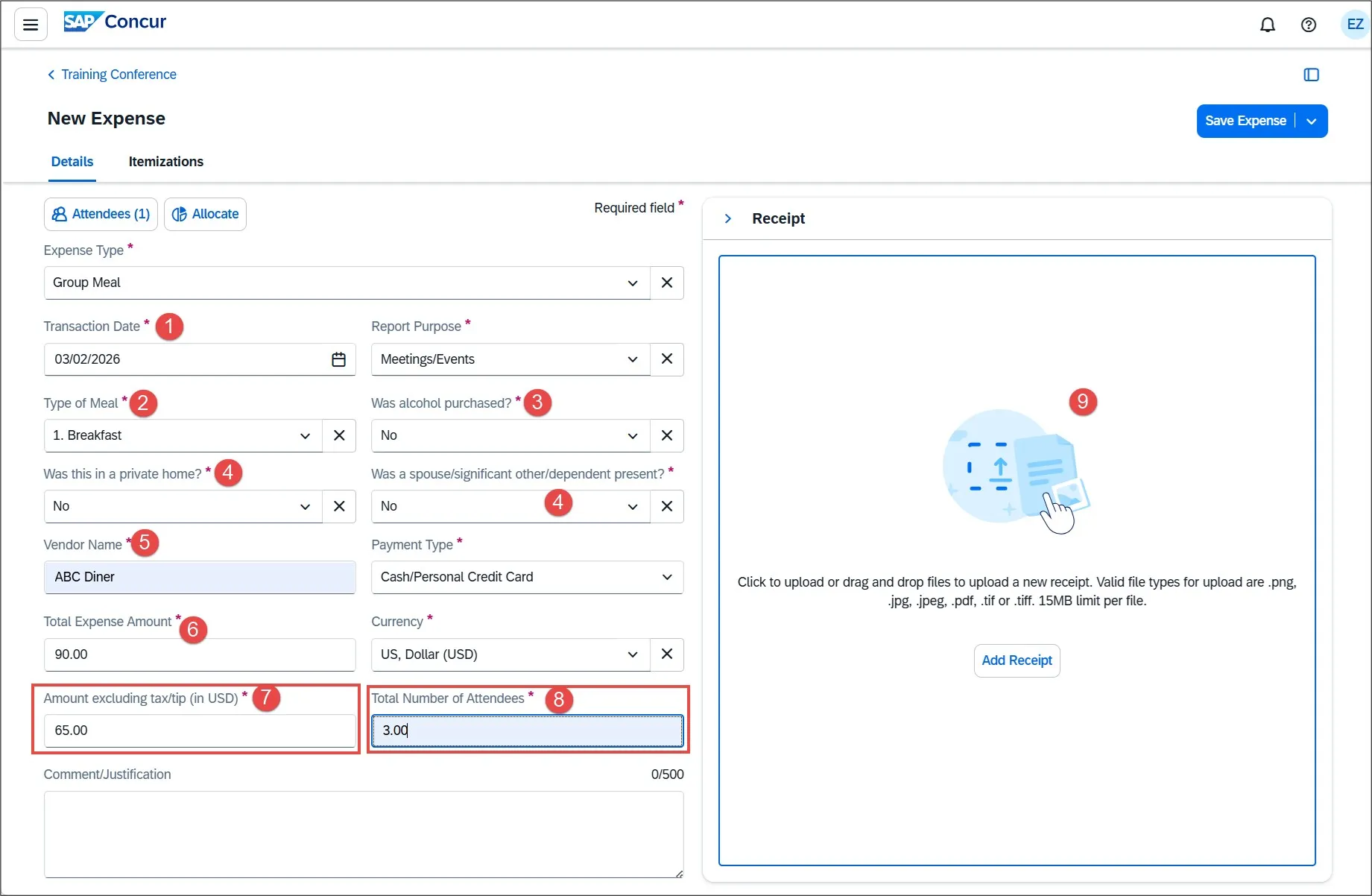
The red markers in the graphic above correspond to the steps below.
- Enter or select the Transaction Date.
- Select the Type of Meal.
- Select the answer from the dropdown for Was alcohol purchased? If you select Yes, you must itemize the expense to segregate the cost of alcohol.
- Select the answers from the dropdowns for Was this in a private home? and Was a spouse/significant other/dependent present?
- Enter the Vendor name (i.e. name of the restaurant).
- Enter the Total Expense Amount (including tax and tip) of the meal.
- Enter the Amount excluding tax/tip (in USD).
- Enter the Total Number of Attendees. You must enter a number of 2 or greater. The Amount (excluding tax/tip) and Total Number of Attendees fields are used to calculate the cost per person.
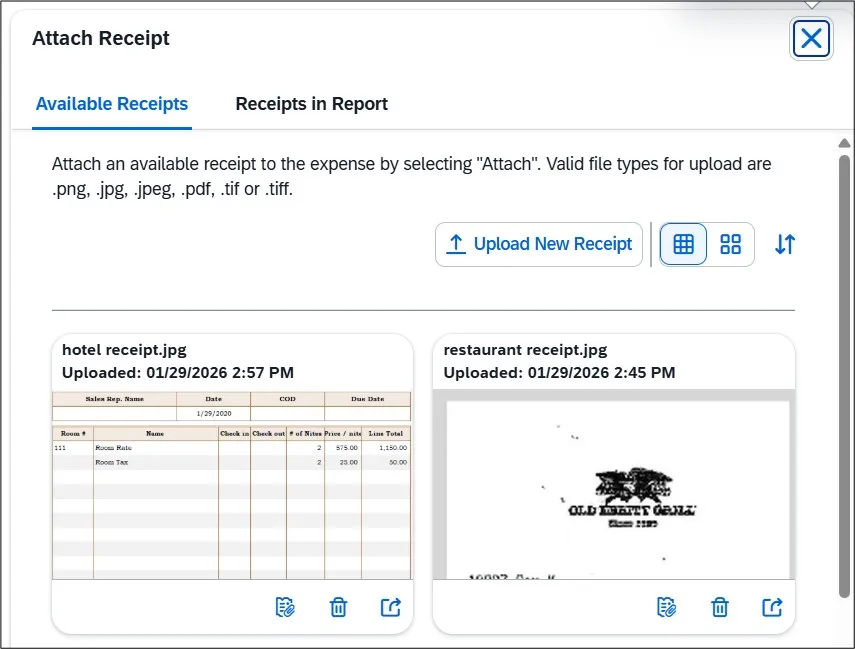
- Click Attach Receipt Image. If you have Available Receipts, such as those you photographed using the Concur Mobile app or emailed to Concur, you can select them from here. If you saved your Receipt Image to your files, you can click to Upload Receipt Image.
When you add Expense Items for Group Meals to your Expense Report, you must document the names of the Attendees and the relationship of the Attendees to the University. You will automatically be added as one of the attendees. If the group meal was over 10 people, only the number of Attendees is required.
- Click the Attendees link.

The Attendees window appears. It will automatically add your name as one of the attendees; you can remove your name if needed.
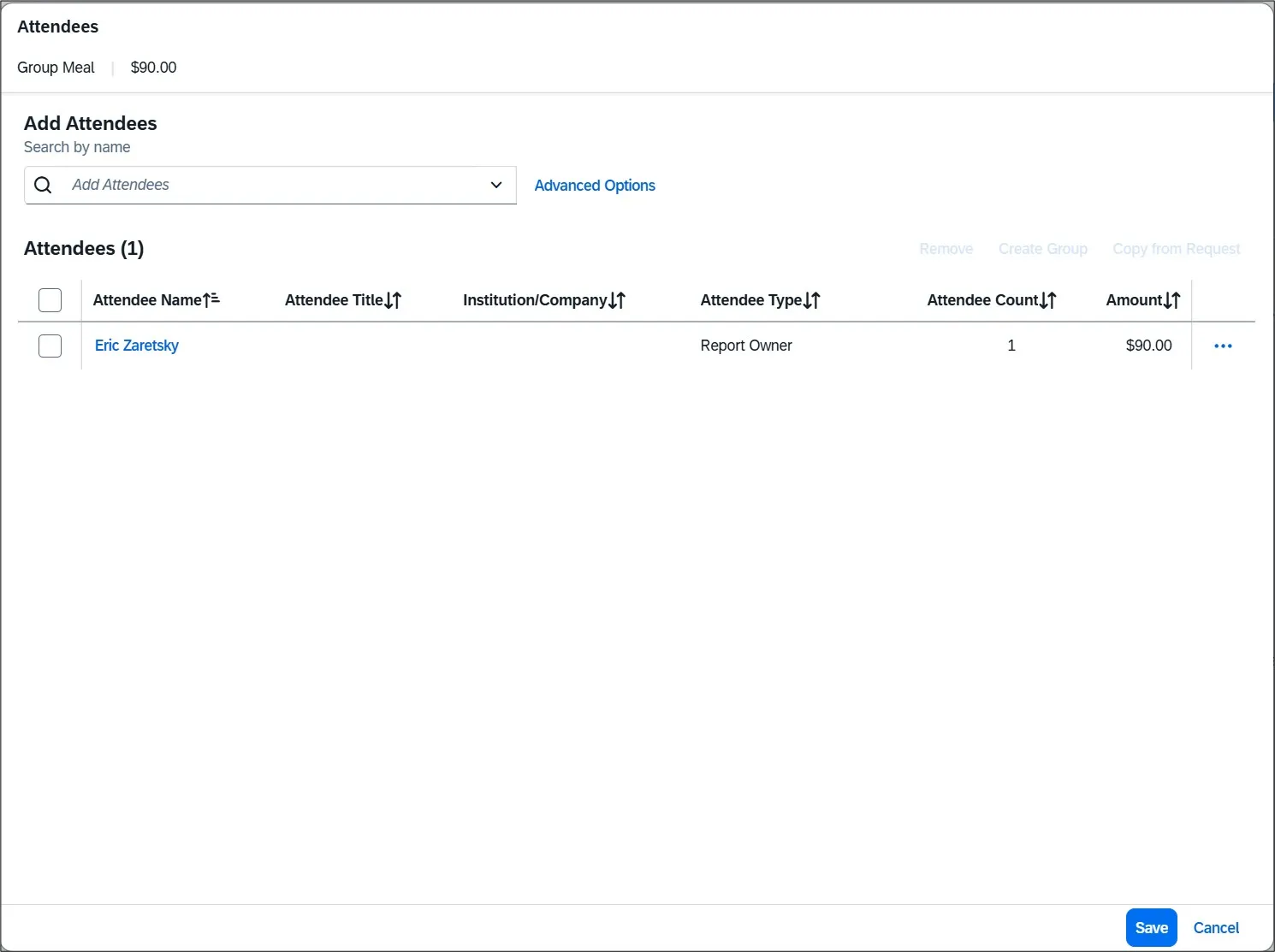
- Type the name of the attendee you want to add in the Add Attendees field. If they have been previously added as attendees, they are displayed so that you can select and add them again, if needed.
If the number of attendees exceeded 10 people, search and select Group Event – 10+ Attendees, and enter the number of attendees.
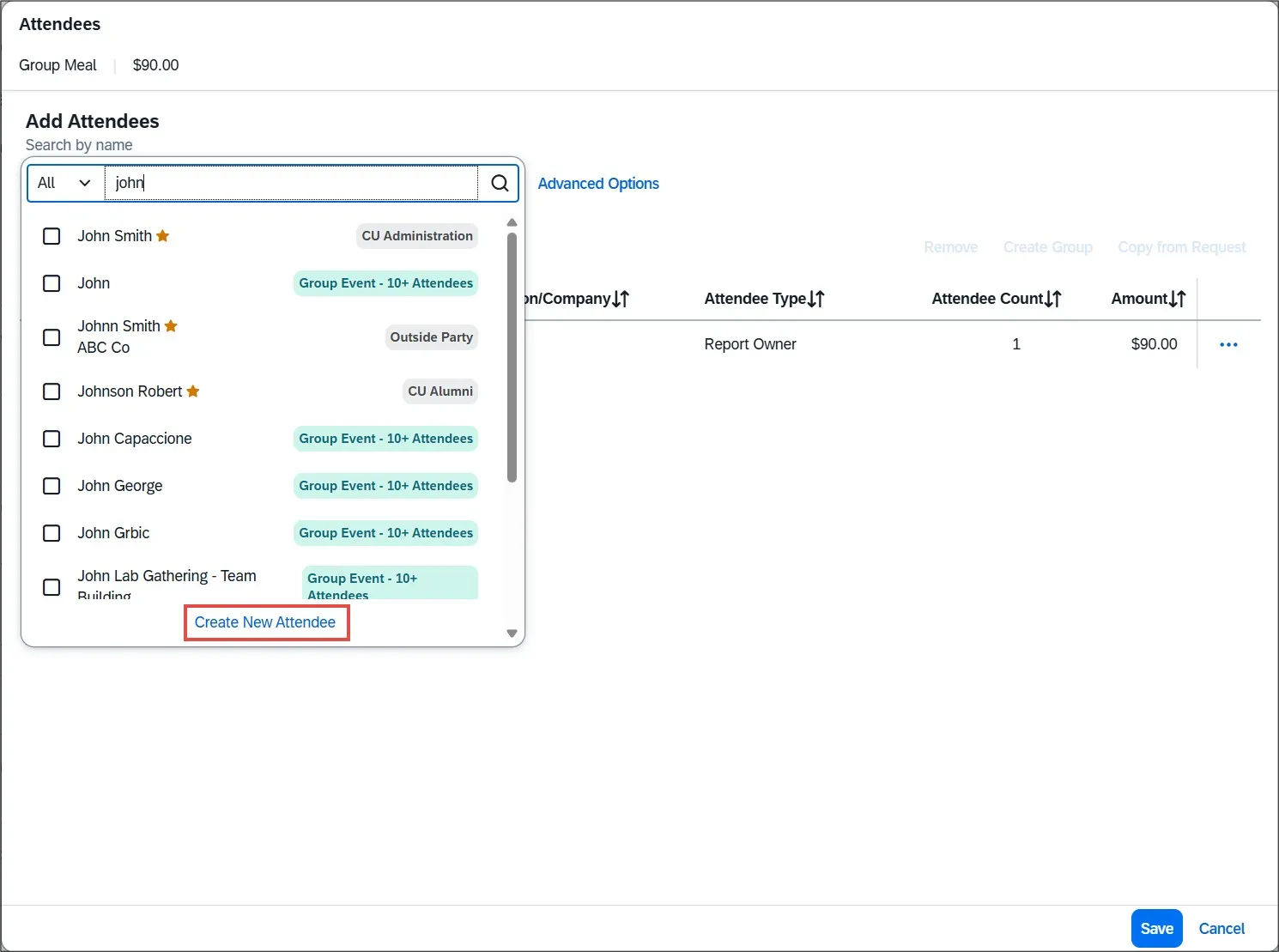
If attendee does not appear in the results, click the Create New Attendee link. The Create New Attendee window appears.
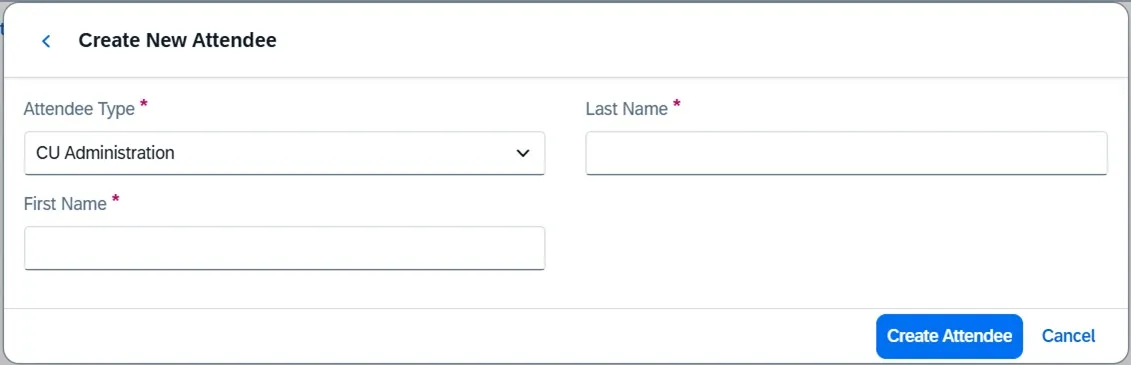
- Select the Attendee Type (i.e., CU Administration, CU Faculty, Outside Party, etc.) and then populate the Last Name and First Name fields for the attendee.
- Click Create Attendee. The Create New Attendee window remains open for you to add additional attendees.
- Click Cancel after adding the last New Attendee. The names you created appear in the Attendees screen along with the amount per person.
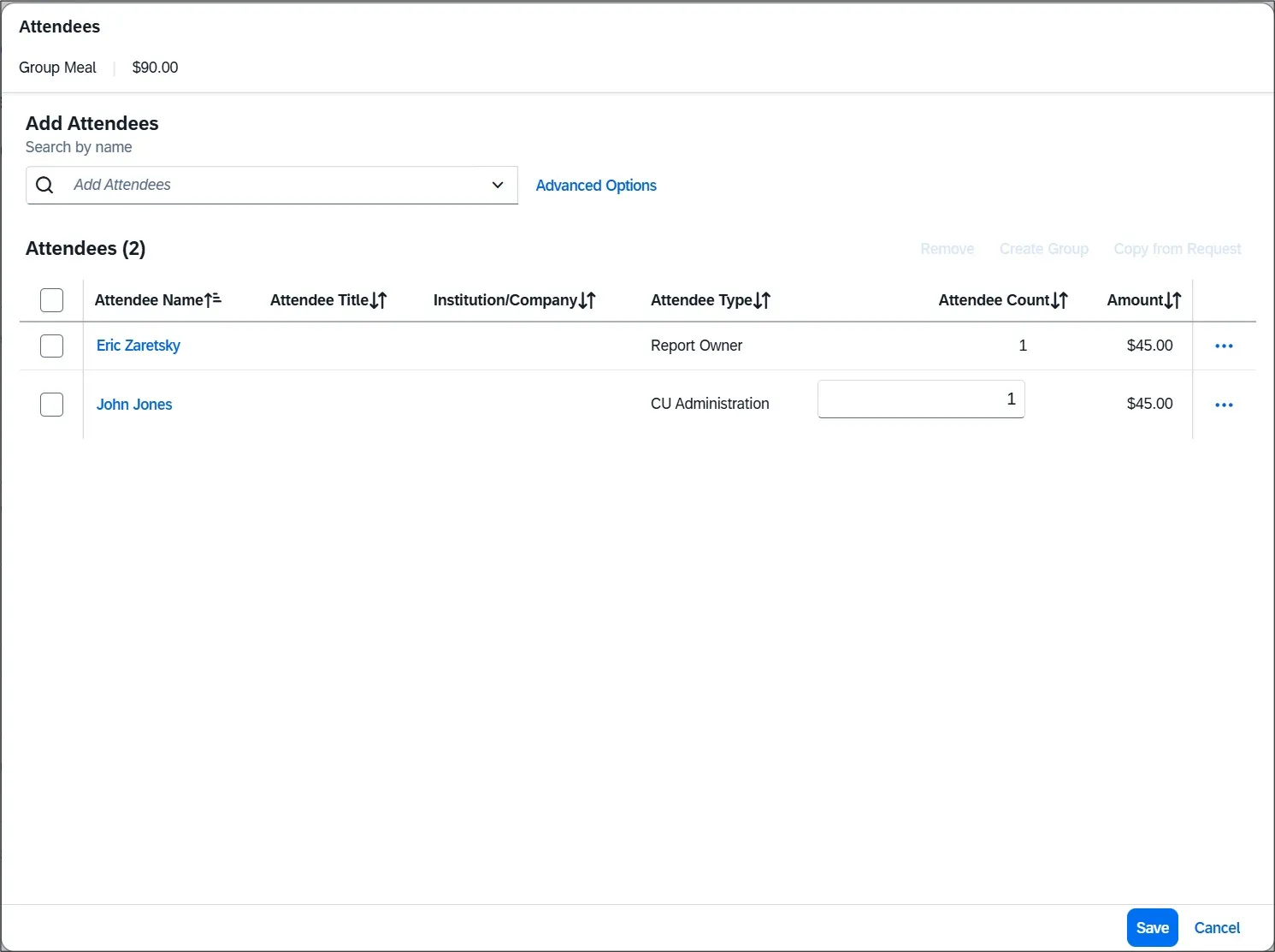
- Click Save.
In the example below, the group meal was a dinner for three Columbia employees. The meal included alcohol and the cost of the meal was $360, including alcohol, tax and tip. The amount for tax and tip was $60. This meal expense exceeds the policy threshold for dinner, which is $75 per person before tax and tip.
Expense Details Example
- Complete the Expense Details. The Amount (excluding tax/tip) ($300), and Total Number of Attendees (3) fields, are used to calculate the cost per person, which is over the threshold in this example.
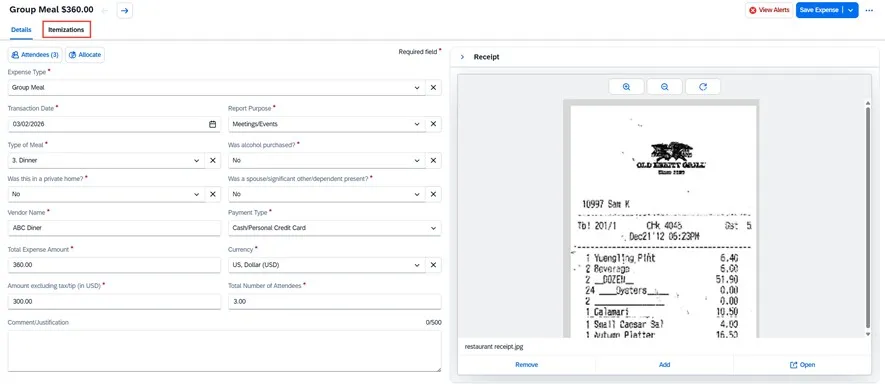
- Add Attendees.
- Click the Itemizations tab. The Itemization fields appear.
Itemizing the Expense
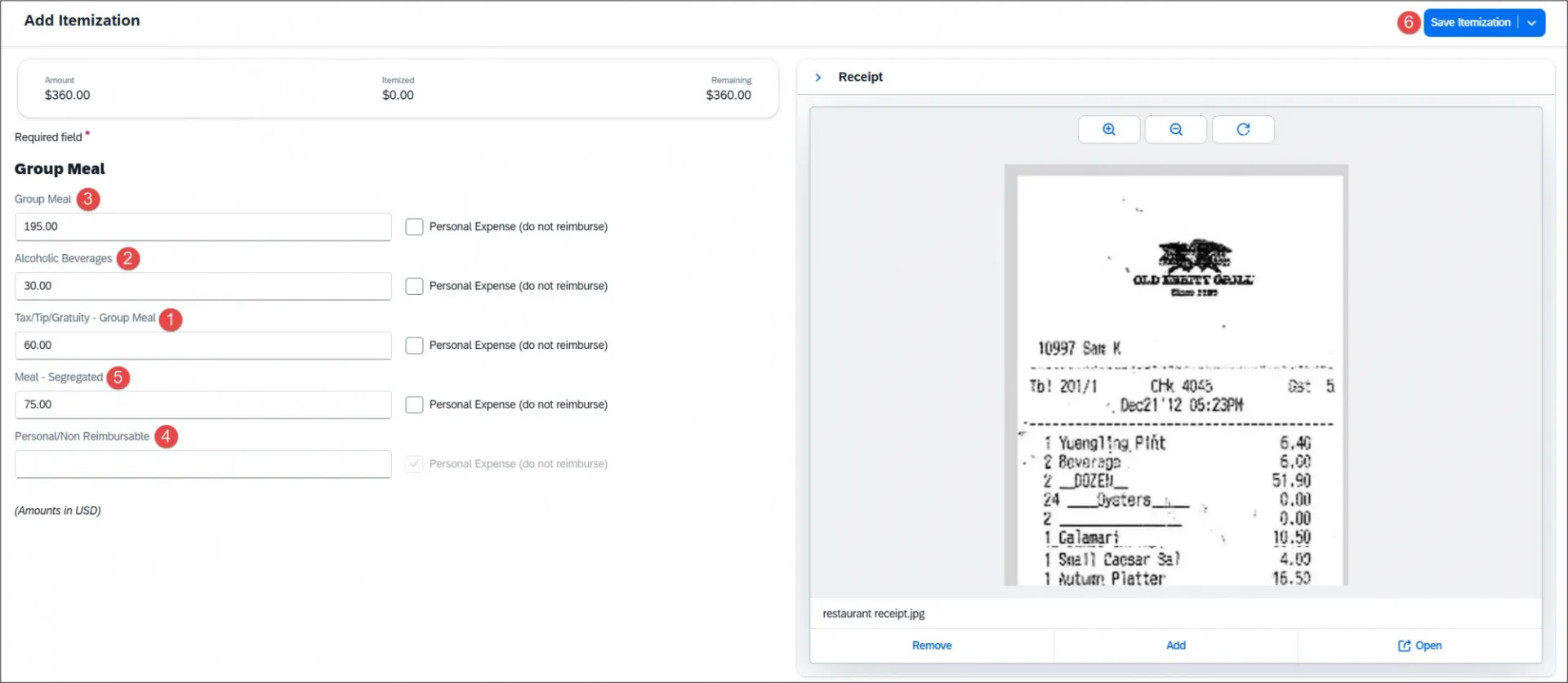
The red markers in the graphic above correspond to the steps below.
- Enter the amount for Tax/Tip/Gratuity – Group Meal, in this example, $60.
- Enter the amount for Alcoholic Beverages, in this example, $30.
- Enter the maximum amount allowable under the threshold, excluding the cost of Alcohol for the Group Meal. In this example, $75 for 3 attendees is $225, minus the cost of Alcohol, $30, equals $195. Note: By policy, meal thresholds include the cost of alcohol.
- If you purchased any items for which you are not requesting reimbursement or are personal/non-reimbursable, enter the amount in the Personal/Non-Reimbursable field.
- Enter the remaining amount for the Meal – Segregated. In this example, the total expense amount of $360 minus $195, minus $30, minus $60, equals $75.
- Click Save Itemizations. Notice the alert.
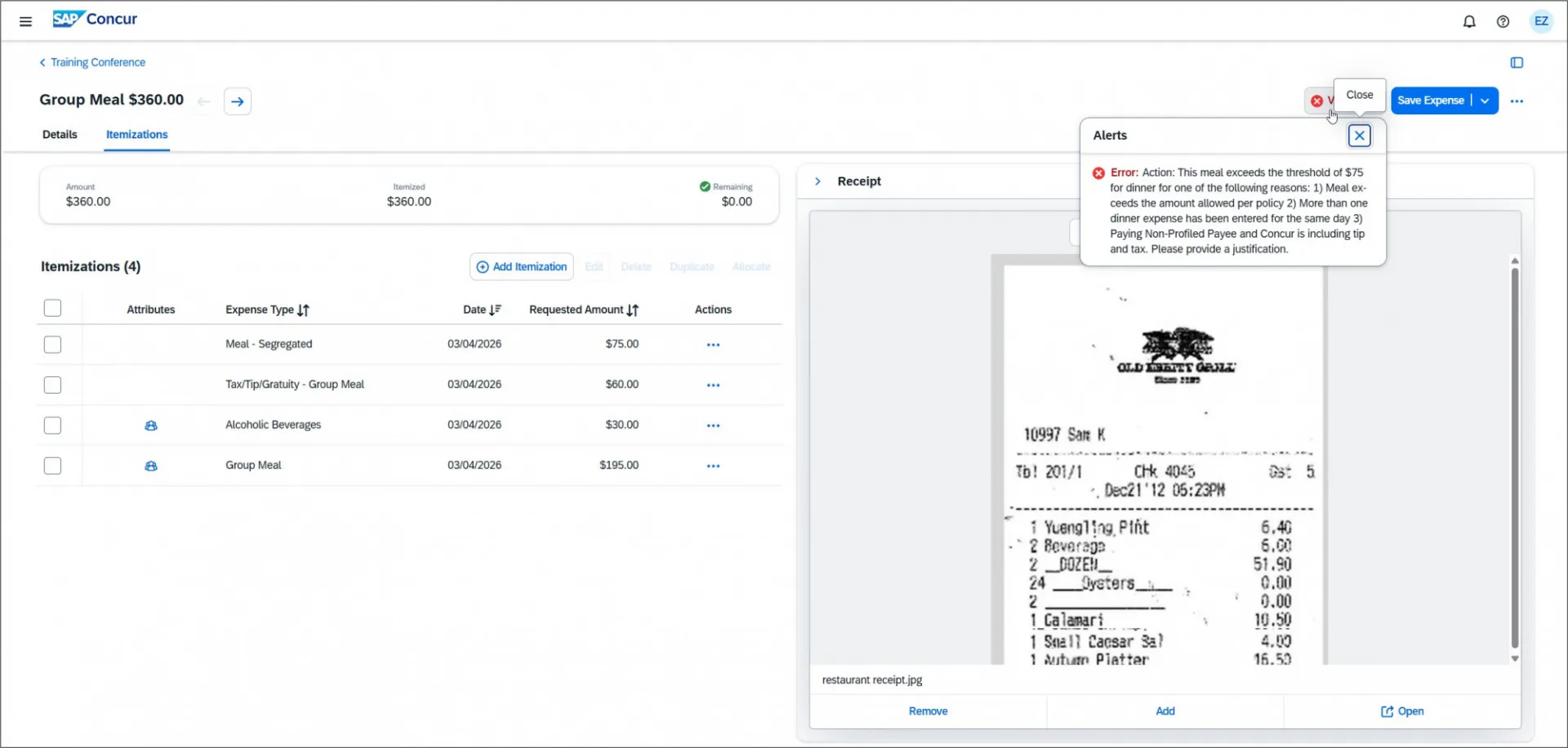
- Click the row for the Meal - Segregated itemization.
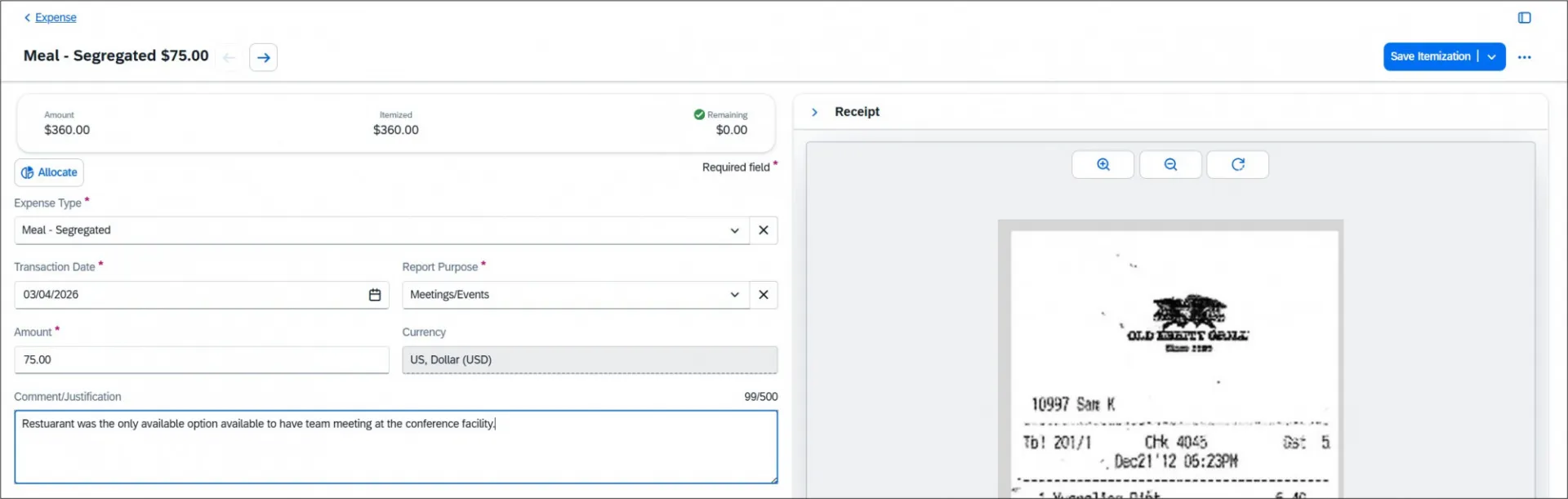
- Enter the Comment/Justification for incurring the amount above policy and click Save Itemization. The Expense is now fully itemized with no alerts.
- Click Save Expense. Continue to Add Expenses to your Report, or after adding all your Expenses to the Report, click Submit Report.