Setting Up TripIt Pro to Share Trips with Concur
This job aid covers the steps for setting up the TripIt Pro app so that you can share your trip plans with Concur and colleagues. If you use TripIt Pro for personal travel, you do not need to share your trips with Concur or, if a personal trip appears in Concur, you can remove it. You can use the Inner Circle feature to share your trips with colleagues.
To learn about setting up TripIt on your mobile device, please refer to the Setting Up and Installing Concur Mobile, TripIt, and ISOS Apps job aid.
Last Revision: May 2021
Details
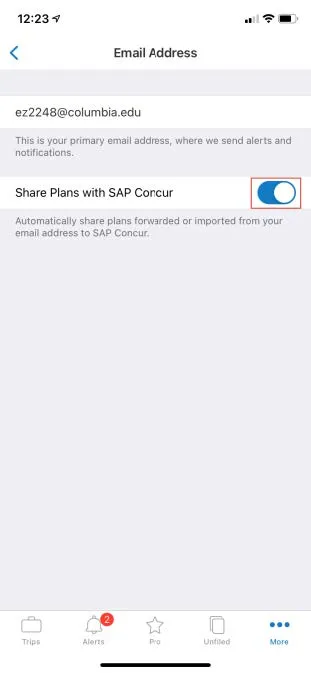
You can set TripIt so that your Trip Plans are shared with Concur by default. If you do not want to share personal trips with Concur, make sure that this setting is toggled off.
- Open the TripIt app on your phone.

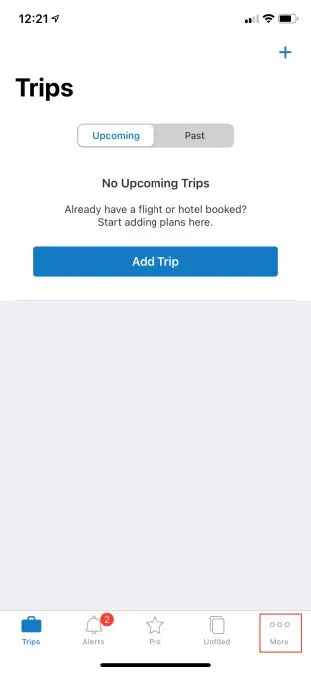
- Tap the More tab.
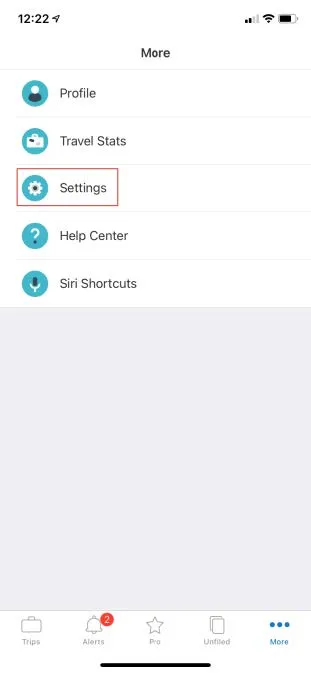
- Tap Settings.
- Select your Columbia email address.
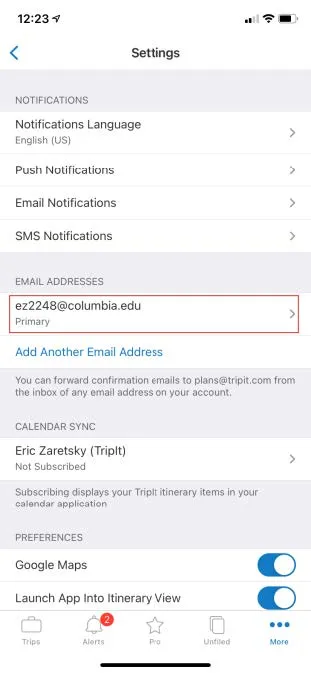
- Toggle Share Plans with SAP Concur as needed.
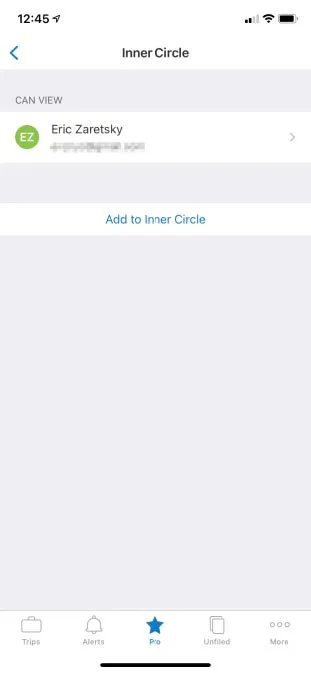
By adding people to your Inner Circle in TripIt, members receive your trip information immediately upon itinerary creation and will receive alerts regarding your trips. Members of your Inner Circle do not need to be TripIt users.
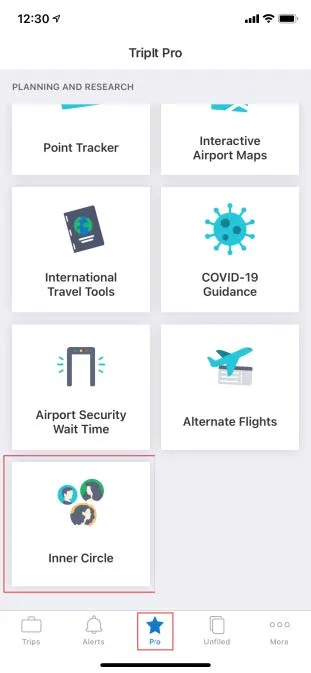
- Tap the Pro icon and select the Inner Circle tile.
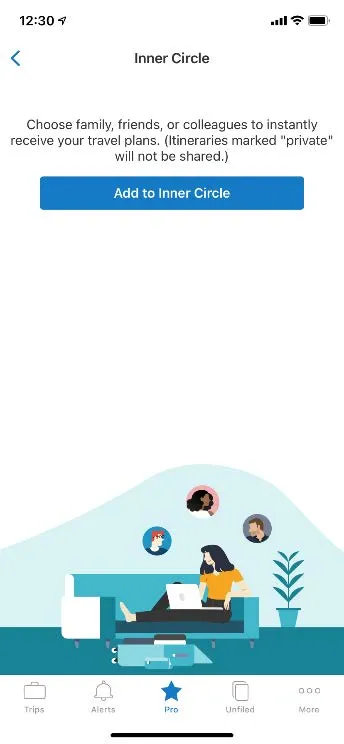
- Tap Add to Inner Circle.
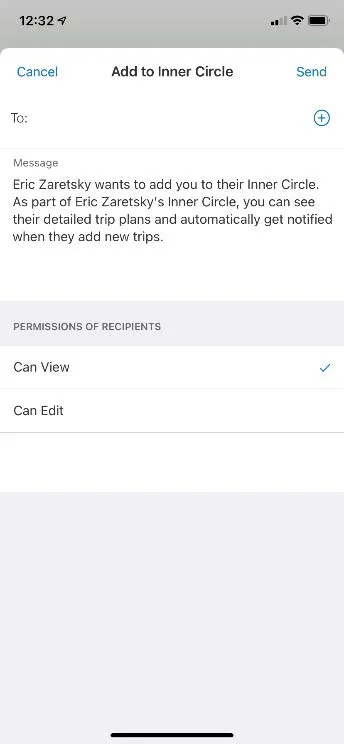
- Add email address(es) in the To field of your invitees and select if they can View or Edit your trips and tap Send.
- After your invitees accept your invitation, they appear on your Inner Circle list.
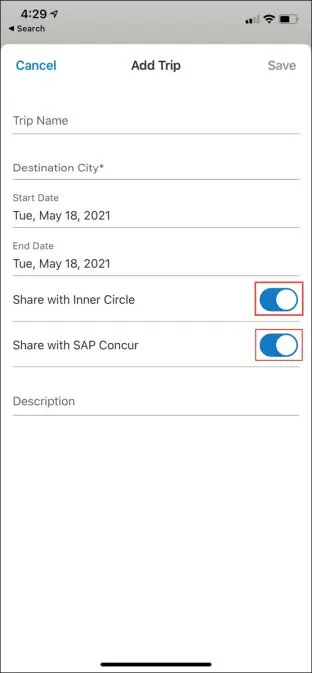
If you don’t wish to share trips with Concur or your Inner Circle in order to avoid sharing personal trips, you can still select specific business trips to be shared. After a trip is created, you can only edit the Share with SAP Concur setting.
Sharing a New Trip with Concur or Your Inner Circle
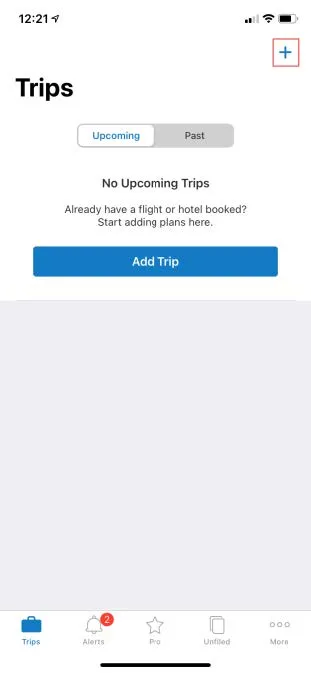
- From the Trips folder, tap the + icon.
- Complete the trip details and toggle Share with Inner Circle or Share with SAP Concur as needed. Tap Save.
Sharing an Existing Trip with Concur
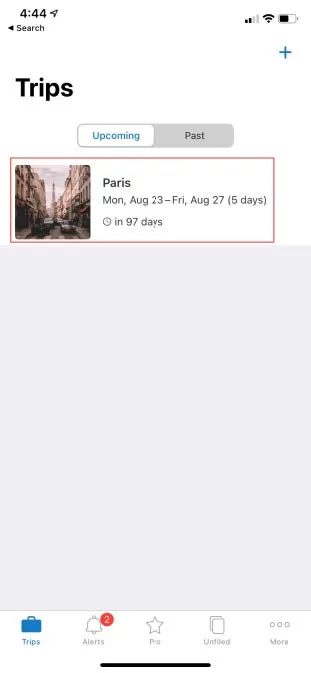
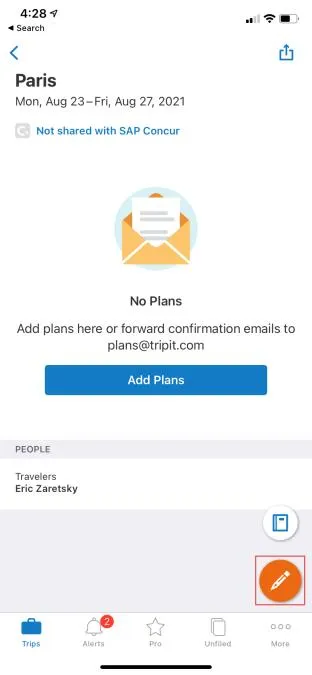
- From the Trips folder, select the trip you want to share.
- Tap the Edit icon.
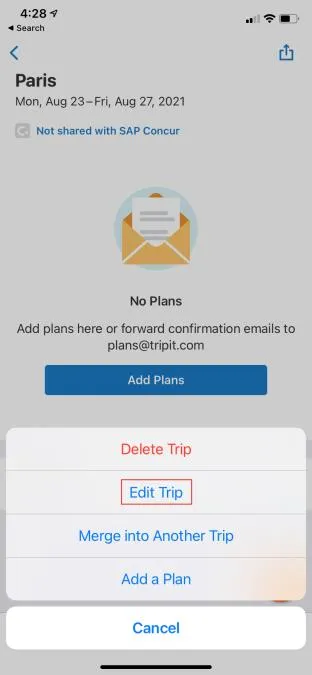
- Tap Edit Trip.
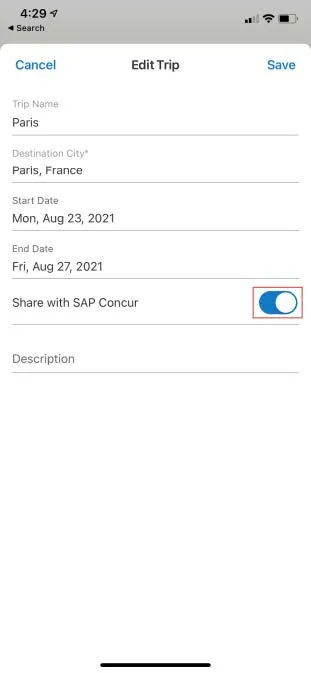
- Toggle Share with SAP Concur and tap Save.
Removing a Personal Trip from Concur
If you have inadvertently added a personal trip to Concur, you can remove it.
- Login to Concur.
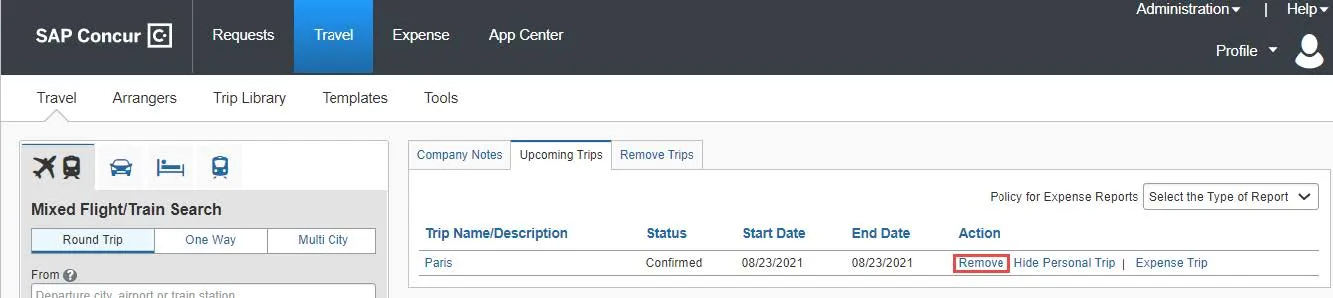
- Select the Travel tab and click the Upcoming Trips tab.
- Find the trip you would like to remove, click Remove and Yes.